Open Windows Security in Windows 11 or Windows 10 by selecting Start, typing Windows Security, and selecting the app in the results.
This guide covers ten ways to open it, from the taskbar icon and Settings to the Run box, Command Prompt, PowerShell and direct page links, plus scan types, protection history and fixes when it will not open.
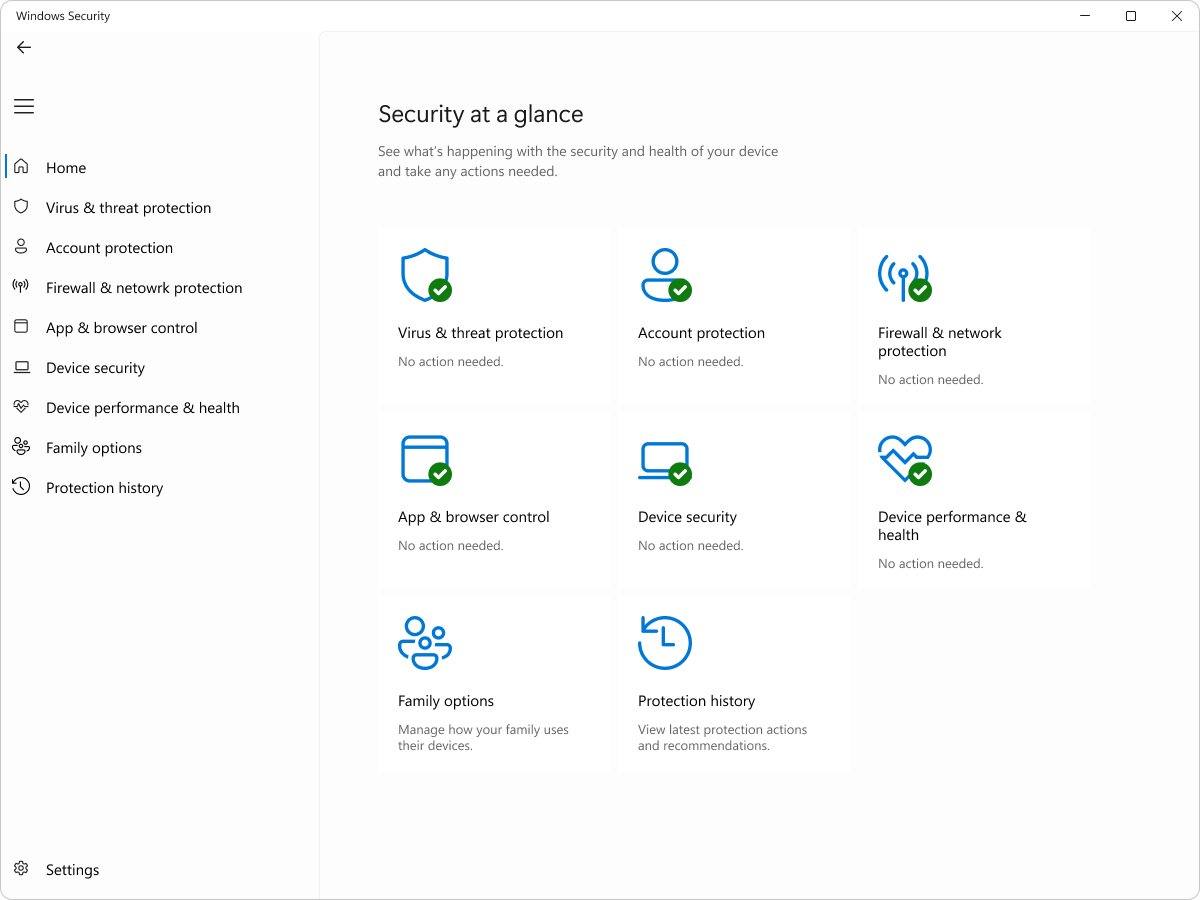
Method 1: How to open Windows Security from Start search
Start search works on every edition of Windows 11 and Windows 10, and it is the route Microsoft documents first.
- Select Start or press the Windows key.
- Type Windows Security. Typing Security also finds it.
- Select Windows Security in the results.
- Select a tile such as Virus & threat protection to go to that area.
Press Windows key + S to open search directly if the Start menu is slow to respond.
Which way to open Windows Security should you use?
| Your situation | Method | Why |
|---|---|---|
| Everyday use | 1: Start search | Two keystrokes and a click |
| Mouse only | 2: Taskbar notification area icon | No typing at all |
| Already in Settings on Windows 11 | 3: Privacy & security | Jumps straight to a protection area |
| Windows 10 PC | 4: Update & Security | The classic Windows 10 location |
| Keyboard only, no search | 5: Run box URI | Works when Start search is broken |
| You want the Settings page, not the app | 6: ms-settings URI | Opens the Windows Security page in Settings |
| Working in Command Prompt | 7: start command | No need to leave the console |
| Working in PowerShell or a script | 8: Start-Process | Scriptable and repeatable |
| You need one page, such as a quick scan | 9: Direct page link | Skips the home page |
| You want to scan one file or folder | 10: File Explorer right-click | Opens the scan results for that item |
Method 2: Open Windows Security from the taskbar icon
Windows Security shows a shield icon in the notification area of the taskbar, even when another antivirus is installed.
- Look at the notification area at the right end of the taskbar.
- Select the up arrow to show hidden icons if the shield is not visible.
- Select the Windows Security shield icon.
- To use the keyboard, press Windows key + B to focus the notification area, then use the arrow keys and press Enter on the shield.
Method 3: Open Windows Security from Settings in Windows 11
The Settings page lists every protection area, and each one opens Windows Security at that area.
- Press Windows key + I to open Settings.
- Select Privacy & security in the left pane.
- Select Windows Security.
- Select a protection area, such as Virus & threat protection or Firewall & network protection, to open the app at that page.
Method 4: Open Windows Security from Settings in Windows 10
On Windows 10 the same page sits under Update & Security. Older Windows 10 versions call the app Windows Defender Security Center.
- Select Start, then select Settings.
- Select Update & Security.
- Select Windows Security in the left pane.
- Select a protection area, such as Virus & threat protection, to open the app.
Windows 10 support ended on October 14, 2025, so a PC that still runs it no longer gets free security fixes from Windows Update.
Method 5: Open Windows Security from the Run box
Windows Security registers the windowsdefender: link type, so the Run box opens the app without the Start menu.
- Press Windows key + R to open the Run dialog box.
- Type
windowsdefender:in the Open box. - Select OK or press Enter.
- Windows Security opens on its home page.
Method 6: Open the Windows Security page in Settings with ms-settings
The ms-settings:windowsdefender URI opens the Windows Security page inside Settings rather than the app itself.
- Press Windows key + R.
- Type
ms-settings:windowsdefenderand press Enter. - Settings opens on the Windows Security page.
- Select a protection area to continue into the app.
Method 7: Open Windows Security from Command Prompt
The start command opens any registered file type or link, including the windowsdefender: link. Open Command Prompt first, for example by searching the Start menu for it.
start windowsdefender:Hands the windowsdefender: link to Windows, which opens the Windows Security app on its home page.
You should see: The Windows Security window appears and the prompt returns at once.
Method 8: Open Windows Security from PowerShell
Start-Process opens a file or link with the program associated with it, so it works the same way in PowerShell or Windows Terminal.
- Search the Start menu for PowerShell or Terminal and open it.
- Type
Start-Process windowsdefender:and press Enter. - To open a single page, add its path, for example
Start-Process windowsdefender://threat/. - Close the terminal; Windows Security stays open.
Method 9: Open a Windows Security page directly with a windowsdefender link
Each link below opens one page of Windows Security. Type it into the Run box, or use it with start or Start-Process.
| Link | Opens |
|---|---|
windowsdefender://threat/ |
Virus & threat protection |
windowsdefender://threatsettings/ |
Virus & threat protection settings |
windowsdefender://quickscan/ |
Starts a quick scan |
windowsdefender://fullscan/ |
Full scan option |
windowsdefender://customscan/ |
Custom scan option |
windowsdefender://wdoscan/ |
Microsoft Defender Antivirus (offline scan) |
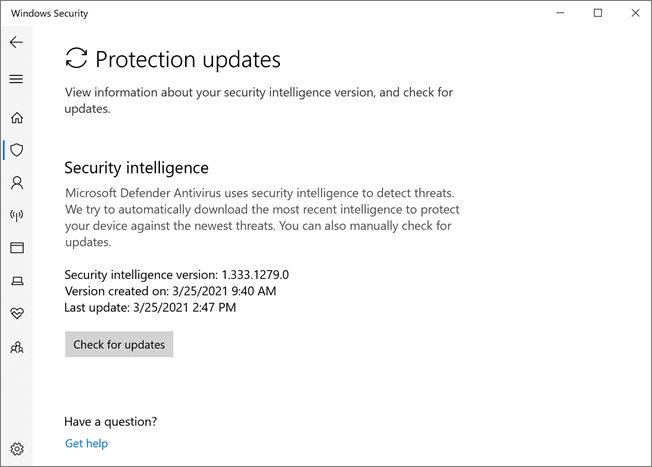
windowsdefender://update/ |
Protection updates, with Check for updates |
windowsdefender://ransomwareprotection/ |
Ransomware protection |
windowsdefender://protectedfolders/ |
Controlled folder access protected folders |
Method 10: Open Windows Security from File Explorer with Scan with Microsoft Defender
Scanning a single file or folder from File Explorer opens Windows Security on the scan results.
- Open File Explorer and find the file or folder.
- Right-click it.
- On Windows 11, select Show more options if the full menu is not shown.
- Select Scan with Microsoft Defender.
- Windows Security opens and shows the result of the scan.
Check that Windows Security opened and is protecting the PC
- Look at the Windows Security home page and its protection areas.
- Confirm each area shows a green icon, which means no action is recommended.
- Treat a yellow icon as a recommendation and a red icon as something that needs attention now.
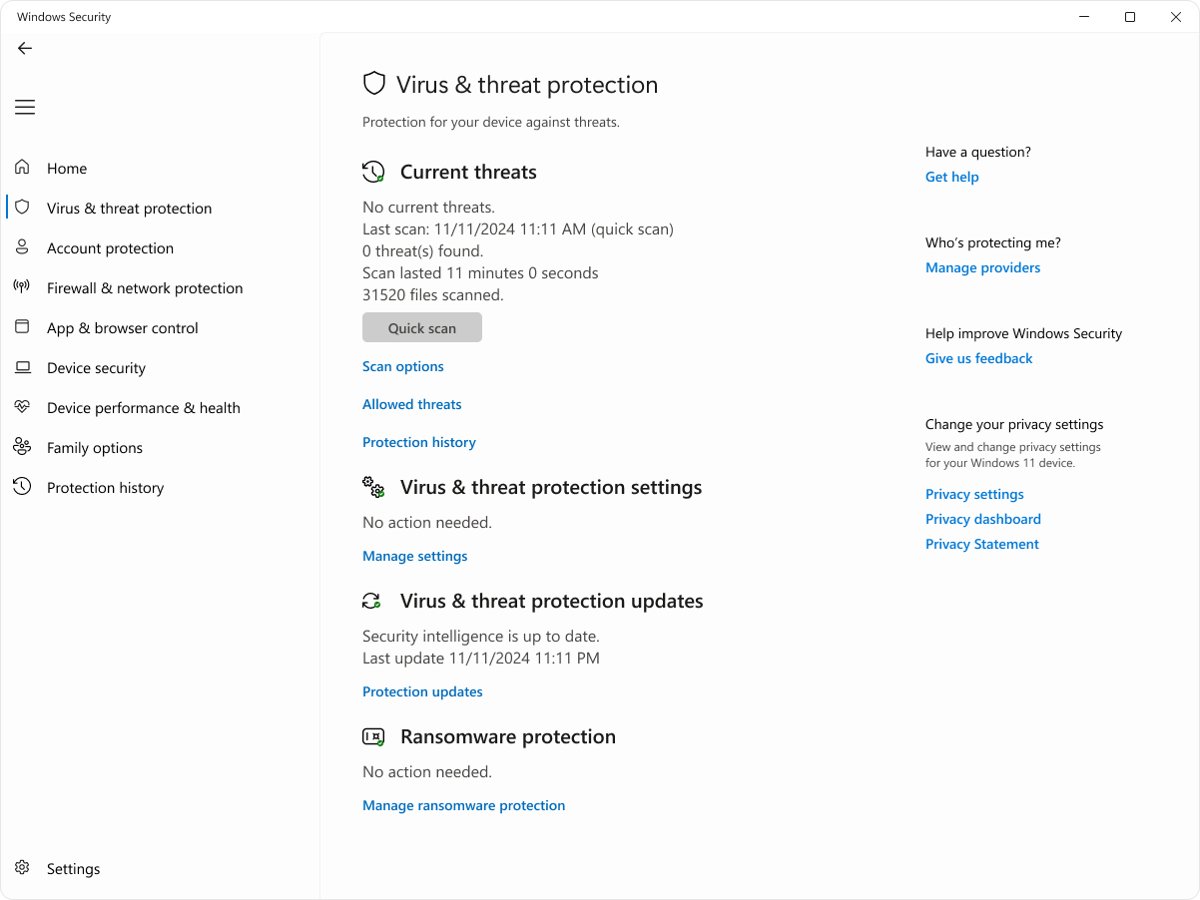
- Select Virus & threat protection and check the time of the last scan under Current threats.
Windows Defender offline scan vs full scan vs quick scan explained
All scan types sit under Virus & threat protection > Scan options. Windows Security still scans automatically, so a quick scan or a Microsoft Defender full scan is an extra check.
| Scan | What it checks | When to use it |
|---|---|---|
| Quick scan | The places threats usually hide, in a short pass | First check whenever you suspect malware |
| Full scan | Every file and program on the device | When a quick scan finds nothing but you are still concerned |
| Custom scan | Only the files and folders you select | A download folder, a USB drive or one suspicious file |
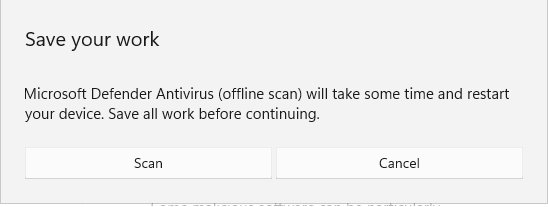
| Microsoft Defender Antivirus (offline scan) | Runs a quick scan in the Windows Recovery Environment after a restart, before Windows loads | Persistent malware that hides while Windows runs; takes about 15 minutes and restarts the PC |
Save your work before an offline scan. If BitLocker is on, suspend it first or you may be asked for the recovery key. Results appear in Protection history.
How to clear Windows Defender protection history in Windows 11
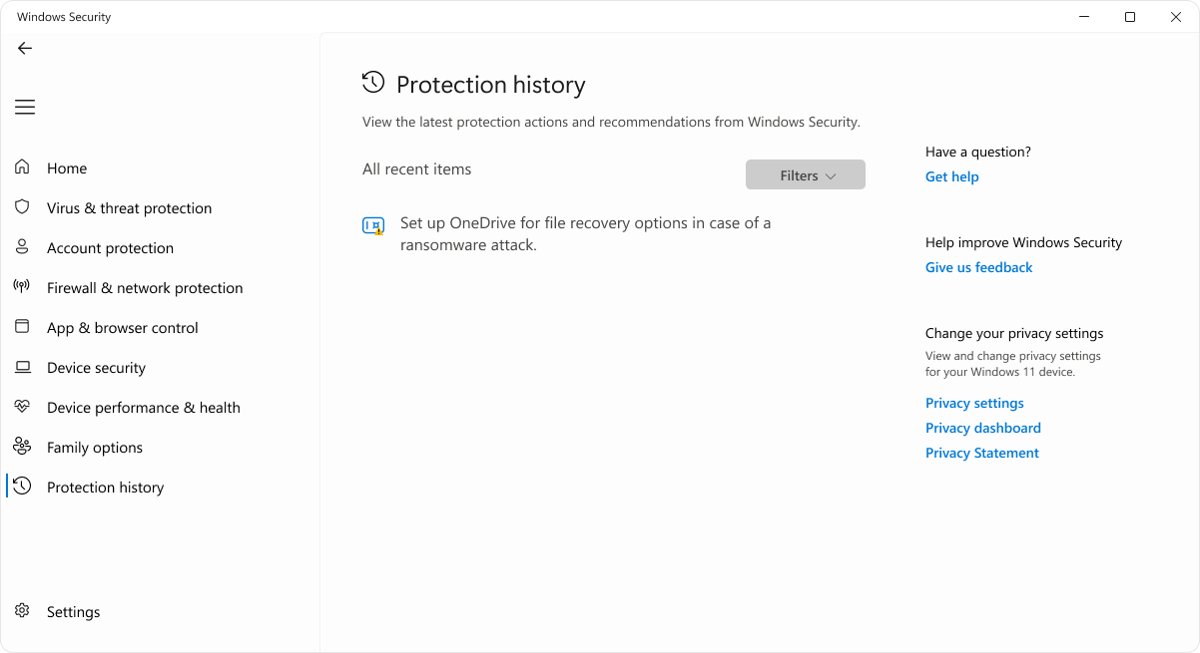
There is no Clear button in Protection history. Events are kept for two weeks and then disappear from the list on their own.
- Open Windows Security and select Protection history to review the cards first.
- Select a Threat quarantined card and choose Remove to delete that threat from the device.
- To shorten how long scan history is kept, open PowerShell or Terminal as administrator.
- Run
Set-MpPreference -ScanPurgeItemsAfterDelay 1to keep scan history items for one day. - Reopen Protection history after a day and check that older entries are gone.
You need administrator rights to view threat details in Protection history. The default retention for scan history items is 15 days.
Tips for using Windows Security effectively
| Tip | Where |
|---|---|
| Keep security intelligence current before a manual scan | Virus & threat protection > Protection updates > Check for updates |
| Leave Real-time protection and Tamper protection on | Virus & threat protection > Manage settings |
| Turn on Controlled folder access to protect files from ransomware | Virus & threat protection > Manage ransomware protection |
| Use an exclusion for one trusted file instead of turning protection off | Manage settings > Add or remove exclusions |
| Review yellow and red cards regularly | Protection history |
| Remove anything you allowed by mistake | Allowed threats > Don't allow |
If Windows Security looks inactive, turn on Windows Security protection before you rely on these settings.
Windows Security won't open in Windows 11: fixes
Windows Defender quick scan not working in Windows 11
Another antivirus is installed, so Microsoft Defender Antivirus has turned itself off.
- Open Windows Security and select Virus & threat protection.
- Check whether another antivirus app is named as the active provider.
- Run the scan from that antivirus app, or uninstall it so Microsoft Defender Antivirus turns back on automatically.
- Select Protection updates > Check for updates, then run
windowsdefender://quickscan/again.
Windows Security does not open from Start search
Search or the Start menu is not responding, not the app itself.
- Press Windows key + R, type
windowsdefender:and press Enter. - If that works, use the taskbar shield icon or the Run box until search is fixed.
- Restart the PC and try Start search again.
Windows Security will not open with any method
Damaged system files or a pending update.
- Open Settings > Windows Update and install all available updates, then restart.
- Open Command Prompt or Terminal as administrator.
- Run
DISM.exe /Online /Cleanup-image /Restorehealthand wait for it to finish. - Run
sfc /scannowand wait until it reaches 100 percent. - Restart the PC and open Windows Security again.
Pages are missing or settings are greyed out
The device is managed by an organization, and Group Policy or Intune settings take priority.
- Contact your IT administrator; local changes are blocked by policy.
- Use the pages that are still available, such as Protection history, in the meantime.
Windows Security shows old or wrong information
The Windows Security Center Service has been disabled, so status is stale.
- Restart the PC so the service starts normally.
- Do not disable Windows Security services to fix a display problem; it lowers protection.
- Run the Windows Update, DISM and SFC steps above if the status stays wrong.
Windows Security frequently asked questions (FAQs)
How do I open Windows Security in Windows 11?
Select Start, type Windows Security, and select the app. You can also select the shield icon in the taskbar notification area, go to Settings > Privacy & security > Windows Security, or type windowsdefender: in the Run box.
Why can't I open Windows Security in Windows 11?
Usually Start search is not responding, system files are damaged, or an organization manages the device. Try windowsdefender: in the Run box first. If nothing opens, install updates and run DISM and sfc /scannow from an administrator terminal.
Why won't my Windows Security open in Windows 11 after installing another antivirus?
Windows Security still opens, but Microsoft Defender Antivirus turns itself off when another antivirus is active. The app then shows the other product as the provider and limits its own scan options. Uninstalling the other product turns Defender back on automatically.
Why does Windows Security not open on a work PC?
Organization policies can hide pages or features of Windows Security on managed devices. Settings set by Group Policy, Intune or Configuration Manager take priority over the app. Ask your IT administrator if a page you need is missing or greyed out.
What is the Run command for Windows Security?
Type windowsdefender: in the Run box opened with Windows key + R. To open the Settings page for Windows Security instead of the app, type ms-settings:windowsdefender.
Can I open Windows Security as administrator?
Windows Security does not need a separate Run as administrator option. It asks for administrator approval when you change protected settings, and you need administrator rights to review threat details in Protection history.
Is Windows Security the same as Windows Defender?
Windows Security is the app, and Microsoft Defender Antivirus is the antivirus inside it. Older Windows 10 versions called the app Windows Defender Security Center. The app also covers the firewall, account protection, app and browser control and device security.
How do I open Windows Security in Windows 10?
Select Start > Settings > Update & Security > Windows Security, then select a protection area. Start search and the windowsdefender: Run command also work on Windows 10.
Bottom line: the best way to open Windows Security
Use Start search for everyday access and keep windowsdefender: in the Run box as the fallback when search fails. Start search is the documented route on both Windows 11 and Windows 10, and the Run link opens the app even when the Start menu or search is broken.