To run a Microsoft Defender full scan on Windows 11, open Windows Security, go to Virus & threat protection > Scan options, select Full scan and click Scan now.
This guide also covers the PowerShell and Command Prompt versions, the Offline scan, custom scans, reading Protection history, scheduling, and fixes for scans that stop early.
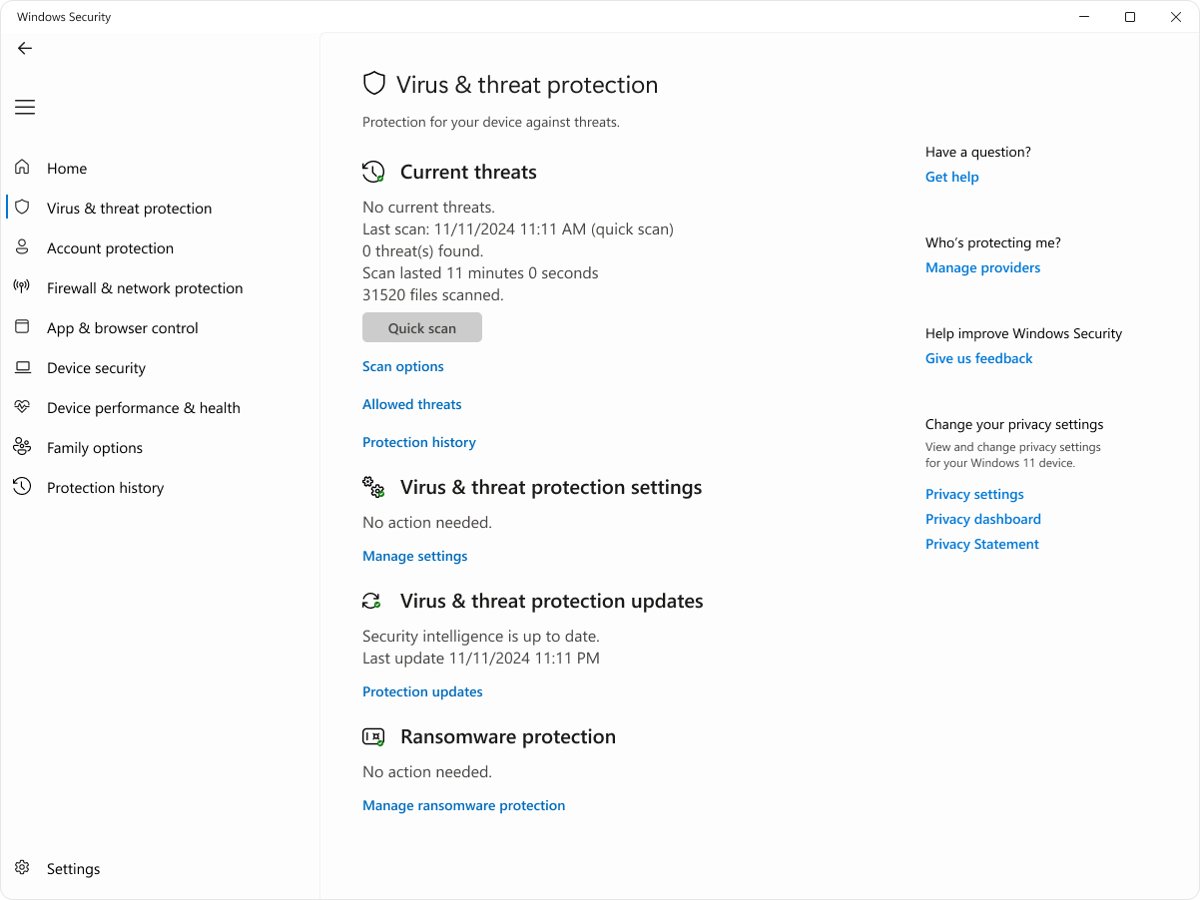
How to run a full scan from Windows Security
This is the route for most people. It needs no commands and shows progress on screen.
- Open Start, type Windows Security and open the app.
- Select Virus & threat protection in the left pane.
- Under Current threats, select Scan options.
- Select the Full scan radio button.
- Click Scan now and leave the PC switched on until the scan reports its result.
A full scan checks every file and program on the device, so expect it to run for hours rather than minutes.
What a Microsoft Defender full scan does
Windows Security offers four scan types. They differ in what they read and how long they take.
| Scan type | What it checks | Typical use |
|---|---|---|
| Quick scan | Locations where malware registers to start with Windows, such as registry keys and startup folders, plus mounted removable drives | Routine checks; Microsoft's recommended default for scheduled and on-demand scans |
| Full scan | Starts with a quick scan, then reads every file on all mounted fixed disks, plus removable and network drives if configured | After an infection, or after installing or re-enabling Defender |
| Custom scan | Only the files, folders or drives you pick | A USB stick, a download folder or a second drive |
| Microsoft Defender Antivirus (offline scan) | Scans from the Windows Recovery Environment after a restart, before Windows loads | Rootkits and persistent malware that hide while Windows runs |
A full scan uses the security intelligence installed when it starts. Updates released mid-scan need another full scan to take effect.
Before you start
| Check | Why it matters | How to do it |
|---|---|---|
| Plug in your laptop | Microsoft documents that a scheduled full scan stops with event 1002 when the device runs on battery | Connect the charger before a long scan |
| Save your work | The offline scan signs you out and restarts the PC; a normal full scan slows it down | Close large apps and save open files |
| Check for Defender updates | The scan uses the definitions installed when it starts | Select Virus & threat protection > Protection updates > Check for updates |
| Make sure Microsoft Defender Antivirus is active | Defender turns itself off when a compatible third-party antivirus is installed | Under Who's protecting me?, select Manage providers and read the antivirus name |
| Use an administrator account | MpCmdRun needs an elevated prompt, and threat details in Protection history need admin rights | Sign in with an admin account or have its password ready |
What to expect during the scan
| What you notice | What it means |
|---|---|
| The scan runs for hours | Microsoft says a full scan can take a few hours or days, depending on how much data is stored |
| Your PC may slow down | Disk and CPU use rise while every file is read; this ends when the scan finishes |
| External drives may affect scan time | Removable and network drives add time when the full scan is set to include them |
| The scan stops after a long time | Full scans started with MpCmdRun time out after seven days by default |
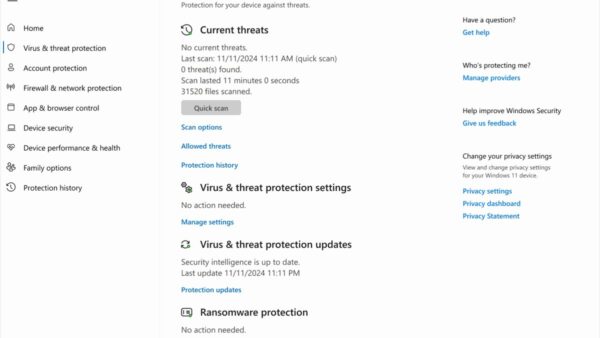
| Results appear under Current threats | Windows Security shows the last scan time, its duration and the number of files scanned |
If the slowdown continues after the scan ends, fix Antimalware Service Executable’s high usage next.
How to run a full scan using PowerShell
Open Start, type PowerShell, right-click Windows PowerShell and select Run as administrator. Then run the command below.
Start-MpScan -ScanType FullScanStart-MpScan starts a Microsoft Defender scan on the local PC. -ScanType accepts FullScan, QuickScan or CustomScan. Add -AsJob to run it as a background job and keep using the window.
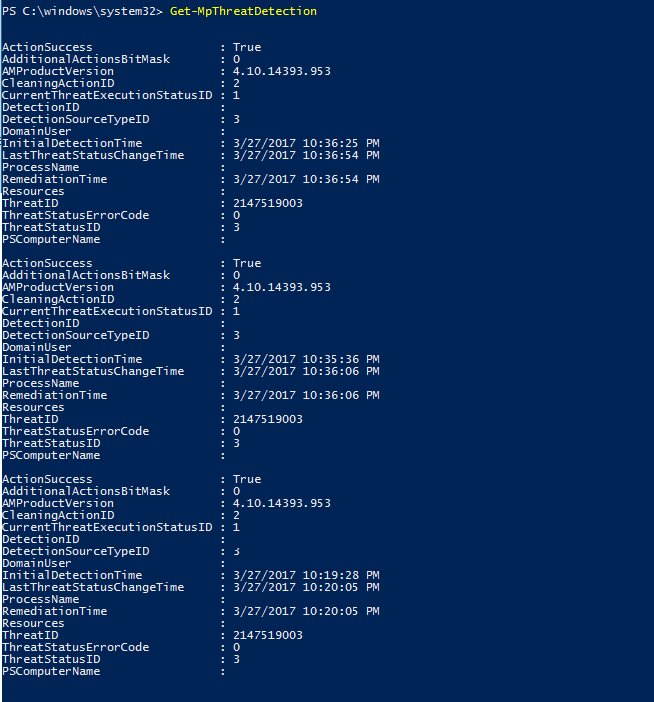
You should see: The prompt returns when the scan ends. Run Get-MpThreatDetection afterwards to list any detections with their time and path.
How to run a full scan using Command Prompt
MpCmdRun.exe is Defender's command-line tool. Its folder is not in the PATH, so you change to the current platform folder first.
- Open Start, type cmd, right-click Command Prompt and select Run as administrator.
- Paste Microsoft's change-directory command and press Enter:
(set "_done=" & if exist "%ProgramData%\Microsoft\Windows Defender\Platform\" (for /f "delims=" %d in ('dir "%ProgramData%\Microsoft\Windows Defender\Platform" /ad /b /o:-n 2^>nul') do if not defined _done (cd /d "%ProgramData%\Microsoft\Windows Defender\Platform\%d" & set _done=1)) else (cd /d "%ProgramFiles%\Windows Defender")) >nul 2>&1 - Run the full scan:
MpCmdRun.exe -Scan -ScanType 2. - Wait for the command to finish; return code 0 means no malware was found or it was removed, and 2 means malware still needs action or the scan hit errors.
- To stop a running full scan, run
MpCmdRun.exe -Scan -Cancel.
Type 1 is a quick scan and type 3 is a custom scan. Add -Timeout <days> to change the default seven-day limit, up to 30 days.
When to use Microsoft Defender Offline scan instead
Use the offline scan when a threat keeps coming back, when a full scan cannot remove it, or when Defender prompts you to run one. It scans outside the running Windows kernel, so rootkits and boot-record malware cannot hide from it.
It needs x64 Windows 11, an admin account and the Windows Recovery Environment enabled. It does not run on ARM Windows 11. If BitLocker protects the system drive, suspend it first or have the recovery key ready.
- Save your files and close running programs.
- In Windows Security, select Virus & threat protection > Scan options.
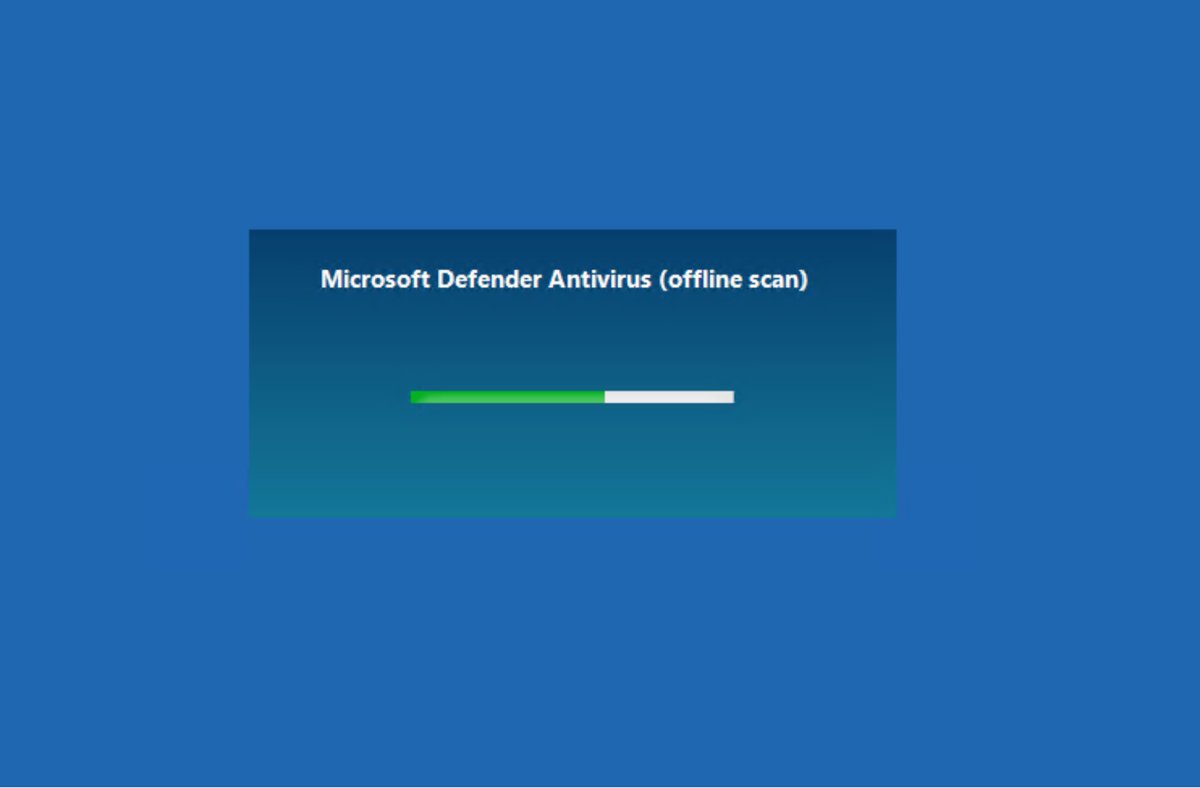
- Select Microsoft Defender Antivirus (offline scan) and click Scan now.
- Click Scan in the save-your-work prompt, then Yes in the User Account Control prompt.
- Wait while Windows signs you out and restarts into the offline scanner, which takes about 15 minutes.
- Sign back in after the automatic restart and open Protection history to see the result.
From an elevated PowerShell window, Start-MpWDOScan starts the same offline scan.
How to scan a specific file, folder, or drive
A custom scan checks one location instead of the whole PC, so it finishes quickly.
- Open File Explorer and find the file, folder or drive.
- Right-click it; on Windows 11 select Show more options if the entry is missing.
- Select Scan with Microsoft Defender.
- Alternatively, open Scan options, select Custom scan, click Scan now and pick the folder or drive.
- From PowerShell, run
Start-MpScan -ScanType CustomScan -ScanPath "D:\"with your own path.
How to review full scan results
- Open Windows Security > Virus & threat protection and read Current threats: it lists the last scan, how long it took and how many files it checked.
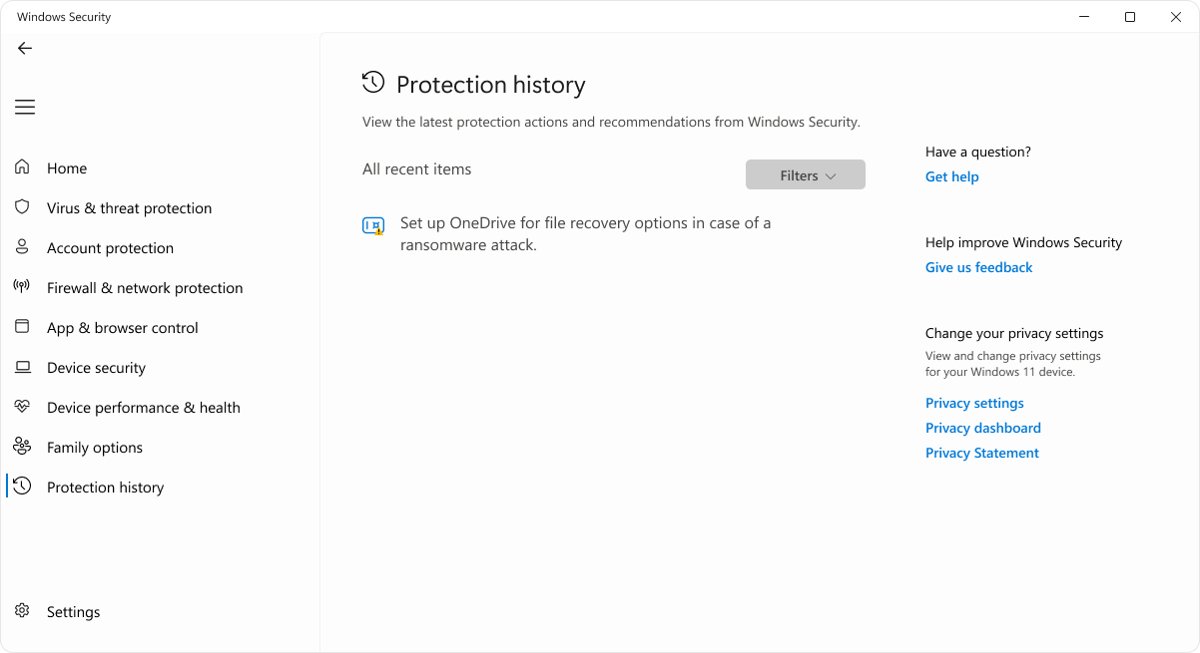
- Select Protection history in the left pane to see every action Defender took; events stay for two weeks.
- In an elevated PowerShell window, run
Get-MpComputerStatusand check that FullScanEndTime shows today's date. - Run
Get-MpThreatDetectionto list each detection with its time and path. - For a log record, press Win + R, type
eventvwr.msc, and open Applications and Services Logs > Microsoft > Windows > Windows Defender > Operational. Event 1001 means the scan finished; event 1002 means it stopped early.
What to do if Microsoft Defender finds malware
Protection history shows each finding as a card. Red cards need attention now; yellow cards should be checked soon. Select a card to expand it.
| Status on the card | What it means | What to do |
|---|---|---|
| Threat found – action needed | Defender needs your decision | Open Actions and choose Quarantine unless you are certain the file is safe |
| Threat quarantined | The file is blocked and isolated but still on the disk | Select Remove to delete it; Restore only a file you trust |
| Threat blocked | Defender blocked and removed the threat | No action needed; consider how it arrived (email attachment, download or USB drive) |
| Remediation incomplete | Defender could not finish cleaning | Expand the card and follow its steps, then run the offline scan |
| Potentially unwanted app blocked | Adware-like software was stopped before install | Leave it blocked unless you know the app |
Restart when prompted, then run another full scan to confirm the PC is clean. A trusted file flagged by mistake, like the CCleaner installer flagged as PUA, can be allowed from Actions, but only if you are sure it is safe.
How often should you run a full scan?
Run a full scan when you suspect an infection, after Defender removes a threat, and after you install or re-enable Defender; rely on real-time protection and quick scans the rest of the time. Microsoft calls a quick scan sufficient in most cases, because real-time protection already checks every file you open, close or browse to. Microsoft generally does not recommend scheduling full scans because of the time and resources they use.
Can you schedule a Microsoft Defender full scan?
Yes. Defender supports a daily scheduled scan, which can only be a quick scan, and a weekly scheduled scan, which can be a quick or full scan. Scheduled scans use the device's local time zone.
- Open Windows PowerShell as administrator.
- Run
Set-MpPreference -ScanParameters FullScan -ScanScheduleDay Wednesday -ScanScheduleTime 12:30:00 -ScanScheduleOffset 0 -RandomizeScheduleTaskTimes $false, using your own day and time. - Run
Set-MpPreference -CheckForSignaturesBeforeRunningScan $trueso the scheduled scan fetches new definitions first. - Run
Get-MpPreferenceand confirm ScanParameters, ScanScheduleDay and ScanScheduleTime show your values. - To go back to scheduled quick scans, run
Set-MpPreference -ScanParameters QuickScan.
Without -ScanScheduleOffset 0, scheduled scans start 120 minutes after the set time. By default they also run only when the PC is idle.
Troubleshooting: full scan will not start or finish
Scan options shows another antivirus, or you are unsure Defender is working
A compatible third-party antivirus is installed, so Microsoft Defender Antivirus has turned itself off.
- In Virus & threat protection, select Manage providers under Who's protecting me? and read the active antivirus name.
- Run
Get-MpComputerStatusin PowerShell; AMRunningMode reads Normal when Defender is the active antivirus. - Run the installed product's own full scan, or select Microsoft Defender Antivirus options below its name and turn on the limited periodic scanning toggle for an extra check.
The full scan stops before it finishes
The laptop switched to battery, the PC restarted or slept, or the scan hit its time limit.
- Open Event Viewer and look for event 1002 in the Windows Defender > Operational log.
- Connect the charger and keep the PC awake.
- Start the full scan again from Scan options.
- For command-line scans on very large drives, add
-Timeout 14to the MpCmdRun command.
"MpCmdRun is not recognized as an internal or external command"
The MpCmdRun folder is not in the PATH environment variable.
- Open Command Prompt with Run as administrator.
- Run Microsoft's change-directory command from the Command Prompt section above.
- Run
MpCmdRun.exe -Scan -ScanType 2again from that folder.
The offline scan does nothing after the restart
The Windows Recovery Environment is disabled, and the offline scan fails silently without it.
- Open Command Prompt as administrator.
- Run
reagentc /infoand read the status line. - If it shows Disabled, run
reagentc /enable. - Start the offline scan again from Scan options.
A blue screen appears during the offline scan
Microsoft does not name one cause; the Stop error occurs inside the offline environment.
- Restart the PC.
- Run the Microsoft Defender Offline scan again.
- If the blue screen repeats, contact Microsoft Support.
Tips for better protection after the scan
| Setting or habit | Where to find it | Why |
|---|---|---|
| Keep Real-time protection on | Virus & threat protection > Manage settings | It scans files as they are opened or run |
| Keep Cloud-delivered protection on | Manage settings | Defender gets updated detections from Microsoft while online |
| Keep Tamper protection on | Manage settings | Stops malicious apps from changing Defender settings |
| Turn on Controlled folder access | Manage ransomware protection | Blocks untrusted apps from changing Documents, Pictures and other protected folders |
| Review Allowed threats | Scan options > Allowed threats | Select Don't allow on anything you allowed by mistake |
| Change passwords from a clean device if needed | Another trusted PC or phone | Malware may have captured saved or typed passwords |
Frequently asked questions
How do I run a Microsoft Defender full scan?
Open Windows Security, select Virus & threat protection, then Scan options. Choose Full scan and click Scan now. From an admin PowerShell window, Start-MpScan -ScanType FullScan does the same, and MpCmdRun.exe -Scan -ScanType 2 works from an elevated Command Prompt.
Where is Microsoft Defender on my PC?
Microsoft Defender Antivirus lives inside the Windows Security app, which is built into Windows 11. Open Start, type Windows Security and open it. The antivirus controls, scan options and Protection history sit under Virus & threat protection and the left-hand menu.
Does Microsoft Defender run automatically?
Yes. Real-time protection continuously scans files as they are opened and run, and Defender can run daily quick scans and weekly scheduled scans. Windows downloads new security intelligence through Windows Update. A manual full scan is an extra check, not a requirement.
Is Microsoft Defender always running?
It runs whenever no other antivirus is active. If you install a compatible third-party antivirus, Microsoft Defender Antivirus turns itself off automatically. Real-time protection can be switched off temporarily, but it turns back on by itself after a short while.
How do I make sure Microsoft Defender is on?
Open Windows Security, select Virus & threat protection and then Manage providers under Who's protecting me. Microsoft Defender Antivirus should be listed as on. Under Manage settings, confirm Real-time protection is on. In PowerShell, Get-MpComputerStatus shows RealTimeProtectionEnabled as True.
Is my Microsoft Defender working?
Run Get-MpComputerStatus in PowerShell. AMRunningMode should read Normal, and AntivirusSignatureLastUpdated should show a recent date. In Windows Security, Current threats also shows the last scan time, so a recent date there confirms scans are completing.
How does Microsoft Defender work?
Defender compares files against security intelligence definitions and uses cloud-delivered protection for newer threats. Real-time protection checks files when they are accessed, scheduled and manual scans check stored files, and the offline scan checks the PC before Windows loads.
Do I need to download Microsoft Defender?
No. Microsoft Defender Antivirus is part of the Windows Security app included with Windows 11. The separate Microsoft Defender app is included with Microsoft 365 Personal and Family subscriptions and adds protection for other devices, but it is not needed to run a full scan.

![7 best open-source PDF editors [Windows, Mac, Linux]](https://techdows.com/wp-content/uploads/2026/10/7-best-open-source-PDF-editors-Windows-Mac-Linux.jpg)


![[Fix] Microsoft Software Protection Platform (sppsvc) high CPU usage](https://techdows.com/wp-content/uploads/2026/10/Fix-Microsoft-Software-Protection-Platform-sppsvc-high-CPU-usage-600x338.jpg)
How to Fix ‘Antimalware Service Executable’ High Memory, CPU, or Disk Usage in Windows 11 - Techdows
[…] Open Windows Security > Virus & threat protection > Scan options. […]
How to add AdGuard to Microsoft Edge - Techdows
[…] a work PC, ask your IT department. On a home PC, run a Microsoft Defender full scan, since malware can pose as a managed […]
How and why to run chkdsk to scan and repair a Windows 11 hard drive - Techdows
[…] does not look for viruses. If files are changing or disappearing for no clear reason, run a Microsoft Defender full scan as […]
How to fix Microsoft Compatibility Telemetry high CPU usage - Techdows
[…] Run a Microsoft Defender full or offline scan […]