To access the Microsoft 365 Defender portal, go to https://security.microsoft.com in Microsoft Edge or any HTML5 browser and sign in with a work account that holds a security role such as Security Reader, Security Operator or Security Administrator.
This guide covers the licences and roles you need, every route into the portal, how to grant someone else access, and fixes for the access problems admins hit most.
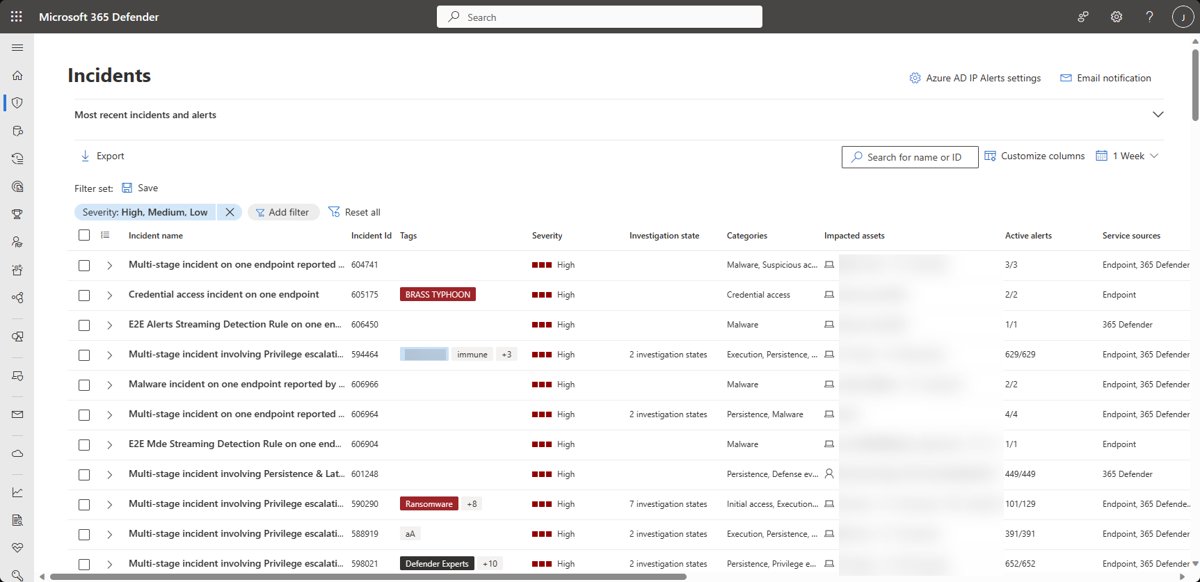
Fastest Way to Access the Portal
- Open Microsoft Edge or another HTML5 browser.
- Go to
https://security.microsoft.com. - Sign in with your work or school account, not a personal Microsoft account.
- Wait for the Home page to load; the left navigation shows the features your licences include.
Microsoft 365 Defender is now called Microsoft Defender XDR, and it lives inside the Microsoft Defender portal at the same address.
What Is the Microsoft 365 Defender Portal?
The portal brings protection, detection, investigation and response for your whole organization into one place. It correlates alerts from Microsoft's security products into incidents.
| Service | What it adds in the portal |
|---|---|
| Defender for Endpoint | Device protection, device inventory and vulnerability data |
| Defender for Office 365 | Email and Teams threat protection, submissions, Email & collaboration settings |
| Defender for Identity | On-premises identity threat detection |
| Defender for Cloud Apps | Cloud app discovery and control |
| Microsoft Sentinel | SIEM features; after March 31, 2027 Sentinel is available only in the Defender portal |
| Microsoft Purview DLP and Insider Risk | Alerts that appear in the incident queue |
You see only what your subscription includes. With Defender for Office 365 but no Defender for Endpoint, for example, device protection pages do not appear.
Before You Start: Requirements for Access
| Requirement | Details |
|---|---|
| A qualifying licence | Any of: Microsoft 365 E5 or A5, Microsoft 365 E3 with the Microsoft Defender Suite or EMS E5 add-on, Microsoft 365 A3 with the A5 Security add-on, Microsoft 365 Business Premium, Microsoft Defender for Business, Defender for Endpoint, Defender for Identity, Defender for Cloud Apps, Defender for Office 365 Plan 2, Windows 10 or 11 Enterprise E5 or A5, or EMS E5 or A5 |
| A Microsoft Entra role | Global Administrator, Security Administrator, Security Operator, Global Reader or Security Reader, or a custom Defender role |
| A work or school account | The account must belong to the tenant that holds the licence |
| A supported browser | Microsoft Edge, Internet Explorer 11 or any HTML5-compliant browser |
| First-time setup | At least a Security Administrator must turn on Microsoft Defender XDR for the tenant |
To check licences, open the Microsoft 365 admin center and go to Billing > Licenses; this needs Billing admin or a higher role.
Access the Portal from the Microsoft 365 Admin Center
The Microsoft 365 admin center links to every specialist workspace, including Security. If you are new to it, see how to open the Microsoft 365 admin center first.
- Sign in at
https://admin.microsoft.comwith your admin account. - In the left navigation, select Show all.
- Scroll to Admin centers at the bottom of the menu.
- Select Security to open the Microsoft Defender portal.
Access the Portal from Microsoft Entra or Other Admin Centers
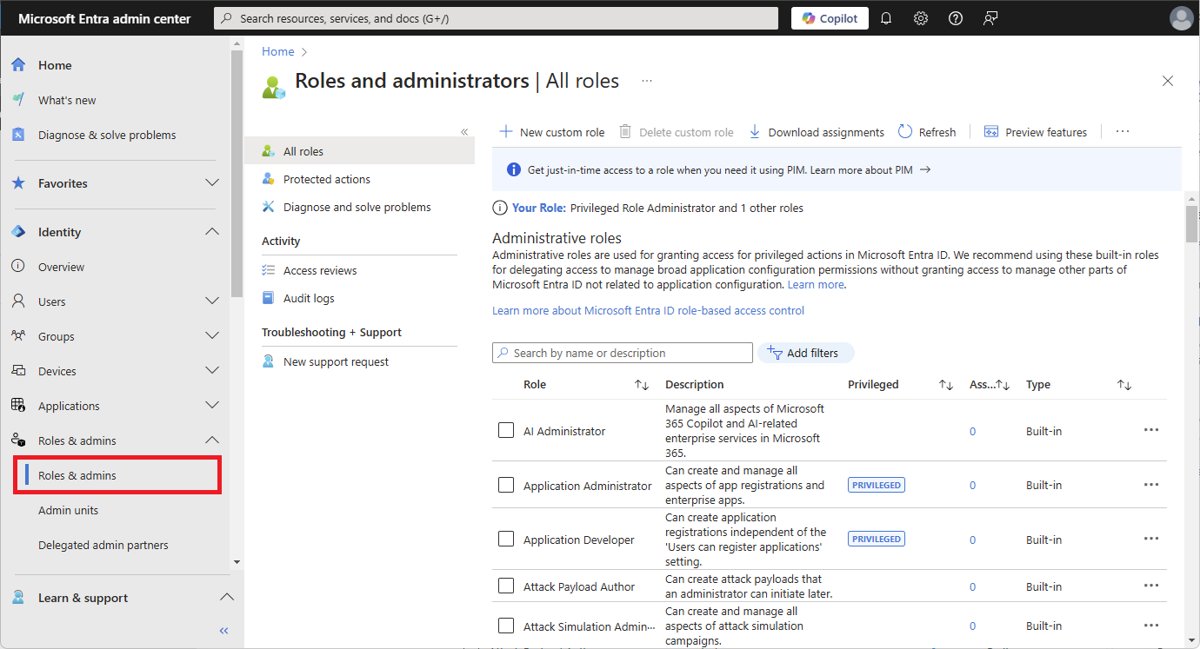
The Microsoft Entra admin center controls who can reach the Defender portal, but it does not host the portal itself. Use it to confirm your role, then open the portal by its URL.
- Sign in to the Microsoft Entra admin center.
- Browse to Identity > Roles & admins.
- Open Security Administrator, Security Operator or Security Reader and confirm your account is listed.
- Go to
https://security.microsoft.comin the same browser session. - From the Microsoft Purview portal, use the same URL; Purview manages compliance permissions, Defender manages security ones.
How to Access the Portal as a New Administrator
On a tenant where nobody has used the portal yet, the first visit also provisions Microsoft Defender XDR.
- Sign in to
https://security.microsoft.comwith an account that is at least a Security Administrator. - Select any item in the navigation menu, such as Incidents & alerts, Hunting, Action center or Threat analytics, to start onboarding.
- Review the data center location shown on screen; data is stored where Defender for Endpoint already stores it, or in a location chosen from your active Microsoft 365 security services.
- Select Need help? if you need Microsoft support to provision in a different data center.
- Sign in to Defender for Cloud Apps at least once if you want its integration turned on.
Understanding the Portal Layout
| Area | What you use it for |
|---|---|
| Search bar (top) | Finds devices, users, files, IPs, URLs and vulnerabilities; history is kept in your browser for 30 days |
| Notifications bell (top) | Success, information, warning and error messages; dismissed ones stay under show dismissed |
| Incidents & alerts | Correlated incidents prioritised by severity, with each alert inside |
| Hunting | Advanced hunting queries and custom detection rules |
| Action center | Pending and completed automated and manual response actions |
| Submissions | Send files, emails, URLs or Teams messages to Microsoft for analysis |
| Threat analytics | Microsoft research reports on active threats |
| Settings > Microsoft Defender XDR | Email notifications for incidents, actions and threat analytics |
| Permissions | Microsoft Entra roles, Email & collaboration roles and Defender unified RBAC roles |
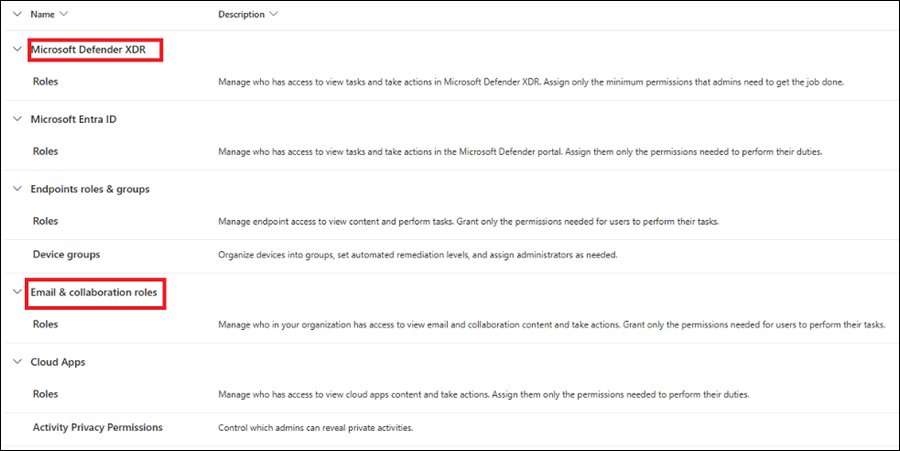
How to Give Someone Access to the Defender Portal
The quickest route is a built-in Microsoft Entra role. Pick the least powerful role that covers the job.
- Sign in to the Microsoft Entra admin center as at least a Privileged Role Administrator.
- Browse to Identity > Roles & admins.
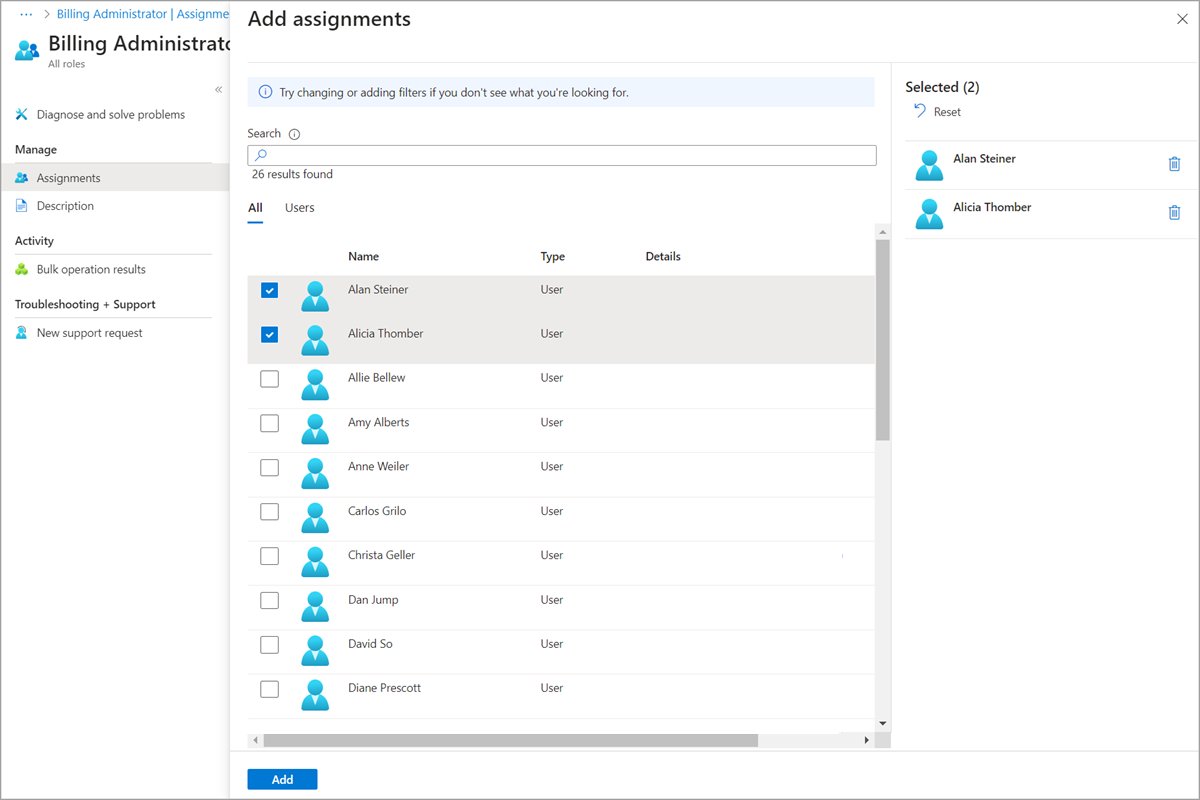
- Select the role name, such as Security Reader for view-only or Security Operator for response work; do not tick its checkbox.
- Select Add assignments and choose the user or role-assignable group.
- Select Add, then ask the person to sign in at
https://security.microsoft.com.
For tighter control, create a custom role under Permissions in the Defender portal with Microsoft Defender unified RBAC. You need at least Security Administrator to manage roles there.
How to check your access worked
- Sign in at
https://security.microsoft.comand confirm the Home page loads without an access error. - Open Incidents & alerts and confirm incidents are listed, or an empty queue appears rather than a permissions message.
- Open
https://security.microsoft.com/securitypermissionsto see which roles your account holds, if you are an admin.
Common Access Problems and How to Fix Them
You can sign in, but pages or features are missing
The portal shows only what your licences include, or your role does not cover that area.
- Check licences in the Microsoft 365 admin center under Billing > Licenses.
- Ask a Global Administrator to assign a role that covers the missing feature.
- Remember that automatic attack disruption and threat analytics need Defender for Endpoint Plan 2.
You only see some devices
Your account belongs to a Defender for Endpoint user group scoped to certain device groups.
- Ask an admin which device groups your role covers.
- Have them widen the scope or add you to another group if you need more devices.
Access denied with a personal Microsoft account
The portal is for work and school tenants; personal accounts use the Microsoft Defender app instead.
- Sign out and sign back in with your organization account.
- For a Microsoft 365 Personal or Family subscription, use the Microsoft Defender app on your device.
The Email & collaboration permissions page is gone
Defender unified RBAC was activated for Email & collaboration, which removes that page.
- Open Permissions in the Defender portal.
- Manage the person's access through Microsoft Defender unified RBAC roles instead.
Pending actions cannot be approved
Approving automated investigation actions needs specific Microsoft 365 roles.
- Check the Action center permissions your role includes.
- Ask a Global Administrator to assign the required role.
Security Best Practices for Portal Access
| Practice | Why |
|---|---|
| Use the role with the fewest permissions | Microsoft recommends least privilege for every Defender user |
| Keep Global Administrator for emergencies | It is highly privileged and is not needed for day-to-day security work |
| Use Security Reader for viewers | People who only review incidents never need write access |
| Build custom roles with unified RBAC | Grants access to specific data and tasks rather than the whole portal |
| Review role holders regularly | The Permissions page lists who holds each role |
Useful URLs to Bookmark
| Page | URL |
|---|---|
| Microsoft Defender portal | https://security.microsoft.com |
| Permissions and roles | https://security.microsoft.com/securitypermissions |
| Microsoft Entra roles in Defender | https://security.microsoft.com/aadpermissions |
| Email & collaboration roles | https://security.microsoft.com/emailandcollabpermissions |
| Microsoft 365 admin center | https://admin.microsoft.com |
| Microsoft Purview permissions | https://purview.microsoft.com/compliancecenterpermissions |
Quick Checklist for Accessing Microsoft 365 Defender
| Check | If yes | If no |
|---|---|---|
| Does the tenant have a qualifying licence? | Continue | Buy or trial Microsoft 365 E5, Business Premium or a Defender plan |
| Has Microsoft Defender XDR been turned on? | Continue | A Security Administrator signs in and selects any navigation item |
| Does your account hold a security role? | Continue | Ask a Privileged Role Administrator to assign one |
| Are you signed in with the work account? | Open security.microsoft.com | Sign out of the personal account first |
| Do you see the features you need? | Done | Check licence coverage and device-group scope |
Frequently asked questions
How do I access Microsoft 365 Defender?
Go to https://security.microsoft.com and sign in with a work account that holds a security role. You can also open it from the Microsoft 365 admin center under Show all > Admin centers > Security.
What is Microsoft 365 Defender?
It is Microsoft's unified security service for organizations, now called Microsoft Defender XDR. It correlates signals from Defender for Endpoint, Office 365, Identity and Cloud Apps into incidents inside the Microsoft Defender portal.
Does Microsoft 365 include Defender?
It depends on the plan. Business Premium, E5 and A5 plans include Defender portal access. Microsoft 365 Personal and Family include the Microsoft Defender app for individuals, which is separate from the business portal.
Is Microsoft Defender part of Microsoft 365?
Yes, in two different forms. Business and enterprise plans such as Business Premium and E5 include Defender services managed in the Defender portal, and Personal and Family subscriptions include the Microsoft Defender app at no extra cost.
Does Microsoft 365 include Windows Defender?
Windows Defender is not part of Microsoft 365. Microsoft Defender Antivirus is built into Windows 10 and 11 through the Windows Security app, whether or not you have a Microsoft 365 subscription.
Where is my Microsoft Defender?
On a home PC, open the Windows Security app for Microsoft Defender Antivirus, where you can also run a full virus scan, or the Microsoft Defender app if you installed it with Microsoft 365 Personal or Family. For business security, go to https://security.microsoft.com.
How do I access Microsoft Defender as a home user?
Install the Microsoft Defender app and sign in with the personal Microsoft account tied to your Microsoft 365 Personal or Family subscription. It runs on Windows, Mac, Android and iOS, and covers up to five devices per person.
Conclusion
Bookmark https://security.microsoft.com and give each user the least powerful Entra or custom Defender role that covers their work. The URL is the single entry point for every Defender service, and access problems almost always trace back to a missing licence or role.







XWorm malware: analysis, detection, removal - Techdows
[…] your IT team to search the Microsoft 365 Defender portal for the IoCs above if the PC is a work device managed with Microsoft Defender for […]