To disable Windows Defender in Windows 10 or Windows 11, open Windows Security, go to Virus & threat protection > Manage settings, turn off Tamper protection, then switch Real-time protection to Off.
That switch is temporary, so this guide also covers the Group Policy and PowerShell routes, the supported way to keep Defender off permanently, how to confirm its state and how to turn it back on.
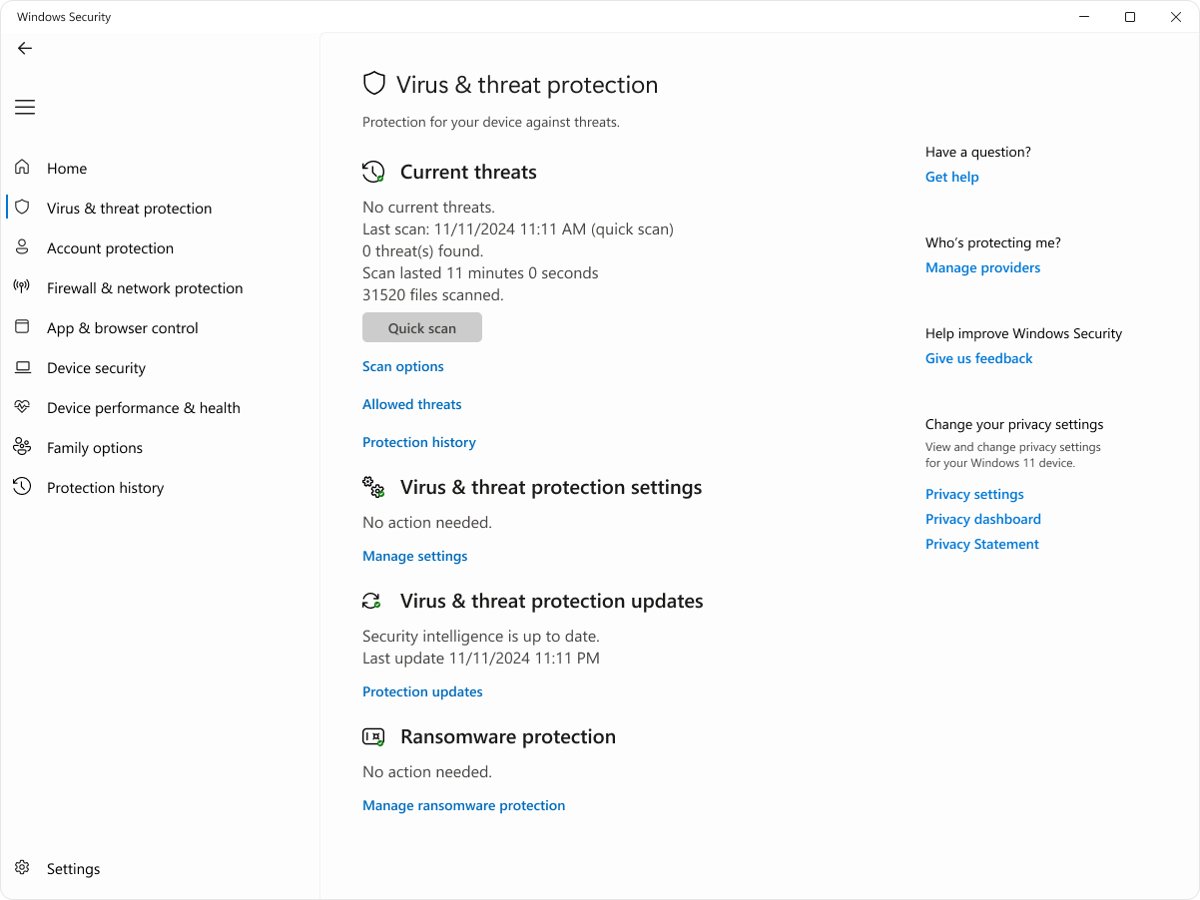
Use the Windows Security settings to turn off Windows Defender
This works on every edition of Windows 10 and Windows 11, including Home. You need an administrator account, because Windows asks for User Account Control approval.
- Open Start, type Windows Security and open the app.
- Select Virus & threat protection.
- Under Virus & threat protection settings, select Manage settings.
- Switch Tamper protection to Off if it is on; Real-time protection cannot be turned off while it is on.
- Switch Real-time protection to Off and select Yes at the User Account Control prompt.
- Finish the task that needed the pause, then switch Real-time protection and Tamper protection back to On.
Real-time protection turns back on automatically after a short while. Scheduled scans keep running, but files you open or download in the meantime are not scanned until the next scheduled scan.
Methods to disable Windows Defender (Windows Security) in Windows 10 & 11
| Your situation | Use this | How long it lasts |
|---|---|---|
| Defender blocks one trusted installer right now | Windows Security > Real-time protection switch | A short while; it turns itself back on |
| Defender keeps flagging one file or folder you trust | An exclusion in Windows Security | Until you remove the exclusion; the rest of the PC stays protected |
| You are moving to another antivirus | Install that product | Permanent while the other product is active |
| Windows 10 or 11 Pro, Enterprise or Education test machine | Group Policy Editor: Turn off real-time protection | Until you reset the policy, and only with tamper protection off |
| Scripted test or lab setup | PowerShell: Set-MpPreference | Until you reverse it, and only with tamper protection off |
| An old guide told you to edit the registry | None of the above; skip the registry | Current Windows ignores the old values |
Before you start disabling Windows Defender: tamper protection and admin rights
| Check | Why it matters |
|---|---|
| Administrator account | Windows Security, Group Policy and PowerShell all need admin rights to change Defender settings |
| Tamper protection status | Tamper protection is on by default for home users; with it on, Group Policy and PowerShell changes to protected settings are ignored |
| Windows edition | Group Policy Editor is listed for Windows 11 Pro, not Home, so Home users use Windows Security or another antivirus |
| Work or school PC | If your organization manages Defender, the Real-time protection switch can be unavailable |
| A narrower fix | An exclusion or an allowed app is safer than turning the entire antivirus off |
How to permanently disable Windows Defender (Windows 10 & 11)
There is no supported permanent off switch for Defender on its own. The supported route is installing a compatible non-Microsoft antivirus, which puts Microsoft Defender Antivirus into disabled mode automatically, so the PC is never left without protection.
- Install a compatible antivirus product from its vendor's official website.
- Restart the PC if the installer asks you to.
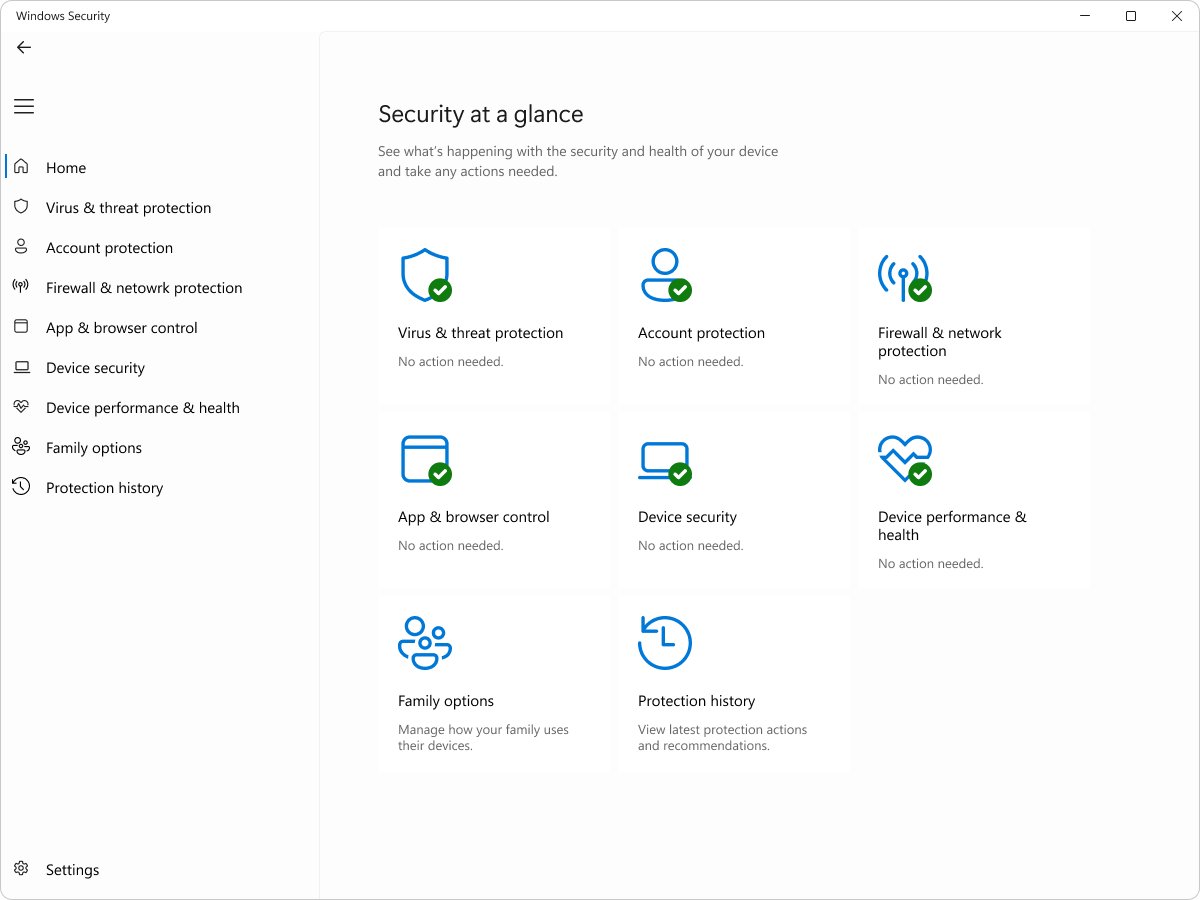
- Open Windows Security and select Virus & threat protection.
- Confirm the page now names the new product as the antivirus protecting the PC.
- Leave the Windows Security Center service at its default; if it is disabled, Defender cannot detect the other product and stays active.
Some security suites switch Defender off this way as soon as they install, which is why Malwarebytes disabled Windows Defender on Windows 10 version 1903. Defender stays built in either way, because you can remove Windows Defender completely only on Windows Server.
Use Group Policy Editor to turn off Windows Defender
This route needs Windows 10 or Windows 11 Pro, Enterprise or Education. Microsoft warns that disabling real-time protection drastically reduces protection, and with tamper protection on the policy is ignored.
- Turn off Tamper protection in Windows Security > Virus & threat protection > Manage settings.
- Press Win + R, type
gpedit.mscand press Enter. - Go to Computer Configuration > Administrative Templates > Windows Components > Microsoft Defender Antivirus > Real-time Protection.
- Double-click Turn off real-time protection.
- Select Enabled, then select OK.
- To apply the policy straight away, open Command Prompt and run
gpupdate /force, which reapplies all policy settings.
Tamper protection cannot be turned off through Group Policy, so a policy that looks applied can still do nothing. Set the same policy to Not Configured to undo it.
Disable Windows Defender real-time protection with PowerShell in Windows 11
Open Windows PowerShell with Run as administrator and run the command below. Turn off tamper protection first, or the change is ignored.
Set-MpPreference -DisableRealtimeMonitoring $trueSets Microsoft Defender Antivirus to stop real-time monitoring. Run Set-MpPreference -DisableRealtimeMonitoring $false to turn it back on, which Microsoft recommends.
You should see: The command returns no output, and Windows Security shows Real-time protection as Off.
Use Registry Editor to disable Windows Defender
Older guides on how to turn off Windows Defender from the registry tell you to create a DisableAntiSpyware value. Microsoft has removed that key for consumer devices, so it no longer disables Defender on current Windows 10 and Windows 11.
| Registry value | What Microsoft says now | Use it? |
|---|---|---|
| DisableAntiSpyware | Removed; not intended for consumer devices and ignored on devices onboarded to Defender for Endpoint from platform 4.18.2108.4 | No |
| DisableAntivirus | Removed alongside DisableAntiSpyware | No |
| Either value on Windows 10 version 1903 or later | Protected by tamper protection, which is on by default for consumers | No |
Defender now turns itself off when another antivirus is detected, which is the job these registry values used to do.
How to turn off Windows Defender Firewall in Windows 11
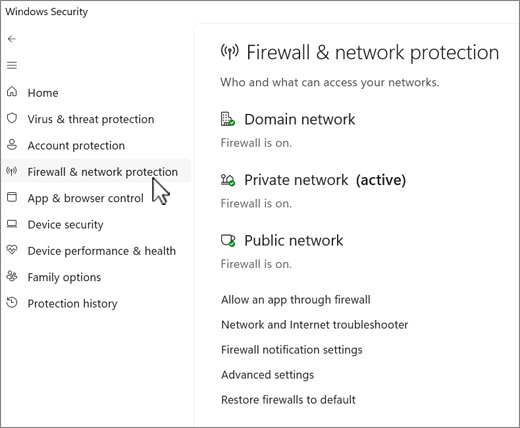
Windows Defender Firewall is a separate feature from the antivirus, and turning one off leaves the other running. If a single app is blocked, allow that app through the firewall instead.
- Open Windows Security and select Firewall & network protection.
- Select the network profile marked as active: Domain network, Private network or Public network.
- Under Microsoft Defender Firewall, switch the setting to Off.
- Switch it back to On when you are done.
To undo every firewall change at once, select Restore firewalls to default on the Firewall & network protection page.
How to disable Windows Defender in Windows 7, 8.1, 10 and 11
| Windows version | Built-in antivirus | Where to turn it off |
|---|---|---|
| Windows 11 | Microsoft Defender Antivirus | Windows Security > Virus & threat protection > Manage settings |
| Windows 10 | Microsoft Defender Antivirus | Windows Security > Virus & threat protection > Manage settings |
| Windows 8.1 | Windows Defender (consumer devices) | Out of support since January 10, 2023; upgrade instead |
| Windows 7 | None by default; Microsoft Security Essentials reached end of service on January 14, 2020 | Out of support since January 14, 2020; upgrade instead |
An unsupported version of Windows gets no security updates, so disabling its protection leaves the PC more exposed than on Windows 10 or 11.
How to check if Windows Defender is turned off
Run these in PowerShell as administrator. The first reports the antivirus mode, the second the real-time setting.
Get-MpComputerStatus | select AMRunningMode
Get-MpPreference | Select-Object DisableRealtimeMonitoring
AMRunningMode shows the mode Microsoft Defender Antivirus runs in; DisableRealtimeMonitoring shows whether real-time protection is switched off.
You should see: Normal, Passive or EDR Block Mode means Defender Antivirus is still enabled. DisableRealtimeMonitoring True means real-time protection is off.
In Windows Security > Virus & threat protection, the page also names the antivirus currently protecting the PC.
Why disable Windows Defender?
Most reasons to switch Defender off have a narrower fix that keeps the rest of the PC protected.
| Reason | Narrower fix |
|---|---|
| A trusted installer is blocked or quarantined | Add the file or folder as an exclusion |
| A program you trust appears under Protection history | Restore it only if you trust its source, then exclude it |
| You use another antivirus | Install it; Defender switches to disabled mode by itself |
| An app is blocked from the network | Use Allow an app through firewall instead of turning the firewall off |
| An app cannot save to Documents or Pictures | Allow the app through Controlled folder access |
| Scans slow down a developer drive | Use Dev Drive protection on Windows 11 |
Re-enabling Windows Defender in Windows 10 and 11
- Uninstall the third-party antivirus, or let its subscription lapse; Defender turns back on automatically.
- Open Windows Security > Virus & threat protection > Manage settings.
- Switch Real-time protection, Cloud-delivered protection and Tamper protection to On.
- Set any Turn off real-time protection policy you changed back to Not Configured.
- Run
Set-MpPreference -DisableRealtimeMonitoring $falseif you used PowerShell.
If the app reports that protection is off or managed, turn Windows Security back on from its home page warnings.
Windows Defender won't turn off or keeps turning back on
Real-time protection turns itself back on in Windows 11
The Windows Security switch is a temporary pause by design.
- Add an exclusion if only one file or folder is the problem.
- Install another antivirus if you want Defender off permanently.
The Real-time protection switch is grayed out in Windows 10
Your organization manages real-time protection, or a policy is set.
- On a work PC, ask your IT administrator.
- On a personal PC, open
gpedit.mscand set Turn off real-time protection to Not Configured. - Run
gpupdate /force, then check Manage settings again.
Group Policy or PowerShell says it worked but Defender is still on
Tamper protection ignores changes to protected settings.
- Open Windows Security > Virus & threat protection > Manage settings.
- Switch Tamper protection to Off.
- Apply the change again, then switch Tamper protection back On when you are done.
Defender stays active after another antivirus is installed
Defender cannot detect the other product when the Windows Security Center service is disabled.
- Leave the Windows Security Center service at its default.
- Open Windows Security and check whether it lists the other antivirus.
- Reinstall the other antivirus if Windows Security still does not list it.
Important considerations & risks of disabling Windows Defender
| Risk | What happens |
|---|---|
| No other antivirus installed | Files you open or download while real-time protection is off are not scanned |
| Two antivirus products active at once | Both try to provide active protection, which hurts performance and is not supported |
| Tamper protection left off | Other apps can change Defender settings such as real-time and cloud-delivered protection |
| Defender services disabled by hand | Defender cannot detect a replacement antivirus and stays active |
| Firewall turned off | The PC is more exposed to unauthorized network access |
Final tips and best practices for Windows Defender
| Tip | Why |
|---|---|
| Prefer an exclusion over switching Defender off | Microsoft calls it safer than turning the entire antivirus off |
| Use the full path for a process exclusion | Malware is less likely to reuse a trusted file name |
| Turn Tamper protection back on after any change | It stops other apps from changing Defender settings |
| Run a quick scan after protection is back on | Files that arrived while it was off are checked |
| Keep SmartScreen on while Defender is paused | It still guards against potentially dangerous apps, files, sites and downloads |
The SmartScreen settings in Windows 11 live under App & browser control in the same app.
Disable Windows Defender FAQ
How do I disable Windows Defender in Windows 11?
Open Windows Security, select Virus & threat protection, then Manage settings. Turn off Tamper protection, then switch Real-time protection to Off and approve the prompt. Windows 11 turns real-time protection back on automatically after a short while.
How do I disable Windows Defender in Windows 10?
Windows 10 uses the same Windows Security path as Windows 11: Virus & threat protection > Manage settings, turn off Tamper protection, then turn off Real-time protection. On Pro, Enterprise or Education, the Turn off real-time protection policy is another route.
How do I disable Windows Defender permanently in Windows 10 or 11?
Install a compatible third-party antivirus. Windows then keeps Microsoft Defender Antivirus in disabled mode for as long as that product provides real-time protection, and turns Defender back on if it expires or is uninstalled.
How do I disable Windows Defender in Windows 7?
Windows 7 support ended on January 14, 2020, and Microsoft Security Essentials reached end of service the same day. The PC no longer gets security updates, so upgrading to a supported Windows version is the safer move.
How do I enable Windows Defender in Windows 10?
Open Windows Security, go to Virus & threat protection > Manage settings and switch Real-time protection on. If another antivirus is installed, uninstall it and Defender turns back on automatically. Reset any Group Policy you changed to Not Configured.
How do I enable Windows Defender in Windows 11?
In Windows Security, select Virus & threat protection > Manage settings and turn on Real-time protection, Cloud-delivered protection and Tamper protection. Removing a third-party antivirus also re-enables Defender automatically.
How do I disable Windows Defender Firewall in Windows 11?
Open Windows Security, select Firewall & network protection, pick the active network profile and switch Microsoft Defender Firewall to Off. The firewall is separate from the antivirus, and allowing one app through it is safer.
Can I disable Windows Defender in Windows 11 with cmd?
Use PowerShell as administrator: Set-MpPreference -DisableRealtimeMonitoring $true turns off real-time protection. Turn off tamper protection first, or Windows ignores the change. Run the same command with $false to turn it back on.
Is there a Windows Defender disable tool for Windows 11?
Microsoft does not offer a separate disable tool. The supported controls are Windows Security, Group Policy and Set-MpPreference. Tamper protection exists to stop other apps from changing Defender settings, so third-party disable scripts are blocked while it is on.
Does the registry trick still disable Windows Defender?
No. Microsoft removed the DisableAntiSpyware and DisableAntivirus values for consumer devices, and tamper protection guards them on Windows 10 version 1903 and later. Installing another antivirus does what those values used to do.
Bottom line: should you disable Windows Defender?
Pause Real-time protection in Windows Security for short tasks, use an exclusion for a single trusted file, and install another antivirus if you want Defender off for good. Every manual switch is temporary or blocked by tamper protection, the registry values no longer work, and a replacement antivirus is the only permanent route that keeps the PC protected.

![AWS Secrets Manager: everything you need to know [2026]](https://techdows.com/wp-content/uploads/2026/10/AWS-Secrets-Manager-product-page-with-the-Get-started-button-600x338.jpg)