To turn on the Windows Security Center service, open Services (services.msc), double-click Security Center, set Startup type to Automatic, and select Start.
This guide covers the Services console, PowerShell, Command Prompt and Group Policy, how to confirm the service runs, and what to do when it will not start or Windows Security still will not open.
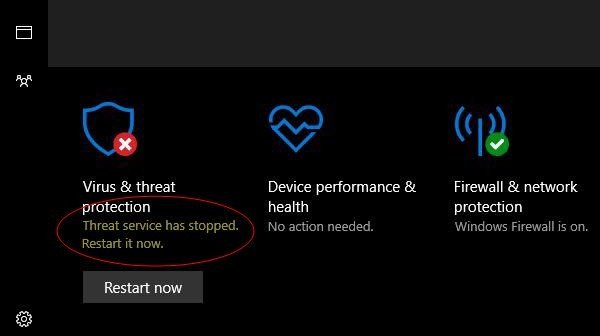
Turning On Windows Security Center Service
The service's display name is Security Center and its service name is wscsvc. The steps are the same on Windows 11 and Windows 10, and you need an administrator account.
- Press Win + R, type
services.mscand press Enter. - Scroll to Security Center in the list and double-click it.
- Set Startup type to Automatic if it reads Disabled or Manual, then select Apply.
- Under Service status, select Start.
- Wait until the status reads Running, then select OK.
- Restart the PC so Windows Security picks up the current protection status.
If Windows does not let you change Startup type in this window, use the Command Prompt method below, or repair system files as shown in the troubleshooting section.
Which method should you use?
| Your situation | Use this | Why |
|---|---|---|
| You want to fix it once, by hand | Services console (services.msc) |
Startup type and Start on one screen |
| You want to check and start it in one window | PowerShell: Get-Service and Start-Service |
Shows the start type and status, then starts it |
| The startup type is Disabled | Command Prompt: sc.exe config wscsvc start= auto |
A disabled service cannot be started until its start type changes |
| The PC is joined to a work or school domain | Group Policy: Turn on Security Center (Domain PCs only) | On domain members, Security Center status is off unless this policy is enabled |
| The service runs but Windows Security will not open | Reset the Windows Security app | The app and the service are separate parts |
| Nothing above works | DISM and SFC, then System Restore | Repairs damaged system files or rolls back the change |
Understanding the Windows Security Center
Windows Security Center is a background service, not the app you open. The Windows Security app relies on the Windows Security Service (SecurityHealthService), which in turn uses the Security Center service (wscsvc) to collect the protection status of everything on the PC.
That includes third-party antivirus products, Windows Firewall and third-party firewalls. The table shows which part does what, so you fix the right one.
| Component | Name you will see | What it does | Normal state |
|---|---|---|---|
| Security Center service | Security Center (wscsvc) |
Tracks the protection status of antivirus, firewall and other security products | Start type Automatic, Running |
| Windows Security Service | Windows Security Service (SecurityHealthService) |
Feeds status from Security Center to the Windows Security app | Start type Manual, Running |
| Windows Security app | Windows Security (package Microsoft.SecHealthUI) |
The dashboard: Virus & threat protection, Firewall & network protection, App & browser control and more | Opens from Start or the taskbar shield icon |
| Microsoft Defender Antivirus | Microsoft Defender Antivirus Service (WinDefend) |
The built-in antivirus engine | Start type Automatic, Running, unless a third-party antivirus is active |
Why it matters: Security Center is what lets Windows Security show accurate status for every section, from real-time protection to SmartScreen under App & browser control.
Stopping Security Center does not stop Microsoft Defender Antivirus or Windows Firewall. It stops Windows Security from reporting on them correctly.
What you need before you start
| Check | Why it matters |
|---|---|
| An administrator account | By default, only members of the Administrators group can start or change a service. Open PowerShell or Command Prompt with Run as administrator. |
| Whether the PC is managed by work or school | Settings from Group Policy, Microsoft Intune or Configuration Manager take precedence over Windows Security. On a managed PC, ask IT before you change anything. |
| Whether a third-party antivirus is installed | Microsoft Defender Antivirus turns off automatically when a third-party antivirus is installed and kept up to date. Windows Security then shows that product instead. |
| Your Windows edition | The Group Policy route needs Pro, Enterprise or Education. The other methods work on every edition, including Home. |
Turn on the Security Center service with PowerShell
PowerShell shows the start type and status in one line, which tells you straight away why the service is off. Select Start, type PowerShell, and select Run as administrator.
- Run
Get-Service wscsvc, SecurityHealthService | Format-Table -Auto DisplayName, Name, StartType, Status. - Read the StartType column for Security Center. If it reads Disabled, use the Command Prompt method first, because a disabled service cannot be started.
- If the start type is Automatic or Manual and Status reads Stopped, run
Start-Service -Name wscsvc. - Run the
Get-Servicecommand from step 1 again. Status should now read Running.
Start-Service prints nothing when it succeeds. The message *Cannot start service* usually means the start type is Disabled.
Turn on the Security Center service from Command Prompt
sc.exe changes the start type, which is the fix when the service is set to Disabled. Select Start, type cmd, right-click Command Prompt and select Run as administrator.
sc.exe config wscsvc start= autoSets the Security Center service to start automatically each time the PC restarts. The space after start= is required; without it the command fails. Use start= delayed-auto instead if you want it to start shortly after the other automatic services.
You should see: Restart the PC, then run sc.exe query wscsvc. The STATE line reads RUNNING when the service is on.
Type sc.exe, not sc, if you run this from PowerShell, where sc means something else. If the command returns an error, go to the DISM and SFC repair under Common Issues and Troubleshooting.
Turn on Security Center with Group Policy on domain PCs
This policy matters only on PCs joined to an Active Directory domain. When it is not configured, Security Center is turned off for domain members, so users see neither its notifications nor its status. On a PC that is not domain-joined the policy has no effect.
- Press Win + R, type
gpedit.mscand press Enter. - Go to Computer Configuration > Administrative Templates > Windows Components > Security Center.
- Double-click Turn on Security Center (Domain PCs only).
- Select Enabled, then OK.
- Run
gpupdate /forcefrom an elevated Command Prompt, or restart the PC.
The policy writes the value SecurityCenterInDomain under HKLM\Software\Policies\Microsoft\Windows NT\Security Center. On a domain PC, a domain Group Policy object overrides your local one, so ask IT if the setting keeps reverting.
How to Check If Windows Security Center Service Is Running
Check both the service and what Windows Security reports. A running service with a blank dashboard points to the app, not the service.
- Using the Services app: open
services.mscand find Security Center. The Status column should read Running. - Using PowerShell: run
Get-Service wscsvc. Status should read Running, with Security Center as the display name. - Using the Command Prompt: run
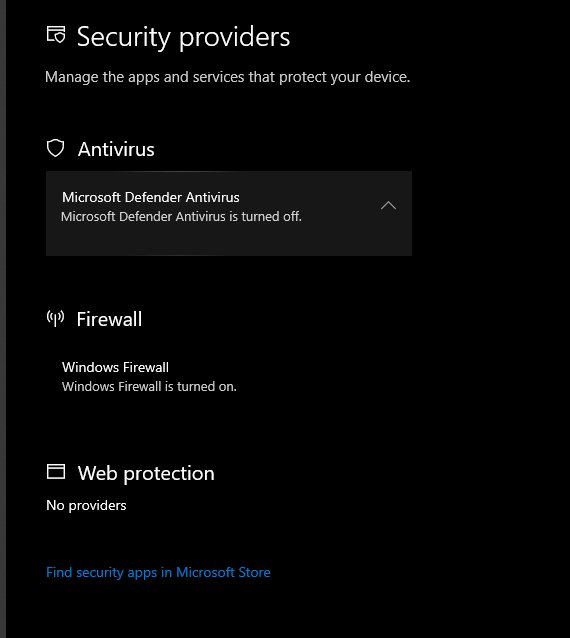
sc.exe query wscsvc. The STATE line should read RUNNING. - In Windows Security: open Windows Security, select Settings > Manage providers. The page lists the antivirus, firewall and other providers Security Center is tracking.
- If a third-party antivirus appears under Antivirus, Security Center is reporting it correctly.
Reset the Windows Security app when the service runs but the app will not open
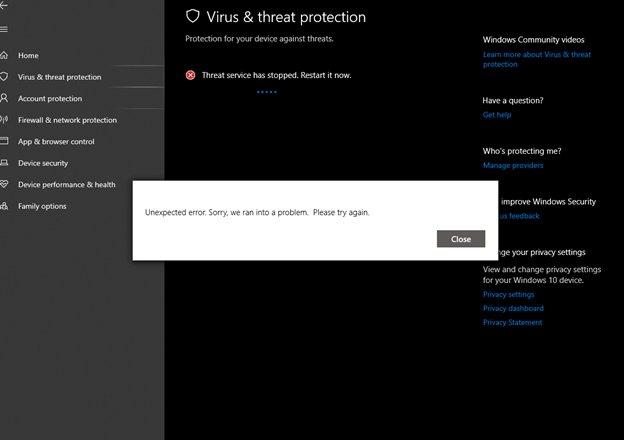
When wscsvc reads Running but Windows Security opens blank or not at all, the app itself is the problem. Reset-AppxPackage returns an app to its original settings, as if it were freshly installed.
- Open PowerShell with Run as administrator.
- Run
Get-AppxPackage Microsoft.SecHealthUI -AllUsers | Reset-AppxPackage. - Wait for the prompt to return. The command prints nothing when it succeeds.
- Restart the PC.
- Open Windows Security from Start and check that each section loads.
On Windows 11, Get-AppPackage Microsoft.SecHealthUI shows the installed app version. Microsoft ships newer versions of the app and its service as KB5007651 through Windows Update.
What happens if Security Center stays off
Microsoft warns that with Security Center disabled, Windows Security may show stale or inaccurate information about the antivirus and firewall products on the PC.
It can also stop Microsoft Defender Antivirus from turning itself back on when a third-party antivirus expires or is uninstalled. That leaves the PC with no working antivirus.
Keep Security Center set to Automatic and running on every PC, including PCs that use a third-party antivirus. Disabling it does not turn off Microsoft Defender Antivirus or Windows Firewall, so it removes no load worth removing. It only lowers the protection state Microsoft reports for the device.
Common Issues and Troubleshooting
Windows Security Center does not start
The start type is Disabled, or a clean boot in System Configuration left the service switched off.
- Run
sc.exe config wscsvc start= autoin an elevated Command Prompt and restart the PC. - If you ran a clean boot earlier, search for
msconfigand open System Configuration. - On the General tab, select Normal startup.
- On the Services tab, clear Hide all Microsoft services, select Enable all, then Apply.
- Select Restart when prompted, then check the service with
Get-Service wscsvc.
Error messages when starting the service
Damaged or missing system files stop the service from loading.
- Open Command Prompt with Run as administrator.
- Run
DISM.exe /Online /Cleanup-image /Restorehealthand wait for it to finish. - Run
sfc /scannow. - Read the result. *Windows Resource Protection found corrupt files and successfully repaired them* means the repair worked.
- Restart the PC and start Security Center again from
services.msc.
Group Policy restrictions
A policy or management tool controls Security Center, and it overrides local changes.
- On a work or school PC, contact IT. Settings from Group Policy, Intune or Configuration Manager take precedence.
- On a domain PC you manage, enable Turn on Security Center (Domain PCs only) as shown above.
- Run
gpupdate /forceand restart.
Why can't I turn on Windows Security virus protection?
A third-party antivirus is active, so Microsoft Defender Antivirus is turned off automatically.
- Open Windows Security > Settings > Manage providers and see which antivirus is listed.
- If you want the third-party product, keep it up to date. Windows Security shows it as the provider, which is correct.
- If you want Microsoft Defender Antivirus instead, uninstall the third-party product from Settings > Apps, then restart.
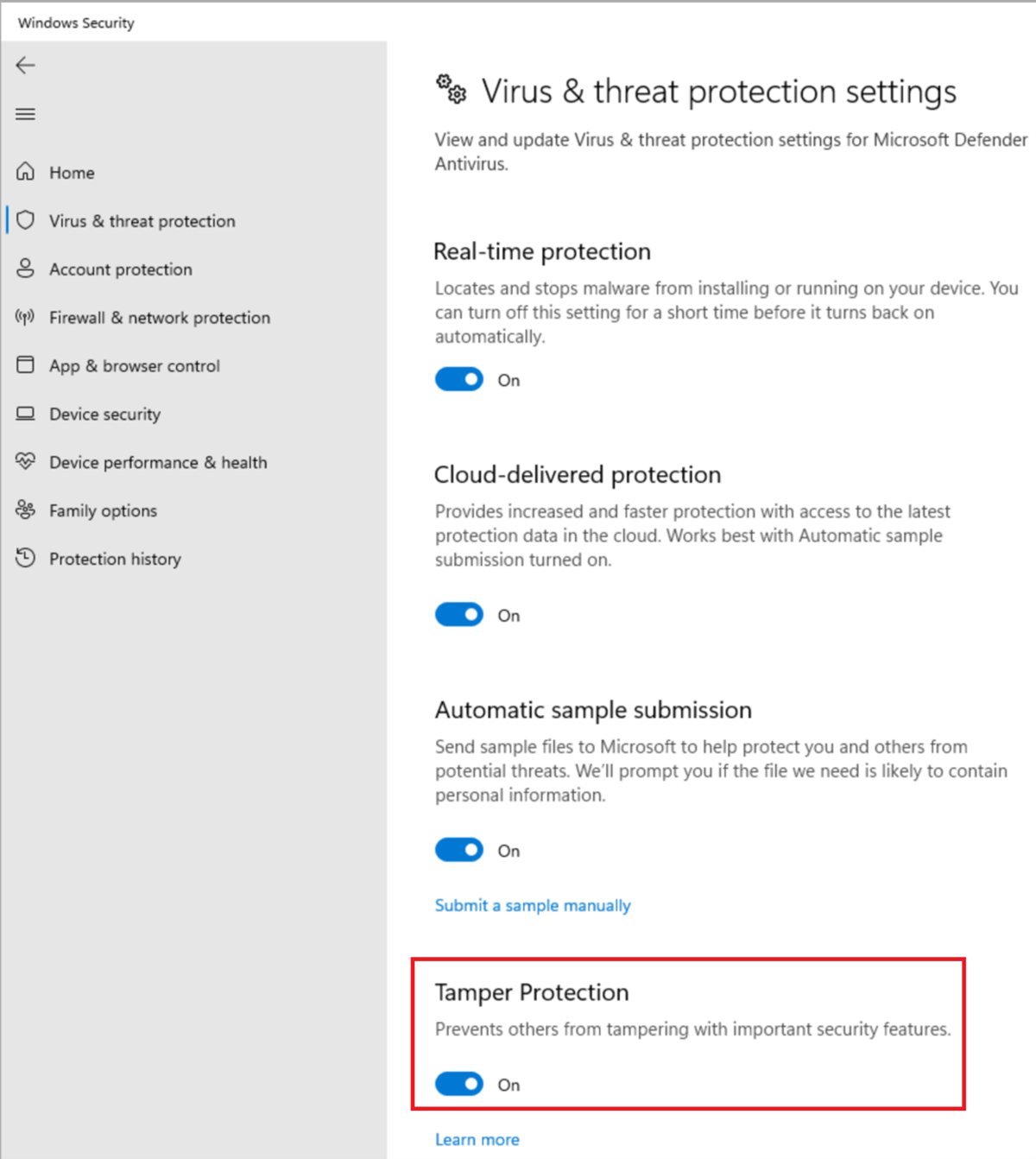
- Open Virus & threat protection > Manage settings and switch Real-time protection to On.
- If a third-party suite shows its own service error, follow its vendor's fix, such as the one for Avira's 'A service is not working correctly' warning.
Outdated Windows version
Missing updates leave an old Windows Security app or platform in place.
- Open Settings > Windows Update and select Check for updates.
- Install every available update, including the Windows Security app update (KB5007651) on Windows 11.
- Restart and check
Get-Service wscsvcagain.
Restore your computer
A recent program, driver or setting change broke the service and the fixes above did not help.
- Press Win + R, type
rstrui.exeand press Enter. - Select Next.
- Pick a restore point from before the problem started, then select Next.
- Select Finish. Windows restarts and reverts system files, registry settings and installed programs.
- Your personal files are not affected. Check the service again once Windows is back.
Frequently Asked Questions
How do I turn on the Windows Security Center service?
Open services.msc, double-click Security Center, set Startup type to Automatic, select Apply, then Start. You need an administrator account. If the start type is locked at Disabled, run sc.exe config wscsvc start= auto in an elevated Command Prompt and restart.
How do I turn on Windows Security using CMD?
Open Command Prompt as administrator and run sc.exe config wscsvc start= auto, then restart the PC. Check the result with sc.exe query wscsvc; the STATE line should read RUNNING. The space after start= is required, or the command fails.
How do I turn on Windows Security in Windows 11?
Windows Security is built in and on by default. Open it from Start or from Settings > Privacy & security > Windows Security. If it shows no status, make sure the Security Center service is running in services.msc, then restart the PC.
How do I turn on Windows Security in Windows 10?
Search for Windows Security in Start, or open Settings > Update & Security > Windows Security. Windows Security is available on Windows 10 version 1703 and later. The Security Center service steps are the same as on Windows 11.
Is Windows Security turned on?
Check two things. Run Get-Service wscsvc in PowerShell and confirm Status reads Running. Then open Windows Security > Settings > Manage providers to see which antivirus and firewall are active and whether they are on.
How do I turn on Windows Security Defender?
Open Windows Security > Virus & threat protection > Manage settings and switch Real-time protection to On. If a third-party antivirus is installed, Microsoft Defender Antivirus stays off until you remove it. After it is on, you can run a full Microsoft Defender scan.
Why can't I turn on Windows Security?
The usual causes are a Disabled Security Center service, a third-party antivirus, a work or school policy, or damaged system files. Set wscsvc to Automatic, check Manage providers, ask IT on a managed PC, and run DISM and sfc /scannow if the service still fails.
Does disabling Security Center turn off Microsoft Defender?
No. Disabling the Security Center service does not disable Microsoft Defender Antivirus or Windows Firewall. It makes Windows Security show stale or inaccurate status, and it can stop Defender from turning itself back on after a third-party antivirus is removed.
How do I go to Windows Security?
Select the shield icon in the notification area of the taskbar, search the Start menu for Windows Security, or open Settings > Privacy & security > Windows Security on Windows 11. On Windows 10, the Settings path is Update & Security > Windows Security.
Why should I activate Windows Security?
Windows Security is the single place that shows whether antivirus, firewall and other protection are working. With Security Center running, it warns you when protection is off, and it lets Microsoft Defender Antivirus take over when a third-party antivirus expires.



![Network adapter driver for Windows 11 [Download/Update]](https://techdows.com/wp-content/uploads/2026/10/Network-adapter-driver-for-Windows-11-DownloadUpdate-600x338.jpg)