To turn SmartScreen on or off in Windows 11, open Windows Security > App & browser control > Reputation-based protection settings and switch Check apps and files; Microsoft Edge has its own switch under Settings > Privacy, search, and services > Security.
This guide covers each SmartScreen toggle, the Group Policy and registry settings, how to run one trusted app that SmartScreen blocks without turning protection off, and what to do when the switches are grayed out.
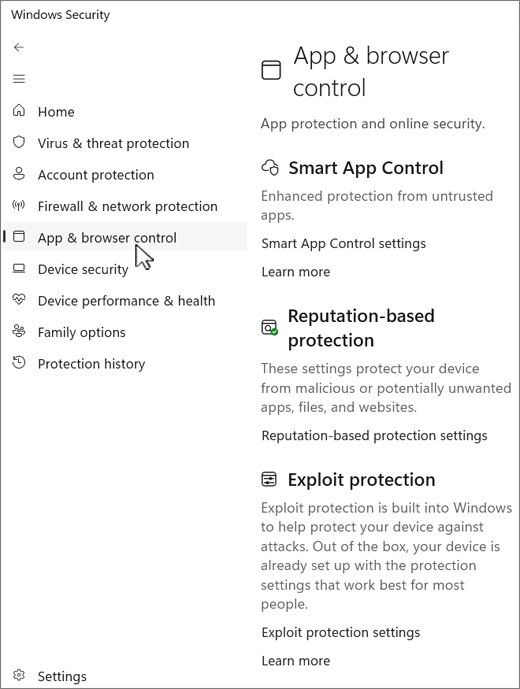
How to Enable or Disable SmartScreen in Windows Security
The Reputation-based protection page in the Windows Security app holds every SmartScreen switch for Windows itself. The main one is Check apps and files, which checks the reputation of apps and files you download from the web.
- Select Start, type Windows Security and open the app.
- Select App & browser control in the left pane.
- Under Reputation-based protection, select Reputation-based protection settings.
- Turn Check apps and files on to enable SmartScreen for downloaded apps and files, or off to disable it.
- Select Yes if User Account Control asks for permission.
- Set the other switches on the same page the way you want them: SmartScreen for Microsoft Edge, Phishing protection, Potentially unwanted app blocking and SmartScreen for Microsoft Store apps.
Leave Check apps and files on. If one app you trust is blocked, run just that app as shown in the bypass section below instead of switching protection off for every download.
What SmartScreen Does in Windows 11
Microsoft Defender SmartScreen checks websites, downloads and apps against Microsoft's reputation data. A known-bad item is blocked; an item with no reputation yet gets a warning. Windows 11 splits it into five switches, and each one covers a different route in.
| Switch on Reputation-based protection | What it checks | Available on |
|---|---|---|
| Check apps and files | The reputation of apps and files downloaded from the web, whichever browser or email app downloaded them | Windows 11 and Windows 10 |
| SmartScreen for Microsoft Edge | Sites and downloads in Edge, including phishing pages and tech support scams | Windows 11 and Windows 10 |
| Phishing protection | Your Windows sign-in password: warns if you type it into a malicious site or app, reuse it, or type it into Notepad, Word or OneNote | Windows 11 only, and only when you sign in to Windows with a password |
| Potentially unwanted app blocking | Apps that are not malware but show ads, mine cryptocurrency or bundle extra software | Windows 11 and Windows 10 |
| SmartScreen for Microsoft Store apps | Web content used by Microsoft Store apps | Windows 11 and Windows 10 |
SmartScreen protects against malicious files from the internet. Microsoft states it does not check files on internal locations such as shared folders reached by a UNC path or SMB share.
Should You Disable SmartScreen?
No. Keep Check apps and files and SmartScreen for Microsoft Edge turned on, and allow individual trusted apps one at a time when they are blocked. SmartScreen is the layer that warns before an unknown installer runs or a phishing page loads, which is before antivirus has anything to scan. Turning it off removes that warning for every future download, while a one-off Run anyway affects only the file in front of you.
The honest reasons to change a switch are narrow: an administrator standardising a fleet through Group Policy, or turning on Potentially unwanted app blocking and Phishing protection for extra cover.
Which method should you use?
| Your situation | Use this | Why |
|---|---|---|
| One trusted app shows "Windows protected your PC" | More info > Run anyway on that warning | Protection stays on for everything else |
| Edge flags a download you trust | Keep > Keep anyway in the Edge download warning | Allows one file only |
| You want to change SmartScreen on your own PC | Windows Security > Reputation-based protection settings | The supported switch, no policy left behind |
| You only want to change Edge's site checks | Edge Settings > Privacy, search, and services > Security | Leaves Windows file checks alone |
| You manage PCs running Pro, Enterprise or Education | Group Policy or Intune | Locks the setting so users cannot change it |
| No Group Policy Editor, or a policy was left behind | The registry values the policies write | Lets you see and clear a stale policy |
How to Enable or Disable SmartScreen in Microsoft Edge
Edge's own SmartScreen switch controls site and download warnings inside the browser. Microsoft turns it on by default, and the one setting applies to every Edge profile on the device, including InPrivate and Guest windows. It does not sync to your other devices.
- Open Microsoft Edge and select Settings and more (the three dots) > Settings.
- Select Privacy, search, and services. You can also type
edge://settings/privacyin the address bar. - Select Security.
- Turn Microsoft Defender SmartScreen on or off.
- If the switch shows a managed icon and cannot be changed, an organisation policy controls it; see the grayed-out section below.
The Windows Security switch SmartScreen for Microsoft Edge is the same protection seen from the other side. Turning Edge SmartScreen off also makes Windows Security raise an An important service is off card in Protection history.
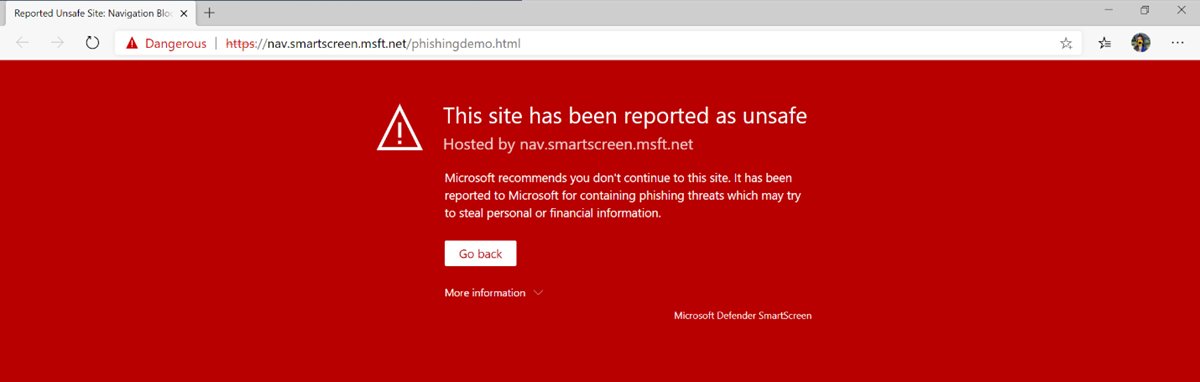
How to Bypass a SmartScreen Warning for One App
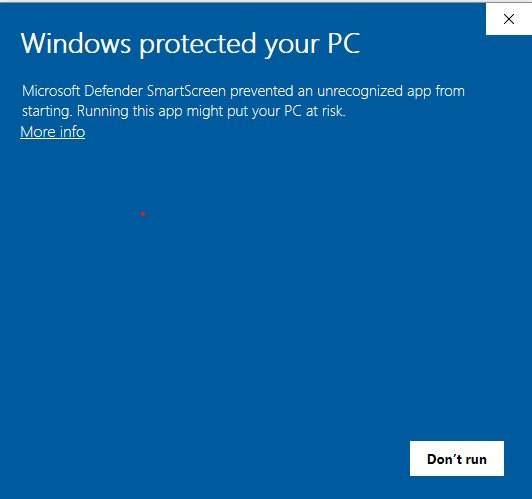
An unsigned or brand-new app shows Windows protected your PC until it builds reputation. Microsoft's developer documentation says the user must choose Run anyway before such an app can run. Do this only for a file whose source you have checked, such as the developer's own site.
Windows protected your PC when you open an app
Check apps and files has no reputation for this file or its publisher yet.
- Confirm the file came from the publisher's official site and the publisher name shown in the warning is the one you expect.
- In the Windows protected your PC dialog, select More info so the publisher and app name appear.
- Select Run anyway.
- Select Yes if User Account Control then asks for permission.
Edge warns that a download is unsafe or not commonly downloaded
SmartScreen for Microsoft Edge has no known footprint for the file.
- Open the downloads list in Edge and point to the flagged file.
- Select … (See more) > Keep.
- Select Show more > Keep anyway.
Protection history shows "This app has been blocked"
SmartScreen blocked a potentially unwanted app before it installed.
- Open Windows Security > Protection history and select the card.
- Select Actions > Allow if you are certain the block was a mistake.
- Download the file again; the allowed file must be redownloaded before you can use it.
Smart App Control is different: Microsoft states there is no way to allow one app through it. If Smart App Control blocks an app, ask the developer to sign it. For browser downloads, the new Edge downloads panel is where Keep lives; see how to enable or disable Edge's new Downloads Menu.
How to Enable or Disable SmartScreen with Group Policy
Group Policy overrides the Windows Security switches and locks them. It needs Windows 11 Pro, Enterprise or Education, where the Local Group Policy Editor (gpedit.msc) is available.
- Press Windows logo key + R, type
gpedit.mscand press Enter. - Go to Computer Configuration > Administrative Templates > Windows Components > Windows Defender SmartScreen > Explorer.
- Double-click Configure Windows Defender SmartScreen.
- Select Enabled to force Check apps and files on, then choose under Pick one of the following settings whether users may bypass warnings. Select Disabled to force it off, or Not Configured to give the choice back to users.
- Select OK.
- For Edge, go to Computer Configuration > Administrative Templates > Microsoft Edge > SmartScreen settings and open Configure Microsoft Defender SmartScreen. These Edge templates appear only after the Microsoft Edge ADMX files are installed.
- Select Enabled, Disabled or Not Configured, then OK.
The same SmartScreen settings folder holds Prevent bypassing Windows Defender SmartScreen prompts for sites and Prevent bypassing of Microsoft Defender SmartScreen warnings about downloads, which remove the Continue and Keep anyway options. For organisations, Microsoft recommends enabling the Windows policy with the option that warns and prevents bypass, and enabling all three Edge policies.
How to Enable or Disable SmartScreen Using the Registry
The registry values below are what the two policies write. Editing them by hand is mainly useful for clearing a policy left behind by old software, which is what grays out the switches. Microsoft notes the Edge policy is honoured only on devices joined to an Active Directory domain or enrolled in device management.
Windows file checks use EnableSmartScreen under HKEY_LOCAL_MACHINE\SOFTWARE\Policies\Microsoft\Windows\System (1 = enabled, 0 = disabled). Edge uses the REG_DWORD SmartScreenEnabled under HKEY_LOCAL_MACHINE\SOFTWARE\Policies\Microsoft\Edge (1 = on).
- Select Start, type cmd, right-click Command Prompt and select Run as administrator.
- Check for a Windows SmartScreen policy:
reg query "HKLM\SOFTWARE\Policies\Microsoft\Windows\System" /v EnableSmartScreen. - To hand control back to the Windows Security switch, remove it:
reg delete "HKLM\SOFTWARE\Policies\Microsoft\Windows\System" /v EnableSmartScreen /f. - Check for an Edge policy:
reg query "HKLM\SOFTWARE\Policies\Microsoft\Edge" /v SmartScreenEnabled. - On a managed PC, force Edge SmartScreen on with
reg add "HKLM\SOFTWARE\Policies\Microsoft\Edge" /v SmartScreenEnabled /t REG_DWORD /d 1 /f, or remove the value withreg deleteto let users choose. - Restart the PC, then reopen Reputation-based protection settings to confirm the switches respond.
On a work or school PC, do not delete these values; the organisation's management tools will reapply them.
How to Check Whether SmartScreen Is Enabled
- Open Windows Security > App & browser control > Reputation-based protection settings and confirm Check apps and files and SmartScreen for Microsoft Edge both read On.
- In Edge, open
edge://settings/privacy> Security and confirm Microsoft Defender SmartScreen is on. - Open Windows Security > Protection history and check that there is no An important service is off card for SmartScreen.
- For a live check, open Microsoft's SmartScreen demo site linked from the Edge SmartScreen documentation in Edge and confirm a test page shows the red warning.
If a switch reads on but shows This setting is managed by your administrator, a policy is enforcing it; that is also a correct, protected state.
What to Do If SmartScreen Settings Are Grayed Out
"This setting is managed by your administrator" under Check apps and files
The Configure Windows Defender SmartScreen policy is set; Microsoft states users then cannot change the switch.
- On a work or school PC, check the PC is managed: open Settings > Accounts > Access work or school. If an organisation is listed, ask its IT team.
- On your own PC running Pro, Enterprise or Education, open
gpedit.msc. - Go to Computer Configuration > Administrative Templates > Windows Components > Windows Defender SmartScreen > Explorer.
- Set Configure Windows Defender SmartScreen to Not Configured, select OK and restart.
- On Windows 11 Home, remove the leftover
EnableSmartScreenvalue with thereg deletecommand in the registry section.
Edge's Microsoft Defender SmartScreen switch cannot be changed
The Edge Configure Microsoft Defender SmartScreen policy is set; Microsoft notes the Edge setting may be managed by an administrator on work or school networks.
- Type
edge://policyin the Edge address bar and look for SmartScreenEnabled. - If it is listed on a managed PC, contact the administrator.
- On your own PC, set the Edge policy to Not Configured in Group Policy, or delete
SmartScreenEnabledfromHKLM\SOFTWARE\Policies\Microsoft\Edge, then restart Edge.
Smart App Control is off and cannot be turned on
Microsoft lists enterprise management, developer mode, S mode and optional diagnostic data being off as reasons.
- Install the latest updates from Settings > Windows Update; Microsoft states recent updates let you turn Smart App Control on in Windows Security without a clean install.
- Open Windows Security > App & browser control > Smart App Control settings and try again.
- If S mode is the cause, switch out of S mode and reset the PC, as Microsoft directs.
Phishing protection is missing
Phishing protection exists only on Windows 11, and it protects only a typed password used to sign in to Windows.
- Confirm the PC runs Windows 11, not Windows 10.
- If you sign in with a PIN or Windows Hello only, note there is no typed password for the feature to protect.
SmartScreen vs. Microsoft Defender Antivirus
The two are separate layers in the same Windows Security app, and turning one off does not turn off the other.
| Microsoft Defender SmartScreen | Microsoft Defender Antivirus | |
|---|---|---|
| What it judges | Reputation of sites, downloads, apps and signing certificates | File contents and behaviour, scanned in real time |
| When it acts | When you open a site or run a downloaded file | Whenever a file is downloaded, opened or run |
| Typical result | A warning page or "Windows protected your PC" | Threat quarantined or removed |
| Unknown but clean file | Warns, because there is no reputation yet | Usually allows it |
| Where you change it | App & browser control > Reputation-based protection | Virus & threat protection |
| Override for one item | Run anyway or Keep anyway | Protection history > Actions > Allow on device |
How Smart App Control relates to SmartScreen
Smart App Control sits above the SmartScreen switches on the same page. Microsoft notes it may supersede SmartScreen's app reputation check on Windows 11: it blocks an unsigned app unless the cloud service predicts it is safe, and it checks every executable, not only downloads.
| Mode | What happens | Can you return to it? |
|---|---|---|
| Evaluation | Windows watches how the PC is used and blocks nothing | No, once it ends or you change it, only a reset or reinstall brings it back |
| On | Untrusted apps are blocked; apps the model trusts or with valid signatures run | Yes, in Smart App Control settings |
| Off | No Smart App Control blocks; SmartScreen still works | Yes, on current Windows 11 updates |
Smart App Control is not available on Windows 10. It has no per-app exception, which is why its blocks cannot be bypassed like a SmartScreen warning.
Best Practices When Changing SmartScreen Settings
| Practice | Why it matters |
|---|---|
| Allow one file instead of switching SmartScreen off | Run anyway or Keep anyway covers the file you trust and nothing else |
| Verify the publisher name in the warning | Signed apps show a verified publisher; an unexpected or missing name is a reason to stop |
| Download from the developer's own site or the Microsoft Store | Microsoft Store apps are signed by Microsoft and never trigger SmartScreen download warnings |
| Turn on Potentially unwanted app blocking | It catches bundled adware and crypto miners that are not malware |
| Report mistakes instead of disabling | In Edge, More information > Report that this site doesn't contain threats sends a false positive to Microsoft |
| Remember network shares are not covered | SmartScreen checks files from the internet, not files on SMB or UNC shares |
| Check Protection history after changes | Windows Security records when an important service such as SmartScreen for Edge is off |
How to Re-Enable All Recommended SmartScreen Protections
- Open Windows Security > App & browser control > Reputation-based protection settings.
- Turn on Check apps and files, SmartScreen for Microsoft Edge, Potentially unwanted app blocking and SmartScreen for Microsoft Store apps.
- Under Phishing protection, turn it on and select the warnings you want; by default it only protects against entering your password into malicious content.
- In Edge, open
edge://settings/privacy> Security and turn on Microsoft Defender SmartScreen. - Open Windows Security > Protection history, select any An important service is off card, and turn the feature on under Actions.
- If you changed Group Policy, set Configure Windows Defender SmartScreen and the Edge Configure Microsoft Defender SmartScreen policy back to Not Configured, or to Enabled to lock them on.
Frequently Asked Questions
How do I disable Windows SmartScreen in Windows 11?
Open Windows Security, select App & browser control, then Reputation-based protection settings, and turn Check apps and files off. Edge has a separate switch. Microsoft's guidance favours keeping it on and using Run anyway for a single trusted app instead.
Is SmartScreen on by default in Windows 11?
Yes. Microsoft documents the Windows SmartScreen policy default as enabled, and Microsoft Defender SmartScreen is on by default in Microsoft Edge. Potentially unwanted app blocking and some phishing protection warnings are separate switches you may need to turn on yourself.
Is SmartScreen the same as a firewall?
No. SmartScreen judges the reputation of websites, downloads and apps and shows a warning or block. Windows Firewall filters network connections. Both live in the Windows Security app, and changing one does not affect the other.
Why does SmartScreen warn about my own app?
The file has no reputation yet. Microsoft explains that unsigned or newly signed files show a warning until their hash or publisher certificate builds positive reputation, which can take weeks. Signing every release with a consistent certificate, or publishing through the Microsoft Store, avoids most warnings.
Can I disable SmartScreen for Edge but keep it for Windows apps?
Yes. Check apps and files and SmartScreen for Microsoft Edge are separate switches on the Reputation-based protection page. Turning the Edge one off, or the switch in Edge's own Security settings, leaves Windows file checks running.
Does SmartScreen work with Chrome or Firefox?
Partly. Check apps and files checks downloaded files whichever app downloaded them, including third-party browsers and email clients. The website and phishing-page warnings are part of SmartScreen for Microsoft Edge and appear only in Edge.
Why do I see "This setting is managed by your administrator"?
A Group Policy, Intune or registry policy controls SmartScreen. Microsoft states that when the policy is enabled or disabled, users cannot change the switch. On a work PC, contact IT; on your own PC, set the policy back to Not Configured.
What is the difference between SmartScreen and Smart App Control?
SmartScreen warns about downloaded apps with no reputation and lets you choose Run anyway. Smart App Control, available only on Windows 11, blocks untrusted or unsigned apps outright and has no per-app exception. Both are on the App & browser control page.
Does SmartScreen check files on a network share?
No. Microsoft states SmartScreen protects against malicious files from the internet and does not cover internal locations such as shared folders reached by UNC paths or SMB shares. Microsoft Defender Antivirus still scans those files.
How do I report a site SmartScreen blocked by mistake?
In Edge, select More information on the warning page, then Report that this site doesn't contain threats, and follow the Microsoft feedback form. To report an unsafe site SmartScreen missed, select Settings and more > Help and feedback > Report unsafe website.
Bottom line
Keep every SmartScreen switch on in Reputation-based protection settings and in Edge, and handle a blocked app you trust with Run anyway or Keep anyway. Those one-off overrides are the route Microsoft documents for unrecognised apps, and they leave protection in place for the next download. Grayed-out switches mean a policy is in charge, which Group Policy or the matching registry value explains.

![Network adapter driver for Windows 11 [Download/Update]](https://techdows.com/wp-content/uploads/2026/10/Network-adapter-driver-for-Windows-11-DownloadUpdate-600x338.jpg)
How To Turn On Windows Security Center Service - Techdows
[…] Why it matters: Security Center is what lets Windows Security show accurate status for every section, from real-time protection to SmartScreen under App & browser control. […]
Windows 10 May 2020 Update gets PUA blocking feature, how to enable? - Techdows
[…] with Windows 10 v2004, Microsoft offers a setting to block PUAs under “Reputation-based Protection” in Windows Security and is turned off by […]