When a printer is installed but won't print, the cause is usually a stuck print queue, a stalled Print Spooler, a dropped connection or the wrong printer selected in the app.
Work through the fixes below in order, from the printer's own error lights to clearing the queue, restarting the spooler, refreshing the driver and re-adding the printer, with separate steps for Mac, iPhone and Chromebook. Printers that won't print for some other reason are dealt with in the wider Windows printer troubleshooting guide.
Printer installed but won't print: the quick fix
These five steps clear most cases in a few minutes, and step four runs the built-in printer troubleshooter. Try a print after each one.
- Turn the printer off, unplug it for 30 seconds, plug it back in and turn it on.
- Select Start > Settings > Bluetooth & devices > Printers & scanners, select the printer and select Open print queue.
- Cancel every job in the queue, then send one short test print.
- If nothing prints, run the automated Printer troubleshooter in the Get Help app.
- If it still fails, select the printer, select Remove > Yes, then select Add device and add it again.
Which printer fix matches your symptom
| What you see | Go to | Why |
|---|---|---|
| Light blinking or an error on the printer screen | Error lights and basic blocks | The printer itself has stopped, not Windows |
| Jobs sit in the queue with Error or Printing | Clear the queue, then restart the Print Spooler | One bad job blocks every job behind it |
| Printer shows Offline | Solidify the connection | Windows cannot reach the printer over USB or Wi-Fi |
| Nothing happens and the queue is empty | Make sure you have the right printer | The job went to another printer or to PDF |
| Started after a Windows update or new PC | Drivers, then re-add the printer | The driver no longer matches the printer |
| Prints from a Mac, phone or Chromebook fail | The Mac and phone sections | Each platform has its own printer list |
Check your printer's error lights and rule out the basic printer blocks first
A blinking light or an on-screen message means the printer has stopped by itself, and no Windows fix will clear it. Microsoft's guidance for a Printer in error state status is to check the printer before anything else.
- Read any message on the printer's display, or note which light is blinking.
- Look up that light or message in the printer manual or on the maker's support page for your model.
- Close every cover and door, including the cartridge access door.
- Check for low paper or ink, and refill or replace what is empty.
- Power-cycle the printer: turn it off, unplug it for 30 seconds, then turn it back on.
Clear the printer queue and resume printing
One failed job can block everything queued behind it. Emptying the stuck queue is the most common fix when a printer is installed but silent. If only one job is stuck, cancel that single print job and leave the rest in place.
- Select Start > Settings > Bluetooth & devices > Printers & scanners.
- Select the printer and then Open print queue.
- Select the … menu and choose Cancel all, or right-click a single job and select Cancel.
- On Windows 10, open the Printer menu and clear Pause Printing and Use Printer Offline if they are ticked.
- Close the queue and print one short page to test.
Restart the Print Spooler
The Print Spooler service hands jobs to the printer. When it stalls, jobs never leave the PC, and clearing its folder removes the corrupt job that caused it. You can also restart the Print Spooler from Command Prompt when Services will not open.
- Type services in the taskbar search box and select Services.
- Double-click Print Spooler, select Stop, then OK.
- Type
%WINDIR%\system32\spool\printersin the taskbar search box, open the folder and delete all files in it. - Return to Services, double-click Print Spooler and select Start.
- Set Startup type to Automatic and select OK.
To restart the service without clearing files, press Win + R, type services.msc, right-click Print Spooler and select Restart.
Solidify the connection between the printer and the PC
An installed printer still needs a live link. If Windows shows it as Offline, the cable or Wi-Fi path is broken even though the driver is fine.
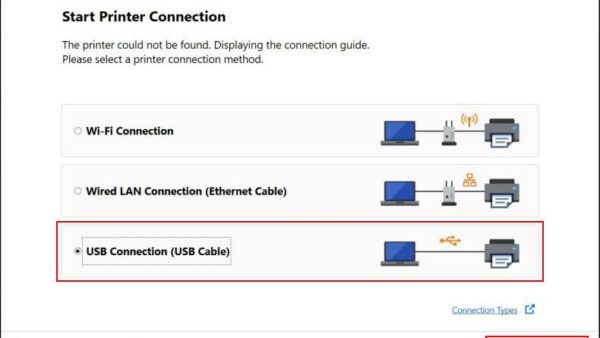
- For USB, check the cable is seated at both ends and try another USB port on the PC.
- For Wi-Fi, check the printer's wireless light or icon is on.
- Run the printer's wireless connectivity test from its menu, as described in its manual.
- Confirm the PC and printer use the same network name (SSID), especially with extenders or a second router.
- Restart the PC with Start > Power > Restart and try again.
Ensure you have the right printer and pick it before printing again
Windows can switch the default printer to the last one you used. A job then goes to another printer, or to a PDF file, and nothing comes out of the one in front of you.
- In the app, open File > Print and check the printer named at the top.
- Pick the correct printer and confirm its status shows Ready.
- Make sure Print to PDF or Print to file is not selected.
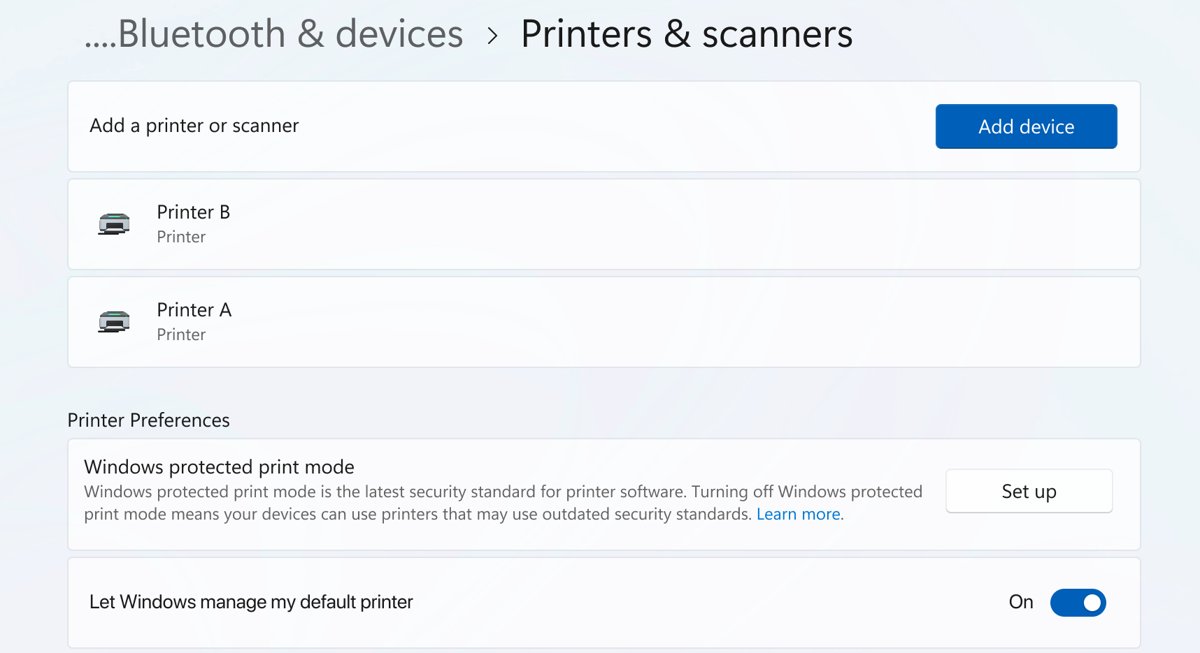
- In Printers & scanners, turn off Let Windows manage my default printer under Printer preferences.
- Select your printer and select Set as default.
If two copies of the same printer appear, one is often the USB entry and one the network entry. You can list all installed printers to spot the duplicate.
Check that the paper tray is full (not jammed)
- Turn the printer off before reaching inside.
- Pull out the paper tray and remove any torn or crumpled sheets.
- Open the access doors named in the manual and gently remove any jammed paper.
- Reload a straight stack of paper, slide the guides against it, and close the tray.
- Turn the printer on and wait for the ready light before printing.
Install the drivers and software and refresh the current driver path
Microsoft recommends Windows Update as the first source of printer drivers, then the maker's website by model number. Discs that came in the box are often out of date.
- Open Settings > Windows Update > Advanced options > Optional updates and install any printer driver listed.
- Right-click Start, open Device Manager and expand Printers or Print queues.
- Right-click the printer and select Update driver.
- If no update is found, select Uninstall device, restart the PC and let Windows reinstall it.
- If Windows still has no working driver, download the current one from the printer maker's support page for your exact model.
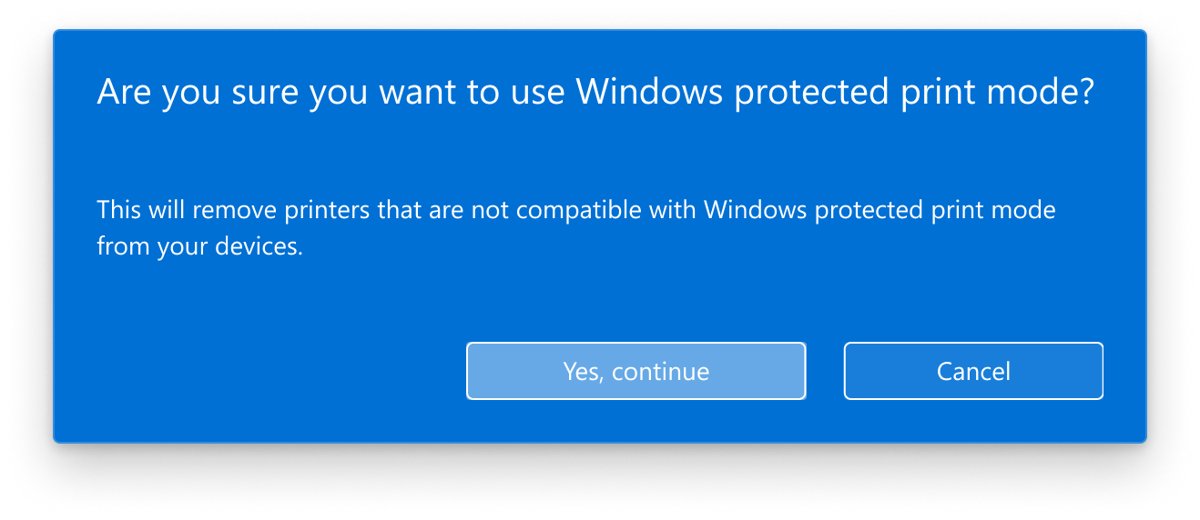
On Windows 11 24H2 and later, Windows Protected Print Mode blocks third-party drivers and uses Microsoft's built-in driver instead. On some ARM PCs, Microsoft advises adding the printer through Settings rather than the maker's installer.
Add printer: re-add the printer in Windows 11
Removing and adding the printer again rebuilds its queue and port, which clears damage that the other fixes leave behind. Printers shared from another PC or reached by IP address can also be added to Windows 11 manually.
- Open Settings > Bluetooth & devices > Printers & scanners and select the printer.
- Select Remove, then Yes.
- Make sure the printer is on and connected, then select Add device.
- Select Add device next to the printer when it appears.
- If it is not listed, select Add manually, choose Add a local printer or network printer with manual settings for a USB printer, and follow the wizard.
- On the last page, select Print a test page and then Finish.
Fiddle with the ink cartridges
- Open the printer maker's app or the printer's screen and check the ink or toner levels.
- Replace any empty cartridge; many printers stop all printing when one colour runs out.
- With the printer on, open the cartridge door and remove and reseat each cartridge until it clicks.
- On a new cartridge, remove all protective tape before installing it.
- Close the door and wait for the printer to finish its startup cycle.
HP owners can check HP ink levels from the printer, the HP app or Windows.
Check HP, Canon and account-specific printing blocks
Some printers stop printing because of an account or subscription, not a fault. These blocks look like a broken printer until you check the account.
| Printer or service | Block | What to do |
|---|---|---|
| HP Instant Ink | Instant Ink cartridges stop working after the billing cycle in which you cancel | Install standard HP cartridges, or restart the subscription |
| HP Instant Ink | The printer needs a direct internet connection to take part | Reconnect the printer to Wi-Fi with internet access |
| HP printers in general | Common HP errors have model-specific fixes | Look up the error on HP's support page for your model |
| Canon printers | A support code appears on the screen or in the maker's software | Look up that code on Canon's support page for your model |
| Work or school PCs | Policy can enforce Windows Protected Print Mode | Ask the administrator; you cannot turn it off yourself |
Run the printer's self-test and a Windows test page
Two tests split the problem in half. A printer self-test runs without the PC; a Windows test page uses the driver and the connection.
- Print the printer's own self-test, status or network report from its control panel, using the menu named in its manual.
- If the self-test fails, the fault is in the printer: ink, paper, a jam or hardware.
- If it prints, open Settings > Printers & scanners, select the printer and select Printer properties.
- On the General tab, select Print Test Page.
- If the self-test prints but the Windows test page does not, the problem is the connection, spooler or driver; repeat those fixes above.
On Windows 10, the test page is under Settings > Devices > Printers & scanners > the printer > Manage > Printer properties.
Rebuild the printer on Mac
On a Mac, add the printer as a new queue first. Reset the printing system only as a last resort, because it deletes every printer, finished job and preset.
- Open the printer's queue from Print Center in the Dock and click Resume if the printer is paused.
- Select any job blocked by an error and click Delete Job.
- Choose Apple menu > System Settings and click Printers & Scanners in the sidebar.
- Click Add Printer, Scanner, or Fax, add the printer again, and print to the new queue.
- If the new queue works, delete the old one.
- As a last resort, Control-click in the Printers list and choose Reset Printing System, then add the printer again.
Set up phone and Chromebook printing cleanly
Phones and Chromebooks print over the network, so they fail when they sit on a different Wi-Fi network from the printer.
| Device | How to print | Fix when it fails |
|---|---|---|
| iPhone or iPad | Connect the AirPrint printer and the device to the same Wi-Fi network, then choose the printer in the app's print dialog | Check both use the same Wi-Fi; USB-only printers do not work with an iPhone |
| Chromebook | Press Ctrl + P, open Destination, select See more…, choose the printer and select Print | Join the same network, then remove the printer under Settings > Device > Printers and scanners and set it up again |
| Chromebook, printer not found | Add it manually with its name, IP address, the IPP protocol and the ipp/print queue |
Check the IP address for typos and update the printer's firmware from the maker's site |
Ignore outdated printer fixes
Old forum threads still recommend fixes that no longer apply or that make the PC less safe. Skip these.
| Outdated advice | Why to skip it | Do this instead |
|---|---|---|
| Set up Google Cloud Print | Google ended Cloud Print in January 2021 on every platform | Print directly over Wi-Fi or with the printer maker's app |
| Turn off your antivirus or firewall | It exposes the PC and rarely fixes printing | Clear the queue and restart the Print Spooler |
| Install a driver updater tool | Third-party updaters can install the wrong driver | Use Windows Update or the printer maker's site |
| Follow Windows 10 steps on a Windows 11 PC | Menus moved to Bluetooth & devices; Windows 10 support ended on October 14, 2025 | Use the Windows 11 paths above |
| Reinstall Windows | Far more than a printer fault needs | Remove and re-add the printer first |
Printer installed but not printing FAQ
Why is my printer installed but not printing?
The usual causes are a stuck job in the print queue, a stalled Print Spooler service, a lost USB or Wi-Fi connection, or the wrong printer selected in the app. Clear the queue and restart the spooler first, then check the connection.
Why does my printer say it is printing but nothing comes out?
The job reached the queue but the printer cannot finish it, often because of a paper jam, empty cartridge or open cover. Check the printer's display or lights, fix the fault, then cancel and resend the job.
How do I clear a stuck print queue in Windows 11?
Open Settings > Bluetooth & devices > Printers & scanners, select the printer and select Open print queue. Choose Cancel all from the menu. If jobs stay stuck, stop the Print Spooler, delete the files in the spool PRINTERS folder and start it again.
Why does Windows show my printer as offline?
Windows cannot reach the printer over its cable or network. Power-cycle the printer, check the USB cable or that the PC and printer use the same Wi-Fi network, and clear Use Printer Offline in the queue's Printer menu on Windows 10.
Do I need to reinstall the printer driver?
Only if clearing the queue, restarting the spooler and checking the connection fail. Update the driver from Windows Update or Device Manager first, then remove the printer and add it again so Windows rebuilds its queue.
Why will my HP printer not print with Instant Ink?
HP Instant Ink cartridges stop working after the billing cycle in which the subscription is cancelled, and the printer needs a direct internet connection. Reconnect it to the internet or switch to standard HP cartridges.
How do I fix a printer that will not print from a Mac?
Open the queue in Print Center and click Resume, delete any job showing an error, then add the printer again in System Settings > Printers & Scanners. Reset the printing system only if nothing else works.
Does Google Cloud Print still work?
No. Google ended Cloud Print in January 2021, and no device can print through it. Print over Wi-Fi directly, through AirPrint on Apple devices, or with the printer maker's own app.