To install or update a printer driver in Windows 11, add the printer under Settings > Bluetooth & devices > Printers & scanners, then install any driver listed under Windows Update > Advanced options > Optional updates.
This guide covers every route Microsoft supports, from Windows Update and Device Manager to the manufacturer's own installer, plus how to roll back a bad driver and fix a printer Windows cannot find. A fresh driver solves a lot, but scanning, preferences and stubborn print errors have their own fixes in the Windows 11 printer hub.
![How to install or update a printer driver in Windows 11? [Full guide]](https://techdows.com/wp-content/uploads/2026/10/How-to-Install-or-Update-a-Printer-Driver-in-Windows-11.jpg)
Fastest way to install a printer driver in Windows 11
Windows 11 supports most printers out of the box, so adding the printer usually installs a working driver on its own.
- Turn the printer on and connect it by USB, or join it to the same Wi-Fi network as the PC.
- Select Start > Settings > Bluetooth & devices > Printers & scanners.
- Next to Add a printer or scanner, select Add device and wait for the list to fill.
- Select Add device next to your printer.
- Go to Settings > Windows Update > Advanced options > Optional updates.
- Select any printer driver listed, choose Download and install, then restart the PC.
If a Find drivers button appears next to the printer after it installs, the printer works with reduced features until a full driver is added. Use one of the methods below to get it.
Which printer driver install method should you use?
| Your situation | Use this method | Why |
|---|---|---|
| New printer, plugged in or on Wi-Fi | Add device in Printers & scanners | Windows installs a built-in or Windows Update driver automatically |
| Printer works but needs a newer driver | Windows Update optional updates | Microsoft's recommended route for driver updates |
| Printer shows Find drivers or missing features | Manufacturer's support site | Full driver package with scanning and maintenance tools |
| You already downloaded a driver folder | Device Manager, Browse my computer for drivers | Points Windows at the exact files you chose |
| Printer is not detected at all | Add manually with a local or network port | Lets you pick the port and the driver yourself |
| Old printer with no Windows 11 driver | Add Printer Driver Wizard via Windows Update list | Microsoft notes it can work better for older printers |
| Printing broke after a driver update | Roll Back Driver in Device Manager | Returns to the previously installed version |
Prepare your printer and Windows 11 PC before installing a driver
| Check | How to do it | Why it matters |
|---|---|---|
| Printer model number | Read it on the printer label or your purchase information | Driver pages are listed by exact model |
| Windows version and system type | Start > Settings > System > About, then note the edition, version and system type | Download a driver for Windows 11 and for 64-bit or ARM |
| ARM PC check | Under Device specifications, look for ARM based processor next to System type | Some ARM PCs, such as Copilot+ PCs, fail with manufacturer installers |
| USB connection | Plug the cable firmly into both devices, or try another USB port | A loose cable stops Windows detecting the printer |
| Wi-Fi connection | Put the printer on the same network as the PC, including the same band name on extenders | Network printers only appear on the same network |
| Pending Windows updates | Open Settings > Windows Update and install what is waiting | Driver updates arrive through the same channel |
Clear any pending Windows updates first so the optional driver list is current.
How to install or update printer driver in Windows 11 for HP, Brother, Epson and Canon
Printer makers publish their newest drivers and software on their own sites first. Microsoft advises against downloading drivers from any site other than the manufacturer's official one.
- Open your printer maker's official support site and go to its Support or Drivers section.
- Enter your printer model in the search box and open the model's page.
- If asked, select Windows 11 and your system type.
- Download the latest full software and driver package.
- Open your Downloads folder, right-click the installer and select Open.
- Follow the installer prompts, such as accepting the license and choosing USB or wireless setup.
- Restart the PC if the installer asks.
On an ARM PC, add the printer from Printers & scanners instead of running the maker's installer, unless the maker gives specific Windows on ARM guidance.
HP, Brother, Epson and Canon printer driver download sites
| Brand | Official site | How to find your driver |
|---|---|---|
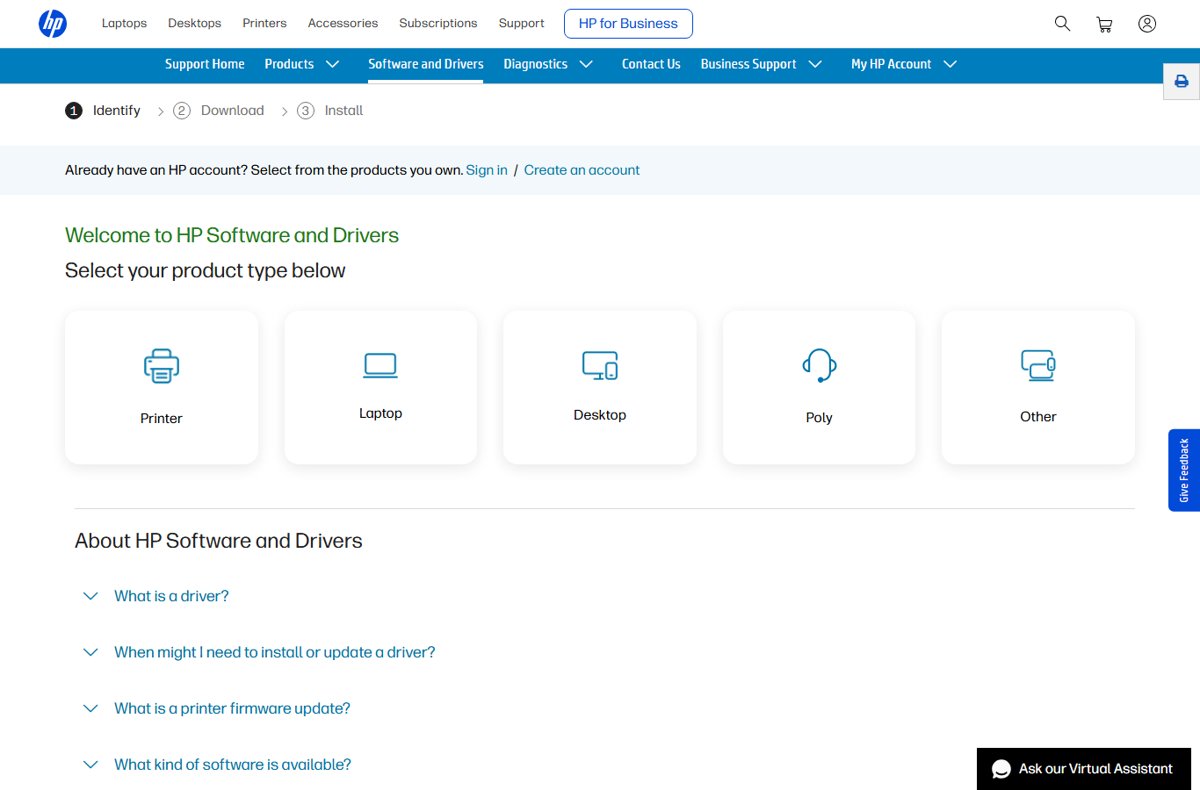
| HP | support.hp.com, Software and Drivers | Select Printer as the product type, then identify your model |
| Brother | support.brother.com, Downloads | Use Search by Model Name or Search by Product Category |
| Epson | epson.com, Epson Official Support | Type the model under Search By Product Name, or browse Printers |
| Canon | usa.canon.com, Support | Search for your printer model and open its drivers and downloads |
| Other brands | The maker's own support domain | Search by exact model, then choose Windows 11 |
Brother printer drivers for Windows 11 and KYOCERA printer driver downloads follow the same pattern and are listed by model.
Update a printer driver through Windows Update optional updates
Windows 11 installs recommended drivers automatically, but optional driver updates wait until you install them.
- Select Start > Settings > Windows Update > Advanced options.
- Turn on Receive updates for other Microsoft products.
- Under Additional options, select Optional updates.
- Select the printer driver if one is listed, then select Download and install.
- Right-click Start and select Shut down or sign out > Restart, even if no restart is requested.
Update the printer driver from Printers & scanners settings
- Select Start > Settings > Bluetooth & devices > Printers & scanners.
- Select your printer, then select Manage.
- Select Update driver and follow the on-screen instructions.
- Print a document to confirm the printer still works.
Update a printer driver in Device Manager
Device Manager can search for a driver itself or install one you downloaded, the same way it handles updating drivers on Windows 11 for other hardware.
- Right-click Start and select Device Manager.
- Expand Printers or Print queues, then right-click your printer and select Update driver.
- Select Search automatically for updated driver software.
- If nothing is found, select Search for updated drivers on Windows update.
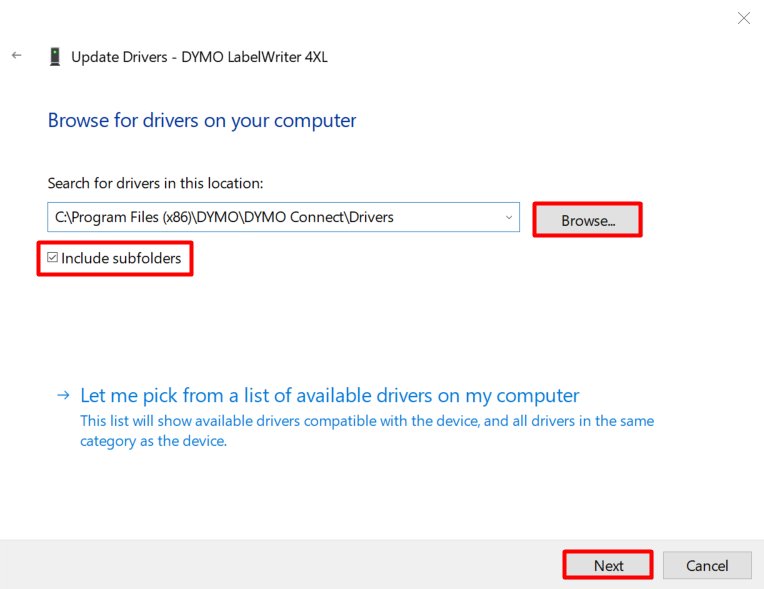
- To use a downloaded driver instead, extract it, then choose Browse my computer for drivers in the same window.
- Select Browse…, pick the driver folder, select OK, then Next.
- If you see The best drivers for your device are already installed, select Close; no update is needed.
Add a printer manually and pick its driver in Windows 11
Use this when Add device does not list your printer, or when you want to choose the driver yourself.
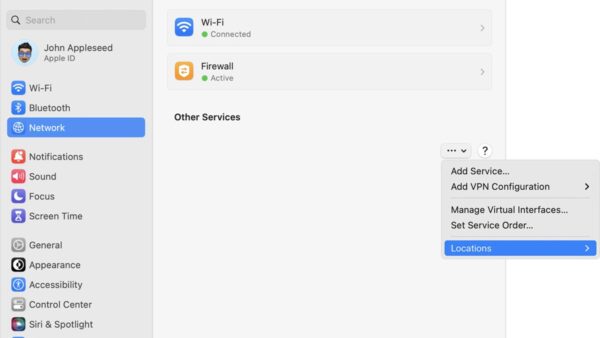
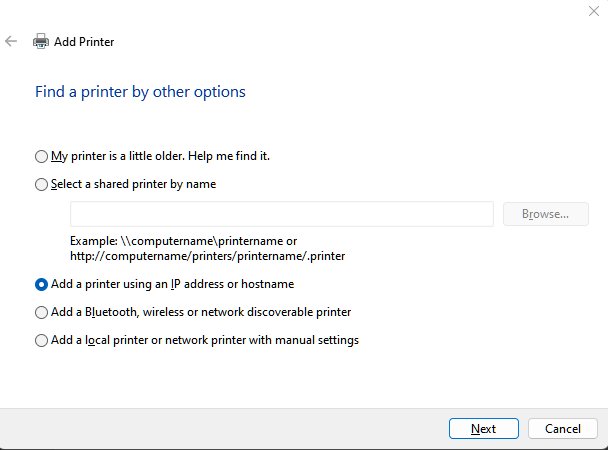
- In Printers & scanners, select Add device, then next to The printer that I want isn't listed, select Add manually.
- For a USB printer, select Add a local printer or network printer with manual settings, then Next.
- Select Use an existing port, choose the USB, LPT or COM port the printer uses, then select Next.
- Select Have Disk if you have the maker's driver files, or Windows Update to refresh the driver list.
- Pick the manufacturer on the left and the model on the right, then select Next.
- If asked, select Replace the current driver, unless you are sure the installed one is correct.
- Name the printer, choose Do not share this printer or Share this printer, then select Next.
- Select Print a test page, then Finish.
Install an older printer driver with the Add Printer Driver Wizard
Microsoft lists this legacy wizard as a last resort that can suit older printers. It only adds a driver; the printer must already be installed.
- Open Settings > Bluetooth & devices > Printers & scanners.
- Under Related settings, select Printer server properties.
- Select the Drivers tab, then select Add….
- Select Next, then choose the processor architecture of your PC.
- On the Printer Driver Selection page, select Windows Update and wait for the list to download.
- Select the manufacturer and the printer model, then select Next and Finish.
- Confirm the driver now appears under Installed printer drivers.
Set your printer as default in Windows 11
- Open Settings > Bluetooth & devices > Printers & scanners.
- Under Printer preferences, turn off Let Windows manage my default printer.
- Select the printer you want from the installed list.
- Select Set as default; the printer status changes to Default.
If Set as default is missing, the automatic setting is still on. Turn it off and the button appears.
Print a test page to check the printer driver works
- In Printers & scanners, confirm the printer is listed and no Find drivers button sits next to it.
- Select the printer and select Open print queue to check nothing is stuck.
- Print a short document or the test page offered at the end of the Add Printer wizard.
- In Device Manager, right-click the printer, select Properties and open the Driver tab to see the installed driver details.
- If you manage several printers, list the installed printers to confirm each one has the right driver.
Roll back a printer driver in Windows 11
If printing broke right after a driver update, return to the earlier version.
- Select Start, type Device Manager and open it.
- Expand Printers or Print queues.
- Right-click your printer and select Properties.
- On the Driver tab, select Roll Back Driver if it is available.
- Restart the PC and print again.
Windows 11 printer driver changes: IPP class driver and end of third-party driver servicing
Since Windows 10 21H2, Windows includes the Microsoft IPP Class Driver for Mopria-compliant printers over network and USB, so many printers need no maker driver at all.
| Date | What changes for Windows 11 |
|---|---|
| January 15, 2026 | No new third-party printer drivers are published to Windows Update; existing ones can be updated case by case |
| July 1, 2026 | Windows always ranks its inbox IPP class driver first when choosing a printer driver |
| July 1, 2027 | Third-party printer driver updates stop except for security fixes |
| After the cut-offs | Existing drivers still install from Windows Update, and maker installation packages still work |
Microsoft has no plans to disable print features tied to the older v3 and v4 driver platform. Multi-function printers keep printing, scanning and faxing over IPP.
Fix printer driver problems in Windows 11
Printer not detected or "Printer not recognized"
A connection fault, a stalled print spooler or an outdated driver.
- Check the USB cable at both ends or try another port; for Wi-Fi, confirm the printer is on the PC's network.
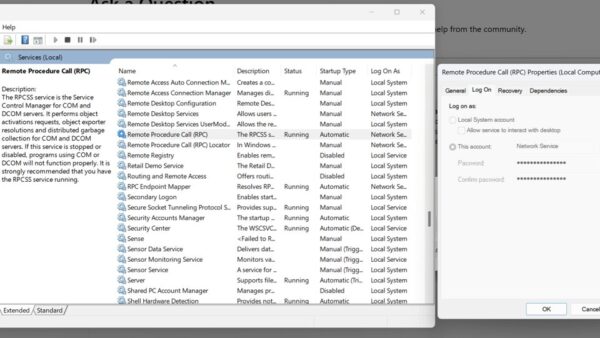
- Press Windows key + R, type
services.mscand press Enter. - Right-click Print Spooler and select Restart.
- In Device Manager, right-click the printer and select Update driver; if none is found, select Uninstall device and restart so Windows reinstalls it.
- Run the printer troubleshooter in the Get Help app.
Manufacturer installer fails on a Copilot+ or other ARM PC
Some maker installers do not support ARM PCs.
- Cancel the installer.
- Open Settings > Bluetooth & devices > Printers & scanners.
- Select Add device and add the printer from the list.
- Check Optional updates for a newer driver afterwards.
Driver installed but printing still fails
Old driver files or settings left behind from a previous install.
- In Printers & scanners, select the printer, select Remove and confirm with Yes.
- Turn off the printer, unplug it for 30 seconds and plug it back in.
- Restart the PC.
- Select Add device and let Windows install the recommended driver.
- Install the maker's latest driver if features are still missing.
Only drivers for older Windows versions exist
The maker stopped updating drivers for that model.
- Try Add device first; the inbox IPP class driver supports Mopria-compliant printers.
- Use the Add Printer Driver Wizard with the Windows Update list.
- Install a driver for an older Windows version only if no newer one exists.
- Download a driver that matches your system type, 32-bit or 64-bit.
Print jobs stuck after a driver change
Spooler files from the old driver are blocking the queue.
- Type services in the taskbar search box and open Services.
- Double-click Print Spooler, select Stop, then OK.
- Search for
%WINDIR%\system32\spool\printers, open the folder and delete all files in it. - Reopen Print Spooler, select Start, set Startup type to Automatic and select OK.
Printer driver in Windows 11 FAQs
What is a printer driver, and why is it important to update it?
A printer driver is software that lets Windows communicate with the printer. Microsoft says installing the latest driver can fix printing issues, improve performance and add new features, which is why it recommends keeping it current through Windows Update.
Does Windows 11 install printer drivers automatically?
Yes, in most cases. A printer connected by USB or on the same network usually installs automatically when you add it in Printers & scanners. Newer optional drivers still need to be installed from Windows Update optional updates.
How do I find my printer model number?
The model number is normally printed on the printer itself, often on the front or on a label, and is also listed in your purchase information. Use the exact model when searching the maker's support site.
Can I use an old printer with Windows 11?
Often, yes. Try adding it in Printers & scanners first, because Windows includes an IPP class driver for Mopria-compliant printers. For older models, the Add Printer Driver Wizard with its Windows Update list can find a compatible driver.
What should I do if my printer is not detected?
Check the cable or Wi-Fi connection, restart the Print Spooler service, and update or reinstall the driver in Device Manager. If Add device still lists nothing, choose Add manually and pick the port and driver yourself.
Is it safe to download drivers from third-party websites?
No. Microsoft advises against downloading drivers from any website other than the manufacturer's official site. Use Windows Update or the printer maker's support page, and avoid third-party driver updater tools.
How do I update my HP printer driver in Windows 11?
Check Windows Update optional updates first. If nothing is listed, open HP's Software and Drivers page, select Printer, identify your model and install the latest package for Windows 11.
How do I uninstall a printer driver in Windows 11?
Remove the printer in Printers & scanners, or in Device Manager right-click the printer and select Uninstall device. Restart the PC afterwards; Windows tries to reinstall a driver automatically if the printer is still connected.
Best way to install or update a printer driver in Windows 11
Add the printer from Printers & scanners and take driver updates from Windows Update optional updates, using the manufacturer's site only when features are missing. Microsoft recommends Windows Update for printer drivers, the inbox IPP class driver now covers most current printers, and official vendor packages fill the gap for scanning and maintenance tools.