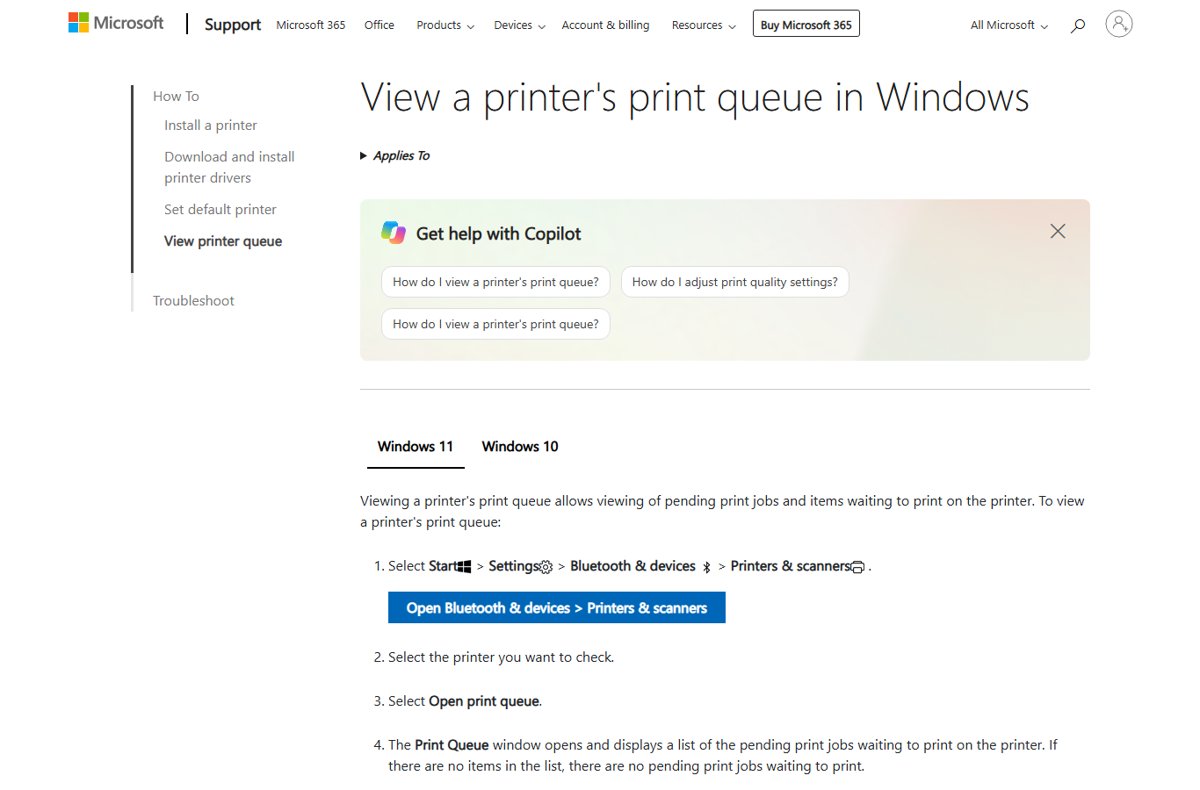
To find the printers and scanners on your computer, open Start > Settings > Bluetooth & devices > Printers & scanners on Windows 11, or Start > Settings > Devices > Printers & scanners on Windows 10.
This guide covers that list, the Control Panel, Device Manager, Run and PowerShell routes, how to check network and wireless devices, and what to do when a device is missing. Knowing where a device is listed is the first step toward changing its printer and scanner settings.
Find printers and scanners on this computer in Windows 11/10
The Printers & scanners page in Settings is the one place that lists every printer and scanner Windows has installed, local or networked.
- Select Start, then open Settings.
- On Windows 11, select Bluetooth & devices. On Windows 10, select Devices.
- Select Printers & scanners.
- Read the list of installed devices. Each printer and scanner Windows knows about appears here by name.
- Select a device to see its status and options, such as Open print queue, Printer properties or Set as default.
If the device you expected is not in the list, Windows has not installed it yet. Select Add device next to Add a printer or scanner and let Windows search, or add a printer in Windows 11 step by step.
Which way to find printers and scanners suits you?
| Your situation | Use this | Why |
|---|---|---|
| You want to see every installed printer and scanner | Settings > Printers & scanners | The full list with status, queue and default options |
| You prefer the older Windows interface | Control Panel > Devices and Printers | Classic icon view on Windows 10 |
| A device is listed but will not work | Device Manager > Printers | Shows driver state and lets you update or reinstall the driver |
| You want to jump straight to the list | Windows + R, then ms-settings:printers |
Opens the Settings page in one step |
| You need a text list of printer names | PowerShell Get-Printer |
Prints every printer and printer connection with no clicking |
| A network or Wi-Fi printer is missing | Check the network, then Add device | Windows only finds network devices on the same network |
Use Control Panel for a classic view
Devices and Printers is the Control Panel item that shows printers and other connected hardware as icons. Microsoft documents it as a Control Panel item on Windows 10, with the canonical name Microsoft.DevicesAndPrinters.
Microsoft's current Windows 11 printer instructions all use the Settings app, so treat this as the Windows 10 route.
- In the search box on the taskbar, type control panel and select it from the results.
- Select Hardware and Sound.
- Select Devices and Printers.
- Look under Printers for your printers and multifunction devices.
- Right-click a device to open its print queue, properties or default printer option.
If Settings opens instead of the classic window, carry on from the Printers & scanners page. It lists the same installed devices.
Check Device Manager for hardware-level details
Device Manager shows whether Windows has a working driver for a printer. Use it when a printer appears in Settings but will not print, or does not appear at all after you plug it in.
- Select Start, type device manager and select Device Manager from the results.
- Expand Printers.
- Find your printer by name. A device listed here has a driver installed.
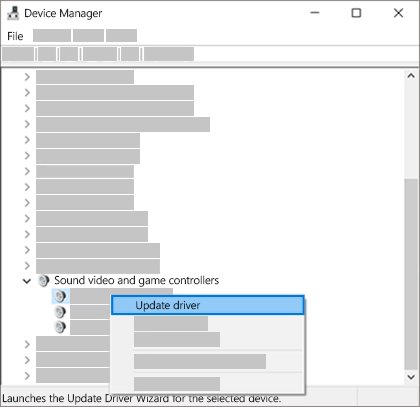
- Right-click the printer and select Update driver if it is not working properly.
- If no update is found, right-click it again, select Uninstall device, restart the PC and let Windows reinstall the driver.
Windows Update delivers most printer and scanner drivers. If the printer still only has a basic driver, a Find drivers button may appear on the Printers & scanners page, and some features stay unavailable until the full driver is installed.
Use the Run command for quick access
The Run box opens Settings pages by their ms-settings: address. Microsoft lists ms-settings:printers as the address of the Printers & scanners page.
ms-settings:printersPress Windows + R to open Run, type the address and press Enter. Windows opens Settings directly on the Printers & scanners page.
You should see: The Printers & scanners page opens with your installed printers and scanners listed.
The Run box also opens the Services console with services.msc, which is where you restart the Print Spooler when printers stop showing up or printing.
List installed printers with PowerShell Get-Printer
Get-Printer retrieves the list of installed printers on a computer. It does not need administrator rights.
Get-PrinterRight-click Start, open Terminal or Windows PowerShell, type the command and press Enter. It lists every printer and printer connection on the local computer. Add a name for one device, for example Get-Printer -Name "Microsoft XPS Document Writer" | Format-List, to see all its details.
You should see: A table of printer names appears. An empty result means Windows has no printers installed.
Get-Printer lists printers only. Scanners appear on the Printers & scanners page in Settings, and you can scan a document with the Scan app once one is listed.
Verify network and wireless devices
Windows can only see a network or wireless printer or scanner that is switched on and connected to the same network as the PC. Check that first, then confirm Windows has added it.
- Turn on the printer or scanner and check its own display or control panel for its Wi-Fi status.
- Confirm the PC is connected to the same network. Access points, extenders or several routers with different network names can put them on separate networks.
- Open Settings > Bluetooth & devices > Printers & scanners and select Add device next to Add a printer or scanner. Windows can take a few minutes to search the network.
- Select Add device next to the printer or scanner when it appears.
- If it never appears, select Add a new device manually on Windows 11, or The printer that I want isn't listed on Windows 10, and follow the Add Printer window.
- For a Bluetooth printer or scanner, turn it on and make it discoverable first, then repeat the Add device search.
Once the device is added, select it in Printers & scanners. A printer shows its status, and a multifunction printer shows scanner settings. To locate a networked model's address, find the printer on your network or find your printer's IP address.
Find a scanner and scan with the Windows Scan app
A standalone scanner appears in Printers & scanners next to your printers. To use it, open Microsoft's free Windows Scan app.
- Turn on the scanner.
- Search the Start menu for Windows Scan and open it. If it is not installed, get it from the Microsoft Store.
- Place the item face down on the flatbed, or load it in the document feeder.
- In the app, select the scanner, the Source and the File type.
- Select Scan, then select View to open the result or Close to keep working.
Saved scans go to the Scans folder inside your Pictures folder unless you chose another folder under Show more.
Printer or scanner not showing on Windows 11/10
The printer is not found or not recognized
A loose connection, a stopped Print Spooler or a missing driver.
- Check the USB cable at both ends, or try a different USB port.
- Press Windows + R, type
services.mscand press Enter. - Right-click Print Spooler and select Restart.
- Open the printer troubleshooter in the Get Help app on Windows 11.
- Remove the printer in Printers & scanners and add it again with Add device.
The scanner does not appear in Printers & scanners
Windows did not install it automatically, or it is on another network.
- Turn the scanner on and connect it by USB, or to the same network as the PC.
- Open Printers & scanners and select Add device.
- Wait for the search to finish, select the scanner and select Add device.
- If it is still missing, use the manual option to add it, then check the scanner maker's website for its software.
The printer shows as offline
The printer lost its connection, or jobs are stuck in the queue.
- Turn off the printer, unplug it for 30 seconds, then plug it in and turn it on.
- Confirm the printer and PC are on the same Wi-Fi network.
- Select the printer in Printers & scanners, select Open print queue, then select … and Cancel all.
- Restart the Print Spooler in Services, then restart the PC.
Printers and scanners on Windows FAQ
Where are printers and scanners in Windows 11?
Open Start > Settings > Bluetooth & devices > Printers & scanners. The page lists every printer and scanner Windows has installed, with options to add a device, open a print queue or set a default printer.
Where are printers and scanners in Windows 10?
Open Start > Settings > Devices > Printers & scanners. Select a device and choose Open queue or Manage for its options. The Devices and Printers item in Control Panel shows the same printers as icons.
How do I open Printers & scanners from the Run box?
Press Windows + R, type ms-settings:printers and press Enter. Microsoft lists that address for the Printers & scanners settings page, so Windows opens it directly without any menus.
How do I see which printers are installed with PowerShell?
Run Get-Printer in Windows PowerShell or Terminal. It lists every printer and printer connection on the local computer and does not need administrator rights. Add -Name and a printer name to show one device.
Why is my wireless printer not showing up?
Windows only finds a wireless printer that is on and connected to the same network as the PC. Check the printer's Wi-Fi status, confirm the PC's network, then select Add device in Printers & scanners and wait for the search.
Where do scanned documents go in Windows?
The Windows Scan app saves to the Scans folder inside your Pictures folder by default. You can pick another folder under Show more in the app before you select Scan.
How do I see a printer's print queue?
On Windows 11, select the printer in Settings > Bluetooth & devices > Printers & scanners and choose Open print queue. On Windows 10, select the printer and choose Open queue. An empty list means nothing is waiting to print.
Bottom line: the quickest place to find printers and scanners
Use Settings > Printers & scanners to find every printer and scanner, and turn to Device Manager only when a listed device will not work. The Settings page is the one Microsoft keeps current on Windows 11 and 10, and it shows status, queue and setup options in one place.