To add a shared printer in Windows 10, open Settings > Devices > Printers & scanners, select Add a printer or scanner, and pick the shared printer, or type its \\computer_name\printer_name path under Select a shared printer by name.
This guide covers sharing the printer on the host PC, both ways to connect from a second PC, the PowerShell command, local, wireless and Bluetooth printers, removal, and fixes when Windows cannot find or reach the printer. Once the shared printer shows up on the second PC, you manage it like a local one, through the usual Windows 10 and 11 printer controls.
Add a network shared printer on Windows 10
Run these steps on the second PC. The printer must already be shared on the host PC, and that PC must be switched on and connected to the same network.
- Select Start > Settings > Devices > Printers & scanners.
- Select Add a printer or scanner and wait a few minutes for the list to fill.
- Select the shared printer, then select Add device.
- If it does not appear, select The printer that I want isn't listed.
- Choose Select a shared printer by name, type
\\computer_name\printer_name, and select Next. - Enter the host PC's user name and password if Windows asks for them.
- Let the driver install finish, then select Next and Finish.
Shared printer vs network printer: which setup to use on Windows 10
A shared printer is plugged into one Windows PC and printed to through that PC. A network printer joins Wi-Fi or Ethernet itself and needs no host PC.
| Your situation | Use this | Why |
|---|---|---|
| Printer is connected by USB to another Windows PC | Share it on that PC, then add it by name | The host PC passes the jobs to the printer |
| Shared printer shows in the Add list | Let Windows detect the printer | Fewest steps, no path to type |
| Shared printer missing from the list | Select a shared printer by name | Connects straight to the host PC's share |
| Printer has its own Wi-Fi or Ethernet connection | Install a network or wireless printer | Works even when other PCs are off |
| Network printer is not detected | Add a printer using a TCP/IP address or hostname | Skips network discovery entirely |
| Many PCs to set up, or you prefer typing | PowerShell Add-Printer -ConnectionName | One command per PC |
| Printer is plugged into this PC | Add a local printer | Usually installs on its own |
Turn on network discovery and file and printer sharing in Windows 10
Do this on the host PC, the one the printer is plugged into. Share only on a network you trust, and set its network profile to Private under Settings > Network & Internet > Wi-Fi or Ethernet > your network.
- Open Settings > Network & Internet and select Status.
- Under Advanced network settings, select Network and Sharing Center.
- Select Change advanced sharing settings on the left.
- Expand the Private section.
- Select Turn on network discovery and Turn on file and printer sharing.
- Select Save changes, and approve the User Account Control prompt with an administrator account.
Sharing is usually on by default for Private networks, so this step often only confirms the settings. If Windows lists the network as Public, change the network location to Private first.
Share the printer on the host PC in Windows 10
The printer must be installed and printing normally on the host PC before you share it.
- On the host PC, open Settings > Devices > Printers & scanners.
- Select the printer, then select Manage.
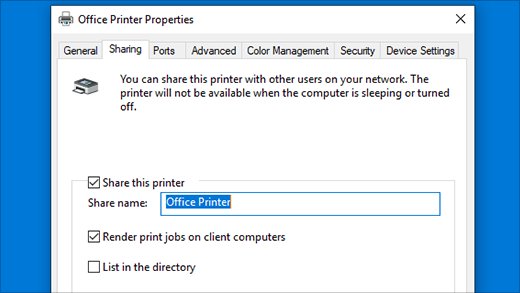
- Select Printer properties and open the Sharing tab.
- Select Change Sharing Options and approve the User Account Control prompt.
- Check Share this printer.
- Note the Share name, or change it to something short without spaces.
- Select OK.
Note the host PC's name under Settings > System > About > Device name. Its IPv4 address is under Settings > Network & Internet > Status > Properties. You need one of them on the second PC.
Method 1: Let Windows detect the printer
Windows scans the network for shared and network printers. This is the quickest route when network discovery is on at both ends.
- On the second PC, open Settings > Devices > Printers & scanners.
- Check whether the printer is already in the list of installed printers.
- If it is not, select Add a printer or scanner.
- Wait for the search to finish; it can take a few minutes.
- Select the printer, then select Add device.
Method 2: Manually add the network printer
Use this when the shared printer does not appear in the detected list.
- Open Settings > Devices > Printers & scanners and select Add a printer or scanner.
- Select The printer that I want isn't listed.
- In the Add printer window, choose Select a shared printer by name.
- Type the path, for example
\\OFFICE-PC\HPLaser, or select Browse to pick the host PC and printer. - Select Next and enter the host PC's credentials if prompted.
- Wait for the printer installation to finish, then select Next and Finish.
If the computer name fails, type the host PC's IP address in its place, and the other way around.
How do I manually add a network printer to my device?
The Add printer window offers two manual routes. Pick the row that matches your printer and type the value in the format shown.
| Option in Add printer | What to type | Use it for |
|---|---|---|
| Select a shared printer by name | \\computer_name\printer_name |
A printer shared from another Windows PC |
| Select a shared printer by name | \\ip_address\printer_name |
The same share when the PC name does not resolve |
| Select a shared printer by name | http://computer_name/printer_name/.printer |
Connecting to the share over HTTP |
| Select a shared printer by name | http://ip_address/printer_name/.printer |
HTTP connection by IP address |
| Add a printer using a TCP/IP address or hostname | The printer's own host name or IP address | A printer with its own Wi-Fi or Ethernet connection |
Most network printers can print a configuration or network report from their control panel that shows the IP address to type.
Add a shared printer in Windows 10 with PowerShell
Open Windows PowerShell from Start and run the command with your own host PC and share name. Run PowerShell as administrator if the command reports an access error.
Add-Printer -ConnectionName \\OFFICE-PC\HPLaserConnects this PC to the printer shared as HPLaser on the computer named OFFICE-PC and installs its driver.
You should see: The command returns without an error, and Get-Printer lists \\OFFICE-PC\HPLaser.
Install a network or wireless printer in Windows 10
A wireless printer must be on the same Wi-Fi network as the PC. A network printer on Ethernet must be on the same local network. Set up the printer's own network connection with its maker's instructions first, then connect the wireless printer to Windows with the steps below.
- Turn the printer on and confirm it is connected to the network.
- Open Start > Settings > Devices > Printers & scanners.
- Select Add a printer or scanner and wait for the list to fill.
- Select the printer and then Add device.
- If it is not found, select The printer that I want isn't listed.
- Choose Add a printer using a TCP/IP address or hostname, select Next, and enter the printer's IP address.
- Follow the remaining prompts to install the driver.
After installation, check Windows Update for updated printer drivers. The same steps apply on Windows 11 under different menu names; the Windows 11 printer setup uses Bluetooth & devices instead of Devices.
How to add a local printer on Windows 10
A wired or local printer plugged in by USB usually installs on its own within a minute of being turned on. Use these steps if it does not.
- Connect the printer to the PC with its USB cable and turn the printer on.
- Open Start > Settings > Devices > Printers & scanners.
- Check whether the printer is already listed.
- If not, select Add a printer or scanner.
- Select the printer, then select Add device.
- If the printer is not listed, select The printer that I want isn't listed and follow the Add Printer window.
A printer you install this way can then be shared with other PCs using the host-PC steps above.
Install a Bluetooth printer on Windows 10
How you make a printer discoverable depends on the model, so check its manual for the Bluetooth pairing button or menu.
- Turn on the printer and make it discoverable.
- Open Start > Settings > Devices > Printers & scanners.
- Select Add a printer or scanner.
- Wait while Windows searches for nearby printers.
- Select the printer, then select Add device.
Check the shared printer works on Windows 10
- Open Settings > Devices > Printers & scanners on the second PC and confirm the printer is listed.
- Open Notepad, type a line of text, press Ctrl + P, select the shared printer and select Print.
- Confirm the page comes out of the printer attached to the host PC.
- To make it the default, select the printer, select Manage, then Set as default.
In PowerShell, Get-Printer gives a full list of installed printers, including shared connections.
Remove a printer in Windows 10
- Open Start > Settings > Devices > Printers & scanners.
- Select the printer you want to remove.
- Select Remove device and confirm.
- To stop sharing instead, open Printer properties > Sharing on the host PC and clear Share this printer.
Troubleshoot printer problems on Windows 10
Windows cannot connect to the shared printer
The host PC is off, asleep, or not reachable on the network.
- Wake the host PC and confirm it is connected to the network.
- On the second PC, type
\\computer_namein the File Explorer address bar and press Enter. - If the shared printer appears, double-click it to connect.
- If the PC does not answer, use its IP address in place of the name.
Windows asks for a user name and password
The second PC's account is not known to the host PC.
- Enter the user name and password of an account on the host PC.
- Or sign in to both PCs with the same Microsoft account or matching local account.
Shared printer was added but does not print
A stale connection or a stuck job in the print queue.
- Remove the printer on the second PC with Remove device.
- Restart the second PC.
- If jobs are stuck on the host PC, restart the Print Spooler service and clear
%WINDIR%\system32\spool\PRINTERS. - Add the printer again with Select a shared printer by name.
The printer installs with reduced features
Windows used a basic driver.
- Install any pending updates from Windows Update, which supplies most printer drivers.
- Or open Device Manager, expand Printers, right-click the printer and select Update driver.
Microsoft's automated printer troubleshooter in the Get Help app is another first step for any of these.
Why can’t Windows find my network printer?
Printer missing from the Add a printer or scanner list
Network discovery or file and printer sharing is off, or the network is set to Public.
- Set the network profile to Private.
- Turn on network discovery and file and printer sharing in Change advanced sharing settings.
- Run Add a printer or scanner again.
PC and printer on different networks
Extenders or a second router with its own network name split the network.
- Connect the PC to the same network name (SSID) as the printer.
- Turn the printer off, unplug it for 30 seconds, then plug it in and turn it on.
Printer still not detected
Discovery is not reaching the printer.
- Print the printer's network report to read its IP address.
- Add it with Add a printer using a TCP/IP address or hostname.
Windows 10 shared printer FAQ
Does the host PC need to stay on for a shared printer to work?
Yes. A shared printer prints through the PC it is plugged into, so that PC must be switched on, awake and connected to the network whenever another PC sends a job.
How do I find the shared printer's name?
Open Printer properties > Sharing on the host PC and read the Share name. Combine it with the host PC's device name from Settings > System > About to form \\computer_name\printer_name.
Can I add a shared printer by IP address instead of the PC name?
Yes. In Select a shared printer by name, type \\ip_address\printer_name using the host PC's IPv4 address. This helps when the computer name does not resolve on your network.
Can a Windows 11 PC use a printer shared from Windows 10?
Yes. The address formats and the Select a shared printer by name option are the same on Windows 11; only the menu path moves to Bluetooth & devices > Printers & scanners.
Why does Windows ask for a password when I add a shared printer?
The host PC needs to confirm who is connecting. Enter the user name and password of an account on the host PC, or use the same Microsoft account on both PCs.
Is Windows 10 still supported for printer sharing?
Printer sharing still works on Windows 10, but Microsoft ended Windows 10 support on October 14, 2025, so it no longer receives regular security updates.
How do I stop sharing a printer in Windows 10?
On the host PC, open Printers & scanners, select the printer, select Manage > Printer properties > Sharing, clear Share this printer and select OK.