A computer cannot find a wireless printer when the two are on different Wi-Fi networks, the printer has dropped off Wi-Fi, or Windows has not been told where to look, so start by putting both on the same network and then add the printer by its IP address.
The five fixes below work on Windows 11 and Windows 10, in the order that solves the problem fastest, followed by checks, symptom-specific fixes and answers to common questions. A printer that Windows finds but that still refuses to print belongs to a separate set of Windows 11 and 10 printer fixes.
1. Check the network status of your printer and that everything is properly plugged in
Most "printer not found" cases are network cases. Windows only discovers a wireless printer that is awake and on the same network as the PC, so these general troubleshooting steps come first.
- Turn the printer off, unplug it, wait 30 seconds, plug it back in and turn it on; check that the power cable and, for a wired network printer, the Ethernet cable are seated properly.
- Make sure the printer's wireless option is on; many models show a blue wireless light or icon when it is.
- Run the printer's wireless connectivity test from its control panel menu and read the result for the network name it joined.
- On the PC, select the Wi-Fi icon on the taskbar and confirm it is connected to that same network name.
- If your home uses extenders, mesh points or separate 2.4 GHz and 5 GHz network names, join the PC to the exact network the printer uses.
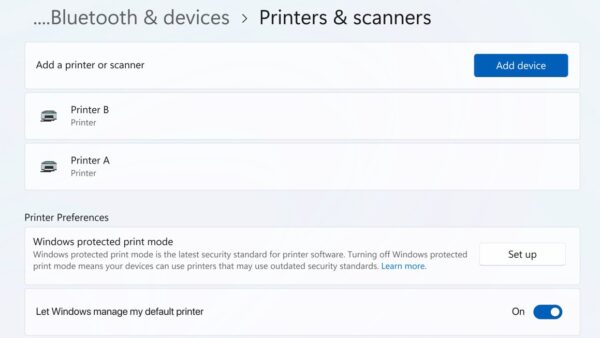
- Go to Settings > Bluetooth & devices > Printers & scanners, select Add device (or Refresh), and wait for the list to finish.
If the printer shows up now, select Add device next to it. A wireless printer that has never joined your network needs its own setup first; connect the wireless printer to Windows before trying the other fixes.
Which fix to try when Windows 11 can't find your printer
Windows 11 can't find your printer even though it's on and nearby? Match what you see to a row and try these quick steps to get it working again.
| What you see | Start with | Why |
|---|---|---|
| Printer's wireless test fails or shows another network | Fix 1: check the network status of your printer | Windows only discovers printers on its own network |
| Printer is on the right network but missing from the Add device list | Fix 2: add the unseen printer manually | Discovery can fail even when printing over the IP address works |
| Printer was found before and has vanished from apps | Fix 3: restart the Print Spooler service | A stuck spooler stops Windows listing and using printers |
| Printer appears but shows Find drivers or will not print | Fix 4: update drivers or run the setup from installation media | A missing or broken driver blocks the printer after discovery |
| You are not sure where the fault is | Fix 5: run the troubleshooter | It runs diagnostics and applies the standard repairs automatically |
2. Adding a printer manually by IP address or hostname
Adding an unseen printer by its IP address bypasses network discovery entirely. You need the printer's IP address, which most wireless printers show in their network settings on the control panel; you can also find the printer's IP address from the router or Windows.
- Go to Settings > Bluetooth & devices > Printers & scanners.
- Select Add device next to Add a printer or scanner, and wait for the list to finish.
- Next to The printer that I want isn't listed, select Add manually (or Add a new device manually).
- Choose Add a printer using an IP address or hostname and select Next.
- For Device type, select IPP Device if the printer is Mopria certified.
- Type the printer's address in Hostname or IP address, then select Next.
- Name the printer, choose whether to share it, and select Finish.
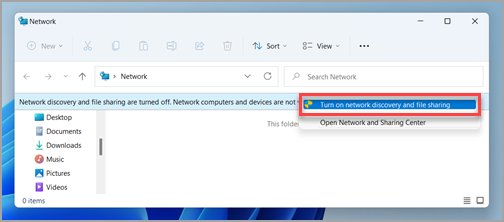
To confirm a connected printer is reachable before adding it, find the printer on your network from File Explorer or the router.
3. Restart the Print Spooler service
The Print Spooler service handles printers and print jobs. You can restart the Print Spooler from Services or Command Prompt, and doing so clears temporary faults that stop Windows recognising a printer it already knows.
- Press Windows key + R, type
services.msc, and press Enter. - Scroll down to Print Spooler.
- Right-click Print Spooler and select Restart.
- If the restart fails, double-click Print Spooler, select Stop, then OK.
- Open
%WINDIR%\system32\spool\PRINTERSin File Explorer and delete the files inside it. - Back in Services, double-click Print Spooler, select Start, set Startup type to Automatic, and select OK.
4. Update drivers or run the setup from installation media
A printer that Windows sees but cannot use, or one that disappears after an update, usually has a driver problem. HP's self-guided troubleshooting for a wireless printer issue starts with exactly this: uninstall and reinstall the driver and software, then troubleshoot the connection.
- Select Start, open Device Manager, and expand Printers.
- Right-click the printer and select Update driver, then let Windows search automatically.
- If no update is found, right-click the printer, select Uninstall device, and restart the PC so Windows reinstalls it.
- If the printer is still not found, remove it in Settings > Bluetooth & devices > Printers & scanners with Remove.
- Download the current setup software for your model from the manufacturer's support site and run it; use the installation disc only if the PC has no internet, since disc software is often out of date.
- Follow the installer's wireless setup prompts, which search the network for the printer and add it.
On ARM PCs such as Copilot+ PCs, Microsoft advises skipping the manufacturer's installer and adding the printer from Printers & scanners with Add device instead.
5. Run the troubleshooter for printers in Windows 11
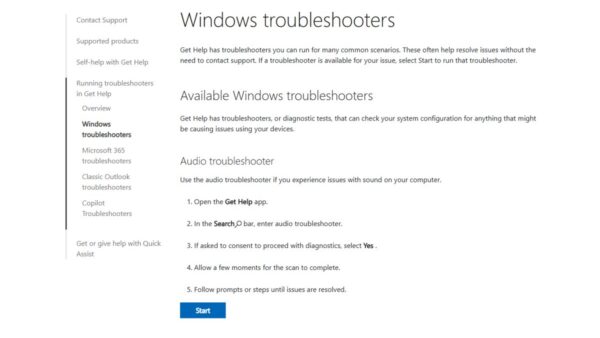
Windows 11 includes an automated printer troubleshooter in the Get Help app. It runs diagnostics and attempts the standard repairs, including the spooler and connection checks above.
- Select Start, type Get Help, and open the app.
- Search for the printer troubleshooter and start it.
- Let it finish its diagnostics and apply each fix it offers.
- Go back to Printers & scanners and select Add device to search again.
Common wireless printer issues on Windows 11/10 PC
| Issue | Usual cause | Fix |
|---|---|---|
| Printer not found when adding a device | PC and printer on different networks or bands | Fix 1 |
| Printer not recognized after it worked before | Stuck Print Spooler or a damaged driver | Fix 3, then Fix 4 |
| Printer connected to Wi-Fi but the PC can't find it | PC on another network name, or network set to Public | Fix 1, Fix 2, and set the network to Private |
| Printer shows offline | Printer asleep, changed IP address or lost Wi-Fi | Fix 1, then re-add it by IP address |
| "Printer in error state" | A fault on the printer itself | Check paper, ink, an open cover or a paper jam |
| Shared printer on another PC not visible | Network discovery or printer sharing turned off | See the other things to try below |
Other things to try: share a network printer and turn on network discovery
If the wireless printer is installed on another PC, or Windows still cannot see devices on the network, these settings change what the PC is allowed to discover. Make the change only on a home or work network you trust.
- Go to Settings > Network & internet, select Wi-Fi, select your network, and set Network profile type to Private network.
- Go to Settings > Network & internet > Advanced network settings > Advanced sharing settings.
- Under Private networks, turn on Network discovery and File and printer sharing.
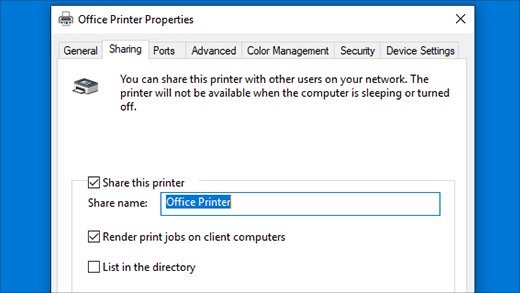
- To share a network printer from the PC it is installed on, open Printers & scanners, select the printer, select Printer properties, and on the Sharing tab tick Share this printer.
- On the other PC, select Add device, then Add manually, then Select a shared printer by name, and type
\\computer_name\printer_name. - Enter the sharing PC's username and password if asked, then select Next and Finish.
How to check your computer now recognizes the wireless printer
- Open Settings > Bluetooth & devices > Printers & scanners and confirm the printer is listed without an offline label.
- Select the printer and check that no Find drivers button appears next to it.
- Print a test page from the printer's properties.
- Print from a real app, such as a browser, to confirm the printer works with that app's print dialog.
- Restart the PC and the printer once, then print again to confirm the connection survives a reboot.
Additional wireless printer issues on Windows 11/10 PC and how to fix them
Printer connected to Wi-Fi but the computer can't find it
The PC is on a different network name, an extender's network, or a guest network.
- Print the printer's wireless test and note the network name.
- Join the PC to that exact network name.
- Search again with Add device, or add the printer by IP address with Fix 2.
Printer worked yesterday and is offline today
The printer lost its Wi-Fi connection or received a new IP address from the router.
- Restart the printer and confirm its wireless light or icon is on.
- Check the printer's current IP address on its control panel.
- Remove the printer in Printers & scanners and add it again by the new IP address.
"Printer in error state" after the printer is found
The printer reports a hardware fault rather than a network one.
- Check for low paper or ink.
- Close any open covers and clear paper jams.
- Turn the printer off and on, then print a test page.
Shared printer on another PC does not appear
Network discovery or file and printer sharing is off, or the network is set to Public.
- Set the network profile to Private network on both PCs.
- Turn on Network discovery and File and printer sharing in Advanced sharing settings.
- Add the printer by name with Select a shared printer by name.
Printer setup fails on a Copilot+ or other ARM PC
Some manufacturer installers do not support ARM PCs.
- Cancel the manufacturer's installer.
- Go to Settings > Bluetooth & devices > Printers & scanners and select Add device.
- If the printer is still missing, add it by IP address with IPP Device as the device type.
Wireless printer tips and cautions
| Type | Advice |
|---|---|
| Tip | Reserve a fixed IP address for the printer in your router so a printer added by IP address does not go offline when the address changes. |
| Tip | Keep the printer within good Wi-Fi range of the router, not behind a single weak extender. |
| Tip | Use the manufacturer's current download instead of the disc in the box. |
| Caution | Set a network to Private only when you trust it; a café or hotel network should stay Public. |
| Caution | Download printer drivers only from the manufacturer or Windows Update, never from driver download sites or driver updater tools. |
| Caution | Leave the firewall and antivirus on; the fixes above do not need them turned off. |
Computer can't find wireless printer FAQ
How do I get my computer to recognize my wireless printer?
Put the PC and printer on the same Wi-Fi network, then go to Settings > Bluetooth & devices > Printers & scanners and select Add device. If the printer still does not appear, select Add manually and add it with its IP address or hostname.
Why is my printer connected to Wi-Fi but my computer can't find it?
The PC is usually on a different network name, such as an extender, a separate 5 GHz name or a guest network, or its network is set to Public. Join the printer's exact network, set it to Private, and add the printer by IP address if needed.
How do I add a wireless printer by IP address in Windows 11?
Open Printers & scanners, select Add device, then Add manually next to The printer that I want isn't listed. Choose Add a printer using an IP address or hostname, pick IPP Device as the device type, and type the printer's IP address.
Does restarting the Print Spooler help when the printer is not found?
Yes, when the printer was installed before and has stopped appearing or responding. The Print Spooler handles print jobs, and restarting it from services.msc clears temporary faults. It does not help a printer that is on a different network.
Where is the printer troubleshooter in Windows 11?
Windows 11 runs its automated printer troubleshooter from the Get Help app. Open Get Help from Start, search for the printer troubleshooter, and follow the prompts. It checks the connection, the spooler and the driver and applies fixes automatically.
Do I need the printer's installation disc to fix this?
No. Windows installs most wireless printers with its own driver, and the manufacturer's website carries newer setup software than the disc. Use the disc only on a PC that has no internet connection, then update the software later.
Why does Windows say printer not found or printer not recognized?
Microsoft lists connection problems, outdated drivers and incorrect printer settings as the causes. Check the printer is on the same Wi-Fi network, restart the Print Spooler, update or reinstall the driver, then remove and re-add the printer from Printers & scanners.
Wireless printer still not found: when to contact the manufacturer
If all five fixes fail and the printer's own wireless test also fails, the fault is in the printer or its Wi-Fi setup, so contact the manufacturer's support. Once the printer is on the same network, reachable by IP address, and the spooler and driver are fresh, Windows has nothing left to repair; the vendor's support site has model-specific network reset and setup steps.