To print a test page in Windows 11, open Settings > Bluetooth & devices > Printers & scanners, select your printer, select Printer properties and then Print Test Page on the General tab.
This guide covers the Settings, Control Panel and printer self-test methods, Windows 10 steps, how to read the result, and fixes when the test page will not print. A clean test page means the basics work; for paper, colour or layout choices after that, open the Windows 11 printer preferences guide.
How to print a test page in Windows 11
Quick answer: this is the Settings route, and it is the one most people should use. It prints in seconds and confirms that Windows can communicate with the printer.
- Turn the printer on and load plain paper.
- Select Start > Settings > Bluetooth & devices > Printers & scanners.
- Select your printer in the list.
- Select Printer properties.
- On the General tab, select Print Test Page.
- Collect the page from the printer and check it against the results table below.
If the printer is not in the list, add a printer in Windows 11 first; the add-printer wizard also offers Print a test page on its last screen.
Quick summary: three simplest ways to print a test page in Windows 11
The different methods test different things. The two Windows routes test the PC, driver and connection; the printer's own self-test checks only the hardware.
| Method | Best when | What it proves |
|---|---|---|
| 1. Windows Settings (recommended for most users) | The printer appears in Printers & scanners | Windows, the driver and the connection all work |
| 2. Control Panel (classic path) | You prefer Devices and Printers, or Settings will not open | The same as Settings |
| 3. The printer's control panel (hardware self-test) | Nothing prints from Windows | The printer hardware, ink or toner and paper path work |
Method 2: Print test page from Control Panel
The classic Devices and Printers window gives the same Print Test Page button. Pick Printer properties, not plain Properties, or the button does not appear.
- Select the search box on the taskbar and type
Devices and Printers. - Select Devices and Printers (Control panel) in the results.
- Right-click your printer, or press and hold it on a touchscreen.
- Select Printer properties.
- On the General tab, select Print Test Page.
Other ways to open Devices and Printers include the control printers command in the Run box.
Method 3: Print a test page directly from the printer (hardware self-test)
A self-test page comes from the printer itself, with no PC involved. It is the answer to how to print a test page on an HP, Canon, Epson, Brother or Lexmark printer without a computer.
- Turn the printer on and load paper.
- Open the printer's control panel menu.
- Look under Setup, Tools or Maintenance for a test page, status report or print quality report option.
- Select it and wait for the page to print.
- Check the manual or the maker's support site for your model if the menu has no such option.
Menu names differ by brand and model, so the manual is the authority for button presses on printers without a screen. Many printers can also print a network configuration page that shows their current Wi-Fi status and address, which helps when your computer cannot find the wireless printer.
Method 4: Print a test page in Windows 10 from Settings
Windows 10 keeps printers under Devices and adds a Manage button before the properties window.
- Select Start > Settings > Devices > Printers & scanners.
- Select your printer, then select Manage.
- Select Printer properties.
- On the General tab, select Print Test Page.
The Control Panel method above works the same way on Windows 10.
What is a Windows test page?
| Test page type | Who creates it | What it checks |
|---|---|---|
| Windows test page | Windows, through the installed printer driver | That Windows can send a job to the printer through the driver, queue and connection |
| Printer self-test or status page | The printer's own firmware | Print hardware, ink or toner, and alignment, with the PC left out |
| Add-printer wizard test page | Windows, at the end of setup | That a newly added printer and driver work |
Why print a test page: what it tells you
A test page tells you whether a problem sits in the printer, the connection or the computer's settings. It also shows toner problems, alignment faults and clogged printheads.
| Windows test page | Printer self-test | Where the fault is |
|---|---|---|
| Prints cleanly | Prints cleanly | Neither; look at the app or document you were printing |
| Fails | Prints cleanly | Connection, driver or print queue on the PC side |
| Fails | Fails | The printer hardware, power or paper path |
| Prints with streaks | Prints with streaks | Ink, toner or printhead |
When should you print a test page?
| Situation | Which test page |
|---|---|
| Right after you install a printer or a new driver | Windows test page |
| A document will not print or prints wrongly | Windows test page, then the self-test if it fails |
| Prints look faded, streaked or miss a color | Self-test, before and after a printhead cleaning |
| An inkjet has sat unused | Self-test about once a month keeps ink moving through the nozzles |
| After you change Wi-Fi router or network | Windows test page plus the network configuration page |
What does a successful test page mean?
A clean, full test page from Windows means the printer, its driver and the connection all work. Any remaining problem sits in the app, the document or that app's print settings.
- Check that the page printed in full, top to bottom, with no cut-off text.
- Check that text is sharp and colors, if any, are present and even.
- Print the document again from the original app.
- If it still fails, print from Notepad or Paint to see whether only one app is affected.
Interpreting common test-page outcomes
Analyzing the printed test page is quick. Match what came out to a row.
| What the test page shows | Likely cause | Next step |
|---|---|---|
| Clean, full test page | Printer, driver and connection all work | Check the app's print settings and the document |
| Missing one or more colors, or color streaks | Low ink or toner, or a clogged or misaligned printhead | Check levels, run Clean printhead and Align printhead, then test again |
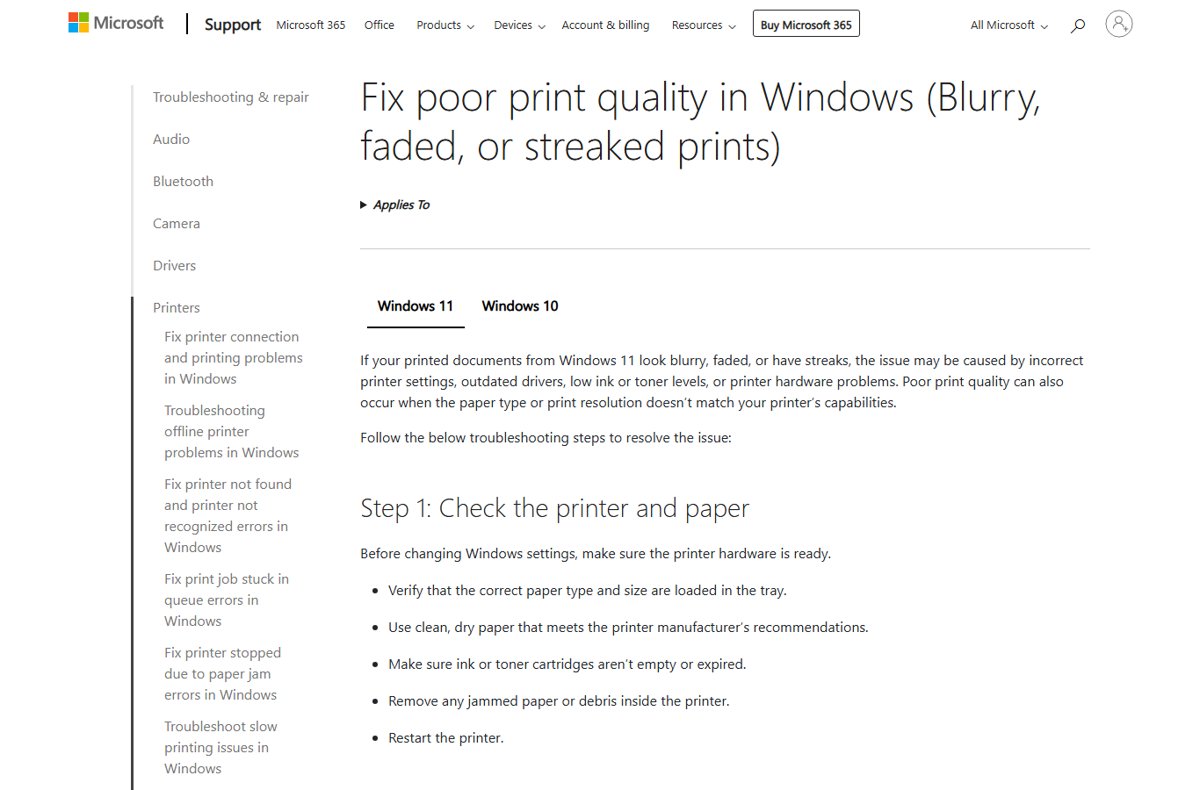
| Partial page or truncated output (top of page only) | Driver or communication fault, or wrong paper size | Reinstall the driver and match the paper size in Printing preferences |
| Blank pages from Windows but the self-test works | Driver or settings problem on the PC side | Update or reinstall the printer driver |
| Faded or blurry output | Draft or toner-saver mode, or the wrong paper type | Set quality to Normal or Best and match the paper type |
| Nothing prints at all | Connection, queue or spooler | Work through the fixes below |
When the test page does not print: a prioritized troubleshooting playbook
Why won't my printer print a test page?
The printer is offline, disconnected or in an error state.
- Check for low paper or ink, an open cover or a paper jam.
- Turn the printer off, unplug it for 30 seconds and turn it back on.
- Confirm the USB cable is seated or that the PC and printer share one Wi-Fi network.
- Run the printer troubleshooter: open the Get Help app and search for
printer troubleshooter.
Why can't I print a test page when jobs pile up in the queue?
A stuck job or a stalled Print Spooler service blocks the queue.
- Open Printers & scanners, select the printer and choose Open print queue.
- Select … and then Cancel all.
- Press Win + R, type
services.msc, right-click Print Spooler and select Restart. - Print the test page again.
Test page fails after a driver or Windows update
An outdated or incompatible printer driver.
- Open Device Manager and expand Printers.
- Right-click the printer and select Update driver.
- If the trouble began after an update, open Properties > Driver and select Roll Back Driver.
- Otherwise install the driver for your model and Windows version from the maker's site, then restart.
Printer is not listed, so there is no test page button
Windows does not have the printer installed.
- In Printers & scanners, select Add device.
- Select Add device beside your printer, or Add manually if it is not found.
- Select Print a test page on the wizard's last screen, then Finish.
A job that refuses to leave the queue may need you to delete the stuck print job from the spool folder.
How to fix test page printing issues
Why can I print a test page but nothing else?
The printer and connection work, so the fault is in the app, its settings or the queue.
- Print the same document from another app, such as Notepad or Word.
- In the app, select File > Print and check that the right printer is selected and shows Ready.
- Make sure Print to PDF or Print to file is not selected.
- Check page size, orientation and the pages-to-print range.
Why can I print a test page but not a PDF?
The PDF reader is sending the job to another printer or uses its own print settings.
- Open the reader's Print dialog and pick the physical printer, not a PDF printer.
- Check the page range and scaling options in that dialog.
- Print the PDF from a different reader, such as Microsoft Edge, to see whether one app is the cause.
Why does my printer only print a test page?
Apps are printing to a different default printer.
- Open Printers & scanners and turn off Let Windows manage my default printer.
- Select your printer and select Set as default.
- Close and reopen the app, then print again.
Special cases and enterprise considerations
| Setup | How to test it |
|---|---|
| Shared/print server environments | Print the test page from the client PC; that tests the share, the network path and the client driver together. A test page from the server only proves the server side |
| Shared printer that will not connect | Check that Network discovery and File and printer sharing are on under Settings > Network & internet > Advanced network settings > Advanced sharing settings |
| POS, label and specialty printers | Use the maker's own utility or the printer's self-test, because these printers use narrow or non-standard media |
| Work or school PCs | Printer drivers and queues may be managed by IT, so report a failed test page to them before you reinstall anything |
Common pitfalls and risks to watch for
Practical tips, dos and don'ts: a few habits waste ink or point you at the wrong fix.
| Do | Don't |
|---|---|
| Choose Printer properties in Control Panel | Choose plain Properties, which has no test page button |
| Run a self-test before blaming Windows for poor quality | Reinstall drivers to fix streaks the self-test also shows |
| Clean the printhead only when quality drops | Run cleaning cycles repeatedly; each one uses ink |
| Load the paper size and type the printer is set to | Test on glossy or label stock unless you mean to |
| Install drivers from the printer maker or Windows Update | Use drivers marked for older Windows versions when a current one exists |
When to escalate: hardware service vs. IT support
| Result after the fixes | Who to contact |
|---|---|
| Self-test fails or shows the same fault after cleaning and new cartridges | The printer maker's support or a repair service |
| Self-test is clean but Windows test pages still fail after a driver reinstall | The printer maker for a driver, or Microsoft support for Windows |
| Shared or managed office printer fails only on some PCs | Your IT team, who manage the print server and drivers |
Printer test page FAQ
How do I print a test page in Windows?
Open Settings > Bluetooth & devices > Printers & scanners in Windows 11, select the printer, select Printer properties and choose Print Test Page on the General tab. In Windows 10, go to Settings > Devices > Printers & scanners, select the printer, then Manage > Printer properties.
How do I print a test page on an HP printer?
From Windows, use Printers & scanners > Printer properties > Print Test Page, which works for HP and every other brand. To test without a computer, look for a test page or report option under Setup, Tools or Maintenance on the HP printer's control panel.
How do I print a test page on a Canon, Epson, Brother or Lexmark printer?
The Windows Print Test Page button works the same for every brand. For a self-test from the printer itself, the option sits in the printer's own menu and varies by model, so check the manual or the maker's support page for your exact printer.
How do I print a test page on a Mac?
On a Mac, open Printers & Scanners, select the printer, choose Options & Supplies and then select Print Test Page. This guide focuses on Windows 11; the printer's own self-test from its control panel works the same whichever computer you use.
How do I print a test page directly from the printer?
Use the printer's control panel. Look under Setup, Tools or Maintenance for a test page, status report or print quality page. A clean self-test means the hardware works and any problem lies in the PC, driver or connection.
Why can't my printer print a test page?
The usual causes are an offline or disconnected printer, a stuck job in the queue, a stalled Print Spooler service or a broken driver. Check paper and power, clear the queue, restart Print Spooler in services.msc and update the driver.
Why can I print a test page but nothing else?
The printer, driver and connection work, so the problem is in the app. Check that the app prints to the right printer, that Print to PDF or Print to file is not selected, and that the page size and range are right.
Why does my printer only print a test page and not documents?
Apps usually send documents to the default printer, which may be a different one. Turn off Let Windows manage my default printer, set your printer as default in Printers & scanners and print from the app again.
Bottom line: which printer test page to use
Print the Windows test page from Printers & scanners first, and print the printer's own self-test only when the Windows page fails or looks wrong. The pair of results tells you whether to fix Windows, the driver and connection, or the printer hardware, before you spend time on the wrong one.