Most HP printing problems clear with three steps: turn the printer off for 30 seconds, cancel every job in the Windows print queue, and print a test page to see whether the fault is the printer or the computer.
This guide lists the ten problems HP owners hit most, from stuck jobs and offline errors to faded prints and cartridge errors, with the fix for each.
The 10 HP printing problems at a glance
Find your symptom, try the quick fix, then read the matching section if it persists.
| Problem | Quick fix | Section |
|---|---|---|
| 1. Not printing, jobs stuck in the queue | Cancel all jobs and restart the Print Spooler | Not printing or stuck in the queue |
| 2. Printer shows offline | Power-cycle printer, router and PC; clear Use Printer Offline | Offline, not found or Wi-Fi |
| 3. Printer not found or will not join Wi-Fi | Rerun the wireless setup from the printer's control panel | Offline, not found or Wi-Fi |
| 4. Paper jams and misfeeds | Turn off, remove paper slowly, reload a fanned stack | Paper jams, misfeeds and slow printing |
| 5. Slow printing | Lower the print quality and match the paper type | Paper jams, misfeeds and slow printing |
| 6. Faded prints, streaks or smudges | Run printhead cleaning, then alignment | Poor print quality |
| 7. Blank pages | Remove protective tape, reseat cartridges, clean printheads | Poor print quality |
| 8. Ink or cartridge errors | Reseat the cartridge and check it suits your model | Ink, toner and cartridge errors |
| 9. Driver, firmware or HP app setup fails | Update through Windows Update or HP's site, then reinstall | Driver, firmware and setup problems |
| 10. Scanning, two-sided or phone printing fails | Use the HP app and check the print dialog settings | Scanner, duplex and mobile printing |
HP printer not printing or stuck in the print queue
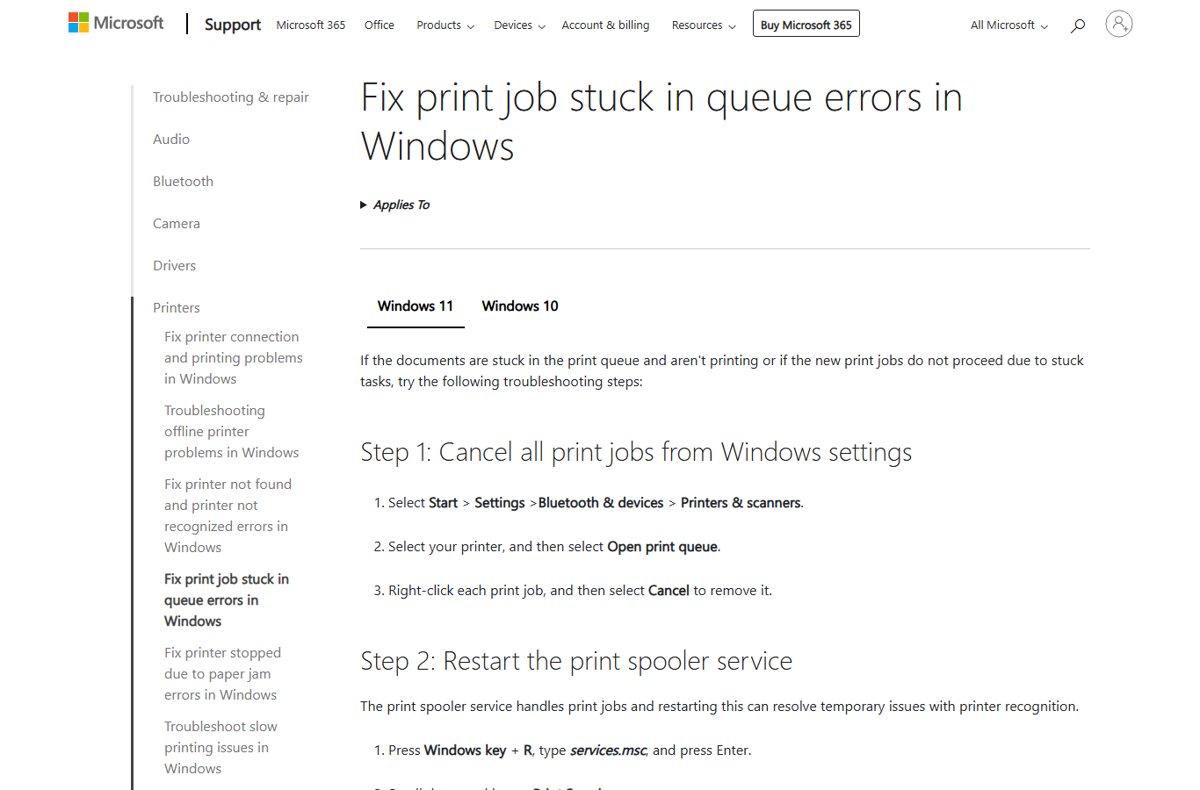
A stuck job blocks everything behind it. Clear the queue first, then restart the Windows service that manages printing.
- Open Start > Settings > Bluetooth & devices > Printers & scanners.
- Select your HP printer, then Open print queue.
- Select … and Cancel all, or right-click each job and select Cancel.
- Press Windows + R, type
services.mscand press Enter. - Right-click Print Spooler and select Restart.
- Turn the printer off, wait at least 60 seconds, turn it on and restart the PC.
If jobs still will not clear, stop the Print Spooler, delete the files in C:\Windows\System32\spool\PRINTERS, then start the service again. Also check the HP is set as the default printer, or turn off Let Windows manage my default printer first.
HP printer offline, not found, or unable to connect to Wi-Fi
Offline means the printer is on but the computer cannot talk to it. On Windows 11, start with the printer troubleshooter in the Get Help app.
- Turn off the printer, restart your router and wait for it to come back, restart the PC, then turn the printer on.
- Check the printer's control panel shows it on the same Wi-Fi network as your computer.
- Open the print queue, select Printer in the menu bar and clear Use Printer Offline if it is ticked.
- Print a network configuration page from the printer's menu to confirm it has a valid IP address.
- If it lost the network, run the wireless setup wizard from the printer's control panel.
- Still not found: in Printers & scanners, select the printer, Remove, then Add device to add it again.
A printer that keeps dropping offline often has a changing IP address. HP suggests reserving a static IP for it in your router settings.
Paper jams, misfeeds, and slow printing
Jams usually come from misaligned paper, an overfull tray or damp sheets that stick together. Never force paper out; it can damage the rollers.
- Turn off the printer so nothing moves while you work.
- Check every access point: input tray, output tray, rear door and front panel.
- Hold the paper with both hands and pull it out slowly; remove any torn pieces.
- Look for clips, labels or scraps with a flashlight.
- Fan the paper, load it below the tray's maximum line and slide the guides snug, not tight.
- If jams repeat, clean the rollers with a lint-free cloth dampened with water and let them dry.
For slow printing, open Printers & scanners > your printer > Manage > Printing preferences, choose a lower print quality under Paper/Quality and match the paper type. A USB cable test rules out slow Wi-Fi, and firmware updates from HP often fix delays.
Poor print quality: faded prints, streaks, smudges, and blank pages
Print a test page first. Streaks or missing colours on it point to the printer; a clean test page points to the app or settings.
- Check ink or toner levels in the HP app or on the printer and replace empty cartridges.
- For blank pages from new cartridges, remove each one and peel off any protective tape over the nozzles.
- Reseat each cartridge until it clicks into place.
- In the printer software's maintenance or tools menu, run Clean Print Heads and print a test page; repeat up to two or three times.
- Run Align Print Heads from the same menu for sharp text.
- Make sure the paper type in the print settings matches the paper loaded.
- For smudges, clean the rollers and wipe dried ink with a dry lint-free cloth.
If one colour is missing, check that the print dialog is not set to grayscale. Use deep cleaning only when standard cleaning fails, because it uses more ink.
Ink, toner, and cartridge errors
Messages such as incompatible, missing or failed cartridge usually mean poor contact or the wrong cartridge for the model.
- Open the cartridge door and remove the cartridge named in the error.
- Check the copper-coloured contacts for dirt or tape.
- Reinsert it firmly until it clicks, then close the door.
- Confirm the cartridge number matches your printer model in the user guide.
- Some HP models accept only cartridges with an HP chip; replace any that are not compatible.
- Restart the printer and print a test page.
Printers enrolled in HP+ require Original HP ink for the life of the printer, so other cartridges trigger errors on those models. To see what is left, check your HP printer's ink levels before buying replacements.
Driver, firmware, HP Smart, and setup problems
HP Smart and myHP are now the HP app, available for Windows 10 (64-bit) and 11, macOS, iPhone, iPad and Android. Microsoft recommends Windows Update for printer drivers.
- Run Windows Update, including optional driver updates, and restart.
- If no driver arrives, download the latest software for your exact model from HP's support site.
- Avoid the disc that came with the printer; its drivers may be outdated.
- Remove the printer in Printers & scanners, then add it again so Windows fetches the current driver.
- Install or update the HP app to set up the printer and check its status.
- Install firmware updates from HP when offered, keeping the printer powered on throughout.
On ARM-based Windows PCs such as Copilot+ PCs, Microsoft notes some maker installers fail. Add the printer through Printers & scanners > Add device instead.
Scanner, duplex printing, and mobile printing issues
| Issue | Likely cause | Fix |
|---|---|---|
| Scanner not found | Printer on a different network, or missing full software | Connect both to the same Wi-Fi and scan from the HP app |
| Scan fails from the PC | Old driver or software | Update the driver through Windows Update or HP, then retry |
| Prints only one side | Two-sided option off in the print dialog | Open Printing preferences and turn on two-sided printing, if the model supports it |
| Phone cannot see the printer | Phone on mobile data or another Wi-Fi network | Join the printer's network and print from the HP app |
| Phone printing fails after a router change | Printer still on the old network | Rerun wireless setup on the printer |
How to check the fix worked
- Open Start > Settings > Bluetooth & devices > Printers & scanners and select your HP printer.
- Confirm the status no longer says offline and the queue is empty.
- Print a test page from Windows, or from the printer's setup or tools menu.
- Check the page for streaks, missing colours and correct alignment.
- Print a real document from the app that failed before.
When to contact HP or replace the printer
| Sign | What it means |
|---|---|
| Grinding or unusual mechanical noise | Likely hardware failure; stop and contact HP |
| Burning smell | Turn the printer off immediately |
| Error codes that persist after restarts | Needs HP diagnostics or service |
| Paper feeds but nothing prints after all cleaning | Printhead or ink system fault |
| Repair costs more than half a comparable new printer | Replacing is usually the better value |
Frequently Asked Questions
How do I troubleshoot HP printer problems?
Restart the printer for 30 seconds, clear the Windows print queue, restart the Print Spooler and print a test page. A clean test page means the fault is the computer or app; a bad one means the printer needs cleaning or new ink.
How do I get my HP printer to print when jobs are stuck in the queue?
Open Printers & scanners, select the printer, Open print queue and Cancel all. Then restart the Print Spooler in services.msc and power-cycle the printer for 60 seconds.
What should I do if my HP printer says offline but it is turned on?
Restart the printer, router and PC in that order, confirm the printer is on your Wi-Fi network, and clear Use Printer Offline in the print queue's Printer menu. Run the Get Help printer troubleshooter on Windows 11.
Why is my HP printer printing poorly?
Low ink, clogged printheads, the wrong paper type setting or dirty rollers cause most poor prints. Run Clean Print Heads, then Align Print Heads, and check the paper type matches what is loaded.
Why is my HP printer printing blank pages?
No ink is reaching the paper. Remove any protective tape from new cartridges, reseat them, check ink levels and run a printhead cleaning cycle, repeating it if the printer sat unused for weeks.
What happened to the HP Smart app?
HP Smart and myHP have been replaced by the HP app. It sets up printers, shows ink and paper levels, prints and scans from computers and phones, and links to HP support.
What is wrong with my HP printer if it shows a cartridge error?
The cartridge is usually not seated properly, has tape or dirt on its contacts, or does not suit your model. Reseat it, check the cartridge number and note that HP+ printers need Original HP ink.
Bottom Line
Start every HP printing problem with a power cycle, a cleared print queue and a test page, then follow the section that matches what the test page shows. The test page separates printer faults such as clogged heads and cartridge errors from computer faults such as stuck queues, offline status and drivers, which use completely different fixes.



Printer settings and problems in Windows 11/10: the complete guide - Techdows
[…] Wi-Fi setup, account registration and management; HP also documents the most common HP printing problems […]