To restart the Print Spooler in Windows 11 or Windows 10, press Windows + R, type services.msc, right-click Print Spooler and select Restart, or pick Stop or Start from the same menu.
This guide also covers the Command Prompt and PowerShell commands, the startup type, clearing the spool folder, and what to do when the service will not start or keeps stopping.
The fastest way to restart the Print Spooler
The Services console works the same way on Windows 11 and Windows 10. Microsoft lists this restart as a first fix for stuck print jobs and a printer that stops responding.
- Press Windows + R to open the Run box.
- Type
services.mscand press Enter. - Scroll down the list and find Print Spooler.
- Right-click Print Spooler and select Restart.
- Wait a few seconds, then send your document to the printer again.
Use Stop from the same right-click menu when you need the service off, and Start to turn it back on.
When You Should Start, Stop, or Restart the Print Spooler
Pick the action from what you see on screen. Each row names the fastest route to it.
| Your situation | Action | Fastest route |
|---|---|---|
| Documents sit in the queue and nothing prints | Restart | Services console, right-click Restart |
| The printer is listed but not responding | Restart | Restart-Service -Name Spooler in an admin PowerShell |
| You need to delete files in the spool folder | Stop, clear the folder, then Start | net stop spooler, clear the folder, net start spooler |
| Printers have vanished from Settings and apps cannot print | Start | Services console, right-click Start |
| The service must come back on every boot | Set startup type to Automatic | Print Spooler Properties in Services |
| A server or domain controller that never prints | Stop and disable (admins only) | Group Policy or Set-Service, see the risks section below |
| You manage many PCs or write scripts | Any | PowerShell cmdlets |
What the Print Spooler Service Does in Windows 10 and 11
Print Spooler is the Windows service that queues your documents and hands them to the printer. Microsoft's service reference says that if you turn it off, you can't print or see your printers.
| Fact | Detail |
|---|---|
| Display name | Print Spooler |
| Service name (used in commands) | Spooler |
| What it handles | Spools print jobs and manages the interaction with the printer |
| Default startup type | Automatic, so it starts with Windows and runs until shutdown |
| Depends on | Remote Procedure Call (RPC), service name RpcSs |
| Spool folder | C:\Windows\System32\spool\PRINTERS (default) |
| Files in that folder | .SHD and .SPL files, one pair per queued print job |
| When it is stopped | Printing fails and your printers disappear from view until it starts again |
The folder location can be changed. Windows records it in the DefaultSpoolDirectory value under HKEY_LOCAL_MACHINE\SYSTEM\CurrentControlSet\Control\Print\Printers.
Start, Stop, or Restart Print Spooler Using Services
The Properties window gives you Stop and Start buttons plus the startup type in one place. Use it when you want to stop the service, do something, then start it again.
- Type services in the taskbar search box and select Services in the results.
- Double-click Print Spooler in the list of services.
- Select Stop to turn the service off, then select OK.
- When you are ready, open Print Spooler again and select Start.
- Check that Startup type shows Automatic so the service returns after every reboot.
- Select OK to close the window.
If the Start button is greyed out, the startup type is set to Disabled. Change it to Automatic, select Apply, then select Start.
Restart Print Spooler Using Command Prompt
The net commands need an elevated window. Type cmd in the taskbar search box, right-click Command Prompt and select Run as administrator, then select Yes.
The single line below stops the service and starts it again. In Command Prompt, && runs the second command only if the first one succeeded.
net stop spooler && net start spoolernet stop spooler stops the Print Spooler service. net start spooler starts it again. spooler is the service name, not the display name.
You should see: Command Prompt confirms that the service stopped, then confirms that it started, and returns to the prompt.
Run the two commands separately when you want to work on the spool folder in between. Type net stop spooler, press Enter, do the work, then type net start spooler and press Enter.
To see the current state first, run sc.exe query spooler and read the STATE line.
Manage Print Spooler with PowerShell
Type powershell in the taskbar search box, right-click Windows PowerShell and select Run as administrator. The cmdlets accept the service name Spooler, and Microsoft's own fix is Restart-Service -Name spooler.
| What you want to do | Command | Notes |
|---|---|---|
| Check the current status | Get-Service -Name Spooler |
The Status column shows Running or Stopped |
| Restart the service | Restart-Service -Name Spooler |
Sends a stop, then a start. A stopped service is simply started |
| Stop the service | Stop-Service -Name Spooler |
Add -Force only if another service depends on it |
| Start the service | Start-Service -Name Spooler |
Fails if the startup type is Disabled |
| Set it to start with Windows | Set-Service -Name Spooler -StartupType Automatic |
The Windows default |
| Check startup type and status together | Get-Service Spooler | Select-Object -Property Name, StartType, Status |
Confirms a startup type change |
The -Force switch on Stop-Service exists to stop a service that has dependent services. By default only RPC sits underneath Print Spooler, but printer software can add services that depend on it.
Set the Print Spooler startup type
The startup type decides what happens at the next boot. Automatic is the default and the right choice on any PC that prints.
| Startup type | What it does | PowerShell | Command Prompt |
|---|---|---|---|
| Automatic | Starts at system start-up | Set-Service -Name Spooler -StartupType Automatic |
sc.exe config spooler start= auto |
| Delayed automatic | Starts a short time after the other automatic services | Use the sc.exe command |
sc.exe config spooler start= delayed-auto |
| Manual | Starts only when a user or app starts it | Set-Service -Name Spooler -StartupType Manual |
sc.exe config spooler start= demand |
| Disabled | Cannot be started by a user or app | Set-Service -Name Spooler -StartupType Disabled |
sc.exe config spooler start= disabled |
Keep the space after start= in sc.exe commands. Microsoft's documentation states that the operation fails without it.
In the Services console, double-click Print Spooler, pick the value in the Startup type box and select OK.
Clear Stuck Print Jobs Before Restarting the Service
A plain restart clears most stuck jobs. When a job still will not go, delete it from the spool folder while the service is stopped. Every file there is a queued job, so anything waiting to print is lost.
- Open Command Prompt as administrator and run
net stop spooler. - Open File Explorer, paste
C:\Windows\System32\spool\PRINTERSinto the address bar and press Enter. - Delete all the files in the folder. Leave the folder itself in place.
- Return to Command Prompt and run
net start spooler. - Print your document again.
Microsoft's support steps do the same through the Services console: stop Print Spooler, delete the files in %WINDIR%\system32\spool\PRINTERS, then start the service with Startup type set to Automatic.
How to check the Print Spooler is running again
- Open
services.mscand check that the Status column for Print Spooler reads Running. - Or run
Get-Service -Name Spoolerin PowerShell and confirm Status shows Running. - Open Settings and check that your printers are listed again.
- Open the printer's queue and confirm it is empty or that jobs move to printing.
- Print a short test page from Notepad to prove the whole path works.
Troubleshooting Print Spooler Problems
The command fails in Command Prompt or PowerShell
The window is not elevated, or the command uses the display name instead of the service name.
- Close the window.
- Right-click Command Prompt or Windows PowerShell and select Run as administrator.
- Use the service name
spooler, for examplenet stop spooler. - In PowerShell, type
sc.exein full rather thansc.
Print Spooler will not start or the Start button is greyed out
The startup type is Disabled, often by Group Policy on a managed PC as a security measure.
- Double-click Print Spooler in Services and check Startup type.
- Change it to Automatic, select Apply, then select Start.
- If the setting changes back, a Group Policy is enforcing it. Ask your IT administrator before going further.
- Check that Remote Procedure Call (RPC) is running, since Print Spooler depends on it.
A print job is stuck and will not delete
A damaged job file stays in the spool folder and blocks the queue.
- Stop the service with
net stop spooler. - Delete all files in
C:\Windows\System32\spool\PRINTERS. - Start the service with
net start spooler. - Try printing from Notepad. If that works, the problem is in the original app or document.
The Print Spooler keeps stopping by itself
Microsoft names corrupt spool files, outdated or conflicting printer drivers, security software blocking spooler files, and low system resources.
- Clear the spool folder as shown above.
- Open Device Manager, uninstall old or duplicate printer drivers and install the latest driver from the printer maker.
- If the latest maker's driver still crashes, switch to a generic in-box Windows driver.
- Check that your security software is not blocking or quarantining files the spooler needs.
- Open Event Viewer and check the event logs for Print Spooler errors around the time it stopped.
"Spooler subsystem app has encountered a problem and needs to close"
A third-party printer driver or service is interfering with the spooler.
- Stop Print Spooler in Services.
- Delete all files in
%WINDIR%\system32\spool\PRINTERS. - Start Print Spooler with Startup type set to Automatic.
- Update or remove the printer driver that was installed just before the error began.
Printing still fails after the spooler restarts
The fault is in the printer, its connection or its driver rather than the service.
- Turn the printer off, wait about 30 seconds and turn it on again.
- On Windows 11, run the printer troubleshooter from Settings > System > Troubleshoot > Other troubleshooters and select Run next to Printer.
- Restart the PC, as covered in How to Shutdown or Restart Windows 10 from the Start Menu.
- Reinstall the printer driver if the queue still will not move.
What to know before you disable the Print Spooler
| Situation | What happens | Advice |
|---|---|---|
| Home or office PC that prints | Nothing prints and printers disappear from view | Keep it on Automatic |
| PC that never prints, including to PDF | No local printing at all | Stopping it is possible, but restart it before you next need a printer |
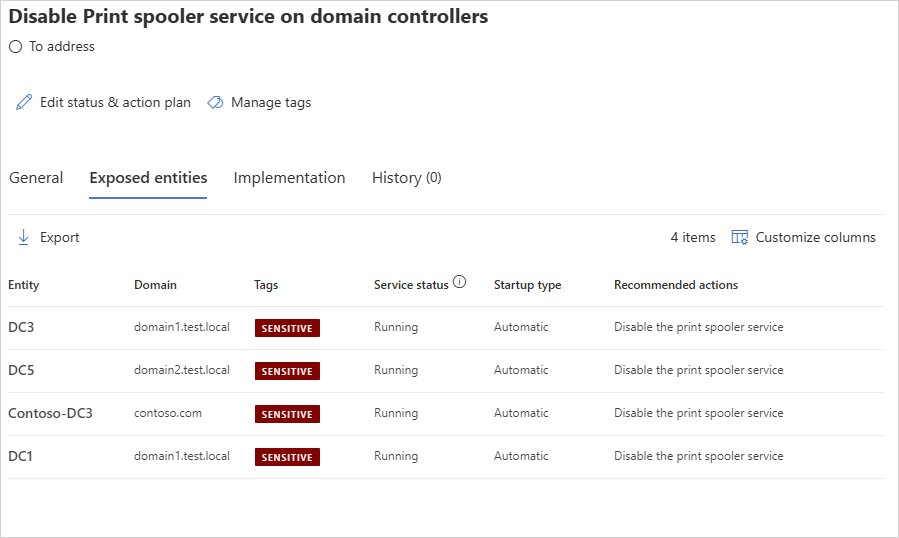
| Domain controller or AD admin system | Removes a remote attack path Microsoft Defender for Identity flags | Microsoft recommends disabling it there, ideally through a Group Policy Object |
| Domain controller that prunes print queues | Stale printer objects stay in Active Directory | Keep the spooler running on at least one DC per site, or prune stale queues on a schedule |
Bottom Line
Right-click Print Spooler in services.msc and select Restart first, and clear the spool\PRINTERS folder only if a job still will not delete. The restart fixes most stuck queues without losing other jobs. net stop spooler && net start spooler and Restart-Service -Name Spooler do the same job from a terminal, and the startup type should stay on Automatic on any PC that prints.
Frequently Asked Questions
Is it safe to restart the Print Spooler service in Windows 10 or 11?
Yes. Restarting Print Spooler is one of Microsoft's own first fixes for stuck print jobs and unresponsive printers. It stops and starts the service in a few seconds. Documents printing at that moment may need to be sent again.
Will restarting the Print Spooler delete my printers?
No. Your printers disappear from view only while the service is stopped, because Windows cannot show printers without it. They return once the service is running again. Deleting files in the spool folder removes queued jobs, not printers.
What should I do if a print job is stuck and will not delete?
Stop the service with net stop spooler, delete every file in C:\Windows\System32\spool\PRINTERS, then run net start spooler. Those files are the stuck jobs, so the queue comes back empty. Print the document again afterwards.
What can I do if the Print Spooler keeps stopping by itself?
Clear the spool folder, then update or remove printer drivers, since Microsoft names conflicting drivers as a common cause of spooler crashes. Switch to a generic in-box driver if the maker's latest one still fails, and check Event Viewer for spooler errors.
Do I need Command Prompt or PowerShell to restart the Print Spooler?
No. The Services console does it with a right-click and Restart. Command Prompt (net stop spooler and net start spooler) and PowerShell (Restart-Service -Name Spooler) are faster when you already have a terminal open or want a script.
How do I stop and restart a Windows service from the command line?
In an administrator Command Prompt, run net stop <service name> and then net start <service name>. In PowerShell, run Restart-Service -Name <service name>. For the Print Spooler, the service name is spooler.
Do I need administrator rights to restart the Print Spooler?
Yes. Microsoft's steps open Command Prompt or PowerShell with Run as administrator before running the spooler commands. Stopping and starting a system service is an administrator task on Windows 10 and 11.
What startup type should the Print Spooler use?
Automatic. That is the Windows default and Microsoft's reset steps end by setting Startup type to Automatic. Choose Disabled only on servers and domain controllers that never print, where Microsoft recommends turning it off.






Services.msc: Step-by-Step Guide to Windows Services Management in 2026 - Techdows
[…] Test the feature that depends on the service, such as printing after starting Print Spooler. […]