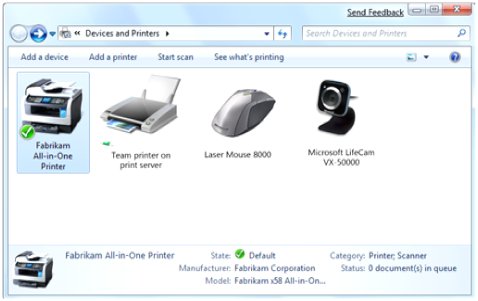
To open Devices and Printers in Windows 11 or Windows 10, press Windows key + R, type control printers and press Enter. If Windows 11 shows the Bluetooth & devices page in Settings instead, select Printers & scanners, pick a printer and choose More devices and printer settings to reach the classic window.
Below are eight ways in, from the Run box and Search to File Explorer, a terminal and a pinned shortcut, plus what the window lets you do and how to fix it when it will not open.
How to open Devices and Printers in Windows 11 and 10
| Your situation | Use this | Why |
|---|---|---|
| You want the classic window fast | Windows key + R > control printers |
One command, no menus |
| You prefer the mouse | Control Panel > Hardware and Sound > Devices and Printers | Click-through path |
| Windows 11 opens Bluetooth & devices instead | Printers & scanners > your printer > More devices and printer settings | Settings links back to the classic view |
| You already have File Explorer open | Paste shell:::{A8A91A66-3A7D-4424-8D24-04E180695C7A} into the address bar |
Uses the item's Control Panel GUID |
| You are in Command Prompt or PowerShell | control printers or control /name Microsoft.DevicesAndPrinters |
Same command as Run |
| You open it every day | A desktop shortcut, pinned to Start or the taskbar | One click instead of typing |
| You only need to add or remove a printer | ms-settings:printers |
Opens Printers & scanners directly |
Method 1: Open Devices and Printers using the Run command
The Run box skips every menu. Microsoft's Control Panel reference maps the old Printers item to Devices and Printers from Windows 7 onward, so the short printers keyword still lands in the right place.
- Press Windows key + R to open the Run box.
- Type
control printersin the Open box. - Press Enter or select OK.
- If the command opens anything other than the classic window, open Run again and type
control /name Microsoft.DevicesAndPrinters, the item's canonical name.
The canonical name is not translated, so the second command behaves the same on any Windows display language.
Method 2: Open Devices and Printers from Windows Search
Windows Search indexes both Settings pages and Control Panel items. On Windows 11 the top result is usually the Settings page, which links on to the classic window.
- Select Start or the search box on the taskbar.
- Type printers or devices and printers.
- If Devices and Printers appears as a Control Panel result, select it.
- Otherwise select Printers & scanners, select your printer, then select More devices and printer settings.
Method 3: Open Devices and Printers through Control Panel
Control Panel still ships with Windows 11 and Windows 10. Devices and Printers sits in the Hardware and Sound category. If you are not sure how to reach Control Panel itself, there are several ways to open Control Panel, including typing control in Run.
- Select Start, type Control Panel and press Enter.
- With View by set to Category, select Hardware and Sound.
- Select Devices and Printers.
- In icon view, set View by to Large icons and select Devices and Printers from the alphabetical list.
Method 4: Open Devices and Printers through Windows Settings
Settings is where Microsoft now manages printers and Bluetooth devices. It is also the way back to the classic window when Control Panel forwards you to Settings on Windows 11.
| Windows version | Settings path | Reach the classic window from there |
|---|---|---|
| Windows 11 | Start > Settings > Bluetooth & devices > Printers & scanners | Select your printer, then More devices and printer settings |
| Windows 10 | Start > Settings > Devices > Printers & scanners | Use Run > control printers |
| Either version | Windows key + R > ms-settings:printers |
Opens Printers & scanners directly |
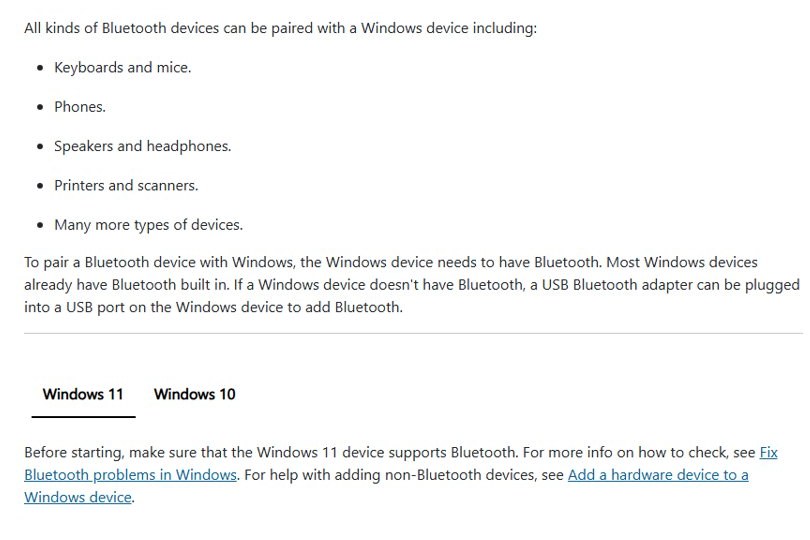
| Bluetooth devices | Windows 11: Bluetooth & devices; Windows 10: Devices > Bluetooth & other devices | Pair, rename and remove Bluetooth devices here |
Method 5: Open Devices and Printers using File Explorer
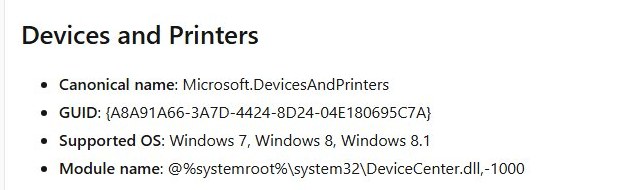
Every Control Panel item has a GUID, and File Explorer opens it when you put it after shell:::. Microsoft Learn lists the Devices and Printers GUID as {A8A91A66-3A7D-4424-8D24-04E180695C7A}.
- Press Windows key + E to open File Explorer.
- Click in the address bar at the top.
- Paste
shell:::{A8A91A66-3A7D-4424-8D24-04E180695C7A}and press Enter.
The same string works in the Run box, and you can type Control Panel in the address bar and then browse to Hardware and Sound > Devices and Printers if you prefer clicking.
Method 6: Open Devices and Printers from Command Prompt or PowerShell
The Run commands also work inside any terminal window, and neither needs an elevated prompt.
control printerscontrol /name Microsoft.DevicesAndPrinterscontrol starts Control Panel (control.exe). The first form uses the legacy printers keyword; the second uses the canonical name. In PowerShell you can also run explorer.exe shell:::{A8A91A66-3A7D-4424-8D24-04E180695C7A}.
You should see: the Devices and Printers window listing your connected devices and installed printers, with the prompt returning immediately. To list printers in the terminal instead of opening the window, get the list of installed printers with a command.
Method 7: Create a desktop shortcut for Devices and Printers
A shortcut saves typing if you manage printers often.
- Right-click an empty area of the desktop.
- Select New > Shortcut.
- Enter
control printersas the location of the item and select Next. - Type a name such as Devices and Printers and select Finish.
- Double-click the shortcut to test it.
To use the canonical form, enter control /name Microsoft.DevicesAndPrinters as the location instead.
Method 8: Pin Devices and Printers to Start or the taskbar
Once the desktop shortcut exists, pin it so it is one click away.
- Right-click the Devices and Printers shortcut on the desktop.
- Select Pin to Start. On Windows 11, select Show more options first if you do not see it.
- To pin it to the taskbar, open the shortcut, then right-click its taskbar button and select Pin to taskbar.
What can you do in Devices and Printers?
The classic window is a single view of printers, scanners and other connected hardware. Right-click any item to see its actions.
| Task | In Devices and Printers | In Settings |
|---|---|---|
| Add a printer or device | Add a printer or Add a device in the toolbar | Printers & scanners > Add device |
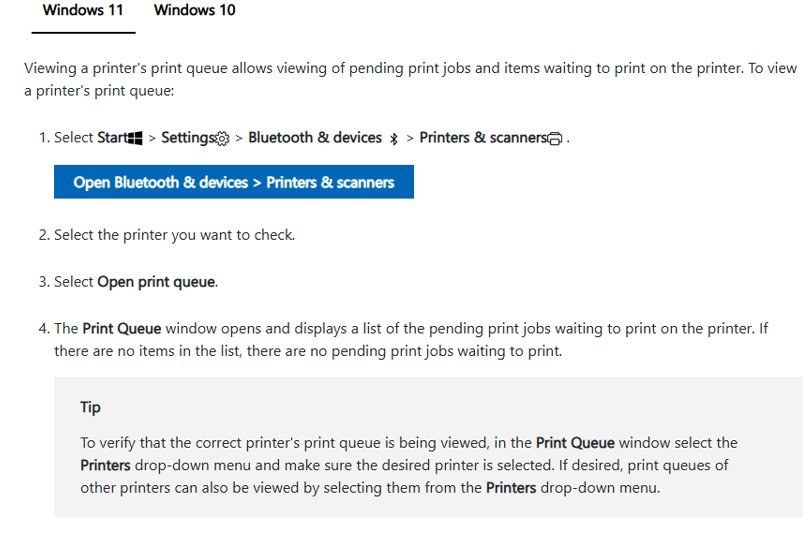
| See and cancel print jobs | Right-click the printer > See what's printing | Select the printer > Open print queue |
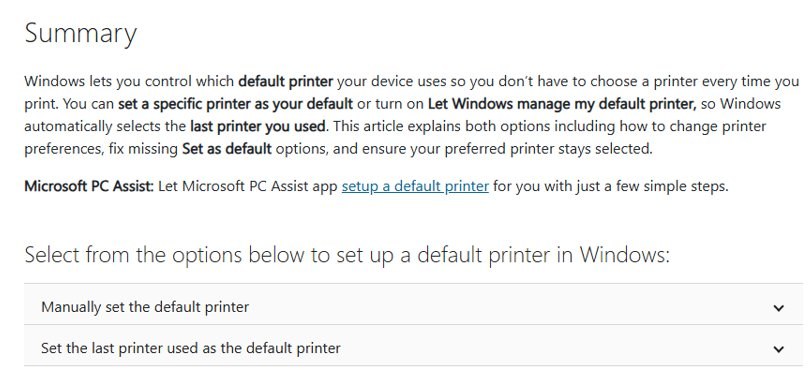
| Set the default printer | Right-click > Set as default printer | Select the printer > Set as default |
| Change printing preferences | Right-click > Printing preferences | Select the printer > Printing preferences |
| Open printer properties | Right-click > Printer properties | Select the printer > Printer properties |
| Troubleshoot a device | Right-click > Troubleshoot | Get Help app troubleshooter |
| Remove a device | Right-click > Remove device | Select the printer > Remove |
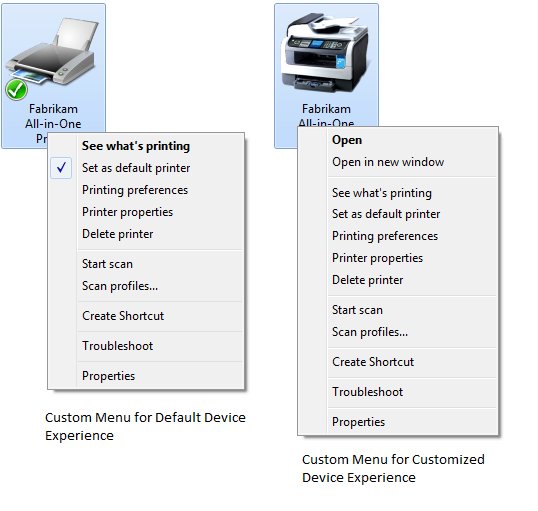
To change paper size, quality or color defaults for every print job, change the printer default settings from the same right-click menu.
Add or remove devices and printers in Windows 11 and 10
Most USB printers install automatically once they are plugged in and turned on. Microsoft's steps for a printer that does not appear are below.
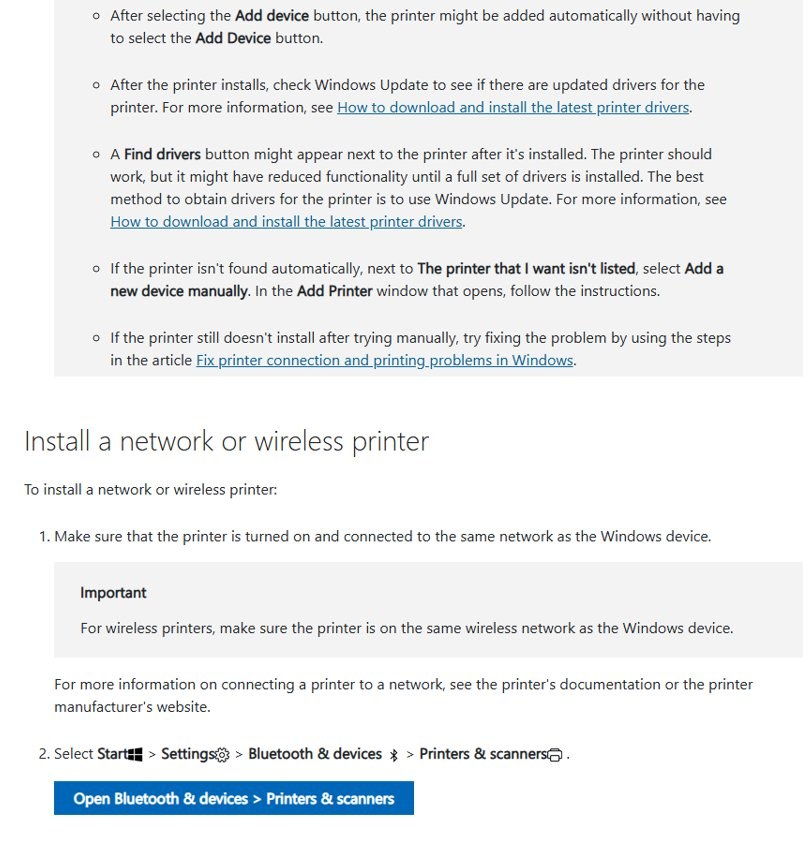
- Select Start > Settings > Bluetooth & devices > Printers & scanners.
- Check whether the printer is already in the list.
- If not, next to Add a printer or scanner, select Add device, wait for the list to fill, then select Add device next to your printer.
- If it is not found, select Add a new device manually next to The printer that I want isn't listed and follow the Add Printer wizard.
A network or Wi-Fi printer must be on the same network as the PC first; see how to connect a wireless printer if it never shows up. Bluetooth printers are paired from Bluetooth & devices > Add device.
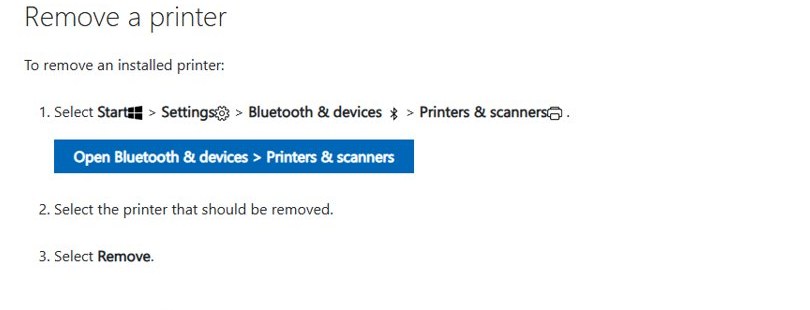
To remove a printer, open Printers & scanners, select the printer and select Remove. In the classic window, right-click it and select Remove device.
Devices and Printers vs Printers & scanners
| Item | Devices and Printers (Control Panel) | Printers & scanners (Settings) |
|---|---|---|
| Local USB and network printers | Yes | Yes |
| Virtual printers such as Microsoft Print to PDF | Yes | Yes |
| Scanners | Yes | Yes |
| Mice, keyboards, webcams and Bluetooth devices | Yes, in the same window | No; these live under Bluetooth & devices (Windows 11) or Devices (Windows 10) |
| Right-click actions | See what's printing, properties, Troubleshoot | Print queue, properties, More devices and printer settings |
Both pages share the same printer list, but only the classic window shows every connected device in one view.
How to open the classic Devices and Printers window in Windows 11
- The address bar at the top reads Devices and Printers.
- The window lists connected devices together with printers, not printers alone.
- Right-clicking a printer shows See what's printing.
- If you see Bluetooth & devices in a left pane, you are in Settings; select Printers & scanners > your printer > More devices and printer settings.
What to do if Devices and Printers does not open
Windows 11 opens Bluetooth & devices instead of the classic window
Microsoft is moving device management into Settings, so the Control Panel link can forward there.
- Select Printers & scanners on the Bluetooth & devices page.
- Select any installed printer.
- Select More devices and printer settings.
- If no printer is installed, use Windows key + R >
control /name Microsoft.DevicesAndPrintersor the File Explorer GUID above.
The window stays blank or keeps loading
Windows Explorer, which draws the folder, has stopped responding.
- Press Ctrl + Shift + Esc to open Task Manager.
- On the Processes tab, right-click Windows Explorer and select Restart.
- Open Devices and Printers again with
control printers.
Bluetooth devices are missing or pairing fails
The Bluetooth Support Service or Device Association Service is not running.
- Press Windows key + R, type
services.mscand press Enter. - Right-click Bluetooth Support Service and select Start if it is not running.
- Start Device Association Service the same way.
- Reopen Devices and Printers.
Printers are missing from the list or will not print
The Print Spooler service has stopped, or the driver or connection has a problem.
- Restart the Print Spooler.
- Run the printer troubleshooter in the Get Help app, or right-click the printer and select Troubleshoot.
- Turn the printer off, unplug it for 30 seconds and plug it back in.
- Check Windows Update for a newer printer driver.
Devices and Printers crashes or will not open at all
Damaged system files can break Control Panel items.
- Open Command Prompt as administrator.
- Run
DISM.exe /Online /Cleanup-image /Restorehealthand wait for it to finish. - Run
sfc /scannow. - Restart the PC and try
control printersagain.
Devices and Printers in Windows 11 and 10 FAQ
How do I open Devices and Printers in Windows 11?
Press Windows key + R, type control printers and press Enter. If Windows 11 shows Settings instead, go to Bluetooth & devices > Printers & scanners, select a printer and choose More devices and printer settings.
How do I open Devices and Printers in Windows 10?
Open Control Panel, select Hardware and Sound, then Devices and Printers. The faster route is Windows key + R, then control printers.
What is the fastest way to open Devices and Printers?
The Run command control printers is the fastest. A desktop shortcut pinned to the taskbar is quicker still if you open the window every day.
How do I open Devices and Printers from CMD?
Type control printers at the Command Prompt and press Enter. control /name Microsoft.DevicesAndPrinters opens the same window and does not depend on the display language.
How do I open Devices and Printers as admin?
There is no separate Run as administrator mode because the window opens inside Windows Explorer. Sign in with an administrator account, or enter administrator credentials when Windows asks while installing a printer.
Can I pin Devices and Printers to the taskbar?
Yes. Create a desktop shortcut to control printers, open it, then right-click its taskbar button and select Pin to taskbar.
Why can't I find Devices and Printers in Windows 11?
Windows 11 forwards many Control Panel links to Settings. The classic window still exists: reach it with control printers, the File Explorer GUID, or More devices and printer settings in Printers & scanners.
Why do some printers not appear in Devices and Printers?
The printer may be off, on a different network, missing its driver, or the Print Spooler may have stopped. Restart the spooler and add the printer from Printers & scanners.
Can I remove old printers from Devices and Printers?
Yes. Right-click the printer and select Remove device, or select it in Settings > Printers & scanners and choose Remove.
Is Devices and Printers the same as Printers & scanners?
No. Printers & scanners lists printers and scanners only. Devices and Printers shows the same printers plus other connected devices and keeps actions such as See what's printing and Troubleshoot.
Does Windows 11 still use Control Panel?
Yes. Control Panel ships with Windows 11, although Microsoft keeps moving its settings into the Settings app.
Best way to open Devices and Printers
Use Windows key + R and control printers as your default, and Printers & scanners > More devices and printer settings when Windows 11 forwards you to Settings. Keep the File Explorer GUID or a pinned shortcut for the times the Run command is redirected or you open the window every day.







How to Find the Printer on Your Network in Windows 11 - Techdows
[…] older Devices and Printers view still exists in Windows 11. It shows every installed printer as an icon and gives right-click […]
How to check what monitor do you have - Techdows
[…] Devices and Printers is the Control Panel view of connected hardware. It lists the monitor alongside your keyboard, mouse and printers. […]
How to change Printer default settings in Windows 11/10 - Techdows
[…] classic Devices and Printers window is still reachable from Settings. Use it when you prefer right-click menus or a driver adds […]