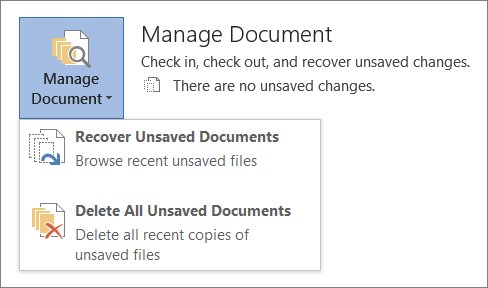
To recover an unsaved Word document, open Word and go to File > Info > Manage Document > Recover Unsaved Documents, then open the file and save it with Save As.
This guide also covers the Document Recovery pane, AutoRecover, temporary and backup files, OneDrive version history, the Mac AutoRecovery folder and how to stop it happening again.
How to recover an unsaved Word document (step by step)
This works in Word for Microsoft 365, Word 2021, Word 2019 and Word 2016 on Windows when AutoRecover was on, which it is by default.
- Open Word.
- Select File > Info.
- Select Manage Document, then Recover Unsaved Documents.
- Select the unsaved file in the folder that opens, then select Open.
- Select Save As in the bar at the top of the document.
- Save it as a Word document (.docx) in a folder you will remember.
If you saved the file at least once and then closed it without saving your latest changes, open that file instead. Under File > Info > Manage Documents, select the version labelled (when I closed without saving), then select Restore or Compare.
Which recovery method should you try first?
Match what happened to the document and start with that row. Work down the list if the first method finds nothing.
| What happened | Try first | Why |
|---|---|---|
| Word or Windows crashed | Reopen Word and use the Document Recovery pane | Word looks for AutoRecover files every time it starts |
| You closed a new document and chose not to save | Recover Unsaved Documents | Unsaved drafts land in the UnsavedFiles folder |
| You closed a saved document without saving changes | Manage Documents > (when I closed without saving) | Restores the last AutoRecover version of that file |
| The file was on OneDrive or SharePoint | Version history | AutoSave keeps versions in the cloud |
| Nothing shows in Word | Search for .asd, .tmp, ~ and .wbk files | Leftover AutoRecover, temporary and backup copies may remain |
| You deleted the file | Recycle Bin or Restore previous versions | Deleted files stay there until you empty the Recycle Bin |
Why unsaved Word documents are usually still recoverable
Word keeps several kinds of copies in the background. Knowing which one applies tells you where to look.
| Copy | When Word makes it | Where it lives | Extension |
|---|---|---|---|
| AutoRecover file | At a set interval for documents on your PC or a network share | AppData\Roaming\Microsoft\Word | .asd |
| Unsaved draft | When a never-saved document closes | AppData\Local\Microsoft\Office\UnsavedFiles | .asd |
| AutoSave version | Every few seconds for files on OneDrive or SharePoint (Microsoft 365) | Version history in the cloud | .docx |
| Backup copy | Each save, only if Always create backup copy is on | Same folders, named "Backup of …" | .wbk |
| Temporary file | While Word has a document open | Various folders; names start with ~ | .tmp |
Saving a file manually clears its older AutoRecover copies, because Word assumes your work is safe. That is why a crash shortly after a save may show nothing to recover.
Reopen Word and check the Document Recovery pane
After a crash or power cut, Word searches for AutoRecover files the next time it starts and opens them for you.
- Close Word completely if it is still open, then start it again.
- Look for the Document Recovery pane on the left, or a Recovered Unsaved File message bar at the top in Microsoft 365.
- Check the dates and times under each file in Available Files and pick the newest one.
- Double-click the file listed as "document name [Recovered]" or "[Original]" to open it.
- Select File > Save As, or Save on the message bar, and save it as a .docx file.
If you close the pane, choose to view the files later. Deleting them before you have saved what you need removes the recovery copies.
Find Word AutoRecover files (.asd) on Windows
When Word does not show the file, look in the AutoRecover folders yourself. Replace <UserName> with your Windows user name.
- Open File Explorer and paste
C:\Users\<UserName>\AppData\Roaming\Microsoft\Wordinto the address bar. - Check
C:\Users\<UserName>\AppData\Local\Microsoft\Office\UnsavedFilesas well. - If neither folder has the file, select Start, type
.asdand press Enter to search the whole PC. - In Word, go to File > Open > Browse.
- Change the file type list next to File name to All Files.
- Right-click the .asd file you found, select Open, then save it as a .docx file.
Search for temporary and tilde files
Word creates temporary files while a document is open. Their names end in .tmp or start with a tilde (~).
- Select Start, type
.tmpand press Enter. - Select the Documents tab in the search results.
- Look for files dated around the last times you edited the document. If none match, search for
~instead. - In Word, go to File > Open and select the Folders tab.
- Open the folder that holds the .tmp file, then select the folder name at the top of the pane to open File Explorer.
- Change the file type to All files and open the .tmp file.
Look for Word backup files (.wbk)
Word only makes backup copies when Always create backup copy is turned on, but it is worth checking.
- Select Start, type
.wbkand press Enter. - Look for a file named "Backup of" followed by the name of your document.
- Double-click it to open it in Word, then save it as a .docx file.
- To check whether backups are on, open File > Options > Advanced and scroll to the Save section for Always create backup copy.
Restore an unsaved Word document from OneDrive version history
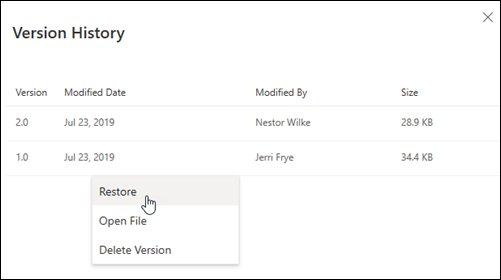
Files stored on OneDrive or SharePoint keep earlier versions. A personal Microsoft account keeps the last 25 versions, and OneDrive keeps version history for 30 days.
- Open the document in Word for Microsoft 365.
- Select the file name at the top of the window, then Version history.
- Select a version by its date and time to open it in a separate window.
- Select Restore to make it the current version.
- Without Word, sign in at onedrive.com, right-click the file, select Version history, then select … next to a version and Restore.
In Word 2016 to 2021 the list is under File > History. In Word for the web it is File > Version History. On a work or school account, an administrator may have turned versioning off.
Check the Recycle Bin and previous versions
If the document was saved and later deleted or overwritten, Windows may still hold a copy.
- Double-click Recycle Bin on the desktop.
- Look for the file name, or for .doc, .docx and .dot files if you do not remember it.
- Right-click the file and select Restore.
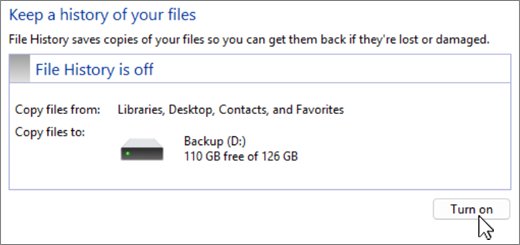
- If File History is set up, right-click the folder that held the document in File Explorer and select Restore previous versions.
- On the Previous Versions tab, pick a version from before the loss and select Restore > Restore to to save it somewhere new.
Select Restore to rather than Restore, because restoring to the original location overwrites the current folder and cannot be undone.
Recovering unsaved Word documents on a Mac
Word for Mac saves an AutoRecover file every 10 minutes by default and normally reopens it after a crash. If it does not, open the hidden AutoRecovery folder yourself.
- Open Finder.
- Select Go > Go to Folder, or press Shift + Command + G.
- Enter
/Users/<username>/Library/Containers/com.Microsoft.Word/Data/Library/Preferences/AutoRecovery, replacing<username>with your Mac user name. - Open the most recent AutoRecover file in Word.
- Save it straight away with File > Save As before you edit or close it.
Selecting Don't Save when you close a document deletes its AutoRecover file on a Mac. For files on OneDrive, click the document name on the title bar and select Browse Version History.
Alternative ways to recover a lost Word document
| Situation | What to try | Where |
|---|---|---|
| You remember the file name | Search for the saved document | Select Start, type the name and check the Documents list |
| The file opens with errors or garbled text | Open and Repair | File > Open > Browse, select the file, then the arrow next to Open > Open and Repair |
| Open and Repair fails | Recover the text only | File > Open, file type Recover Text from Any File(*.*) |
| The file was permanently deleted on Windows 10 version 2004 or later | Windows File Recovery | Free tool from the Microsoft Store |
| The file was deleted from OneDrive or SharePoint | Cloud recycle bin | OneDrive or SharePoint recycle bin |
| Text recovered on a Mac | Recover Text | Word > Preferences > General > Confirm file format conversion at Open, then File > Open > Recover Text |
Recovered text loses formatting, pictures and fields, so treat it as a last step. If the recovered document opens empty, work through the fixes for a Word document opening blank.
Recover deleted Word files with Windows File Recovery
If a saved Word file was deleted and is no longer in the Recycle Bin, Windows File Recovery is the free Microsoft file recovery app for local drives. It works on internal drives, external drives and USB devices, but not on cloud storage or network shares.
Use the PC as little as possible before you start. Windows marks the space of a deleted file as free, and any new file can overwrite it.
- Install Windows File Recovery from the Microsoft Store if it is not already on the PC.
- Press the Windows key, type Windows File Recovery and select it, then select Yes at the prompt.
- Connect a second drive, such as a USB drive, to hold the recovered files. The source and destination drives must be different.
- To recover Word files deleted recently from drive C: to drive E:, enter
winfr C: E: /regular /n *.docxand press Enter. - Enter Y to start. Windows File Recovery creates a Recovery_<date and time> folder on the destination drive.
- If regular mode finds nothing, run the deep scan instead:
winfr C: E: /extensive /n *.docx.
Use /extensive mode for files deleted a while ago, after formatting a disk, for a corrupted disk, and for FAT or exFAT drives such as SD cards. It takes longer but finds files that regular mode misses. Recovery can still fail on an SSD if the free space was already overwritten.
How to never lose an unsaved Word document again
Shorten the AutoRecover interval and keep the last recovered version, then let AutoSave handle files on OneDrive.
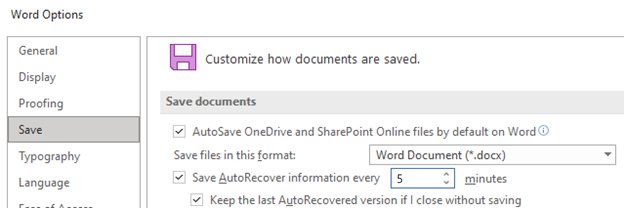
- In Word, select File > Options > Save.
- Check Save AutoRecover information every x minutes and set it to 5 minutes or less.
- Check Keep the last autorecovered version if I close without saving.
- Select OK.
- Save new documents to OneDrive so AutoSave turns on and saves every few seconds.
- Optionally turn on Always create backup copy under File > Options > Advanced > Save.
AutoSave only works in Microsoft 365 for files on OneDrive or SharePoint, and not for older .doc files. Press Ctrl + S often anyway. If you edit an original you want to keep, make a copy of the Word document first with File > Save a Copy.
How to check the recovered Word document is complete
- Confirm the title bar shows your new file name, not "[Recovered]" or an .asd or .tmp name.
- Scroll to the end and check that your last paragraphs are there.
- Open File Explorer and confirm the .docx file appears in the folder you chose, with today's time.
- Close Word and reopen the saved file to make sure it opens normally.
- Keep the recovered copy under its new name until you have compared it with the original. On a version opened from Manage Documents, select Compare to see the differences before you select Restore.
Still not working? Unsaved Word document recovery fixes
The Recover Unsaved Documents folder is empty
AutoRecover was off, the document was saved recently, or the file was saved to OneDrive where AutoSave applies instead.
- Search the PC for
.asd,.tmp,~and.wbkfiles. - Check
AppData\Roaming\Microsoft\Worddirectly in File Explorer. - If the file was on OneDrive, open Version history instead.
- Turn on AutoRecover in File > Options > Save so it works next time.
Word cannot see the .asd or .tmp file in the Open dialog
The Open dialog only shows Word documents by default.
- Go to File > Open > Browse.
- Change the file type list to All Files.
- Select the file and open it, then save it as .docx.
Unsaved Word document lost after restarting the computer
Windows restarted for updates or power loss while Word was open.
- Open Word and look for the Document Recovery pane.
- Use Recover Unsaved Documents under File > Info > Manage Document.
- Search the AutoRecover folders for .asd files with a time just before the restart.
Mac AutoRecovery folder has no file
You chose Don't Save, or saved the file, which deletes the AutoRecover copy.
- Check Browse Version History if the file was on OneDrive.
- Shorten the interval under Word > Preferences > Save > Save AutoRecover info.
Unsaved Word document recovery FAQ
Can I recover an unsaved Word document?
Yes, in most cases. Word's AutoRecover keeps a copy of documents you have not saved. Open File > Info > Manage Document > Recover Unsaved Documents, open the file and save it. If AutoRecover was off, recovery is much less likely.
How do I recover unsaved Word documents on a PC?
Reopen Word and check the Document Recovery pane, then try Recover Unsaved Documents under File > Info. If both are empty, look in AppData\Roaming\Microsoft\Word and AppData\Local\Microsoft\Office\UnsavedFiles, or search the PC for .asd files.
How do I recover an unsaved Word document on a Mac?
In Finder, press Shift + Command + G and go to /Users/<username>/Library/Containers/com.Microsoft.Word/Data/Library/Preferences/AutoRecovery. Open the newest AutoRecover file in Word and save it immediately. Choosing Don't Save deletes that file.
How do I recover an unsaved Word document from OneDrive?
Open the document, select its file name at the top of Word and choose Version history, then open a version and select Restore. On onedrive.com, right-click the file and select Version history. OneDrive keeps version history for 30 days.
How do I recover an unsaved Word document online or on the web?
Word for the web works on files stored in OneDrive or SharePoint, so earlier versions sit in version history. Open the document in Word for the web and select File > Version History, choose a version and select Restore.
How do I recover an unsaved Word document in Word 2016?
Word 2016 uses the same route as Microsoft 365: File > Info > Manage Document > Recover Unsaved Documents. For files on OneDrive, previous versions are under File > History.
How do I recover an unsaved Word document on an iPad?
If the document is stored on OneDrive, open it in Word for the web on any device and use File > Version History to restore an earlier version. Version history only exists for files kept on OneDrive or SharePoint.
How do I recover an unsaved document in WPS?
WPS Office is a separate program from a different company, so Word's AutoRecover folders and Recover Unsaved Documents do not apply to it. Use the backup and recovery options inside WPS Office itself.
What is the difference between AutoSave and AutoRecover?
AutoSave saves the actual file every few seconds and works only for Microsoft 365 files on OneDrive or SharePoint. AutoRecover saves a separate recovery copy at a set interval for files on your PC, and it still works when AutoSave is off.
Where does Word save unsaved documents on Windows 11?
Word keeps unsaved drafts in C:\Users\<UserName>\AppData\Local\Microsoft\Office\UnsavedFiles and AutoRecover files in C:\Users\<UserName>\AppData\Roaming\Microsoft\Word. Paste either path into the File Explorer address bar after replacing the user name.
Will recovering a document overwrite my original file?
Not if you use Save As with a new name. Selecting Restore on a version, or restoring File History to the original location, does replace the current file. Save the recovered copy under a different name first if you are unsure.
Quick summary: recover an unsaved Word document
Start with File > Info > Manage Document > Recover Unsaved Documents, then the Document Recovery pane, then a manual search for .asd, .tmp and .wbk files. Those three routes cover every copy Word makes on its own. For OneDrive files use version history, and set AutoRecover to five minutes so the next loss costs less work.