To remove a page break in Microsoft Word, turn on Show/Hide on the Home tab, double-click the Page Break marker and press Delete.
This works for manual breaks in Word for Windows, Mac and the web; automatic breaks, section breaks and stray blank pages each need a different fix, covered below.
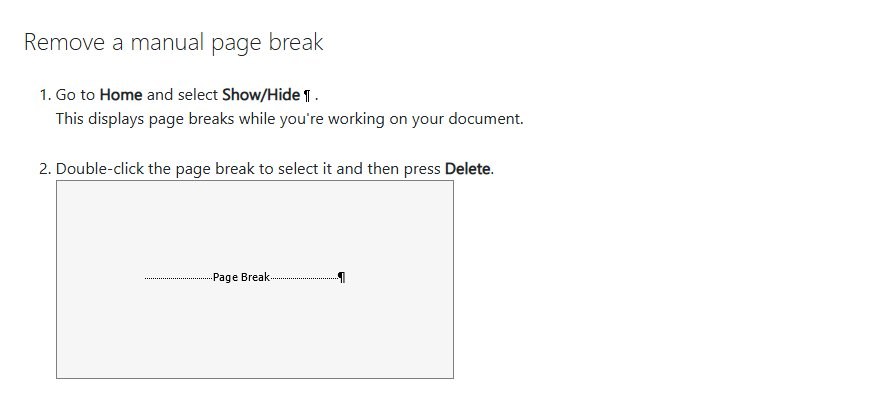
The fastest way to delete a page break in Word
Word only lets you delete page breaks that someone inserted by hand. The steps below take about ten seconds in the Windows desktop app, as long as the Word ribbon is visible.
- Open the document in Word and select the Home tab.
- Select Show/Hide (the paragraph mark icon), or press Ctrl + Shift + 8.
- Scroll to the dotted line labelled Page Break.
- Double-click the Page Break line to select it.
- Press Delete on your keyboard.
- Press Ctrl + Shift + 8 again to hide the formatting marks.
Manual vs automatic page breaks in Word
Word uses two kinds of page break, and only one of them can be deleted. Knowing which one you are looking at saves a lot of pressing Delete on an empty line.
| Break type | How it gets there | What it looks like with Show/Hide on | Can you delete it? |
|---|---|---|---|
| Manual page break | Inserted with Insert > Page Break or Ctrl + Enter | A dotted line labelled Page Break | Yes, select it and press Delete |
| Automatic page break | Added by Word when text reaches the bottom margin | No marker, the text simply continues on the next page | No, but you can control where it falls |
| Section break | Inserted from Layout > Breaks | A double dotted line labelled Section Break with its type | Yes, but it merges section formatting |
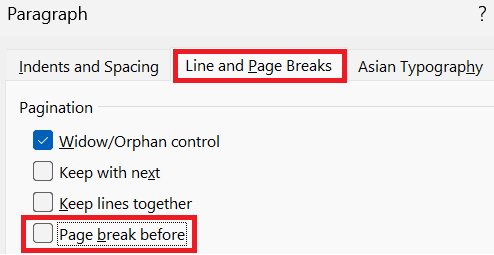
| Page break before (paragraph setting) | Turned on in the Paragraph dialog for one paragraph | A small square bullet beside the paragraph | Clear the Page break before box |
How to remove manual page breaks in Word
Use these steps for the Windows and Mac desktop apps. The difference on a Mac is where you place the cursor before you press Delete.
- Select the Home tab and turn on Show/Hide so every page break is visible.
- On Windows, double-click the Page Break line to select it.
- On a Mac, click just after the paragraph mark in the page break instead.
- Press Delete.
- Repeat for any other Page Break line you want gone, then turn Show/Hide off.
Deleting a manual break pulls the following text up to fill the rest of the current page, so check headings and tables that were meant to start a new page.
Remove all page breaks in Word at once with Find and Replace
A long document converted from another format can carry dozens of manual breaks. The Replace dialog finds special items as well as text, so it can clear them in one pass. If you may need the original layout later, make a copy of the document first.
- Press Ctrl + H, or go to Home > Editing > Replace.
- Click inside the Find what box and leave it empty.
- Select More to expand the dialog.
- Select Special and choose the manual page break item from the list.
- Leave the Replace with box empty.
- Select Replace All, then close the dialog.
On a Mac, the same Special menu sits in the Navigation Pane: select the magnifying glass, then Settings > Advanced Find & Replace.
Delete a page break in Word for the web
- Open the document in Word for the web.
- If you are not in editing view, select Edit Document > Edit in Word for the web.
- Click the page break to select it.
- Press Backspace or Delete.
Word for the web cannot remove section breaks. Select Open in Word to finish the job in the desktop app.
How to adjust automatic page breaks in Word
You cannot delete an automatic page break, but the pagination settings decide where it lands. Use them to stop a heading sitting alone at the bottom of a page or a table row splitting across two pages.
- Select the paragraphs you want to control.
- On Windows, go to Layout (or Page Layout) and select the Paragraph dialog box launcher. On a Mac, choose Format > Paragraph.
- Select the Line and Page Breaks tab.
- Under Pagination, tick the option that fits, using the table below.
- Select OK.
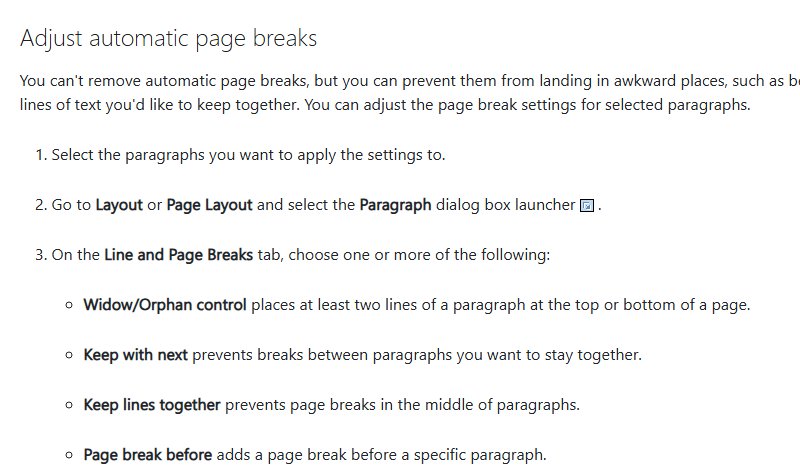
Word pagination options: keep with next, keep lines together and more
| Your problem | Turn on this option | What it does |
|---|---|---|
| One line of a paragraph is stranded at the top or bottom of a page | Widow/Orphan control | Keeps at least two lines of the paragraph together; it is on by default |
| A heading ends up alone at the bottom of a page | Keep with next | Prevents a break between this paragraph and the next one |
| A paragraph splits across two pages | Keep lines together | Prevents a page break in the middle of the paragraph |
| A chapter title must always start on a new page | Page break before | Forces a break before the paragraph without a manual break |
| A paragraph jumps to a new page for no visible reason | Clear Page break before | Removes the forced break from that paragraph |
How to delete a section break in Word
A section break is not a page break, so the steps above will not touch it. Deleting one merges the two sections, and the combined text takes the formatting of the section that came after the break.
- Select Home > Show/Hide to display the section break.
- If breaks are hard to spot, select View > Draft.
- Place the cursor just before the section break.
- Press Delete.
To keep different headers, page numbering from a specific page or margins but lose the blank page, double-click the section break and change it to Continuous under Layout > Breaks instead of deleting it.
Check that the page break is gone
- Turn Show/Hide on and scroll through the document: no dotted Page Break line should remain where you deleted one.
- Press Ctrl + G, type the page number that used to be blank and press Enter; the page should now hold text.
- Open File > Print and page through the preview to confirm the layout before you share or print the file.
Can't delete a page break in Word? Fixes
If the file opens in Protected View or as read-only, nothing can be deleted until you make the Word document editable.
Pressing Delete does nothing at the end of a page
The break is automatic, so there is no marker to delete.
- Turn on Show/Hide and confirm no Page Break line is present.
- Select the paragraphs around the break and open the Paragraph dialog.
- Adjust Keep with next or Keep lines together on the Line and Page Breaks tab.
A paragraph still starts on a new page after deleting the break
The paragraph has Page break before turned on, shown by a small square bullet beside it.
- Right-click the paragraph and select Paragraph.
- Select the Line and Page Breaks tab.
- Clear Page break before and select OK.
A blank page remains at the end of the document
Word always keeps a final paragraph mark, and it can spill onto a new page after a table.
- Press Ctrl + Shift + 8 to show paragraph marks.
- Select the last paragraph mark.
- Type 01 in the Font size box and press Enter.
- If the page persists, set a smaller bottom margin in Layout > Margins > Custom Margins.
A blank page appears between sections
A Next Page, Odd Page or Even Page section break is forcing it.
- Double-click the section break.
- Change the section start to Continuous in Layout > Breaks.
- Select OK.
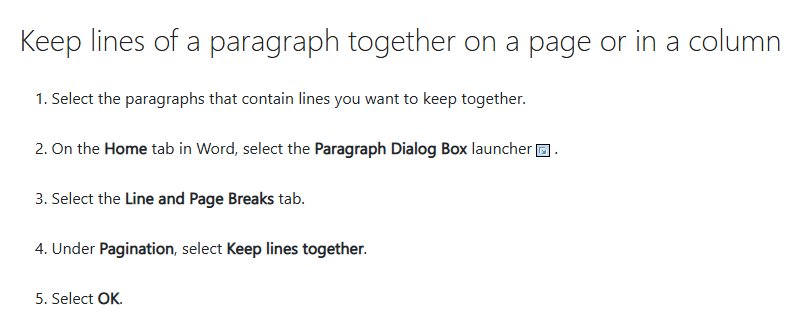
Remove page breaks in Word FAQ
Why can't I delete a page break in Word?
Most often the break is automatic, which Word creates when text reaches the bottom margin. Automatic breaks cannot be deleted; change where they fall with the Keep with next, Keep lines together or Widow/Orphan control options on the Line and Page Breaks tab of the Paragraph dialog.
How do I remove all page breaks in Word at once?
Press Ctrl + H to open Replace, leave Find what empty, select More, then Special, and choose the manual page break item. Leave Replace with empty and select Replace All. Every manual page break in the document is removed in one step.
What is the shortcut to show page breaks in Word?
Press Ctrl + Shift + 8 on Windows, or Command + 8 on a Mac, to show formatting marks. Manual page breaks then appear as a dotted line labelled Page Break. Press the same shortcut again to hide the marks.
How do I remove a page break in Word on a Mac?
Select Home > Show/Hide, click just after the paragraph mark in the page break and press Delete. To change automatic breaks on a Mac, select the paragraphs, choose Format > Paragraph and use the Line and Page Breaks tab.
What is the difference between a page break and a section break?
A page break only starts a new page. A section break starts a new section that can carry its own margins, orientation, headers and footers. Deleting a section break merges two sections, and the merged text takes the formatting of the section after the break.
How do I insert a page break in Word?
Place the cursor where the new page should begin and select Insert > Page Break, or press Ctrl + Enter on Windows. On a Mac, select Layout > Breaks > Page. The break is a manual one, so it can be deleted later.
Can I remove page breaks in Word for the web?
Yes, for manual page breaks. Select Edit Document > Edit in Word for the web, click the page break and press Backspace. Section breaks cannot be removed in the browser; select Open in Word to delete them in the desktop app.
Why is there a blank page at the end of my Word document?
Word keeps a final paragraph mark that cannot be deleted, and after a full-page table it can spill onto a new page. Show paragraph marks, select the last one and set its font size to 1 point so it fits on the previous page.