You can use Microsoft PowerPoint for free in any browser at Microsoft365.com with a free Microsoft account, and the PowerPoint mobile app is free on phones and small tablets.
This guide covers every official free route, including the one-month Microsoft 365 trial for the desktop app and the free Office 365 Education plan, plus the limits of each and fixes when one fails.
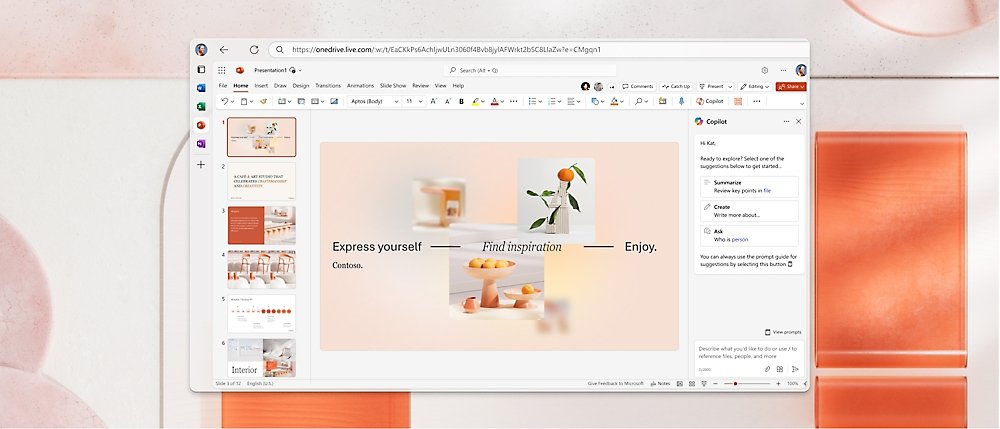
The fastest way to get PowerPoint for free: PowerPoint for the web
PowerPoint for the web costs nothing, needs no install and runs in Microsoft Edge, Chrome, Safari or Firefox. It saves every presentation to OneDrive automatically.
- Open your browser and go to Microsoft365.com.
- Select Sign in and enter your Microsoft account, or create a free account with any email address.
- Select PowerPoint from the app list on the left.
- Choose a blank presentation, pick a template, or open an existing file from OneDrive.
- Start editing. PowerPoint saves the file to OneDrive as Presentation 1 until you rename it.
Why you can get PowerPoint for free (and what free really means)
Microsoft offers the browser and small-screen mobile versions of PowerPoint at no cost with a free Microsoft account. The full desktop app is the paid part, sold through Microsoft 365 subscriptions.
Free here means legal and permanent for the web and mobile apps, and temporary for the desktop app through a trial. Cracked installers and key generators are not free PowerPoint; they are unlicensed software that often carries malware.
| Free route | What you get | How long it lasts | Cost later |
|---|---|---|---|
| PowerPoint for the web | Create, edit, present and share in a browser, 5 GB of OneDrive storage | Permanent | None |
| PowerPoint mobile app | Basic editing on phones and tablets with screens of 10.1 inches or smaller | Permanent | None, unless you want premium mobile features |
| Microsoft 365 trial | Desktop PowerPoint for Windows and Mac plus Word, Excel and Outlook | One month | Renews as a paid plan unless you cancel |
| Office 365 Education (A1) | PowerPoint, Word, Excel, OneNote and Outlook on the web with a school account | While you study or work at the school | None for A1; desktop apps need a paid A3 plan |
| Someone else's Microsoft 365 Family plan | Full desktop PowerPoint on your own devices | As long as the owner keeps you on the plan | Paid by the plan owner; Family covers up to six people |
Choosing the best free option for your use case
| Your situation | Use this | Why |
|---|---|---|
| Quick edits in the browser on any PC, Mac or Chromebook | PowerPoint for the web | Free forever, nothing to install, files sync through OneDrive |
| Presenting on the go from a phone | PowerPoint mobile app | Free editing and slideshow mode on screens up to 10.1 inches |
| Full desktop editing with an offline workflow | Microsoft 365 one-month trial | Only the desktop app runs macros, records presentations and works fully offline |
| You are a student or teacher | Office 365 Education with your school email | Free web apps tied to your school account, no card needed |
| Sharing and viewing slides without editing | PowerPoint for the web or the mobile app | PowerPoint Viewer is retired, and both of these open .pptx files for free |
| A family member already pays for Microsoft 365 Family | Ask to be added to their plan | Each member gets the desktop apps on their own devices at no extra cost |
Prerequisites: the only things you actually need
| Requirement | Needed for | Details |
|---|---|---|
| Free Microsoft account | Web, mobile and trial routes | Create one with a new or existing email address, including Gmail |
| Current browser | PowerPoint for the web | Microsoft 365 for the web is designed for the current Microsoft Edge, Chrome and Safari; Firefox also works |
| Phone or tablet with a screen of 10.1 inches or less | Free mobile editing | Larger tablets such as a 12.9-inch iPad Pro can only view files without a qualifying plan |
| Credit card | Microsoft 365 trial | Microsoft requires a card to start the trial and charges it when the month ends |
| Eligible school email address | Office 365 Education | Approval is often instant, but some schools take up to a month to verify |
| Internet connection | All free routes | The web app works only online; the desktop app needs internet to install, activate and check in at least every 39 days |
Method 1: Use PowerPoint for the web (no install)
This is the same free route as the fastest method above, shown here with the steps for opening a file you already have. Microsoft 365 web requirements are simple: a Microsoft account and a current browser.
- Sign in at Microsoft365.com with your Microsoft account.
- Upload your .pptx file to OneDrive, or drag it onto the Microsoft365.com home page.
- Select the file to open it in PowerPoint for the web.
- Edit slides, add text, images and transitions from the ribbon at the top.
- Select File > Rename to give the presentation a proper name.
- Select Share to send a link to anyone who needs to view or co-edit the slides.
To create and edit a presentation in the browser from scratch, pick a template on the PowerPoint start page instead of opening a file. Every change saves to OneDrive as you type.
Method 2: Install PowerPoint on iPhone, iPad, and Android for free
The Microsoft PowerPoint app is free on iPhone, iPad and Android. Editing stays free on screens of 10.1 inches or smaller; on bigger tablets you can view slides but need a Microsoft 365 plan to edit.
- Open the App Store on iPhone or iPad, or Google Play on Android.
- Search for Microsoft PowerPoint and confirm the publisher is Microsoft Corporation.
- Tap Get on iOS or Install on Android.
- Open PowerPoint and sign in with your free Microsoft account.
- Tap the option to create a new presentation, or open one from OneDrive or your device.
- Tap the play button to present the slides full screen.
Microsoft also offers the Microsoft 365 Copilot app, which bundles Word, Excel and PowerPoint in one app. Premium features show a purchase prompt when you tap them without a subscription.
Method 3: Get the desktop app via a free Microsoft 365 trial
Microsoft 365 Personal and Family each come with a one-month Microsoft 365 free trial that includes desktop PowerPoint for Windows and Mac. The trial needs a credit card and turns into a paid subscription unless you cancel.
- Go to microsoft.com/microsoft-365/try in your browser.
- Select Try free for 1 month on the Microsoft 365 Personal or Family plan.
- Sign in with your Microsoft account and add a credit card when asked.
- Sign in at Microsoft365.com and use the install option to download the desktop apps.
- Run the installer, then open PowerPoint and sign in with the same account to activate it.
- Set a calendar reminder a few days before the trial ends.
After the month ends, the trial converts to paid at the US price of $99.99 a year for Personal or $129.99 a year for Family. Trial storage is lower than the paid plan's 1 TB or 2 TB.
Method 4: Use free PowerPoint viewers (when you only need to open files)
The standalone PowerPoint Viewer for Windows was retired on April 30, 2018, and Microsoft no longer offers it or patches it. Any download site still offering it is serving outdated, unpatched software.
The browser viewer fallback is PowerPoint for the web, which opens and plays presentations stored in OneDrive or Dropbox for free.
- Save the presentation you received to OneDrive or Dropbox.
- Sign in at Microsoft365.com with your Microsoft account.
- Open the file from the OneDrive list on the home page.
- Select Slide Show to play the presentation full screen.
- On a phone, open the same file in the free PowerPoint mobile app instead.
The Windows tablet versions of PowerPoint from the Microsoft Store also reached end of support on October 14, 2025. Uninstall them and use the web app instead.
Method 5: Get PowerPoint free with a school email (Office 365 Education)
Students and teachers with an eligible education email address can get Office 365 A1 for free. A1 includes PowerPoint, Word, Excel, OneNote and Outlook on the web, but not the desktop apps.
- Go to microsoft.com/education/products/office in your browser.
- Select Get started for students, or the institution link if you are a teacher.
- Enter your school email address when asked.
- Open the verification email in your school inbox and finish sign-up.
- Sign in at Microsoft365.com with the school account and select PowerPoint.
Microsoft may re-verify eligibility at any time. When the plan lapses, files become view-only, so copy important presentations to a personal OneDrive before you graduate or leave.
How to check which free PowerPoint access you have
- Sign in at account.microsoft.com/services with the account you used.
- Look for a Microsoft 365 subscription. No subscription listed means you are on the free web and mobile apps.
- If a trial is listed, check the expiry date shown under it.
- Open PowerPoint for the web and create a test slide. If it saves to OneDrive without a prompt, the free web app is working.
- On a tablet, try typing on a slide. A purchase message means the screen is larger than 10.1 inches.
How to cancel the Microsoft 365 trial before you are charged
This is how to avoid surprise charges. Cancelling during the month stops the renewal, and Microsoft does not charge you if you cancel within 30 days of signing up.
- Go to account.microsoft.com/services and sign in with the account linked to the trial.
- Find your Microsoft 365 subscription in the list.
- Select Cancel under the subscription and follow the prompts.
- If you see Turn on recurring billing instead, billing is already off and the trial simply ends on its expiry date.
Desktop PowerPoint keeps working for a short time after the trial ends, then switches to view-only mode. You can still open and print files, and PowerPoint for the web stays free.
Free vs paid: the feature gaps you’ll actually notice
| Feature | Free (web and mobile) | Paid Microsoft 365 (desktop) |
|---|---|---|
| Desktop app for Windows and Mac | Not included | Included, on up to five signed-in devices at once |
| Offline editing | No, the web app needs a connection | Yes, after install and activation |
| Cloud storage | 5 GB of OneDrive | 1 TB (Personal) or 2 TB shared (Family) |
| Macros and VBA | Files open, but macros do not run | Macros run |
| Record presentations | Not available on the web, Android or iOS | Available on PC and Mac |
| Presenter View | Not available on the web, Android or iOS | Available |
| Copilot in PowerPoint | Not included | Included for the subscription owner, with usage limits |
| Mobile editing on large tablets | View only above 10.1 inches | Full editing |
| New features | Security updates only | Latest features and fixes |
| Technical support | None | Included at no extra cost |
File and formatting gotchas (and how to prevent them)
PowerPoint for the web keeps most desktop content intact, but some features open read-only. Check these before you send a deck that was built in the desktop app.
| What you will see | Cause | How to prevent it |
|---|---|---|
| Fonts, layouts, and embedded assets look different | The font is not available, so a placeholder appears | Use common fonts such as Calibri, Arial or Aptos for decks you will edit in the browser |
| Animations, transitions, and macros will not edit | Unsupported animations and transitions are kept but are not editable on the web; macros never run | Edit those slides in desktop PowerPoint, and save macro decks as .pptm only when everyone has the desktop app |
| An old .ppt file becomes .pptx | Editing a .ppt or .pps file in the browser converts it | Keep a copy of the original if someone still needs the old format |
| A password-protected file will not open | Password, signed and IRM-protected files open only in the desktop app | Remove the password in the desktop app before sharing it for web editing |
| Video from your PC will not insert | Inserting local audio or video needs the desktop app | Upload the video to OneDrive or a video site and insert it from there |
| Large files and slow loading | Big embedded media and image-heavy slides | Compress pictures before uploading; the web app opens files up to 2 GB |
Troubleshooting: what to do when the free option isn’t working
Can’t sign in or the browser says access is blocked
Browser extensions, blocked cookies or an outdated browser stop the sign-in page from loading.
- Update Microsoft Edge, Chrome, Safari or Firefox to the current version.
- Open a private or InPrivate window and sign in at Microsoft365.com again.
- Allow cookies for microsoft.com and live.com in your browser settings.
- Turn off ad-blocking or script-blocking extensions for Microsoft365.com and reload.
PowerPoint opens but won’t edit
The file is macro-enabled, password-protected, an add-in file, or you are on a tablet larger than 10.1 inches.
- Check the file extension. A .pptm file can be viewed but not edited on the web.
- On a large tablet, switch to PowerPoint for the web in the tablet browser for free editing.
- If the file was shared as view-only, ask the owner to share it with edit access.
- For protected files, open them in desktop PowerPoint through the trial.
Uploads fail or formatting changes after upload
OneDrive storage is full, or the deck uses fonts and media the web app cannot render.
- Open OneDrive and check how much of the free 5 GB you have used.
- Delete or move large files you no longer need, then upload again.
- Replace uncommon fonts with standard ones in the original file.
- Compress large images and videos before uploading the deck.
Account or license confusion
You signed in with a different account than the one that holds the trial or school license.
- Select your profile picture in PowerPoint and check which email address is signed in.
- Sign out and sign back in with the account listed at account.microsoft.com/services.
- For school licenses, use your school email, not a personal Microsoft account.
- If the desktop app shows view-only, the trial or school plan has ended; use PowerPoint for the web instead.
FAQs about getting PowerPoint for free
Can I get Microsoft PowerPoint for free?
Yes. PowerPoint for the web is free at Microsoft365.com with a free Microsoft account, and the PowerPoint mobile app is free on phones and tablets up to 10.1 inches. The desktop app is free only during the one-month Microsoft 365 trial.
Can I download PowerPoint for free without paying for Microsoft 365?
Only the mobile app is a free permanent download. Desktop PowerPoint for Windows and Mac needs a Microsoft 365 subscription, a one-time Office purchase, or the one-month trial, which requires a credit card and renews unless you cancel.
Do I need a Microsoft account to use PowerPoint for the web?
Yes. PowerPoint for the web needs a free Microsoft account, or a work or school account. You can create a Microsoft account with any existing email address, including Gmail, and it comes with 5 GB of free OneDrive storage.
How do I get PowerPoint on my PC or computer?
Open Microsoft365.com in your browser for the free version, which works on any PC, Mac or Chromebook. For the installed desktop app, start a Microsoft 365 trial or subscription, then install the apps from your Microsoft365.com account.
Where is PowerPoint on my computer?
If desktop PowerPoint is installed on Windows, select Start and type PowerPoint to find it. If nothing appears, it is not installed, and the free browser version at Microsoft365.com is the quickest way to open a presentation.
Is PowerPoint free for students?
Yes, students and teachers with an eligible school email address get Office 365 A1 free, which includes PowerPoint on the web. The installed desktop apps need a paid A3 plan or a Microsoft 365 subscription.
How do I make a presentation in Microsoft PowerPoint?
Sign in at Microsoft365.com, select PowerPoint and choose a blank presentation or a template. Add slides, type your content and insert pictures from the ribbon. The file saves to OneDrive automatically, and Share sends it to others.
Why do people use PowerPoint?
People use PowerPoint to turn ideas into slides for lessons, meetings, pitches and reports. It combines text, images, charts and video in one file that plays full screen, and other people can co-edit the same deck online.
Is PowerPoint a Microsoft application?
Yes. PowerPoint is made by Microsoft and is part of Microsoft 365, alongside Word, Excel, Outlook and OneNote. It runs on Windows, Mac, iPhone, iPad, Android and in a web browser.
Is the old PowerPoint Viewer still available?
No. Microsoft retired PowerPoint Viewer on April 30, 2018, and it no longer gets security updates. Use PowerPoint for the web or the free mobile app to open presentations instead.
Bottom line: the best way to get PowerPoint for free
Use PowerPoint for the web at Microsoft365.com as your free PowerPoint, add the mobile app for presenting from a phone, and start the Microsoft 365 trial only when you need the desktop app for a specific job. The web and mobile apps stay free with no card and no end date, while the trial lasts one month and bills you automatically unless you cancel it at account.microsoft.com/services.
Once you have a subscription, you can download PowerPoint for Windows and Mac from your Microsoft account.

![Dual boot Linux Mint and Windows 10 or 11 [beginner’s guide]](https://techdows.com/wp-content/uploads/2026/10/Linux-Mint-live-session-desktop-with-the-application-menu-open.jpg)