If you forgot your iPhone encrypted backup password, go to Settings > General > Transfer or Reset iPhone > Reset > Reset All Settings, which removes the password so you can make a new encrypted backup.
The old encrypted backups still need the original password, so this guide also covers keeping them, restoring from iCloud instead, and making the new backup on Windows or a Mac.
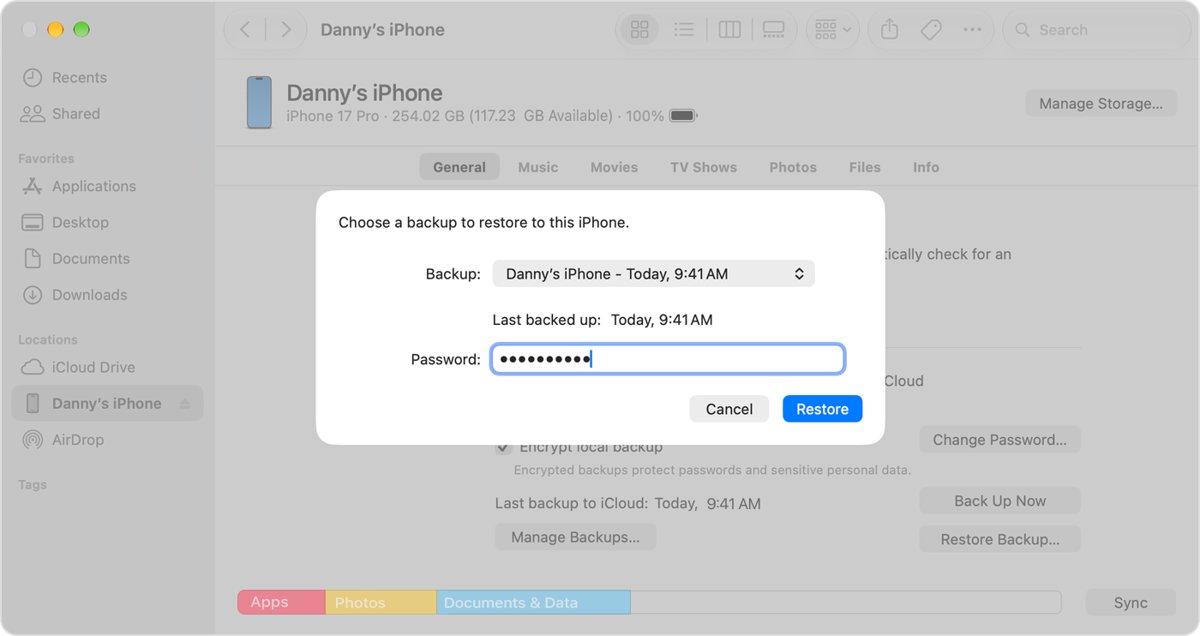
How to reset iPhone backup password
This works on iOS 11 or later and on iPadOS. It keeps your data and passwords, but returns settings such as brightness, wallpaper and the Home Screen layout to their defaults.
- Open the Settings app on the iPhone.
- Tap General, then tap Transfer or Reset iPhone.
- Tap Reset, then tap Reset All Settings.
- Enter your iPhone passcode.
- Tap Reset All Settings again to confirm, and wait for the iPhone to restart.
- Connect the iPhone to the Finder, the Apple Devices app or iTunes, and create a new encrypted backup with a new password.
The new password does not open any earlier encrypted backup. If you might remember the old password later, archive the old backup on the computer before you make the new one.
Can you recover an iPhone backup password?
Apple offers no way to recover or display a forgotten backup password. You can only reset it on the iPhone, which leaves earlier encrypted backups locked.
| What you want | Possible without the password? | What Apple says to do |
|---|---|---|
| Restore an old encrypted computer backup | No | Find the original password, or use an iCloud backup instead |
| Make new encrypted backups (iOS 11 or later) | Yes | Reset All Settings, then create a new encrypted backup |
| Turn off backup encryption | No, the box asks for the password | Reset the password first, or back up with iCloud |
| Reset the password on iOS 10 or earlier | No | Ask whoever set up the iPhone, use an iCloud backup, or use an older computer backup |
| Restore from iCloud | Yes | iCloud backups do not use the computer backup password |
Does resetting all settings on iPhone delete data?
No data or media are deleted, but every setting goes back to its default. Write down anything you will want to set up again.
| Kept after Reset All Settings | Reset or removed |
|---|---|
| Photos, messages, apps and other data and media | Network settings, including saved Wi-Fi and VPN settings |
| Your saved passwords | Keyboard dictionary, location settings and privacy settings |
| Content on the iPhone | Apple Pay cards |
| Backups already on the computer | Display brightness, Home Screen layout and wallpaper |
| iCloud backups | The encrypted backup password |
Do not pick Erase All Content and Settings on the same screen. That option removes all your content.
How to archive an old encrypted iPhone backup
A new encrypted backup overwrites the earlier backups for that iPhone. Archive the old one first so it stays on the computer in case the password comes back to you.
- Open the Finder on a Mac or the Apple Devices app on a PC.
- Connect the iPhone with a USB cable, and select it if it is not selected.
- If asked, tap Trust on the iPhone and enter your passcode.
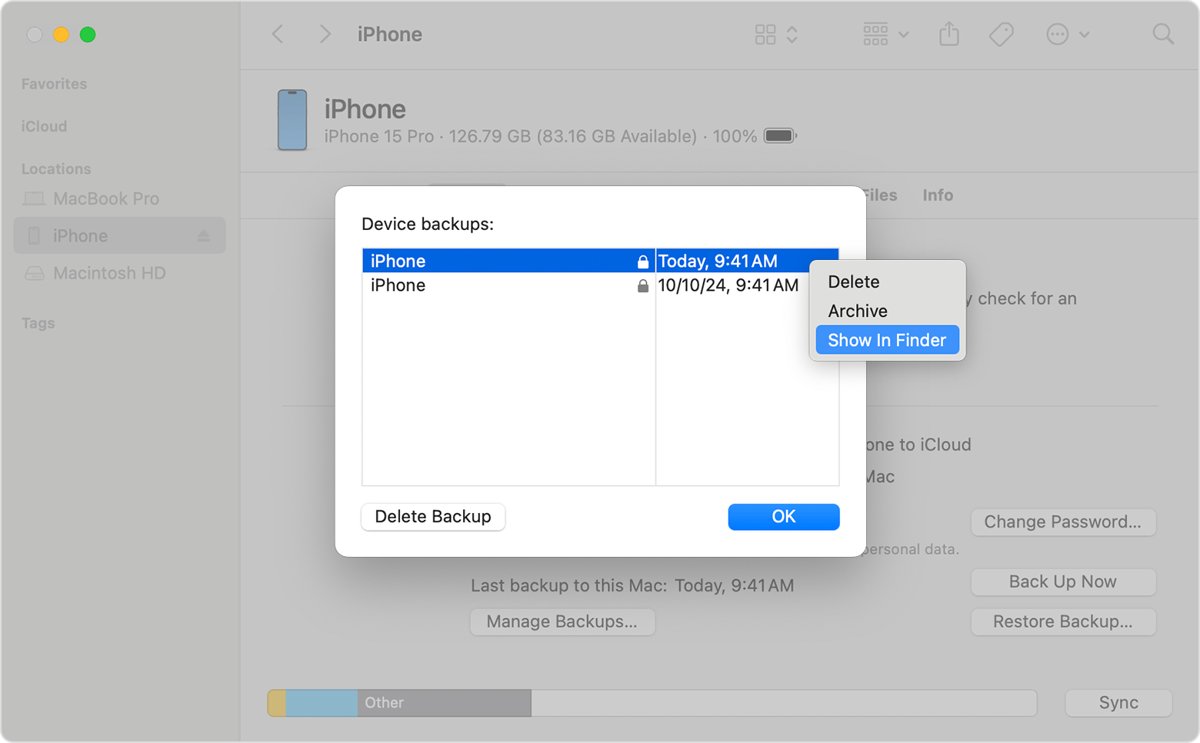
- Click the General tab, then click Manage Backups.
- Right-click the backup you want to keep and choose Archive.
- Click OK.
To find the files, press Windows key + R on a PC and type %USERPROFILE%\Apple\MobileSync\Backup. On a Mac, choose Go > Go to Folder and enter ~/Library/Application Support/MobileSync/Backup/.
Create a new encrypted backup in the Apple Devices app on Windows
Use this after the reset on a PC with the Apple Devices app. Choose a password you can store somewhere safe this time.
- Connect the iPhone to the PC with a USB or USB-C cable.
- In the Apple Devices app, select the iPhone in the sidebar.
- Select General in the sidebar.
- Select Back up all of the data on your iPhone to this computer.
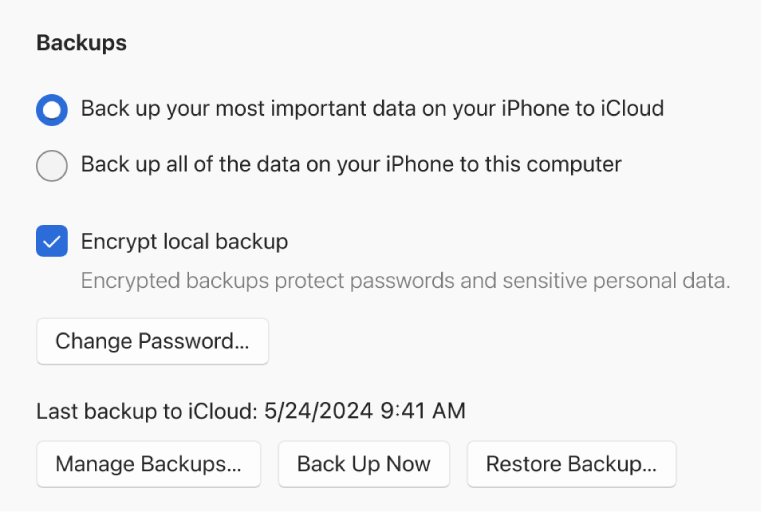
- Select the Encrypt local backup checkbox, then create and confirm a password.
- Select Back Up Now and wait for the backup to finish.
Select Manage Backups afterwards to see the new backup in the list.
How to make an encrypted iPhone backup on a Mac with Finder
The Finder handles iPhone backups on macOS Catalina 10.15 or later. Macs on macOS Mojave or earlier use iTunes with the same options.
- Connect the iPhone to the Mac with a cable, and click Allow if asked.
- Open the Finder and select the iPhone in the sidebar.
- Click Trust if asked, then tap Trust on the iPhone and enter its passcode.
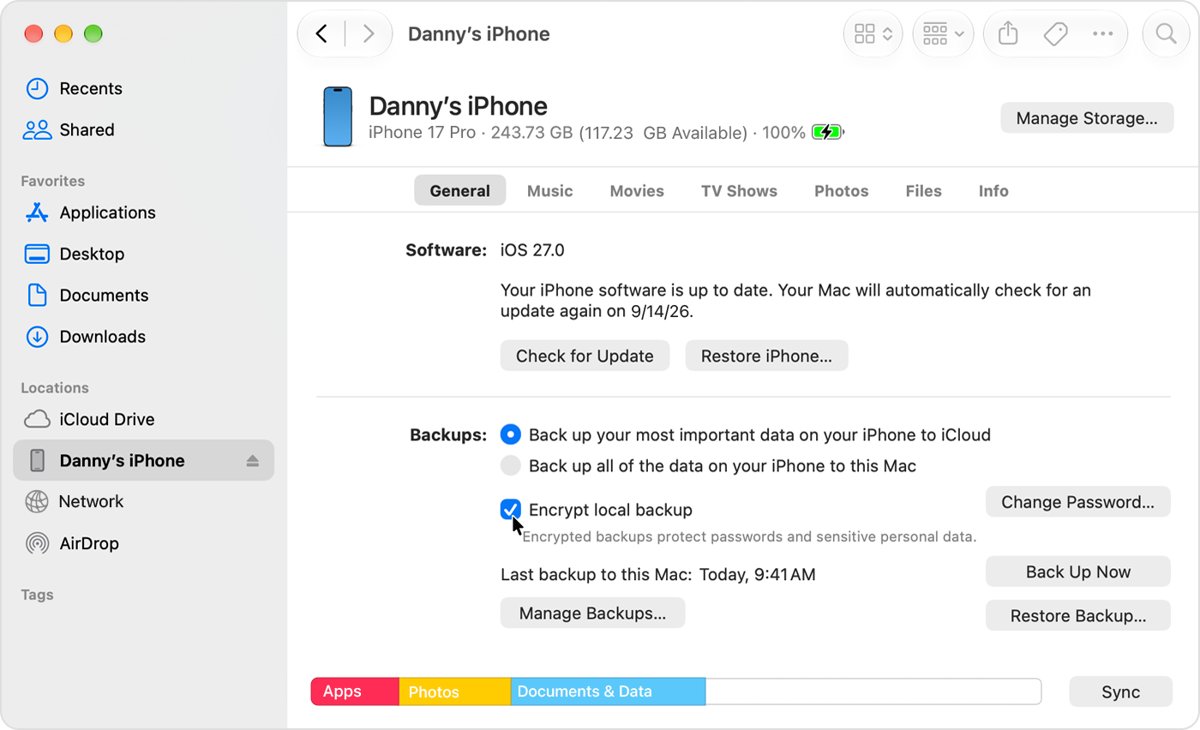
- Click General and select Back up all of the data on your iPhone to this Mac.
- Select Encrypt local backup, type a password, enter it again, and click Set Password.
- Click Back Up Now and wait for the date and time of the last backup to appear.
Forgot iTunes backup encryption password on Windows
A PC without the Apple Devices app still backs up through iTunes. After the reset on the iPhone, set a new password there.
- Reset All Settings on the iPhone as shown at the top of this guide.
- Connect the iPhone to the PC with a cable.
- In iTunes, click the iPhone button near the top left of the window.
- Click Summary.
- Select Encrypt local backup, type a new password, then click Set Password.
- Click Back Up Now below Backups.
How to restore iPhone from iCloud backup without the backup password
iCloud encrypts its own backups, and they do not ask for the computer backup password. You need your Apple Account sign-in instead, and the iPhone must be erased first if it is already set up.
- Turn on the iPhone, or erase it first if it is already set up, until the Hello screen appears.
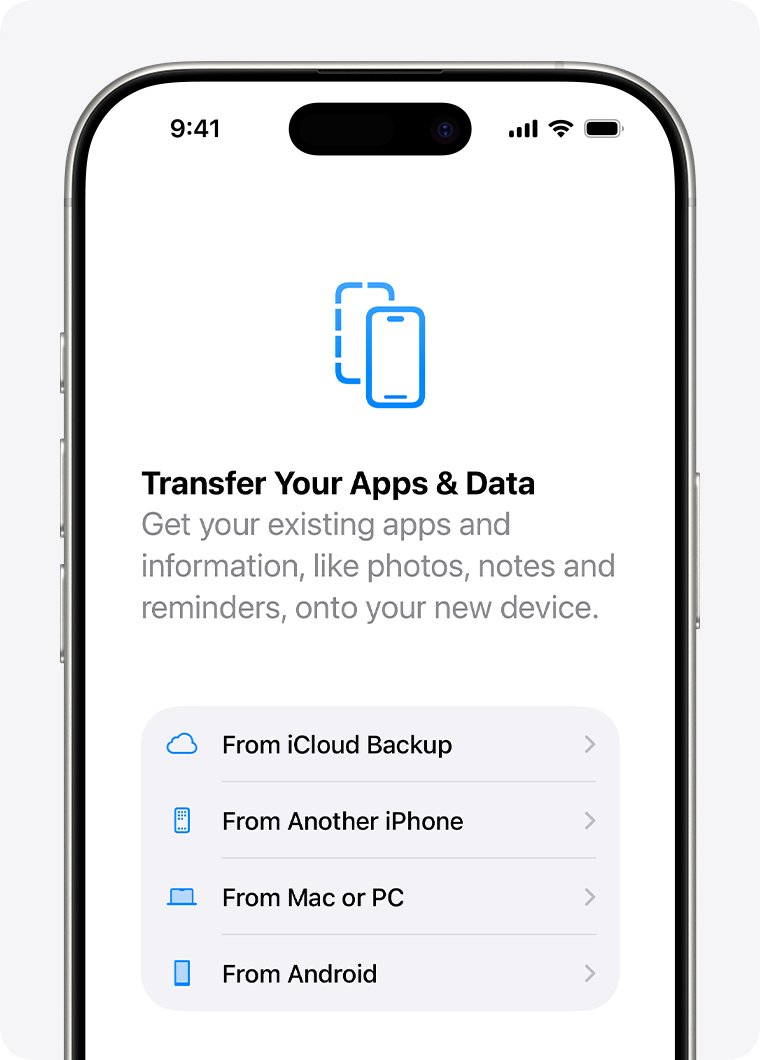
- Follow the setup steps until you reach Transfer Your Apps & Data.
- Tap From iCloud Backup.
- Sign in to your Apple Account.
- Check the date and size of each backup, then choose the most recent one.
- Keep the iPhone on Wi-Fi and power until the progress bar finishes, then complete setup.
To keep an iCloud backup current, go to Settings > [your name] > iCloud > iCloud Backup, turn on Back Up This iPhone, and tap Back Up Now.
Remove encrypted backup password from iPhone
Unchecking encryption needs the current password. If you know it, turn encryption off from the computer; if not, reset the password on the iPhone first.
- Connect the iPhone and open the Finder, the Apple Devices app or iTunes.
- Select the iPhone, then open the General or Summary tab.
- Uncheck Encrypt local backup under Backups.
- Enter the backup password when asked.
- If you cannot remember it, use Reset All Settings on the iPhone, which removes the password.
An unencrypted computer backup leaves out saved passwords, Wi-Fi settings, website history, Health data and call history, so keep encryption on if you need those.
How to tell if an iPhone backup is encrypted
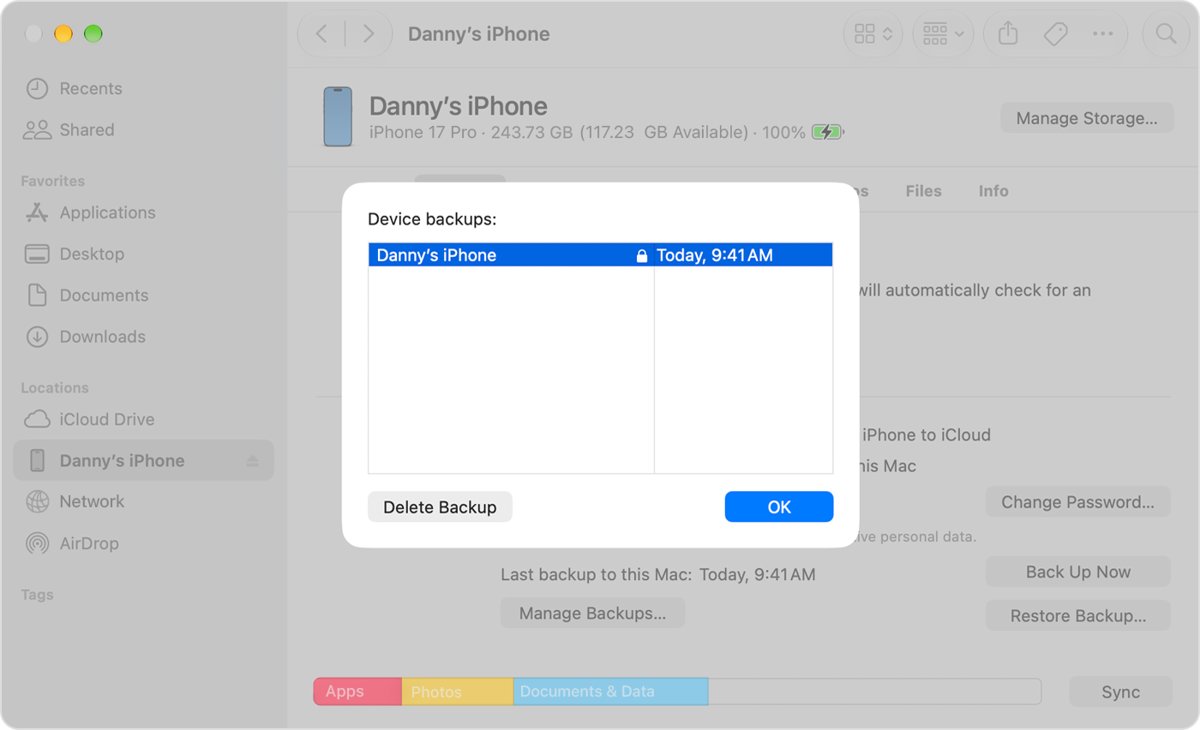
A lock next to the backup shows it is encrypted. Check this after you make the new backup.
- Open the Finder or the Apple Devices app and connect the iPhone with a USB cable.
- Click the General tab and look for a tick in Encrypt local backup.
- Click Manage Backups. In iTunes on Windows, choose Edit > Preferences and click Devices instead.
- Look for a lock next to the iPhone's name and the date and time of the new backup.
- Click OK to close the window.
Encrypted iPhone backup password FAQ
Can I recover a forgotten iPhone backup password?
No. Apple offers no way to recover or display the password, and an encrypted backup cannot be restored without it. On iOS 11 or later you can reset the password with Reset All Settings, but the new password only protects backups made after the reset.
How do I reset my iPhone backup password?
Go to Settings > General > Transfer or Reset iPhone > Reset, tap Reset All Settings, and enter your passcode. That removes the encrypted backup password. Then connect the iPhone to the Finder, the Apple Devices app or iTunes and make a new encrypted backup.
Will a new password open my old encrypted backup?
No. Creating a new password does not give access to earlier encrypted backups. Archive the old backup before you make a new one, so it is not overwritten and can still be used if you remember the original password.
Does Reset All Settings delete my photos and apps?
No. Apple says no data or media are deleted, and your saved passwords stay. Settings such as Wi-Fi networks, the keyboard dictionary, location and privacy settings, wallpaper, brightness and the Home Screen layout go back to their defaults.
Can't remember iPhone backup encrypt password on iOS 10?
On iOS 10 or earlier the password cannot be reset. Ask whoever set up the iPhone for it, restore from an iCloud backup, or use an older Apple Devices app, iTunes or Finder backup.
Is the backup password the same as my iPhone passcode?
No. The backup password is created on the computer when you tick Encrypt local backup, while the passcode unlocks the iPhone. A forgotten Screen Time or restrictions passcode is a separate problem with its own fix.
Does an iCloud backup need the encrypted backup password?
No. iCloud encrypts its own backups, which restore after you sign in to your Apple Account during setup. The encrypted backup password applies only to backups saved by the Finder, the Apple Devices app or iTunes.
What do encrypted iPhone backups include?
Encrypted backups can include your saved passwords, Wi-Fi settings, website history, Health data and call history, which unencrypted backups leave out. They do not include Face ID, Touch ID or device passcode data.