To fix a Nintendo Switch dock that shows nothing on the TV, unplug the AC adapter and HDMI cable for 30 seconds, then reconnect power first, HDMI second and the console last.
These 11 fixes cover the original Nintendo Switch and the OLED Model in TV mode. Switch Lite has no TV mode, and the Nintendo Switch 2 dock gets its own section near the end.
How to reset a Nintendo Switch dock
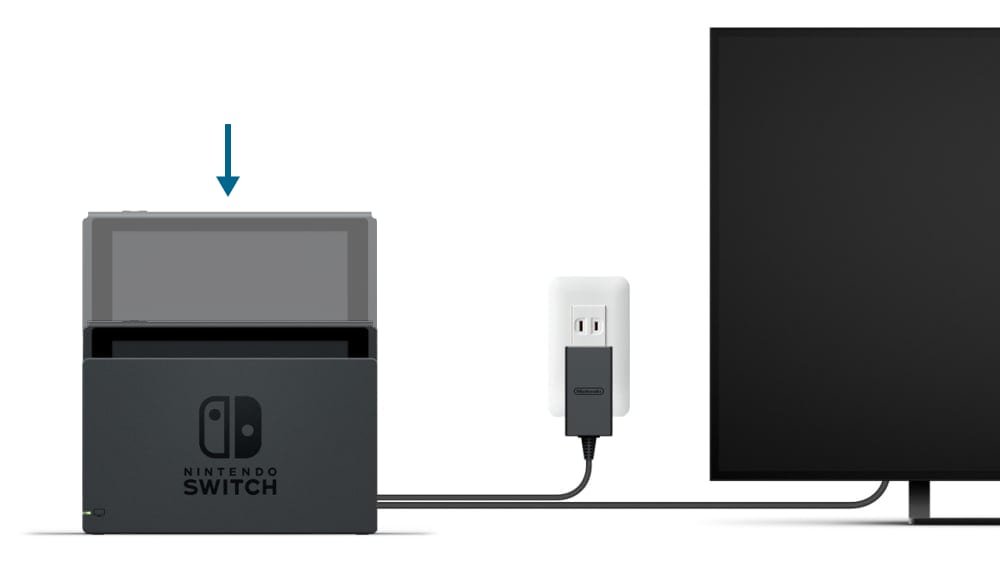
This sequence clears most docks that stop sending a picture to the TV. It takes about a minute.
- Take the console out of the dock and turn off the TV.
- Unplug the HDMI cable from the dock.
- Unplug the AC adapter from the wall and from the dock, then leave it unplugged for 30 seconds.
- Plug the AC adapter into the wall outlet first, then into the dock port labeled AC ADAPTER.
- Connect the HDMI cable to the dock port labeled HDMI OUT and to an HDMI port on the TV.
- Turn on the TV and select the matching HDMI input.
- Slide the console into the dock with its screen facing the same way as the dock's front panel.
The console screen turns off once it is docked, which is normal. If the TV still shows no picture, work through the 11 fixes below in order.
Nintendo Switch dock light flashing
The TV output LED on the front of the dock tells you how far the connection gets. Check it before you start swapping parts.
| TV output LED | What it means | What to do |
|---|---|---|
| Flashes briefly, then turns off | Normal when the AC adapter is first plugged into the dock | Nothing; dock the console |
| Solid green with the console docked | Normal; the dock is sending the game or app to the TV | Check the TV input and TV settings |
| Keeps flashing while the console is docked | The dock cannot complete the TV output | Run fixes 1 to 8 below, then test a different dock |
1. Update your Switch
Nintendo's first step for every TV mode problem is the latest system update. Run it with the console out of the dock.
- Undock the console and connect it to the internet.
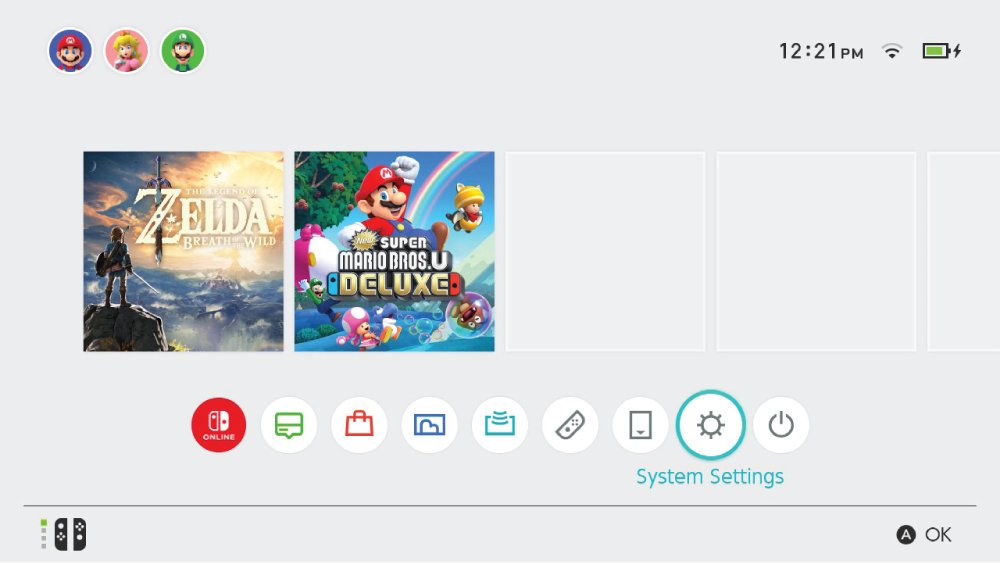
- Select System Settings on the HOME Menu.
- Scroll to the bottom of the left-side menu and select System.
- Select System Update and let the console install anything it finds.
- If you use a dock with a LAN port, dock the console, return to System and select Update Dock.
Nintendo lists the Update Dock step only for the dock with a built-in LAN port, so skip it on the standard dock.
2. Are you using a Nintendo dock?
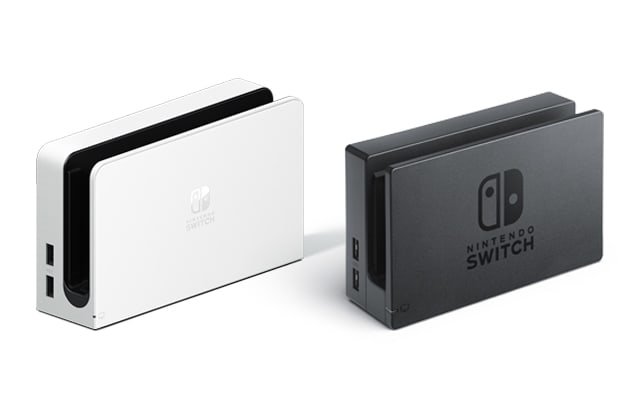
Nintendo lists two licensed docks for TV mode, and an unlicensed dock or adapter can cause a flashing LED or a blank TV.
- Turn the dock over and read the model number on its label.
- Confirm it reads HAC-007 (Nintendo Switch dock) or HEG-007 (dock with LAN port).
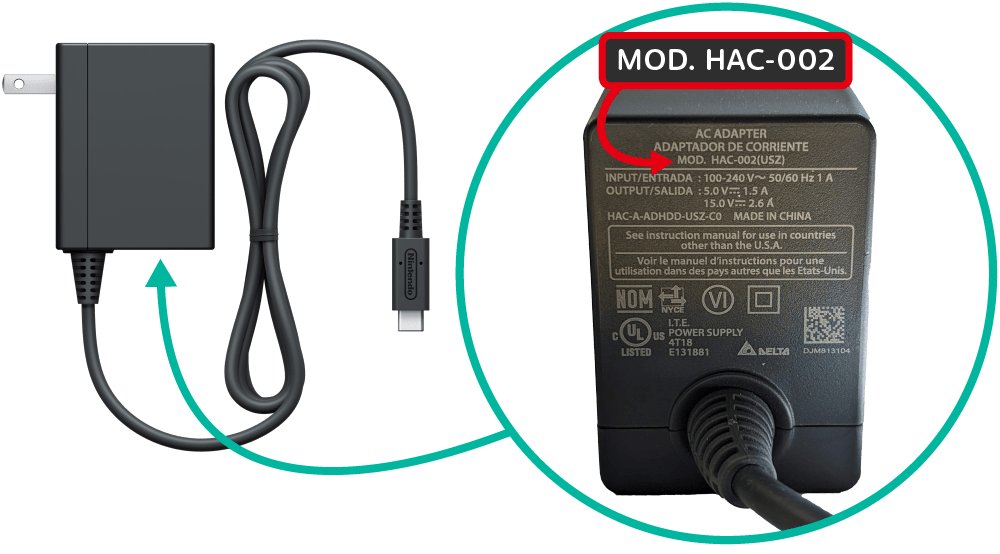
- Check the AC adapter label for MOD. HAC-002.
- Replace any non-licensed dock or power adapter with the Nintendo accessory, then test again.
Switch Lite is not compatible with either dock, because it does not support TV mode. The Nintendo Switch 2 dock also needs its own adapter, covered in its section below.
3. Power cycle your Switch
A console that is asleep or stuck in a half-awake state may not hand the picture to the dock. A full restart clears it.
- Undock the console.
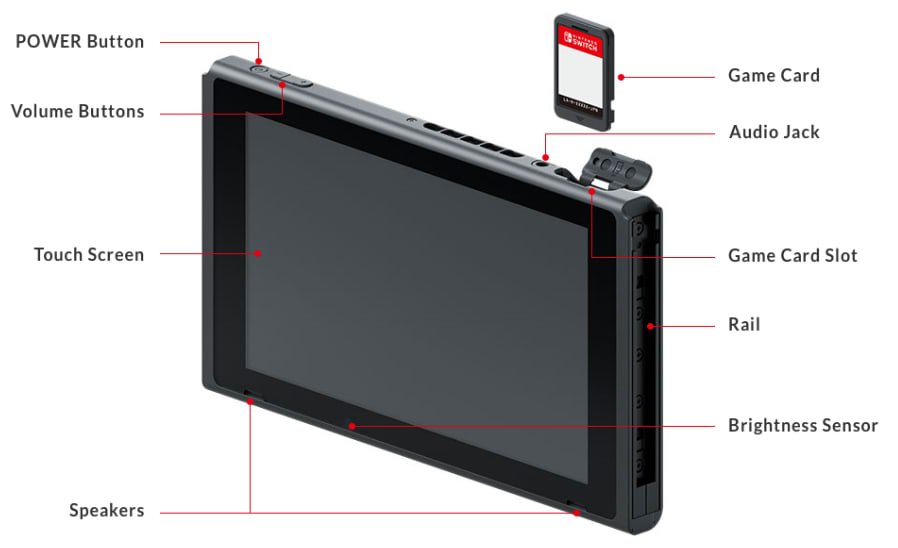
- Press and hold the POWER button for at least three seconds.
- Select Power Options, then select Restart.
- If the console does not respond, hold POWER for 12 seconds to force a shutdown.
- Press POWER once to turn the console back on, then dock it again.
4. Use the correct order for cables
Nintendo's reconnection order puts power on the dock before HDMI, and HDMI before the console. Follow it every time you reconnect during these tests.
- Disconnect the console, the HDMI cable and the AC adapter from the dock.
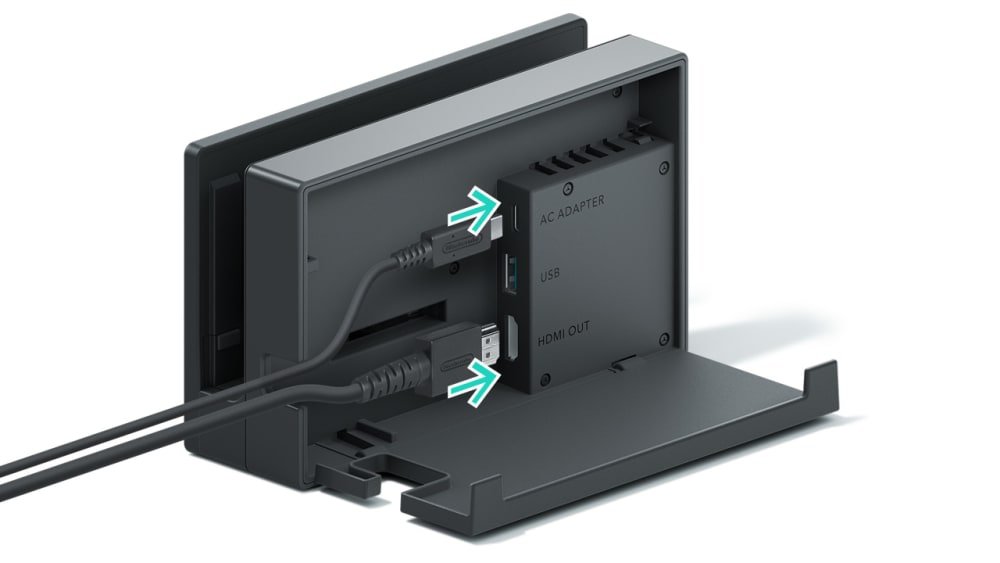
- Open the dock's back cover.
- Plug the AC adapter into a wall outlet, then into the top port labeled AC ADAPTER.
- Plug the HDMI cable into the bottom port labeled HDMI OUT, then into the TV.
- Close the back cover.
- Turn on the console and place it in the dock, screen facing the dock's front panel.
Nintendo also asks you to remove any protective case from the console before you dock it.
5. Check the HDMI cable
A damaged HDMI cable can give no signal, or a picture that is discolored, scrambled or blurry.
- Unplug the HDMI cable from the dock and from the TV.
- Look along the cable for kinks, cuts or fraying, and check both plugs for looseness.
- Plug it straight into the dock and straight into the TV, with no sound bar, home theater system or video adapter in between.
- Try a different HDMI port on the TV.
- Replace the cable if it shows any damage.
6. Use the official HDMI cable
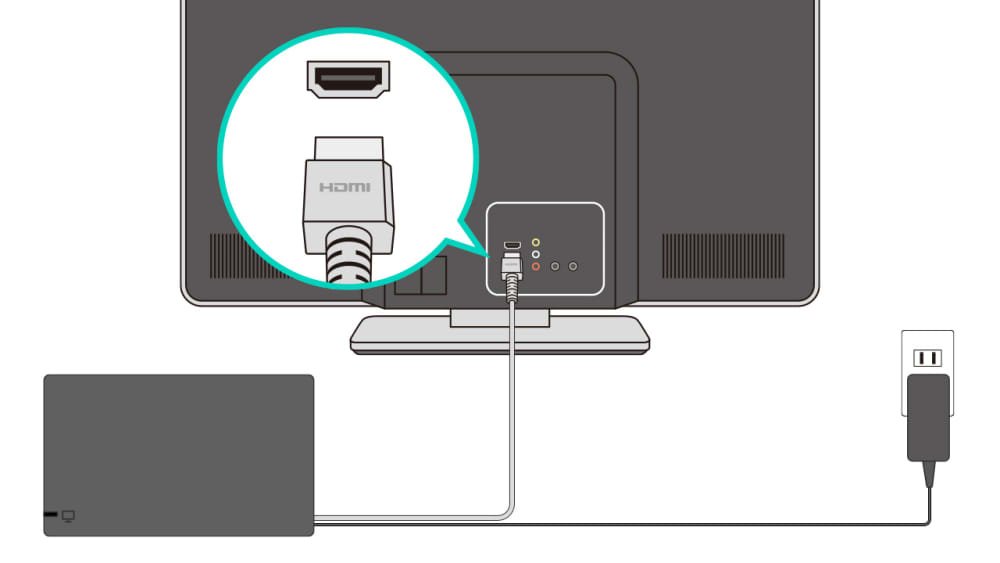
Nintendo's TV setup uses an HDMI cable from the dock straight to the TV, and its troubleshooting asks you to try a different cable when the picture fails. Swapping cables tells you quickly whether the cable is the fault.
- Note which HDMI cable you use now, so you can tell the two apart.
- Swap in a second HDMI-to-HDMI cable that already works with another device.
- Avoid HDMI-to-DVI adapters during the test, because a display without HDMI support may not work with the dock.
- Reconnect in the order from fix 4 and check the TV.
If the second cable works, keep it and replace the first one.
7. Try a friend’s dock or Switch
A second dock is the clearest test Nintendo offers. It tells you whether the dock or the console needs service.
- Borrow a working HAC-007 or HEG-007 dock.
- Connect it with your AC adapter and HDMI cable, using the order from fix 4.
- Dock your console and check the TV.
- If you can, also dock a friend's working Switch in your dock.
- Note which combination fails. That piece is the one to send for service.
If your console works in the second dock, only your original dock needs service.
8. Check the Switch dock power supply
The dock runs on the Nintendo Switch AC adapter plugged into a wall outlet. Nintendo's TV mode checks start with that adapter.
- Confirm the adapter label reads MOD. HAC-002.
- Inspect the cord for fraying, splits or kinks, and check both connectors for looseness.
- Plug the adapter directly into a wall outlet.
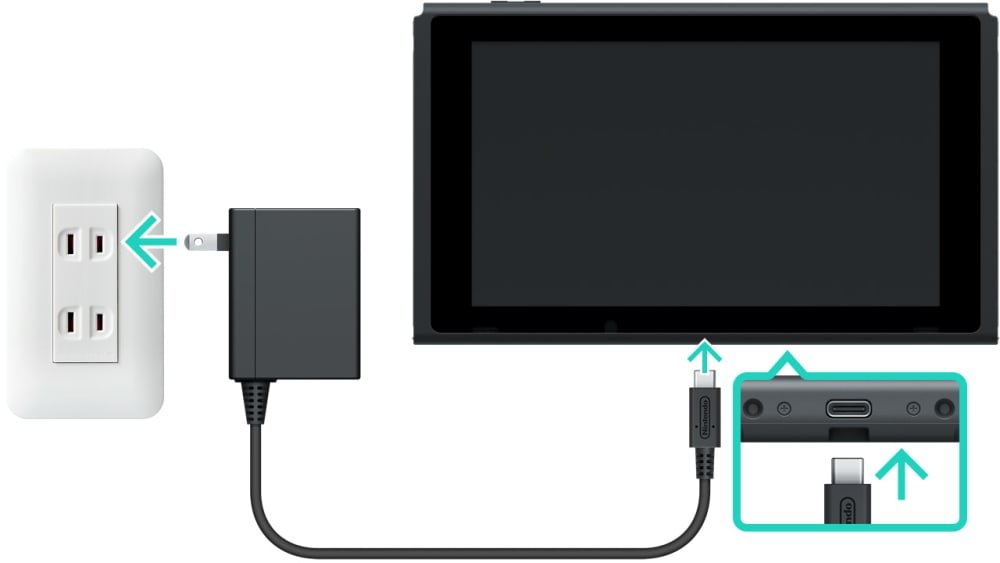
- Undock the console and plug the adapter straight into it. If it charges, the adapter works.
- Plug the adapter back into the dock and dock the console again.
If the console will not charge from the adapter at all, the problem is power, not the dock, so fix a Switch that won't charge before you go back to the dock.
9. Change the TV output resolution configuration
Some TVs and monitors do not accept the signal the console picks automatically. A fixed resolution or a different RGB range can bring the picture back.
- Undock the console, or dock it on a TV that works, and select System Settings on the HOME Menu.
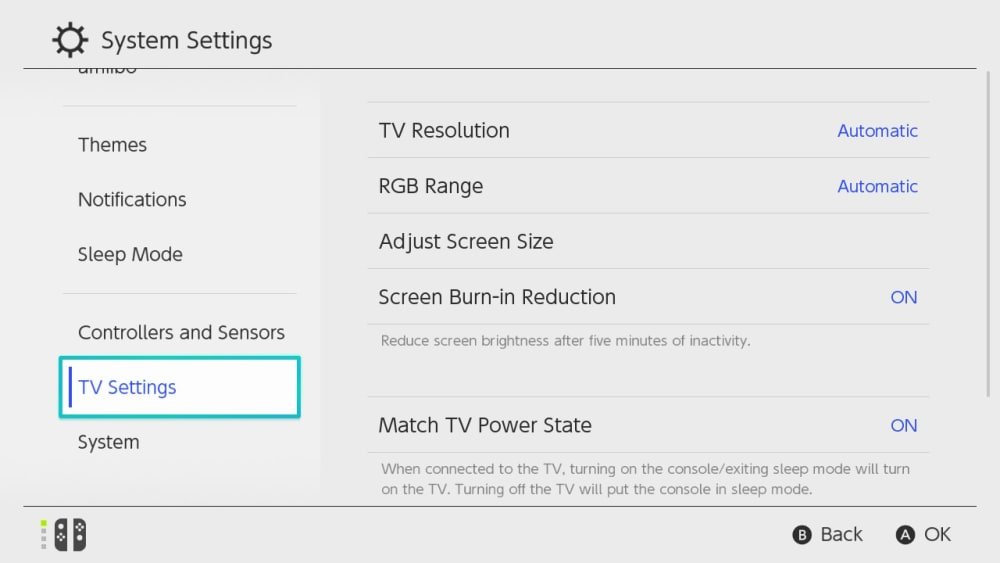
- Scroll down the left side and select TV Settings.
- Select TV Resolution and choose 720p or 480p instead of Automatic or 1080p.
- Select RGB Range and choose Full Range or Limited Range to match what your TV's manual lists.
- Dock the console on the problem TV and check the picture.
- Use Adjust Screen Size while docked if the image edges are cut off.
Switch both settings back to Automatic once the picture returns, to see whether the TV accepts it. If the picture looks distorted, also check your TV for a Game Mode setting.
10. Disable power state matching
With Match TV Power State on, the console turns the TV on when it wakes, and turning off the TV puts the console to sleep. Turning it off removes that HDMI-CEC link from the test.
- Select System Settings on the HOME Menu.
- Select TV Settings on the left side.
- Select Match TV Power State and turn it off.
- Turn on the TV manually and choose the HDMI input.
- Dock the console and check the picture.
The option appears only after a system update, and some TV models do not support it. If you want it back later, the TV's HDMI control setting must also be turned on.
11. Clean your dock and Switch port
Nintendo publishes general cleaning advice for its handheld systems but no procedure for cleaning inside the dock connector or the USB-C port.
- Turn the console off and unplug every cable from the dock.
- Wipe the outside of the console and dock with a soft lens or eyeglass cloth.
- For dirt, dampen a corner of the cloth slightly with water, wipe, then dry with a clean part of the cloth.
- Never pour liquid onto the console or dock, because moisture permanently damages the battery.
- Let everything dry completely before you reconnect it.
- If you see debris or bent metal inside a connector, send the item for service rather than probing it.
If you have a faulty dock
Send the dock to Nintendo for service when your console works in another dock, and send the console and dock together when no dock gives a picture. Nintendo treats a dock that fails while a second dock works as a dock-only repair. If the TV stays blank with every dock, include the console, original dock, AC adapter and HDMI cable in the online service request so Nintendo can test them as a set.
Nintendo Switch dock not showing on TV
Match what you see to the symptom below. Each one comes from Nintendo's own TV mode troubleshooting.
The TV says no signal and the console screen is also blank undocked
The console itself is not powering on, so the dock has nothing to send.
- Connect the AC adapter directly to the console and a wall outlet.
- Press POWER once.
- If the screen stays blank in handheld mode, troubleshoot the console's power before the dock.
The image on the TV is discolored, scrambled or blurry
A damaged cable, an extra device in the HDMI chain or a TV setting is distorting the signal.
- Restart the console from Power Options > Restart.
- Reset the AC adapter by unplugging it from both ends for 30 seconds.
- Connect the HDMI cable straight from the dock to the TV, with no sound bar or DVI adapter.
- Try a different HDMI port, a different HDMI cable and the TV's Game Mode.
- Try a different TV, then a different dock.
The TV output LED keeps flashing
The dock has power but cannot complete the output to the TV.
- Install the latest system update with the console undocked.
- Reset the AC adapter for 30 seconds and reconnect power, then HDMI, then the console.
- Confirm the dock is HAC-007 or HEG-007 and the adapter is HAC-002.
- Test a different dock. If it works, only the original dock needs service.
Nintendo Switch 2 dock not working
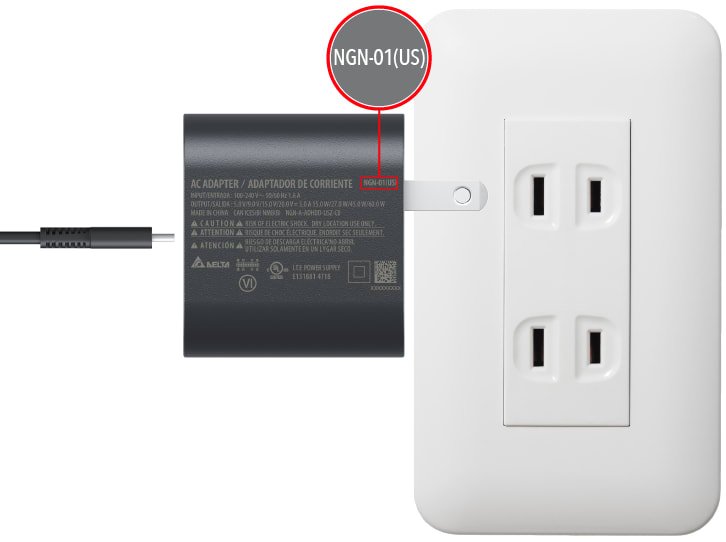
The Nintendo Switch 2 dock has different power and cable needs. The original Nintendo Switch AC adapter (HAC-002) can charge a Switch 2 console directly but cannot power the Switch 2 dock.
- Power the dock with the Nintendo Switch 2 AC adapter (model NGN-01), or another adapter and cable rated for at least 54W.
- Use an HDMI cable with Ultra High Speed printed on it.
- Clear stickers, accessories and dust from the vents on the top of the console and the back of the dock.
- Unplug the adapter from the dock and the wall, wait 20 seconds, then reconnect it.
- Connect the dock straight to the TV with no HDMI splitter in between.
- Turn off Variable Refresh Rate (VRR) in the TV's settings, then dock the console again.
After a failed TV connection, an undocked Switch 2 may show "Cannot display on TV. Please use the provided AC adapter". That message points to the adapter, so start with step 1.
Nintendo Switch dock FAQ
Why is my Switch dock not working?
The usual causes are a missing system update, cables reconnected in the wrong order, a damaged HDMI cable or a non-HAC-002 power adapter. Reset the adapter for 30 seconds, reconnect power then HDMI then the console, and test a different dock if nothing changes.
Does Switch Lite work with the dock?
No. Nintendo Switch Lite does not support TV mode, so it is not compatible with the Nintendo Switch dock or the dock with LAN port. It charges directly from the Nintendo Switch AC adapter instead.
What does the green light on the Switch dock mean?
A solid green TV output LED means the docked console is sending its picture to the TV. A short flash when you first plug in the adapter is also normal. A light that keeps flashing while docked means the output is failing.
Can I use any HDMI cable with the Switch dock?
Nintendo's TV setup asks for an HDMI cable from the dock straight to the TV and suggests trying a different one when the picture fails. Avoid DVI adapters during troubleshooting, because a display without HDMI support may be incompatible.
Can I power the Switch dock with a phone charger?
Nintendo's TV mode articles list only the Nintendo Switch AC adapter, model HAC-002, for the original dock. It says a non-licensed adapter can cause TV problems and that replacing it with the correct accessory may fix them.
How do I update the Nintendo Switch dock?
Only the dock with a LAN port has an update. Dock the console, open System Settings, select System and choose Update Dock. Install the console's own system update first from System > System Update.
What resolution should I set for the Switch on my TV?
Leave TV Resolution on Automatic unless the TV shows no picture or a bad image. Then try 720p or 480p under System Settings > TV Settings. The available options are Automatic, 480p, 720p and 1080p.
Does Nintendo repair a broken Switch dock?
Yes. If your console works in a second dock, Nintendo treats the original dock as the item needing service. If no dock gives a picture, send the console with the dock, AC adapter and HDMI cable through Nintendo's online service request.