To delete a page in Word, click anywhere on that page, press Ctrl+G, type \page in the Enter page number box, press Enter, select Close and press Delete.
A blank page is different: it is made by empty paragraphs, a page break, a section break or the end paragraph after a table, and each cause has its own fix below.
Delete a page that contains content
This selects exactly one page of text, images and empty paragraphs, so nothing on the pages around it is touched. It works in Word for Microsoft 365 and other desktop versions of Word for Windows.
- Click anywhere on the page you want to delete.
- Press Ctrl+G to open the Enter page number box.
- In the Enter page number box, type
\page. - Press Enter, then select Close.
- Check that the whole page is highlighted.
- Press Delete.
On a Mac, press Option+⌘+G in step 2. The rest of the steps are the same.
You can also drag to select everything on the page and press Delete. Once all the content is gone, the page disappears.
Why is there a blank page in Word? Causes and fixes
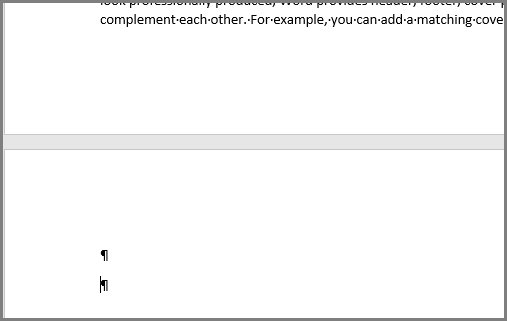
Turn on paragraph marks first with Ctrl+Shift+8 (⌘+8 on a Mac). The marks on the blank page tell you which row applies.
| What you see on the blank page | Cause | Fix |
|---|---|---|
| Several ¶ marks | Extra empty paragraphs | Select the ¶ marks and press Delete |
| A dotted line labelled Page Break | A manual page break | Double-click the break and press Delete |
| A double dotted line labelled Section Break (Next Page), (Odd Page) or (Even Page) | A section break that starts a new page | Change it to Continuous, or delete it if it sits at the end |
| One ¶ mark on the last page, right after a table | Word's required end paragraph pushed to a new page | Shrink that paragraph to 1 point |
| A ¶ mark with a small square beside it | Page break before is turned on for that paragraph | Clear Page break before in Paragraph settings |
Delete a blank page in Word
Most blank pages in the middle or at the end of a document are empty paragraphs or a manual page break. Both can be deleted directly.
- Press Ctrl+Shift+8, or go to Home and select Show/Hide (¶).
- Scroll to the blank page and look at the marks on it.
- To remove extra paragraph marks, drag across the empty ¶ marks and press Delete.
- To remove a manual page break, double-click the Page Break line to select it and press Delete.
- Press Ctrl+Shift+8 again to hide the marks.
A ¶ mark is any paragraph, including an empty one made by pressing Enter. A page full of them looks blank but still counts as content.
Remove a blank final page after a table
Word always keeps one end paragraph after the last item in a document, and it cannot be deleted. When a table fills the page, that end paragraph spills onto a new blank page. The fix is to make the paragraph small enough to fit on the page before.
- Press Ctrl+Shift+8 (⌘+8 on a Mac) to show paragraph marks.
- Select the ¶ mark on the blank page.
- Click inside the Font size box on the Home tab, type
01and press Enter. - Check that the blank page has gone.
- Press Ctrl+Shift+8 again to hide the marks.
If 1 point is not enough, reduce the bottom margin: go to Layout > Margins > Custom Margins and set the bottom margin to a small value, such as 0.3 inches.
Why can't I delete a blank page in Word? Fixes when it still will not go away
The page will not delete and shows a section break
A Next Page, Odd Page or Even Page section break starts a new page. Deleting a break in the middle of a document can change the formatting around it.
- Go to View and select Draft to see section breaks clearly.
- If the break is the last thing in the document, click directly before it and press Delete.
- If the break is in the middle, remove or change a section break carefully: double-click it instead of deleting it.
- On the Layout tab, select Breaks and choose Continuous, then select OK.
- Switch back with View > Print Layout and check the page.
A small square sits beside the ¶ mark on the blank page
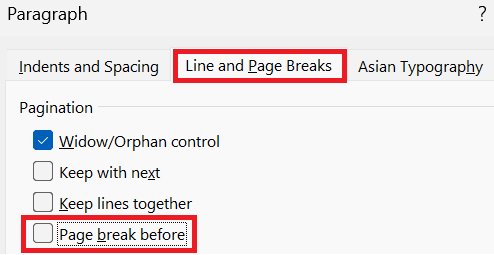
That paragraph has Page break before turned on, so Word forces it onto a new page.
- Right-click the empty paragraph.
- Select Paragraph Settings (also on the Home tab).
- Open the Line and Page Breaks tab.
- Clear Page break before and select OK.
The last page stays after you set the end paragraph to 1 point
The table or text above still fills the page to the bottom margin, so even a 1-point paragraph does not fit.
- Go to Layout > Margins > Custom Margins.
- Lower the Bottom margin, for example to 0.3 inches, and select OK.
- If the page is still there, remove one empty row or line from the table so the end paragraph has room.
Pressing Backspace or Delete does nothing on the page
The page is created by an automatic page break, which Word inserts at the end of every full page and does not let you delete.
- Show paragraph marks and check for a section break or a square marker, then use the fixes above.
- If there is neither, the page holds real content that continues from the page before. Select and delete that content instead.
Adjust automatic page breaks in Word
You cannot remove the automatic breaks Word adds at the end of each page, but you can control where they land. This stops a paragraph from jumping to a new page and leaving a gap.
- Select the paragraphs you want to control.
- Go to Layout and select the Paragraph dialog box launcher.
- Open the Line and Page Breaks tab.
- Choose Widow/Orphan control, Keep with next or Keep lines together as needed.
- Clear Page break before unless that paragraph must start a new page.
- Select OK.
Check whether the blank page in Word is intentional
Some blank pages are there on purpose. Check these cases before you delete anything, especially in a shared report or a document headed for print.
| What made the page | Why it may be intentional | Safe action |
|---|---|---|
| Odd Page or Even Page section break | Makes each chapter start on a right-hand page in double-sided printing | Keep it for print; change it to Continuous for screen reading |
| Insert > Blank Page (Insert > Pages > Blank Page on a Mac) | Someone added a separator page on purpose | Ask the author, then delete the page break that follows it |
| Next Page section break | Different headers, footers, orientation or page numbering start in the next section | Change it to Continuous only if the next section needs no new page |
| Page break before on a heading style | Every chapter heading starts on a new page | Change the setting in the style, not on single paragraphs |
Section breaks often control where page numbering starts, so check the page numbers after changing one.
Delete a page in Word for Mac
Word for Mac uses the same fixes with Mac shortcuts.
- To delete a page with content, click on the page and press Option+⌘+G.
- Type
\pagein the Enter page number box, press Enter and select Close. - Press Delete to remove the selected page.
- For a blank page, press ⌘+8 to show paragraph marks.
- Select empty paragraph marks or a manual page break and press Delete.
Word for the web: what you can remove
Word for the web can delete empty paragraphs and manual page breaks. It cannot delete or change section breaks, so a blank page caused by an Odd Page or Next Page break needs the Word desktop app.
- Open the document in Word for the web.
- Select Edit Document > Edit in Word for the web if the file opens read-only.
- Select the blank lines on the unwanted page and press Delete.
- Click a page break to select it, then press Delete.
- If the page remains, select Open in Word (Open in Desktop App) and remove the section break there.
Delete a page in Word on a phone or tablet
The Word mobile app deletes content the same way as any text editor. Section break fixes still need Word on a computer.
- Open the document in the Word app on your phone or tablet.
- Switch to editing if the document opens for viewing only.
- Double-tap a word on the page you want to remove, then drag the selection handles to cover the whole page.
- Tap the delete key on the on-screen keyboard.
- For a blank page you cannot select, open the file in Word on a computer and use the section break fix.
Use the Navigation Pane to find the page, not to delete it
The Pages view in the Navigation pane shows thumbnails of every page. It finds a stray blank page fast in a long document, but it has no delete command for pages.
- Press Ctrl+F, or go to View and select Navigation Pane.
- Select Pages at the top of the pane.
- Click the thumbnail of the blank or unwanted page to jump to it.
- Close the pane and use the delete steps above on that page.
The Headings tab can move whole sections by dragging a heading, which is useful when the page you want gone is a full section.
Save a Word document as PDF without the blank page
If you only need a PDF without the blank page, leave the Word file as it is and export only the pages you want.
- Select File > Save a Copy (or Save As for an unsaved file).
- Select Browse and choose a folder.
- In the file type drop-down list, select PDF.
- Select More Options > Options.
- Under Page range, choose the pages to include and leave out the blank one.
- Select OK, then Save.
On the Word mobile app, use the Print option and choose Save as PDF instead.
Final verification: check the page is gone in Word
- Press Ctrl+F, select Pages, and scroll the thumbnails for any remaining blank page.
- Press Ctrl+Shift+8 and check that no stray page break or section break remains.
- Check headers, footers and page numbers on the pages either side of the deleted one.
- Check that the content from the page before and after the deleted page still lines up as expected.
- Press Ctrl+Shift+8 again to hide the marks and save the document.
If the whole document shows as empty when you reopen it, fix a Word document that opens blank before you edit further.
Delete a page in Word: frequently asked questions
What is the shortcut key to delete a page in Word?
There is no single key. Press Ctrl+G (Option+⌘+G on a Mac), type \page, press Enter, select Close, then press Delete. That sequence selects the current page and removes everything on it.
Why can't I delete a blank page in Word?
The page is usually made by something you cannot see: a section break, a paragraph with Page break before turned on, or the end paragraph after a table. Press Ctrl+Shift+8 to show the marks, then use the fix that matches what appears.
Why can't I delete the last page of a Word document?
Word keeps a required end paragraph that cannot be deleted. If a table or full page of text pushes it onto a new page, select its ¶ mark and set the font size to 1 point, or reduce the bottom margin.
How do I delete a page after a table in Word?
Show paragraph marks, select the single ¶ mark on the blank page after the table, type 01 in the Font size box and press Enter. The end paragraph then fits on the table's page and the blank page disappears.
What is the difference between a page break and a section break?
A page break only moves the following text to a new page. A section break also starts a new section, which can carry its own headers, footers, margins, orientation and page numbering. Deleting a section break can therefore change formatting.
Will deleting a section break change my formatting?
Yes, it can. Word merges the sections before and after the break, and the merged section takes the formatting of the section that followed the break. In the middle of a document, change the break to Continuous instead of deleting it.
Can automatic page breaks be deleted?
No. Word adds automatic page breaks at the end of every full page. You can control where they land with Keep with next, Keep lines together and Widow/Orphan control on the Line and Page Breaks tab of Paragraph settings.
Can I delete a page from Word's Navigation Pane?
No. The Pages view in the Navigation pane only shows thumbnails for jumping to a page. Click the thumbnail to go to the page, then delete its content in the document.
How do I delete a page in Word online?
In Word for the web, select Edit Document > Edit in Word for the web, select the blank lines or page break on the page and press Delete. Section breaks cannot be changed online, so use Open in Word for those.
How do I remove a blank page from a PDF without changing the Word document?
Save a new PDF from Word instead of editing the old one. Select File > Save a Copy, choose PDF, open More Options > Options, and set Page range to skip the blank page.
What if the blank page is caused by an Odd Page or Even Page section break?
These breaks add a blank page so the next section starts on a right-hand or left-hand page. Double-click the break, then on Layout select Breaks > Continuous. Keep the break if the document is printed double-sided. When you print it double-sided, choose long edge or short edge binding to match how the pages will be turned.
Can I delete pages in Word without deleting the content?
Not as such. A page in Word exists only because content, breaks or empty paragraphs fill it. To keep the content but lose the page, reduce margins, font size or spacing so the content fits on fewer pages.
The bottom line on deleting a page in Word
Use Ctrl+G with \page to delete a page with content, and turn on paragraph marks with Ctrl+Shift+8 before fixing any blank page. Every blank page has a visible cause once the marks are on: empty paragraphs and page breaks delete directly, section breaks change to Continuous, and the end paragraph after a table shrinks to 1 point.