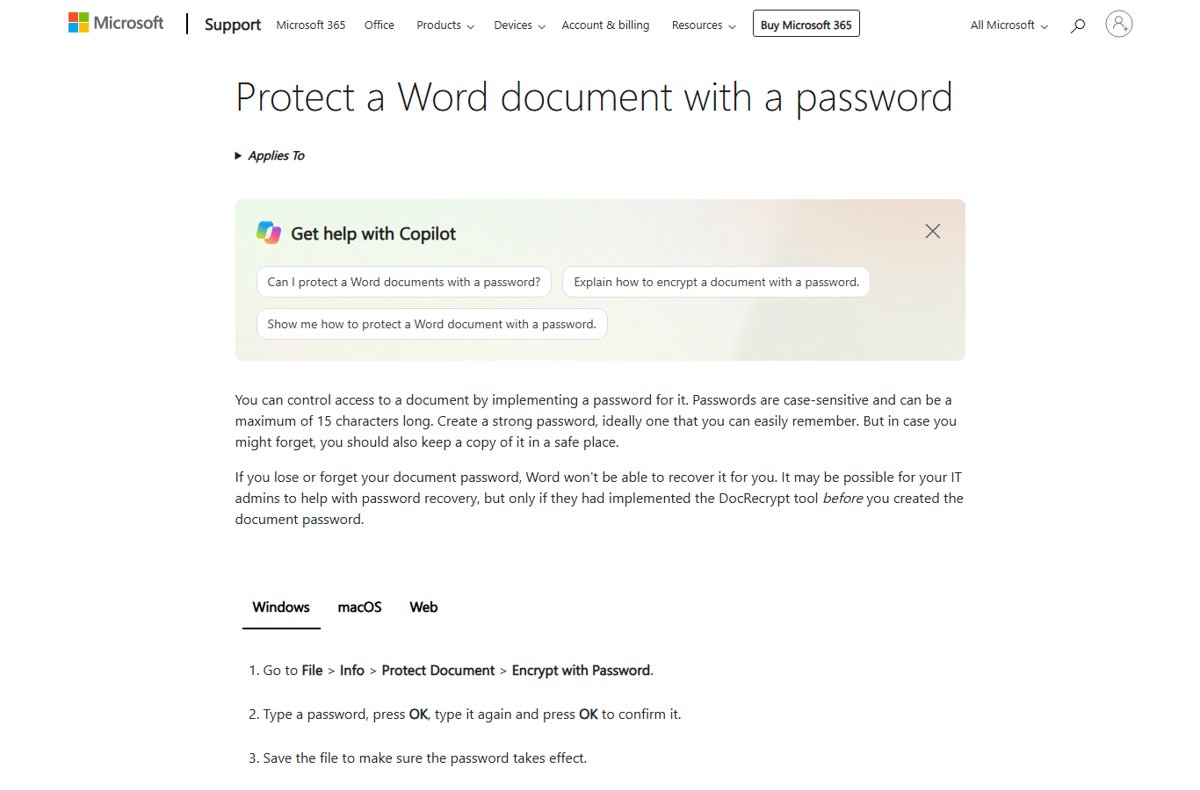
To put a password on a Word document in Windows, select File > Info > Protect Document > Encrypt with Password, type the password twice, and save the file.
This guide covers the Mac steps, why Word for the web cannot do it, password to open versus password to modify, editing restrictions, and how to change or remove a password.
How to Put a Password on a Word Document in Windows
This encrypts the file, so nobody can open it without the password. It works in Word for Microsoft 365, Word 2024, 2021, 2019 and 2016.
- Open the document in the Word desktop app.
- Select File > Info.
- Select Protect Document > Encrypt with Password.
- Type a password and select OK.
- Type the same password again and select OK.
- Save the document; the password takes effect only after you save.
Passwords are case-sensitive. Write the password down somewhere safe first, because Microsoft cannot recover it.
Before You Start: Choose the Right Kind of Protection
Word has several protection features, and only one of them stops people opening the file. Pick by what you want to prevent.
| You want to | Use | Security level |
|---|---|---|
| Stop anyone opening the file | Encrypt with Password (password to open) | Encrypts the file |
| Let people read but not save changes | Password to modify | Deters edits; readers can still open read-only |
| Lock formatting or allow edits only in some parts | Restrict Editing | Controls editing, does not encrypt with a password |
| Signal the document is finished | Mark as Final | Not a security feature; anyone can turn it off |
| Open in view-only mode by default | Always open view-only | Prevents accidental edits only |
How to Password-Protect a Word Document on Mac
Word for Mac sets both kinds of password in one dialog, under the Review tab.
- Open the document in Word for Mac.
- Select Review > Protect > Protect Document.
- Under Security, type a password to open the document, a password to modify it, or both.
- Type each password again to confirm.
- Select OK, then save the document.
Can You Password-Protect a Word Document in Word for the Web?
No. Microsoft states that Word for the web cannot password-encrypt a document, and it cannot edit a document that is already encrypted.
| Task | Word for the web | What to do |
|---|---|---|
| Add a password | Not possible | Select Open in Word and use the desktop app |
| Edit an encrypted document | Not possible | Open it in the desktop app with the password |
| Remove a password | Not possible | Use File > Info in the desktop app |
| Share from OneDrive | Possible | Share with specific people rather than an open link |
How to Restrict Editing in a Word Document
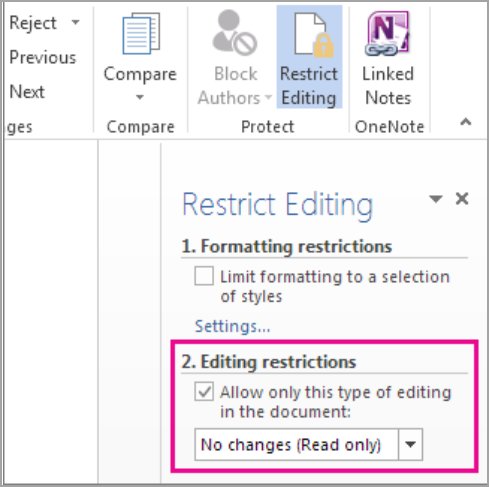
Restrict Editing lets people open and read the document but limits what they can change. You can leave chosen parts editable.
- Select Review, then Restrict Editing in the Protect group.
- Under Editing restrictions, select Allow only this type of editing in the document.
- Choose No changes (Read only) from the list.
- Optionally select parts people may edit and tick Everyone under Exceptions.
- Select Yes, Start Enforcing Protection.
- Type a password in Enter new password (optional), confirm it and select OK.
Choose User authentication instead of a password if you want the document encrypted so only authenticated owners can remove protection. To unlock later, open Restrict Editing and select Stop Protection.
Password to Open vs. Password to Modify: What Is the Difference?
| Feature | Password to open | Password to modify |
|---|---|---|
| Who can see the content | Only people with the password | Anyone, in read-only mode |
| File encrypted | Yes | No |
| Where to set it on Windows | File > Info > Protect Document > Encrypt with Password | Save As dialog > Tools > General Options > Password to modify |
| Where to set it on Mac | Review > Protect > Protect Document | Same dialog, modify box |
| Best for | Confidential documents | Templates and forms others should not overwrite |
Microsoft notes that Word may not prompt for a modify password when the document is opened from Exchange or Outlook folders. Save it to a drive or folder first.
How to Change the Password on a Word Document
- Open the document with the current password.
- On Windows, select File > Info > Protect Document > Encrypt with Password.
- On Mac, select Review > Protect > Protect Document.
- Delete the old password, type the new one and select OK.
- Confirm the new password and select OK.
- Save the document, then close and reopen it to test the new password.
How to Remove a Password from a Word Document
You must know the current password. Word has no way to remove a password you do not know.
- Open the document and enter its password.
- Select File > Info > Protect Document > Encrypt with Password.
- Clear the password box so it is empty.
- Select OK.
- Save the document.
To remove editing restrictions, select Review > Restrict Editing > Stop Protection. To clear Mark as Final, select File > Info > Protect Document > Mark as Final again.
How Strong Is Word Password Protection?
Encrypt with Password is the only option that encrypts the file with your password. The other options control behaviour inside Word.
| Option | Protects against | Does not protect against |
|---|---|---|
| Encrypt with Password | Anyone opening the file without the password | A weak, guessable password |
| Password to modify | Accidental overwrites | Reading or saving a copy under a new name |
| Restrict Editing with a password | Casual edits | Copying the content into a new document |
| Mark as Final | Nothing; it is a notice | Anyone can remove it |
| Always open view-only | Accidental changes | Saving a new copy |
Microsoft recommends passwords of 8 or more characters that mix uppercase, lowercase, numbers and symbols, and says a pass phrase of 14 or more characters is better.
What Happens If You Forget the Password?
The document stays locked. Microsoft does not offer a recovery service and cannot retrieve a lost Word password.
| Situation | What you can do |
|---|---|
| Personal document, password lost | Try likely variations, checking Caps Lock and letter case |
| Work document | Ask IT; recovery works only if they set up the DocRecrypt tool before the password was added |
| An older unprotected copy exists | Restore it from backup, OneDrive version history or email attachments |
| Restrict Editing password lost | The text can still be read and copied into a new document |
Best Practices for Sending a Password-Protected Word Document
| Practice | Why |
|---|---|
| Send the password by a different channel, such as a text or call | Someone who intercepts the email does not get both |
| Use a long pass phrase | Harder to guess than a short word |
| Test the file before sending | Confirms the password was saved |
| Tell recipients to use the Word desktop app | Word for the web cannot open encrypted files for editing |
| Keep an unencrypted master copy in secure storage | Protects you against a forgotten password |
How to check the password is applied
- Close the document completely.
- Open it again from File Explorer or Finder.
- Confirm Word asks for a password before showing any content.
- Enter the password and confirm the content opens normally.
Troubleshooting: Why Isn’t the Password Working?
You did not save the document after adding the password
Encryption applies only when the file is saved.
- Open the document and add the password again.
- Press Ctrl + S on Windows or Command + S on Mac.
- Close and reopen to confirm the prompt appears.
You added editing restrictions instead of encryption
Restrict Editing does not ask for a password when opening.
- Use File > Info > Protect Document > Encrypt with Password for an open password.
- Save the file.
You are opening a different copy
An older, unprotected copy exists in another folder, OneDrive or email.
- Check the file path in File > Info.
- Delete or protect the other copies.
The password was typed differently
Word passwords are case-sensitive.
- Check that Caps Lock is off.
- Retype the password with the exact capitalisation you used.
No password prompt when opening from Outlook
Modify passwords may not prompt for documents opened from Exchange or Outlook folders.
- Save the attachment to a folder on your drive.
- Open it from there.
The file is in an older format
The file is a .doc saved by an older Word version.
- Open the file and select File > Save As.
- Choose Word Document (*.docx).
- Add the password again and save.
Frequently Asked Questions
How do I put a password on a Word document?
In Word for Windows, select File > Info > Protect Document > Encrypt with Password, type the password twice and save. On Mac, select Review > Protect > Protect Document and enter a password to open.
Can I password-protect only part of a Word document?
Not with encryption. Use Restrict Editing to make the document read-only and mark exceptions that chosen people can edit. Everyone can still read the whole document.
Can someone remove the password without knowing it?
Not through Word. Removing a password requires the original password, and Microsoft cannot recover it. Mark as Final and view-only settings, by contrast, can be turned off by anyone.
Can I use my Microsoft account password as the document password?
You can type any password, but reusing your account password is unwise. Anyone you share the document password with would then know your account password. Use a separate pass phrase.
Is Mark as Final the same as password protection?
No. Microsoft states that Mark as Final is not a security feature. It only tells readers the document is finished, and anyone can remove it from File > Info > Protect Document.
Can I add a password in Word for the web?
No. Word for the web cannot password-encrypt a document or edit an encrypted one. Select Open in Word and add the password in the desktop app.
How do I put a password on a file in Word that others can read but not edit?
Set a password to modify. In the Save As dialog, select Tools > General Options and type a password in Password to modify. Others can open the file read-only.
Why is having a strong password important for Word files?
Encryption is only as strong as the password. Microsoft recommends at least 8 characters mixing cases, numbers and symbols, and a pass phrase of 14 or more characters for better protection.
Conclusion
Use File > Info > Protect Document > Encrypt with Password in the Word desktop app for anything confidential, and save a note of the password somewhere safe. It is the only Word option that encrypts the file, while restrict editing, modify passwords and Mark as Final only control changes, and a lost password cannot be recovered by Microsoft.







How to insert a signature in a Microsoft Word document - Techdows
[…] you want to keep others from editing the file before it reaches the signer, you can also password-protect the Word document before you send […]