Look at the status bar at the bottom of the window: Microsoft Word shows the document's word count there and updates it as you type, on Windows, macOS and the web.
This guide covers the live count, the Word Count box with characters, paragraphs and lines, counting selected text, inserting a count into the document, and what to do when the count is missing or looks wrong.
Method 1: View the word count as you type in the Word status bar
The status bar is the fastest route on Windows and macOS. Word counts words while you type, so the number is always current.
- Open the document in Word for Windows or Word for Mac.
- Look at the status bar along the bottom edge of the Word window.
- Read the word count next to the page count, for example the number followed by words.
- Keep typing: the number changes with every word you add or delete.
No word count in the status bar? Right-click the status bar and select Word Count to switch it back on.
Which Microsoft Word word count method to use
Word count still matters whenever a school, journal, client or publisher sets a limit. Each method below suits a different job.
| Your situation | Use this | Why |
|---|---|---|
| You only need the total | Status bar (Method 1) | Always visible and updated as you type |
| You also need characters, paragraphs or lines | Word Count box (Method 2) | Lists the full set of document statistics |
| You edit in a browser | Word for the web (Method 3) | Counts as you type and has a Review > Word Count switch |
| You need the count for one paragraph or page | Select the text first | The status bar shows the selection and the whole document |
| The count must appear inside the document | NumWords field | Prints the total on the page and updates on demand |
Word count prerequisites: which Word versions show it
Every current edition of Word counts words, and what you are actually counting is the text in the document body. The table shows where each version puts it.
| Word version | Live count location | Detailed statistics |
|---|---|---|
| Word for Windows (Microsoft 365, Word 2024) | Status bar | Click the count in the status bar |
| Word for Mac | Status bar | Click the count in the status bar, or Tools > Word Count |
| Word for the web | Bottom of the window, in Editing view | Review > Word Count |
| Classic Outlook for Windows (message window) | None | Review > Proofing > Word Count |
Without a desktop copy, you can install Microsoft Word for Windows or Mac, or open the file in Word for the web. The word count feature is not available in new Outlook for Windows.
Method 2: View character and word count with more details in the Word Count dialog
The Word Count box adds the numbers the status bar leaves out. It covers the whole document unless text is selected.
- Click anywhere in the document body so no text is selected.
- Click the word count in the status bar at the bottom of the window.
- Read the pages, words, characters, paragraphs and lines in the box that opens.
- On a Mac, you can also open the same box from the Tools menu by selecting Word Count.
- Close the box to return to the document.
Microsoft's statistics engine also keeps a separate count of characters for Asian languages, which is useful for Chinese, Japanese and Korean text.
Method 3: Use the Word Count tool in Word for the web
Word Online counts words while you type, just like the desktop program. The count sits at the bottom of the browser window.
- Open the document from OneDrive, SharePoint or office.com in Word for the web.
- Switch the document to Editing view if it opened read-only.
- Read the word count at the bottom of the window.
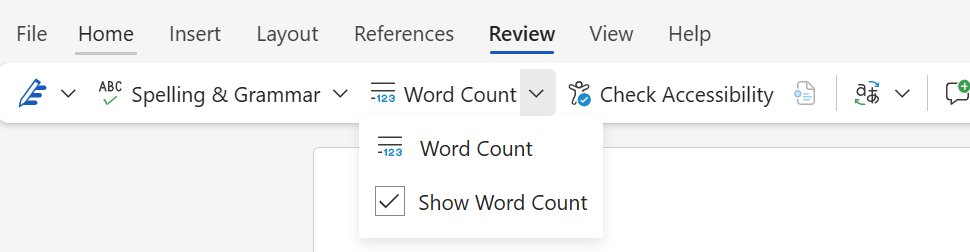
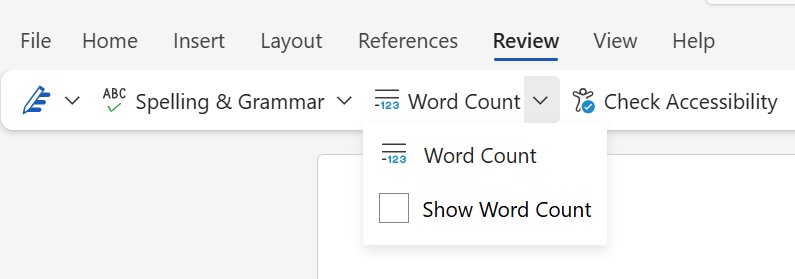
- Select Review > Word Count to check that Show Word Count is turned on.
- Clear the Show Word Count checkbox if you want to hide the count again.
Review is one of the Word ribbon tabs along the top of the window, alongside Home and Insert.
Count only part of the document: find the word count for selected text
Select the words you want to count and Word shows the count for that selection next to the count for the entire document.
- Drag across the paragraph, page or section you want to count.
- Look at the status bar: it now shows the selected words against the document total.
- Click the count in the status bar to see characters, paragraphs and lines for the selection only.
- On a Mac, select the text and then choose Tools > Word Count.
- Click once in the text to clear the selection and return to the document total.
Add word count to the status bar in Word and Word Online
The status bar count can be switched off by accident. Both versions let you put it back in a few clicks.
| Where | Turn the word count on | Turn it off |
|---|---|---|
| Word for Windows or Mac | Right-click the status bar and select Word Count | Right-click the status bar and clear Word Count |
| Word for the web (MS Word Online) | Select Review > Word Count and select Show Word Count | Select Review > Word Count and clear Show Word Count |
Add a word count to your document with the NumWords field
Word can insert the word count into the document itself and update it as often as you want. This suits cover pages, submission forms and report footers.
- Click where you want the word count to appear in the document.
- Select Insert, then in the Text group select Quick Parts > Field.
- In the Field names list, select NumWords.
- Select OK to insert the current count.
- Right-click the field and choose Update Field whenever you need a fresh number.
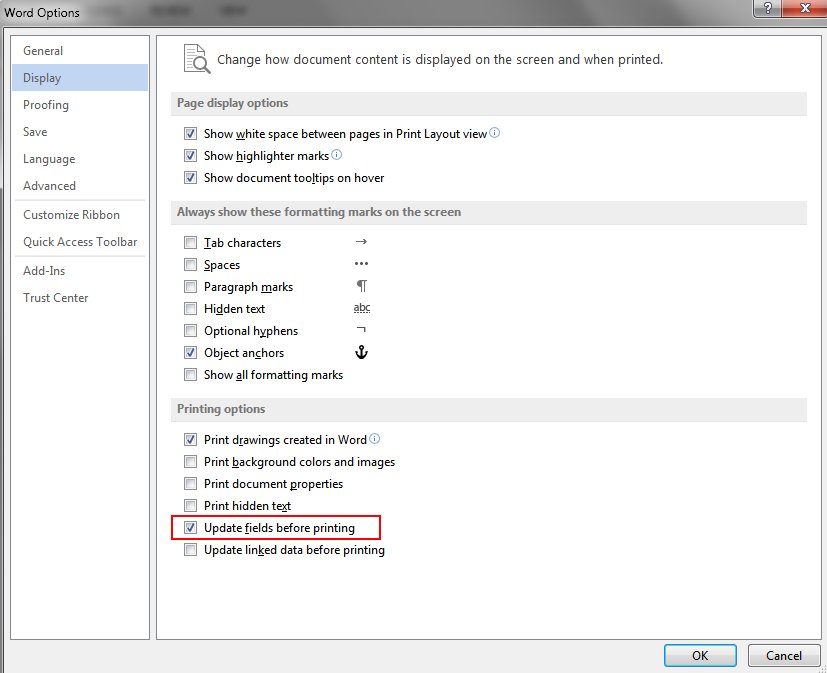
To refresh the count automatically when you print, select File > Options > Display and, under Printing options, select Update fields before printing.
How to verify the word count in Word (sanity checks)
Two counts that agree prove the number before you submit a document.
- Note the total in the status bar with nothing selected.
- Press Ctrl + A to select the whole document and confirm the selection count matches the total.
- Click the count to open the Word Count box and confirm Words shows the same number.
- If the document has a NumWords field, click it and press F9, then check it matches too.
- Select File > Info, then Properties > Advanced Properties to see the word statistic saved with the file.
A gap between these numbers usually comes from footnotes and endnotes, or from a field that has not been updated.
What Microsoft Word includes in its word count
Word tracks seven statistics for every document. The defaults below explain most surprises.
| Statistic | What it counts | Note |
|---|---|---|
| Words | Words in the document text | Footnotes and endnotes are left out unless you include them |
| Characters (no spaces) | Letters, numbers and punctuation | Spaces are excluded |
| Characters with spaces | Every character including spaces | The figure most character limits mean |
| Asian-language characters | Characters for Asian languages | Counted separately from words |
| Paragraphs | Paragraphs in the document | Headings and list items are paragraphs too |
| Lines | Lines of text on the page | Changes when margins, fonts or layout change |
| Pages | Pages in the document | Also shown in the status bar |
Headings, captions and list items are ordinary text, so they count toward the total.
Word count special cases and gotchas
These cases explain why two people can see different counts for the same file.
| Case | What happens | What to do |
|---|---|---|
| Footnotes and endnotes | Excluded from the word statistic by default | Look in the Word Count box for the option to include them when a limit covers notes |
| Selected text | The status bar shows the selection, not just the total | Click once in the text to return to the full document count |
| NumWords field | Shows the count from the last update | Right-click it and choose Update Field, or press F9 |
| Macros and add-ins | VBA's word collection counts punctuation and paragraph marks as items | Rely on the Word Count box for the real number |
| Word for the web in reading view | No count at the bottom of the window | Switch to Editing view |
| Line count after formatting | Lines and pages change with fonts and margins | Use the word total for limits, not lines |
What to do if the word count in Word doesn't work or looks wrong
Troubleshooting a missing or wrong word count starts with the symptom you see.
Status bar doesn't show words
The Word Count item is switched off on the status bar.
- Right-click an empty part of the status bar.
- Select Word Count so it has a check mark.
- Check the bottom of the window for the count.
Word count missing in Word for the web
The document is in reading view, or Show Word Count is off.
- Switch the document to Editing view.
- Select Review > Word Count.
- Select the Show Word Count checkbox.
Inserted word count shows an old number
A NumWords field keeps its value until it is updated.
- Right-click the field and choose Update Field.
- To refresh every field, press Ctrl + A and then F9.
- Select File > Options > Display > Update fields before printing to refresh it on every print.
Word count is lower than expected
Footnotes and endnotes are excluded, or only part of the text is selected.
- Click once in the text to clear any selection.
- Open the Word Count box from the status bar.
- Turn on the option to include notes if your limit covers them.
Word count missing in new Outlook
Microsoft has not added the feature to new Outlook for Windows.
- Copy the message text into a Word document.
- Read the count in the Word status bar.
- In classic Outlook, use Review > Proofing > Word Count in the message window.
If a menu or option above looks different, check for Microsoft Office updates so Word matches the current layout.
How to find word count in Google Docs, PowerPoint and Excel
Other apps put the count in different places. This table saves a search when the text is not in Word.
| App | Where the word count is | Note |
|---|---|---|
| Google Docs | Built-in word count tool | The Google Docs word count works separately from Word |
| PowerPoint for Windows | File > Info > Show All Properties > Words | Counts text on slides and notes pages |
| Excel | No word count | Review > Workbook Statistics counts cells, formulas and sheets, not words |
| Classic Outlook | Review > Proofing > Word Count | Works in the message window |
Microsoft Word word count FAQ
How do I find the word count in a Word document?
Look at the status bar at the bottom of the Word window. Word shows the word count there and updates it as you type. Click the number to open the Word Count box with characters, paragraphs and lines.
How do I see word count in Word if it is not on the status bar?
Right-click the status bar and select Word Count so it has a check mark. In Word for the web, select Review > Word Count and turn on Show Word Count, and make sure the document is in Editing view.
Can I find the word count for only one page?
Yes. Select the text on that page and the status bar shows the word count for the selection next to the total for the whole document. Click the count for characters and lines in that selection.
Does Word count include headings?
Yes. Headings are ordinary paragraphs of text in the document, so their words count toward the total. Footnotes and endnotes are the main exception, because Word leaves them out of the word statistic unless you include them.
Why does my word count change after I change formatting?
The word total should stay the same when only formatting changes. The line and page counts do change, because fonts, spacing and margins move text between lines and pages. Recheck words in the Word Count box.
Is word count the same in Word for the web and desktop?
Both versions count words while you type, so the same text gives the same total. Word for the web only shows the count in Editing view, and Review > Word Count controls whether it appears at all.
Where can I see character count too?
Click the word count in the status bar. The Word Count box lists characters with and without spaces, paragraphs and lines next to the word total. On a Mac, Tools > Word Count opens the same box.
How do I find word count in PowerPoint?
In PowerPoint for Windows, select File > Info, then Show All Properties. The Words property counts all the text on slides and notes pages. Count only notes pages by sending them to Word as handouts.
How do I find word count in Excel?
Excel has no word count. Review > Workbook Statistics counts cells with data, formulas, tables and sheets, not words. Copy the text into a Word document when you need a word total from a spreadsheet.
How does word count work in Word?
Word counts the words in the document text as you type and also tracks pages, paragraphs, lines and characters. Footnotes and endnotes are excluded by default, and a selection changes the status bar to show that selection's count.
Bottom line: the fastest way to check word count in Microsoft Word
Read the word count in the status bar, and click it when you need characters, paragraphs or lines. It is always current, works for a selection or the whole document, and needs no menu. Use a NumWords field only when the count must appear on the page.