To get Grammarly in Word and Outlook today, install the free Grammarly for Windows app, because Grammarly is retiring its separate Microsoft Office add-in.
This guide covers the install on Windows and Mac, using Grammarly in Word and Outlook, settings, fixes when it does not show up, and removing the old add-in.
The fastest way to get Grammarly in Word and Outlook
Grammarly now steers Windows users to its desktop app, not the add-in. The add-in no longer receives security updates, feature updates or technical support, and Grammarly has not published a shutdown date.
- Close Word and Outlook.
- Open the official Grammarly for Windows download page and select Download.
- Open the downloaded file and follow the prompts to finish the installation.
- Select Log in to existing account and enter your Grammarly email and password, or create a free account.
- Open Word or Outlook and start typing. Grammarly underlines issues and shows its tab on the right edge of the screen.
What Grammarly Adds to Microsoft Office
Grammarly's own Office page lists where the desktop app works. Excel is the one app that differs between Windows and Mac.
| Office app | Windows | Mac | How suggestions appear |
|---|---|---|---|
| Word (desktop) | Yes | Yes | A list of suggestions you can filter by category, with an Accept button |
| Word for the web | Yes, with the desktop app installed | Yes, with the desktop app installed | The same list view as desktop Word |
| Outlook | Yes | Yes | Underlines and one suggestion card at a time |
| PowerPoint | Yes | Yes | One suggestion at a time on a draggable widget |
| Teams | Yes | Yes | Underlines and suggestion cards |
| OneNote | Yes | Not stated by Grammarly | One suggestion at a time on a draggable widget |
| Excel | Yes | No | One suggestion at a time on a draggable widget |
Beyond spelling and grammar, Grammarly for Windows adds tone detection, generative AI rewrites, translation into Spanish, French, Italian, German and Portuguese, plagiarism detection and authorship tracking. Grammarly says the old Office add-in lacked these.
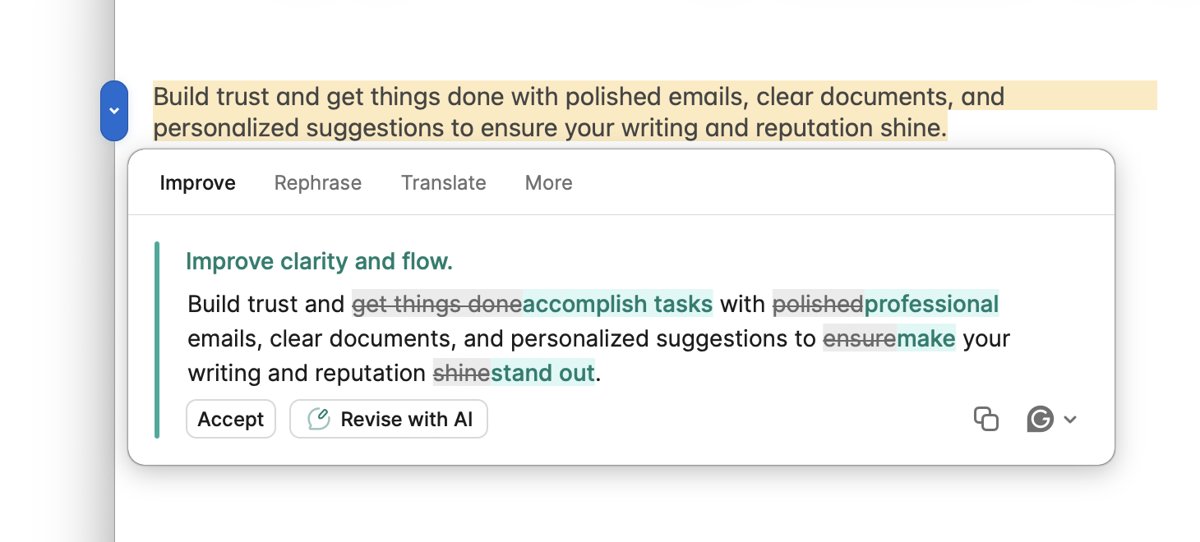
Grammarly for Microsoft Office vs. Grammarly for Windows and Mac
The add-in lived inside Office. Grammarly for Windows and Grammarly for Mac run as separate apps and check text in Office and most other programs.
| Your situation | Use this | Why |
|---|---|---|
| Windows 10 or 11 with Office 2016 or newer, or Microsoft 365 | Grammarly for Windows | The version Grammarly supports and recommends for Office |
| You still have the old Grammarly for Microsoft Office add-in | Uninstall it and install Grammarly for Windows | The add-in gets no more security updates or support |
| Mac with Word, Outlook or PowerPoint | Grammarly for Mac | Grammarly discontinued its Word add-in for Mac |
| Older Windows, older macOS or older Office | The Grammarly Editor at app.grammarly.com or the browser extension | Grammarly's own fallback for systems below the requirements |
| Word for the web in a browser | Grammarly for Windows or Mac, not the extension | The browser extension shows a warning in Word Online |
System Requirements and Account Requirements
| Requirement | Windows | Mac |
|---|---|---|
| Operating system | Windows 10 build 1903 or newer | macOS 11 or newer |
| Hardware | At least 4 GB RAM, 8 GB recommended | Apple silicon (M1 or newer) or an Intel Mac from 2018 or newer |
| Browser installed | Chrome or Edge version 89 or newer | Chrome 89 or newer, or Safari 12.1 or newer |
| Other components | .NET Framework 4.7.2 or newer; Microsoft Edge WebView2 | None listed |
| Office version | Office 2016 or newer, or Microsoft 365 installed or updated after February 2020 | Not stated by Grammarly |
| Account | A free Grammarly account; Pro unlocks more suggestions | Same account |
| Devices per account | Up to five | Up to five |
If Windows reports a missing .NET component, the .NET Framework 4.7.2 offline installer covers the version Grammarly needs. Always sign in with the same email address, because Grammarly warns that a different one creates a second account.
How to Install the Grammarly Add-in for Microsoft Office on Windows
Grammarly no longer offers a separate Office add-in download. Its support article for adding Grammarly to Office on Windows now installs Grammarly for Windows, which connects to Word and Outlook automatically.
- Save your work, then close Word, Outlook and any other Office apps.
- Go to grammarly.com/desktop/windows. The page offers the app through the Microsoft Store (Get it from Microsoft) or as a direct download.
- Open the downloaded file and follow the on-screen prompts.
- When setup finishes, select Log in to existing account, or sign up for a free account.
- Look for the Grammarly icon in the system tray in the lower-right corner of the screen.
- Open Word or Outlook and type a sentence to confirm the underlines appear.
IT teams can push Grammarly for Windows with Intune, Configuration Manager or Group Policy. The app updates itself automatically about every two weeks.
How to use Grammarly in Word on a Mac
Grammarly discontinued Grammarly for Microsoft Word on Mac. Install Grammarly for Mac instead.
- Go to grammarly.com/desktop/mac and download Grammarly for Mac.
- Open the downloaded file and follow the prompts to install it.
- Sign in with your Grammarly account. The Grammarly icon appears in the menu bar at the top of the screen.
- Open Word and select View > Print Layout; Grammarly does not work in Outline, Draft or Web layout.
- Keep only one Word document open, then select the Grammarly tab on the right edge of the screen to review suggestions.
How to Use Grammarly in Microsoft Word
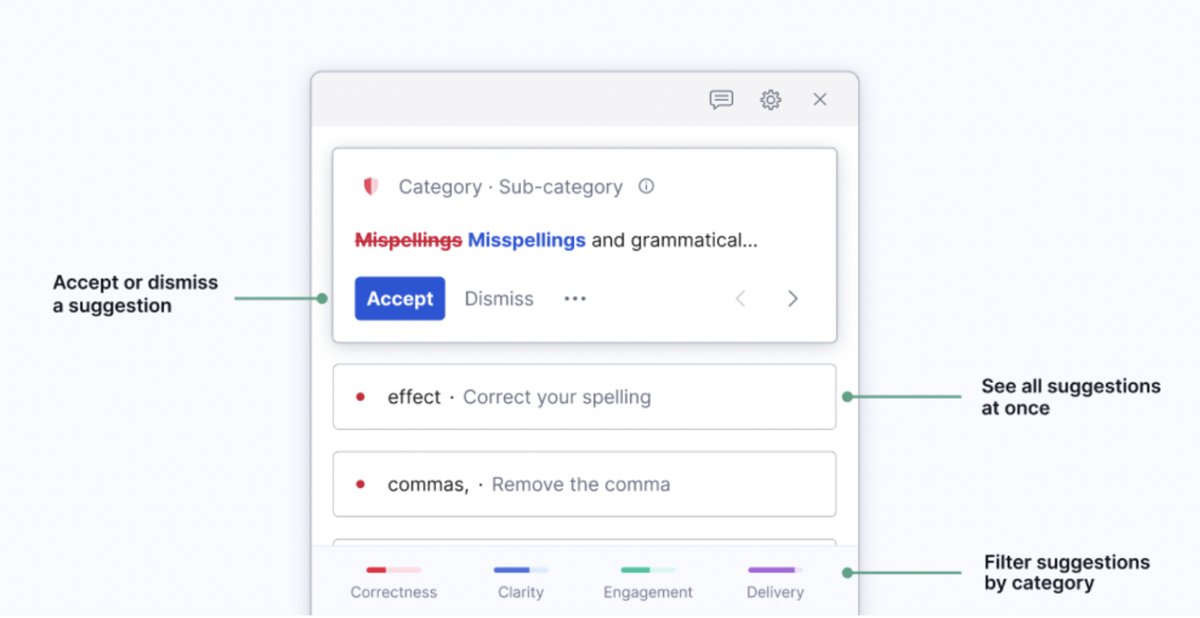
In Word, Grammarly shows a full list of suggestions instead of one card at a time. It covers the next 10 pages from your cursor position.
- Open a document and click inside the text.
- Hover over the right edge of the screen and select the Grammarly tab to open the suggestion list.
- Filter the list by category to work through one kind of issue at a time.
- Select Accept on a suggestion to apply it, or Dismiss to ignore it.
- Select the three dots on a card to read why Grammarly flagged the text.
- Move your cursor further down a long document so Grammarly checks the next 10 pages.
Track Changes works alongside Grammarly, but on a Mac Grammarly advises switching the Review tab display to Original if you see connection errors.
How to Use Grammarly in Microsoft Outlook
Outlook gets inline underlines and suggestion cards rather than Word's list view. Tone detection starts once a message reaches 150 characters.
- Start a new email in Outlook and click in the message body.
- Write the email; Grammarly underlines issues as you type.
- Click an underlined word or the Grammarly widget to open a suggestion card.
- Click the suggestion to accept it, then move to the next one.
- Check the tone emoji on the widget before sending; it appears for text between 150 and 2,000 characters.
- Click in the Subject line and check it too, since Grammarly works in any text field.
A practical habit: finish the text before adding recipients, so a half-edited email cannot go out by accident.
Changing Grammarly Settings in Office
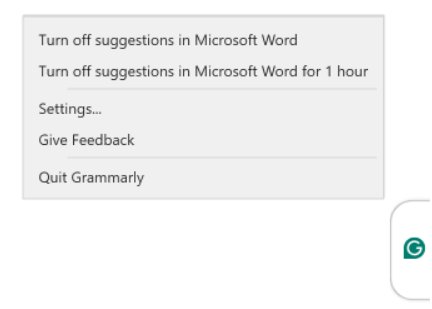
Settings apply to every app Grammarly checks, not only Office. Open them from the Grammarly icon in the system tray, then select Settings.
| What to change | Where | Note |
|---|---|---|
| English dialect | Grammarly Settings | American, British, Canadian, Australian or Indian English |
| Tone detection | Customization > Detect tone in my writing | Clear it to hide the tone emoji |
| Pause Grammarly in one app | Right-click the Grammarly widget or tab > Turn off Grammarly or Turn off Grammarly for 1 hour | Works per app or website |
| Re-enable a blocked app | Settings > Block list | Remove Word or Outlook from the list |
| Whole suggestion categories | account.grammarly.com/customize/suggestions | Pro, Business and Education plans; applies to all Grammarly products |
| Single suggestion | Dismiss on the card | Any plan |
Using Grammarly with Word’s Built-in Editor
Word ships its own spelling and grammar checker, Microsoft Editor. Grammarly does not replace it, so both can flag the same word; fix it once and both underlines clear. Grammarly lists a few Word features that do interfere with it.
| Word feature | Effect on Grammarly | What to do |
|---|---|---|
| Microsoft Editor underlines | Duplicate flags on the same text | Accept the fix in either tool |
| Copilot in Word | Can cause the Can't connect to Grammarly error | Select File > Options > Copilot, clear Enable Copilot, select OK and restart Word |
| Outline, Draft or Web layout | Grammarly stops checking | Switch to View > Print Layout |
| Other Office add-ins | Cursor jumps or corrupted text | Remove unused add-ins from File > Get Add-ins > My Add-ins |
| Citations, footnotes, endnotes, tables of contents, tables, images, equations | Missing underlines or a resetting suggestion count | Check that part separately or remove those elements while editing |
Privacy and Workplace Considerations
Grammarly sends the text you are checking to its servers, so check your employer's policy before using it on work documents.
| Question | What Grammarly states |
|---|---|
| Does it sell your text? | No. It does not sell content, use it for advertising, or let third parties train models on it |
| Who owns the text? | You keep all rights, including copyright |
| Can you opt out of tailored assistance? | Yes, on the Feature customization page of your account |
| Does it read everything you type? | Only while you actively use a Grammarly product; desktop apps ignore sensitive fields such as passwords |
| Can your employer block it? | Yes. Admin blocks show under Settings > Block list as Blocked by admin |
| What network access does it need? | *.grammarly.com, *.grammarly.io and *.grammarly.net on ports 80 and 443, plus WebSockets |
How to check Grammarly is working in Word and Outlook
- Confirm the Grammarly icon shows in the system tray on Windows, or the menu bar on a Mac.
- Open a new Word document in Print Layout and type a sentence with a deliberate mistake, such as "their going home".
- Check for a Grammarly underline under the mistake and a suggestion count on the Grammarly tab.
- Select the tab and confirm the suggestion list opens with an Accept option.
- Repeat the test in a new Outlook email; a suggestion card should appear when you click the underline.
Troubleshooting: Grammarly Does Not Appear in Word or Outlook
Restart the computer first; Grammarly says that alone sometimes fixes it. Then match your symptom.
No Grammarly button or ribbon tab in Word
Grammarly for Windows has no ribbon button; the old floating widget became a tab on the right edge.
- Hover over the right edge of the Word window to reveal the Grammarly tab.
- If nothing appears, check the system tray for the Grammarly icon and start Grammarly from the Start menu if it is missing.
Grammarly works elsewhere but not in Word or Outlook
The app is on the block list, or the Office version is too old.
- Click the Grammarly icon in the system tray and select Settings.
- Open the Block List tab and remove Word or Outlook if listed under Blocked by you.
- If the app is under Blocked by admin, ask your IT team.
- Confirm you run Office 2016 or newer, or Microsoft 365 updated after February 2020.
Grammarly stopped appearing after an update
Grammarly or Word needs a restart.
- Click the Grammarly tray icon and select Quit Grammarly.
- Reopen Grammarly from Windows search.
- Close and reopen Word, then refresh the document.
Grammarly will not log in or keeps logging out
A damaged install or a network restriction.
- Uninstall Grammarly for Windows (it may be listed as Grammarly Desktop for Windows).
- Download it again from grammarly.com/desktop in a different browser.
- Select Log in to existing account and sign in with the email you registered.
You still have the old add-in and it has vanished
The add-in is being retired and no longer receives support.
- Uninstall the add-in as shown in the uninstall section below.
- Install Grammarly for Windows from the official download page.
Troubleshooting: Grammarly Is Slow or Not Checking Text
No underlines, or the suggestion count keeps resetting
Citations, footnotes, endnotes, tables of contents, tables, images or equations in the document.
- Split the document into sections of no more than 50 pages.
- Check the section that contains those elements separately.
- Remove other Office add-ins you do not use from File > Get Add-ins > My Add-ins.
"Can't connect to Grammarly" or "Something went wrong"
A network, proxy or firewall rule, a broken WebView2 runtime, or Copilot in Word.
- In Word, select File > Options > Copilot, clear Enable Copilot, select OK and restart Word.
- Reinstall Microsoft Edge WebView2 using the Evergreen Bootstrapper from the Microsoft Edge WebView2 page, running it as administrator.
- On a work network, ask IT to allow *.grammarly.com, *.grammarly.io and *.grammarly.net on ports 80 and 443 with WebSocket support.
Grammarly works in Word desktop but not in Word for the web
The browser extension is checking the page instead of the desktop app.
- Open the Grammarly extension from the browser toolbar.
- Turn off Check text with browser extension so Grammarly for Windows or Mac takes over.
Grammarly is slow on your PC
The PC is at the minimum memory.
- Check that the PC has at least 4 GB of RAM; Grammarly recommends 8 GB.
- Close documents you are not editing, especially long ones.
Best Practices for Using Grammarly in Office
| Practice | Why it helps |
|---|---|
| Review suggestions one at a time instead of accepting all | Grammarly can misread names, jargon and quotes |
| Check long documents in sections of 50 pages or fewer | Grammarly's own advice for fewer glitches in Word |
| Keep Word in Print Layout | Grammarly does not check Outline, Draft or Web layout |
| Read the tone emoji before sending an important email | It flags a message that may read more harshly than intended |
| Pause Grammarly with Turn off Grammarly for 1 hour on confidential text | Stops checking without uninstalling |
| Remove the old Office add-in | Two Grammarly products on one PC complicate troubleshooting |
How to Uninstall the Grammarly Add-in
The same steps remove the old add-in and Grammarly for Windows. Quit Grammarly first so no files are in use.
- Close Word and Outlook.
- Click the Grammarly icon in the system tray and select Quit.
- Right-click Start and select Installed apps on Windows 11, or Apps and Features on Windows 10.
- Find each Grammarly entry, such as Grammarly for Windows or an older Grammarly for Microsoft Office entry.
- Select Uninstall (on Windows 11, select the … menu first) and follow the prompts.
- On a Mac, quit Grammarly from the menu bar, open Finder > Applications and move Grammarly for Mac to the Trash.
To stop Grammarly in Office only and keep it elsewhere, use Turn off Grammarly from the widget instead of uninstalling.
Frequently Asked Questions
How do I add Grammarly to Word?
Install Grammarly for Windows or Grammarly for Mac from grammarly.com/desktop, sign in, then open Word and start typing. Grammarly connects to Word automatically; there is no separate add-in to enable from the Word ribbon anymore.
How do I add Grammarly?
Pick the version for where you write. On a PC or Mac, install the Grammarly desktop app. In a browser, add the extension for Chrome, Edge, Firefox or Safari. On a phone, install the Grammarly keyboard from the App Store or Google Play.
How do I install Grammarly?
Download Grammarly from grammarly.com/desktop, open the file and follow the prompts. Then select Log in to existing account or create a free account. The Grammarly icon appears in the system tray on Windows or the menu bar on a Mac.
Is the Grammarly add-in for Word still available?
Grammarly is retiring its Microsoft Office add-in, and it no longer receives security updates, feature updates or support. Grammarly recommends Grammarly for Windows, which works in Office 2016 and newer on Windows 10 and 11.
Is the Grammarly add-in for Word free?
Yes. Grammarly for Windows and Grammarly for Mac have a free version you can use indefinitely in Word and Outlook. Grammarly Pro adds more in-depth suggestions and features like turning off whole suggestion categories.
Why is there no Grammarly button in the Word ribbon?
Grammarly for Windows does not use a ribbon button. It appears as a Grammarly tab on the right edge of the screen and as underlines in your text. Hover over the right edge of the Word window to find it.
Does Grammarly work in Word on a Mac?
Yes, through Grammarly for Mac, since the Word add-in for Mac was discontinued. It needs macOS 11 or newer, and Word must be in Print Layout with only one document open for the Grammarly tab to appear.
Does Grammarly work in Word for the web?
Yes, when Grammarly for Windows or Grammarly for Mac is installed. If the browser extension shows a warning in Word Online, turn off Check text with browser extension so the desktop app does the checking.


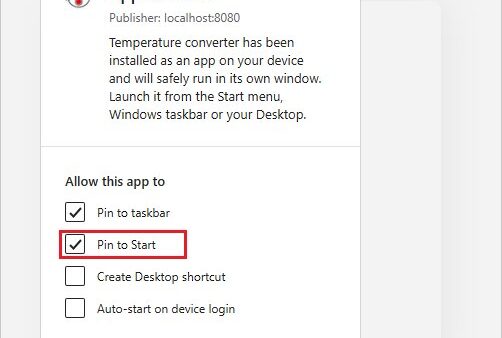
How to install and manage add-ins in Microsoft Outlook - Techdows
[…] An add-in you install in new Outlook also appears in your other versions of Outlook signed in to the same account. A common example is the Grammarly add-in for Office. […]