If you cannot see OneDrive files in the Files app on iPad, install and sign in to the OneDrive app, then turn OneDrive on in the Files app's Edit list of locations.
This guide covers that switch, where OneDrive appears in the sidebar, what to do when the OneDrive location opens but files are missing, and where shared, Personal Vault and deleted files actually live.
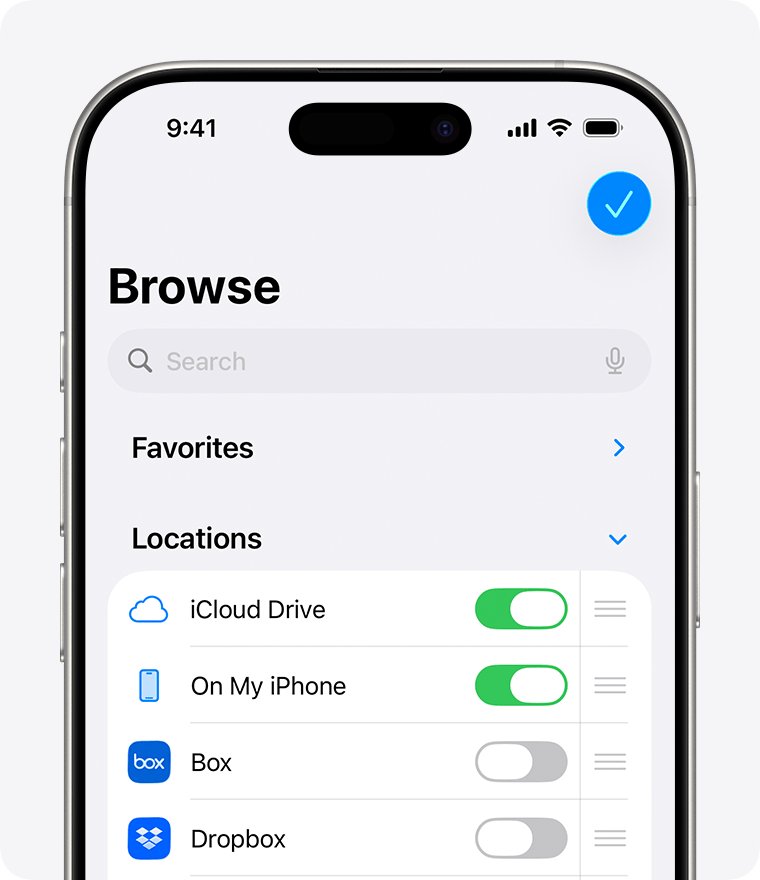
How to show OneDrive in the Files app on iPad
The Files app only lists a cloud service after its own app is installed and signed in. OneDrive then appears as a location you can switch on.
- Install Microsoft OneDrive from the App Store, open it and sign in with the account that holds your files.
- Open the Files app.
- Tap Browse.
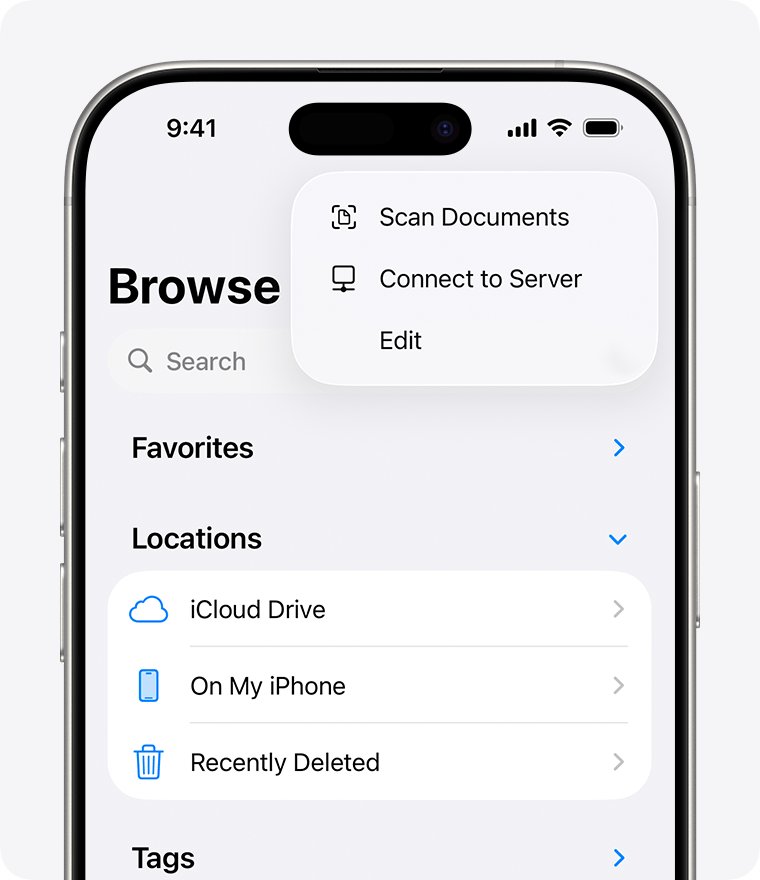
- Tap the More button (three dots) at the top, then tap Edit.
- Turn on the toggle next to OneDrive.
- Tap Done, then tap OneDrive below Locations to open your files.
These steps apply to iOS 13 and later. On iOS 12 or earlier, the same list sits under Locations > Edit.
Why OneDrive files are not showing in the Files app on iPad
Match what you see in Files to a row, then jump to the fix. Most cases are a switched-off location or a OneDrive app that needs a reset.
| What you see | Likely cause | Fix |
|---|---|---|
| No OneDrive entry at all in Files | OneDrive app not installed, not signed in, or switched off in the location list | Install and sign in, then turn OneDrive on under Edit |
| OneDrive opens but looks empty or out of date | The OneDrive app has a stale session or cannot reach the service | Reset the account in OneDrive settings, then check the connection |
| "OneDrive for iOS can't find this file" | The app's local data is out of step with your OneDrive cloud storage | Reset, then uninstall, restart and reinstall the app |
| Files someone shared with you are missing | Shared items live in the owner's OneDrive, not your Files view | Open the Shared view in the OneDrive app |
| A specific file is missing on every device | Wrong account, Personal Vault, or the file was deleted | Search OneDrive.com and check the Recycle bin |
| Photos are missing | Your photo library lives in the Photos app, not Files | Open Photos, or check OneDrive camera backup |
OneDrive app requirements for the iPad Files app
| Requirement | Detail |
|---|---|
| OneDrive app | Microsoft OneDrive from the App Store, published by Microsoft Corporation |
| iPadOS version | The current App Store version requires iPadOS 26.0 or later |
| Signed-in account | A personal Microsoft account or a work or school account; only one personal account can be added |
| Internet connection | Needed to list and open files that are not marked for offline use |
| Background App Refresh | Keeps the OneDrive app updated; turn it on for OneDrive in iPad Settings |
If your iPad cannot run the required iPadOS version, the App Store will not offer the current OneDrive release. Open your files at OneDrive.com in Safari instead.
Find OneDrive under Locations in the Files app sidebar
On iPad, cloud services appear in the sidebar below Locations, alongside iCloud Drive and On My iPad. If the sidebar is hidden, OneDrive can look missing even when it is switched on.
- Open the Files app.
- Tap Browse at the top of the screen. If you do not see the Browse screen, tap Browse again.
- Look below Locations in the sidebar for OneDrive.
- Tap OneDrive to open your files and folders.
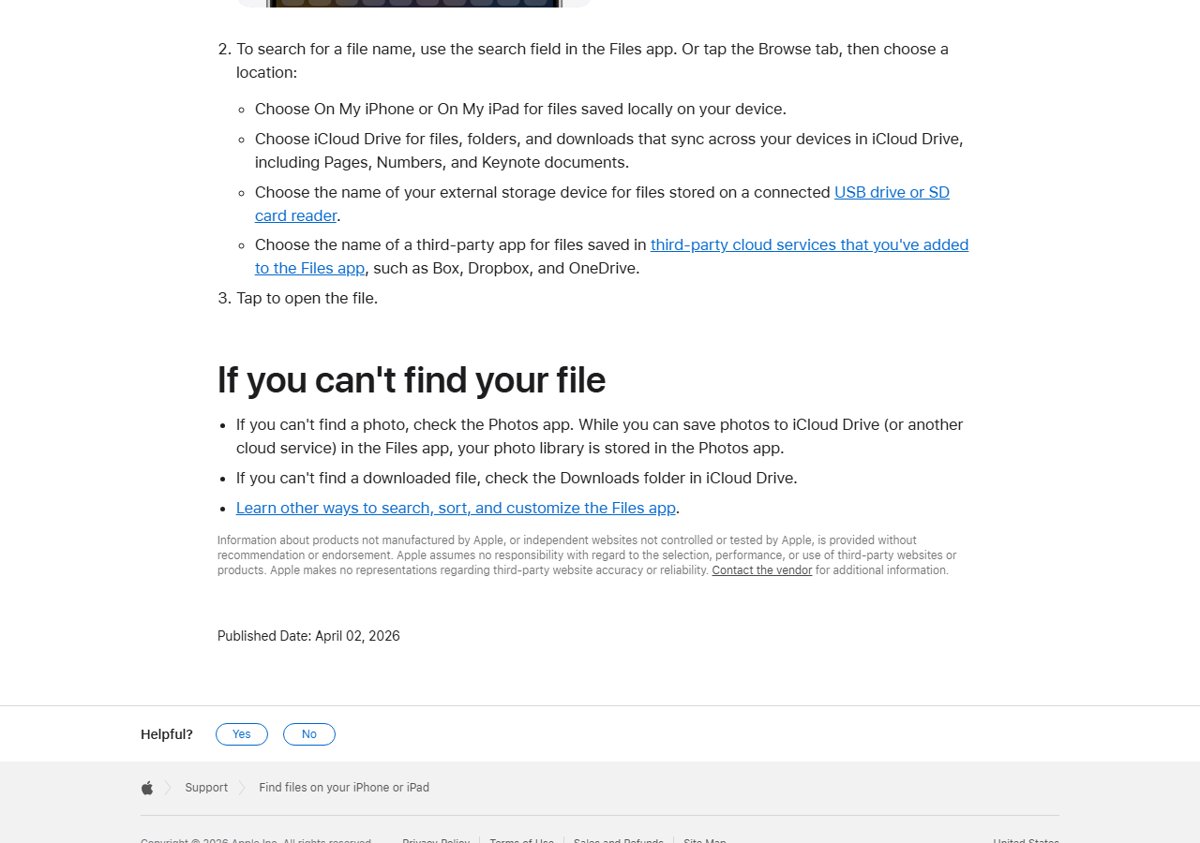
- To open a file, tap it. If the app that created it is not installed, Files opens a Quick Look preview.
Search for OneDrive files in the Files app on iPad
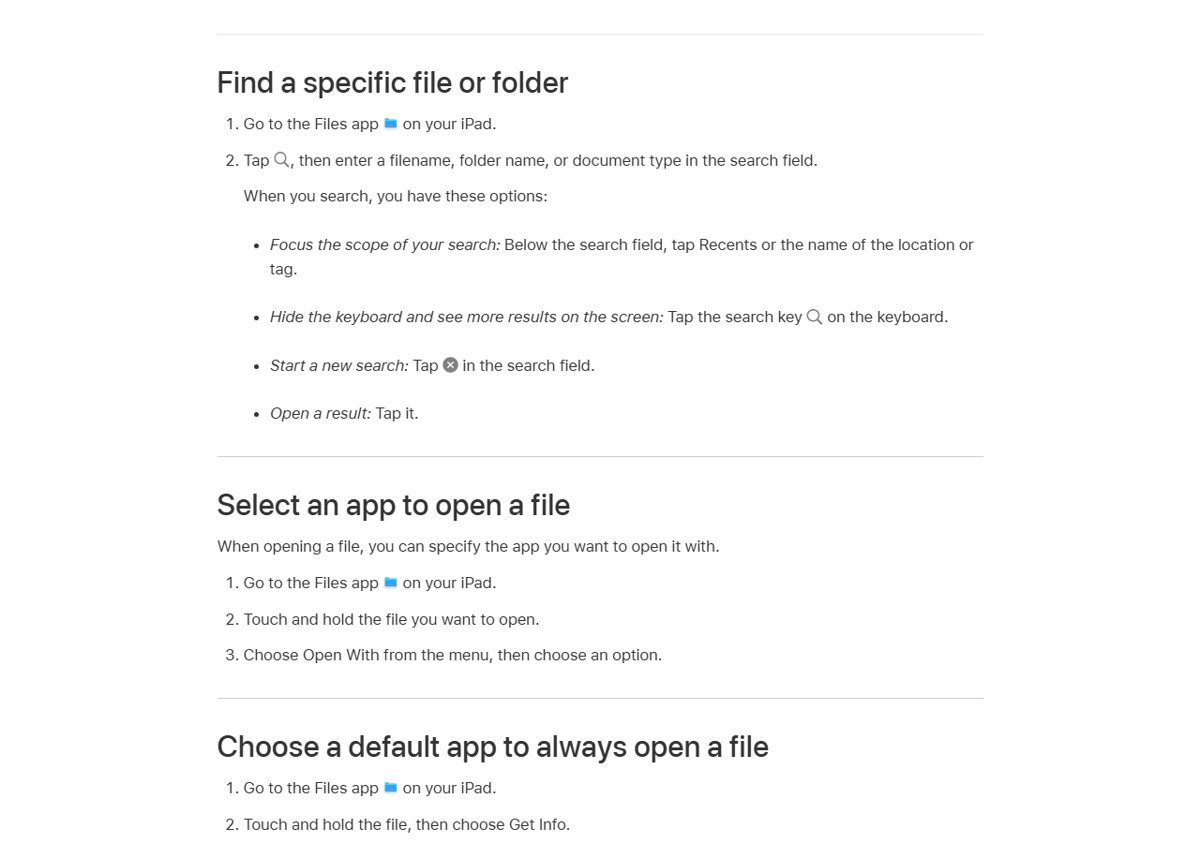
Search reaches OneDrive files once the location is turned on. Narrow the scope to OneDrive so local and iCloud Drive results do not crowd it out.
- Open the Files app.
- Tap the search field and enter a filename, folder name or document type.
- Below the search field, tap OneDrive to limit results to that location.
- Tap the search key on the keyboard to hide it and see more results.
- Tap a result to open it.
Files stored in your OneDrive Personal Vault do not appear in OneDrive search results, so unlock the vault in the OneDrive app first.
Make OneDrive files available offline on iPad
Files you mark offline in the OneDrive app stay readable without a connection. Edits sync the next time the iPad goes online.
- Open the OneDrive app.
- Press and hold the file or folder, or tap the three dots next to it.
- Tap Make Available Offline.
- Look for the Available Offline icon next to the item in List view.
- To list everything you saved, tap the Me icon in the upper left, then tap Offline Files.
Taking whole folders offline needs a Microsoft 365 subscription. Single files work on any account. To undo it, select the item and tap Remove from Offline.
OneDrive not showing all files on iPad
OneDrive does not appear in the Files app location list
The OneDrive app is not installed or signed in, so Files has no provider to list.
- Open the OneDrive app. If you see a gray OneDrive icon with a line through it, tap it and sign in on the Set up OneDrive screen.
- Return to Files, tap Browse, tap the More button, then tap Edit.
- Turn on OneDrive and tap Done.
OneDrive opens in Files but files are missing or out of date
The OneDrive app has stale account data or cannot reach the service.
- Open the OneDrive app and tap your profile picture.
- Tap Settings > Account, then tap Reset. Choose the account if you have more than one.
- If you can sign in but cannot connect, switch to a different network, such as a mobile hotspot. A provider firewall can block OneDrive.
- Turn on Background App Refresh for OneDrive in iPad Settings, then reopen Files.
"OneDrive for iOS can't find this file"
Local app data no longer matches what is stored in OneDrive.
- Reset the account first: profile picture > Settings > Account > Reset.
- If that fails, delete the OneDrive app from the iPad.
- Restart the iPad.
- Reinstall Microsoft OneDrive from the App Store and sign in again.
- Turn OneDrive back on in Files > Browse > More > Edit.
Files shared with you are not in OneDrive
Shared items are stored in the owner's OneDrive and only appear in the Shared view.
- Open the OneDrive app.
- Tap the Shared view icon at the bottom of the app.
- Open the file from there. If the owner stopped sharing or deleted it, it disappears from this view.
- If you have edit permission to a shared folder, add a shortcut to it so it sits in your own files.
Can't find a file on OneDrive on any device
The file may be in another account, in Personal Vault, or deleted.
- Open a private window in Safari, sign in at onedrive.com and use Search everything.
- Select Recycle bin on the left. If the file is there, select it and choose Restore.
- Unlock your Personal Vault, because vault files never appear in search results.
- Sign out and sign in with your other Microsoft account, or check your work or school OneDrive.
Photos are missing from OneDrive in Files
Your photo library is stored in Photos, and iCloud-optimized photos are not on the iPad to upload.
- Open the Photos app to check the photo is on the iPad.
- In the OneDrive app, go to Settings > Camera backup to back photos up automatically.
- If iCloud optimizes your photos, go to Settings > iCloud > Photos and clear Optimize Storage so they can upload.
Check OneDrive files are visible in Files on iPad
- Open Files and tap Browse.
- Confirm OneDrive is listed below Locations.
- Tap OneDrive and check that your top-level folders match what you see at onedrive.com.
- Open one file to confirm it downloads and previews.
- Search for a recent file with the scope set to OneDrive to confirm search reaches it.
OneDrive Files app on iPad FAQ
Why can't I see my OneDrive files in the Files app?
OneDrive only shows in Files after the OneDrive app is installed, signed in and switched on. Open Files, tap Browse, tap the More button, tap Edit, turn on OneDrive and tap Done. It then appears below Locations in the sidebar.
Why is OneDrive not showing all files?
Shared items, Personal Vault files and deleted files do not appear in your normal Files view. Check the Shared view in the OneDrive app, unlock Personal Vault, and look in the Recycle bin on OneDrive.com. If files are still missing, reset the OneDrive app.
Why can't I find my OneDrive files?
You may be signed in to a different Microsoft account, or the file may be in Personal Vault or the Recycle bin. Search at OneDrive.com first, because that is where every device syncs. Then check your work or school account if you have one.
Can others see my files in OneDrive?
No, not unless you share them. Other people only see files they already have access to, and your private files stay visible only to you. The Shared view on OneDrive.com lists everything you have shared, and Manage access lets you remove people.
Can people see my OneDrive files when I open a file they shared?
People with edit permission on a shared file can see that you opened it. They can also see your name, email address and profile picture. They cannot see the rest of your OneDrive unless you share it with them.
Can Microsoft see my OneDrive files?
Microsoft says you remain the owner of data stored in OneDrive. Its engineers have no standing access to the service and must request time-limited access for a specific incident. Data is encrypted in transit with TLS and protected at rest in the datacenter.
Do OneDrive files in the Files app work offline?
Only files you mark offline. In the OneDrive app, press and hold a file and tap Make Available Offline. Offline edits sync the next time the iPad connects. Whole folders need a Microsoft 365 subscription.