To fully remove OneDrive from Windows 11, unlink this PC in OneDrive settings, uninstall Microsoft OneDrive from Settings > Apps > Installed apps, then delete or move the leftover OneDrive folder.
This guide covers each of those steps in order, how to keep your files safe first, how to stop OneDrive returning after updates, and the lighter options if you only want it out of sight.
Step‑by‑step: Unlink, uninstall and remove OneDrive (consumer flow)
This is the full consumer flow for a personal Windows 11 PC, in the order that protects your files. Each numbered part below has the detailed steps.
- Make every file you want to keep available offline: right-click the OneDrive folder in File Explorer and select Always keep on this device.
- Select the OneDrive cloud icon in the notification area, select the Help and Settings gear and select Settings.
- On the Account tab, select Unlink this PC, then select Unlink account.
- Open Start > Settings > Apps > Installed apps.
- Find Microsoft OneDrive, select More (the three dots) and select Uninstall.
- Confirm the prompt and enter an administrator password if Windows asks for one.
- Move the files you want out of the old OneDrive folder, then delete the folder.
U
n
l
i
n
k
i
n
g
a
n
d
u
n
i
n
s
t
a
l
l
i
n
g
d
o
n
o
t
d
e
l
e
t
e
a
n
y
t
h
i
n
g
f
r
o
m
y
o
u
r
O
n
e
D
r
i
v
e
a
c
c
o
u
n
t
.
Y
o
u
r
f
i
l
e
s
s
t
a
y
o
n
l
i
n
e
a
t
O
n
e
D
r
i
v
e
.
c
o
m
u
n
t
i
l
y
o
u
d
e
l
e
t
e
t
h
e
m
t
h
e
r
e
.
What “removing OneDrive” really means
Background / overview: OneDrive has three parts on a Windows 11 PC. The sync app runs in the notification area, the OneDrive folder holds your synced files, and the Microsoft account stores the cloud copy. Each removal option touches a different part.
| Option | What it removes | What stays |
|---|---|---|
| Pause syncing | Sync activity for 2, 8 or 24 hours | The app, the folder and the account link |
| Quit OneDrive | The running app and its tray icon until the next sign-in | Everything else |
| Unlink this PC | The connection between this PC and your OneDrive account | The app, the local folder and the cloud files |
| Uninstall Microsoft OneDrive | The OneDrive sync app | Local files in the folder and all cloud files |
| Delete the OneDrive folder | Local copies on this PC (after unlinking) | The cloud copy at OneDrive.com |
| Delete files at OneDrive.com | The cloud copy | Nothing in the cloud after the recycle bin empties |
Back up OneDrive files before you remove OneDrive
Use this quick, safe list before you touch anything. The main risk is online-only files: a blue cloud icon means the file exists only in the cloud and takes no space on the PC.
| Check | Why it matters | How |
|---|---|---|
| Download online-only files | After you unlink, cloud-only files no longer open from File Explorer | OneDrive Settings > Sync and back up > Advanced settings > Download all files |
| Stop folder backup | Desktop, Documents and Pictures may be backed up to OneDrive | Sync and backup tab > Manage backup > turn off each folder's toggle |
| Choose where backed-up files stay | Stopping backup asks whether to keep files in OneDrive or on the PC | Pick Keep the files only on my PC to keep local copies |
| Confirm you can sign in at OneDrive.com | The web is your route back to cloud files after removal | Sign in with the same Microsoft account in a browser |
| Check it is a personal PC | Work or school devices are usually managed by policy | Ask your IT team before removing OneDrive on those |
T
h
e
s
t
a
t
u
s
i
c
o
n
s
t
e
l
l
y
o
u
w
h
a
t
i
s
l
o
c
a
l
;
t
h
e
[
O
n
e
D
r
i
v
e
i
c
o
n
s
a
n
d
t
h
e
i
r
m
e
a
n
i
n
g
s
]
(
h
t
t
p
s
:
/
/
t
e
c
h
d
o
w
s
.
c
o
m
/
o
n
e
d
r
i
v
e
–
i
c
o
n
s
–
m
e
a
n
i
n
g
–
a
l
l
–
s
y
m
b
o
l
s
–
e
x
p
l
a
i
n
e
d
–
i
n
.
h
t
m
l
)
a
r
e
w
o
r
t
h
a
l
o
o
k
i
f
y
o
u
a
r
e
u
n
s
u
r
e
.
F
o
r
a
s
e
p
a
r
a
t
e
c
o
p
y
,
[
b
a
c
k
u
p
y
o
u
r
O
n
e
D
r
i
v
e
f
i
l
e
s
]
(
h
t
t
p
s
:
/
/
t
e
c
h
d
o
w
s
.
c
o
m
/
h
o
w
–
t
o
–
b
a
c
k
u
p
–
o
n
e
d
r
i
v
e
.
h
t
m
l
)
t
o
a
n
e
x
t
e
r
n
a
l
d
r
i
v
e
f
i
r
s
t
.
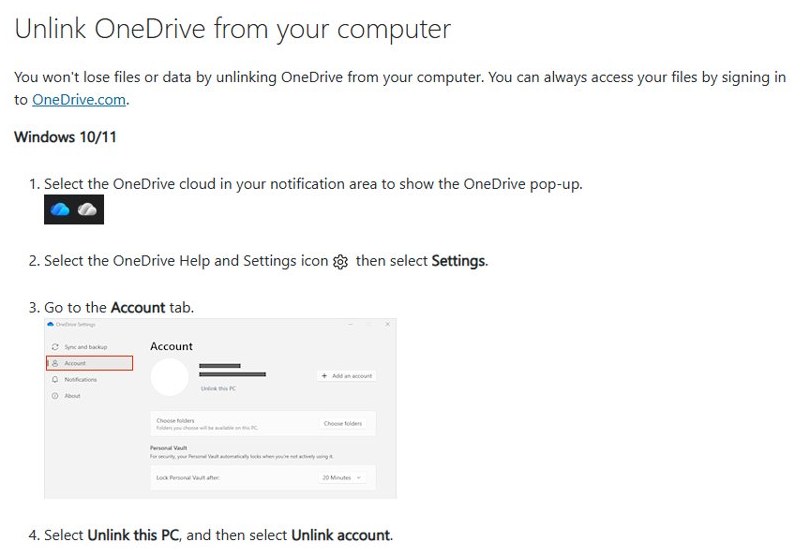
1) Unlink your Microsoft account from OneDrive (recommended first)
Unlinking first stops OneDrive syncing any changes, so deleting the local folder later cannot remove files from the cloud.
- Select the white or blue OneDrive cloud icon in the notification area of the taskbar.
- Select the Help and Settings gear icon, then select Settings.
- Open the Account tab.
- Select Unlink this PC.
- Select Unlink account to confirm.
O
n
e
D
r
i
v
e
t
h
e
n
s
h
o
w
s
i
t
s
s
e
t
u
p
s
c
r
e
e
n
.
C
l
o
s
e
i
t
w
i
t
h
o
u
t
s
i
g
n
i
n
g
i
n
.
I
f
y
o
u
u
s
e
[
m
u
l
t
i
p
l
e
O
n
e
D
r
i
v
e
a
c
c
o
u
n
t
s
]
(
h
t
t
p
s
:
/
/
t
e
c
h
d
o
w
s
.
c
o
m
/
h
o
w
–
t
o
–
a
d
d
–
a
n
o
t
h
e
r
–
o
n
e
d
r
i
v
e
–
a
c
c
o
u
n
t
–
u
s
e
–
m
u
l
t
i
p
l
e
–
a
c
c
o
u
n
t
s
.
h
t
m
l
)
a
n
d
w
a
n
t
t
o
r
e
m
o
v
e
o
n
l
y
o
n
e
i
n
s
t
e
a
d
o
f
t
h
e
w
h
o
l
e
l
i
n
k
,
u
s
e
t
h
e
s
a
m
e
*
*
A
c
c
o
u
n
t
*
*
t
a
b
a
n
d
p
i
c
k
t
h
e
a
c
c
o
u
n
t
y
o
u
w
a
n
t
t
o
d
r
o
p
.
2) Stop background activity (pause, quit, disable auto‑start)
Stop OneDrive from running so it cannot sync or restart before you uninstall it. Disabling auto-start also works on its own if you want OneDrive installed but inactive.
- Right-click the OneDrive icon in the notification area and select Pause syncing.
- Choose 2 hours, 8 hours or 24 hours, or select Quit OneDrive to close the app completely.
- Open Start > Settings > Apps > Startup.
- Set the toggle next to Microsoft OneDrive to Off.
- Alternatively, right-click Start, select Task Manager, open the Startup apps tab, select Microsoft OneDrive and select Disable.
P
a
u
s
e
d
s
y
n
c
i
n
g
r
e
s
u
m
e
s
o
n
i
t
s
o
w
n
w
h
e
n
t
h
e
t
i
m
e
r
u
n
s
o
u
t
,
s
o
u
s
e
*
*
Q
u
i
t
O
n
e
D
r
i
v
e
*
*
p
l
u
s
t
h
e
s
t
a
r
t
u
p
t
o
g
g
l
e
f
o
r
a
n
y
t
h
i
n
g
l
o
n
g
e
r
.
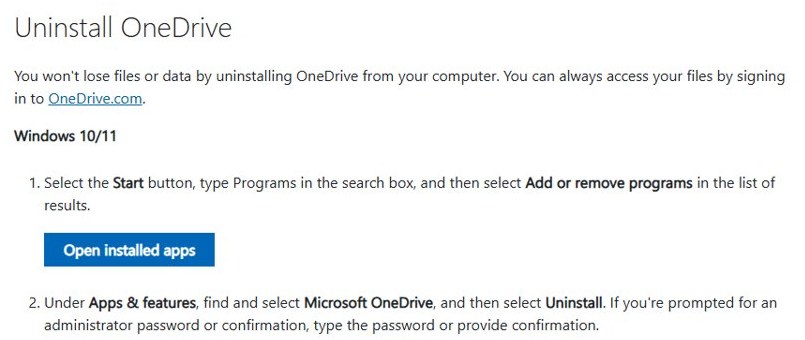
3) Uninstall OneDrive via Settings (cleanest consumer method)
Windows 11 lets you uninstall OneDrive like any other app. Removing it does not delete files from your PC or your OneDrive account.
- Select Start > Settings > Apps > Installed apps.
- Type
OneDrivein the search box at the top of the list. - Select More (the three dots) next to Microsoft OneDrive.
- Select Uninstall, then select Uninstall again to confirm.
- Enter an administrator password or approve the prompt if Windows asks.
F
r
o
m
t
h
e
S
t
a
r
t
m
e
n
u
,
t
h
e
s
h
o
r
t
c
u
t
r
o
u
t
e
i
s
*
*
S
t
a
r
t
*
*
>
*
*
A
l
l
a
p
p
s
*
*
,
t
h
e
n
r
i
g
h
t
–
c
l
i
c
k
*
*
O
n
e
D
r
i
v
e
*
*
a
n
d
s
e
l
e
c
t
*
*
U
n
i
n
s
t
a
l
l
*
*
.
I
f
y
o
u
c
h
a
n
g
e
y
o
u
r
m
i
n
d
l
a
t
e
r
,
y
o
u
c
a
n
[
r
e
i
n
s
t
a
l
l
O
n
e
D
r
i
v
e
o
n
W
i
n
d
o
w
s
]
(
h
t
t
p
s
:
/
/
t
e
c
h
d
o
w
s
.
c
o
m
/
h
o
w
–
t
o
–
d
o
w
n
l
o
a
d
–
a
n
d
–
i
n
s
t
a
l
l
–
o
n
e
d
r
i
v
e
–
f
o
r
–
w
i
n
d
o
w
s
–
1
1
1
0
.
h
t
m
l
)
a
t
a
n
y
t
i
m
e
.
4) Remove the leftover OneDrive folder (optional)
The OneDrive folder stays after you uninstall the app, with every file that was stored locally. Because the PC is unlinked, changes to this folder no longer reach the cloud.
- Open File Explorer and type
%UserProfile%in the address bar, then press Enter. - Open the OneDrive folder and check its contents.
- Move the files you want to keep into Documents, Pictures or another local folder.
- Go back to your user folder, right-click the OneDrive folder and select Delete.
- Empty the Recycle Bin when you are sure nothing in it is needed.
I
f
F
i
l
e
E
x
p
l
o
r
e
r
s
t
i
l
l
l
i
s
t
s
O
n
e
D
r
i
v
e
i
n
i
t
s
n
a
v
i
g
a
t
i
o
n
p
a
n
e
,
r
i
g
h
t
–
c
l
i
c
k
i
t
,
s
e
l
e
c
t
*
*
P
r
o
p
e
r
t
i
e
s
*
*
a
n
d
t
i
c
k
*
*
H
i
d
d
e
n
*
*
o
n
t
h
e
*
*
G
e
n
e
r
a
l
*
*
t
a
b
.
Confirm OneDrive is gone from Windows 11
- Open Settings > Apps > Installed apps and search for
OneDrive. No Microsoft OneDrive entry should appear. - Look at the notification area. The OneDrive cloud icon should be absent after a restart.
- Press Win + R, type
%localappdata%\Microsoft\OneDrive\onedrive.exeand select OK. - A Windows cannot find message confirms the per-user sync app is no longer installed.
- Sign in at OneDrive.com and confirm your files are still in the cloud.
Advanced operators: reset, troubleshoot and persistent removal
A reset is the fix when OneDrive misbehaves and you want to keep it. It disconnects every sync connection, resets settings and runs a full sync afterwards, without deleting files.
Run the command from the Run box (Win + R). If Windows says it cannot find the file, try C:\Program Files\Microsoft OneDrive\onedrive.exe /reset, then C:\Program Files (x86)\Microsoft OneDrive\onedrive.exe /reset.
%localappdata%\Microsoft\OneDrive\onedrive.exe /resetStarts the per-user OneDrive app with the /reset switch, which deletes its sync database file and rebuilds it on the next start. Your personal and work or school accounts are disconnected and need signing in again.
You should see: The OneDrive icon disappears and returns after a minute or two. If it does not, search for OneDrive from Start and open it. If none of the three paths exist, the OneDrive sync app is not installed.
P
e
r
s
i
s
t
e
n
t
r
e
m
o
v
a
l
,
m
e
a
n
i
n
g
O
n
e
D
r
i
v
e
c
a
n
n
o
t
s
y
n
c
e
v
e
n
i
f
i
t
c
o
m
e
s
b
a
c
k
,
i
s
a
p
o
l
i
c
y
s
e
t
t
i
n
g
c
o
v
e
r
e
d
i
n
t
h
e
m
i
t
i
g
a
t
i
o
n
s
e
c
t
i
o
n
b
e
l
o
w
.
If OneDrive keeps coming back after updates — mitigation strategies
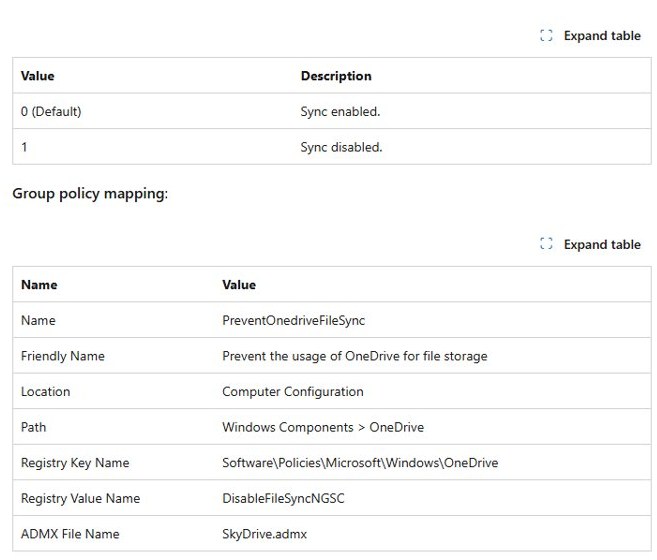
If Microsoft OneDrive shows up in Installed apps again after an update, a policy stops it working even when it reappears. The policy is documented for Windows 10, version 1703 and later in the Pro, Enterprise and Education editions.
- Press Win + R, type
gpedit.mscand press Enter. - Go to Computer Configuration > Administrative Templates > Windows Components > OneDrive.
- Double-click Prevent the usage of OneDrive for file storage.
- Select Enabled, then select OK.
- Restart the PC.
- If OneDrive reappears in Installed apps, uninstall it again with method 3.
T
h
e
p
o
l
i
c
y
w
r
i
t
e
s
`
D
i
s
a
b
l
e
F
i
l
e
S
y
n
c
N
G
S
C
`
w
i
t
h
a
v
a
l
u
e
o
f
`
1
`
u
n
d
e
r
`
H
K
L
M
\
S
o
f
t
w
a
r
e
\
P
o
l
i
c
i
e
s
\
M
i
c
r
o
s
o
f
t
\
W
i
n
d
o
w
s
\
O
n
e
D
r
i
v
e
`
.
W
i
t
h
i
t
o
n
,
t
h
e
O
n
e
D
r
i
v
e
a
p
p
c
a
n
n
o
t
b
e
u
s
e
d
,
O
n
e
D
r
i
v
e
l
e
a
v
e
s
t
h
e
F
i
l
e
E
x
p
l
o
r
e
r
n
a
v
i
g
a
t
i
o
n
p
a
n
e
,
f
i
l
e
s
d
o
n
o
t
s
y
n
c
a
n
d
c
a
m
e
r
a
r
o
l
l
u
p
l
o
a
d
s
t
o
p
s
.
What to watch for — data loss and Office integration
Download everything you need before you unlink, and empty the Recycle Bin only after checking OneDrive.com. Online-only files are never on the PC, so after unlinking they open only from OneDrive.com. Office documents saved to OneDrive follow the same rule: an online-only Word or Excel file is a cloud file, so download it before removal if you need it offline. Files you delete from the PC's OneDrive folder while it is still linked go to the Recycle Bin and are also removed from the cloud, which is why unlinking comes first.
Enterprise and managed devices — don’t DIY on corporate machines
Work and school PCs often use OneDrive to back up Desktop and Documents by policy. Removing it yourself can break that backup and conflict with your organisation's rules.
| Situation | What happens if you remove OneDrive | Do this instead |
|---|---|---|
| Known folders backed up by policy | Your organisation may rely on that backup, and local and cloud copies drift apart | Ask IT to change the policy |
| Work or school account signed in | A reset or unlink disconnects work libraries as well | Unlink only your personal account on the Account tab |
| App deployed by your organisation | Your organisation controls which apps are installed | Request removal through your IT helpdesk |
| Policy blocks OneDrive file storage | OneDrive is already disabled | No action needed |
Alternatives to outright removal (less risky options)
If OneDrive only bothers you, you can turn off OneDrive in Windows 11 instead of removing it. These options keep it available for later without the cleanup work.
| What bothers you | Lighter option | Effect |
|---|---|---|
| OneDrive starts at every sign-in | Settings > Apps > Startup, set Microsoft OneDrive to Off | The app stays installed but does not run |
| Desktop and Documents go to the cloud | Manage backup, turn off the folder toggles | Those folders stay local only |
| OneDrive uses disk space | Right-click files and choose Free up space | Files become online-only |
| OneDrive shows in File Explorer | Unlink, then set the OneDrive folder to Hidden in Properties | The entry disappears from view |
| You need a break from syncing | Pause syncing for 2, 8 or 24 hours | Sync resumes automatically |
Troubleshooting common problems after removal
Files are missing from the OneDrive folder after unlinking
They were online-only files, stored only in the cloud.
- Sign in at OneDrive.com with the same Microsoft account.
- Select the files you need and download them.
- Save them to a local folder such as Documents.
OneDrive still appears in File Explorer
The folder or its navigation entry remains after uninstalling.
- Right-click OneDrive in File Explorer and select Properties.
- Tick Hidden on the General tab and select OK.
- On Pro, Enterprise or Education, enable Prevent the usage of OneDrive for file storage to remove it from the navigation pane.
"Windows cannot find" when you run the OneDrive reset command
OneDrive is installed in a different folder, or not installed at all.
- Run
C:\Program Files\Microsoft OneDrive\onedrive.exe /resetfrom Win + R. - If that fails, run
C:\Program Files (x86)\Microsoft OneDrive\onedrive.exe /reset. - If all three paths fail, the sync app is not installed, which is the expected result after removal.
OneDrive is back after a Windows update
The OneDrive sync app has been installed on the PC again.
- Uninstall it again from Settings > Apps > Installed apps.
- Turn off Microsoft OneDrive in Settings > Apps > Startup.
- Enable the OneDrive storage policy so it cannot sync if it returns.
Privacy and security trade‑offs — what you gain and what you give up
| Area | What you gain by removing OneDrive | What you give up |
|---|---|---|
| Data location | New files stay on the PC instead of syncing to Microsoft's cloud | An off-site copy if the drive fails or the PC is lost |
| Background activity | No sync app running at sign-in | Automatic sync between your devices |
| Folder backup | Desktop, Documents and Pictures are no longer redirected | Automatic backup of those folders |
| Phone photos | No camera roll upload to this account through the PC app | Easy access to phone photos from Windows |
| Sharing | Fewer shared links tied to the PC | Quick sharing from File Explorer |
I
f
y
o
u
r
e
m
o
v
e
O
n
e
D
r
i
v
e
,
s
e
t
u
p
a
n
o
t
h
e
r
b
a
c
k
u
p
f
o
r
i
m
p
o
r
t
a
n
t
f
i
l
e
s
,
s
u
c
h
a
s
a
n
e
x
t
e
r
n
a
l
d
r
i
v
e
w
i
t
h
F
i
l
e
H
i
s
t
o
r
y
.
Quick recap — a practical action plan
| Your goal | Steps to follow |
|---|---|
| Remove OneDrive completely from a personal PC | Download all files > unlink > uninstall > move and delete the folder |
| Keep it from returning after updates | All of the above, plus the Prevent the usage of OneDrive for file storage policy |
| Stop it without removing it | Quit OneDrive and turn off its startup toggle |
| Fix OneDrive instead | Run the /reset command |
| Work or school PC | Ask IT before changing anything |
Remove OneDrive from Windows 11 FAQ
Does uninstalling OneDrive delete my files?
No. Uninstalling the OneDrive app does not delete files from your PC or your OneDrive account. Local files stay in the OneDrive folder, and every file remains available at OneDrive.com until you delete it there.
Does unlinking OneDrive delete files from the cloud?
No. Unlinking only disconnects the PC from your OneDrive account. The cloud copy stays intact, and you can reach it by signing in at OneDrive.com or by linking OneDrive again on any device.
Is it safe to uninstall OneDrive in Windows 11?
Yes. OneDrive is an optional app and Windows 11 runs normally without it. Download any online-only files first and unlink the PC, because files that existed only in the cloud will not be on the PC after removal.
What happens to the OneDrive folder after uninstalling?
It stays in your user folder with every file that was stored locally. Because the PC is unlinked, the folder no longer syncs, so you can move the files elsewhere and delete it without affecting the cloud copy.
What should I do if OneDrive comes back after a Windows update?
If the app reappears, uninstall it again, turn it off in Startup apps, and on Pro, Enterprise or Education enable the Prevent the usage of OneDrive for file storage policy so it cannot sync.
Can I reinstall OneDrive after removing it?
Yes. Download the OneDrive app from Microsoft, install it and sign in with your Microsoft account. Your cloud files sync back down, and you can choose which folders appear on the PC.
Should I remove OneDrive from a work or school PC?
No, not without asking IT. Managed devices often back up Desktop and Documents to OneDrive by policy, and the organisation controls which apps the PC runs. Ask your IT team to change the policy instead.
How do I stop OneDrive without uninstalling it?
Right-click the OneDrive icon, select Pause syncing, then Quit OneDrive. Then open Settings, Apps, Startup and turn Microsoft OneDrive off so it does not start when you sign in.
Final analysis — is full removal worth it?
Fully remove OneDrive only on a personal PC where you already have another backup; otherwise turn off startup and folder backup instead. Removal is clean and reversible: your cloud files stay safe and the app reinstalls in minutes. The real cost is losing an automatic off-site copy of Desktop and Documents. If you rely on that copy, the lighter options remove the annoyance while keeping the protection.