To use Google Sheets, sign in with a Google Account, open sheets.google.com, create a spreadsheet, type your data into the cells and add formulas that start with an equals sign.
This guide walks a beginner through creating, formatting, calculating, charting, sharing, importing Excel files, working offline and protecting a sheet, with fixes for the problems new users hit first.
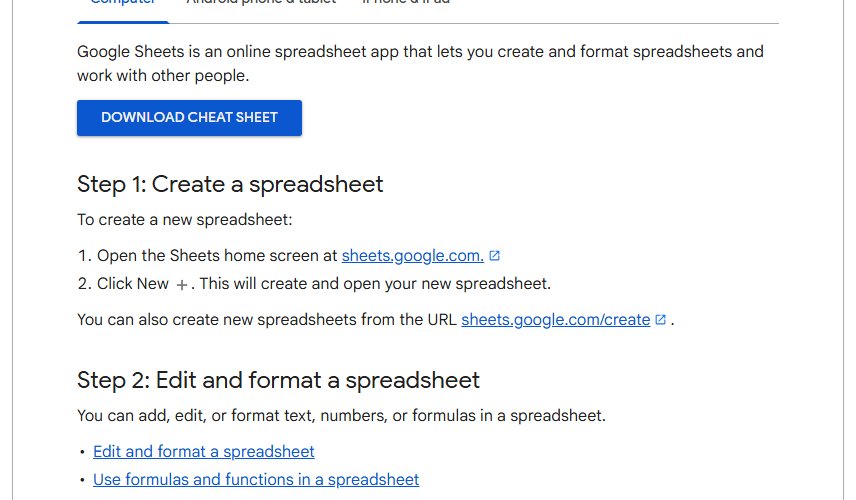
Step by step tutorial on how to use Google Sheets
These seven steps take you from an empty browser tab to a shared spreadsheet that adds up your numbers. Each step has its own section further down with more detail.
- Go to sheets.google.com and sign in with your Google Account.
- Click Create (the plus icon) to open a new, blank spreadsheet. You can also go straight to sheets.google.com/create.
- Click the file name at the top left and type a name for the spreadsheet.
- Click cell A1, type a column heading, then press Enter to move down and type your data.
- Select the heading row and use the toolbar at the top to make it bold or change its fill color.
- Click an empty cell under a column of numbers, type
=SUM(A2:A10)with your own range, and press Enter. - Click Share, enter a person's email address, choose Viewer, Commenter or Editor, and click Send.
Google Sheets saves every change automatically to Google Drive, so there is no save button to press.
Use Google Sheets for free without Gmail
Google Sheets is free with a personal Google Account. The account does not need a Gmail address; you can register an existing email address from another provider instead.
Each Google Account includes up to 15 GB of storage, shared across Gmail, Google Drive and Google Photos, and your spreadsheets live in that space.
- Open the Google Account sign-in page and click Create account.
- From the drop-down, select For my personal use.
- Enter your basic info, then click Use your existing email.
- Type your current email address, for example an Outlook.com address, and click Next.
- Enter the verification code Google sends to that inbox and click Next.
- Create a password and finish the onscreen steps, then sign in at sheets.google.com.
Create a new spreadsheet in Google Sheets
Every spreadsheet you create is stored in Google Drive and opens in a browser on any laptop or desktop. One spreadsheet can hold several sheets, shown as tabs along the bottom edge.
- Open the Sheets home screen at sheets.google.com.
- Click Create to open a blank spreadsheet in a new tab.
- Click the file name at the top left and type a descriptive name, such as "Monthly budget 2026".
- Press Enter to save the name.
If you prefer a desktop shortcut on Windows, you can install Google Sheets for PC as a browser app that opens in its own window.
Enter and edit data in Google Sheets cells
A cell is the box where a column letter meets a row number, so B3 is column B, row 3. Keep one kind of information per column and one record per row, and the later steps become far easier.
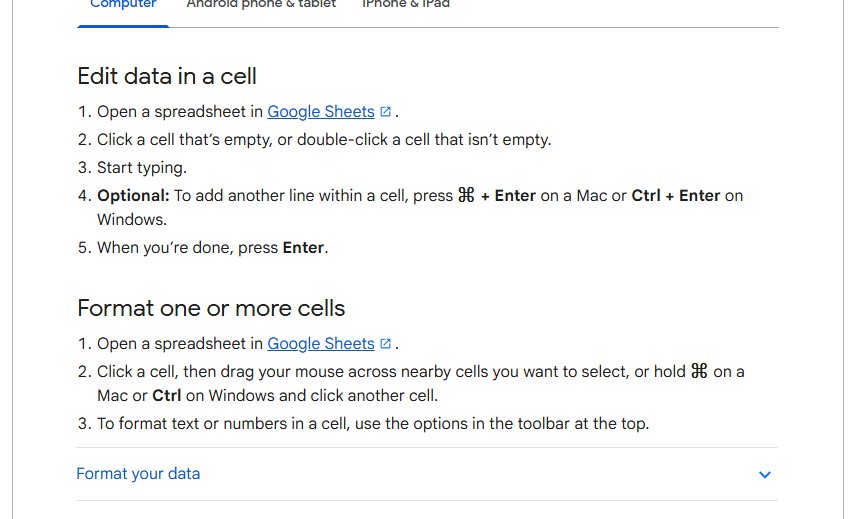
- Click an empty cell, or double-click a cell that already has content to edit it.
- Start typing a word, number or date.
- To add a second line inside the same cell, press Ctrl + Enter on Windows or Cmd + Enter on a Mac.
- Press Enter to confirm the entry and move to the cell below.
Format cells and add a theme in Google Sheets
Formatting makes a sheet readable at a glance: bold headings, currency for money columns, and color that flags values you care about.
- Click a cell and drag across the neighboring cells you want to change. Hold Ctrl on Windows or Cmd on a Mac to add cells that are not next to each other.
- Use the toolbar at the top to set bold, font size, text color, fill color, borders and alignment.
- Use the number format options in the toolbar to show numbers as currency, percentages or dates.
- To color cells automatically, click Format > Conditional formatting, set a condition under Format cells if, pick a Formatting style, and click Done.
- To restyle the whole spreadsheet at once, click Format > Theme and choose a theme, or click Customize to build your own.
Conditional formatting rules run in the order listed, and the first rule that is true decides the cell's format. Drag rules in the sidebar to reorder them.
Basic Google Sheets formulas for beginners
Every formula starts with an equals sign. As you type a function name, Sheets shows a help box with the function's syntax and an example.
- Click the cell where the result should appear.
- Type an equals sign followed by a function name, for example
=SUM(. - Drag across the cells to include, or type the range, so the formula reads
=SUM(A1:A7). - Read the help box that appears while you type to check the function's syntax.
- Press Enter to show the result. The result updates on its own whenever the source cells change.
- To put one function inside another, nest them:
=ABS(SUM(A1:A7))calculates the sum first, then its absolute value.
If Sheets offers to complete a formula, accept or ignore the suggestion. Turn suggestions on or off from Tools > Suggestion controls > Enable formula suggestions.
Google Sheets functions every beginner should know
| Function | Syntax | What it does | Example use |
|---|---|---|---|
| SUM | SUM(value1, [value2, ...]) |
Adds a series of numbers or cells | Total monthly spending |
| AVERAGE | AVERAGE(value1, [value2, ...]) |
Returns the average, ignoring text | Average test score |
| COUNTIF | COUNTIF(range, criterion) |
Counts cells that meet a condition | Items with stock below 5 |
| IF | IF(logical_expression, value_if_true, value_if_false) |
Returns one value if a test is true and another if false | Show "Over budget" when spending passes a limit |
| VLOOKUP | VLOOKUP(search_key, range, index, [is_sorted]) |
Searches down the first column of a range and returns a value from the found row | Find a product's price by its code |
| XLOOKUP | XLOOKUP(search_key, lookup_range, result_range, missing_value) |
Returns the matching value from a result range | A more flexible lookup than VLOOKUP |
Put quotation marks around any text in a formula that is not a cell or column reference, such as =COUNTIF(B2:B50, "Paid").
How to share a Google Sheets spreadsheet
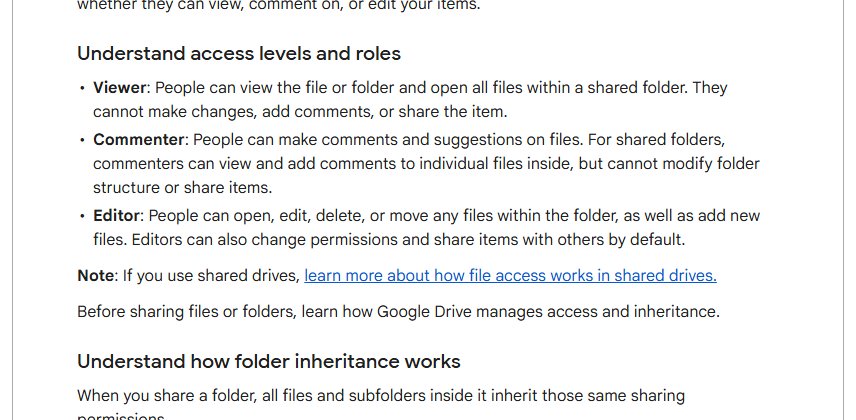
Sharing is where Google Sheets beats a file on your desktop: everyone works on the same copy at once. Pick the lowest role that lets each person do their job.
- Open the spreadsheet and click Share at the top right.
- Enter an email address or a Google Group.
- Choose Viewer to let them read, Commenter to let them add comments and suggestions, or Editor to let them change the data.
- Check Notify people to send an email alert, or uncheck it to share silently.
- Click Send.
- To share by link instead, click the arrow under General access, choose Anyone with the link, pick a role, click Copy link and click Done.
To stop sharing, open the Share menu, click the arrow next to the person's name, select Remove access and click Save.
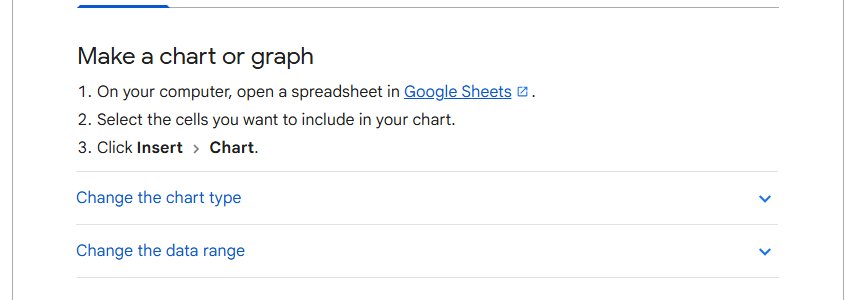
How to create a chart in Google Sheets
A chart turns a column of numbers into something a reader understands in a second. Select the headings along with the data so the chart labels itself.
- Open the spreadsheet on your computer.
- Select the cells to chart, including the heading row.
- Click Insert > Chart.
- Use the chart editor that opens to change the chart type, labels and colors.
Import an Excel file into Google Sheets
Sheets imports .xlsx, .xls (newer than Office 95), .xlsm, .xlt, .xltx, .xltm, .ods, .csv, .txt, .tsv and .tab files. The file must not be password-protected.
- Open a spreadsheet in Google Sheets.
- Click File > Import.
- Choose the Excel or CSV file you want to bring in.
- Pick an import option: Create new spreadsheet, Insert new sheets, Replace spreadsheet, Replace current sheet, Append rows to current sheet or Replace data starting at selected cell.
- For a .csv or .txt file, choose a Separator character, or leave it on Detect automatically.
- Click Import.
You can also edit an Office file without converting it by using Office Compatibility Mode, and download a Google Sheets file back to an Office format when someone needs it in Excel.
Sort and filter data in Google Sheets
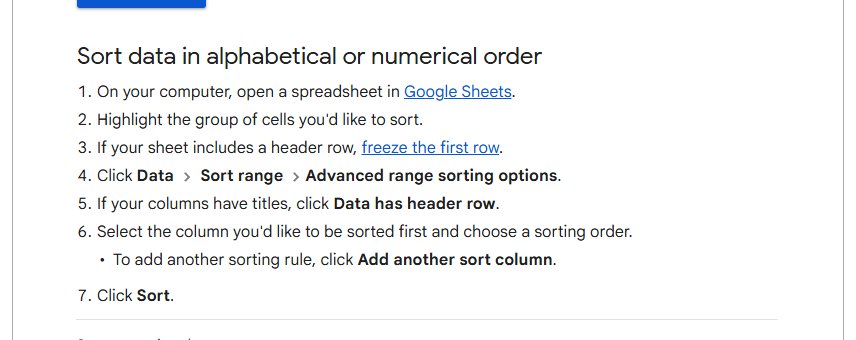
Sorting puts rows in alphabetical or numerical order. Filtering hides rows you do not need to see, without deleting them.
- Select the group of cells you want to sort.
- Click Data > Sort range > Advanced range sorting options.
- If your columns have titles, check Data has header row.
- Pick the column to sort by first and choose an order.
- To sort by a second column too, click Add another sort column.
- Click Sort.
A filter you add is visible to everyone who has access to the spreadsheet, and anyone with edit permission can change it.
Use a table in Google Sheets for budgeting and inventory
Tables apply formatting and a column type to a range automatically, which keeps a budget, a project tracker or an inventory list consistent as it grows.
- Select a range of cells, empty or with data.
- Click Format > Convert to table.
- Set a column type for each column, such as a number, date or dropdown, so every new entry matches.
- To start from a ready-made layout instead, click Insert > Pre-built table and choose a template from the sidebar.
- To restyle the table, click Format > Table formatting and change the header style or alternating colors.
- Refer to table columns by name in formulas, for example
=SUM(DeptSales[Sales Amount])instead of=SUM(C2:C7).
How to use Google Sheets offline
Offline access works only in Google Chrome or Microsoft Edge, not in a private browsing window, the same as when you use Google Docs offline. You must be online to set it up and have enough free storage on the device.
- Install and turn on the Google Docs Offline extension from the Chrome Web Store. Edge users are sent to the same store.
- Open Google Drive and click the settings icon, then Settings.
- Turn on the Offline setting.
- To make one spreadsheet available offline, open it and click See document status next to the file title.
- Click Turn on.
How to protect a Google Sheets document
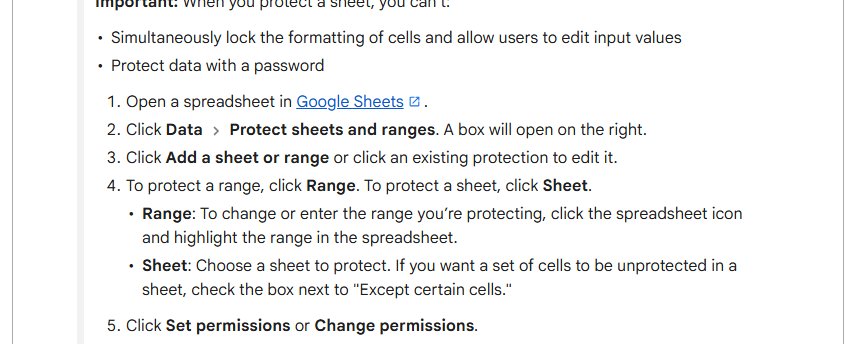
Protection stops people with edit access from changing cells you want to keep, such as formulas or a header row. Google Sheets cannot password-protect a sheet; access is controlled by sharing and protection rules.
- Click Data > Protect sheets and ranges.
- Click Add a sheet or range.
- Choose Range and highlight the cells, or choose Sheet to protect a whole tab. With Sheet, check Except certain cells to leave some cells editable.
- Click Set permissions.
- Select Restrict who can edit this range and pick Only you or Custom, or select Show a warning when editing this range to ask for confirmation without blocking edits.
- Click Done.
For files with sensitive data, share with named people only and keep General access set to Restricted.
Tips for using Google Sheets
| Tip | How to do it | Why it helps |
|---|---|---|
| Create a sheet in one step | Type sheets.google.com/create in the address bar | Skips the home screen |
| Keep one record per row | Put each item, expense or date on its own row with headings in row 1 | Sorting, filters, charts and tables all expect this layout |
| Select cells that are not adjacent | Hold Ctrl (Windows) or Cmd (Mac) while clicking | Format or chart separate columns together |
| Toggle range selection in a formula | Press F2 or Ctrl + E while editing | Pick a range with the arrow keys instead of the mouse |
| Flag values automatically | Use Format > Conditional formatting | Overdue dates or low stock stand out without manual coloring |
| Give editors a safety net | Protect formula cells with Data > Protect sheets and ranges | Collaborators cannot overwrite your calculations by accident |
| See who changed what | Hover over the Last edit indicator at the top right | Shows the last person to edit and when |
Summary of steps
| Step | Where to do it |
|---|---|
| 1. Create a spreadsheet | sheets.google.com > Create, or sheets.google.com/create |
| 2. Enter data | Click a cell, type, press Enter |
| 3. Format data | Toolbar, Format > Conditional formatting, Format > Theme |
| 4. Use basic formulas | Type = and a function name, such as =SUM(A1:A7) |
| 5. Share the spreadsheet | Share > add people > Viewer, Commenter or Editor |
| Add a chart | Insert > Chart |
| Import Excel | File > Import |
| Protect cells | Data > Protect sheets and ranges |
Why use Google Sheets instead of Excel
| Question | Google Sheets | What it means for you |
|---|---|---|
| Cost | Free with a Google Account | No license or subscription for personal use |
| Where it runs | In the browser, with files in Google Drive | Open the same file on any computer you sign in to |
| Saving | Every change saves automatically | No lost work from a forgotten save |
| Working together | Several people can edit one copy at the same time | No emailing versions back and forth |
| Excel files | Imports .xlsx, .xls, .xlsm and .csv, and edits Office files in Office Compatibility Mode | You can keep working with people who use Excel |
| Formulas | Supports the cell formulas found in most desktop spreadsheet packages | Common functions such as SUM, IF and VLOOKUP are available |
Check Google Sheets saved and shared your changes
- Hover over the Last edit indicator at the top right to see who last changed the file and when.
- Look for a blue dot on that indicator, which means someone edited the file since you last viewed it.
- Click Share and confirm each person is listed with the role you meant to give them.
- Open the spreadsheet from Google Drive on another device or browser to confirm the latest data is there.
Google Sheets problems for beginners and how to fix them
Google Sheets will not work offline
Offline access needs Chrome or Edge, a normal window and the Google Docs Offline extension.
- Close any private or incognito window and open a normal Chrome or Edge window.
- Check that the Google Docs Offline extension is installed and turned on.
- Go online, open Google Drive Settings and turn on Offline again.
- Free up space on the device if storage is nearly full, then restart Google Chrome and reopen the file.
An Excel file will not import
Sheets cannot import a password-protected file or an unsupported file type.
- Remove the password in Excel and save a new copy.
- Check the file ends in a supported extension such as .xlsx, .xls, .xlsm, .ods or .csv.
- Try File > Import again and choose Create new spreadsheet.
Some collaborators cannot edit at the same time
A Google file can be actively edited in up to 100 open tabs or devices at once.
- Ask people who only need to read the data to close their tabs or switch to Viewer.
- Share a separate copy with large groups that only need to view it.
- Remember the separate sharing cap: one file can be shared with up to 600 individual email addresses.
Formula suggestions do not appear
Formula suggestions are switched off in the spreadsheet.
- Click Tools > Suggestion controls.
- Check Enable formula suggestions.
- Click a cell and type
=to test it.
Frequently asked questions about Google Sheets
Can I use Google Sheets for free?
Yes. Google Sheets is free with a personal Google Account. Your spreadsheets count toward the 15 GB of storage that each account shares across Gmail, Google Drive and Google Photos.
Can I use Google Sheets without Gmail?
Yes. When you create a Google Account, click Use your existing email and register an address from another provider, such as Outlook.com. That account then works with Google Sheets like any other.
Can I use Google Sheets without a Google account?
You need a Google Account to create or own a spreadsheet. If a file is shared with Anyone with the link, people can open it without signing in, and they appear as anonymous animals in the file.
Can I access Google Sheets offline?
Yes, in Google Chrome or Microsoft Edge. Install the Google Docs Offline extension, turn on Offline in Google Drive Settings, and set up access while you are still online. Private browsing windows do not support offline files.
How do I create a chart in Google Sheets?
Select the cells you want to chart, including the headings, then click Insert and choose Chart. The chart editor opens on the right, where you can change the chart type and its labels.
Is there a limit to how many people I can share a Google Sheets document with?
Yes. You can share one file with up to 600 individual email addresses, and up to 100 open tabs or devices can actively edit it at the same time. Above that, only the owner and some editors can make changes.
Can I import an Excel file into Google Sheets?
Yes. Click File, then Import, choose the file and pick an import option such as Create new spreadsheet. Sheets imports .xlsx, .xls, .xlsm, .ods and .csv files, among others, as long as they are not password-protected.
How can I secure my Google Sheets document?
Share it only with named people, keep General access set to Restricted, and protect important cells with Data, then Protect sheets and ranges. Google Sheets does not support adding a password to a sheet.
Does Google Sheets use the same formulas as Excel?
Google Sheets supports the cell formulas found in most desktop spreadsheet packages, so common functions such as SUM, AVERAGE, IF, COUNTIF and VLOOKUP are available. Each formula starts with an equals sign, as in Excel.
How does Google Sheets work?
Google Sheets runs in your web browser and stores each spreadsheet in Google Drive. Changes save automatically, and everyone you share the file with works on the same copy instead of separate versions.
What can you do in Google Sheets?
You can track budgets, inventory and projects, calculate with formulas, sort and filter data, build charts, and share a spreadsheet so several people can edit it at once. Tables add structured column types for lists.
How do I use Google Sheets on a laptop?
Open sheets.google.com in Chrome, Edge or another browser and sign in with your Google Account. The full editor runs in the browser, so you do not need to install software on the laptop.
Is Google Sheets good for beginners?
Start with one simple sheet, such as a monthly budget: create it, add headings, enter a few rows, total them with SUM and share it with one person. Those five actions cover most of what beginners do in Google Sheets, and every other feature in this guide, from charts to tables and protection, builds on a sheet laid out with one record per row.