On a PC running Windows 11 24H2 or 25H2, open Settings > Windows Update, turn on Get the latest updates as soon as they're available, and select Download & install when Windows 11, version 26H2 appears.
This guide covers every Microsoft route to 26H2: the enablement package, the Installation Assistant, the x64 ISO, the Media Creation Tool, the Insider ISO page and WSUS for managed PCs, plus which one fits your PC.
How to upgrade to Windows 11 Version 26H2
Microsoft released Windows 11, version 26H2 on September 29, 2026 as a small enablement package for PCs on 24H2 or 25H2. Windows Update is the route Microsoft recommends, and it keeps your apps, files and settings.
The rollout is phased and expands over the next few months, so most PCs are not offered 26H2 on day one.
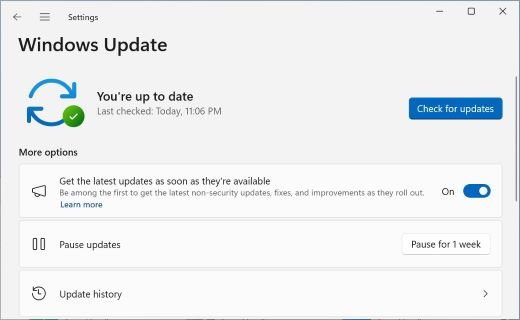
- Select Start > Settings > Windows Update.
- Turn on the toggle Get the latest updates as soon as they're available.
- Select Check for updates and install any pending cumulative update first, then restart if asked.
- When Windows 11, version 26H2 is available appears on the Windows Update page, select Download & install.
- Select Restart now when the download finishes. One restart completes the upgrade.
If the 26H2 banner has not appeared yet, your PC is still waiting in the staged rollout or sits behind a safeguard hold. The fix for 26H2 not showing in Windows Update walks through each cause.
Windows 11 26H2 upgrade paths
Your current version decides the route. A 24H2 or 25H2 PC gets the quick enablement package, while older systems need a full reinstall of the operating system from Microsoft media.
| Your situation | Use this | Why |
|---|---|---|
| Windows 11 25H2 or 24H2, you want to keep everything | Windows Update (enablement package) | Small download, one restart, apps and files stay |
| Windows 11 23H2 or earlier | Windows 11 Installation Assistant, or run setup.exe from the ISO | The enablement package only installs on 24H2 or 25H2 |
| Windows 10 on hardware that meets Windows 11 requirements | Installation Assistant or the ISO | Full upgrade; Windows 10 support ended on October 14, 2025 |
| Windows 11 26H1 (new devices sold from early 2026) | Stay on 26H1 | 26H1 uses a different Windows core and cannot update to 26H2 |
| Clean install, new drive or reinstall | Media Creation Tool USB or the x64 ISO | Boots the PC from media and installs a fresh copy |
| Virtual machine | x64 ISO from the Download Windows 11 page | Attach the ISO to the VM directly |
| Arm-based PC (Snapdragon) | Windows Update | Installation Assistant and Media Creation Tool are x64 only; the Arm64 ISO page still listed 25H2 on September 30, 2026 |
| Windows Insider in Release Preview | Windows Update or the Insider ISO page | 26H2 reached Release Preview on August 27, 2026 |
| PC managed by work or school IT | WSUS, Windows Autopatch or the Microsoft 365 admin center | IT controls the timing through existing update rings |
| You found 26H2 on UUP Dump | Use Microsoft's own ISO instead | UUP Dump is a third-party site, not a Microsoft download channel |
| You planned to create the USB with Rufus | The Media Creation Tool does the same job | Rufus is third-party software; Microsoft's tool writes official media |
What you need before you start
| Requirement | Details |
|---|---|
| Windows version for the enablement package | Windows 11, version 24H2 or 25H2 |
| Prerequisite update | The September 22, 2026 update KB5124010 or a later cumulative update |
| Hardware | A PC that meets the Windows 11 minimum system requirements; check with the PC Health Check app |
| Processor type for the Installation Assistant and Media Creation Tool | x64 only; neither tool runs on or builds media for Arm-based PCs |
| USB flash drive (media route) | Blank, at least 8 GB; everything on it is erased |
| Product key | Not needed with a digital license; many PCs have the key embedded in firmware |
| Backup | Back up your files before any reinstall or clean install |
The full hardware list lives in the 26H2 system requirements guide, including the note that 26H2 is the last version for Snapdragon 850 devices.
Download Windows 11 26H2 Enablement Package (KB5121794)
KB5121794 is the enablement package, a small master switch that turns on 26H2 features already shipped dormant in 24H2 and 25H2 monthly updates. Microsoft does not offer it as a standalone download.
| Question | Answer |
|---|---|
| What it does | Moves a 24H2 or 25H2 PC to version 26H2 with a single restart |
| Windows Update | Yes: select Download & install when 26H2 is listed |
| Windows Server Update Services | Yes: syncs with Product Windows 11 and Classification Upgrades, listed as Windows 11, version 26H2 |
| Microsoft Update Catalog | No: Microsoft states the update is only available through the other release channels |
| Prerequisite | KB5124010 (September 22, 2026) or a later cumulative update |
| Restart | Required once after install |
| Build after install | OS build 26300 (25H2 is 26200, 24H2 is 26100) |
A .msu file posted on a third-party site is not a Microsoft channel for this update. The switch itself works through an enablement package.
Why some PCs upgrade faster than others
Two PCs on the same day can take very different paths. Microsoft uses different upgrade methods because 24H2, 25H2 and 26H2 share one servicing branch and one set of system files, while older versions do not.
| Factor | Effect on your upgrade |
|---|---|
| Current version is 24H2 or 25H2 | Enablement package: download and install feel like a monthly update, then one restart |
| Current version is 23H2 or Windows 10 | Full operating system upgrade with several restarts |
| Toggle Get the latest updates as soon as they're available is on | Your PC is prioritized in the controlled feature rollout |
| Safeguard hold | Microsoft blocks the offer on devices with a known compatibility issue until it is fixed |
| Managed by IT | Update rings and policies decide when 26H2 arrives |
| Microsoft 365 admin center downloads | Microsoft notes these can be delayed |
Upgrading from Windows 11 23H2 or earlier
Windows 11 23H2 Home and Pro already reached end of updates, and the enablement package refuses to install on it. The Windows 11 Installation Assistant performs the full upgrade on x64 PCs, including Windows 10 PCs that meet the requirements.
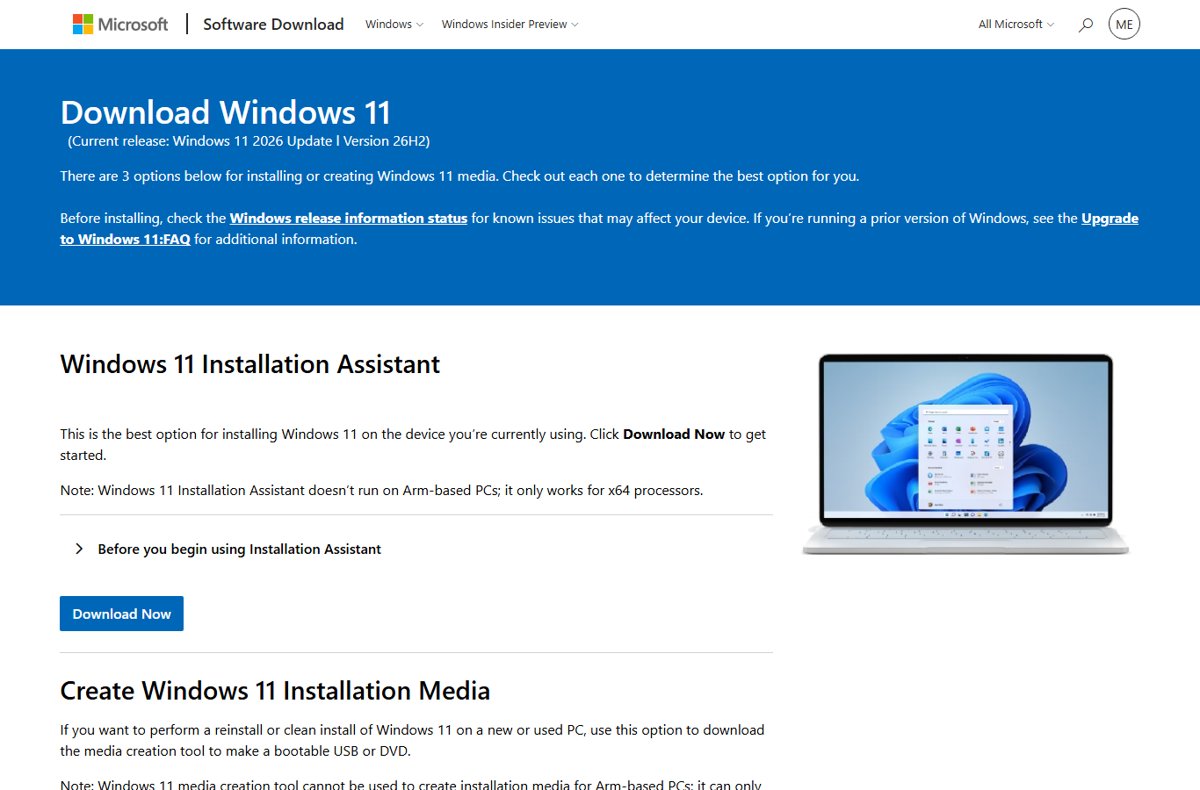
- Open the Download Windows 11 page on microsoft.com; it lists the current release as Version 26H2.
- Under Windows 11 Installation Assistant, select Download Now and run the app.
- If the app asks for more information, run the PC Health Check app, then select Refresh in the Installation Assistant.
- Select Accept and install to start the upgrade.
- Select Restart now when prompted. The PC restarts several more times.
- Sign in at the Windows sign-in screen to finish.
If the app reports This PC doesn't meet the minimum system requirements to install Windows 11, Microsoft recommends leaving the PC where it is.
Download Windows 11 26H2 ISO file from Microsoft support
Microsoft's Download Windows 11 page serves a multi-edition 26H2 ISO for x64 devices. Your product key or digital license unlocks the right edition during setup.
- Open microsoft.com/software-download/windows11 in a browser.
- Under Download Windows 11 Disk Image (ISO) for x64 devices, choose Windows 11 (multi-edition ISO for x64 devices).
- Select Confirm, pick your product language when asked, and start the 64-bit download.
- Mount the ISO with File Explorer so it gets its own drive letter.
- Open that drive and run setup.exe; select Yes if User Account Control appears.
- On Ready to install, keep the default Keep personal files and apps, or select Change what to keep.
- Finish the setup pages to start the upgrade.
Hash checks and the Arm64 situation both apply to the 26H2 ISO download.
Download Windows 11 26H2 ISO file from Insider
Microsoft added 26H2 ISOs to the Windows Insider ISO download page on August 31, 2026, after 26H2 (Build 26300.9278) reached the Release Preview Channel. The page opens only for Windows Insider Program members.
- Join the Windows Insider Program with your Microsoft account if you are not a member.
- Open microsoft.com/software-download/windowsinsiderpreviewiso.
- Select Sign in at the upper right and sign in with your Insider account.
- Pick the Windows 11, version 26H2 Release Preview build and your language, then download it.
- Use the ISO the same way as the public ISO: run setup.exe or build boot media.
Now that 26H2 is generally available, the public x64 ISO is the simpler choice for most people.
Create a Windows 11 bootable USB using the Media Creation Tool
The Media Creation Tool builds a bootable USB for a clean install or reinstall on x64 PCs. Third-party writers such as Rufus are not needed for official media.
- Connect a blank USB flash drive with at least 8 GB of space.
- On the Download Windows 11 page, under Create Windows 11 Installation Media, select Download Now.
- Run MediaCreationTool.exe and follow its screens to write the USB drive.
- Back up your files, then shut down the PC you want to install on.
- Insert the USB drive, turn the PC on and open its boot menu with the key your PC maker specifies (often a function key or Del).
- Choose the USB drive and follow Windows 11 Setup. A boot install wipes the drive, so only proceed with a backup.
Screen-by-screen help sits in the Media Creation Tool clean install guide.
Deploy 26H2 to managed PCs with WSUS
Windows 11, version 26H2 is available through Windows Autopatch, the Microsoft 365 admin center, Windows Update client policies and WSUS. Microsoft recommends a targeted pilot before a broad rollout.
- In the WSUS console, make sure the Product Windows 11 and the Classification Upgrades are selected for sync.
- Run a synchronization so the feature update appears.
- Find the update listed as Windows 11, version 26H2.
- Approve it for a pilot group of 24H2 and 25H2 devices that already have KB5124010 or later.
- Validate apps and workflows, then widen the approval.
How to check the 26H2 install worked
- Select Start > Settings > System > About.
- Under Windows specifications, confirm Version reads 26H2.
- Confirm OS build begins with 26300 (for example 26300.9550 on September 29, 2026).
- Alternatively press Win + R, type
winverand press Enter to see the same version.
Fix Windows 11 26H2 install problems
26H2 does not show up in Windows Update
The controlled rollout has not reached your PC, a safeguard hold applies, or the prerequisite update is missing.
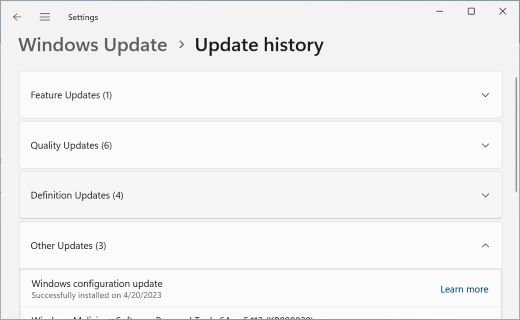
- Install every pending update in Settings > Windows Update, then restart.
- Turn on Get the latest updates as soon as they're available and select Check for updates again.
- Check the Windows release health page for 26H2 for safeguard holds that match your hardware.
- If you must upgrade now and no hold applies, run setup.exe from the official ISO.
The Installation Assistant or Media Creation Tool will not run
Both tools only work on x64 processors; Arm-based PCs are not supported.
- Check the processor in Settings > System > About.
- On an Arm-based PC, use Windows Update for 26H2.
- On an x64 PC, run PC Health Check and fix any failed requirement first.
"This PC doesn't meet the minimum system requirements"
The hardware fails at least one Windows 11 minimum requirement.
- Run the PC Health Check app to see which requirement failed.
- Fix the setting it names if your hardware supports it, then select Refresh in the Installation Assistant.
- If the hardware itself is unsupported, stay on your current version; Microsoft does not recommend installing Windows 11 on such PCs.
Your Windows 11 26H1 PC is never offered 26H2
26H1 runs on a different Windows core and has no path to 26H2.
- Confirm the version in Settings > System > About.
- Keep installing monthly updates; 26H1 is supported until March 2028 for Home and Pro.
USB audio stops working or the desktop stays black after the upgrade
Both are listed known issues for 26H2; USB Audio Class 1.0 devices can show Code 10.
- For a black screen, press Ctrl + Shift + Esc, select Run new task, type
explorer.exeand select OK. - For audio, watch Windows Update for the fix Microsoft says is coming.
- Track status on the 26H2 known issues page.
Frequently asked questions
How do I upgrade to 26H2?
On Windows 11 24H2 or 25H2, open Settings > Windows Update, turn on Get the latest updates as soon as they're available and select Download & install when 26H2 appears. Older versions need the Installation Assistant or the ISO.
Where can I download Windows 11 26H2?
Download it from Microsoft's Download Windows 11 page at microsoft.com/software-download/windows11, which lists Version 26H2 as the current release. The page offers the Installation Assistant, the Media Creation Tool and a multi-edition x64 ISO.
How do I download the Windows 11 26H2 ISO?
On the Download Windows 11 page, choose Windows 11 (multi-edition ISO for x64 devices) under the ISO section, select Confirm, pick a language and download the 64-bit file. Insiders can also get 26H2 ISOs from the Insider ISO page.
How to get the Windows 11 26H2 update if it is not offered?
Install all pending updates, turn on the Get the latest updates as soon as they're available toggle and check again. The rollout is phased over several months, so waiting is the safest option unless you choose the ISO route.
How to enable 26H2 on Windows 11?
The enablement package KB5121794 switches on 26H2 features already present in 24H2 and 25H2. It arrives through Windows Update or WSUS and needs KB5124010 or a later cumulative update installed first.
Can I download the 26H2 enablement package from the Microsoft Update Catalog?
No. Microsoft's KB5121794 page states the update is only available through the other release channels, which are Windows Update and Windows Server Update Services.
How do I install 26H2 from Windows 11 23H2?
Run the Windows 11 Installation Assistant or run setup.exe from the mounted 26H2 ISO. Both perform a full upgrade that keeps your files and apps by default, because the enablement package only applies to 24H2 and 25H2.
Do I need a product key to install Windows 11 26H2?
Not for an in-place upgrade. The 26H2 ISO is multi-edition and uses your existing product key or digital license to unlock the right edition, and many PCs store the key in firmware so setup applies it automatically.
Is there a Windows 11 26H2 ISO for Arm64 PCs?
Not yet on the public page. On September 30, 2026, Microsoft's Arm64 download page still listed Version 25H2 as the current release, so Arm-based PCs should get 26H2 through Windows Update.
How long is Windows 11 26H2 supported?
Home and Pro editions get updates until October 10, 2028, and Enterprise and Education editions until October 9, 2029. Installing 26H2 resets the support clock to 24 or 36 months.
What this means for you
Use Windows Update on any 24H2 or 25H2 PC and wait for the offer; reach for the Installation Assistant or the official ISO only when you are on 23H2, Windows 10 or need a clean install. The enablement package is the smallest, fastest and safest route, and waiting lets Microsoft's safeguard holds keep incompatible PCs off 26H2 until fixes land.




Windows 11 26H2 enablement package (KB5121794) explained - Techdows
[…] and warns that downloads there may be delayed. For ISO and Installation Assistant routes, the full list of official install methods covers each […]
Windows 11 26H2 Copilot changes and how to remap the Copilot key - Techdows
[…] update found in Settings > Windows Update > Advanced options > Optional updates. The 26H2 install guide covers moving to the new version […]
Windows 11 26H2 end of support date and servicing timeline - Techdows
[…] quickest move from 24H2 or 25H2 is the enablement package; the 26H2 install guide covers that and every other official […]
Windows 11 26H2 release date and when your PC gets it - Techdows
[…] the 26H2 banner does not appear, your PC is not in the current rollout wave yet. The full step-by-step install guide covers the other official […]
Windows 11 26H2 vs 25H2: how they compare, and what's different - Techdows
[…] a full feature update even on a 25H2 PC, so use Windows Update unless you want a fresh image. The download and install guide walks through every official […]
Windows 11 26H1 vs 26H2: the real differences and who gets each update - Techdows
[…] reaches existing PCs through the same servicing technology as monthly updates. The step-by-step install routes cover each […]
Windows 11 26H2 known issues and how to fix them - Techdows
[…] 26H2, as the current release. Use it only when Windows Update shows no safeguard hold message; the full list of official install methods compares every […]
Download Windows 11 26H2 enablement package - Techdows
[…] PCs on 23H2 or Windows 10 need the Installation Assistant, media creation tool or an ISO; each is covered in the guide to every official way to install 26H2. […]
Windows 11 26H2 on the Microsoft Update Catalog: what you can download - Techdows
[…] official route to the upgrade is compared in the 26H2 download and install guide, and the ISO route has its own official 26H2 ISO […]
Windows 11 26H2 movable taskbar: how to move it to the side or top - Techdows
[…] official ways to install 26H2 include ISO […]
How to create bootable Windows 11 26H2 USB install media - Techdows
[…] Installation Assistant is one of the official ways to install 26H2, and Microsoft also provides official 26H2 ISO […]
Windows 11 26H2 system requirements and hardware compatibility explained - Techdows
[…] For every download route, including the ISO and Installation Assistant, use the guide to install Windows 11 26H2. […]
Fix Windows 11 26H2 not showing in Windows Update - Techdows
[…] from a known problem, so forcing the upgrade on a held device can bring that problem with it; the other official ways to install 26H2, including the ISO and Media Creation Tool, carry the same […]
Download Windows 11 26H2 KB5121794 offline installer (.msu) - Techdows
[…] The ISO and the Installation Assistant are other official ways to install 26H2. […]
Can you install Windows 11 26H2 without an internet connection? - Techdows
[…] Microsoft released 26H2 on September 29, 2026, as a small enablement package for 24H2 and 25H2, with a staged rollout. The online routes are covered in the guide to download and install Windows 11 26H2. […]
How to install Windows 11 26H2 without USB using ISO - Techdows
[…] ISO is one of several official ways to download and install 26H2. If Windows Update has not offered 26H2 yet, find out why 26H2 is not showing before forcing it […]
Can I install Windows 11 26H2 on an older PC? - Techdows
[…] route is covered step by step in the guide to download and install 26H2. For a Windows 10 or 23H2 machine, the Installation Assistant upgrade keeps your files and […]