If you forgot your password on MacBook Air, restart it, enter a password up to three times at the login window, then click the question mark or reset message and follow the prompts.
When no reset option appears, macOS Recovery offers a Forgot all passwords? route and a resetpassword command. Erasing the Mac is the last resort when nothing else works.
Step by step tutorial to reset forgotten password on MacBook Air
Start with a full restart. The lock screen looks like the login window, but it has no password reset options.
- Restart the MacBook Air. If you see no restart option, press and hold the Touch ID or power button for up to 10 seconds until it turns off, then turn it on again.
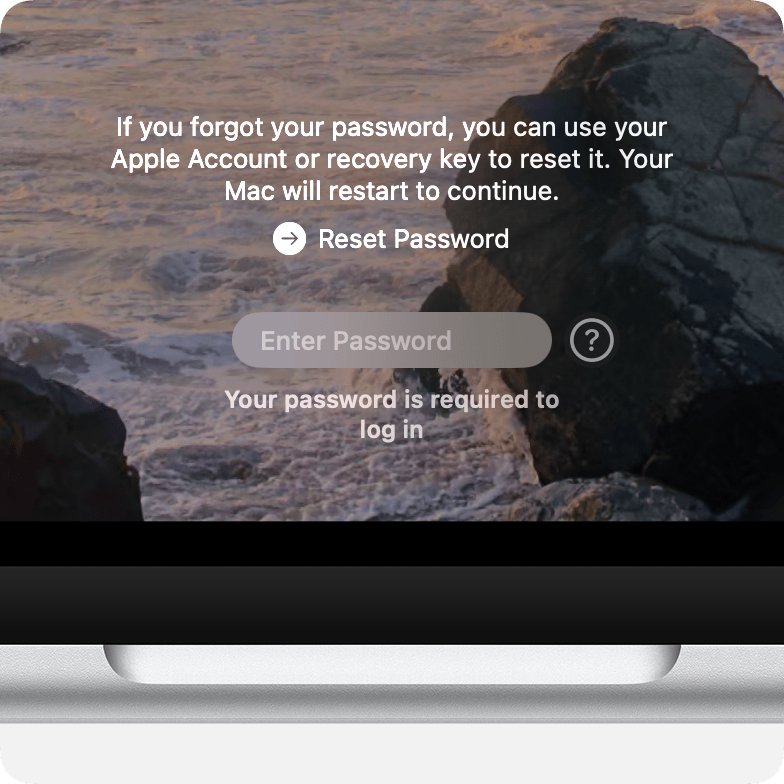
- At the login window, enter your Mac login password, not the password of your Apple Account.
- Click the question mark next to the password field. If there is no question mark, enter a password up to three times and look again.
- Click the reset message, such as Reset Password or Restart and show password reset options.
- Supply what the screen asks for, such as your Apple Account sign-in or a FileVault recovery key.
- Create a new password when asked.
- Restart the MacBook Air and log in with the new password.
If no reset message appears after three attempts, restart and try again. If it still does not appear, use the macOS Recovery route further down.
What to do if you forgot your laptop password on a MacBook Air
| Your situation | Do this | What you need |
|---|---|---|
| The login window shows a question mark or reset message | Reset from the login window | Your Apple Account sign-in or FileVault recovery key, if asked |
| No reset message after three attempts and a restart | Start macOS Recovery and click Forgot all passwords? | Your Apple Account sign-in or FileVault recovery key, if asked |
| Recovery did not ask you to create a new password | Run resetpassword in Terminal while still in Recovery |
The details the reset window requests |
| Another administrator account on the Mac still works | Log in to that account and click Reset in Users & Groups | The other administrator's password |
| You are still logged in to your own account | Change the MacBook password in Users & Groups | Your current login password |
| The screen says your account is locked | Wait until the stated time passes, restart, and try again | Only the wait |
| No reset route works | Erase the Mac from Recovery and reinstall macOS | Your Apple Account details to activate the Mac afterwards |
Is your MacBook Air password the same as your Apple ID password?
No. The login window wants your Mac user account password, and Apple ID is now called Apple Account. The reset screens can ask for several different secrets, so check which one you actually lost.
| Secret | What it does | If you forgot it |
|---|---|---|
| Mac login password | Logs you in to your user account. It also unlocks the disk when FileVault is on | Use the login window or macOS Recovery routes on this page |
| Apple Account password | Signs you in to iCloud, the App Store and other Apple services. It can also reset your Mac login password | Change it on a trusted device, or use the recovery factors Apple asks for |
| FileVault recovery key | A 24-character code created when FileVault is turned on. It can unlock the disk and reset your login password | Check the Passwords app on another device, or use the Apple Account route |
| Apple Account recovery key | An optional security feature for your Apple Account. It is not the FileVault recovery key | Follow the account recovery steps Apple shows |
| Login keychain password | Normally the same as your login password. It unlocks your saved passwords | A new blank keychain is created when the old password cannot be provided |
Is my MacBook Air Apple silicon or Intel?
The Recovery start-up steps depend on the chip, and About This Mac is out of reach while you are locked out. Use the model name instead. If you are not sure, you can safely try the steps for the other type.
| MacBook Air model | Chip type | How Recovery starts |
|---|---|---|
| MacBook Air (M1, 2020) | Apple silicon | Hold the Touch ID button |
| Any MacBook Air introduced in 2022 or later | Apple silicon | Hold the Touch ID button |
| MacBook Air (Retina, 13-inch, 2020) and earlier models | Intel | Press the power button, then hold Command + R |
How to start MacBook Air in Recovery Mode
MacBook Air with Apple silicon
- Press and hold the Touch ID button for up to 10 seconds until the Mac turns off.
- Press and hold the Touch ID button again.
- Release it when you see Loading startup options or the Options icon.
- Click Options, then click Continue.
- If asked to select a volume, select your startup disk, such as Macintosh HD, and click Next.
Intel-based MacBook Air
- Press and hold the power button for up to 10 seconds until the Mac turns off. On a model with Touch ID, hold the Touch ID button.
- Press and release the power button, then immediately press and hold Command + R.
- Keep holding the keys until you see an Apple logo or spinning globe.
- If asked to select a network, choose one from the Wi-Fi menu.
- If asked to select a volume, select your startup disk, such as Macintosh HD, and click Next.
How to reset MacBook Air password from macOS Recovery
The screens vary with your Mac setup, so answer only the prompts you actually see.
- Start the MacBook Air in Recovery.
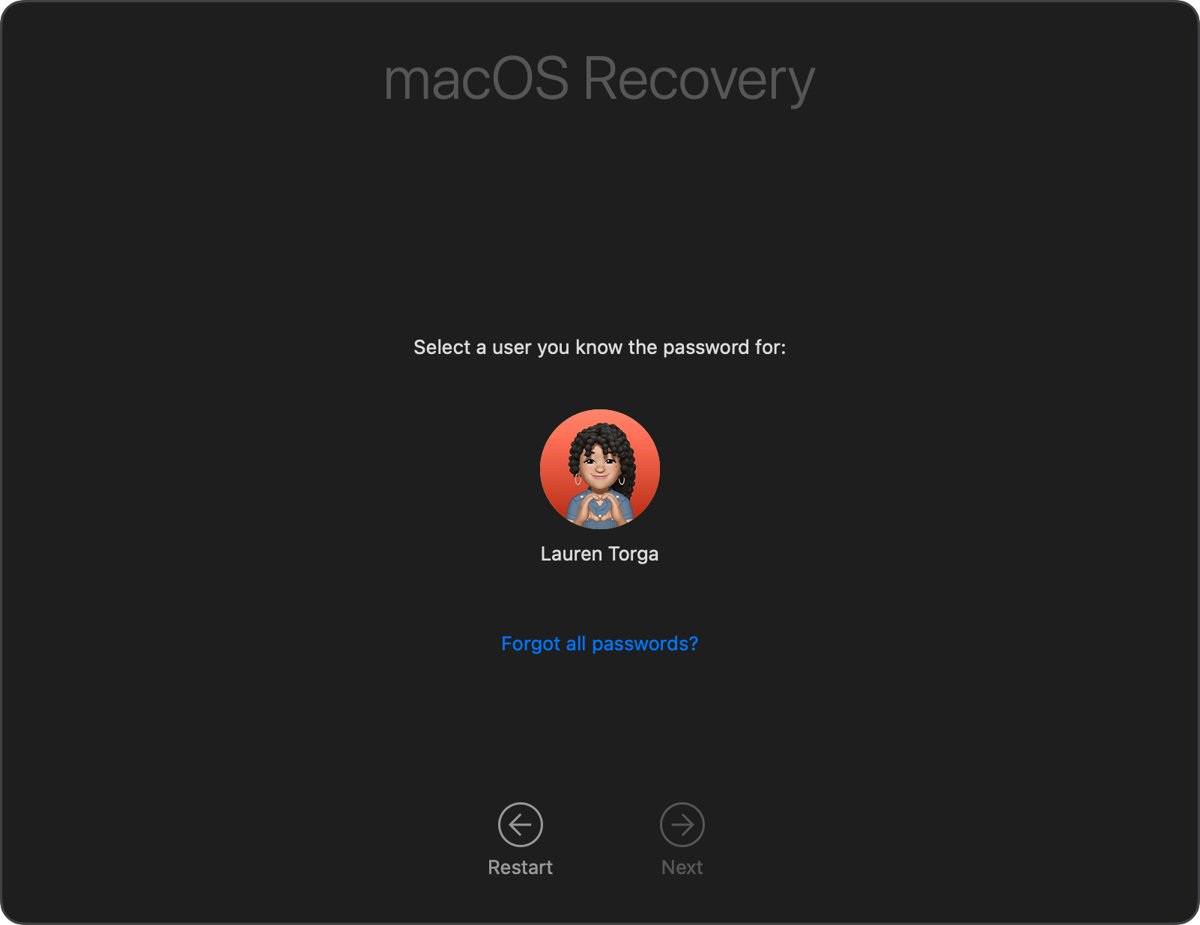
- When asked to select a user you know the password for, click Forgot all passwords?.
- If asked, sign in to the Apple Account previously used with this Mac, using its email or phone number and password.
- If asked, enter your FileVault recovery key.
- If asked to deactivate this Mac, allow it. The deactivation is temporary.
- Click Exit to Recovery when you see that option.
- If you were able to create a new login password, choose Restart from the Apple menu and log in with it.
You are in Recovery when you see options to restore from Time Machine and reinstall macOS. If the process never asked for a new password, stay there and run the Terminal command below.
How to use the resetpassword command on MacBook Air
- In Recovery, open the Utilities menu in the menu bar and choose Terminal.
- Type
resetpasswordand press Return. - In the window that opens, select I forgot my password or My password doesn't work when logging in.
- Click Next and provide the information requested.
- Create a new password for your account and any other user accounts when asked.
- Restart the MacBook Air and log in with the new password.
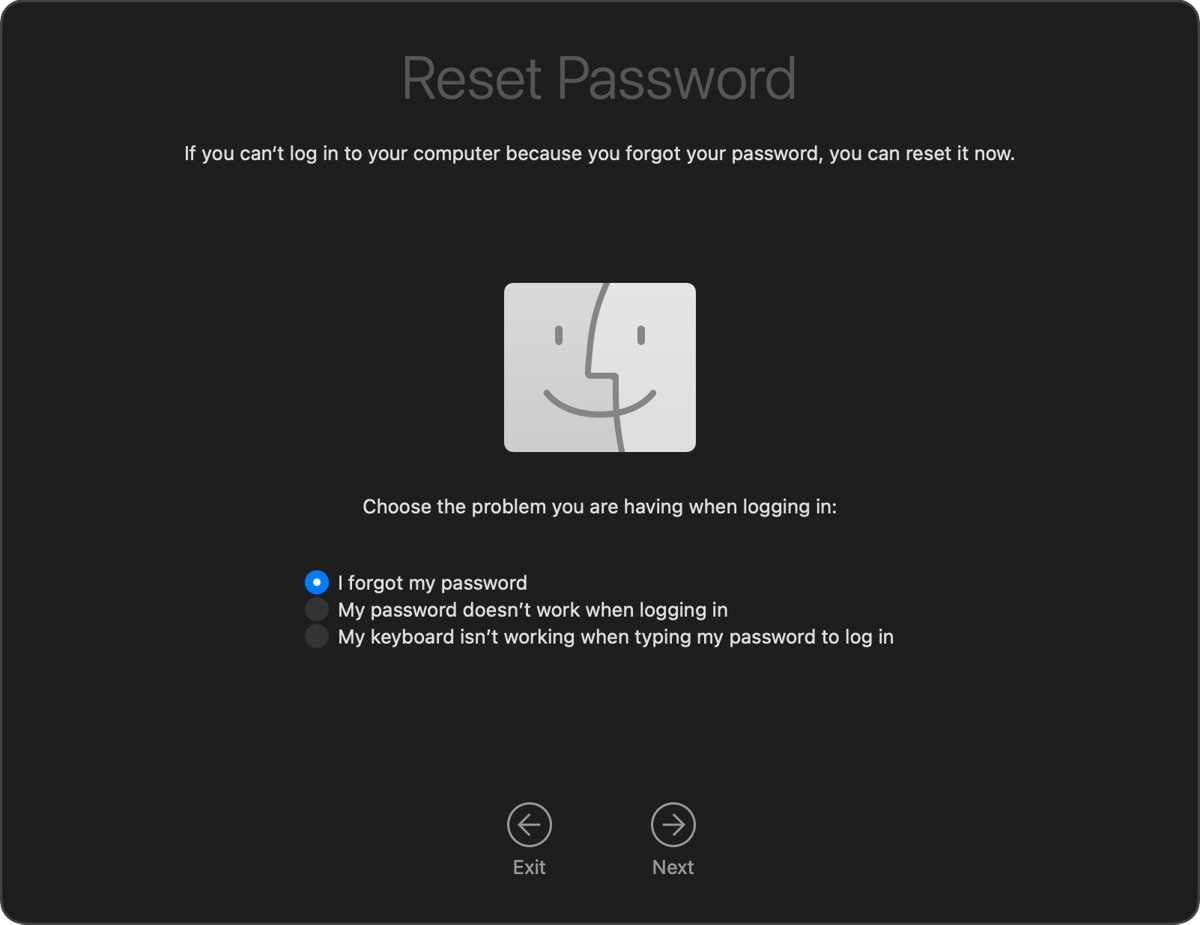
MacBook Air reset password prompts: recovery key, Apple Account and deactivate this Mac
| Prompt on screen | What to do | Detail |
|---|---|---|
| Enter your recovery key | Type the letters and numbers of the FileVault key | A recovery key never includes the letters I or S, or the numbers 1 or 0 |
| Sign in to your Apple Account | Enter its email or phone number, then its password | A verification code may go to your other devices. You then select the user to reset |
| Select a volume to recover | Select your startup disk | The disk is usually named Macintosh HD |
| Select a user you know the password for | Click Forgot all passwords? | Use this when you know no password on the Mac |
| Deactivate this Mac | Allow it | The deactivation is temporary |
| Create a new keychain | Allow it | The new keychain stores that user's passwords from now on |
How to find your FileVault recovery key for MacBook Air
If the Mac asking for the key runs macOS Tahoe 26 or later, the key might be in the Passwords app on another device. On earlier versions, look wherever you saved the key when FileVault was turned on.
- Pick an iPhone, iPad or other Mac signed in to the same Apple Account as the MacBook Air, with iCloud Passwords & Keychain turned on.
- Open the Passwords app.
- Type
recovery keyin the Search field. - Open the item with your MacBook Air's name.
- Tap or click the dots in the Recovery Key field to show the key.
- Type the key on the MacBook Air.
If you cannot find the key, use the reset options in Recovery. Without a working password, reset route or key, FileVault-protected files are lost for good.
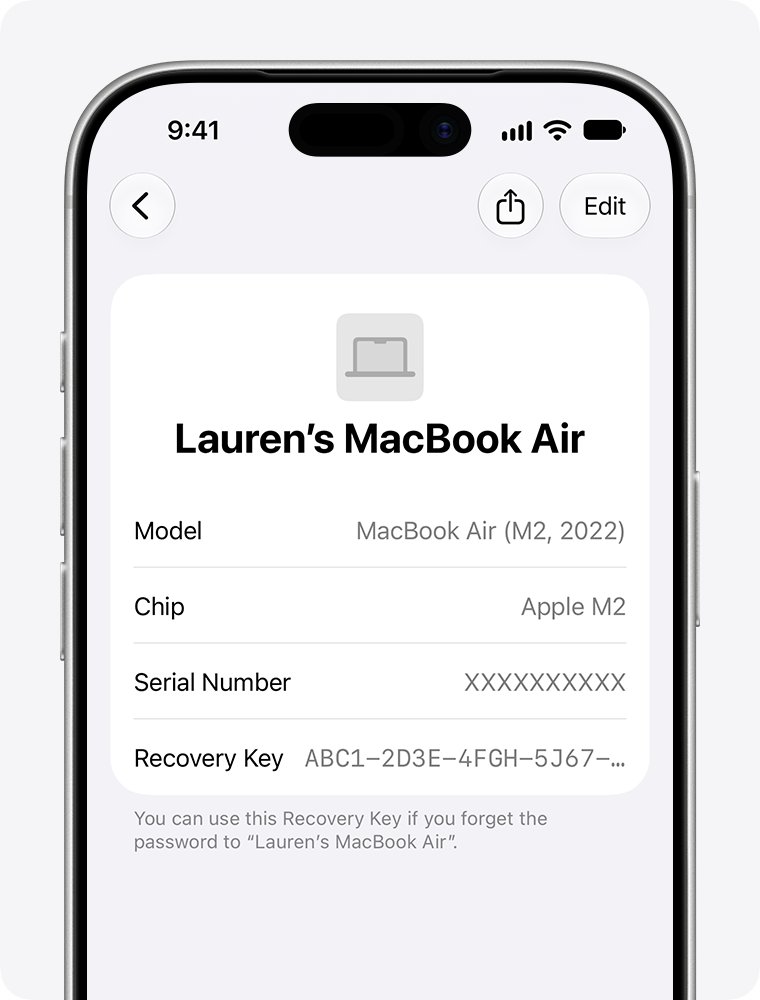
How to reset a MacBook Air password from another admin account
- At the login window, log in to the other administrator account.
- Choose Apple menu > System Settings.
- Click Users & Groups in the sidebar. You may need to scroll down.
- Click the info button next to the locked-out user.
- Click Reset and set the new password when prompted.
- Log out, then log in to the locked-out account with the new password.
What to do if you forgot your Apple ID password and MacBook Air password
The Mac reset can ask for your Apple Account password, so sort that out first. You can reset your Apple Account password from any device already signed in to the account.
- On a trusted iPhone or iPad, open Settings, tap your name, then tap Sign-In & Security > Change Password.
- On another trusted Mac, choose Apple menu > System Settings, click your name, then click Sign-In & Security > Change Password.
- With no trusted device, select Forgot password? on the Apple Account sign-in screen and follow the prompts.
- Have your recovery factors ready, such as your trusted phone number, a recovery contact's code, your account email, or the card linked to the account.
- On a borrowed device, open the Support app, go to Support Tools, select Reset Password, then select Help Someone Else.
- If you cannot provide those details, request account recovery. Go to iforgot.apple.com in Safari on a device with iOS 17 or later, or macOS 27 or later.
- Return to the MacBook Air and enter the new Apple Account password when the reset asks for it.
Account recovery can take several days or more. Using a device signed in to your account during that wait can cancel the request.
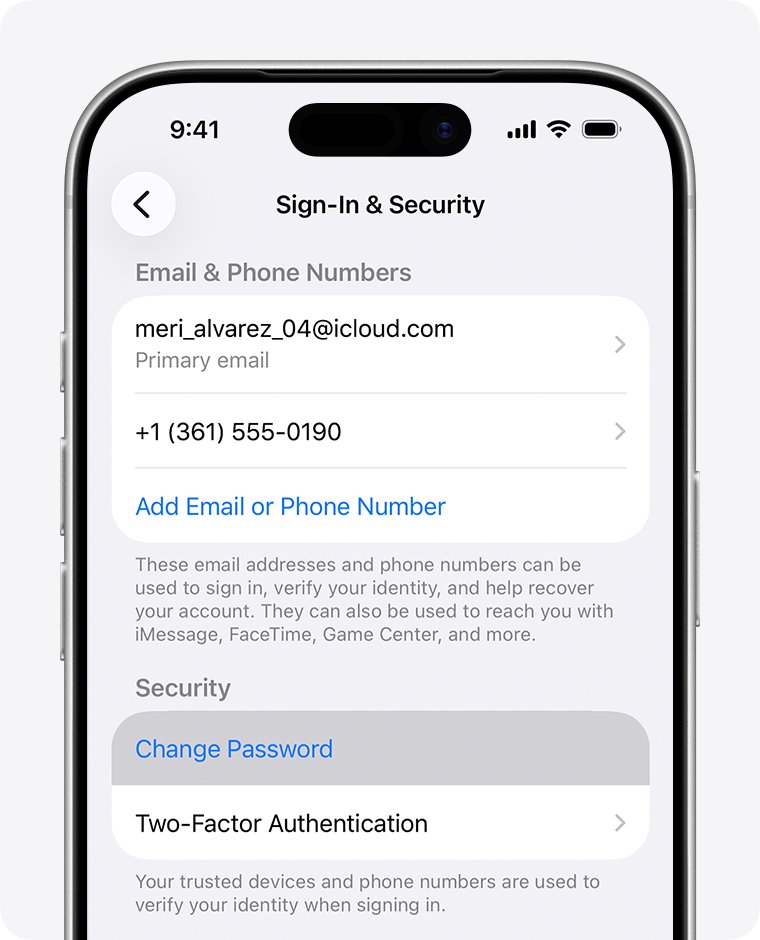
How to log in to MacBook Air after a password reset
- Choose Restart from the Apple menu so the Mac returns to the login window.
- Type the new password. Touch ID cannot replace it at startup, because the Mac needs your password first.
- Press Return. Your desktop opening is the proof the reset took effect.
- Use Touch ID as usual for later unlocks, once you have logged in with the password.
How to erase MacBook Air if you can't reset the password
Erasing permanently removes every user account, its password and its data from the Mac. Use it only when no other route works.
- Shut down or turn off the MacBook Air, then start it in Recovery.
- When asked to select a user you know the password for, choose Erase Mac from the Recovery Assistant menu in the menu bar.
- Click Erase Mac, then click Erase Mac again to confirm. The Mac restarts automatically.
- If it starts up to a question mark, turn it off and reinstall macOS from Recovery.
- If it starts up to an Activate Mac window and asks for a network, choose one from the Wi-Fi menu.
- Enter your Apple Account information when asked, not your login name or password.
- After the Mac activates, click Exit to Recovery and reinstall macOS.
Do not close the lid or let the Mac sleep during the reinstall. If you have a Time Machine backup, Restore from Time Machine in Recovery brings your files back.
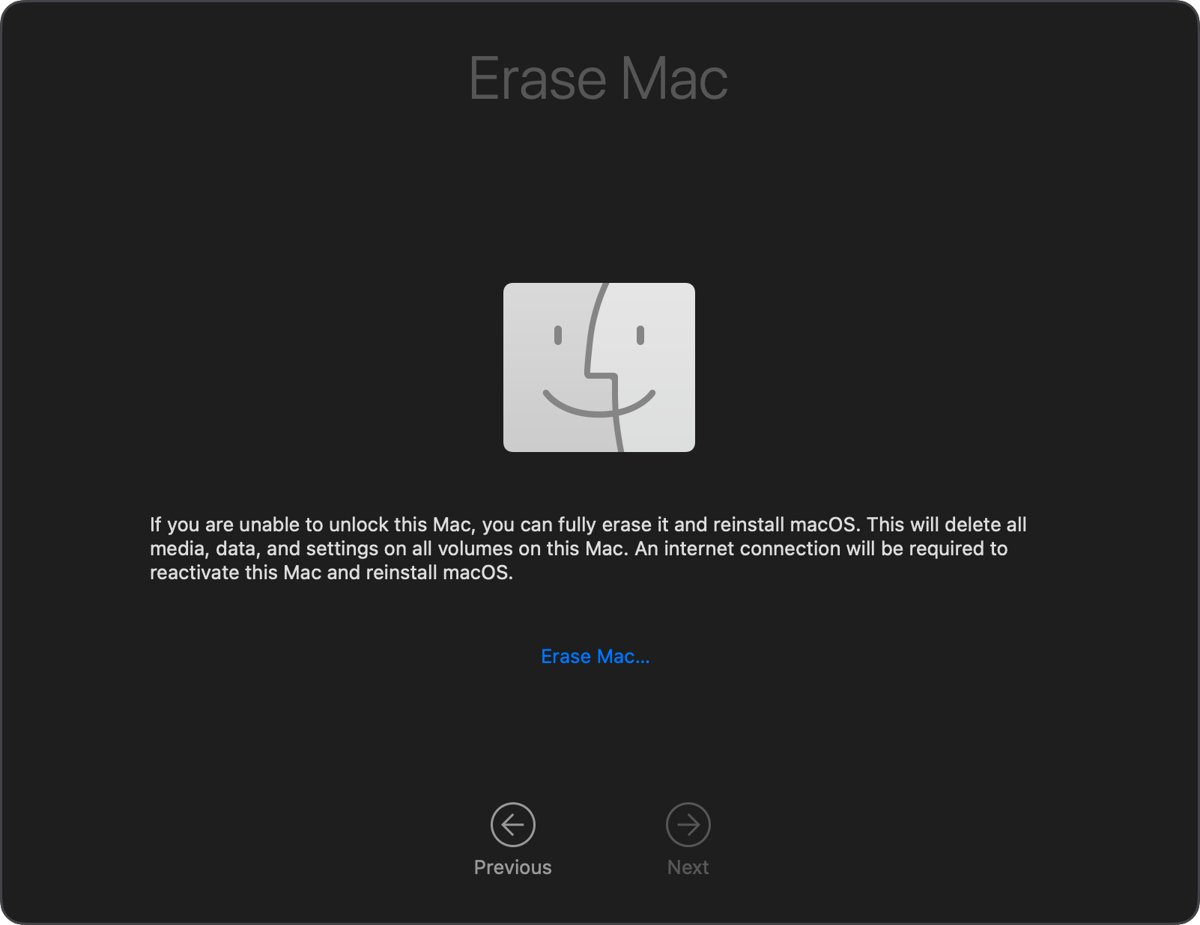
MacBook Air password not working or Recovery Mode will not open
MacBook Air password not working at the login window
Caps Lock, the wrong keyboard language or an Apple Account password typed by mistake can all reject a correct password.
- Look for the Caps Lock symbol in the password field and turn Caps Lock off if it shows.
- Check the Input menu in the corner of the login window and set the correct language.
- Type the Mac login password, not your Apple Account password, email address or phone number.
- If it still fails, click the question mark and use the reset options.
MacBook Air lock screen shows no password reset option
You are on the lock screen of a logged-in account, which uses the same password but offers no reset options.
- Press and hold the Touch ID or power button for up to 10 seconds until the Mac turns off.
- Turn the Mac on again so it starts up to the login window.
- Look for the question mark next to the password field.
MacBook Air says your account is locked
Repeated login attempts trigger a timed lock.
- Wait until the time shown on the screen has passed.
- Restart the Mac and try your password again.
- If that does not help, use the reset options in Recovery.
MacBook Air will not start in Recovery Mode
The chip steps do not match, the keys were not detected at startup, or Internet Recovery cannot connect.
- Try the Recovery steps for the other chip type, which is safe if you are unsure.
- On an Intel model, use the built-in keyboard instead of an external one.
- If built-in Recovery fails on an Intel model, hold Option + Command + R or Shift + Option + Command + R to start over the internet.
- If a globe shows a warning symbol, or an error such as -2001F, -2002F or -2003F, join a different network or try again later.
- For a blank screen or an exclamation point in a circle, use Apple's startup screen list to identify the problem.
MacBook Air shows a lock icon or asks for a PIN code
A firmware password, a Find My remote lock or Activation Lock is in place, and each one has its own unlock.
- For a lock icon when starting Recovery, enter the firmware password to continue.
- For a four-digit or six-digit PIN code request, enter the passcode set when the Mac was locked through Find My.
- For an Activation Lock window asking for someone else's Apple Account, ask the previous owner to remove Activation Lock.
MacBook Air asks for the keychain password after a reset
The login keychain still uses your previous password, so it no longer unlocks automatically.
- Enter your previous login password if you remember it.
- If that does not unlock it, let the keychain reset automatically.
- Sign in again where needed, because items in the old keychain stay out of reach without the old password.
- Use Reset Default Keychains in Keychain Access manually only when Apple Support advises it.
Tips for managing your MacBook Air password
| Tip | Where to set it | Why it helps |
|---|---|---|
| Write the password down | Keep the note in a secure location | Apple recommends this for both the login and Apple Account passwords |
| Add a password hint | System Settings > Users & Groups > info button > Change | The hint gives you a prompt without any reset |
| Show hints at login | System Settings > Lock Screen > Show password hints | The hint appears when you click the question mark or enter a wrong password three times |
| Protect your FileVault recovery key | System Settings > Privacy & Security > FileVault | Keep a copy away from the Mac. Losing both the password and the key can lose your files |
| Allow an Apple Account reset | Users & Groups > info button > Allow user to reset password using Apple Account | Needs iCloud set up on the Mac, and is not offered when FileVault already allows Apple Account resets at startup |
| Set up Touch ID | System Settings > Touch ID & Password > Add Fingerprint | You type the password less often, but it is still required at startup and every 48 hours |
| Add a second administrator | Users & Groups > Add User > Administrator | That account can click Reset for you |
| Back up with Time Machine | System Settings > General > Time Machine | Erasing the Mac costs you far less when a backup exists |
| Store other logins safely | The Passwords app or a dedicated password manager | Saved logins fill in for you, so the login password is the main one to remember |
Forgot MacBook Air password FAQ
What to do if you forgot your password on a MacBook Air?
Restart the MacBook Air, enter a password up to three times, then click the question mark or reset message at the login window. Follow the prompts for your Apple Account or recovery key, then set a new password. If no message appears, use macOS Recovery.
What to do if you forgot your laptop password?
On a MacBook Air, use the reset options at the login window or in macOS Recovery, which can ask for your Apple Account or FileVault recovery key. A Windows laptop uses a different process, so reset the Windows password instead.
What if I don't remember my Apple ID password either?
Reset the Apple Account password first, because the Mac reset may ask for it. Apple ID is now called Apple Account. Change it on a trusted device such as an iPhone, or use recovery factors such as your trusted phone number. Account recovery can take several days or more.
What to do if you forgot your Apple ID?
Try each email address or phone number you may have linked to the account, because any of them works for sign-in. The Mac reset screen asks for that same email or phone number, followed by the Apple Account password.
Can I use Siri to reset my password?
No. Apple documents no Siri route for a forgotten Mac login password. Its documented routes are the login window reset options, macOS Recovery, the resetpassword command and, as a last resort, erasing the Mac. Start at the login window.
Will resetting my password erase my data?
No. Resetting the login password does not erase your files; only the Erase Mac route removes user accounts and data. The one loss is the old keychain. Without the old password, its saved items stay locked, and the Mac creates a new blank keychain.
Can I reset my password without using Recovery Mode?
Yes. The login window can offer a reset message after up to three attempts, and another administrator account can click Reset in Users & Groups. You need Recovery only when neither of those routes is available to you.
What if I'm unable to enter Recovery Mode?
Check the chip first. Apple silicon models need the Touch ID button held until startup options load, while Intel models need Command + R held right after power on. If built-in Recovery fails on Intel, hold Option + Command + R to start over the internet.
What to do if you forgot your iPhone passcode?
A locked iPhone cannot change your Apple Account password, so unlock or reset the iPhone first if it is your only trusted device. If you have started account recovery, turn the iPhone off, because activity from a signed-in device cancels the request.