F1 and F2 stop changing screen brightness on macOS Ventura 13.6.1 when Use F1, F2, etc. keys as standard function keys is turned on, so turn that setting off in System Settings or hold Fn while you press the key.
This guide covers built-in, Magic and third-party keyboards, MacBook Pro with Touch Bar, external displays, and the checks to run when the keys still do nothing.
F1 and F2 brightness keys not working on macOS Ventura
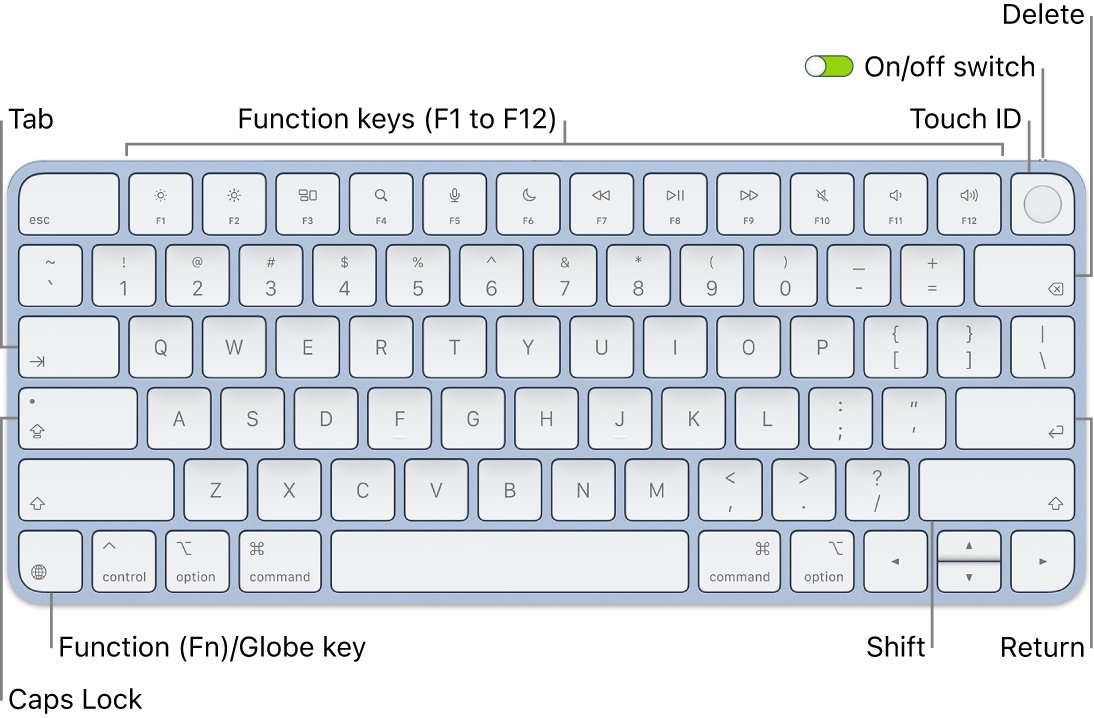
By default the top row controls system features, so you change screen brightness with the keyboard using F1 and F2. This one setting swaps that behavior.
- Choose Apple menu > System Settings.
- Click Keyboard in the sidebar. You may need to scroll down.
- Click the Keyboard Shortcuts button on the right.
- Click Function Keys in the sidebar.
- Turn off Use F1, F2, etc. keys as standard function keys.
- Press F1 to dim the screen and F2 to brighten it.
Why F1 and F2 keys are not working on a Mac
| What you see | Likely cause | Do this |
|---|---|---|
| F1 and F2 work only when you hold Fn | Standard function keys setting is on | Turn off the setting in Keyboard Shortcuts |
| Function keys setting is not listed | The keyboard may not be made by Apple | Use the maker's keyboard utility or ask the maker |
| No F1 or F2 keys at all | MacBook Pro with Touch Bar | Use the Control Strip, or hold Fn to show F1 to F12 |
| Wireless keyboard does nothing | Bluetooth is off or the keyboard is flat | Reconnect and charge the keyboard |
| Several keys act strangely | Slow Keys or Mouse Keys is on | Turn both off in Accessibility |
| Built-in screen dims, external display does not | The external display has its own controls | Use the display's controls or its documentation |
| F1 and F2 also fail in safe mode | A system or hardware problem | Run Apple Diagnostics and consider reinstalling macOS |
Use the Fn key to change brightness on a Mac
Holding a modifier key swaps what the top row does for that one press, so it is a useful test before you change any settings.
- Hold Fn, or the Globe key if your keyboard shows one instead.
- Press F1 to decrease brightness or F2 to increase it, then release both keys.
- If the keyboard has no Fn key, try holding Control instead.
- If brightness now changes, turn off the standard function keys setting so you can stop holding the key.
With the setting off, the same key combination gives you the standard F1 or F2 key in an app. What a standard function key does depends on the app and on the keyboard shortcuts you have set up.
Change Mac screen brightness without the F1 and F2 keys
These routes work whatever the keyboard is doing, and they also show whether the display itself responds.
- Choose Apple menu > System Settings, then click Displays in the sidebar.
- Drag the Brightness slider on the right.
- Turn off Automatically adjust brightness if you want the level to stay where you set it. The option appears on Macs with an ambient light sensor.
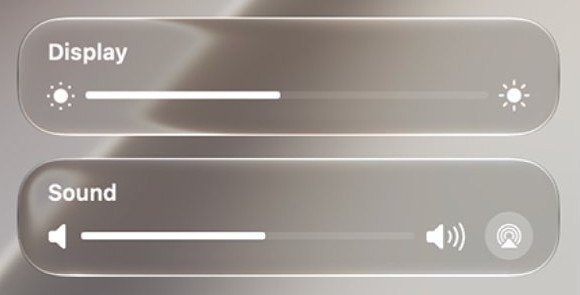
- To skip System Settings next time, click the Control Center icon in the menu bar and drag the Display slider.
If the slider is gone too, the problem is not the keyboard, so restore the missing brightness option first.
F1 to F12 keys not working on MacBook Pro with Touch Bar
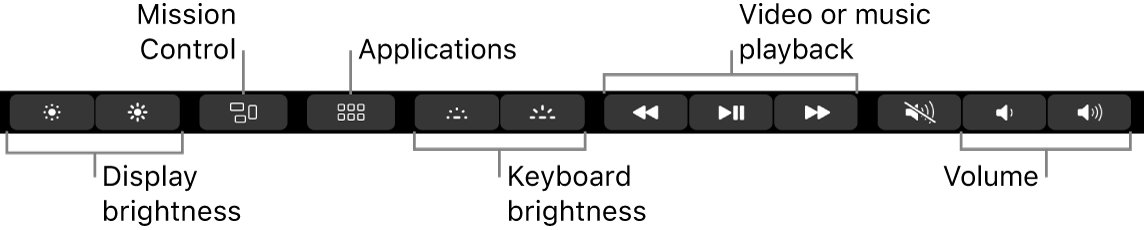
A Touch Bar MacBook Pro has no physical top row, so brightness sits in the Control Strip and F1 to F12 appear only when you ask for them.
- Touch and hold the display brightness button in the Control Strip, then slide to change the level.
- Press and hold Fn to see F1 through F12 in the Touch Bar.
- To keep function keys on screen in one app, choose Apple menu > System Settings > Keyboard > Keyboard Shortcuts > Function Keys.
- Click the add button (+) and choose the app.
F1 and F2 keys not working on a wireless or third-party keyboard
On a Magic Keyboard, F1 and F2 are the display brightness keys. If the Function Keys option does not appear at all, the keyboard may not be made by Apple, and it needs the maker's own utility.
- On a Magic Keyboard, slide the power switch on the back edge off and on again.
- Choose Apple menu > System Settings > Bluetooth and confirm Bluetooth is on.
- Connect the keyboard to your Mac with a compatible cable, wait 1 minute, then disconnect it to pair and charge it.
- For a USB keyboard, unplug it and plug it back in, then try a different port.
- Connect a different keyboard to the same Mac. If that one works, the first keyboard may need service.
- For a non-Apple keyboard, check the maker's documentation for its function key setting.
F1 F2 F3 keys not working because of Slow Keys or Mouse Keys
Apple points to these two accessibility features when keys behave unexpectedly. Slow Keys adds a delay between pressing a key and the key activating, so a quick tap can do nothing.
- Choose Apple menu > System Settings, then click Accessibility in the sidebar.
- Click Keyboard and make sure Slow Keys is off.
- Go back to Accessibility, click Pointer Control and make sure Mouse Keys is off.
- Press Option-Command-F5 to open the Accessibility Shortcuts panel and confirm Mouse Keys is not selected.
- Press F1 and F2 again.
When the built-in keyboard stops answering completely, the Mac may be showing a low battery alert you cannot see. Connect power, then work through the wider Mac keyboard not working fixes.
Update macOS Ventura 13.6.1 to the latest Ventura release
macOS Ventura 13.6.1 is an older build, and Apple's security releases list macOS Ventura 13.7.8 from 20 August 2025 as the newest Ventura update. Apple also asks for the latest updates before you test a problem in safe mode.
- Choose Apple menu > System Settings > General > Software Update.
- Click the button to update if one appears. If none is listed, click Check for Updates or press Command-R.
- Enter your administrator password when asked.
- Keep the Mac awake with its lid open until the install finishes, since it may restart several times.
- Press F1 and F2 after the final restart.
Test F1 and F2 keys in Mac safe mode
Safe mode shows whether startup software is the cause. Unplug nonessential devices first, because some features may not work normally in safe mode.
- On a Mac with Apple silicon, shut down, then press and hold the power button until you see Loading startup options.
- Select your startup disk, hold Shift, click Continue in Safe Mode, and log in.
- On an Intel-based Mac, turn it on and immediately hold Shift, then release it at the login window.
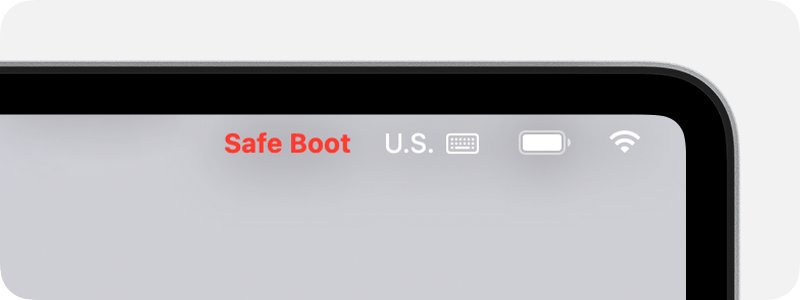
- Look for red Safe Boot text in the upper-right corner of the login window.
- Press F1 and F2, then choose Apple menu > Restart to leave safe mode.
If the keys work in safe mode and fail after a normal restart, a login item or other startup software is the likely cause. Remove login items and test in a new user account. If they fail in both, reinstalling macOS keeps your personal files and is the next software step.
Reset NVRAM or SMC for Mac brightness keys
Apple suggests an NVRAM reset when a setting still does not work after you adjust it. Its SMC page does not name brightness keys, so treat this as a later step on Intel-based Macs.
| Mac | Reset | How |
|---|---|---|
| Any Intel-based Mac | NVRAM | Shut down, turn on and immediately hold Option-Command-P-R for about 20 seconds |
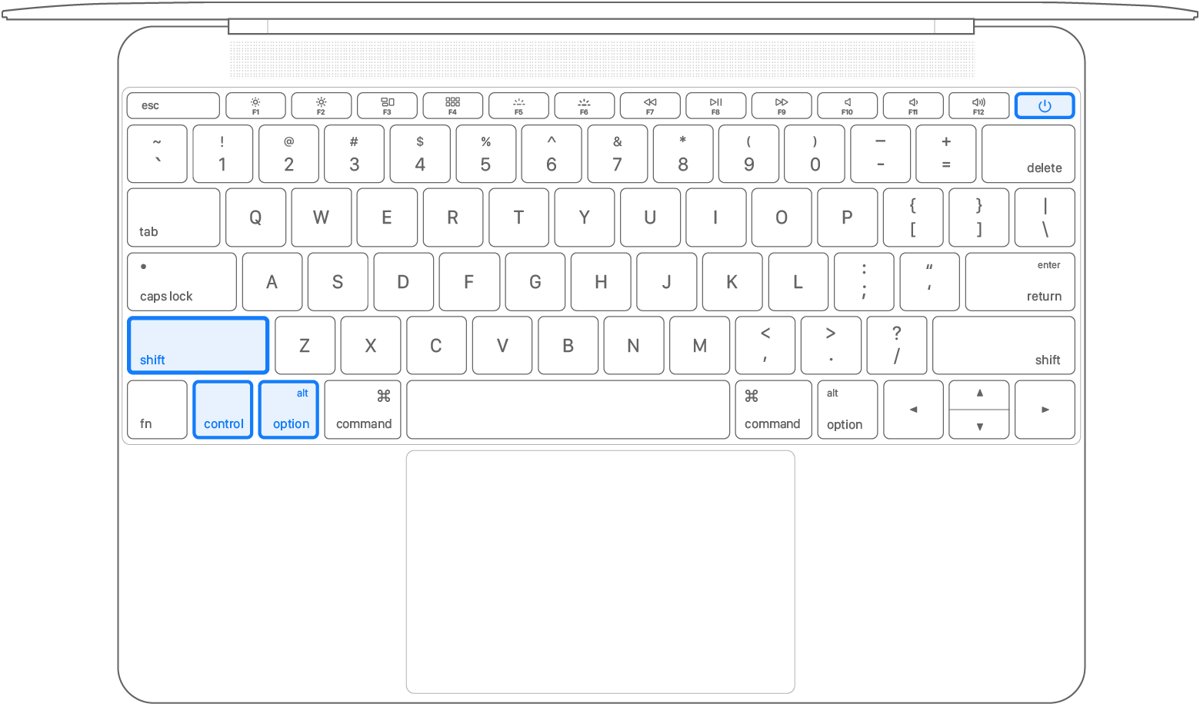
| Intel MacBook without a T2 chip | SMC | Shut down, then hold left Shift, left Control, left Option and the power button for 10 seconds |
| Intel MacBook with a T2 chip | SMC | Shut down, hold the power button 10 seconds, release, wait and turn the Mac on |
| Intel desktop Mac | SMC | Shut down, unplug for 15 seconds, plug in, wait 5 seconds and press the power button |
| Mac with Apple silicon | Neither | Restart from the Apple menu, because these steps are not needed |
Run Apple Diagnostics for a Mac keyboard problem
Run this when both keys fail on the built-in keyboard in safe mode and after a software reset.
- Shut down and disconnect all devices except the keyboard, mouse, display, Ethernet cable and power.
- On Apple silicon, press and hold the power button until you see Options, then press and hold Command-D.
- On an Intel-based Mac, turn it on and immediately press and hold D, or try Option-D if that does not work.
- Follow the onscreen instructions and note any reference code.
- Take the code to an Apple Store or an Apple Authorized Service Provider if the fault remains.
How to tell if Mac brightness keys are working
- Press Option and the increase brightness key together. This opens Displays settings, which shows the Mac is reading the key.
- Close the settings window and press F1 on its own.
- Watch the screen dim as you press.
- Press F2 on its own and watch it brighten again.
- Open System Settings > Displays and confirm the Brightness slider moved with the keys.
F1 key not working on a Mac: games, external displays and single keys
F1 key not working in game
F1 is set to control brightness, while the game expects a standard F1 press.
- Hold Fn or Globe as you press F1 in the game.
- If you play often, turn on Use F1, F2, etc. keys as standard function keys.
- Remember that you then hold Fn to change brightness instead.
F2 key is not working, but other top-row keys are
A single dead key usually points to the keyboard rather than to a setting.
- Connect a different keyboard and test the same key.
- If the other keyboard works, the first one may need service.
- If it fails on both, try a different port or run Apple Diagnostics.
F1 and F2 do not change an external display
Brightness on an external display depends on the display model.
- Open System Settings > Displays and check for a Brightness slider for that display.
- If there is no slider, use the display's own controls.
- Check the documentation that came with the display.
F1 and F2 Mac brightness keys FAQ
Why aren't my F1-F12 keys working?
On a Mac, the top row controls system features by default, so F1 to F12 act as standard keys only when you hold Fn or Globe. To change that, turn on the standard function keys setting under Keyboard Shortcuts.
Why isn't my F1 key working?
On an Apple keyboard, F1 decreases display brightness. If it does nothing, the standard function keys setting may be on, so hold Fn and press F1 to test it. Then turn the setting off in System Settings.
Why won't my F2 key work?
F2 increases display brightness on an Apple keyboard, so it stops working for the same reasons as F1. Check the standard function keys setting, then Slow Keys and Mouse Keys in Accessibility, then try a different keyboard.
Why doesn't my F1 key work on a third-party keyboard?
Apple's function key setting may not appear for a keyboard Apple did not make, and those keyboards can handle the top row differently. Check the maker's documentation or keyboard utility, and hold Fn or Control as a test.
Why does my F2 key not work on a MacBook Pro with Touch Bar?
These Macs have no physical F2 key. Press and hold Fn to show F1 through F12 in the Touch Bar, and use the Control Strip's display brightness button to change the screen level.
Why are my F1 keys not working in a game on a Mac?
The game wants a standard F1 press, and the Mac sends a brightness command by default. Hold Fn or Globe as you press the key, or turn on the standard function keys setting while you play.
Can I change screen brightness on a Mac without the F1 and F2 keys?
Yes. Choose Apple menu, System Settings, then Displays, and drag the Brightness slider. You can also open Control Center in the menu bar and use the Display slider, on any keyboard.
Does a macOS update fix F1 and F2 brightness keys?
An update can help, but check the function key setting first, because it changes what F1 and F2 do on any macOS version. Then update from System Settings, General, Software Update, where Ventura's newest listed release is 13.7.8.