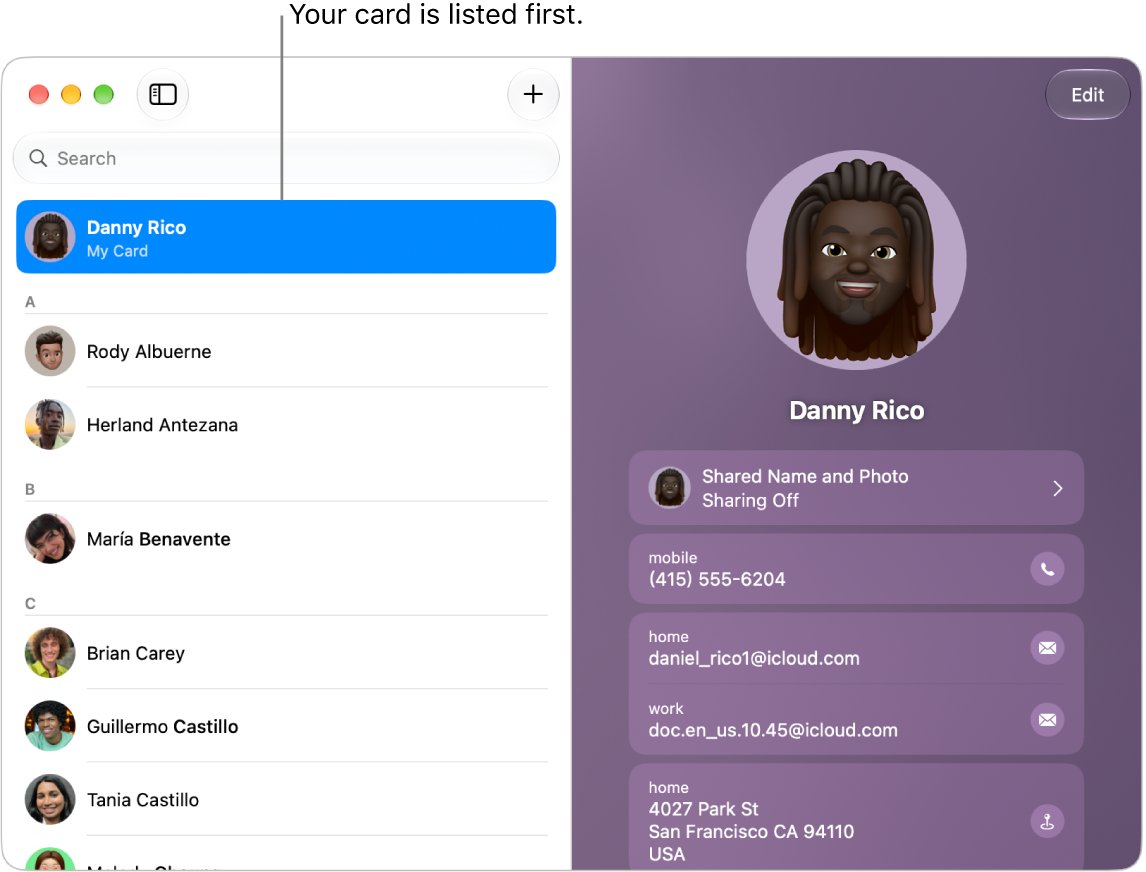
My Card is your own contact card in the Contacts app, and you correct it on iPhone by touching and holding your own contact, tapping Make this My Card, then editing any wrong details.
This covers what the card holds, why it can show another person such as a spouse, how to fix it on iPhone and Mac, and what to do when the wrong name comes back.
How to correct My Card on iPhone
Use this when My Card shows someone else, such as a husband, wife or parent. It changes which contact counts as you and leaves that other person's contact in your list.
- Open the Contacts app on your iPhone.
- Find your own contact in the list.
- If you have no contact of your own, tap the add button and enter your details first.
- Return to the contact list, then touch and hold your own contact.
- Tap Make this My Card.
- Tap My Card at the top of the list and check the name is now yours.
If the top of your list shows no card at all, you can restore a missing My Card, even after deleting the contact.
What is My Card in Contacts on iPhone and Mac
iPhone uses your Apple Account to create My Card, and a Mac creates a card when you set it up. The card is an ordinary contact that your device treats as you, so it sits at the top of the contact list.
| What's on My Card | What reads it | Result of a wrong entry |
|---|---|---|
| Name and pronunciation | Siri | Siri calls you by the wrong name |
| Home and work addresses | Siri and Safari AutoFill | "Give me driving directions home" and web forms use the wrong address |
| Phone number and email | Safari AutoFill | Web forms fill in the wrong contact details |
| Related names, such as a parent or sibling | Siri | Requests like "FaceTime Mom" reach the wrong person |
| Photo, avatar and Contact Poster | Calls, messages and Name & Photo Sharing | People see the wrong image when you call or text |
| Medical ID | Emergency information on your iPhone | Allergies and conditions may belong to someone else |
Why My Card shows the wrong person on iPhone
The cause decides the correction. A wrong card that returns after you fix it points to syncing through iCloud.
| Cause | What you see | How to correct it |
|---|---|---|
| Someone else's contact was designated | My Card shows another person, and only on this device | Touch and hold your contact, then tap Make this My Card |
| Two people use one Apple Account | Both iPhones show the same My Card, and fixing one changes the other | Give each person an Apple Account of their own |
| The Apple Account holds another person's details | A new iPhone starts with that person's name on the card | Edit My Card, and use an Apple Account in your own name |
| Another device chose a different card | A Mac on the same Apple Account shows the wrong card too | Choose the right card on the Mac with Make This My Card |
| The right person, with old details | Your name is right, but the address or number is out of date | Tap My Card, tap Edit and update the fields |
How to change the name on My Card on iPhone
Use this when the card is yours but a detail is wrong. Editing here also updates your AutoFill information.
- Open Contacts and tap My Card at the top.
- Tap Edit.
- Change your first name, last name, phone number or email.
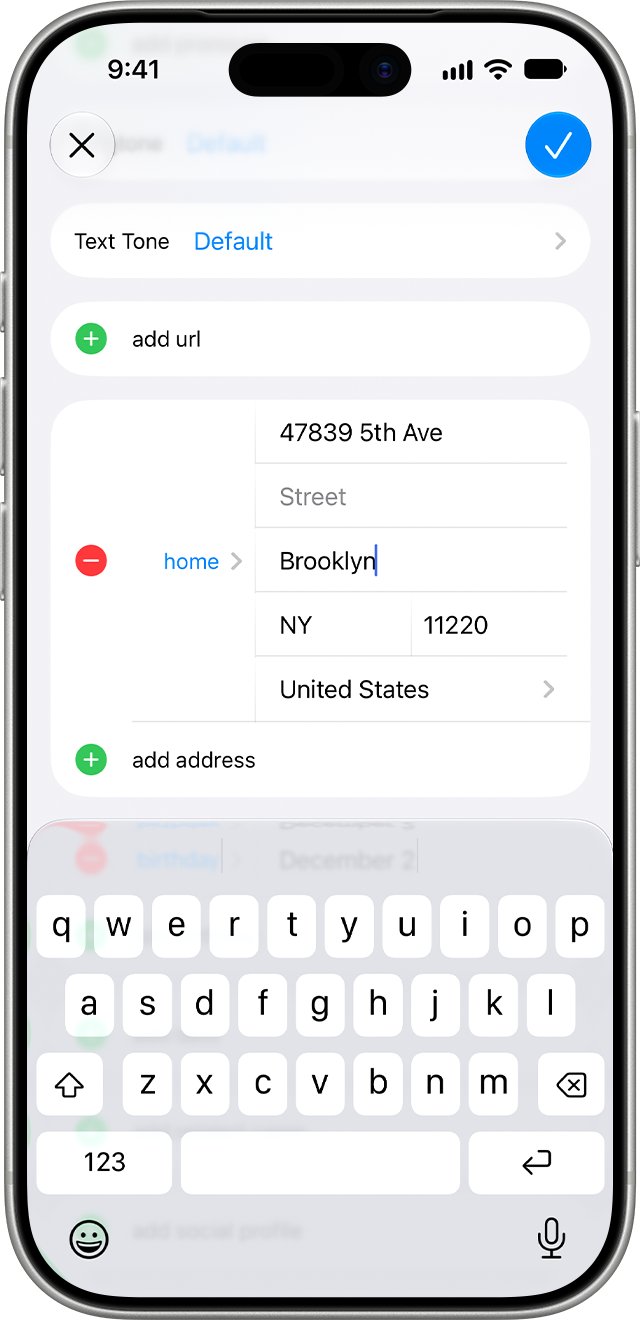
- Tap Add Address if your address is missing, and enter it.
- Tap the label to the left of the address and select Home.
- Save your changes with the button at the top of the card.
How to change My Card on Mac
A card chosen on a Mac also becomes My Card on your other devices when they use the same Apple Account and have Contacts on in iCloud settings.
- Open the Contacts app on your Mac.
- Choose Card > Go to My Card to see which card is set now.
- Select the correct card in the contact list.
- Choose Card > Make This My Card.
- To correct a detail, click Edit at the top of the window, change the field, then click Done.
A picture or Memoji you choose for My Card on a Mac also appears as your Apple Account picture and user login picture.
How to separate My Card when a family shares one Apple Account
My Card follows the Apple Account, so two people on one account keep overwriting each other. Family Sharing lets up to six people share services such as iCloud+ and Apple Music without sharing an Apple Account.
- Agree which person keeps the current Apple Account.
- Check that the other person's data is in an up-to-date iCloud backup or copied elsewhere.
- On that person's iPhone, open Settings, tap their name, scroll down and tap Sign Out.
- Choose Sign Out But Don't Erase, read the prompts on what stays on the device, then tap Confirm and Sign Out.
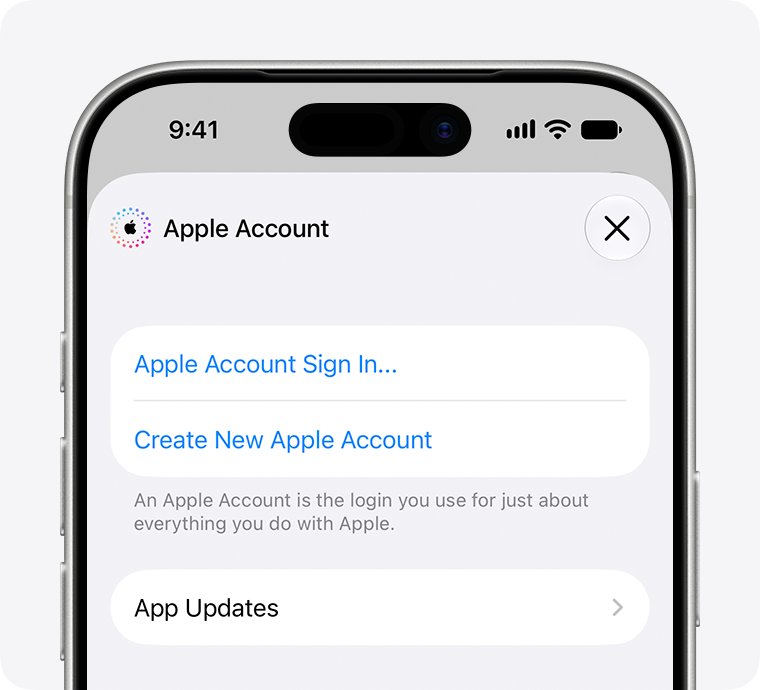
- Open the App Store, tap the My Account button and tap Create New Apple Account, then sign in with it.
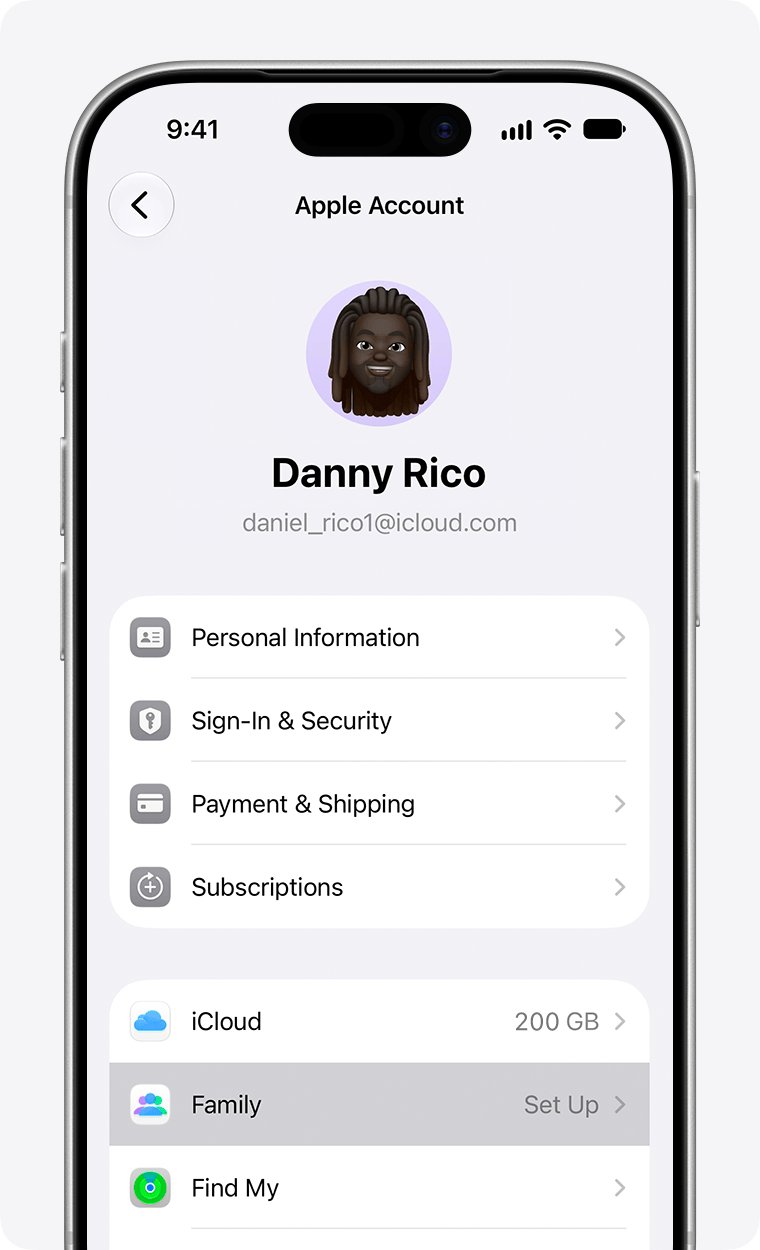
- On the first iPhone, open Settings, tap Family, tap the Add Member button and invite the other person. If no group exists yet, tap your name, tap Family, then tap Continue.
- On the second iPhone, touch and hold that person's contact and tap Make this My Card.
Signing out also turns off services such as Find My, iCloud Photos and Apple Pay on that iPhone until you sign in and set them up again.
How to change your name for Siri on iPhone and Mac
Siri pulls your name, addresses and relationships from My Card, and it needs to be pointed at the right contact.
- Open Settings on your iPhone and tap Siri.
- Tap Your Information, then tap your own name.
- To change how Siri says it, open My Card in Contacts and tap Edit.
- Scroll down, tap add field and select a pronunciation name field.
- Type how your name is said, then save the card.
- On a Mac, add a nickname to your card for Siri to use instead of your first name.
How to change the My Card photo and Contact Poster on iPhone
The avatar and poster appear when you call or message people, so a wrong photo travels beyond your own phone.
- Open Contacts, tap My Card, then tap Edit.
- Tap your contact photo and choose a style.
- Tap Customize to edit your avatar and poster.
- To send your corrected name and photo to others, tap Edit, tap your contact photo and turn on Name & Photo Sharing.
- Choose Contacts Only to share automatically, or Always Ask to get a prompt each time.
When you hand your details to someone, you choose the fields, and it helps to know what information My Card shares before you send it.
How to find out whose name is on My Card
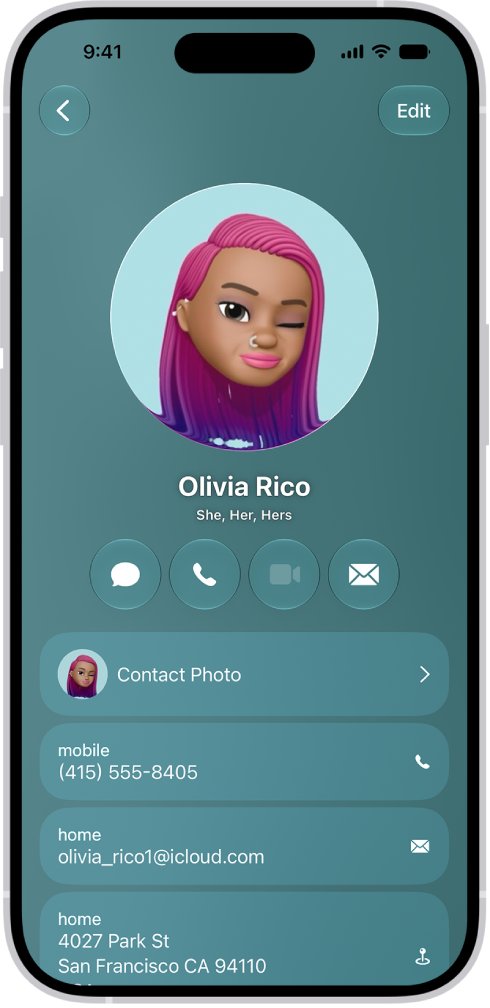
- Open Contacts on your iPhone and read the name at the top of the list.
- Tap My Card and check the number, email and home address are yours.
- Go to Settings > Siri > Your Information and check your own name is selected.
- On a Mac, choose Card > Go to My Card in Contacts and check the same person opens.
- Reopen Contacts later in the day and confirm the right name is still at the top.
My Card shows the wrong name on iPhone
My Card shows my wife's or husband's name
Your spouse's contact is designated as yours, or you both use one Apple Account.
- Touch and hold your own contact and tap Make this My Card.
- Compare the Apple Account at the top of Settings on both iPhones.
- If it matches, give the second person an Apple Account of their own.
My Card changes back to the wrong contact
Another device on the same Apple Account has a different card chosen and is syncing it through iCloud.
- On each Mac, choose Card > Go to My Card in Contacts.
- Select your own card and choose Card > Make This My Card.
- Check that each device has Contacts turned on in iCloud and the same Apple Account.
My Card isn't at the top of Contacts
No contact is currently designated as yours.
- Tap the add button and enter your information, or find your existing contact.
- Return to the contact list and touch and hold your contact.
- Tap Make this My Card.
Siri calls me by someone else's name
Siri reads your name from the card selected under Your Information.
- Go to Settings > Siri > Your Information.
- Tap your own name in the list.
- Correct the name on the card if it's still wrong.
Safari AutoFill fills in the wrong name or address
AutoFill takes its personal information from My Card.
- Open Contacts, tap My Card, then tap Edit.
- Correct the name and address.
- Set the address label to Home; AutoFill updates automatically.
People still see my old name or photo
Name & Photo Sharing is off, or it's set to ask before sharing.
- Open My Card, tap Edit, then tap your contact photo.
- Turn on Name & Photo Sharing.
- Choose Contacts Only to share updates automatically.
My Card on iPhone and Mac FAQ
What is My Card information?
My Card information is the personal data on your own contact card: your name, phone number, email, addresses, birthday, photo, Contact Poster and related names. Siri, Safari AutoFill and Name & Photo Sharing all read from it.
What is on My Card in Contacts?
It holds whatever your Apple Account supplied plus anything you added, such as your address, birthday, pronouns, avatar, poster and a Medical ID. Tap My Card at the top of your contact list, then tap Edit, to see and change each field.
How do I change My Card to a different person?
On iPhone, touch and hold the contact in your list and tap Make this My Card. On a Mac, select the card and choose Card > Make This My Card. The other person's contact stays in your list.
Does Family Sharing cause the wrong My Card?
It shouldn't, because Family Sharing lets each person keep their own Apple Account while sharing services. iPhone builds My Card from your Apple Account, so check whether both people are actually signed in to the same Apple Account.
Can two people on one Apple Account have different My Cards?
Not while both devices have Contacts turned on in iCloud settings. A card chosen on one device is designated as My Card on the others signed in to that Apple Account, so each person needs their own account.
Does editing My Card change other people's contacts?
No. Editing My Card changes only your own card on your devices. Other people see a new name, photo or poster only when you share it, for example through Name & Photo Sharing.
Will changing My Card delete a contact?
No. Make this My Card only changes which contact counts as you. Your spouse's or parent's contact remains in the list with the same details, and you can open and edit it the way you edit any other contact.
Does the My Card photo change my Apple Account picture?
On a Mac, yes. A picture or Memoji chosen for My Card also shows as your Apple Account picture and user login picture. To change it, click Edit at the top of the card, then click your picture.