To remap the Copilot key on Windows 11 26H2, open Settings > Bluetooth & devices > Keyboard and change Customize Copilot key on keyboard to Right Ctrl or Context Menu, an option added by the September 2026 update KB5124010 that the 26H2 build ships with.
This guide covers that remap, the other Copilot key choices, what else changed for Copilot in 26H2, and fixes for the options not appearing or shortcuts breaking.
The fastest way to remap the Copilot key in Windows 11 26H2
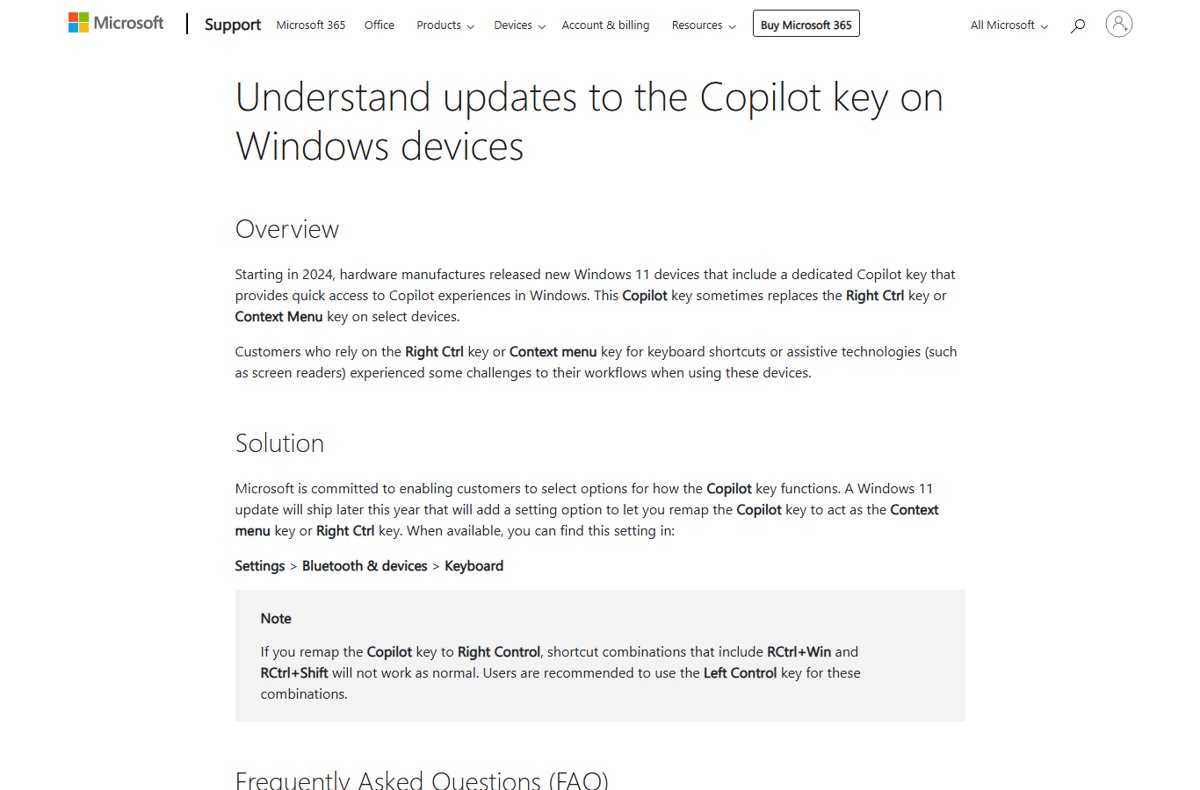
PCs sold since 2024 often replace the Right Ctrl or Context Menu key with a Copilot key. The new setting turns it back into one of those keys.
- Press Windows key + I to open Settings.
- Select Bluetooth & devices, then Keyboard.
- Open the Customize Copilot key on keyboard list.
- Choose Right Ctrl to get a right Control key back, or Context Menu to get the right-click menu key back.
- Press the Copilot key in any app to confirm it now acts as the key you picked.
The option rolls out gradually, so it is not on every PC the day KB5124010 or 26H2 installs. Options also vary with the device maker, keyboard firmware, your account type and your installed apps.
Which Copilot key setting should you pick?
| What you want the key to do | Choose | Trade-off |
|---|---|---|
| Work like the Right Ctrl key your old keyboard had | Right Ctrl | RCtrl + Win and RCtrl + Shift combinations stop working as normal; use Left Ctrl for those |
| Open the right-click context menu, for example with a screen reader | Context Menu | The key no longer opens Copilot; Windows key + C still does |
| Open the consumer Copilot app | Copilot | Signs in with a personal Microsoft account |
| Open the Microsoft 365 Copilot app | Microsoft Copilot | Meant for work or school accounts; shown when the app is installed |
| Open Windows Search | Search | No AI assistant on the key |
| Open another app you choose | Custom | Only apps the list offers on your PC |
What you need before the remap option appears
| Requirement | Detail |
|---|---|
| Windows version | Windows 11, version 26H2, 25H2 or 24H2; the remap setting arrived for all three in KB5124010 |
| Update | KB5124010 (September 22, 2026, OS builds 26300.9550, 26200.9550 and 26100.9550) or a later cumulative update |
| Rollout | Gradual rollout: the setting reaches devices over time, even after the update is installed |
| Hardware | A keyboard with a dedicated Copilot key; what the list offers varies with the manufacturer and firmware |
On 24H2 and 25H2, KB5124010 is an optional update found in Settings > Windows Update > Advanced options > Optional updates. Moving to the new version itself means installing 26H2.
New features in Windows 11 26H2
Most Copilot changes in 26H2 are features Microsoft already shipped to 24H2 and 25H2 through monthly updates; 26H2 switches them on together. These are the Copilot-related ones Microsoft lists for 26H2.
| Change | What it does | Who gets it |
|---|---|---|
| Copilot key remap | Makes the Copilot key act as Right Ctrl or Context Menu | Keyboards with a Copilot key, during the gradual rollout |
| Summarize in File Explorer | The Summarize action in Copilot summarizes OneDrive and SharePoint files without opening them | Requires a Microsoft 365 subscription and a Copilot license |
| Ask Copilot hover action | Hovering over a file in File Explorer Home shows Ask Copilot and Open file location | Users signed in with a work or school account |
| AI agents on the taskbar | Shows the progress of supported AI agents and notifies you when work finishes; Researcher in Microsoft 365 Copilot is the first | Supported agents only |
| Voice access natural language | Accepts filler words and synonyms instead of fixed commands | Supported Copilot+ PCs |
| Kiosk shortcut lockdown | Windows key + C and Windows key + A are disabled in single-app kiosk mode | Kiosk devices |
Non-Copilot 26H2 changes range from the movable taskbar to Administrator protection.
Make the Copilot key open the full Copilot app or quick view
When the key is set to Copilot, the Copilot app decides whether it opens as the full window or a smaller quick view. Windows key + C follows the same setting.
- Press the Copilot key or Windows key + C to open the Copilot app.
- Select your account, then Settings.
- Open Copilot Keyboard Shortcuts.
- Choose whether the shortcut opens the full app or the quick view.
- Close the app and press the Copilot key to check the new behavior.
Turn Ask Copilot on or off in taskbar settings
Microsoft notes that when Copilot is turned on in taskbar settings, it overrides the option chosen for the Copilot key. Turn it off if your remap seems to be ignored.
- Press Windows key + I to open Settings.
- Select Personalization > Taskbar.
- Find the Ask Copilot toggle.
- Turn it off to let the Copilot key setting take effect, or on to launch Copilot from the taskbar and with Windows key + C.
How to check the remap worked
- For Right Ctrl, open a browser and press the Copilot key + T; a new tab should open.
- For Context Menu, select a file on the desktop and press the Copilot key; the right-click menu should appear.
- Open Settings > Bluetooth & devices > Keyboard and confirm the list still shows your choice after a restart.
How to make the key open Copilot again
- Open Settings > Bluetooth & devices > Keyboard.
- Open Customize Copilot key on keyboard.
- Choose Copilot, or Microsoft Copilot on a work or school PC.
- Press the Copilot key to confirm the app opens.
Fix Copilot key remap problems
Right Ctrl and Context Menu are missing from the list
The option is in gradual rollout, or KB5124010 is not installed yet.
- Open Settings > Windows Update > Update history and look for KB5124010 or a later cumulative update.
- If it is missing, install it from Advanced options > Optional updates, then restart.
- Turn on Get the latest updates as soon as they're available in Windows Update to be prioritized for gradual features.
- Check your device maker's support site, because some keyboards and firmware limit the choices.
Shortcuts with Right Ctrl + Win or Right Ctrl + Shift stop working after the remap
Microsoft documents that these combinations do not work normally on a remapped Copilot key.
- Press the same shortcut with the Left Ctrl key instead.
- Switch the key to Context Menu if you rarely need Right Ctrl.
The Copilot key or Windows key + C does nothing, or asks you to set it up
No option is selected in the Copilot key list.
- Open Settings > Bluetooth & devices > Keyboard.
- Pick an option in Customize Copilot key on keyboard.
- Install the Copilot app from the Microsoft Store if Copilot is not in the list.
The remap is ignored and Copilot still opens
Ask Copilot in taskbar settings overrides the key setting.
- Open Settings > Personalization > Taskbar.
- Turn off Ask Copilot.
- Press the Copilot key again.
When will Windows 11 26H2 release?
Windows 11 26H2 is the next major feature update for Windows 11 after 25H2, and it has already been released. Microsoft first delivered 26H2 to certain users, Release Preview Insiders, before general availability.
| Date | Milestone |
|---|---|
| August 27, 2026 | Release Preview Channel gets 26H2, build 26300.9278 |
| September 22, 2026 | KB5124010 ships for 26H2, 25H2 and 24H2, adding the Copilot key remap in gradual rollout |
| September 29, 2026 | General availability, starting with 24H2 and 25H2 PCs that have the early-updates toggle on |
| Next few months | Phased rollout expands to more PCs; Microsoft has not given an end date |
What about Windows 11 26H1?
| Question | Answer |
|---|---|
| What is 26H1? | A Windows 11 release scoped to new devices that came to market in early 2026, on OS build 28000 |
| Can a 24H2 or 25H2 PC install 26H1? | No; Microsoft does not offer it as an in-place update to existing devices |
| Does 26H1 get the Copilot key remap? | Microsoft's KB5124010 notes list 26H2, 25H2 and 24H2 only, and it has not published the remap for 26H1 |
| Is 26H1 older than 26H2? | It shipped first, in February 2026, but it is a separate platform rather than a step on the way to 26H2 |
Frequently asked questions
Can you remap the Copilot key in Windows 11 26H2?
Yes. Go to Settings > Bluetooth & devices > Keyboard and set Customize Copilot key on keyboard to Right Ctrl or Context Menu. The option came with KB5124010 and is rolling out gradually, so it can take time to appear.
Is the Copilot key remap exclusive to 26H2?
No. Microsoft shipped it in KB5124010 for Windows 11 versions 26H2, 25H2 and 24H2, so a 24H2 or 25H2 PC with that update gets the same setting during the gradual rollout.
What can the Copilot key be set to?
Depending on your PC, account and apps, the list offers Copilot, Microsoft Copilot, Search, Custom, and now Right Ctrl and Context Menu. Keyboard makers and firmware can limit which choices appear.
Why do Right Ctrl shortcuts not work after remapping?
Microsoft states that combinations including Right Ctrl + Win and Right Ctrl + Shift do not work normally on a Copilot key remapped to Right Ctrl. Use the Left Ctrl key for those shortcuts.
Does remapping the Copilot key disable Copilot?
No. The Copilot app stays installed and still opens with Windows key + C, from the taskbar, or from Start. Remapping only changes what the physical key does.
Why does my Copilot key still open Copilot after I changed it?
Copilot turned on in Settings > Personalization > Taskbar overrides the key setting. Turn off Ask Copilot there and press the key again.
What Copilot features are new in Windows 11 26H2?
Microsoft lists File Explorer AI actions including Summarize for OneDrive and SharePoint files, an Ask Copilot hover action for work accounts, taskbar tracking for AI agents such as Researcher, and the Copilot key remap.
Can the Copilot key open a different app?
Yes, if the Custom option appears in Customize Copilot key on keyboard. It lets you choose from the apps Windows offers in that list on your PC.