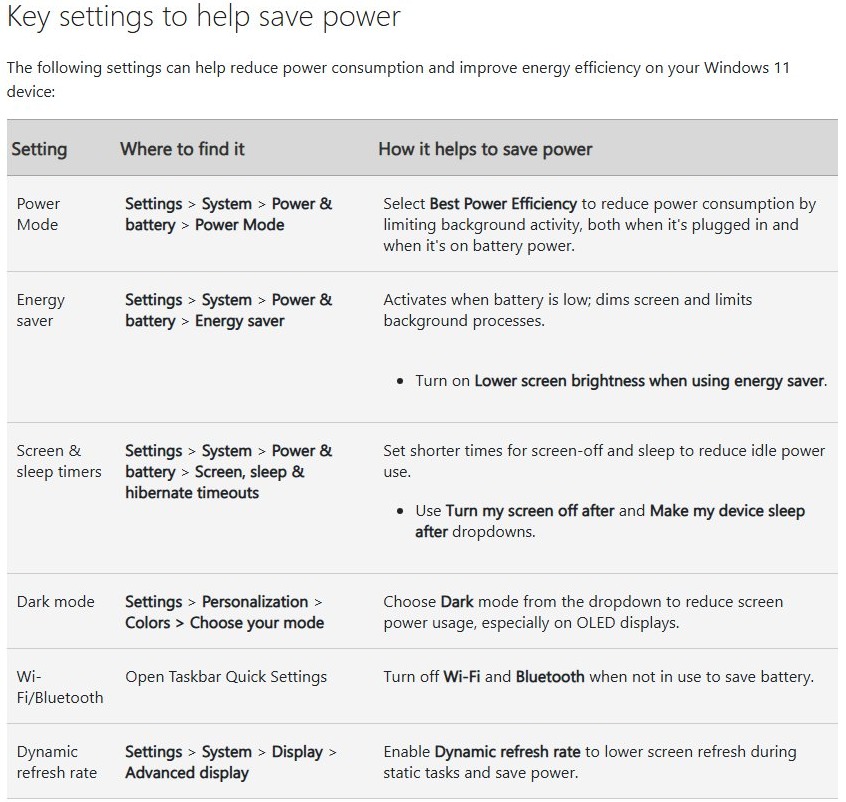
Go to Settings > System > Power & battery and expand Energy saver, the name Battery saver has on Windows 11 24H2 and later, to change when it turns on and how it behaves.
Windows 11 24H1 and earlier and Windows 10 still say Battery saver, so each route is listed below, along with brightness, background apps, power throttling and driver fixes.
Change Battery Saver Mode settings in Windows 11/10
These steps are for Windows 11 24H2 or later, where the feature is called energy saver.
- Select Start > Settings > System > Power & battery.
- Select Energy saver to expand its options.
- Next to Turn energy saver on when battery level is at, select the battery level you want.
- Turn on Lower screen brightness when using energy saver if you want the extra dimming.
- Set Always use energy saver to On if you want it running now.
On older versions, the same choices sit on the screens in the next table. For the wider power page, you can also customize Windows 11 battery settings such as lid and low-battery actions.
Where is battery saver mode in Windows 11 and Windows 10?
Energy saver replaces battery saver on Windows 11 24H2 and later, so your version decides which labels you see.
| Setting | Windows 11 24H2 or later | Windows 11 24H1 and earlier | Windows 10 |
|---|---|---|---|
| Feature name | Energy saver | Battery saver | Battery saver |
| Settings page | System > Power & battery | System > Power & battery | System > Battery |
| Turn on at a battery level | Expand Energy saver, then Turn energy saver on when battery level is at | Select Battery saver, then choose a battery level | Turn battery saver on automatically if my battery falls below: |
| Keep it on until the next charge | Always use energy saver set to On | Turn on now next to Battery saver | Battery saver status until next charge |
| Quick setting | Battery icon in the notification area > Energy saver | Battery icon > Battery saver | Battery icon opens the power mode slider |
By default, battery saver turns on automatically when the battery falls below 20%.
How to turn on battery saver mode in Windows 11
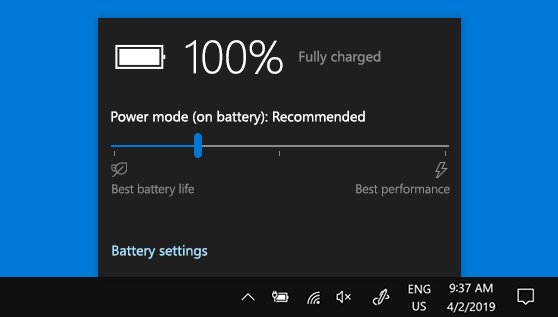
- Select the Battery icon in the notification area of the taskbar.
- Select the Energy saver quick setting. On 24H1 and earlier, select Battery saver.
- To turn it on from Settings instead, go to System > Power & battery and set Always use energy saver to On.
Microsoft recommends leaving energy saver on all the time to get the most battery life, even with plenty of charge left.
How to turn off battery saver mode in Windows 11
- Select the Battery icon in the notification area and clear the Energy saver quick setting.
- Go to Settings > System > Power & battery and expand Energy saver.
- Set Always use energy saver to Off.
- Pick a lower level next to Turn energy saver on when battery level is at, so it starts later.
What battery saver mode changes in Windows 11
Energy saver has two tiers. Some changes apply whenever it is on, and the rest apply only when the PC is unplugged and on low battery.
| What changes | When energy saver is on | When unplugged on low battery |
|---|---|---|
| Power mode | You cannot change it in Settings | Same |
| Display brightness | Reduced by 30%, and you can switch this off | Same |
| Transparency effects | Turned off on window backgrounds | Same |
| Microsoft app sync | No change | OneNote, OneDrive, Phone Link and others may not sync |
| Background apps | No change | Blocked, except apps you allow and categories such as VOIP |
| Windows Update | No change | Non-critical downloads are blocked, but scans still run |
| Telemetry | No change | Only critical telemetry is uploaded |
| Scheduled tasks | No change | Most tasks wait until energy saver ends |
Turn off screen brightness for best energy efficiency in Windows 11
Set the screen brightness for best energy efficiency is an item on the Energy recommendations page. To control screen brightness yourself, manage the dimming option and the display settings directly.
- Go to Settings > System > Power & battery and expand Energy saver.
- Turn off Lower screen brightness when using energy saver.
- Go to Settings > System > Display > Brightness.
- Clear Change brightness automatically when lighting changes and Help improve battery by optimizing the content shown and brightness if either appears.
- Move the slider to the level you want.
The Energy recommendations page has an Apply all button, so avoid it if you want to keep your own brightness and timeout values.
Allow an app to run in the background with battery saver mode on
Energy saver blocks background apps on low battery, but you can let specific apps keep running.
- Go to Settings > System > Power & battery > Battery usage.
- Under Battery usage per app, find the app.
- Select More options > Manage background activity. Only some apps offer this.
- Change the setting under Let this app run in the background.
Why power mode is locked when battery saver mode is on
Windows does not let you change the power mode in Settings while energy saver is on. Turn it off first, then choose a mode for each power state.
- Set Always use energy saver to Off under Settings > System > Power & battery.
- Under Power mode, pick a mode for Plugged in and another for On battery.
- Choose Best power efficiency, Balanced or Best performance.
- If the mode still will not change, go to Control Panel > System and Security > Power Options and select Balanced, because a custom power plan may be active.
Power mode is not available on all PCs, because it depends on the hardware and the manufacturer.
Configure battery saver settings with powercfg
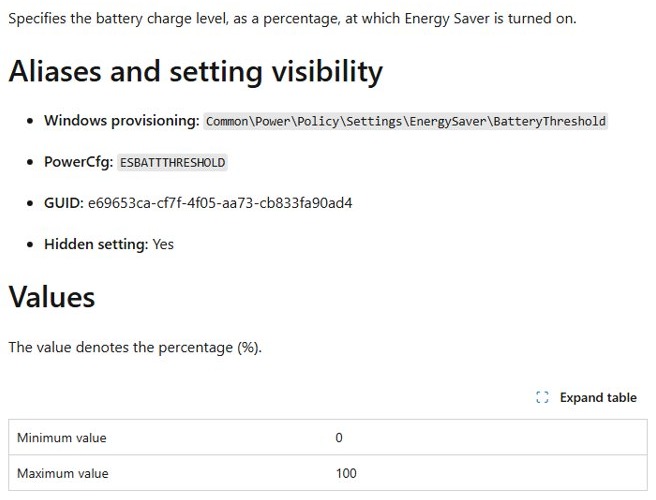
The turn-on level is a hidden power setting with the alias ESBATTTHRESHOLD, under the SUB_ENERGYSAVER subgroup. Its value is a percentage from 0 to 100. Run powercfg /getactivescheme first to get your power scheme GUID.
powercfg /setdcvalueindex <scheme_GUID> SUB_ENERGYSAVER ESBATTTHRESHOLD 30
powercfg /setactive <scheme_GUID>
Replace <scheme_GUID> with your GUID, and 30 with the battery percentage you want. The first line sets the value for battery power, and the second makes the scheme active again so it applies.
You should see: No error message, and the new level next to Turn energy saver on when battery level is at in Settings.
How to enable or disable Power Throttling in Windows 11
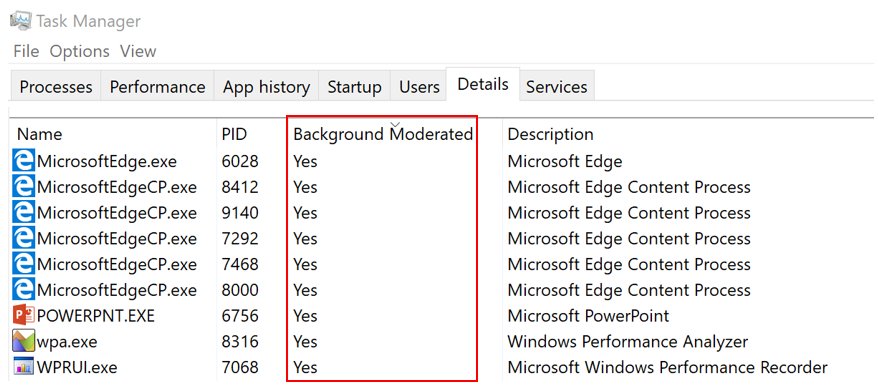
Power Throttling places background work in the CPU's most energy-efficient modes, while foreground apps and apps playing audio keep full performance. Microsoft documents no single Power Throttling switch in Settings, so you control it through power mode and per-app settings.
- To allow it across the PC, set Power mode to Best power efficiency or Balanced under Settings > System > Power & battery.
- To reduce it across the PC, set Power mode to Best performance. Microsoft's original Power Throttling announcement says the best performance setting turns it off.
- To change one app, go to Power & battery > Battery usage, select More options > Manage background activity beside the app, and change Let this app run in the background.
- To stop Windows lowering the foreground app's quality-of-service level when you are idle on battery, set the
DisableUserPresenceQosDWORD to1underHKEY_LOCAL_MACHINE\SYSTEM\CurrentControlSet\Control\Power\PowerThrottling. Back up the registry first.
Microsoft built this behavior for battery life, so reverse any change once a benchmark or a slow background job is done. Set the DWORD back to 0 to restore the default.
Windows 11 screen turns off even when set to Never
Each timeout has a separate value for battery and for plugged-in power, and other features can also turn the screen off. Work through the cases below.
The screen only turns off on battery
The plugged-in and battery timeouts are separate settings.
- Go to Settings > System > Power & battery > Screen, sleep, & hibernate timeouts, which some versions call Screen and sleep.
- Open the Turn my screen off after dropdowns.
- Set Never for both the plugged-in and the battery value.
The timeout went back to 3 or 10 minutes
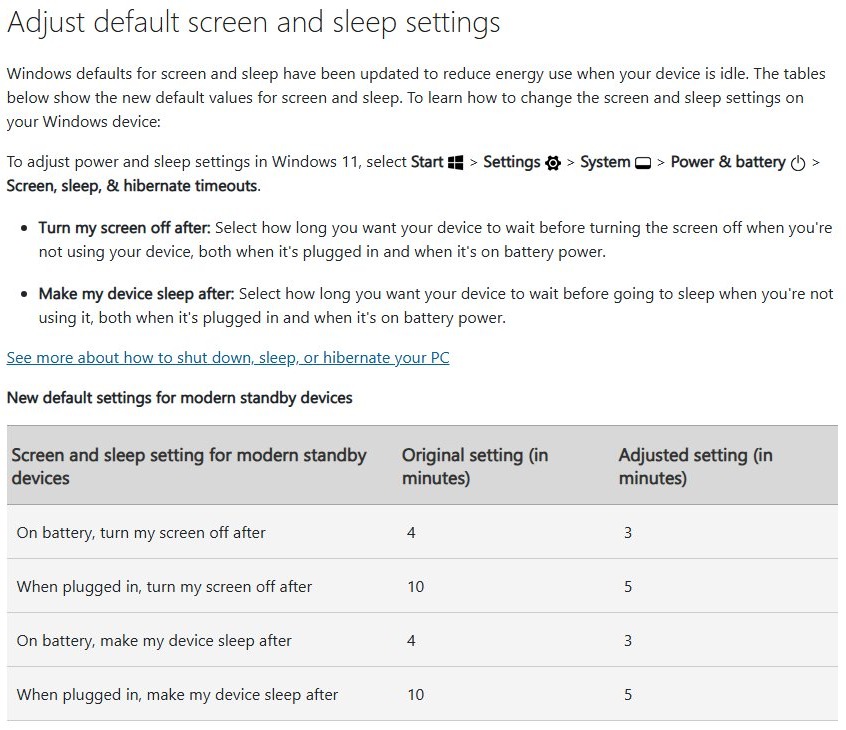
Energy recommendations includes Turn off my screen after 3 (or 10) minutes, which changes the timeout when you apply it.
- Set the timeout back to Never under Screen, sleep, & hibernate timeouts.
- Go to Power & battery > Energy recommendations.
- Avoid Apply all from now on, and apply only the items you want.
The screen turns off when you step away
A PC with a presence sensor can turn off the screen when you leave, whatever the timeout says.
- Go to Settings > System > Power & battery > Screen and sleep.
- Turn off Automatically turn off my screen when I leave.
- Select Energy recommendations and leave Automatically dim my screen when I look away unapplied if it dims the screen too.
The setting does nothing after you change it
A custom power plan may be active, or another power setting may be out of place.
- Go to Control Panel > System and Security > Power Options and select Balanced.
- Go to Settings > System > Troubleshoot > Other troubleshooters, then select Run next to Power.
- Restart the PC from Start > Power > Restart, then check the setting again.
A screen saver is a separate setting, and you can change the screen saver if a picture appears before the screen goes dark.
How to download and install Battery driver in Windows 11/10
Windows Update is the best way to get driver updates, and Microsoft says to avoid driver downloads from any site other than the manufacturer's. Never use a third-party driver updater for this.
- Save your work and connect the charger.
- Right-click Start and select Device Manager, then expand Batteries.
- To update, right-click the battery device, select Update driver, then select Search automatically for updated driver software.
- To use a driver from your PC maker, download it from the manufacturer's site, then select Update driver > Browse my computer for drivers and choose its folder.
- To reinstall, right-click the battery device, select Uninstall device, then confirm with Uninstall.
- Select Start > Restart. Windows tries to reinstall the driver when it starts.
On a Surface, the battery device is listed as Microsoft Surface ACPI-Compliant Control Method Battery or Surface Battery. Do not uninstall it on a Surface Pro X, because Microsoft says a full system reset is then the only way to restore it.
How to tell if battery saver mode is on in Windows 11
- Select the Battery icon in the notification area and check whether the Energy saver quick setting is on.
- Go to Settings > System > Power & battery.
- Try changing Power mode. It stays locked while energy saver is on.
- Expand Battery usage to see how the battery level changed over the last 24 hours.
For a longer record, you can generate a battery health report with powercfg /batteryreport.
Restore battery saver mode in Windows 11
Battery saver is missing from Power & battery
Windows 11 24H2 renamed it, and its controls moved under the Energy saver heading.
- Look for Energy saver on the Power & battery page.
- Check that Device Manager > Batteries lists a battery device. If it does not, use the driver steps above.
- Go to Settings > System > Troubleshoot > Other troubleshooters and select Run next to Power.
Battery saver mode keeps turning on by itself
The turn-on level or the always-on option is still set.
- Set Always use energy saver to Off.
- Choose a lower level next to Turn energy saver on when battery level is at.
- Clear the Energy saver quick setting if it is still on.
Windows 11 battery saver mode FAQ
How do I change battery saver mode?
Go to Settings > System > Power & battery and expand Energy saver. Choose the level next to Turn energy saver on when battery level is at, then set the brightness and Always use options. On older versions, the page says Battery saver.
How do I turn on battery saver?
Select the Battery icon in the notification area, then select the Energy saver quick setting. You can also go to Settings > System > Power & battery and set Always use energy saver to On, which keeps it running.
How do I turn off power saving mode on a Windows 11 PC?
Clear the Energy saver quick setting from the Battery icon, or set Always use energy saver to Off under Settings > System > Power & battery. Then set Power mode to Balanced or Best performance if you also want more speed.
How do I remove battery saver mode?
You can turn it off, but you cannot uninstall it. Set Always use energy saver to Off, clear the quick setting, and pick a lower level next to Turn energy saver on when battery level is at.
How does power saving mode save battery?
It lowers display brightness by 30%, turns off transparency effects and, on low battery, blocks background apps, pauses non-critical update downloads and delays many scheduled tasks. Those limits reduce work for the screen, processor and network while you are away from a charger.
Does battery saver mode damage the battery?
Microsoft describes energy saver as a way to extend battery life and recommends leaving it on all the time, even with plenty of charge left. Its documented changes cover apps, brightness and updates rather than charging, and Microsoft lists no battery risk.
Is battery saver good or bad for laptops?
It is good for runtime and costs some convenience. You get longer battery life, but some apps stop syncing on low battery and the screen gets dimmer. Allow the apps you need to run in the background to keep their notifications coming.
Why can't I change the power mode with battery saver on?
Windows locks the power mode in Settings while energy saver is on. Set Always use energy saver to Off, or plug in if it only started because of low battery, and the Power mode dropdowns can be changed again.