To install Windows 11 26H2 without a USB drive, download the official 26H2 ISO from Microsoft, right-click it in File Explorer, select Mount, and double-click setup.exe to upgrade in place from the running copy of Windows.
This guide covers downloading and checking the ISO, the mount-and-run steps, choosing whether to keep your files, when the ISO is the wrong tool, and what to do when Setup or a USB drive will not cooperate.
Install Windows 11 26H2 by mounting ISO in File Explorer
This works on a PC that already runs Windows 10 or 11 and meets the Windows 11 requirements. No USB drive, DVD or third-party tool is involved.
- Download the Windows 11 26H2 ISO from Microsoft's Download Windows 11 page (steps in the next section).
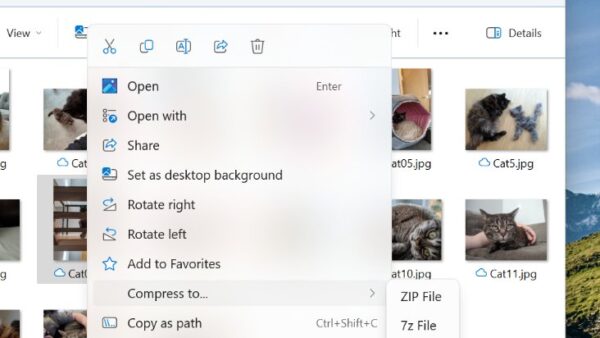
- Open File Explorer, go to the folder with the ISO, right-click it and select Mount.
- Open the new virtual drive that appears under This PC to see the files inside.
- Double-click setup.exe and select Yes if User Account Control asks.
- Step through the Windows 11 Setup pages until you reach Ready to install.
- Keep the default Keep personal files and apps, or select Change what to keep to choose another option.
- Finish the remaining Setup pages and leave the PC running; it restarts several times before the sign-in screen appears.
If Mount is missing from the right-click menu, right-click the ISO, select Properties, and on the General tab select Change… next to Opens with and choose Windows Explorer. Then try again.
Is the ISO the right way to get 26H2 on your PC?
| Your PC runs | Best route | Why |
|---|---|---|
| Windows 11 24H2 or 25H2 | Windows Update | 26H2 arrives as a small enablement package with a single restart; the ISO reinstalls all of Windows instead |
| Windows 11 24H2 or 25H2, but 26H2 not offered yet | ISO, unless a safeguard hold applies | The rollout is phased; Microsoft advises against manual installs on PCs held back for a known issue |
| Windows 10 on hardware that meets Windows 11 requirements | ISO or Installation Assistant | Both upgrade in place; the ISO also works offline once downloaded |
| Windows 11 on an Arm-based PC | Arm64 ISO | The Installation Assistant and Media Creation Tool are x64 only |
| A virtual machine | ISO | Attach the ISO as the VM's DVD drive; no USB is ever needed |
| A PC that will not start Windows | Bootable media | setup.exe needs a working Windows to run from |
The ISO is one of several official ways to download and install 26H2. If Windows Update has not offered 26H2 yet, find out why 26H2 is not showing before forcing it with the ISO.
What you need before you start
| Requirement | Detail |
|---|---|
| A 64-bit PC that meets the Windows 11 requirements | Check with the PC Health Check app on Windows 10; Windows 11 runs only on 64-bit CPUs |
| A Windows license | A Windows 11 license, or a Windows 10 device that qualifies for the Windows 11 upgrade |
| Free disk space | Room for the ISO plus Setup's working files on the Windows drive |
| The same language as your current Windows | Microsoft asks you to choose the same language when you install Windows 11 |
| An administrator account | setup.exe asks for administrator approval |
| A backup | Required before choosing Nothing, and sensible for any upgrade |
The PC's hardware has to meet the 26H2 system requirements. No new product key is needed.
Download the official Windows 11 26H2 ISO
- Open Microsoft's Download Windows 11 page and confirm it reads Current release: Windows 11 2026 Update, Version 26H2.
- Under Download Windows 11 Disk Image (ISO) for x64 devices, choose Windows 11 (multi-edition ISO for x64 devices) and select Confirm.
- Choose the same language as your current Windows and confirm again.
- Select the 64-bit download button and save the file; the link is valid for 24 hours.
- For an Arm-based PC, use the Download Windows 11 for Arm-based PCs page and choose Windows 11 (multi-edition ISO for Arm64) instead.
The multi-edition ISO uses your product key or digital license to unlock the right edition. Direct page links are collected in official 26H2 ISO links.
Check the ISO is genuine before you run it
Microsoft publishes a SHA256 hash for each language's ISO on the download page. Compare it before mounting a file that came through a slow or interrupted download.
Get-FileHash C:\Users\<you>\Downloads\<iso file name>.isoRun in PowerShell. Get-FileHash computes the file's SHA256 hash by default; replace the path with where you saved the ISO.
You should see: The Hash value matches the SHA256 listed for your language on Microsoft's download page. A different value means a corrupted or altered file; download it again.
Keep files or start fresh: the Change what to keep options
| Option on the Ready to install page | What is kept | Use it when |
|---|---|---|
| Keep personal files and apps (default) | Files, apps and Windows settings | A normal upgrade to 26H2 |
| Keep personal files only | Files; apps and settings are removed | You want a clean set of apps but no file restore |
| Nothing | Nothing; files, apps and settings are deleted | A fresh start without making boot media; back up first |
Choosing Nothing from a mounted ISO is the closest thing to a clean install without USB. Installing onto an empty or reformatted drive still needs bootable media.
How to check 26H2 installed
- Sign in once Setup finishes and the desktop loads.
- Right-click Start and select Settings > System > About.
- Under Windows specifications, confirm Version reads 26H2.
- Confirm OS build starts with 26300.
- Open Settings > Windows Update and install any updates now offered.
There are other ways to confirm that 26H2 is installed. The mounted ISO drive can be removed by right-clicking it in File Explorer and selecting Eject.
What happens when the USB drive doesn’t work?
| Goal | Without a working USB drive | What still works |
|---|---|---|
| Upgrade a working PC to 26H2 | No problem | Mount the ISO and run setup.exe, or use Windows Update or the Installation Assistant |
| Wipe apps and files but keep Windows booting | No problem | Mount the ISO and choose Nothing under Change what to keep |
| Install on a new or empty drive | Blocked | Boot media is needed: a DVD of at least 8 GB, or a different USB drive |
| Repair a PC that will not start | Blocked for setup.exe | Use Windows recovery options, or boot media made on another PC |
| Install in a virtual machine | No problem | Attach the ISO directly to the VM |
If the PC starts Windows but has problems, the 26H2 repair options can fix it without any media. For a virtual machine, enable Hyper-V first.
How to fix a USB drive not working in Windows 11?
The USB drive does not appear under This PC
A port, cable or driver problem, which often shows up after an update.
- Plug the drive into a different USB port, preferably one directly on the PC rather than a hub.
- Open Settings > Windows Update > Advanced options > Optional updates and install any driver updates listed.
- Restart the PC and reconnect the drive.
You only needed the USB drive to install 26H2
An in-place upgrade does not need any USB drive.
- Skip the USB drive and mount the ISO in File Explorer instead.
- Run setup.exe from the mounted drive and follow the steps at the top of this guide.
Detection problems specific to this release are covered in 26H2 not detecting USB drives.
Fix Setup when the ISO install fails
Mount is not in the right-click menu
Another app is set to open ISO files.
- Right-click the ISO and select Properties.
- On the General tab, select Change… next to Opens with.
- Choose Windows Explorer, select OK, then right-click the ISO and select Mount.
Setup says the PC does not meet the requirements
The hardware does not meet the Windows 11 minimum requirements.
- Run the PC Health Check app to see which requirement fails.
- Fix what it names, such as turning on TPM or Secure Boot in the firmware settings, if the hardware supports it.
- If the hardware cannot meet the requirements, stay on your current supported version.
Setup fails and rolls back
A driver, app or storage problem stopped the upgrade.
- Disconnect external devices you do not need, such as printers, docks and extra drives.
- Free up space on the Windows drive and install all pending updates first.
- Run setup.exe again from the mounted ISO.
Error codes and deeper fixes are in why 26H2 keeps failing to install, and current problems are listed under 26H2 known issues.
Frequently asked questions
Can I install Windows 11 26H2 from an ISO file without a USB drive?
Yes. Download the 26H2 ISO from Microsoft, right-click it in File Explorer, select Mount and double-click setup.exe. This upgrades the running Windows in place, so it works on any PC that already starts Windows 10 or 11 and meets the requirements.
Does installing 26H2 from ISO delete my files?
Not by default. The Ready to install page defaults to Keep personal files and apps. Only the Keep personal files only and Nothing options remove apps or files, and you must choose them yourself under Change what to keep.
Can I do a clean install of 26H2 from an ISO without USB?
Partly. Choosing Nothing under Change what to keep deletes files, apps and settings for a fresh start. A true clean install that repartitions or formats the drive needs bootable media, because setup.exe runs from inside Windows.
Is the ISO faster than Windows Update for 26H2?
No, on Windows 11 24H2 or 25H2. Windows Update installs 26H2 as a small enablement package with one restart, while the ISO reinstalls all of Windows. The ISO makes sense for Windows 10 upgrades, offline PCs and virtual machines.
Is there a Windows 11 26H2 ISO for Arm PCs?
Yes. Microsoft's Download Windows 11 for Arm-based PCs page lists Version 26H2 and offers a multi-edition ISO for Arm64. Microsoft notes that making bootable media from it may need drivers from the device maker.
Do I need a product key to install 26H2 from ISO?
No new key. The multi-edition ISO uses your existing product key or digital license to unlock the matching edition, and an in-place upgrade keeps your current activation.
Can I install 26H2 from ISO without internet?
Once the ISO is downloaded, Setup can run from the mounted file. Microsoft's download page still lists an internet connection as a requirement for getting the ISO, and Windows Update will want to install newer updates afterwards.
Bottom line
Mount the official ISO and run setup.exe when you need 26H2 without a USB drive, but use Windows Update if you are already on 24H2 or 25H2. The ISO route upgrades any working Windows 10 or 11 PC with files kept, and works for virtual machines and Arm PCs. On 24H2 and 25H2, Windows Update's enablement package gets the same result with one restart and no full reinstall.