To record audio on iPhone, open the Voice Memos app, tap the record button, and tap the stop button when you finish. iPhone saves the recording automatically.
This guide covers every model, background recording, transcripts in Notes, editing, sharing and the fixes for silent or muffled recordings.
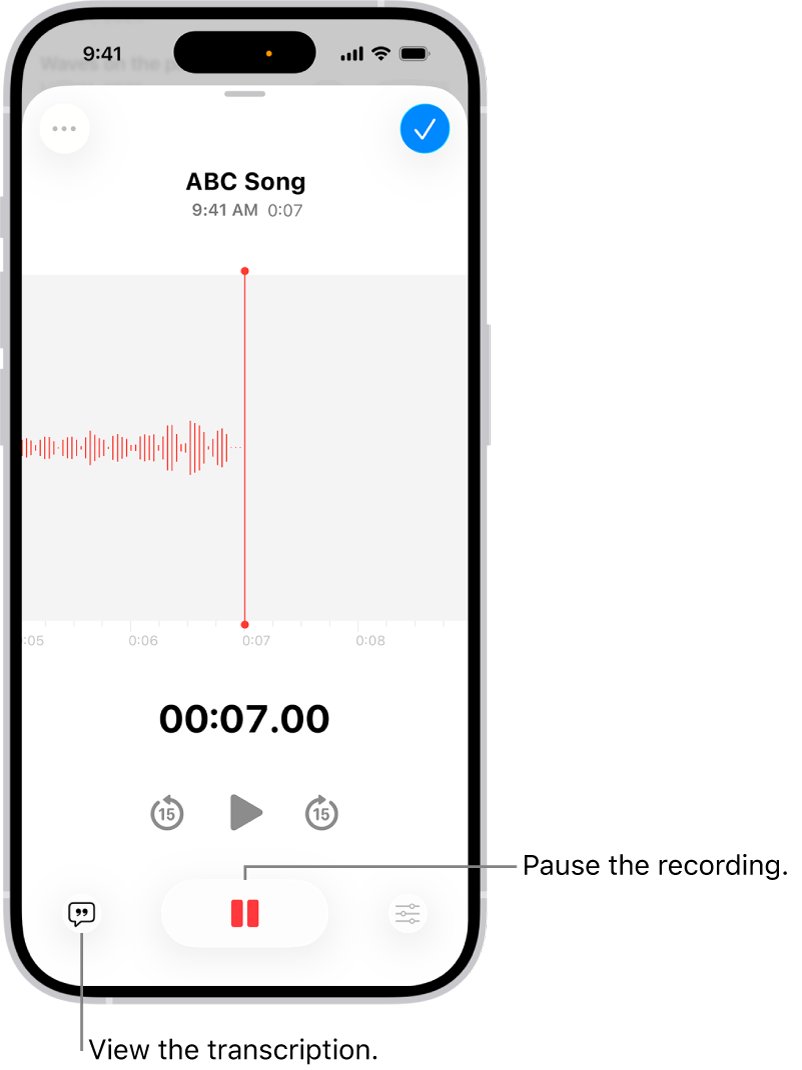
Step by step tutorial: How to record audio on iPhone
Voice Memos is built into iPhone and sits in the Utilities folder on the Home Screen. It records with the built-in microphone, a supported headset or an external microphone.
- Open the Voice Memos app from the Utilities folder.
- Tap the record button to start.
- Move the microphone closer to or farther from the sound to adjust the recording level.
- Tap the stop button to end the recording.
- Tap the recording, tap its name, and type a new name if you want one.
New recordings are called New Recording, or take the name of your location when Location Services is on. An orange dot at the top of the screen shows the microphone is in use.
You can move Voice Memos from the Utilities folder to the Home Screen so it is easier to open next time.
How to use iPhone to record audio: Voice Memos, Notes, Phone and screen recording
Four built-in tools capture sound, and each one saves to a different place. Match the job to a row.
| What you want to record | Use this | Where it is saved |
|---|---|---|
| Your voice, a lecture, a meeting or a music idea | Voice Memos | Voice Memos app, and iCloud when Voice Memos is turned on there |
| Speech you also want as text | Record Audio in the Notes app | Inside the note, with a transcript in supported languages |
| A phone call with one other person | Call Recording in the Phone app, where available | Call Recordings folder in Notes |
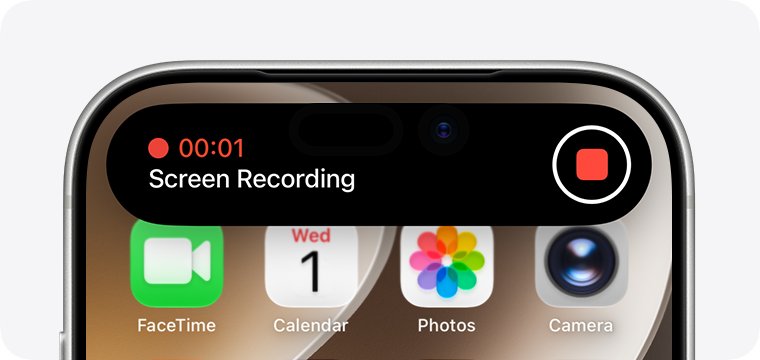
| Sound playing on the iPhone itself | Screen recording from Control Center | Photos, as a video |
When sound is not all you need, you can record video, your screen or a call with the other built-in tools. On a computer, you can record audio on a Mac with the Mac version of Voice Memos.
How to record audio on iPhone 17, 16, 15, 14, 13, 12, 11 and iPhone SE
The Voice Memos steps above are the same on every model. What changes is how you open Control Center, whether Notes can transcribe, and the default sound format for video.
| iPhone | Open Control Center | Notes transcript | Default video sound |
|---|---|---|---|
| iPhone 17 and iPhone 16 | Swipe down from the top-right corner | Yes, in supported languages | Spatial Audio |
| iPhone 16e | Swipe down from the top-right corner | Yes, in supported languages | Check Settings > Camera > Record Sound |
| iPhone 15 Pro, iPhone 15, 14, 13 and 12 | Swipe down from the top-right corner | Yes, in supported languages | Stereo |
| iPhone 11 and iPhone X (iPhone 10) | Swipe down from the top-right corner | Not listed by Apple, which names iPhone 12 and later | Stereo |
| iPhone SE | Swipe up from the bottom edge | Look for the transcript control after you record | Stereo |
Some Voice Memos features vary by model. Wide Spectrum and Spatial Audio are not available on every iPhone, and the options you see in Settings show what your model supports.
How to record stereo, mono or Spatial Audio on iPhone
The recording mode decides how the file sounds when played back. Supported iPhones record in Spatial Audio with the built-in microphone, and earlier models record in Mono unless you change the setting.
- Open the Settings app.
- Tap Apps, then tap Voice Memos.
- Tap Recording Mode.
- Choose Mono for the same audio in both ears, Stereo for separate left and right channels, or Spatial Audio for sound that seems to come from all directions.
Stereo and Spatial Audio use several iPhone microphones. The waveform looks the same either way, so listen through headphones to hear the difference.
For stereo on an older iPhone, use an external stereo microphone or audio interface marked Made for iPhone or Works with iPhone.
How to pause and resume a voice memo on iPhone
You can build one recording in parts instead of ending up with several files.
- Tap the record button in Voice Memos.
- Swipe up from the top of the waveform to see more detail while you record.
- Tap the stop button to pause, then tap Resume to continue in the same recording.
- Tap the play button to review what you have so far.
- Drag the waveform left or right across the playhead to change where playback starts.
- Tap Done to save.
How to record audio in the background on iPhone
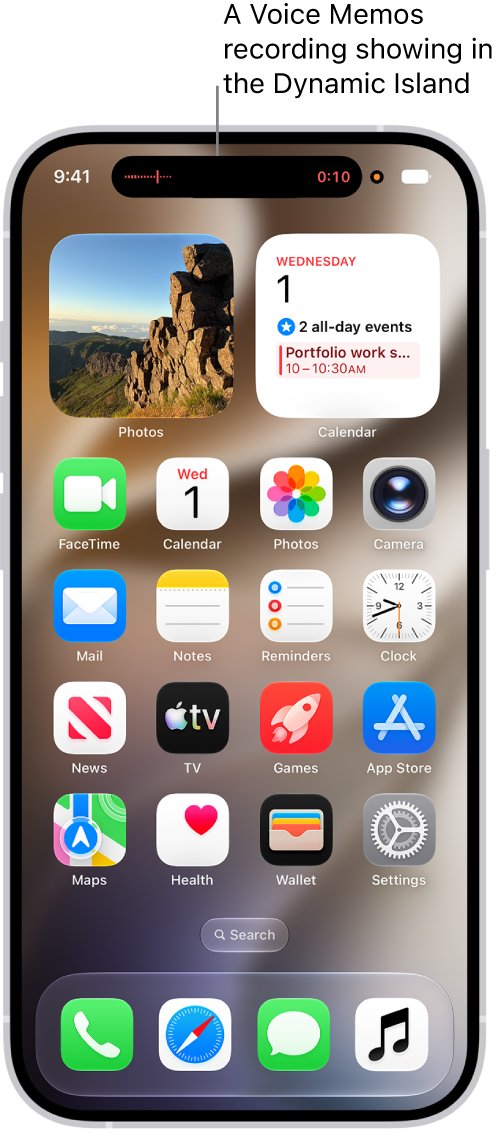
Voice Memos keeps recording while you use other apps, as long as those apps stay silent.
- Start a recording in Voice Memos.
- Go to the Home Screen and open another app.
- Avoid anything that plays sound, because Voice Memos stops recording when another app starts playing audio.
- On supported models, tap the recording in the Dynamic Island to expand it, or go back to Voice Memos to stop it.
How to record audio in Notes on iPhone with a live transcript
Notes suits lectures and interviews because the words appear as text you can search. Transcription works on iPhone 12 and later with the device language set to a supported language, including English, Spanish, French and German.
- Open the Notes app and open a note.
- Open the attachments menu in the note's toolbar, then tap Record Audio.
- Tap the record button to start.
- Swipe down from the top of the screen if you want to type notes while recording.
- Pause and resume from the recording controls, and open the live transcript from the same view.
- Stop the recording and close the recording view to save it in the note.
Tap the audio recording in the note to review the transcript. From there, you can tap any text to hear that point, use Find in Transcript, or choose Add Transcript to Note or Copy Transcript. Deleting the audio also deletes its transcript.
How to reduce background noise in a voice recording on iPhone
Voice Memos can filter the room out or keep it in. Choose the filter before you speak, and use Voice Isolation for speech and Wide Spectrum for music or ambient sound.
- Open Voice Memos.
- Open Control Center.
- Tap Voice Memos at the top of Control Center.
- Select Voice Isolation to filter out background sounds, or Wide Spectrum to include them.
For a recording you already made, open its playback settings, tap Options and turn on Enhance Recording. That reduces background noise and echo on Mono and Stereo recordings during playback, without changing the file. Studio Sound adjusts background sound and reverb on Spatial Audio recordings.
How to edit a voice recording on iPhone
You can remove parts of a recording or record over them. Both jobs start from the waveform view.
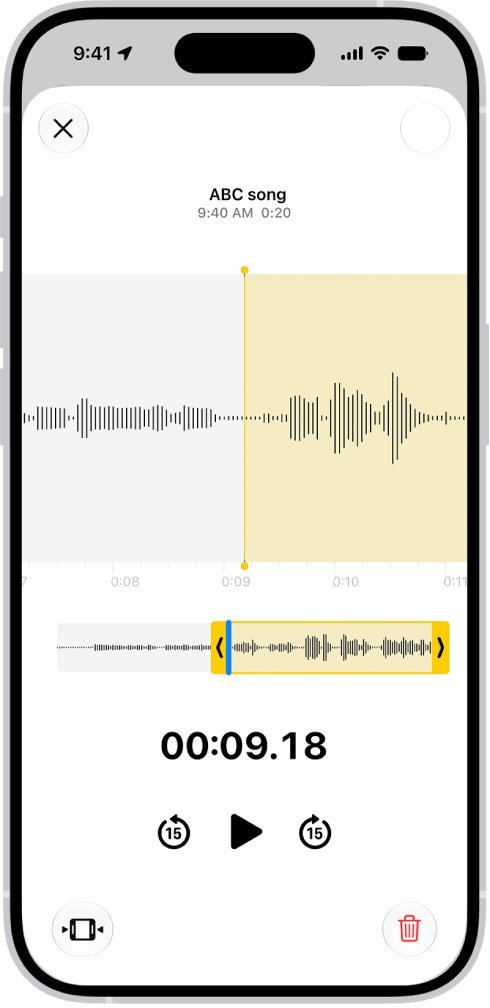
- Open Voice Memos, tap the recording, then open its waveform view.
- To trim, select the trim tool and drag the yellow handles around the section you want to keep or delete. Pinch open on the waveform for a more precise selection.
- Play the selection to check it, then choose whether to keep only that section or delete it.
- To record over part of the file instead, drag the waveform so the playhead sits where the new audio should begin, then tap Replace. The waveform turns red as you record.
- Tap the pause control when you finish, then tap Resume if you need more.
- Save with Save Recording to overwrite the original, or Save as New Recording to keep the original as it was.
On supported models, you can also add a second vocal layer over a recording and balance the two with the Layer Mix slider. Layered recordings use the QuickTime Audio format and do not appear on devices running iOS 18.1 or earlier unless you separate the layers.
How to share a voice memo from iPhone
Voice Memos shares through AirDrop, Mail, Messages and other apps, which is also how you send a recording to a Mac.
- Open Voice Memos and tap the recording.
- Open its actions menu and tap Share.
- Tap Options, then choose Rendered for one .m4a file with effects and layers mixed in, or Editable so a compatible device can still adjust them.
- Choose how to share, then pick or enter the recipient.
- To keep a copy in the Files app instead, scroll the share sheet, tap Save to Files, choose a location and tap Save.
To send several recordings, tap Select above the list and pick them first. Recordings export as .m4a by default, so layered files are flattened and Spatial Audio becomes stereo unless you choose Editable.
How to delete a voice memo on iPhone and get it back
Deleted recordings wait in a Recently Deleted folder for 30 days by default, so a mistake is easy to undo.
- In Voice Memos, tap the recording, then tap the delete button. To remove several, tap Select above the list first.
- To undo it, open the Recently Deleted folder and tap the recording.
- Tap Recover to restore it, or Delete to erase it for good.
- To change how long deleted recordings stay, go to Settings > Apps > Voice Memos > Clear Deleted.
How to play back a voice memo on iPhone
Listen back before you rely on a recording, especially before an interview or a lecture ends. Playback options do not change the file, and each setting stays with that one recording.
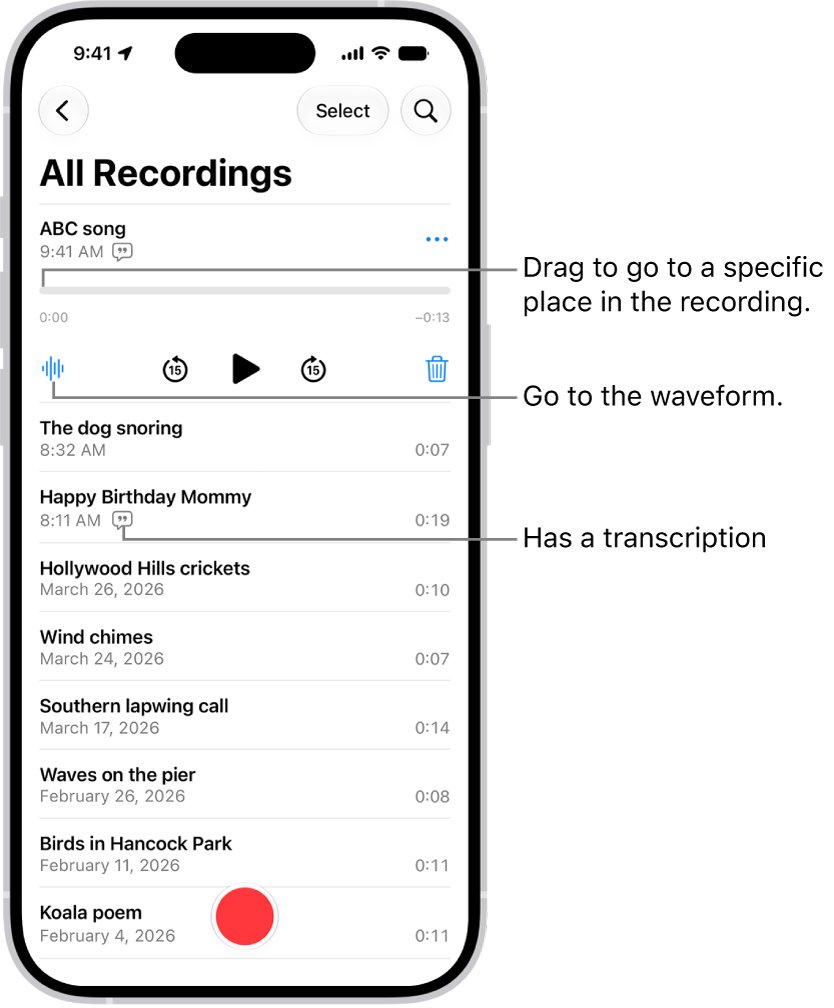
- Open Voice Memos and tap the recording at the top of the list.
- Tap the play button. The newest recording should run from start to finish with clear sound.
- Use the skip controls to jump 15 seconds backward or forward.
- Open the recording's playback Options to change speed with the slider, or turn on Skip Silence to pass over gaps in Mono and Stereo recordings.
Where are voice memos saved on iPhone?
Voice memos stay inside the Voice Memos app unless you export them. These are the places iPhone audio ends up.
| Recording | Saved in | How to find or sync it |
|---|---|---|
| Voice memo | Voice Memos app | Turn on sync in Settings > your name > iCloud > See All > Voice Memos |
| Exported voice memo | Files app | The location you picked in Save to Files |
| Notes audio | The note you recorded in | Open the note and tap the audio recording |
| Phone call | Notes app | Call Recordings folder |
| Screen recording with sound | Photos app | Your library, as a video |
With iCloud sync on, recordings update automatically on your iPhone, iPad and Mac signed in to the same Apple Account.
iPhone audio recording not working
Why did my iPhone record video with no audio?
A blocked microphone is the usual cause in Camera. In a screen recording, the microphone is off unless you turn it on, and some apps do not allow recording.
- Remove any screen protector, film or case, and clear debris from the microphone openings.
- Record a short video in Camera while speaking at the top of the iPhone, then play it back.
- Tap the camera chooser, switch cameras, and record another test clip.
- For a screen recording, open Control Center, touch and hold the Screen Recording control, and tap Microphone to turn it on.
Voice Memos stopped recording on its own
Another app started playing audio while the recording ran in the background.
- Return to Voice Memos.
- Tap Resume if the recording offers it, or start a new one.
- Use only apps that stay silent until you finish.
Voice recording sounds muffled or quiet
The microphone is blocked or too far from the sound. Voice Memos sets the level by distance.
- Remove any case or film and clear the microphone openings.
- Open Voice Memos, tap the record button, speak at the bottom of the iPhone, then stop.
- Play the memo back. You should hear your voice clearly.
- If it is still unclear, contact Apple Support about the microphone.
Wide Spectrum or Spatial Audio is missing on iPhone
These features are not available on every iPhone model.
- Go to Settings > Apps > Voice Memos > Recording Mode to see what your model offers.
- Choose Stereo if Spatial Audio is not listed.
- Use Voice Isolation for speech when Wide Spectrum is not listed.
No transcript in the Notes recording
Your iPhone does not meet the requirement or does not detect a supported language.
- Confirm the iPhone is an iPhone 12 or later.
- Check that the device language is a supported one.
- Record again, speaking clearly in that language.
Voice memos are not showing on my iPad or Mac
Voice Memos is off in iCloud, or the devices use different Apple Accounts.
- On iPhone, go to Settings > your name > iCloud > See All and turn on Voice Memos.
- Do the same on your other devices.
- Check that every device is signed in to the same Apple Account.
Tips: How to get the most out of recording audio on iPhone
| Tip | Why it helps |
|---|---|
| Get the microphone close to the source | Apple's way to adjust the level is to move the microphone closer or farther away |
| Use Voice Isolation for speech and Wide Spectrum for music | One filters the room out, and the other keeps it |
| Turn on Silent mode in Control Center before you record | Mutes the start and stop tones |
| Use a headset or external microphone for distant sources | Voice Memos supports both, and they sit closer to the sound |
| Keep other apps quiet during a long recording | Audio from another app stops Voice Memos |
| Name each recording right after you stop | Otherwise it stays New Recording or takes your location name |
| Ask before you record someone on a call | Apple asks you to make sure the other person is willing to be recorded |
Record audio on iPhone: frequently asked questions
Can I record audio on my iPhone?
Yes. Every iPhone includes the Voice Memos app, which records with the built-in microphone, a supported headset or an external microphone. You can also record audio in the Notes app and, in supported regions, record phone calls in the Phone app.
How do I record audio on iPhone 16?
Open Voice Memos and tap the record button, then tap the stop button when you finish. The steps match other iPhones. On supported models, the built-in microphone records in Spatial Audio automatically, and you can change that in Settings > Apps > Voice Memos > Recording Mode.
How do I record audio on iPhone 15 Pro or iPhone 17?
Use Voice Memos in the Utilities folder, the same as any iPhone. Tap the record button to begin and the stop button to end. Both models also run Notes audio transcription, so Notes is a good choice when you want the words as text.
How do I record audio on iPhone SE?
Open Voice Memos and tap the record button, exactly as on other iPhones. The difference is Control Center, which you open by swiping up from the bottom edge on a model with a Home button. You need it for Voice Isolation and for Silent mode.
How do I delete a recording?
In Voice Memos, tap the recording and then tap the delete button, or tap Select above the list to remove several at once. Deleted recordings stay in the Recently Deleted folder for 30 days by default, so you can recover one if you change your mind.
Can I record audio in the background while using other apps?
Yes. Start the recording, go to the Home Screen and open another app. Voice Memos keeps recording as long as the other app does not play audio on your iPhone. If that app starts playing sound, Voice Memos stops recording.
Is there a time limit on how long I can record?
Apple's Voice Memos guide does not state a time limit. In practice, free storage is what you need to watch on long recordings, so check Settings > General > iPhone Storage before a long lecture or meeting and make room first.
Can I record phone calls with the Voice Memos app?
Use the Phone app instead, because Apple's call recording feature lives there. During a call with one other person, start Call Recording. Both people hear an audio notice, the file saves to the Call Recordings folder in Notes, and the feature is not available in every region.
How can I improve the quality of my recordings?
Move the microphone close to the source, choose Voice Isolation for speech or Wide Spectrum for music, and remove any case or film covering the microphones. An external microphone marked Made for iPhone or Works with iPhone also helps with stereo on older models.
Can I record the sound playing on my iPhone?
Yes, with a screen recording from Control Center, which saves a video with sound to Photos. Some apps do not allow their audio or video to be recorded. Voice Memos itself uses the microphone, and it stops when another app plays audio.