The KB5121794 offline installer is a single .msu file of about 173 KB for x64 PCs and 175 KB for ARM64 PCs, and the direct links from Microsoft's download server are below.
This guide covers which file your PC needs, the KB5124010 prerequisite, three ways to install the .msu (double-click, wusa.exe and DISM), adding it to an offline image, and fixes for the errors you are most likely to hit.
The fastest way to install KB5121794 from the .msu file
This works on a Windows 11 24H2 or 25H2 PC that already has the September 22, 2026 update KB5124010 or a later cumulative update.
- Open Settings > System > About and check Device specifications to see whether the PC is 64-bit (x64) or ARM-based.
- Download the matching KB5121794 .msu file from the links in the next section.
- Double-click the downloaded .msu file.
- Confirm the Windows Update Standalone Installer prompt to install the update.
- Restart the PC when the installer finishes. One restart completes the move to version 26H2.
Download Windows 11 26H2 Enablement Package (KB5121794)
Both files sit on catalog.sf.dl.delivery.mp.microsoft.com, the server that hosts Microsoft Update Catalog downloads. Each is dated August 27, 2026.
Microsoft's KB5121794 article lists the package as available only through Windows Update and WSUS, and a Microsoft Update Catalog search for KB5121794 returns no results. The files are still on Microsoft's own server; they are simply not listed in the catalog search.
- KB5121794 for x64 (Intel and AMD) – 173 KB —
Windows11.0-KB5121794-x64_5e20a3cce48d6611b16bdec42b07167f5456586a.msu, 177,535 bytes - KB5121794 for ARM64 – 175 KB —
Windows11.0-KB5121794-arm64_77a76caf2d362bb293a4d18058388f2717365abe.msu, 178,969 bytes
The file is this small because 24H2, 25H2 and 26H2 share the same system files. The 26H2 features already sit dormant on an up-to-date 24H2 or 25H2 PC, and the KB5121794 enablement package only switches them on.
Which install method should you use?
| Your situation | Use this | Why |
|---|---|---|
| One PC, and you want the simplest route | Double-click the .msu | The Windows Update Standalone Installer does the rest |
| A script, a batch file or a remote session | wusa.exe with /quiet /norestart |
Installs without prompts and lets you choose when to restart |
| You want a clear success or error message in the console | DISM /Online /Add-Package |
DISM checks whether the package applies and reports the result |
| A Windows image (install.wim) you deploy to many PCs | DISM /Image:<mount folder> /Add-Package |
Adds the package offline so every PC built from the image starts on 26H2 |
| PCs managed through WSUS | Approve Windows 11, version 26H2 in WSUS | Microsoft syncs it under product Windows 11, classification Upgrades |
| You would rather not handle files at all | Settings > Windows Update > Download & install | Microsoft is rolling 26H2 out in phases, so the offer may not appear yet |
The ISO and the Installation Assistant are other official ways to install 26H2.
Install the KB5124010 prerequisite first
KB5121794 installs only on top of Windows 11 version 24H2 or 25H2 with the September 22, 2026 update KB5124010 or a later cumulative update. KB5124010 is listed in the Microsoft Update Catalog, unlike the enablement package.
| Requirement | How to check | If it is missing |
|---|---|---|
| Windows 11, version 24H2 or 25H2 | Settings > System > About, then Version under Windows specifications | Older versions and Windows 10 need the 26H2 ISO or Installation Assistant instead |
| KB5124010 or a later cumulative update | OS build 26100.9550 (24H2) or 26200.9550 (25H2) or higher on the same page | Install it from Settings > Windows Update > Advanced options > Optional updates, or from the catalog |
| The right architecture | Device specifications on the About page | Download the x64 file for Intel and AMD PCs and the ARM64 file for ARM-based PCs |
| Administrator rights | Your account type | wusa.exe and DISM need an elevated Command Prompt or PowerShell window |
To get KB5124010 offline, open the KB5124010 search in the Microsoft Update Catalog and pick the row that matches the version the PC runs now (24H2 or 25H2) and its architecture. Each file is about 4.9 GB for x64 and 4.8 GB for ARM64. Microsoft may also list a checkpoint update, KB5043080; put both .msu files in one empty folder and install them in order, checkpoint first.
How to install an .msu file on Windows 11 by double-clicking it
An .msu file is a Windows Update Standalone Installer package. It holds the update metadata, one or more .cab files and an .xml file describing the package, and Windows opens it with wusa.exe from the %windir%\System32 folder.
- Open File Explorer and go to the folder that holds the downloaded .msu file.
- Close open apps and save your work, because the update ends in a restart.
- Double-click
Windows11.0-KB5121794-x64_5e20a3cce48d6611b16bdec42b07167f5456586a.msu, or the arm64 file on an ARM PC. - Confirm the Windows Update Standalone Installer prompt to start the installation.
- Wait for the installer to finish, then restart the PC when asked.
Install KB5121794 silently with wusa.exe
Search the Start menu for Command Prompt, right-click it and select Run as administrator. Change to the download folder, then run the command below.
wusa.exe Windows11.0-KB5121794-x64_5e20a3cce48d6611b16bdec42b07167f5456586a.msu /quiet /norestart/quiet runs the installer without any user interaction. /norestart stops it restarting the PC, so you restart when it suits you. On an ARM PC, use the arm64 file name instead. Other documented switches include /forcerestart, which closes apps and restarts, and /warnrestart, which warns before a restart when used with /quiet.
You should see: The command returns without an error window. After a restart, the PC reports version 26H2.
Install KB5121794 with DISM /Online /Add-Package
DISM can add an .msu package to a running copy of Windows 11, version 21H2 or later. It checks whether each package applies and shows an error if it cannot be applied.
DISM /Online /Add-Package /PackagePath:C:\Packages\Windows11.0-KB5121794-x64_5e20a3cce48d6611b16bdec42b07167f5456586a.msu/Online targets the Windows installation you are running. /Add-Package installs the .msu from the path given in /PackagePath. Run it from an elevated Command Prompt. The PowerShell equivalent is Add-WindowsPackage -Online -PackagePath "C:\Packages\<file name>.msu".
You should see: DISM finishes without an error message. Restart the PC to complete the move to 26H2.
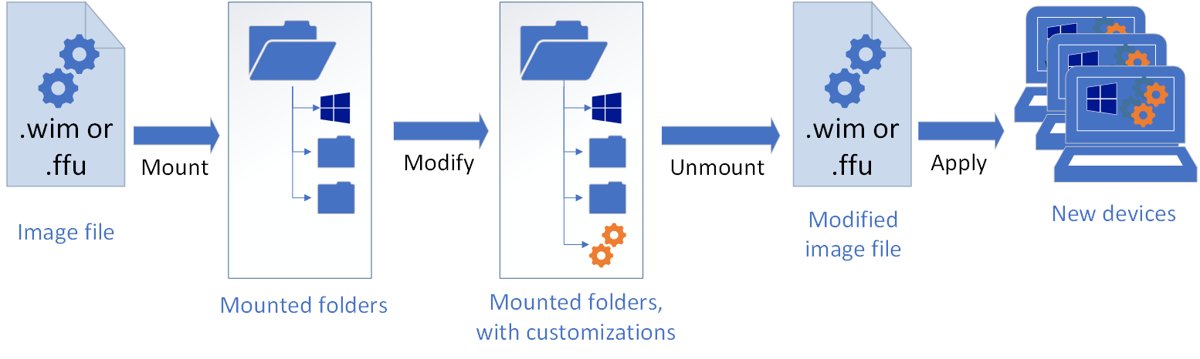
Add KB5121794 to an offline image or many PCs
An offline image must already contain KB5124010 or a later cumulative update, just like a running PC. A package added offline stays install pending until the image boots and processes its online actions.
- Open Command Prompt as administrator.
- Mount the image:
DISM /Mount-Image /ImageFile:C:\Images\install.wim /Index:1 /MountDir:C:\Mount. - Add the package:
DISM /Image:C:\Mount /Add-Package /PackagePath:C:\Packages\Windows11.0-KB5121794-x64_5e20a3cce48d6611b16bdec42b07167f5456586a.msu. - Save the change and unmount:
DISM /Unmount-Image /MountDir:C:\Mount /Commit. - Repeat for each edition index in the image that you deploy.
To deploy the file to managed PCs with Intune instead, Microsoft documents packaging an .msu as a Win32 app with the install command wusa.exe <full path of the .msu file> /quiet /norestart -Wait. Microsoft recommends its feature update policies over that route.
How to check KB5121794 installed
- Restart the PC if you used
/norestartor postponed the restart. - Type
winverin the taskbar search box and press Enter. - Confirm the About Windows box shows Version 26H2 and an OS build that starts with 26300.
- For more detail, open Settings > System > About and check Version and OS Build under Windows specifications.
With KB5124010 installed first, the build reads 26300.9550. A 25H2 PC on the same update shows 26200.9550, and 24H2 shows 26100.9550, so the change in the first five digits is the proof the package worked.
Fix KB5121794 .msu install errors
"The update is not applicable to your computer"
The PC does not meet the package's conditions: wrong Windows version, missing KB5124010, or the wrong architecture.
- Open Settings > System > About and confirm Version reads 24H2 or 25H2.
- Check the OS build is 26100.9550 or 26200.9550 or higher; if not, install KB5124010 first.
- Compare Device specifications with the file name:
x64for Intel and AMD PCs,arm64for ARM PCs. - Run the .msu again after a restart.
The installer says the update is already installed
The PC is already on 26H2, either from Windows Update or from an earlier install of the same file.
- Run
winverand check for Version 26H2 and build 26300. - If the version is correct, no further action is needed.
DISM stops with an error while adding the package
DISM checked the package against the Windows installation and found it cannot be applied, or pending changes from another update are waiting for a restart.
- Restart the PC to clear pending actions from earlier updates.
- Confirm the
/PackagePathpoints at the full .msu file name, including the long hash. - Install KB5124010 or a later cumulative update, restart, and run the DISM command again.
The PC shows 26H2 but something stopped working
Microsoft has confirmed several known issues in the first 26H2 release.
- Check Microsoft's list of confirmed problems, summarised in the 26H2 known issues and fixes.
- Install the newest cumulative update from Settings > Windows Update, since fixes arrive that way.
Frequently Asked Questions
How do I install an .msu file on Windows 11?
Double-click the .msu file and confirm the Windows Update Standalone Installer prompt, then restart when asked. For a silent install, run wusa.exe <file>.msu /quiet /norestart from an elevated Command Prompt, or use DISM /Online /Add-Package /PackagePath:<file>.msu.
What is KB5121794?
KB5121794 is the enablement package that moves Windows 11 version 24H2 or 25H2 to version 26H2. The 26H2 features already sit dormant in recent cumulative updates, and this small package switches them on with a single restart.
Where can I download the KB5121794 .msu file?
The x64 and ARM64 .msu files are on Microsoft's catalog download server, linked in this guide. Microsoft's KB article lists the package as available through Windows Update and WSUS, and a Microsoft Update Catalog search for KB5121794 returns no results.
How big is the KB5121794 offline installer?
The x64 file is 177,535 bytes, about 173 KB, and the ARM64 file is 178,969 bytes, about 175 KB. It is small because it only turns on features that the latest cumulative update already installed on the PC.
Can I install KB5121794 on Windows 11 23H2 or Windows 10?
No. Microsoft lists Windows 11 version 24H2 and 25H2 as the only versions the package applies to. A PC on 23H2 or Windows 10 needs the 26H2 ISO or the Installation Assistant for a full upgrade instead.
Do I need KB5124010 before KB5121794?
Yes. Microsoft requires the September 22, 2026 update KB5124010 or a later cumulative update before the enablement package will install. KB5124010 is available through Windows Update optional updates and in the Microsoft Update Catalog.
Which KB5121794 file do I need, x64 or ARM64?
Open Settings > System > About and check Device specifications. PCs with Intel or AMD processors use the x64 file. PCs with an ARM-based processor use the ARM64 file.
How long does KB5121794 take to install?
Microsoft does not publish an install time, but it describes the enablement package as small and quick to install. The move from 24H2 or 25H2 to 26H2 needs a single restart, which Microsoft says reduces update downtime.