To run the setup wizard on Windows 11, open setup.exe from Windows 11 installation media (a USB drive or a mounted ISO) and follow the Windows 11 Setup pages.
This guide also covers a clean install from USB, every first-run screen, re-running those screens with Reset this PC, running an app's own setup wizard, and fixes when Setup fails.
The fastest way to run Windows 11 Setup
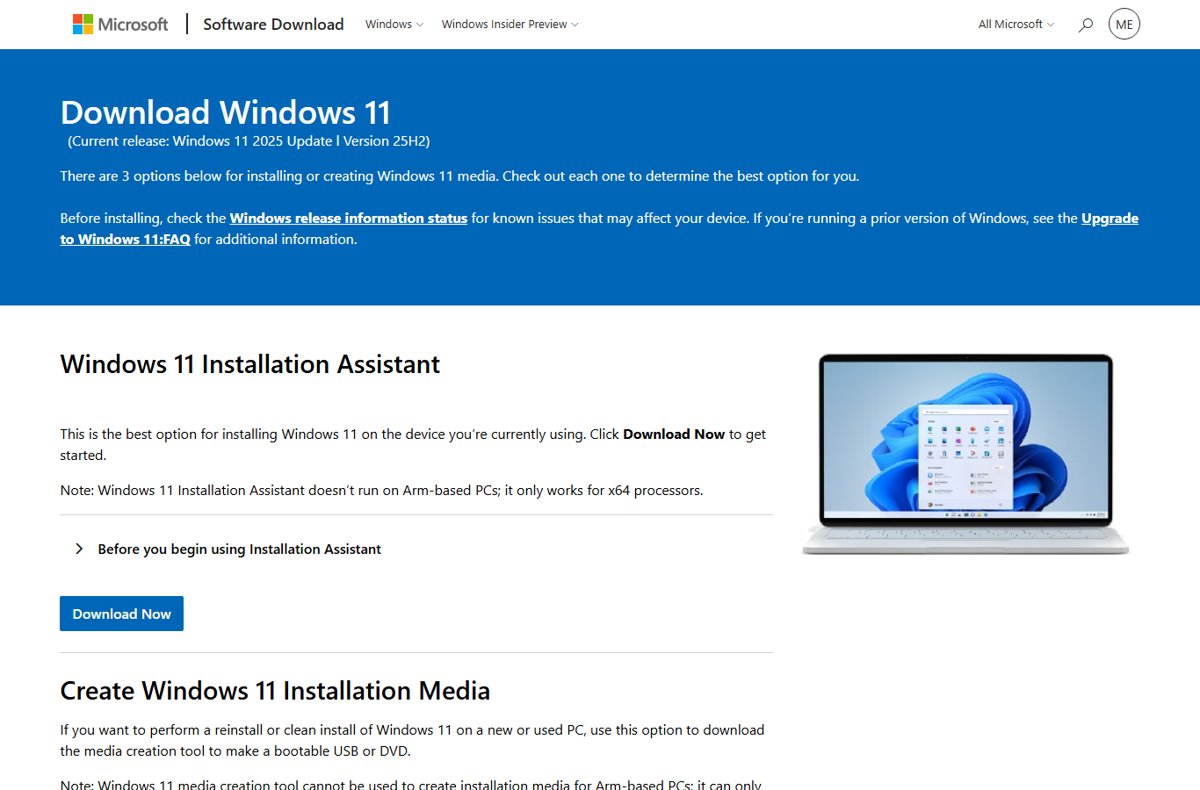
This route runs Setup from inside Windows, so you keep your files and apps unless you choose otherwise. You need Windows 11 installation media first: a USB drive made with the Media Creation Tool, or the Windows 11 ISO from Microsoft's download page.
- Plug in the Windows 11 USB drive, or right-click the downloaded Windows 11 ISO file and select Mount.
- Open File Explorer, select This PC, and open the drive that holds the installation files.
- Double-click setup.exe in the root of the drive. Select Yes at the User Account Control prompt.
- Step through the Windows 11 Setup pages until you reach Ready to install.
- Select Change what to keep if you want something other than the default Keep personal files and apps, then select Next.
- Select Install. The PC restarts several times and ends at the Windows sign-in screen.
If a pop-up appears when you insert the USB drive, selecting Run setup.exe does the same thing as step 3.
Which setup wizard do you need?
People say "setup wizard" for several different Windows screens. Match your goal to a row, then jump to that section.
| Your situation | Run this | What happens to your files |
|---|---|---|
| Upgrading a Windows 10 PC that meets the requirements | Windows Update, or the Windows 11 Installation Assistant | Kept |
| Repairing or refreshing Windows 11 and keeping everything | setup.exe from USB or ISO (in-place), or Fix problems using Windows Update | Kept, unless you pick another option under Change what to keep |
| Seeing the first-run screens (region, keyboard, account) again | Reset this PC in Settings | Kept with Keep my files, erased with Remove everything |
| New drive, a PC that won't start, or a fully clean start | Boot from the Windows 11 USB drive | Everything on the system drive is erased |
| Installing a program | The program's own installer (often setup.exe) or Microsoft Store | Not affected |
Understanding the Windows 11 Setup Wizard
Windows 11 has no single "setup wizard" app. Microsoft uses separate tools for installing Windows, for the first-run screens and for installing programs.
| Wizard | What it does | How you start it |
|---|---|---|
| Windows 11 Setup | Installs, upgrades or reinstalls Windows 11 | setup.exe on installation media, or booting from that media |
| Out-of-box experience (OOBE) | The first-run screens: language, region, keyboard, network, account, privacy | Runs automatically after a new install, a clean install or Reset this PC |
| Windows 11 Installation Assistant | Upgrades the current Windows 10 PC in place | Download from Microsoft's Windows 11 download page and run it |
| Media Creation Tool | Builds a bootable USB drive or an ISO file | Run MediaCreationTool.exe from the same download page |
| A program's installer | Copies an app onto the PC and adds it to Start | Double-click the installer file the vendor provides |
Preparing for the Installation
Skip nothing in this table before you run Windows 11 Setup. The first three rows decide whether Setup will run at all.
| Check | Requirement | Where to confirm it |
|---|---|---|
| Hardware compatibility | 64-bit CPU with 2+ cores at 1 GHz, 4 GB RAM, 64 GB storage, UEFI with Secure Boot capable, TPM 2.0, DirectX 12 graphics with a WDDM 2.0 driver | The PC Health Check app |
| Current Windows version | Windows 10, version 2004 or later for a direct upgrade | Settings > System > About |
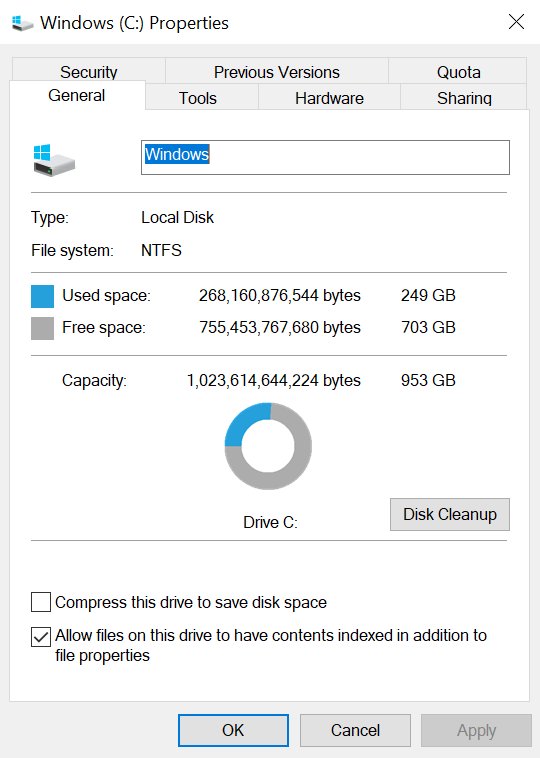
| Free space | At least 9 GB free for the Installation Assistant download | File Explorer > This PC |
| Back up data | Copy personal files to OneDrive or an external drive; turn on Windows Backup for apps and settings | Settings > Accounts > Windows Backup |
| Obtain installation media | A blank USB flash drive of at least 8 GB, or the Windows 11 ISO | Microsoft's Download Windows 11 page |
| License and edition | A digital license linked to your Microsoft account, or a 25-character product key; reinstall the same edition (Home or Pro) | Settings > System > Activation |
| BitLocker recovery key | Needed for most recovery options if the drive is encrypted | Microsoft's Find your BitLocker recovery key page |
| Internet and account | Windows 11 Home needs an internet connection and a Microsoft account to finish first-time setup | Have your Wi-Fi password ready |
To create a bootable USB drive, go to Microsoft's Download Windows 11 page, select Download Now under Create Windows 11 Installation Media, run MediaCreationTool.exe, and choose the USB flash drive option. Everything on that USB drive is deleted.
Running the Setup Wizard for Clean Install or Upgrade
For an upgrade that keeps your files, use the setup.exe route at the top of this page. For a clean install, boot the PC from the USB drive instead, as shown here.
A clean install erases personal files, apps, manufacturer customizations and any changes made in Settings. Back up first.
- Plug the Windows 11 USB drive into the PC and turn it on. Press the boot menu key as it starts; this is usually one of F1 to F12 or Del, and your PC maker's site lists the exact key.
- Select the USB drive in the boot menu. The Windows 11 Setup screen appears.
- In Select language settings, choose your language and select Next. In Select keyboard settings, choose a layout and select Next.
- In Select setup option, select Install Windows 11, tick I agree everything will be deleted including files, apps, and settings, and select Next.
- If the Product key window appears, enter your key or select I don't have a product key, then pick the edition that matches your license in Select Image.
- Select Accept in Applicable notices and license terms.
- In Select location to install Windows 11, delete each partition on Disk 0 with Delete Partition, select Disk 0 Unallocated Space and select Next. Leave any other disks untouched.
- Select Install on Ready to install. The PC restarts several times, then opens the first-run screens described in the next section.
The Product key window can be skipped automatically when a key is stored in the PC's firmware.
Navigating the Setup Wizard: Step-by-Step
After Windows installs, the out-of-box experience walks you through the remaining choices. Microsoft notes that some pages might not appear, or might appear in a different order.
- Choose your language, then your region, then your keyboard layout. Choosing a non-default language can trigger a restart.
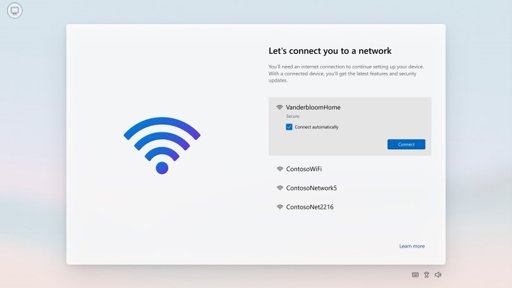
- Pick a network on Let's connect you to a network. Windows 11 Home cannot continue without a connection.
- Wait while Windows downloads critical driver and security updates. The PC may restart during this step.
- Accept the license agreement.
- Sign in with your Microsoft account, or create one. Sign in with the account linked to your digital license so activation applies automatically.
- Choose whether to restore from a previous device if Welcome back appears, then set up Windows Hello (a PIN, face or fingerprint).
- Review each switch on the Privacy settings screen before you continue. Up to seven settings appear.
- Answer Customize your device, the OneDrive backup screen and any Microsoft 365 or PC maker offers. The desktop opens with the Start menu showing.
Alternative Methods to Run the Setup Wizard
These routes run Windows 11 Setup without you building a USB drive. Windows Update is the route Microsoft recommends for upgrading from Windows 10.
| Method | Steps | Best for |
|---|---|---|
| Using Windows Update | Settings > Windows Update > Check for updates; select Download and install, then Accept and install, then Restart now | Windows 10 PCs that Microsoft has offered the upgrade |
| Windows 11 Installation Assistant | Run the Assistant, select Accept and install, then Restart now when asked | Upgrading before Windows Update offers it; x64 PCs only, not Arm |
| Using ISO files | Right-click the ISO, select Mount, then double-click setup.exe in the new drive | Upgrading or repairing without a USB drive |
| Fix problems using Windows Update | Settings > System > Recovery > Reinstall now, choose the restart option, select OK | Reinstalling the current Windows 11 version while keeping apps, files and settings |
If Windows Update shows no upgrade, the PC may not meet the requirements yet or may have a known compatibility hold. Run PC Health Check to see which.
Run the first-time setup screens again with Reset this PC
Reset this PC reinstalls Windows and then shows the out-of-box screens again. It is the supported way for home users to get back to first-run setup.
- Back up anything you need, and have your BitLocker recovery key ready if the drive is encrypted.
- Open Settings > System > Recovery.
- Under Recovery options, select Reset PC.
- Choose Keep my files to keep personal files, or Remove everything for a fresh start. Turn on Clean data if you are selling or giving the PC away.
- Choose Cloud download for a fresh copy from Microsoft, or Local reinstall to use files already on the PC.
- Follow the on-screen instructions to start the reset. Leave the PC alone even if the screen stays black for up to 15 minutes; a manual restart can make the reset fail.
- Complete the first-run screens from the previous section when they appear.
If Windows will not start, open the Windows Recovery Environment and select Troubleshoot > Reset this PC instead.
Run a program's setup wizard on Windows 11
Most desktop programs ship their own installer, often named setup.exe or ending in .msi. Download it only from the vendor's own site or Microsoft Store.
- Open File Explorer and go to the folder that holds the installer, usually Downloads.
- Double-click the installer file.
- Select Yes at the User Account Control prompt. If it asks for an administrator password, enter one.
- Follow the program's wizard pages: accept its license, choose an install folder and select Install or Next.
- Complete the last page of the wizard, then open the program from Start.
Windows 11 in S mode installs Microsoft Store apps only, so a downloaded setup.exe will not run there. The fix is in the troubleshooting section below.
How to check Windows 11 Setup worked
- Open Settings > System > About and confirm Edition and Version under Windows specifications show Windows 11 and the edition you own.
- Open Settings > System > Activation and confirm Windows is activated and your Microsoft account is linked to the digital license.
- Open Settings > Windows Update and select Check for updates; the page should download and install without errors.
- Open File Explorer and confirm your personal folders are present if you chose to keep files.
Post-Installation Tips
Setup finishes at the desktop, but a few jobs remain. Do them in this order.
- Run Settings > Windows Update > Check for updates until no more updates are offered, restarting when asked.
- Install the latest drivers and firmware from your PC maker's website, especially after a clean install from generic media.
- Open Settings > Accounts > Windows Backup and turn on backup so a future reset can restore your apps and settings.
- Reinstall your programs from Microsoft Store or their vendors' sites, using the program setup steps above.
- To control the welcome screens Windows shows after updates, open Settings > System > Notifications, expand Additional settings and tick or clear Show the Windows welcome experience after updates and when signed in to show what's new and suggested.
Troubleshooting Common Setup Wizard Issues
Compatibility errors: "This PC doesn't meet the minimum system requirements"
The PC fails one of the Windows 11 hardware checks, often TPM 2.0, Secure Boot or the processor.
- Run the PC Health Check app to see which requirement fails.
- Check your PC maker's site for firmware settings or updates that turn on TPM 2.0 and Secure Boot.
- Select Refresh in the Installation Assistant after running PC Health Check.
- If the PC still fails, stay on Windows 10 or replace the PC. Microsoft does not recommend installing Windows 11 on unsupported hardware.
Installation stuck or failing partway through
A connected device, disk errors, damaged system files or pending updates block the install.
- Unplug nonessential external hardware such as docks, printers, USB drives and extra monitors.
- Open Command Prompt as administrator, run
chkdsk /F, typeYand restart to repair the system drive. - Run
sfc /scannow, thenDISM.exe /Online /Cleanup-image /Restorehealthfrom the same window. - Install all pending Windows updates and restart before running Setup again.
- Update the PC's firmware and drivers from the manufacturer's website.
The setup screen does not appear when booting from USB
The PC is not set to boot from the USB drive.
- Restart and press the boot menu key again; check your PC maker's site for the exact key.
- Change the boot order in the firmware settings so the USB drive comes first, following the maker's instructions.
- Recreate the drive with the Media Creation Tool if the PC still ignores it.
Activation problems after Setup
The installed edition does not match your license, or the license is not linked to the account you signed in with.
- Open Settings > System > Activation and read the activation state.
- Sign in with the Microsoft account linked to the digital license.
- Reinstall the same edition (Home or Pro) that the license covers if they differ.
- Run the Activation troubleshooter after a major hardware change such as a new motherboard.
A program's setup.exe will not run
Windows 11 in S mode runs Microsoft Store apps only.
- Look for the same app in Microsoft Store first.
- To install it anyway, open Settings > System > Activation.
- Under Switch to Windows 11 Pro, select Go to the Store, then select Get on the Switch out of S mode page. This change is one-way.
Security and Privacy Considerations
| Point in setup | What to decide | Change it later at |
|---|---|---|
| Privacy settings screen | Up to seven switches; turn off anything you do not want to share | Settings > Privacy & security; diagnostic data under Diagnostics & feedback |
| Account sign-in | A Microsoft account links your digital license and backups; Windows 11 Home requires one at first setup | Settings > Accounts |
| Windows Hello | Set a PIN, or face or fingerprint sign-in if the PC has the hardware | Settings > Accounts > Sign-in options |
| Encrypted drive | Save the BitLocker recovery key before a reset or reinstall | Microsoft's Find your BitLocker recovery key page |
| Selling or donating the PC | Use Remove everything with Clean data turned on | Settings > System > Recovery |
| Installer source | Get Windows media only from Microsoft and programs only from their vendors or Microsoft Store | Not applicable |
Summary and Final Words
Run setup.exe from a mounted ISO or USB drive to upgrade or repair Windows 11 while keeping your files, and use Reset this PC when you want the first-run screens again. Both routes are built into Windows and keep your files by default, while booting from USB is only worth it for a new drive, a PC that will not start, or a fully clean start.
Frequently Asked Questions
What is setup wizard on a PC?
A setup wizard is a series of guided screens that installs or configures software. On Windows 11 it usually means Windows 11 Setup, which installs Windows, or the first-run screens that ask for your region, network, account and privacy choices.
How do I open the setup wizard on Windows 11?
Mount the Windows 11 ISO or insert a Windows 11 USB drive, open it in File Explorer and double-click setup.exe. Select Yes at the User Account Control prompt, and the Windows 11 Setup pages open.
Where do I find the setup wizard?
Windows 11 Setup is the setup.exe file in the root of Windows 11 installation media. Get that media from Microsoft's Download Windows 11 page, either as an ISO file or as a USB drive made with the Media Creation Tool.
How do I run the setup wizard again on a PC that is already set up?
Open Settings > System > Recovery and select Reset PC. Choose Keep my files or Remove everything. After Windows reinstalls, the first-run screens for region, keyboard, network and account appear again.
How do I install the setup wizard?
Windows Setup is not installed separately. Download the Windows 11 ISO or run the Media Creation Tool from Microsoft's download page to build a USB drive, then run setup.exe from it. A program's setup wizard comes with that program's installer file.
How do I create a setup wizard USB drive?
Run MediaCreationTool.exe from Microsoft's Download Windows 11 page and choose the USB flash drive option. Use a blank drive of at least 8 GB, because the tool deletes everything on it.
Does running Windows 11 Setup delete my files?
Not by default. Running setup.exe inside Windows keeps personal files and apps unless you select Change what to keep and pick another option. Booting from USB and choosing Install Windows 11 erases the system drive.
How do I run the setup wizard on Windows 10?
Use Windows Update, the Windows 11 Installation Assistant or setup.exe from Windows 11 media to upgrade. The PC needs Windows 10 version 2004 or later and must meet Windows 11 requirements. Windows 10 support ended on October 14, 2025.
What should I do while the setup wizard is running?
Leave the PC plugged in and do not restart it. Setup restarts the PC several times on its own, and during a reset the screen can stay black for up to 15 minutes. A manual restart can make the process fail.
Can I run a program's setup wizard in Windows 11 S mode?
No. Windows 11 in S mode installs apps from Microsoft Store only. To run a downloaded setup.exe you must switch out of S mode from Settings > System > Activation, and that switch cannot be reversed.