Windows Update settings in Windows 11 live at Start > Settings > Windows Update, and Win + I opens Settings in one keystroke.
This page covers every control on that screen and under Advanced options: checking for updates, active hours, restart scheduling, pause, update history, optional and driver updates, Delivery Optimization, and the fixes when an update refuses to install.
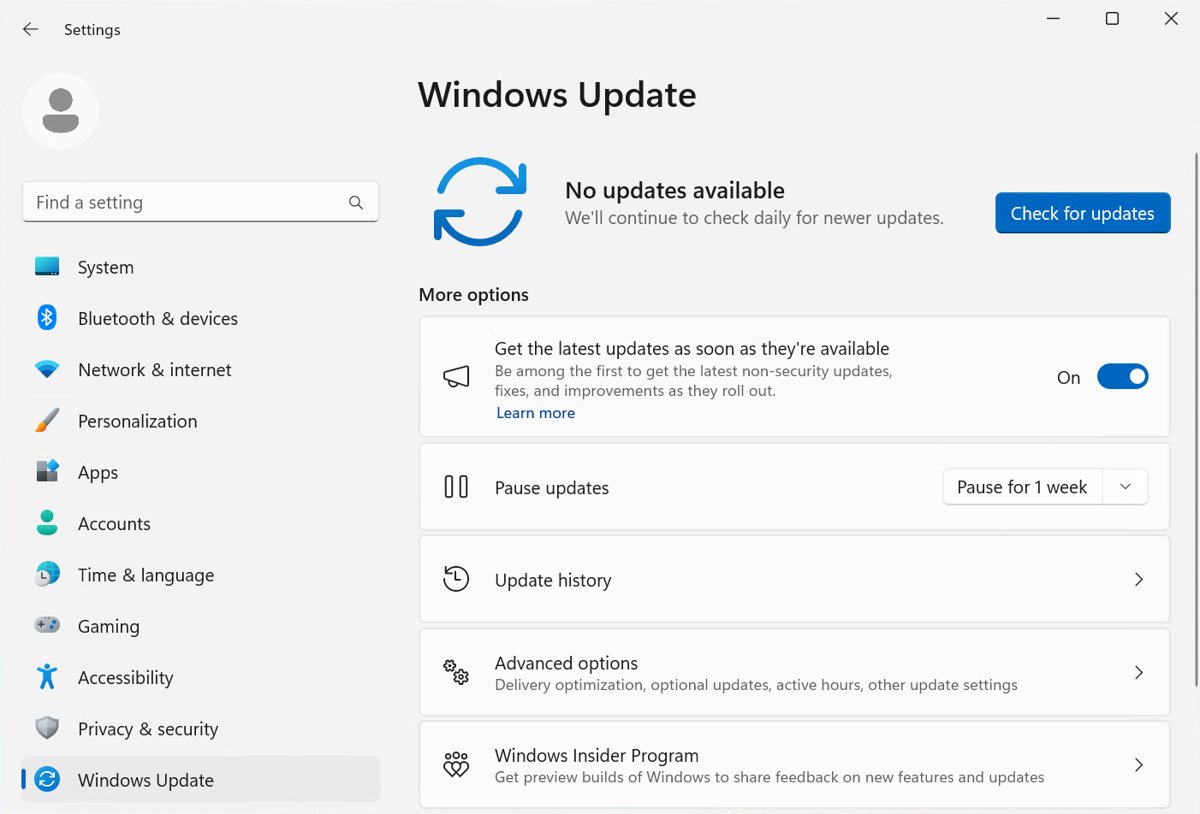
How to Open Windows Update Settings in Windows 11
Windows Update is a top-level entry in the Windows 11 Settings app, not a sub-page of a Security category as it was in Windows 10.
- Press Win + I to open Settings.
- Select Windows Update at the bottom of the left-hand list.
- Select Check for updates to make Windows scan now.
- Select Advanced options for active hours, optional updates and Delivery Optimization.
A reader who stops here already has the page that holds every update control.
Which route to the Windows Update page fits your situation
| Your situation | Use this | Why |
|---|---|---|
| Keyboard is to hand | Win + I, then Windows Update | Two actions, no menu hunting |
| Mouse only | Start > Settings > Windows Update | No key combination needed |
| You want the search box | Type windows update into Search on the taskbar |
Jumps straight to the page |
| You want one specific sub-page | Win + R, then an ms-settings: command |
Opens Optional updates or Active hours directly |
| You are writing a script or shortcut | ms-settings:windowsupdate |
The documented URI for the page |
Checking for Updates and Viewing Update Status
Windows 11 ships two kinds of update. Quality updates arrive monthly with security and small fixes, while feature updates are annual releases that add functionality.
- Open Settings > Windows Update.
- Select Check for updates.
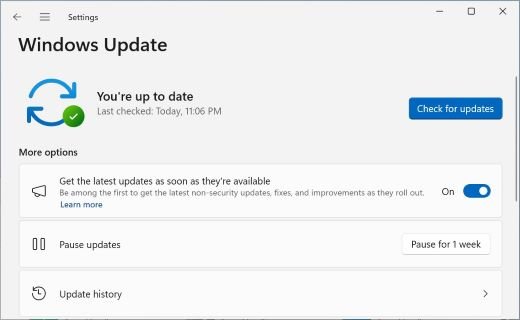
- Read the status line under the heading: it reports that the device is up to date, that updates are available, or that a restart is required.
- Select Download & install next to any update that waits for you to start it.
- Select Restart now when the page asks for a restart, or Schedule the restart to pick a later time.
A status of Updates available with no progress bar means Windows has found the update but has not started downloading it yet.
Managing Restart Times and Active Hours
Active hours is the window in which Windows will not restart the device on its own to finish an update.
- Open Settings > Windows Update > Advanced options.
- Select Active hours.
- Choose Automatically from the Adjust active hours dropdown to let Windows set the window from your activity.
- Choose Manually instead to set a start time and an end time yourself.
- Return to Windows Update and select Schedule the restart when a restart is already pending, then pick a convenient time.
Active hours only governs automatic restarts. A restart you start yourself runs whenever you select it.
Using Pause Updates and Update History
Pausing stops new downloads and clears any pending restart. Update history is the record of what has already been installed, and the way back out of a bad update.
- Open Settings > Windows Update.
- Select a pause length from the dropdown next to Pause updates.
- Select Resume updates on the same page to end the pause early.
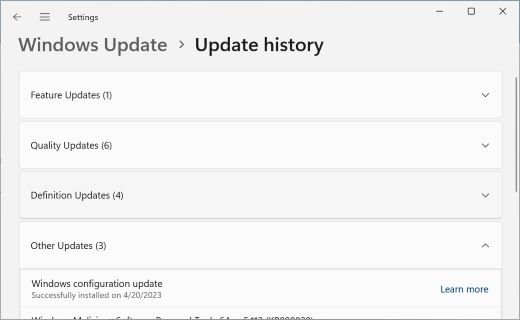
- Select Update history to see each quality update, driver update and feature update with its install date.
- Scroll to the bottom of Update history and select Uninstall updates to remove one.
- Select the update you want to remove, then select Uninstall.
Not every update can be removed, and Windows installs the outstanding updates once the pause limit is reached before it will let you pause again.
Installing Optional Updates and Driver Updates
Optional updates are non-security preview releases, feature previews and hardware drivers. Optional drivers are not installed automatically, so nothing on this page happens without you.
- Open Settings > Windows Update > Advanced options.
- Select Optional updates.
- Expand Driver updates and tick the drivers you want.
- Expand Feature updates or the preview entry if one is listed and tick what you want.
- Select Download and install.
- Restart the device when the install finishes, even if no update asked for a restart.
Take an optional driver when it fixes a fault you actually have; skip it when the hardware already works. Media stacks such as DirectX are serviced through Windows Update rather than a separate download.
Limit how much bandwidth updates use with Delivery Optimization
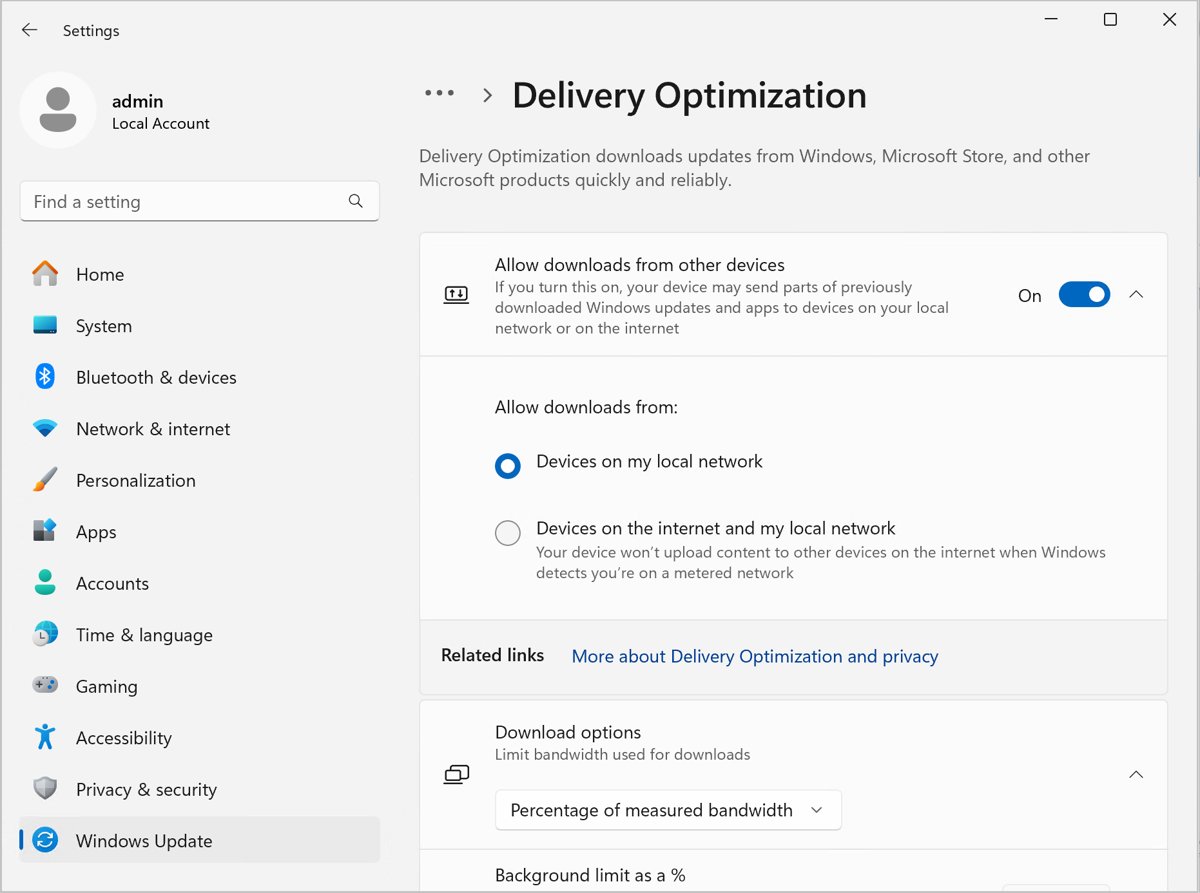
Delivery Optimization is the peer-to-peer download component behind Windows Update. Its settings decide where update bits come from and how much of the line they may take.
- Open Settings > Windows Update > Advanced options > Delivery Optimization.
- Turn Allow downloads from other devices off to download only from Microsoft.
- Leave it on and pick Devices on my local network to share only inside the home or office.
- Pick Devices on the internet and my local network to also share with devices outside the network.
- Select Advanced options to cap downloads with Absolute bandwidth in Mbps or Percentage of measured bandwidth.
- Set Monthly upload limit on the same page to cap what the device uploads to other PCs.
Select Activity monitor on the Delivery Optimization page to see how much came from Microsoft and how much came from other PCs.
Stop automatic downloads with a metered connection
Marking a connection as metered makes Windows Update download only priority updates over that network.
- Open Settings > Network & internet.
- Select Wi-Fi, then the network you are connected to, or select Ethernet for a wired link.
- Turn Metered connection on.
- Open Settings > Windows Update > Advanced options to override this later.
- Turn Download updates over metered connections on when you do want full updates on that network.
Open any Windows Update page from the Run box
Every Settings page has a documented ms-settings: address that opens it directly, which saves four clicks when you only want one control.
ms-settings:windowsupdatePress Win + R, type the address and press Enter. The ms-settings scheme addresses a Settings page by name, so the Run box, a shortcut or a script can open it without walking the menu.
You should see: The Settings app opens on the Windows Update page with the Check for updates button visible.
The same scheme reaches the sub-pages: ms-settings:windowsupdate-options for advanced options, ms-settings:windowsupdate-activehours, ms-settings:windowsupdate-optionalupdates, ms-settings:windowsupdate-restartoptions, ms-settings:windowsupdate-history and ms-settings:delivery-optimization.
Where each update control lives in Windows 11 and Windows 10
Windows 10 kept these controls under Update & Security. Windows 11 promoted Windows Update to the top level and moved several items under Advanced options.
| Control | Windows 11 path | Windows 10 path | Direct command |
|---|---|---|---|
| Check for updates | Settings > Windows Update | Settings > Update & Security > Windows Update | ms-settings:windowsupdate |
| Pause updates | Settings > Windows Update | Settings > Update & Security > Windows Update | ms-settings:windowsupdate |
| Active hours | Settings > Windows Update > Advanced options > Active hours | Settings > Update & Security > Windows Update > Advanced options | ms-settings:windowsupdate-activehours |
| Restart options | Settings > Windows Update > Advanced options | Settings > Update & Security > Windows Update > Advanced options | ms-settings:windowsupdate-restartoptions |
| Optional updates | Settings > Windows Update > Advanced options > Optional updates | Settings > Update & Security > Windows Update > Advanced options | ms-settings:windowsupdate-optionalupdates |
| Update history | Settings > Windows Update > Update history | Settings > Update & Security > Windows Update > View update history | ms-settings:windowsupdate-history |
| Delivery Optimization | Settings > Windows Update > Advanced options > Delivery Optimization | Settings > Update & Security > Delivery Optimization | ms-settings:delivery-optimization |
| Troubleshooters | Settings > System > Troubleshoot > Other troubleshooters | Settings > Update & Security > Troubleshoot | ms-settings:troubleshoot |
How to check your update settings took effect
- Reopen Settings > Windows Update and read the line under the heading: a pause shows the date updates resume.
- Open Advanced options and confirm Active hours shows the start and end times you set.
- Open Update history and confirm the update you installed is listed with today's date under Quality Updates or Driver Updates.
- Select Check for updates once more; a device with nothing outstanding reports that it is up to date.
Advanced Options for Windows Update
Advanced options holds the settings that change update behaviour rather than trigger an install.
| Setting | What it does | When to change it |
|---|---|---|
| Get the latest updates as soon as they're available | Puts the device near the front of the queue for non-security fixes, improvements and enhancements. Security updates arrive on the same schedule either way. | Turn it on to get fixes early; expect more restarts in a month |
| Download updates over metered connections | Lets Windows install the full update set on a network you have marked as metered. | Turn it on only when the connection is not actually charged by the gigabyte |
| Active hours | Blocks automatic restarts inside the window you set, either automatically or manually. | Set it manually when your working day is fixed |
| Optional updates | Lists driver updates and non-security preview updates that wait for you to select them. | Open it when a device misbehaves after a hardware change |
| Delivery Optimization | Controls peer-to-peer sourcing and caps download and upload bandwidth. | Change it on a slow or capped line |
| Recovery | Links to the reset and recovery tools used when an update leaves the device unstable. | Use it only after the update fixes below have failed |
How to undo a Windows Update settings change
- Open Settings > Windows Update and select Resume updates to cancel a pause.
- Open Advanced options > Active hours and choose Automatically to hand the window back to Windows.
- Turn Download updates over metered connections off to restore the metered behaviour.
- Open Advanced options > Delivery Optimization and turn Allow downloads from other devices back to its previous position.
- Open Update history > Uninstall updates and remove the update that caused the problem.
- Reset the whole Settings app only as a last step, using this reset guide.
Troubleshooting Windows Update Problems
Windows Update is stuck or keeps failing
A partly downloaded update in the local cache, or a missing prerequisite such as power, disk space or the correct clock.
- Keep the device plugged in and connected to the internet for the whole install.
- Free disk space: an upgrade needs about 16 GB on a 32-bit installation and 20 GB on a 64-bit one.
- Open Settings > Time & language > Date & time and turn Set time automatically on.
- Disconnect external drives, docks and other hardware the device does not need to boot.
- Open Settings > System > Troubleshoot > Other troubleshooters, find Windows Update and select Run. Step-by-step screens are in this troubleshooter walkthrough.
- If it still fails, press Win + R, type
services.mscand press Enter, right-click Windows Update and select Stop, delete the contents ofC:\Windows\SoftwareDistribution, then right-click Windows Update and select Start.
Not getting the Windows 11 update in Settings
Updates are paused, the connection is metered, or the release has not reached this device yet.
- Open Settings > Windows Update and select Resume updates if a pause date is shown.
- Open Settings > Network & internet and turn Metered connection off for the network in use.
- Open Advanced options and turn Get the latest updates as soon as they're available on.
- Select Check for updates again and leave the page open while Windows scans.
- Open Advanced options > Optional updates and look for the release there when it is offered as an optional feature update.
Windows 11 restarts while you are working
Active hours does not cover the time you actually use the device, so the automatic restart lands inside your working day.
- Open Settings > Windows Update > Advanced options > Active hours.
- Choose Manually from the Adjust active hours dropdown and set the times you use the device.
- Return to Windows Update and select Schedule the restart whenever a restart is already pending.
- Select a pause length next to Pause updates before a deadline you cannot afford to lose.
- Resume updates as soon as the deadline passes so the security fixes install.
An update installed and now something is broken
A quality update or a driver update conflicts with the hardware or software already on the device.
- Open Settings > Windows Update > Update history and note the KB number and date of the newest entry.
- Select Uninstall updates at the bottom of that page.
- Select the update matching that KB number, then select Uninstall.
- Select a pause length next to Pause updates so the same update does not return the same day.
- Open Advanced options > Optional updates afterwards and install a newer driver if the fault was driver-related.
What to know before you change these settings
Change active hours, restart scheduling and Delivery Optimization freely; treat pause as a short, dated exception rather than a standing setting. Active hours and bandwidth limits only move when an update happens, so the device still ends up fully patched. A pause stops security updates outright, expires on its own, and forces the outstanding updates to install before it can be used again.
Frequently Asked Questions
How do I change update settings in Windows 11?
Open Settings with Win + I, select Windows Update, then select Advanced options. Pause updates and Check for updates sit on the main page. Active hours, optional updates, metered-connection downloads and Delivery Optimization all sit under Advanced options.
How do I update in Windows 11?
Select Start > Settings > Windows Update, then select Check for updates. Windows downloads what applies to the device. Select Download & install for anything waiting on you, then select Restart now or Schedule the restart when Windows asks for one.
Why update to Windows 11 regularly?
Quality updates ship every month and carry security fixes plus small corrections. Feature updates arrive annually and add functionality. Skipping them leaves known vulnerabilities open, and Windows installs the outstanding updates anyway once a pause expires.
How do I stop Windows 11 from restarting while I'm working?
Set active hours to cover the time you use the device: Settings > Windows Update > Advanced options > Active hours, then choose Manually. Windows will not restart automatically inside that window. Use Schedule the restart for a restart that is already pending.
Is it safe to pause Windows updates in Windows 11?
A short pause is safe and is designed for it; the dropdown next to Pause updates sets the length. A pause also cancels pending restarts and installs. It stops security updates though, so resume as soon as the reason for pausing has passed.
Should I install optional updates and driver updates?
Install an optional driver when it addresses a fault you actually have, such as audio, Bluetooth or a printer misbehaving. Optional drivers are not installed automatically because the driver already in place usually works. Optional preview updates are best left until they ship in the monthly update.
Where can I see which updates were installed on my PC?
Select Start > Settings > Windows Update > Update history. Entries are grouped into Quality Updates, Driver Updates, Definition Updates and Feature Updates, each with its KB number and install date. Uninstall updates sits at the bottom of the same page.
What should I do if Windows Update is stuck or keeps failing?
Run the Windows Update troubleshooter from Settings > System > Troubleshoot > Other troubleshooters. Then confirm the device has power, an internet connection, a correct clock and enough free space. Clearing the C:\Windows\SoftwareDistribution cache with the Windows Update service stopped clears a stuck download.
Why am I not getting the Windows 11 update in Settings?
Check three things in order: whether updates are paused, whether the network is marked as a metered connection, and whether the release has reached your device. Turning on Get the latest updates as soon as they're available moves the device earlier in the rollout.
Are there Windows Update registry settings in Windows 11?
Yes, but they are policy settings for managed devices, stored under HKLM\SOFTWARE\Policies\Microsoft\Windows\WindowsUpdate. Values such as DeferQualityUpdatesPeriodInDays and AllowOptionalContent live there. On a home PC the Settings app is the supported route.
Where are the Windows Update GPO settings in Windows 11?
In the Group Policy Editor, under Computer Configuration > Administrative Templates > Windows Components > Windows Update. Enable optional updates sits under Manage updates offered from Windows Update. Group Policy is available on managed and business editions, not on every home installation.
What are the Windows Update delivery settings in Windows 11?
They are the Delivery Optimization settings at Settings > Windows Update > Advanced options > Delivery Optimization. Allow downloads from other devices decides whether updates come from other PCs, and its Advanced options cap download and upload bandwidth.
Bottom Line
Set active hours manually to match your day, leave Get the latest updates as soon as they're available off on a work machine, and open Optional updates only when a device is misbehaving. That combination keeps monthly security updates arriving on time while removing the two things people actually complain about: a restart in the middle of the working day and a driver swapped out for no reason.


How to roll back Windows 11 update: step-by-step guide for users - Techdows
[…] history sits alongside the other Windows Update settings in Windows 11, including pause and active […]
Resetting audio settings in Windows 11 and 10 - Techdows
[…] recommends Windows Update as the first source for audio drivers, so check for updates in Windows 11 before you download anything. If Windows says the best driver is installed, your PC maker's […]
Download Windows 11 KB5127648 and list of all changes - Techdows
[…] automatically on most PCs. Use these steps to fetch it now instead of waiting, from the same Windows Update settings page that controls automatic […]
Download Windows 11 KB5126653 and list of all changes - Techdows
[…] same page lets you pause updates or schedule restarts if the timing is […]
How to view installed updates in Windows 11/10 - Techdows
[…] Update history page sits alongside the other Windows Update options in Settings and shows which updates were installed and when they were installed. It is the quickest place to […]
How to open Settings on Windows 11: a step-by-step guide - Techdows
[…] Typing ms-settings:display is one of several ways to open Display settings, and ms-settings:windowsupdate lands directly on the Windows Update options. […]
12 best driver updater software for Windows 11/10 in 2026 - Techdows
[…] Optional driver updates are not installed automatically, so check for them by hand in Windows Update settings on Windows 11. […]