To fix HDR in Windows 11 after an update, turn HDR back on in Settings > System > Display, then roll back or update the graphics driver if it still fails.
This guide covers the five fixes in priority order, how to prove HDR is really active, and when undoing a Windows update is worth the risk.
5 fixes that resolve most HDR problems (prioritized)
This overview ranks the fixes from fastest and safest to slowest. Stop as soon as HDR works, and test after each one.
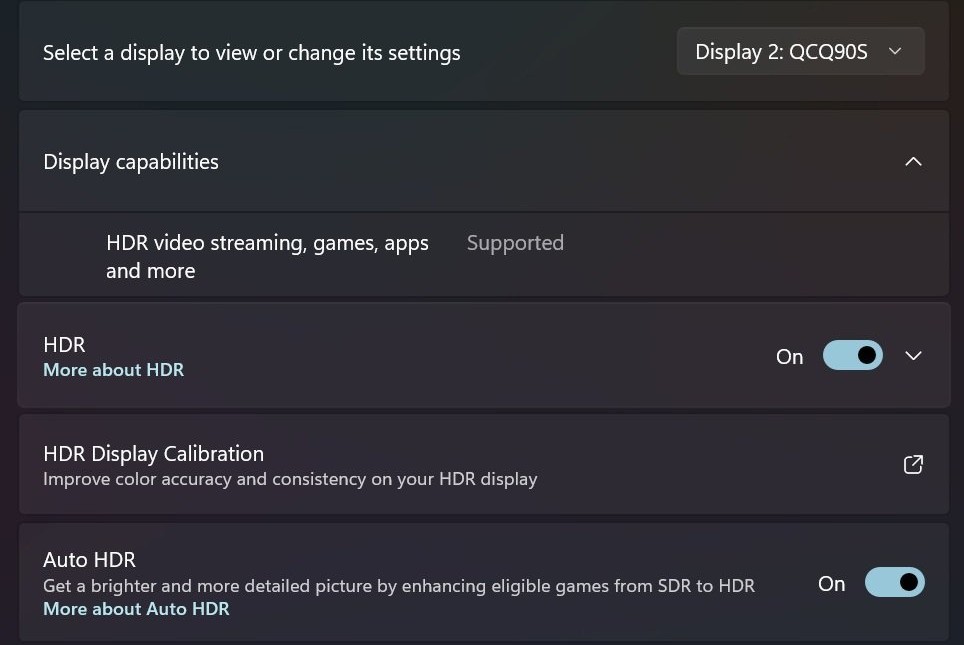
- Open Settings > System > Display, select the HDR display and turn on HDR.
- Roll back the graphics driver if the problem began right after a driver update, or update it if no rollback is available.
- Run the Windows HDR Calibration app if HDR turns on but colors look wrong.
- Check the color format and dynamic range settings in your NVIDIA, AMD or Intel graphics software.
- Run the Video playback troubleshooter, then check the cable, the port and the monitor firmware.
HDR after Windows 11 updates: what broke and why it matters
Some background: Windows Update can deliver driver updates as well as system updates, so one update session can change both layers HDR depends on.
Microsoft's Windows release health pages for Windows 11 25H2 and 26H2 listed no open HDR issue in early November 2026. Treat your problem as a local setting, driver or connection fault first.
| What you see | Most likely layer | Why it matters |
|---|---|---|
| HDR is off after the restart | Windows display settings | Apps and games fall back to SDR until the setting is back on |
| The HDR toggle is missing or says Not supported | Driver, display mode or connection | Windows can't offer HDR until it detects a capable driver and display |
| HDR is on, but colors look dull or too saturated | Calibration, color profile or GPU color settings | The signal reaches the display, but its levels are wrong |
| Text has color fringes on a white background | Driver or HDMI connection | Microsoft links this symptom to drivers and HDMI limits |
| Only protected video loses HDR | Video app, codec or battery setting | Desktop HDR can still be working normally |
1. Check HDR settings in Windows (fastest fix)
Start here because this check takes under a minute and changes nothing else. Laptops also switch HDR off on battery by default on many models, which can look like an update fault.
- Select Start, enter settings, and open Settings > System > Display.
- Choose the HDR-capable display at the top if more than one display is connected.
- Select Extend these displays if your displays are duplicated, because HDR isn't supported in duplicate mode.
- Turn on HDR.
- Open your monitor or TV on-screen menu and make sure HDR is turned on there too.
- Plug in your laptop if the toggle will not change, or expand HDR and clear Turn off HDR when my PC is running on battery.
Allowing HDR on battery reduces battery life, so plugging in is the better test.
2. Update or roll back the GPU driver (critical)
This matters because Microsoft says the AdvancedColorSupported value depends on both the installed display driver and the display. A bad driver can remove HDR from a screen that supported it yesterday.
| Your situation | Do this | Why |
|---|---|---|
| HDR failed right after a driver or Windows update | Roll back the driver | It restores the driver that last worked |
| Roll Back Driver is unavailable | Update the driver | Windows has no previous driver stored |
| The driver is older than the update | Update the driver | HDR needs current WDDM graphics drivers |
| Rollback and update both fail | Do a clean driver reinstall | It replaces the installed driver package |
Update driver (safe)
Use Windows Update first, then the graphics manufacturer's page. Both are official sources, and neither needs a third-party driver tool.
- Open Settings > Windows Update > Advanced options.
- Turn on Receive updates for other Microsoft products.
- Under Additional options, select Optional updates.
- Select any display driver listed, then select Download and install.
- Restart when the install finishes, even if Windows doesn't ask.
- Get the driver from your PC or graphics card manufacturer if Windows Update has nothing newer.
The same Device Manager tools work for other hardware when you need to update or roll back Windows drivers.
Roll back driver (when HDR broke after a recent update)
You need administrator rights for this. Microsoft recommends a rollback when Windows Update recently changed your device.
- Enter device manager in the taskbar search box and open it.
- Expand Display adapters.
- Right-click your graphics adapter and select Properties.
- Open the Driver tab and select Roll Back Driver.
- Choose a reason and select Yes.
- Restart the PC and test HDR again.
A grey Roll Back Driver button means Windows has no previous driver to return to.
Clean driver reinstall (when simple rollback fails)
Download the replacement driver from the manufacturer before you start, so the PC isn't left waiting on a generic driver. The removal check box may only appear in safe mode.
- Open Device Manager and expand Display adapters.
- Right-click the adapter and select Properties.
- On the Driver tab, select Uninstall Device.
- Select Attempt to remove the driver for this device, then select OK.
- Restart the PC and let Windows attempt to reinstall the driver.
- Install the driver you downloaded if Windows doesn't restore HDR.
GPU vendor notes
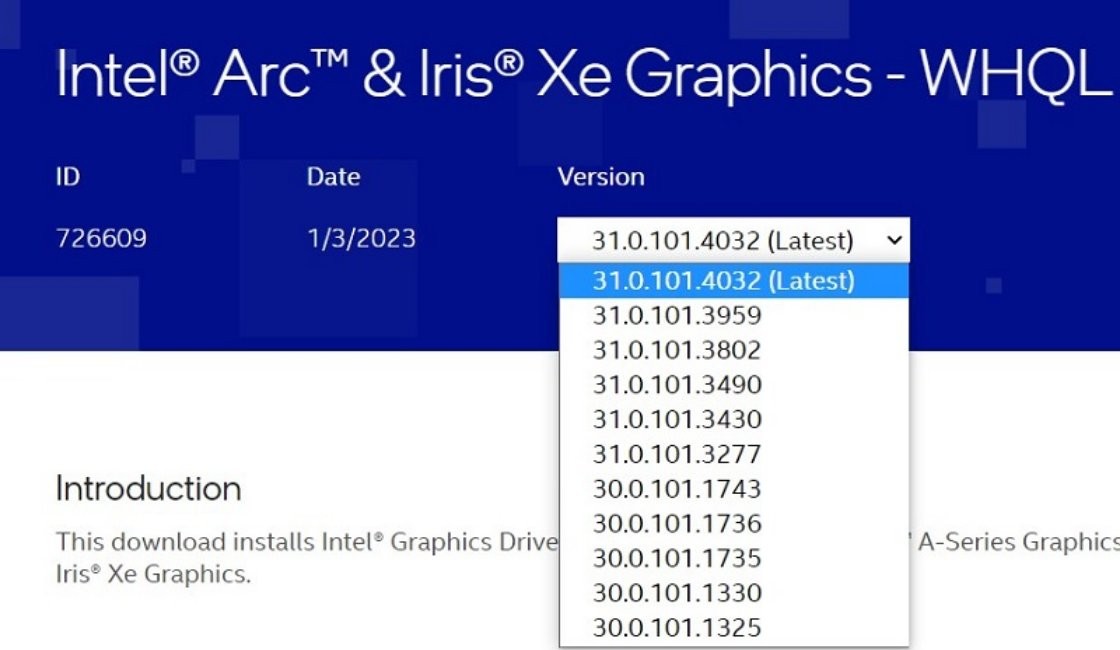
Laptop owners should check the PC maker's page first, because Microsoft names that source for current graphics drivers. Desktop card owners can use the GPU maker directly.
| GPU maker | Official driver route | Minimum GPU for full HDR Calibration |
|---|---|---|
| NVIDIA | NVIDIA drivers or the NVIDIA App | GTX 10xx or later |
| AMD | AMD's driver support site | RX 400 Series or later, or Ryzen with Radeon Graphics |
| Intel | Intel's support site, or your PC maker for integrated graphics | 11th Gen (Ice Lake) or later, or discrete DG1 or later |
3. Calibrate your HDR display — fix washed-out colors
Calibrate only after HDR turns on. If the whole desktop looks pale with HDR off as well, fix washed-out colors through the color profile and RGB range instead.
- Install Windows HDR Calibration from the Microsoft Store.
- Turn on HDR in Settings > System > Display > HDR.
- Select Start > All apps > Windows HDR Calibration.
- Move the app window to the HDR display if you have several displays.
- Drag the slider on each of the three test patterns until the pattern is no longer visible.
- Adjust Color Saturation only if you want more vivid color, then finish the app.
Why calibrate an HDR display after a Windows update
Calibration tells Windows what your specific display can really show. Microsoft says certified displays usually work well without it, but still suggests running the app.
| Test pattern | What it determines | Problem it helps with |
|---|---|---|
| Dark detail | The darkest visible detail | Shadows that crush into black |
| Bright detail | The brightest visible detail | Highlights that clip into white |
| Peak brightness | The display's maximum brightness | Games and apps using the wrong peak level |
Windows guidance (official) for the HDR Calibration app
The app has fixed requirements. A failed check here explains why the app misbehaves, even when the display is fine.
| Requirement | What Microsoft specifies |
|---|---|
| Operating system | Windows 11 |
| Display | An HDR-capable built-in or external display |
| HDR | Turned on in Settings > System > Display > HDR |
| App mode | Running full screen |
| Display driver | WDDM 2.7 or later |
| Built-in display limited to HDR video | Use Display calibration for HDR video in the HDR settings instead |
Practical notes for HDR calibration
| Situation | Do this | Why |
|---|---|---|
| The app gives odd results | Turn off post-processing effects in the display's on-screen menu | Microsoft says these effects can stop the app working as expected |
| You calibrate in a dark room but work in daylight | Calibrate in your normal lighting | Perceived black and white levels change with the room |
| HDR content looks unnatural | Lower the saturation setting and run the app again | Too much saturation makes content look over-saturated |
| You added or replaced a display | Run the app again | Each change in display setup needs a new calibration |
| You want to remove the result | Open Color Management > All Profiles, select the profile and select Remove | The app stores its result as a color profile |
4. Adjust GPU control-panel settings (color format and dynamic range)
The usual problem pattern is HDR switching on while the picture looks flat or banded. The cause is a graphics-driver setting that no longer matches the display.
Full RGB range (0-255) is the standard for PC graphics, and limited range (16-235) is the standard for broadcast and streaming video. A mismatch between the PC and the display raises blacks or crushes shadows.
One extra tip: note your current values before changing them, so you can return to a known state.
| What you see | Setting to check | Change to test |
|---|---|---|
| Grey blacks and flat contrast | Dynamic range or RGB range | Match the PC and display, using full range on a PC monitor |
| Crushed shadow detail | Dynamic range or RGB range | Set the PC and the display to the same range |
| Soft or fringed text over HDMI | Refresh rate and resolution | Use DisplayPort, or lower the refresh rate to 30 Hz |
NVIDIA HDR settings after a driver update
Menu names change between driver versions, so look for the color format and dynamic range options rather than one fixed path.
- Install the current Game Ready or Studio driver through the NVIDIA App or the NVIDIA drivers page.
- Open the NVIDIA graphics control panel and select the HDR display.
- Find the color format and dynamic range options for that display.
- Match the range to your display, then apply the change and test HDR.
RTX HDR in the NVIDIA App is a separate Freestyle filter for games without native HDR. It needs an HDR-compatible monitor, so it won't fix a display Windows no longer detects as HDR.
AMD HDR settings after a driver update
AMD's graphics software also holds these settings per display, so select the HDR display before you change anything.
- Install the current driver from AMD's support site, or from your PC maker on a laptop.
- Open AMD's graphics software and go to its display settings.
- Select the HDR display and find the color format and range options.
- Match the range to your display, then test HDR in Windows.
Intel HDR settings after a driver update
Integrated Intel graphics often use a driver supplied by the PC maker, so check that source first on a laptop.
- Open the Intel Graphics Command Center install page and select Get in Store app.
- Select Install in the Microsoft Store.
- Open the app and go to its display settings for the HDR display.
- Match the color format and range options to your display, then test HDR.
5. Run Windows troubleshooter and verify cables/firmware
These checks come last because a Windows update can't change a cable or a monitor. Run them when the driver route changed nothing, or when you recently moved cables.
| Your situation | Check | Result you want |
|---|---|---|
| HDR video won't play properly | Video playback troubleshooter | A diagnosis for the video problem |
| HDR says Not supported on an external display | Cable, port and display input | A connection that supports HDR |
| The problem exists on this display only | Monitor firmware and on-screen settings | The display's HDR mode is active |
Use the Video Playback troubleshooter
Microsoft describes this tool as a way to diagnose videos that aren't playing correctly. It won't repair desktop or game HDR.
- Open the Get Help app.
- Select the Search bar.
- Enter Video playback troubleshooter.
- Follow the steps it provides, then restart the video.
Check cables and ports for HDR
An external HDR display must support HDR10 and connect over DisplayPort 1.4, HDMI 2.0 or higher, USB-C or Thunderbolt.
- Confirm the port and the input on the display meet those standards in the maker's specifications.
- Reseat the cable at both ends.
- Use DisplayPort instead of HDMI if the display supports HDR over DisplayPort.
- Set Choose a refresh rate to 30 Hz in Settings > System > Display > Advanced display if HDMI is your only option and colors fringe.
Monitor firmware and HDR mode
Firmware tools differ by maker, and many displays have no user update. Your display maker's support page is the only safe source for this.
- Find the exact model number on the display's label or on-screen menu.
- Open the model's page on the manufacturer's support site.
- Install any listed firmware update using the maker's own instructions.
- Check that HDR is on in the display's menu after the update, then test again.
On some Dolby Vision monitors, the HDR10 mode can run brighter. To test it, expand HDR and clear Use Dolby Vision mode, which trades some color accuracy for brightness.
How to tell if HDR is working in Windows 11
A bright picture isn't proof. The DirectX Diagnostic Tool reports what Windows has actually detected and enabled.
- Press Windows logo key + R, type
dxdiagand select OK. - Select Yes at the prompt.
- Select Save All Information, then name and save the text file.
- Open the file and find Advanced Color. AdvancedColorSupported means the driver and display support HDR10, and AdvancedColorEnabled means HDR is on.
- Find Monitor Capabilities. HDR Supported with Eotf2084Supported and BT2020RGB or BT2020YCC marks an HDR10-capable display.
HDR Not Supported means the display is missing at least one HDR10 requirement, which points to the connection or driver if it worked before the update.
Deeper analysis: why these failures happen (technical perspective)
Windows HDR is a chain, and one failed link can look like a general update fault. Microsoft calls the feature Advanced Color when an HDR or wide-color display is active.
| Link in the chain | What Windows relies on | Failure you'd notice |
|---|---|---|
| Display descriptor | EDID or DisplayID data for colorimetry, luminance and HDR metadata | A capable display reported as HDR Not Supported |
| Graphics driver | A WDDM driver that supports HDR10 | AdvancedColorSupported goes missing |
| Tone mapping | The GPU maps content using color data from the monitor | Highlights clip or colors shift |
| Color management | Windows manages colors for all apps while Advanced Color is active | Older apps look dark or desaturated |
| Video protection and codecs | PlayReady hardware DRM plus 10-bit HEVC, VP9 or AV1 decoding | Streaming apps play SDR while the desktop stays in HDR |
Safety and risk considerations
| Action | Risk | Safer approach |
|---|---|---|
| Uninstalling a security update | It can leave the PC exposed | Try driver fixes first, and reinstall the update once a fix arrives |
| Going back to an earlier Windows version | It removes apps and drivers installed after the upgrade, plus Settings changes | Back up files first, and use it only inside the time window |
| Pausing updates | Updates that need a restart stop arriving | Set the shortest pause you can, and resume once HDR is fixed |
| Removing the display driver | The screen may use a basic driver until a new one installs | Download the replacement driver before you start |
| Installing drivers from download portals | The source can't be trusted | Use Windows Update, the PC maker or the GPU maker |
Step-by-step recovery plan (recommended order)
Follow this order so each change stays reversible and you know which one solved the problem.
- Open Settings > Windows Update > Update history and note what installed, and when.
- Save a
dxdiagreport to record the current Advanced Color values. - Restart the PC and the display, then turn HDR back on.
- Roll back the graphics driver if its date matches the failure.
- Update or cleanly reinstall the driver if the rollback fails or isn't offered.
- Recalibrate, then check the GPU color settings.
- Check the cable, port and firmware.
- Undo the Windows update only if all of these fail.
If the display flickers or scrambles during this work, press Windows logo key + Ctrl + Shift + B to reset the graphics driver.
When to consider rolling back Windows or pausing updates
Consider this only when HDR failed on the same day as the update and the driver fixes changed nothing. Microsoft warns against removing security updates without understanding the risk, and some updates can't be uninstalled.
You can pause or stop updates in Windows 11 26H2 for up to 35 days, so the same update doesn't return while you wait for a fix.
- Select Start > Settings > Windows Update, then select Update history under More options.
- Under Related settings, select Uninstall updates.
- Select the update that matches the failure date, then select Uninstall.
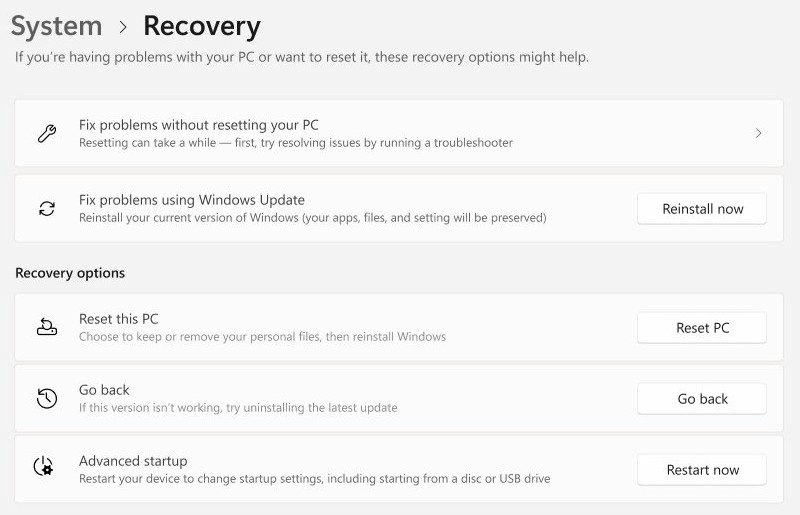
- Use Settings > System > Recovery > Go back instead if a full Windows version upgrade caused it. Microsoft gives this option 10 days in most cases.
- Open Settings > Windows Update and choose an end date under Pause updates using Pick a date.
HDR not working on Windows 11 after an update
Each symptom below matches a case Microsoft documents for HDR displays.
HDR toggle is missing or greyed out on a laptop
Default power settings turn HDR off on battery.
- Plug in the laptop.
- Open the HDR settings and clear the battery check box if you need HDR unplugged.
External display says Not supported next to HDR
Windows duplicates the desktop on a newly connected display, and HDR isn't supported in that mode.
- Open Settings > System > Display.
- Select Extend these displays.
SDR apps are too bright or too dark with HDR on
A display reads HDR and SDR signals differently.
- Move the Settings window to the HDR display and select HDR.
- Drag SDR content brightness on an external display, or HDR content brightness on a built-in display.
- Restart any app that doesn't change.
Colors look over-saturated with Night light on
Night light's strength setting can tint an HDR picture red.
- Open Settings > System > Display > Night light.
- Drag Strength to the left, or select Turn off now.
Laptop colors look under-saturated after a restart
HDR turned off on battery before the restart.
- Plug the laptop in before you restart it.
- Allow HDR on battery if you often restart unplugged.
Streaming video plays without HDR
The app, codec, battery setting or window size blocks HDR video.
- Turn on HDR video streaming in the HDR settings, and confirm it reads Supported under Display capabilities.
- Select Optimize for video quality under Battery options in Settings > Apps > Video playback.
- Install HEVC Video Extensions for Netflix or VP9 Video Extensions for YouTube if they are missing.
- Restart the video after each change.
Windows 11 HDR update FAQs and quick truths
Why did HDR stop working after a Windows 11 update?
HDR usually stops after an update because the display driver changed, the HDR setting turned off, or Windows is duplicating displays. Check the setting first, then the driver. Microsoft's release health pages listed no open HDR issue for Windows 11 25H2 or 26H2 in early November 2026.
Why is the HDR toggle missing in Windows 11?
The HDR toggle goes missing when Windows can't detect an HDR-capable driver and display, or when displays are duplicated. Select Extend these displays, plug in a laptop, then run dxdiag and read the Advanced Color and Monitor Capabilities values to see which part is failing.
Do you have to uninstall the Windows update to fix HDR?
No, most HDR faults can be fixed without removing the Windows update. Try the HDR setting, a driver rollback and a clean driver reinstall first. Removing a security update can leave the PC exposed, so keep that as the last option.
Does Windows 11 HDR work over HDMI?
Yes, Windows 11 HDR works over HDMI 2.0 or higher when the display supports HDR10. Microsoft suggests DisplayPort if the display supports HDR over it and you see color fringes. On HDMI alone, try 30 Hz or 1920 by 1080 at 60 Hz.
Why does HDR look washed out on Windows 11?
HDR looks washed out when SDR content brightness, calibration or the RGB range doesn't suit the display. Adjust SDR content brightness first, then run the Windows HDR Calibration app. Restart any app that stays too bright and desaturated after you change the slider.
Is the Windows HDR Calibration app required?
No, the Windows HDR Calibration app isn't required, and certified displays often work well without it. It helps color accuracy and consistency when HDR is already on. It needs Windows 11, WDDM 2.7 or later, and must run full screen.
What does HDR certification Not found mean in Windows 11?
It means the display has no HDR certification, or its maker hasn't published that information. The display can still support HDR, so test it with dxdiag. You can also fix the HDR certification not found message if the display should be certified.
Does HDR work on battery in Windows 11?
HDR can work on battery, but many laptops turn it off by default to save power. Expand HDR in Display settings and clear Turn off HDR when my PC is running on battery. The screen can go black briefly when HDR switches on or off.
Should you keep HDR on after a Windows 11 update?
Keep HDR on if the dxdiag report shows AdvancedColorEnabled and your apps look right. The final takeaway is that the setting and the driver cause most of these faults, not the update itself. If HDR fails only in a few older apps, the next move is to adjust SDR content brightness or move those apps to an SDR display, not to remove an update.