The best driver updater for most Windows 11 and Windows 10 PCs is Windows Update, followed by your hardware maker's own tool: Intel Driver & Support Assistant, AMD Software, the NVIDIA app, Dell SupportAssist, HP Support Assistant, Lenovo Vantage or MyASUS.
This list covers those official routes first, then two paid third-party updaters from Avast and Norton, with a comparison table, who each one suits, and how to roll back a driver that causes trouble.
Best driver updater for Windows 11: Windows Update optional updates
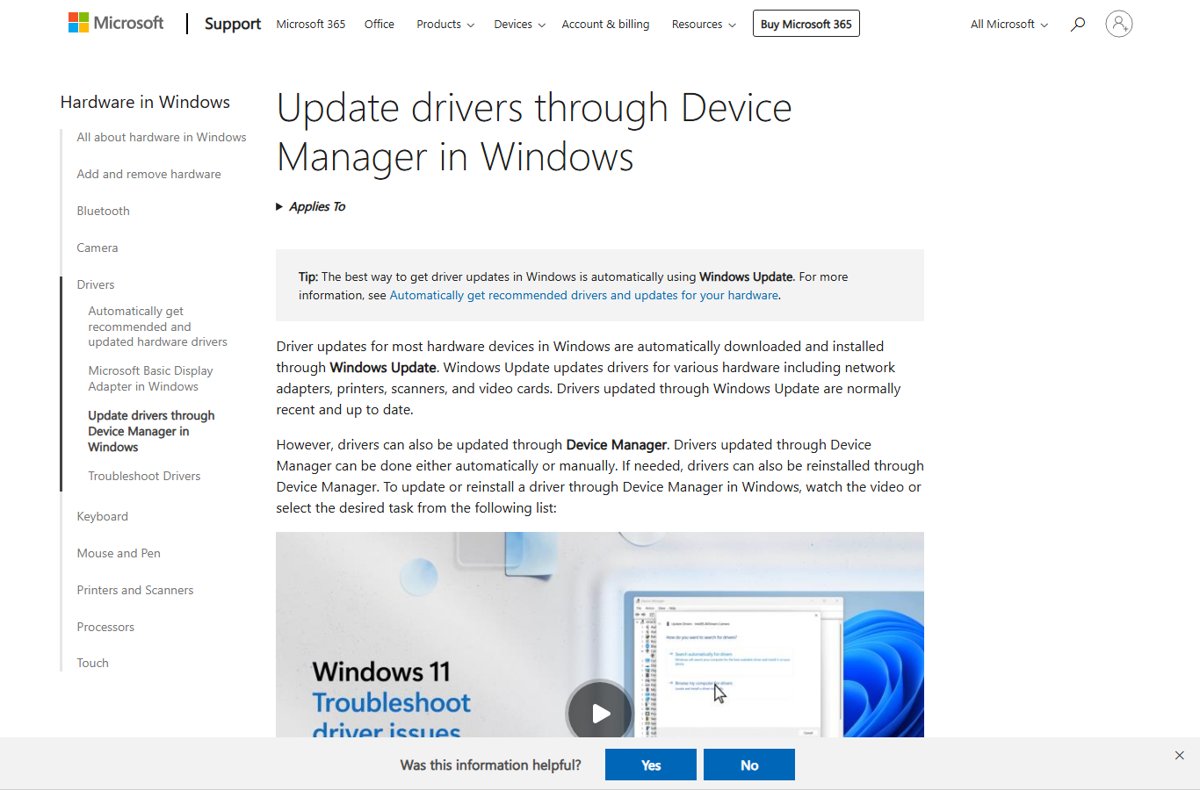
Microsoft states that the best way to get driver updates in Windows is automatically through Windows Update, which covers network adapters, printers, scanners and video cards.
Optional driver updates are not installed automatically, so check for them by hand in Windows Update settings on Windows 11.
- Select Start, then open Settings > Windows Update > Advanced options.
- Turn on Receive updates for other Microsoft products.
- Under Additional options, select Optional updates.
- Tick the driver updates you want, then select Download and install.
- When the install finishes, right-click Start and select Shut down or sign out > Restart, even if Windows did not ask for a restart.
If Windows Update has no driver for a device, get one from the hardware manufacturer's website, or update drivers on Windows 11 through Device Manager instead.
What is a driver updater and do you really need one?
A driver updater is software that scans your PC's hardware, compares the installed drivers with newer versions, and downloads and installs the updates. Windows Update already does this for most devices, so a separate app is optional for many PCs.
| Type of driver updater | What it updates | Do you need it? |
|---|---|---|
| Windows Update | Drivers for network adapters, printers, scanners, video cards and other hardware | Built in; it installs most driver updates automatically |
| PC maker's tool (Dell, HP, Lenovo, ASUS) | Drivers, BIOS and firmware for that exact model | Yes on a laptop or prebuilt desktop from that maker |
| Chip maker's tool (Intel, AMD, NVIDIA) | Processor, graphics, Wi-Fi or Ethernet drivers from that maker | Yes for a dedicated graphics card or a self-built PC |
| Third-party driver updater (Avast, Norton) | Drivers from many hardware brands in one scan, with backups | Only when the free routes leave devices without updates |
The reasons to use a driver updater are bug fixes for devices, patches for vulnerable drivers, and support for new games and apps. NVIDIA tunes its Game Ready drivers for new games on their release day.
What to look for in driver updater software
A good driver updater gets drivers from the hardware maker, lets you pick what to install, and gives you a way back if an update misbehaves.
| Feature | Why it matters | Where to find it |
|---|---|---|
| Driver source | Microsoft advises against downloading drivers from any site other than the manufacturer's official site | Windows Update and the Intel, AMD, NVIDIA, Dell, HP, Lenovo and ASUS tools |
| Scan coverage | Graphics, chipset, audio, network and printer drivers come from different makers | Windows Update covers many devices; Avast says it covers 1,300+ brands |
| Choice per driver | Installing only the updates you need limits the number of things that can break | Windows Update optional updates, Avast, Norton |
| Backup and restore | Lets you return to the previous driver after a bad update | Device Manager Roll Back Driver, Avast, Norton |
| Automation | Checks for updates without you remembering to | Windows Update, HP Support Assistant, Dell SupportAssist, Lenovo Vantage |
| BIOS and firmware | PC makers ship BIOS and firmware updates that chip makers do not | MyASUS, Dell Command | Update, HP Support Assistant |
| Price and trial terms | Paid tools renew automatically | Norton's trial needs a payment method; Avast's 30-day trial does not |
12 best driver updater software for Windows 11/10
The first ten entries come from Microsoft or the hardware makers. The last two are paid third-party updaters from Gen Digital brands.
| # | Tool | Made by | Cost | Who it suits |
|---|---|---|---|---|
| 1 | Windows Update (optional driver updates) | Microsoft | Part of Windows | Every Windows 11 and Windows 10 PC; the first place to look |
| 2 | Device Manager Update driver | Microsoft | Part of Windows | Updating, rolling back or reinstalling one specific device |
| 3 | Intel Driver & Support Assistant | Intel | Download from intel.com | PCs with Intel processors, graphics, Wi-Fi or Ethernet |
| 4 | AMD Software: Adrenalin Edition | AMD | Download from amd.com | PCs with AMD Radeon graphics |
| 5 | NVIDIA app | NVIDIA | Download from nvidia.com | GeForce gamers and creators who want Game Ready or Studio drivers |
| 6 | Dell SupportAssist | Dell | Pre-installed on Dell PCs | Home Dell laptops and desktops |
| 7 | Dell Command | Update | Dell | Dell support download | Dell commercial PCs such as business laptops and desktops |
| 8 | HP Support Assistant | HP | Included on new HP PCs | HP laptops and desktops, plus HP printers on any PC |
| 9 | Lenovo Vantage | Lenovo | Microsoft Store | Lenovo laptops and desktops; Legion owners get a gaming version |
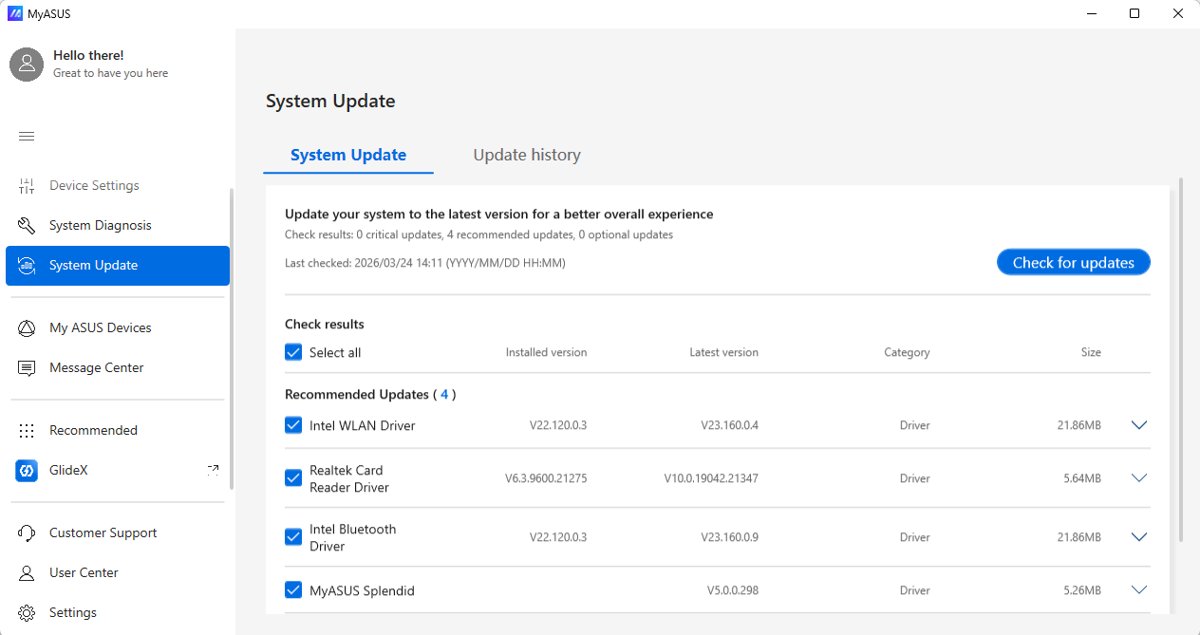
| 10 | MyASUS | ASUS | Pre-installed; Microsoft Store | ASUS laptops, desktops, All-in-Ones, handhelds and motherboards |
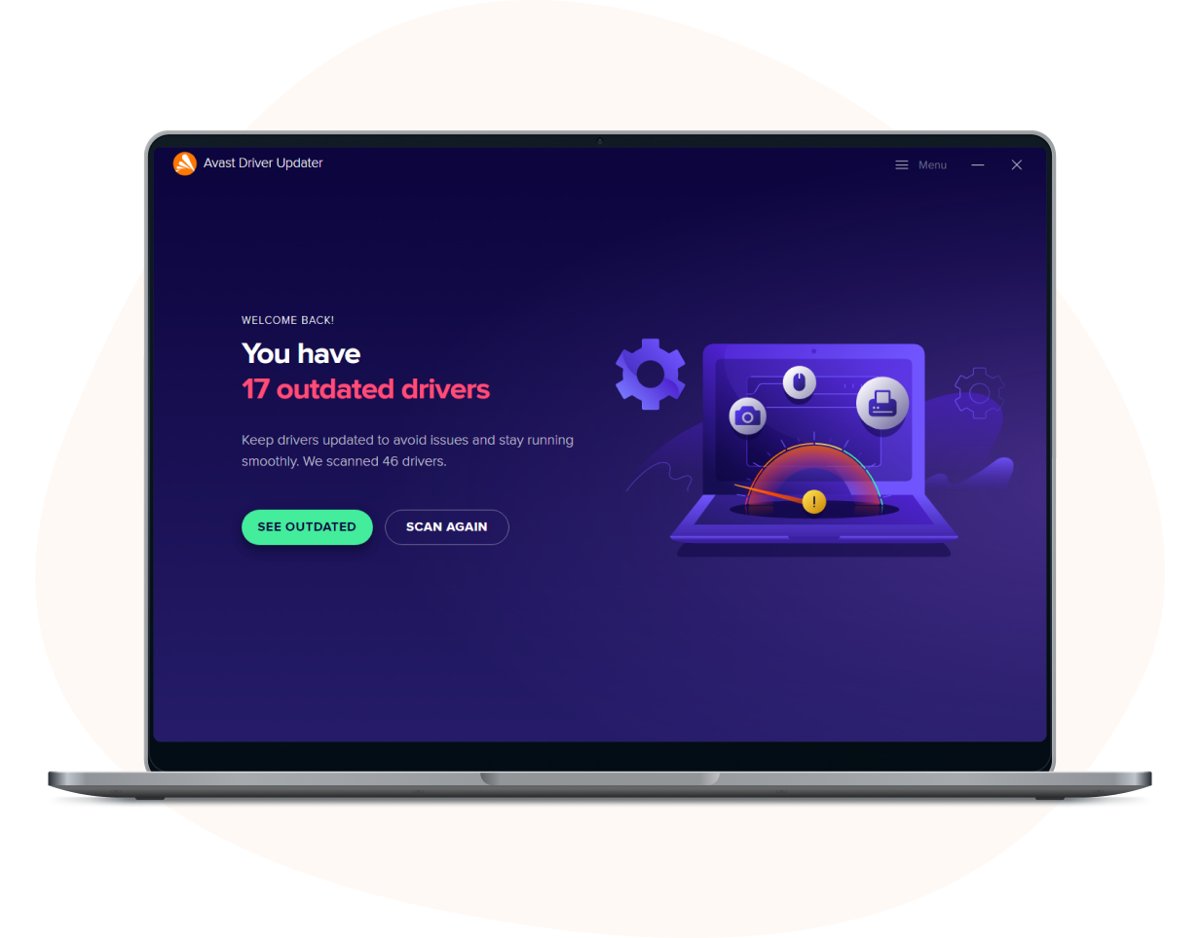
| 11 | Avast Driver Updater | Avast (Gen Digital) | $43.99/year for 1 PC after a 30-day trial | Self-built PCs and peripherals from many brands |
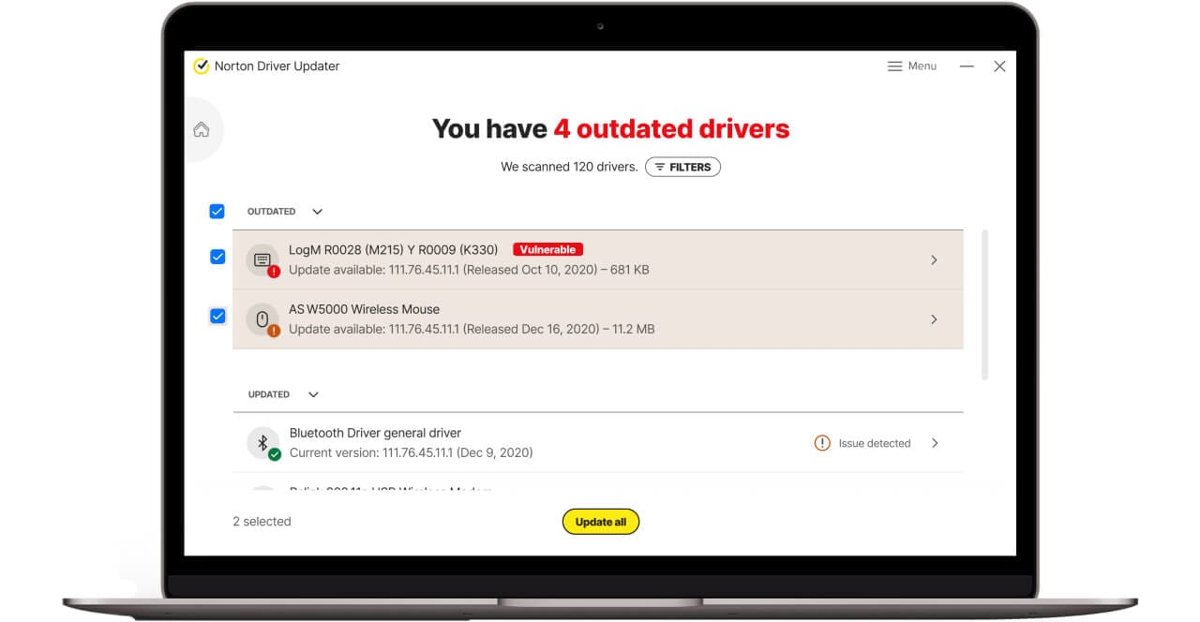
| 12 | Norton Driver Updater | Norton (Gen Digital) | $29.99 first year, then $44.99/year | Existing Norton users who want driver backup and revert |
Intel says its assistant covers most of your Intel hardware and publishes a list of exclusions. For a graphics card, you can update the graphics driver straight from NVIDIA, AMD or Intel.
Optional driver updates in Windows 11 and Windows 10
Windows 10 reached end of support on October 14, 2025, but the optional updates path still works on PCs that receive updates.
| Windows version | Path | Then |
|---|---|---|
| Windows 11 | Settings > Windows Update > Advanced options > Optional updates | Select drivers, then Download and install |
| Windows 10 | Settings > Update & Security > Windows Update > Check for updates | Select View optional updates, pick drivers, then Download and install |
| Both | Turn on the setting that receives updates for other Microsoft products | Restart after the install finishes |
Update a driver automatically with Device Manager
Device Manager is the built-in way to update a single device without a separate app.
- Right-click Start and select Device Manager.
- Expand the category for the device, for example Printers.
- Right-click the device and select Update driver.
- Select Search automatically for updated driver software.
- If nothing is found, select Search for updated drivers on Windows update.
- Select Close when Windows finishes.
How to update drivers manually on Windows 11/10
Update a driver manually when Windows Update and the maker's tool do not offer the version you need. Download the driver only from the device manufacturer's official site, matching your Windows version and architecture.
- Download the driver from the manufacturer's website, extract the files if they are compressed, and note the folder.
- Right-click Start and select Device Manager.
- Expand the device category, for example Printers, and right-click the device.
- Select Update driver, then Browse my computer for drivers.
- Select Browse…, go to the driver folder and select OK.
- Confirm the path and select Next. Windows installs the driver if it is newer than the one installed.
- Select Close when Windows finishes.
If Windows reports The best drivers for your device are already installed, the downloaded driver is not newer than the current one.
Feature comparison: scanning, backup, restore, and automation
This features comparison table sets the twelve tools side by side. Each row lists only what the vendor's own page states. A blank in the vendor's claims is shown as "Not stated" rather than guessed.
| Tool | Scanning | Backup and restore | Automation | Limits stated by the vendor |
|---|---|---|---|---|
| Windows Update | Checks Microsoft's catalogue for your hardware | Device Manager Roll Back Driver | Most drivers install automatically; optional ones do not | Optional drivers need a manual install |
| Device Manager | One device at a time | Roll Back Driver and Uninstall device | None | Roll back needs administrator permissions |
| Intel Driver & Support Assistant | Identifies Intel products in the PC | Not stated | Shows a list of available updates | Excludes some Intel products |
| AMD Software: Adrenalin Edition | AMD graphics | Not stated | Not stated | AMD hardware only |
| NVIDIA app | NVIDIA graphics | Not stated | Keeps NVIDIA drivers up to date | NVIDIA GPUs only |
| Dell SupportAssist | Scans the PC for available updates | Not stated | Finds and installs updates automatically | Windows 10 1809 or later (64-bit) or Windows 11 |
| Dell Command | Update | BIOS, firmware, drivers and apps | Not stated | Matches updates to the specific machine | Commercial Dell PCs; separate Arm version |
| HP Support Assistant | PC and printer drivers and firmware | Not stated | Install automatically or notify only | Windows 10 RS4 or later; not supported on Arm |
| Lenovo Vantage | Lenovo system updates | Not stated | Discovers updates automatically | Lenovo devices |
| MyASUS | BIOS, drivers and firmware on the System Update page | Not stated | One-click update | Not available in Windows S mode |
| Avast Driver Updater | Outdated, corrupt, vulnerable or missing drivers | Backs up current drivers and restores them | Real-time scans | Paid after the trial |
| Norton Driver Updater | Outdated, corrupted or vulnerable drivers | Backup and revert to any earlier version | Update notifications | No Windows on Arm or S mode |
Free vs paid driver updaters: which option is worth it?
Windows Update and the hardware makers' tools list no subscription price on their vendor pages. Avast and Norton are annual subscriptions that renew automatically.
| Your situation | Use this | Why |
|---|---|---|
| Laptop or prebuilt desktop from Dell, HP, Lenovo or ASUS | The PC maker's tool plus Windows Update | Free, and it includes BIOS and firmware updates for that exact model |
| Gaming PC with a GeForce or Radeon card | NVIDIA app or AMD Software | Game Ready and Studio drivers arrive there first |
| Self-built PC with parts from many brands | Windows Update, Intel or AMD tools, then a paid updater only if gaps remain | A paid tool scans many brands in one pass |
| You want driver backup with one click | Avast or Norton, or Device Manager Roll Back Driver for free | Both paid tools back up drivers before updating |
| Windows on Arm or S mode PC | Windows Update | Norton excludes both; HP Support Assistant excludes Arm; MyASUS updates are unavailable in S mode |
Safety tips before updating Windows drivers
A bad driver can stop a device working, so prepare before you install a batch of updates. These steps let you update drivers safely without breaking Windows.
- Create a restore point so you can return the whole system to its current state.
- Open Device Manager, right-click the device, select Properties and note the details on the Driver tab.
- Download drivers only from Windows Update or the manufacturer's official site, as Microsoft advises.
- Review every recommended update and install only the ones for devices you use or that have a problem.
- Install one driver at a time when possible, then restart and test the device.
- Avoid driver installers from download portals or unofficial mirrors.
Are driver updaters safe? Watch out for the same things with any third-party driver updater you see in other roundups, such as Driver Booster, Snappy Driver Installer, DriversCloud, DriverHub, Quick Driver Updater, DriverIdentifier, Driver Talent or DriverMax. Check on the vendor's own site where the drivers come from, whether it backs up the current driver, and whether the trial renews into a paid plan.
How to choose the best driver updater for your PC
Match the tool to who made your PC and its main chips, then add Windows Update on top.
| Your PC | Primary tool | Add this |
|---|---|---|
| Dell home laptop or desktop | Dell SupportAssist | Windows Update optional updates |
| Dell commercial (business) PC | Dell Command | Update | Windows Update |
| HP laptop or desktop | HP Support Assistant | NVIDIA app or AMD Software for a dedicated GPU |
| Lenovo laptop or desktop | Lenovo Vantage | Windows Update |
| ASUS laptop, desktop or motherboard | MyASUS | Windows Update |
| Self-built Intel PC | Intel Driver & Support Assistant | NVIDIA app or AMD Software for the graphics card |
| Self-built AMD PC | AMD Software: Adrenalin Edition | Windows Update for other devices |
| Mixed peripherals with no maker tool | Windows Update and Device Manager | Avast or Norton if you want one scanner for everything |
Dell owners can keep Dell drivers updated with SupportAssist and Dell's support site together.
How to check a driver update installed
- Right-click Start and select Device Manager.
- Expand the category and right-click the device you updated.
- Select Properties and open the Driver tab.
- Compare the driver details with what you noted before the update.
- Use the device: play audio, print a page, or run the game that had problems.
Driver update problems: fixes by symptom
A device stopped working after a driver update
The new driver is faulty or does not suit your hardware.
- Right-click Start and open Device Manager.
- Right-click the device and select Properties.
- On the Driver tab, select Roll Back Driver.
- Choose a reason, select Yes, and restart if prompted.
Windows Update shows no optional driver updates
No newer driver is offered for your hardware through Windows Update.
- Confirm Receive updates for other Microsoft products is turned on.
- Select Check for updates and look under Optional updates again.
- Open your PC maker's tool or the chip maker's tool from the list above.
- Download the driver from the manufacturer's official site if no tool offers it.
A device still misbehaves after the newest driver
The installed driver files are damaged.
- Save your work and close open apps.
- In Device Manager, right-click the device and select Uninstall device, then Uninstall.
- Right-click Start and select Shut down or sign out > Restart.
- Let Windows reinstall the driver; if it does not, run Update driver on the device.
A driver updater lists dozens of outdated drivers
Scanners flag every driver with a newer version, including devices that work fine.
- Install updates for graphics, network and any device with a problem first.
- Skip drivers for devices that work normally.
- Restart and test after each group of updates.
Driver updater software FAQ
Which is the best driver updater software?
The best driver updater for most PCs is Windows Update, used with the PC or chip maker's own tool such as Dell SupportAssist, HP Support Assistant, Lenovo Vantage, MyASUS, Intel Driver & Support Assistant or the NVIDIA app. These get drivers straight from the hardware maker.
What is the best free driver updater for Windows 11?
The best free driver updater for Windows 11 is Windows Update, through Settings > Windows Update > Advanced options > Optional updates. Pair it with your hardware maker's tool, which lists no subscription price on the vendor page.
Is a driver updater any good?
A driver updater is useful when it gets drivers from the hardware maker and lets you choose what to install. Manufacturer tools and Windows Update do that for free. Paid updaters such as Avast and Norton add one scan across many brands plus driver backup.
Should you use a driver updater?
Use Windows Update and your PC maker's tool first, because Microsoft advises getting drivers only from Windows Update or the manufacturer's official site. A paid third-party updater makes sense only for a self-built PC with parts that no maker tool covers.
Are driver updater programs safe to use?
Driver updaters from Microsoft, Intel, AMD, NVIDIA, Dell, HP, Lenovo and ASUS are safe because they ship the maker's own drivers. Avast and Norton say they check drivers for malware and back up the current driver first. Avoid unknown updaters from download portals.
Why should I update drivers?
Update drivers to fix device bugs, close security gaps in vulnerable drivers, and get support for new games and apps. Graphics drivers such as NVIDIA's Game Ready releases are tuned for new games on their release day.
Are driver updates important?
Driver updates are important for graphics, network and security fixes, and Windows Update installs most of them automatically. Optional driver updates are not installed automatically, so install those only when a device has a problem or the update adds something you need.
What drivers are important to update?
Graphics drivers matter most for games and creative apps, followed by network, audio and printer drivers. BIOS, chipset and firmware updates from your PC maker's tool also matter, since they fix stability and security problems specific to your model.
Should I update all outdated drivers at once?
No. Install one driver or a small group at a time, restart, and test the device before moving on. If something breaks, you know which driver caused it and can use Roll Back Driver in Device Manager.
Bottom line: which driver updater should you use?
Use Windows Update optional updates plus your PC maker's tool (Dell SupportAssist, HP Support Assistant, Lenovo Vantage or MyASUS) and the NVIDIA app or AMD Software for a graphics card. These routes ship drivers from the hardware maker at no subscription cost, cover BIOS and firmware, and keep Device Manager's roll back as the safety net. Avast Driver Updater or Norton Driver Updater are worth paying for only on a self-built PC with many brands of parts.