To view installed updates in Windows 11, open Settings, select Windows Update, then select Update history; on Windows 10 the same list sits under Update & Security > Windows Update > View update history.
This guide covers the Settings, Control Panel, PowerShell and DISM routes, what each list leaves out, the state of WMIC, and what to do when an update you expect is not listed.
View installed updates in Windows 11
The Update history page sits alongside the other Windows Update options in Settings and shows which updates were installed and when they were installed. It is the quickest place to confirm that a cumulative update, driver or security fix actually landed.
- Select Start, then select Settings.
- Select Windows Update in the left pane.
- Select Update history.
- Read the KB number and install date listed for each update.
- To jump straight to this page, press Win + R, type
ms-settings:windowsupdate-historyand press Enter.
The ms-settings:windowsupdate-history address is Microsoft's own shortcut for the history page, so it also works from a desktop shortcut or a script.
View installed updates in Windows 10
Windows 10 keeps Windows Update inside the Update & Security category, so the history page is one level deeper than on Windows 11.
- Select Start, then select Settings.
- Select Update & Security.
- Select Windows Update.
- Select View update history.
- Read the KB number and the date each update installed.
The same ms-settings:windowsupdate-history address from the Run box opens this page on Windows 10 as well.
Which tool shows installed Windows updates best?
| Your situation | Use this | Why |
|---|---|---|
| You want a quick look at recent updates | Settings > Update history | Readable list with install dates, no admin rights needed |
| You want to remove a recent update | Update history > Uninstall updates | Lists the updates Windows lets you remove |
| You need a KB number check or an export | PowerShell Get-HotFix |
Filters by ID, sorts by date, works on remote PCs |
| You need every servicing package, not just KBs | Dism /Online /Get-Packages |
Lists all packages in the running image |
| You used to run WMIC scripts | PowerShell instead | WMIC is removed from current Windows 11 builds |
Use Control Panel to see the installed-update list
Control Panel, which you can open from search, Run or a shortcut, still carries an installed updates view next to the classic program list. Microsoft's DISM documentation refers to it as the Installed Updates Control Panel.
- In the search box on the taskbar, type Control Panel and select it from the results.
- Select Programs.
- Select Programs and Features.
- Open the installed updates view from the task links in the Programs and Features window.
- Look for the KB number you need in the list of installed updates.
On current Windows 11 builds, Settings is the route Microsoft documents. Use Control Panel when you are already working there or following older instructions.
Update history versus View installed updates
The two lists answer different questions. Update history is a log of what Windows Update did, while the installed updates view shows what is on the PC and can still be removed.
| Question | Update history | Installed updates / Uninstall updates |
|---|---|---|
| What it shows | Updates Windows installed, with dates | Updates currently installed that Windows allows you to remove |
| Where to find it on Windows 11 | Settings > Windows Update > Update history | Update history > Uninstall updates |
| Where to find it on Windows 10 | Update & Security > Windows Update > View update history | View update history > Uninstall updates |
| Best for | Confirming that an update landed and when | Seeing what is on the PC now |
| Lets you remove an update | No | Yes, for updates that support removal |
Check installed updates with PowerShell
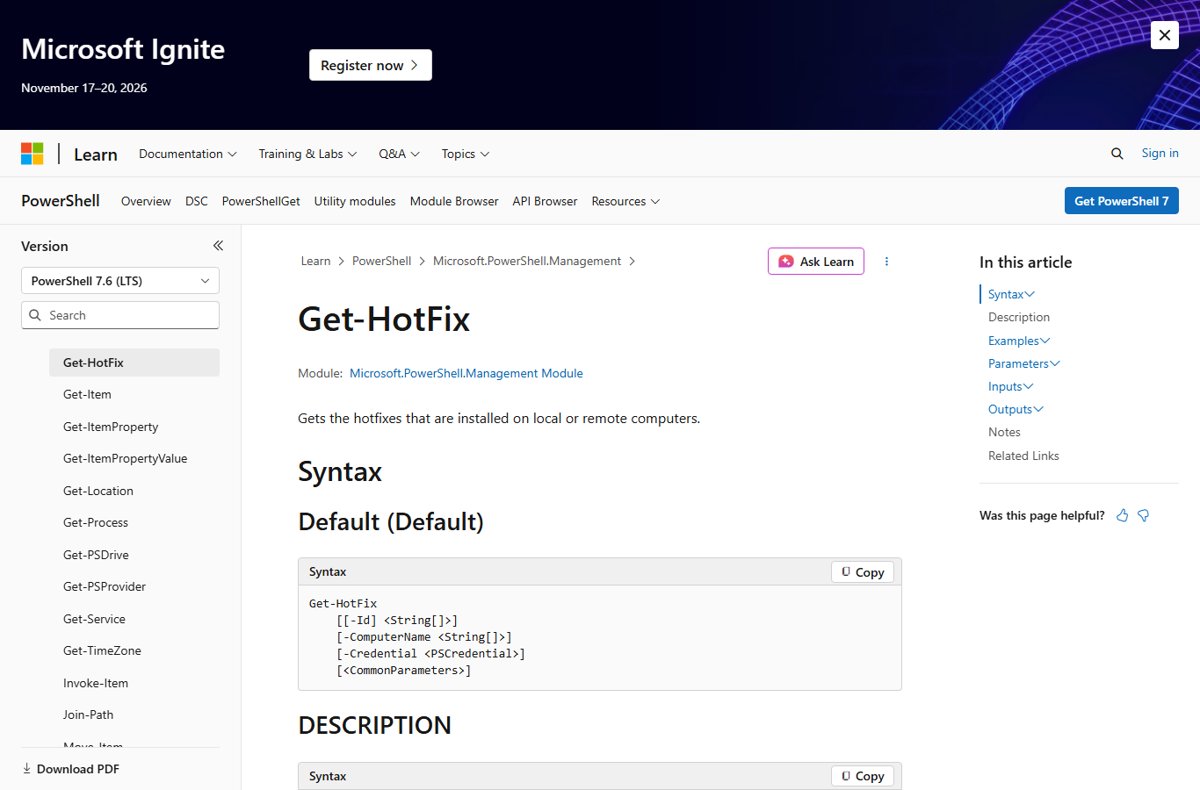
Get-HotFix reads the Win32_QuickFixEngineering class and returns each update with its KB number, type and install date. It runs in Windows PowerShell and PowerShell 7, and it works only on Windows.
Get-HotFix | Sort-Object -Property InstalledOn -DescendingLists every update that Component Based Servicing installed, sorted by install date with the newest first. Columns are Source, Description, HotFixID, InstalledBy and InstalledOn.
You should see: A table of KB numbers such as KB5124008 with their install dates. An empty InstalledOn cell means Windows did not record the date for that entry.
To get only the most recent update, run (Get-HotFix | Sort-Object -Property InstalledOn)[-1]. To list only security fixes, run Get-HotFix -Description Security*.
Check for a specific KB number with PowerShell
Pass the KB number to -Id to test whether one update is installed. The parameter does not accept wildcards, so type the full ID.
Get-HotFix -Id KB5124008Replace KB5124008 with the update you are checking. Add -ComputerName PC01 to query another PC on the network; that switch does not rely on PowerShell remoting.
You should see: One row with the KB number and install date means the update is present. No row means it is not installed, or it was not installed through Component Based Servicing.
List installed update packages with DISM
DISM shows every servicing package in the running image, including packages that Settings does not list by KB number. It needs an elevated Command Prompt.
Dism /Online /Get-Packages /Format:TableOpen Start, type Command Prompt, right-click it and select Run as administrator, then run the command. /Format:Table prints one package per row; /Format:List prints full details.
You should see: A table of package identities. Package names carry a build number, such as 10.0.19045.4291, rather than a KB number.
Can you still use WMIC?
Not on current Windows 11. Microsoft deprecated WMIC in Windows 10 version 21H1, and from August 2026 Windows 11 versions 24H2 and 25H2 no longer include it at all.
Replace any old wmic qfe habit with Get-HotFix in PowerShell. WMIC is already missing from new installations of Windows 11 24H2 and 25H2 and cannot be added back as a Feature on Demand. WMI itself is still supported, and Get-HotFix reads the same Win32_QuickFixEngineering data WMIC used.
How to check if Windows is up to date
Seeing an update in the history only proves it installed. To confirm nothing newer is waiting, run a fresh check.
- On Windows 11, open Settings > Windows Update and select Check for updates. On Windows 10, open Settings > Update & Security > Windows Update and select Check for updates.
- If updates appear, select Download & install.
- Restart the PC if Windows asks you to, then check again, because more updates can appear after a restart.
- Open Settings > System > About and note the version under Windows specifications.
- Compare the newest KB in your Update history with Microsoft's update history page for that version.
On Windows 11 26H2, a list of every 26H2 build and KB makes the comparison quicker.
Uninstall an update from Windows 11 or Windows 10
The Uninstall updates page is also a clean list of installed updates, because it shows only what is on the PC now. Microsoft does not recommend removing updates unless it is necessary, and not every update can be removed.
- On Windows 11, open Settings > Windows Update > Update history.
- On Windows 10, open Settings > Update & Security > Windows Update > View update history.
- Select Uninstall updates to see the list of updates you can remove.
- Note the KB number of the update you suspect before you change anything.
To remove the update, or to get rid of one when Windows will not start normally, you can uninstall problematic Windows updates from Settings or the recovery environment.
What to do when an update is missing from the list
The latest update is not in Update history
The update has not installed yet, or it is waiting for a restart to finish.
- Open Windows Update in Settings and select Check for updates.
- Install the pending updates, then restart when Windows asks.
- Reopen Update history and look again.
- If the update still fails, run the Windows Update troubleshooter from the Get Help app on Windows 11, or from Settings > Update & Security > Troubleshoot > Additional troubleshooters on Windows 10.
An update appears in Settings but not in PowerShell
Get-HotFix returns only Component Based Servicing updates. Updates supplied by Windows Installer (MSI) or the Windows Update site do not appear in its output.
- Confirm the update type in Update history.
- For updates that
Get-HotFixdoes not return, rely on the Settings history instead. - For a cumulative update, run
Dism /Online /Get-Packages /Format:Tablefrom an elevated Command Prompt and look for the matching build number.
An installed update is missing from Uninstall updates
Not all updates can be removed, and updates cannot be uninstalled after a component cleanup with DISM's /ResetBase option.
- Check Update history to confirm the update did install.
- Run
Get-HotFix -Id KBfollowed by the number to confirm it is still on the PC. - Treat it as permanent if it does not appear under Uninstall updates, and install the next update Microsoft releases instead.
Windows 10 support status
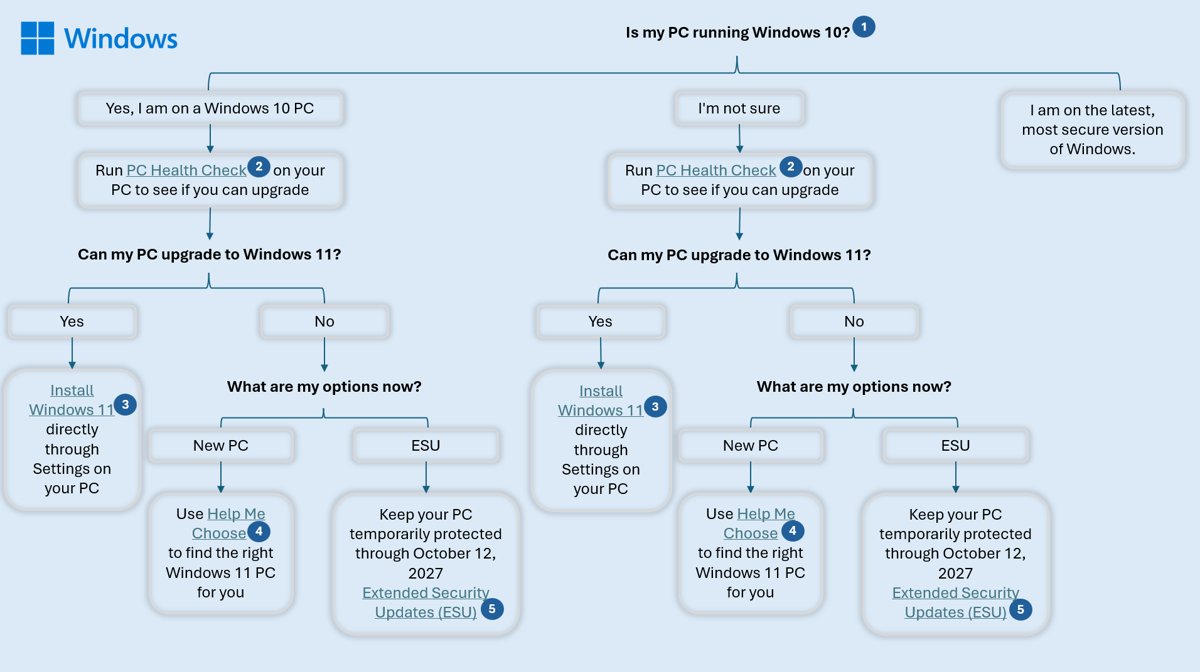
Windows 10 reached end of support on October 14, 2025, and version 22H2 is its final release. Update history on a Windows 10 PC stops growing after that date unless the PC is enrolled in Extended Security Updates.
| Item | Status |
|---|---|
| End of support (Home and Pro) | October 14, 2025 |
| Final version | Windows 10, version 22H2 |
| After end of support | No technical support, software updates or security fixes |
| Consumer Extended Security Updates | Can protect a Windows 10 device until October 12, 2027 |
| Business and IT customers | A separate ESU program applies |
If you are staying on Windows 10, check Update history each month to confirm ESU security updates are still arriving. Moving to Windows 11 keeps the history page in the same place under Windows Update.
Installed Windows updates FAQ
What is the quickest way to see installed updates in Windows 11?
Press Win + R, type ms-settings:windowsupdate-history and press Enter. That opens Settings > Windows Update > Update history directly, where every installed update is listed with its KB number and the date it installed.
What is the Windows 10 path for viewing update history?
Open Start > Settings > Update & Security > Windows Update > View update history. The page shows which updates installed and when, with the KB number for each one. Uninstall updates is reached from the same page.
How do I see the latest Windows updates installed?
Open Update history in Settings and look at the newest dates at the top of each group. In PowerShell, run (Get-HotFix | Sort-Object -Property InstalledOn)[-1] to return the most recently installed CBS update on the PC.
How do I check if Windows is updated?
Open Settings > Windows Update on Windows 11, or Settings > Update & Security > Windows Update on Windows 10, and select Check for updates. If nothing new appears after a restart and a second check, the PC has every update offered to it.
How do I view installed Windows updates with PowerShell?
Run Get-HotFix in a PowerShell window. It lists each update's description, KB number, who installed it and the install date. Add -Id KB5124008 to test one update, or -ComputerName to check another PC on the network.
Why does an update appear in Settings but not in PowerShell?
Get-HotFix only returns updates installed through Component Based Servicing. Updates supplied by Windows Installer or the Windows Update site are not returned, so Settings can show entries that PowerShell does not.
How do I view Microsoft updates for my version of Windows?
Microsoft publishes an update history page for each Windows version, such as Windows 11 version 25H2 or 26H2, listing every KB number and OS build. Compare it with your own Update history to see whether you are on the newest release.
Why are Windows updates important to install?
Updates carry security fixes and software updates. Microsoft states that a PC without them is at greater risk from viruses and malware, which is why Windows 10 devices past end of support need Extended Security Updates to stay protected.
The bottom line: best way to view installed Windows updates
Use Settings > Windows Update > Update history for everyday checks, and Get-HotFix when you need to confirm a specific KB number or check another PC. Update history covers every update type with dates and needs no commands, while Get-HotFix gives a filterable list for CBS updates. WMIC is gone from current Windows 11 builds. If Update history shows the PC is far behind, the Windows Update Assistant can install the latest version manually.






How to access and view passkeys in Windows 11 Settings - Techdows
[…] features need Windows 11, and some options appear only after recent updates. Check your version and installed Windows updates before you go looking for a missing […]
Microsoft says Windows 10 1803 and before versions will receive a Notification to Update to v1809 - Techdows
[…] Update KB4023814 is responsible for showing the update notification, it can be either listed in installed updates or appears as “Windows 10 Update assistant” in Programs and features if […]