To run the Windows Update troubleshooter on Windows 11, open Start > Settings > System > Troubleshoot > Other troubleshooters and select Run next to Windows Update.
On current Windows 11 releases that button opens the troubleshooter in the Get Help app. This guide covers both routes, the Windows 10 path, how to reset Windows Update components by hand, and fixes for common update error codes.
Run Windows Update Troubleshooter from Settings
This is the route Microsoft lists first for Windows 11. It works whether the troubleshooter runs in the classic window or hands off to Get Help.
- Select Start > Settings > System.
- Scroll down and select Troubleshoot.
- Select Other troubleshooters.
- Under Most frequent, select Run next to Windows Update.
- Follow the on-screen instructions until the troubleshooter finishes.
- Restart the PC.
- Select Start > Settings > Windows Update > Check for updates, and install anything it offers.
If the same error comes back, run the troubleshooter a second time. Microsoft recommends a rerun to catch additional errors before moving on to manual fixes.
Settings, Get Help or a manual reset: which to use
| Your situation | Use this | Why |
|---|---|---|
| Windows 11, update fails with an error code | Settings > System > Troubleshoot > Other troubleshooters > Windows Update | The built-in entry point, and it hands off to Get Help when needed |
| Windows 11, you would rather type the problem | The Get Help app, search windows update troubleshooter |
Microsoft's primary automated Windows Update troubleshooter on Windows 11 |
| Windows 10 | Settings > Update & Security > Troubleshoot > Additional troubleshooters | Windows 10 keeps the legacy built-in troubleshooter |
| The troubleshooter ran but updates still fail | Restart the update services, then reset Windows Update components | Clears a corrupted update cache the troubleshooter did not touch |
| Errors mention corruption, such as 0x800f081f | DISM then sfc /scannow |
Repairs the Windows component store, which no troubleshooter checks |
| One update refuses to install from Windows Update | Install it from the Microsoft Update Catalog | Bypasses the Windows Update download path entirely |
What the Windows Update Troubleshooter Does
The troubleshooter checks the services and files Windows Update depends on and resets the components that need it. It is aimed at failed downloads and installs that show an error code.
| It can | It cannot |
|---|---|
| Detect and reset Windows Update components that are in a bad state | Repair a corrupted Windows component store; that needs DISM |
| Restart related services such as the Windows Update service and BITS | Free disk space an upgrade needs (16 GB for 32-bit, 20 GB for 64-bit) |
| Run diagnostics in Get Help and suggest the next remedy | Replace an incompatible network or graphics driver behind error 0xC1900101 |
| Run by itself as a recommended troubleshooter to repair update files and settings | Get past a firewall or proxy that blocks Microsoft's update servers |
| Report which problems it found and whether they were fixed | Grant administrator rights your account does not have |
Common problems it can detect include a stuck update cache, a stopped update service and interrupted downloads. The table of error codes further down shows what to try when a code points elsewhere.
Why the troubleshooter now opens in Get Help
The old troubleshooters ran on MSDT, the Microsoft Support Diagnostic Tool. Microsoft deprecated MSDT in January 2023 and retired it on Windows 11 releases newer than 22H2 in three phases.
| Year | What Microsoft changed | What it means for Windows Update |
|---|---|---|
| 2023 | Began redirecting legacy troubleshooters to Get Help | The Windows Update entry started pointing at Get Help |
| 2024 | Finished the redirection and removed the rest | Windows Update stayed available as a Get Help troubleshooter |
| 2025 | Removed the MSDT platform | Old msdt.exe commands are no longer a reliable way to start it |
| Windows 11 22H2 and older, Windows 10 | Not affected | The legacy Windows Update troubleshooter still runs from Settings |
Every other troubleshooter went through the same change. The full list of redirected and removed troubleshooters is in Microsoft's MSDT deprecation notice.
Run the Troubleshooter Using the Get Help App
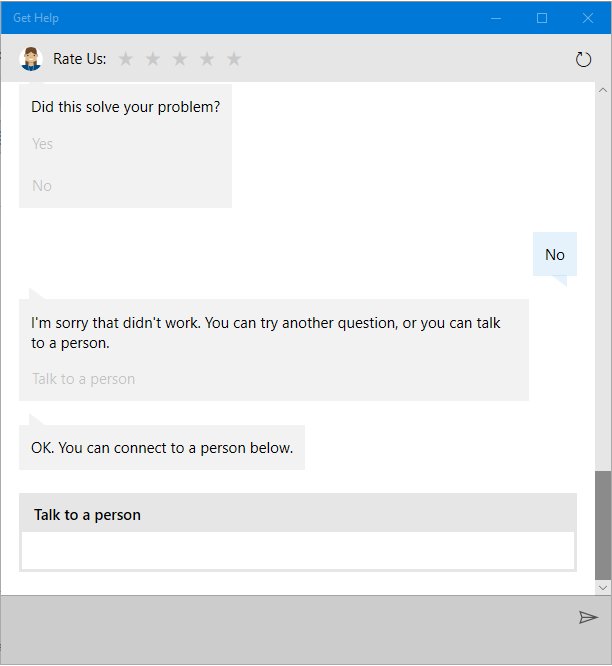
Microsoft now tells Windows 11 users to start here. Get Help needs you signed in with a Microsoft personal account or a work or school account.
- Select Start, type
get helpand select Get Help. - Type
windows update troubleshooterin the search bar and press Enter. - Select Start on the Windows Update troubleshooter.
- Consent to diagnostics when Get Help asks.
- Answer its questions about the update problem, such as the error code you saw.
- Let the diagnostics finish, then read the findings screen.
Run the Windows Update troubleshooter on Windows 10
Windows 10 was never part of the MSDT retirement, so its troubleshooter still runs from Settings.
- Select Start > Settings > Update & Security.
- Select Troubleshoot, then Additional troubleshooters.
- Under Get up and running, select Windows Update.
- Select Run the troubleshooter and approve the administrator prompt.
- Apply any fix it offers, then restart the PC.
- Go to Settings > Update & Security > Windows Update and select Check for updates.
If you are still moving an older PC to Windows 10, upgrading to Windows 10 is covered separately.
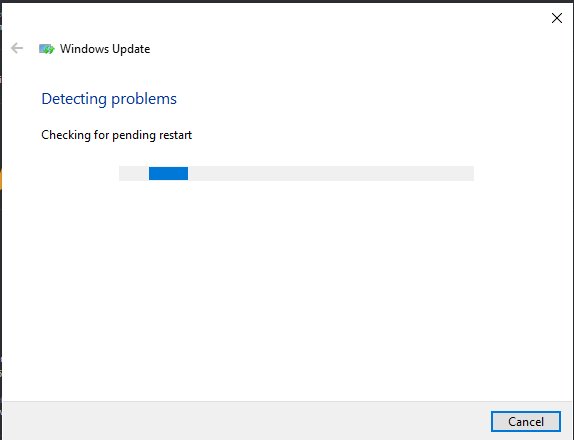
Review and Apply Recommended Fixes
The troubleshooter's last screen is the useful part. It tells you whether the fault was fixed or points you to the next step.
- Read each finding on the results screen before closing it.
- If a fix is offered, select it and approve the User Account Control prompt with Yes.
- Note any error code or finding marked as not fixed.
- Restart the PC, even if the troubleshooter did not ask.
- Select Start > Settings > Windows Update > Check for updates.
- If the same finding appears again, match the error code to the table below and follow its fix.
A result of "not found" means the troubleshooter checked its list and the fault lies elsewhere, usually in disk space, drivers or system files.
How to check the troubleshooter worked
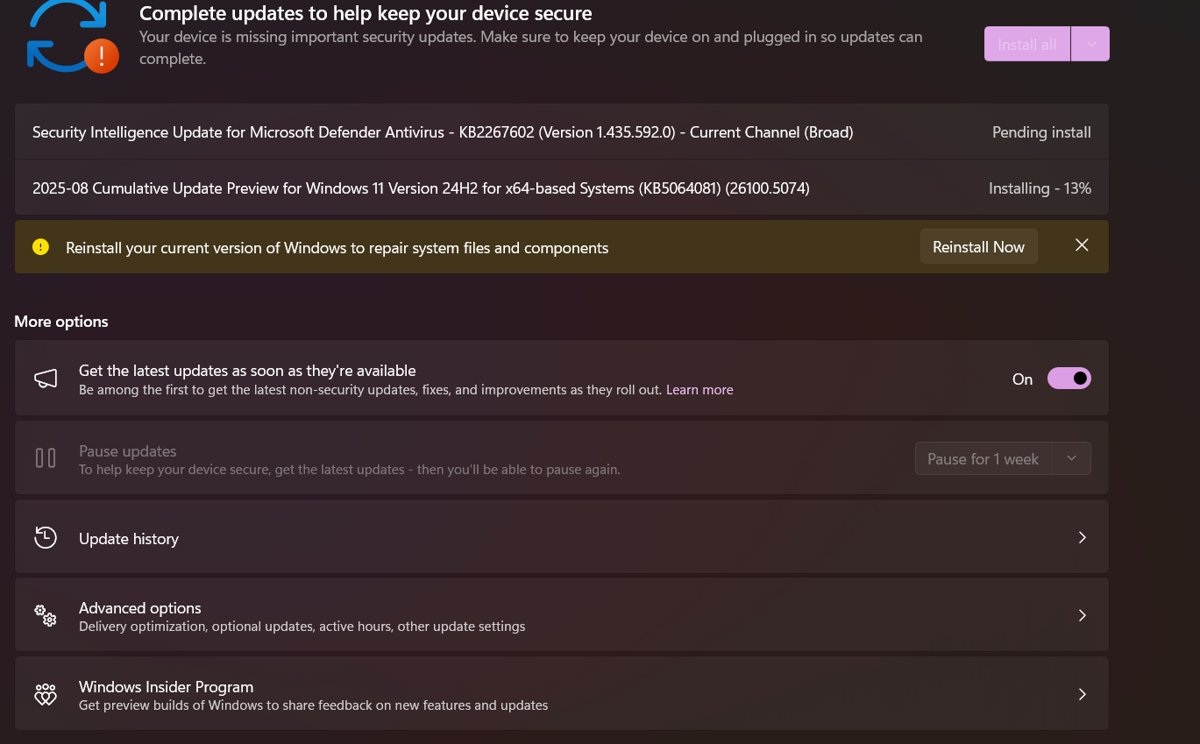
- Select Start > Settings > Windows Update > Check for updates and let it finish.
- Confirm the page shows no error and the pending update installs.
- Open Settings > Windows Update > Update history and check the update now shows as installed.
- Open Settings > System > Troubleshoot > Recommended troubleshooter history to see the run itself.
- On Windows 10, use Settings > Update & Security > Troubleshoot > View troubleshooting history instead.
An automatic repair appears in the history as Windows Update troubleshooter – Automatically repair system files and settings to improve device security. That entry means Windows ran it for you without a prompt.
Restart Windows Update Services Manually
A stopped or stuck service causes errors such as 0x80070422 and 0x80248014. Restarting the Windows Update service and BITS by hand is quick and safe.
net stop bits
net stop wuauserv
net start bits
net start wuauserv
Run each line in Command Prompt opened with Run as administrator. bits is the Background Intelligent Transfer Service and wuauserv is the Windows Update service.
You should see: Each net start line reports that the service was started successfully.
Prefer a window to a command line? Press Win + R, type services.msc and press Enter. Right-click Windows Update and select Stop, then right-click it again and select Start.
Reset Windows Update components
When the troubleshooter cannot clear a corrupted update cache, Microsoft documents a manual reset. It renames the download cache and the catroot2 folder so Windows rebuilds them fresh.
Open Command Prompt as administrator: type command prompt in the taskbar search box, select Run as administrator, then select Yes.
net stop bits
net stop wuauserv
ren %systemroot%\softwaredistribution softwaredistribution.bak
ren %systemroot%\system32\catroot2 catroot2.bak
net start bits
net start wuauserv
Type each line and press Enter, letting each finish before the next. The two ren lines keep the old folders as .bak copies instead of deleting them.
You should see: Both services start again. Close Command Prompt, restart the PC and select Check for updates; the first scan takes longer while Windows rebuilds its update data.
If a ren line says access is denied, a service is still running. Run the matching net stop line again, then retry.
Microsoft's full reset procedure for IT staff also stops cryptsvc, re-registers update DLLs and resets service permissions. Its own warning says to skip the permission reset unless every other step has failed, so home users should stop at the commands above.
Common Windows Update error codes and the fix for each
Match the code shown in Settings > Windows Update to a row. These pairings come from Microsoft's own update troubleshooting pages.
| Error code | Likely cause | What to do |
|---|---|---|
| 0x8007000d | Corrupted update cache or update files | Run the troubleshooter, then reset Windows Update components |
| 0x800705b4 | Update took too long or was interrupted | Check the internet connection and restart the PC |
| 0x80240034 | Stuck on an incomplete update or a connection drop | Check that the Windows Update service is running, then run the troubleshooter |
| 0x800f0922 | Not enough disk space, or a VPN in the way | Free up space and disconnect the VPN |
| 0x80070057 or 0x80080005 | Corrupted files or wrong system configuration | Run sfc /scannow, then the troubleshooter |
| 0xC1900101 | Incompatible driver | Update or reinstall network and display drivers in Device Manager |
| 0x80248014 or 0x80070422 | Update database problem, or the service is not running | Start the Windows Update service, then run the troubleshooter |
| 0x80070005 | Access denied | Install updates from an administrator account |
| 0x800f081f, 0x800f0831, 0x80073701 | Component store corruption | Run DISM.exe /Online /Cleanup-image /Restorehealth, then sfc /scannow, then restart |
| 0x80242014 | A restart is still pending | Restart the device to finish the install |
| 0x80072EE2, 0x80072EFD, 0x80072EFE | Timed out reaching Microsoft's update servers | Check that no firewall rule or proxy blocks Microsoft download addresses |
What to Do If the Troubleshooter Does Not Fix the Problem
The troubleshooter says it fixed something, but updates still fail
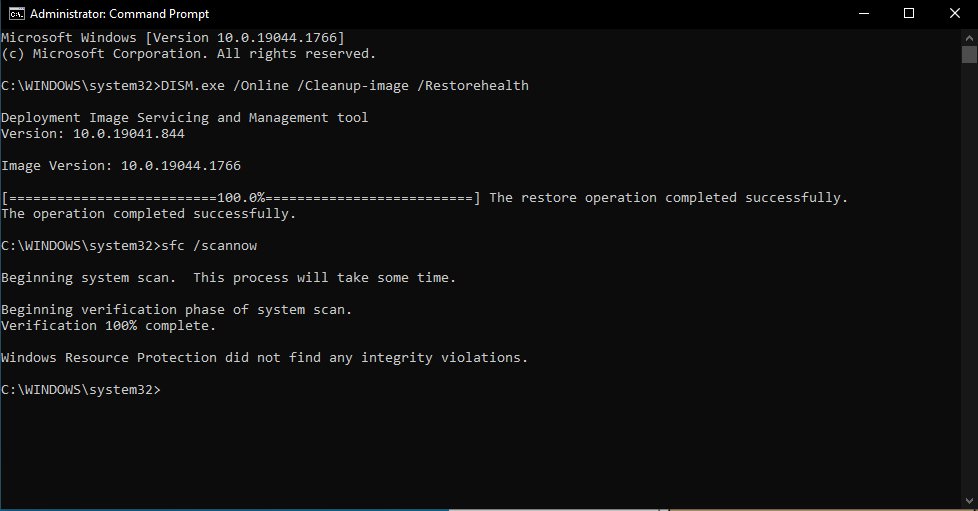
System files or the Windows image are damaged, which the troubleshooter does not check.
- Open Command Prompt as administrator.
- Run
DISM.exe /Online /Cleanup-image /Restorehealthand wait for The restore operation completed successfully. - Run
sfc /scannowand wait until verification reaches 100%. - Restart the PC and select Check for updates again.
The troubleshooter cannot identify the problem
The fault is outside Windows Update: power, network, disk space, clock or external hardware.
- Plug the PC into power and confirm the connection in Settings > Network & Internet > Wi-Fi.
- Disconnect external drives, docks and other hardware you do not need.
- Open Settings > Time & language > Date & time and turn on Set time automatically and Set time zone automatically.
- Free up at least 20 GB on a 64-bit PC, or 16 GB on a 32-bit PC.
- Select Check for updates again.
Windows Update is stuck at 0%, 100% or somewhere between 51% and 99%
A slow connection, low disk space or a large update still in progress.
- Give it time; download speed depends on connection speed and update size.
- Restart the PC so no other app blocks the install.
- Check the internet connection and free disk space.
- Select Check for updates again, or run the Windows Update troubleshooter.
One specific update keeps failing
That package fails through the normal Windows Update path.
- Note the update's KB number from Settings > Windows Update > Update history.
- Open the Microsoft Update Catalog and search for that KB number.
- Download the version that matches your Windows version and architecture, then run it.
- Restart the PC when the installer finishes.
An update installed and broke something
The update conflicts with an app or driver on this PC.
- Select Start > Settings > Windows Update > Update history > Uninstall updates.
- Select the problem update, then select Uninstall.
- To stop that update reinstalling on Windows 10, use Microsoft's Show or Hide Updates troubleshooter to hide it.
Errors keep coming back after every fix
A software conflict at startup, or disk errors.
- Perform a clean restart so Windows loads only a minimal set of drivers and startup programs, then update.
- Run
chkdsk /f C:from an administrator Command Prompt and accept the restart it asks for. - Update drivers for any hardware you added from the manufacturer's website.
Fix the Windows Update troubleshooter when it won't run
Can't run the Windows Update troubleshooter on Windows 11
Get Help is not signed in, so the troubleshooter never starts.
- Open Get Help and sign in with a Microsoft personal account or a work or school account.
- Search for
windows update troubleshooterand select Start. - Accept the diagnostics consent prompt.
Why won't the Windows Update troubleshooter run on Windows 10?
The account lacks administrator rights, or a policy blocks troubleshooting.
- Sign in with an administrator account, or ask the PC's administrator to run it.
- On a work PC, ask IT whether Troubleshooting: Allow users to access recommended troubleshooting for known problems is set to Off.
- Run
sfc /scannowfrom an administrator Command Prompt, restart, and try again.
Old msdt commands to run the troubleshooter from cmd no longer work
Microsoft removed the MSDT platform from Windows 11 releases newer than 22H2.
- Press Win + R, type
ms-settings:troubleshootand press Enter to open the Troubleshoot page directly. - Select Other troubleshooters, then Run next to Windows Update.
- For a command-line route, use the service restart and component reset commands above instead.
Frequently Asked Questions
How do I run the Windows Update troubleshooter?
On Windows 11, select Start > Settings > System > Troubleshoot > Other troubleshooters, then Run next to Windows Update. You can also search for windows update troubleshooter in the Get Help app. Restart and check for updates afterwards.
Where is the Windows Update troubleshooter in Windows 11?
It sits under Most frequent on Settings > System > Troubleshoot > Other troubleshooters. On current Windows 11 releases, the Run button opens it in the Get Help app because Microsoft retired the old MSDT troubleshooters.
How do I run the Windows Update troubleshooter on Windows 10?
Select Start > Settings > Update & Security > Troubleshoot > Additional troubleshooters. Under Get up and running, select Windows Update, then Run the troubleshooter. Windows 10 still uses the legacy built-in troubleshooter.
What does the Windows Update troubleshooter actually fix?
It checks and resets the Windows Update components and related services, such as the update service and BITS. It does not repair a damaged component store, free disk space or replace incompatible drivers; those need DISM, cleanup and Device Manager.
Do I need to restart my PC after running the Windows Update troubleshooter?
Yes. Microsoft's steps say to restart the device when the troubleshooter finishes, then select Check for updates. Several service and update fixes only take effect after a restart.
What should I do if the troubleshooter says it fixed something but updates still fail?
Run the troubleshooter once more, then restart the update services. If errors continue, reset Windows Update components and run DISM.exe /Online /Cleanup-image /Restorehealth followed by sfc /scannow from an administrator Command Prompt.
What if the Windows Update troubleshooter cannot identify the problem?
The cause is usually outside Windows Update. Check power, the internet connection, date and time, and free disk space of at least 20 GB on a 64-bit PC. Disconnect external hardware and check for updates again.
Why won't the Windows Update troubleshooter run?
On Windows 11, Get Help needs a signed-in Microsoft account or work or school account. On Windows 10, you need administrator rights, and a work policy can turn troubleshooting off. Sign in correctly and try again.
Can I run the Windows Update troubleshooter from cmd or PowerShell?
Not reliably on current Windows 11, because Microsoft removed the MSDT platform in 2025. Use start ms-settings:troubleshoot to open the Troubleshoot page, or restart the Windows Update services with net stop and net start commands.
Does Windows run the Windows Update troubleshooter automatically?
Yes, for critical problems. Recommended troubleshooting can repair Windows Update system files and settings on its own, and the run appears in Recommended troubleshooter history on Windows 11 or View troubleshooting history on Windows 10.
Bottom Line
Run the Windows Update troubleshooter from Settings > System > Troubleshoot > Other troubleshooters first, restart, and check for updates; if the error returns, reset the update components and then run DISM and sfc. The troubleshooter clears most service and cache faults in minutes, while the manual reset and system file repair cover the corruption it cannot reach.





How to Uninstall Problematic Windows Updates Easily in Windows 11/10 - Techdows
[…] the update installation itself keeps failing rather than causing problems afterwards, run the Windows Update troubleshooter instead of uninstalling […]
Windows 11 October 2026 Update issues - Techdows
[…] fixes cover the October update failing to install, not the known issues above. Run the Windows Update troubleshooter first, then match your error code […]
How to install pending Windows updates in Windows 11/10 - Techdows
[…] Windows 11, Microsoft recommends the automated Windows Update troubleshooter first. It runs diagnostics and attempts to fix most update […]
Fix Windows 10/11 update errors by rebuilding the SoftwareDistribution cache - Techdows
[…] you have not tried it yet, run the Windows Update troubleshooter before you rebuild the cache. Microsoft treats renaming the DataStore, Download and catroot2 […]