Windows 11 and Windows 10 have no single button that resets every audio setting, so you reset sound in layers: output device and volume, per-app volume, enhancements, the audio services, and finally the audio driver.
This guide gives the exact steps for each layer on both versions, a table to pick where to start, a quick sound test, and fixes for the cases where audio still fails.
Reset system volume and sound output settings in Windows 11
Start here, because a wrong output device or a muted slider causes most silent PCs. These steps take under a minute.
- Select Start > Settings > System > Sound.
- In the Output section, select the speakers or headphones you want to use. Selecting a device also makes it the default.
- Drag the Volume slider up and make sure the device is not muted.
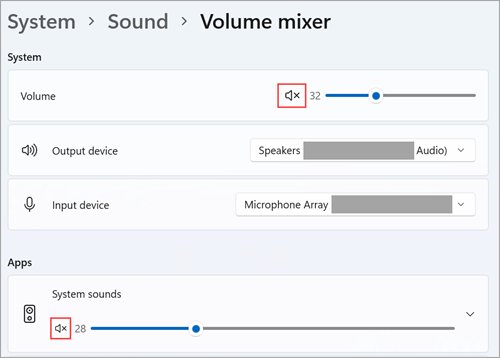
- Scroll down and select Volume mixer.
- Under System, turn the volume up and unmute it if you see an "x" on the speaker icon.
- Play a sound to confirm the reset worked.
On Windows 10, the path is the same: Start > Settings > System > Sound, then pick your output device and raise its volume. If you connect speakers through an external monitor that has no speakers of its own, make sure the monitor is not selected as the output.
When to reset audio settings on Windows 11 and 10
Match the symptom to the layer that controls it. Work down the table only if the first fix does not help.
| Your situation | Reset this first | Why |
|---|---|---|
| No sound from anything | Output device and system volume | Sound may be going to the wrong device, such as a monitor without speakers |
| System sounds play, but one app is silent | App volume and device preferences | App volume and per-app output can override the system setting |
| Crackling, distortion or very quiet sound | Audio enhancements, spatial sound and default format | Microsoft lists enhancements and unsupported formats as causes |
| Sound worked, then stopped without any change | Windows Audio services | Restarting the services clears temporary faults without a reboot |
| "No audio output device is installed" | Audio driver | The driver is missing, disabled or corrupted |
| Sound stopped right after a Windows update | Roll back the audio driver | The update may have replaced a working driver |
Reset app volume and device preferences
Windows 10 has a real Reset button for per-app sound. On Windows 11 you reset each app in Volume mixer by hand.
- On Windows 10, select Start > Settings > System > Sound.
- Scroll down and select App volume and device preferences.
- Select Reset. Windows resets the preferences on that page and returns any app volume you changed to the default 100%.
- On Windows 11, select Start > Settings > System > Sound > Volume mixer.
- Under Apps, unmute each app and drag its volume slider up.
- For each app, open its Output device list and pick the same device as your system output.
- Restart the app and play something in it.
Keep the silent app open while you work in Volume mixer, so its slider and output list are there to change.
Disable audio enhancements and spatial sound
Enhancements and spatial sound process the signal before it reaches your speakers. Microsoft names enhancements as a cause of crackling, distortion and low volume.
- On Windows 11, select Start > Settings > System > Sound.
- In the Output section, select the device you are using.
- Under Advanced settings, set Audio enhancements to Off.
- On the same device page, find Spatial sound and turn it off if Windows Sonic for Headphones or another format is selected.
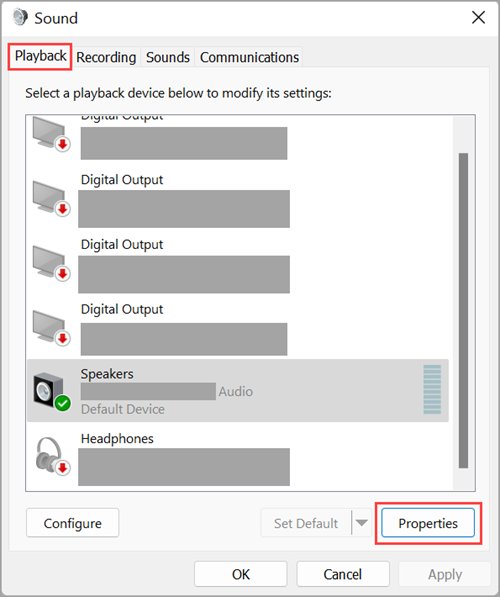
- On Windows 10, type control panel in the taskbar search box, open it, and select Hardware and Sound > Sound.
- On the Playback tab, right-click your default device and select Properties.
- On the Enhancements tab, select Disable all enhancements (or Disable all sound effects), then select OK.
- Back in Settings > System > Sound, select Device properties and turn spatial sound off the same way.
If your Windows 10 device has no Enhancements tab, look for the audio effects option on the Advanced tab instead. Repeat these steps for every device you use, such as speakers and a headset.
Restart the Windows Audio service in Windows 11 and 10
Restarting the audio services resets the sound engine without a full reboot. The steps are identical on both versions.
- Select Start, type
services.msc, and press Enter. - Right-click Windows Audio and select Restart, then Yes if asked.
- Right-click Windows Audio Endpoint Builder and select Restart.
- Right-click Remote Procedure Call (RPC) and select Restart if the option is available.
- Close Services and test audio in the app that failed.
Reset or reinstall audio drivers
A driver reinstall is the deepest audio reset Windows offers. Save your work first, because each route ends with a restart.
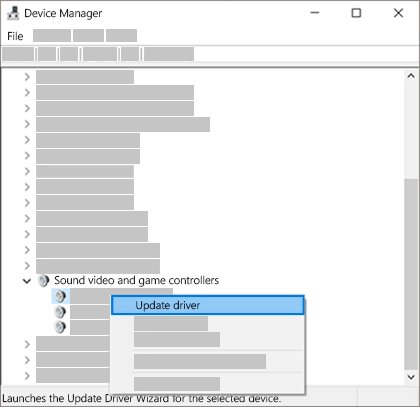
- Select Start, type Device Manager, and open it.
- Expand Sound, video and game controllers.
- Right-click your audio device and select Update driver > Search automatically for drivers, then restart.
- If sound is still broken, right-click the device again and select Uninstall device.
- Check Attempt to remove the driver for this device, select Uninstall, and restart the PC. Windows reinstalls the audio driver automatically.
- If that fails, right-click the device and select Update driver > Browse my computer for drivers > Let me pick from a list of available drivers on my computer, then pick High Definition Audio Device and select Next.
- If sound broke after an update, open the device's Properties > Driver tab and select Roll Back Driver instead.
Microsoft recommends Windows Update as the first source for audio drivers, so check for updates in Windows 11 before you download anything. If Windows says the best driver is installed, your PC maker's support site may still have a newer one.
Run Windows audio troubleshooters
The troubleshooter runs diagnostics and fixes many settings for you. Run it after the manual resets if sound still fails.
| Windows version | Where to run it | Steps |
|---|---|---|
| Windows 11 | Get Help app | Start the automated audio troubleshooter in Get Help and follow the prompts |
| Windows 11 | Settings | Start > Settings > System > Troubleshoot > Other troubleshooters, then Run next to Audio |
| Windows 10 | Settings | Start > Settings > Update & security > Troubleshoot, select Playing audio, then Run the troubleshooter |
Additional tips: where Windows 11 and 10 keep sound settings
Several audio settings still live in the classic Sound control panel. These locations save time when a Settings page does not show the option you need.
| Setting | Windows 11 | Windows 10 |
|---|---|---|
| Classic Sound control panel | Settings > System > Sound > More sound settings | Settings > System > Sound > Sound control panel |
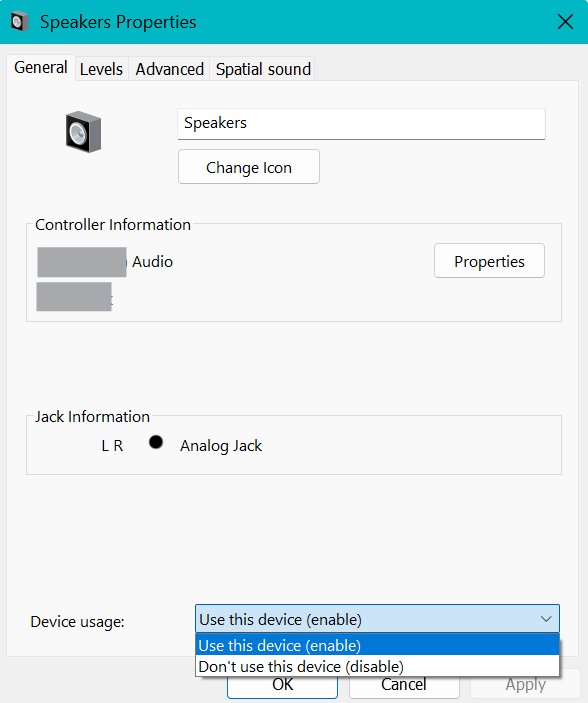
| Enable a disabled device | More sound settings > Playback or Recording > Properties > Device usage: Use this device (enable) | Settings > System > Sound > Device properties, clear Disable |
| Default format (sample rate) | Output device page > Advanced > Default format | Sound control panel > device Properties > Advanced > Default Format |
| Per-app volume | Settings > System > Sound > Volume mixer | App volume and device preferences, or right-click the speaker icon > Open Volume mixer |
| Microphone access | Settings > Privacy & security > Microphone | Same idea under Settings > Privacy > Microphone |
Speakers and some apps have their own volume controls, so check those too. Plugged-in headphones can also mute the built-in speakers. If Windows is not detecting your headphones at all, check the jack or Bluetooth pairing and the device’s status in Device Manager.
How to test sound after resetting audio settings in Windows
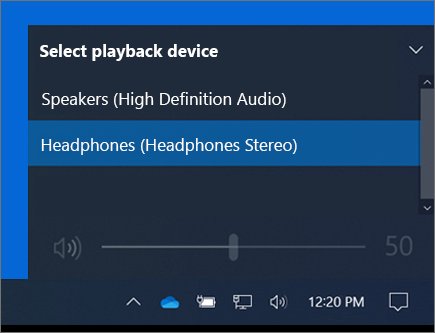
- Select the speaker icon on the taskbar, then the arrow next to the volume slider, and confirm the device you expect is ticked.
- Open Settings > System > Sound > Volume mixer and check that System and your app are unmuted and turned up.
- Play a video or song through the speakers or headphones you selected.
- Test the app that failed before, since per-app settings are separate from system sound.
- Restart the PC once and test again, to confirm the fix survives a reboot.
Additional fixes if audio still does not work in Windows
"No audio output device is installed" or no device under Output
The audio driver is missing, disabled or not loading.
- Open Device Manager and expand Sound, video and game controllers.
- Right-click the device and select Enable device if it appears.
- If it is missing, select View > Show hidden devices, then Action > Scan for hardware changes.
- Install the latest audio driver from your PC or sound card maker's support site, then restart.
Still no sound after resetting everything
The fault is in a cable, port or the speaker itself, not in Windows settings.
- Check that the speakers have power and every cable is fully plugged in.
- On a desktop, confirm the plug is in the output jack (often green), not the microphone jack (often pink).
- Move a USB headset or speaker to a different USB port.
- Unplug headphones and test the speakers on their own.
Sound crackles or sounds distorted
An enhancement or an unsupported sample format is applied to the device.
- Turn Audio enhancements off for the device.
- Open the device page > Advanced > Default format and choose a different format.
- Test, and try another format if the first change does not help.
Audio stopped working after a Windows update
The update installed a driver that does not suit your hardware, or a restart is still pending.
- Select Start > Power; if Update and restart appears, select it.
- In Device Manager, open the audio device's Properties > Driver tab and select Roll Back Driver.
- If rollback is greyed out, restore the PC from the restore point Windows created before the update.
The microphone stopped working after the reset
Microphone access is turned off for Windows or for the app.
- Select Start > Settings > Privacy & security > Microphone.
- Turn on Microphone access and Let apps access your microphone.
- Scroll down and turn on the toggle for the app you use.
If none of this restores sound, a full reset is the last step; reset all settings in Windows 11 only after you have backed up your files.
Resetting audio settings in Windows FAQs
Does resetting audio settings delete my files?
No. Resetting volume, app preferences, enhancements, audio services or the audio driver changes only sound configuration. Documents, photos and apps stay where they are. Only a full PC reset can remove files, and that is a separate tool you do not need for sound problems.
Will resetting audio settings remove my speakers?
No. Speakers stay connected and listed after a settings reset. Uninstalling the driver removes the device from Device Manager briefly, but Windows reinstalls the driver after a restart and the speakers return under Output in Sound settings.
Why is there still no sound after resetting everything?
The fault is probably outside Windows settings. Check power, cables, the correct jack and a different USB port. If Windows reports no output device, install the audio driver from your PC maker, then run the audio troubleshooter in Get Help.
Can I reset only one app's sound settings?
Yes. On Windows 11, open Settings > System > Sound > Volume mixer and fix that app's volume and Output device. Windows 10's Reset button on App volume and device preferences resets every app at once, so set a single app by hand instead.
Is reinstalling the audio driver safe?
Yes. Microsoft recommends uninstalling the audio driver in Device Manager and restarting when updating does not help; Windows reinstalls the driver automatically. Save your work first, and get any replacement driver only from Windows Update or your PC maker's site.
Does this work for both Windows 11 and Windows 10?
Yes. Every layer exists on both versions, but some paths differ. Windows 10 has a Reset button on App volume and device preferences, uses the Enhancements tab in Control Panel, and runs the Playing audio troubleshooter from Update & security.
How do I restart the Windows Audio service?
Press Start, type services.msc and press Enter. Right-click Windows Audio and select Restart, then do the same for Windows Audio Endpoint Builder. Test sound in the app that failed; no PC restart is needed.
Bottom line: reset audio settings or reinstall the audio driver?
Reset the output device and Volume mixer first, then turn off enhancements, then restart the audio services, and reinstall the audio driver only if sound is still broken. The first three layers take minutes and need no restart, while a driver reinstall is the deepest reset and is best saved for missing devices or problems that started after an update.

![Speakers stuck on mute in Windows 11 [Fix]](https://techdows.com/wp-content/uploads/2026/10/Speakers-stuck-on-mute-in-Windows-11-Fix-3-600x338.jpg)