To reinstall a Bluetooth driver on Windows 11 or Windows 10, uninstall the Bluetooth adapter in Device Manager, shut down the PC, and turn it back on so Windows installs the driver again.
This guide covers a clean install through Windows Update or your PC maker's package, a full uninstall, four ways to reinstall, rolling back a bad update, and fixes for the errors that follow.
The fastest way to reinstall a Bluetooth driver
This is Microsoft's own reset for a Bluetooth adapter that is listed in Device Manager but misbehaves. It works the same way on Windows 11 and Windows 10.
- Select Search on the taskbar, type device manager, and open Device Manager from the results.
- Expand Bluetooth.
- Right-click the Bluetooth adapter. Its name often includes the word radio, or a brand such as Intel, Realtek or Qualcomm.
- Select Uninstall device, then select Uninstall.
- Select Start > Power > Shut down, not Restart.
- Wait a few seconds, then turn the PC back on. Windows tries to reinstall the driver during startup.
- If the adapter does not come back, open Device Manager and select Action > Scan for hardware changes.
If Bluetooth now works, you are done. If the adapter is missing entirely, start with the availability check below.
Which method should you use?
| Your situation | Use this | Why |
|---|---|---|
| Bluetooth worked before and suddenly stopped | Uninstall in Device Manager, then shut down | Windows reloads its best-matching driver with no download |
| New PC, fresh Windows install, or no Bluetooth driver at all | Windows Update, including Optional updates | Many Bluetooth drivers ship through Windows Update |
| Windows Update finds nothing, or you need your PC maker's version | Driver package from the PC manufacturer's support page | Microsoft sends you there when Windows cannot find a driver |
| Intel wireless card and no model-specific package | Intel Wireless Bluetooth driver page or Intel Driver & Support Assistant | Intel publishes a generic package for its adapters |
| You have loose .inf and .sys files | Device Manager Browse my computer for drivers, or PnPUtil | No installer to double-click |
| Bluetooth broke right after a driver update | Roll Back Driver on the adapter's Driver tab | Restores the previous driver without a download |
| Error Code 28, 43 or a missing Bluetooth category | The troubleshooting section below | Each code points to a different cause |
Check Whether Bluetooth Is Available and Enabled
A driver cannot fix a PC that has no Bluetooth radio, and a switched-off radio looks exactly like a broken driver. Run these checks before you change anything.
- Check your PC's product specifications on the manufacturer's site. Microsoft notes that some devices do not have Bluetooth at all.
- On a laptop with a physical Bluetooth switch on the body, make sure it is switched on.
- Check Bluetooth from Windows Settings: in Windows 11, select Start > Settings > Bluetooth & devices and make sure Bluetooth is on. A working radio shows Discoverable as followed by your computer name.
- Check quick wireless settings and Airplane mode: select the Network, Sound or Battery icon on the taskbar (or press Windows + A) and confirm Airplane mode is off. Airplane mode turns Bluetooth off.
- Check Device Manager for the Bluetooth adapter: open Device Manager and expand Bluetooth. An adapter listed there means Windows sees the hardware.
- If there is no Bluetooth category, look under Other devices for an unknown device, then select View > Show hidden devices.
No Bluetooth category, nothing under Other devices and no radio in the specifications means the PC needs a Bluetooth adapter, not a driver. To switch the radio itself on or off, turn Bluetooth on or off in Windows 11.
Install Bluetooth Drivers Using Windows Update
Windows Update is the route Microsoft recommends for most hardware drivers. Some drivers arrive as normal updates; others wait under Optional updates until you pick them.
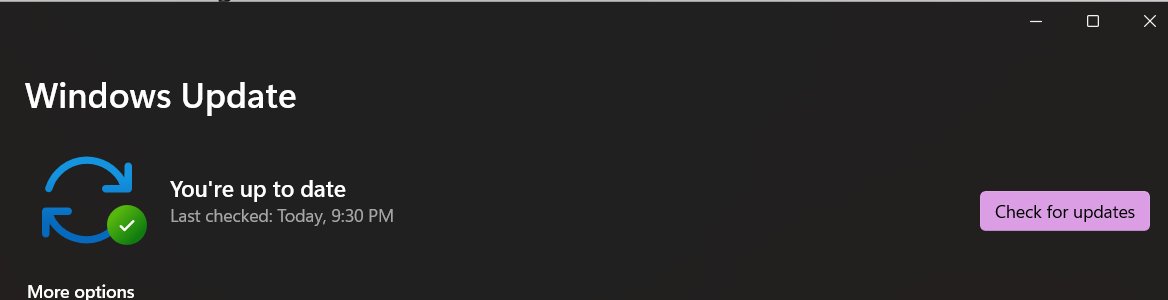
- Windows 11 steps: select Start > Settings > Windows Update, then select Check for updates.
- Install everything offered and restart if asked.
- Still in Windows Update, select Advanced options > Optional updates. Install any Bluetooth or wireless driver listed there, plus any BIOS or UEFI update from your PC maker.
- Windows 10 steps: select Start > Settings > Update & Security > Windows Update, then select Check for updates and install what it offers.
- To target the adapter directly, open Device Manager, right-click the Bluetooth adapter, and select Update driver > Search automatically for drivers.
- If Device Manager reports the best driver is installed, select Search for updated drivers on Windows Update in the same dialog.
- Restart when prompted, then check Bluetooth in Settings.
Microsoft ended support for Windows 10 on October 14, 2025, and recommends moving to Windows 11.
Install Bluetooth Drivers from the Manufacturer’s Website
When Windows Update has nothing, Microsoft's advice is to get the latest Bluetooth driver from your PC maker's website. Download drivers only from the manufacturer's own site, never from a third-party download portal or a "driver updater".
Your PC maker's package is the safest first choice. Intel warns that computer makers sometimes change or replace its drivers, and a generic package can drop features they added.
- Find your exact model number on the label under the laptop or on the box.
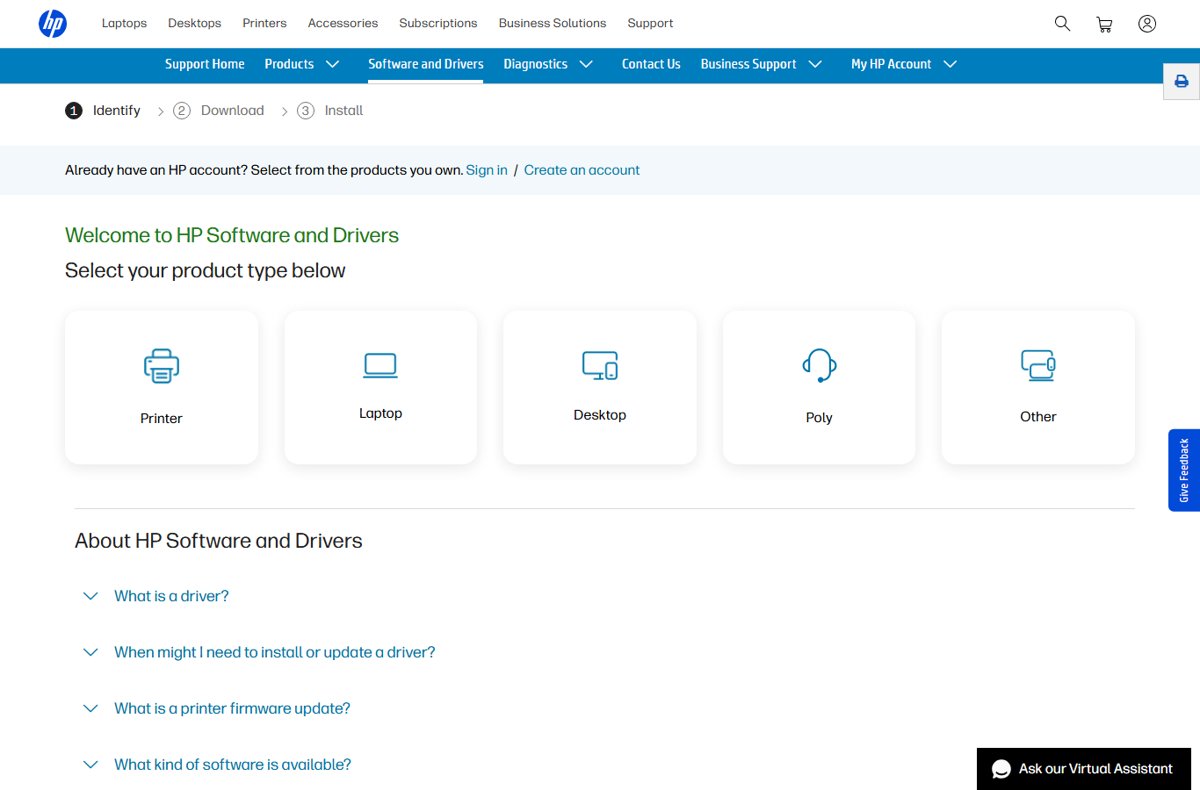
- Open your PC maker's driver page, such as HP Software and Drivers, and enter the model.
- Choose your Windows version and download the Bluetooth driver listed for it.
- If you downloaded an .exe file, double-click it and follow the installer.
- If you downloaded a folder containing an .inf file and a .sys file, open Device Manager, right-click the Bluetooth adapter (or the unknown device under Other devices), and select Update driver > Browse my computer for drivers.
- Select Browse, pick the folder with the driver files, select OK, then Next. Select Close when it finishes.
- Select Start > Power > Restart if prompted.
For Intel wireless cards, Intel publishes the Intel Wireless Bluetooth Drivers for Windows 10 and Windows 11 page, which lists every supported adapter. The Intel Driver & Support Assistant detects Intel hardware and offers matching updates.
Intel notes that PCs with Wireless-AC 9560, 9462 or 9461 adapters on 23.10 to 23.50 drivers must unpair all Bluetooth devices before upgrading, then pair them again afterwards.
Manual installation from an INF file with PnPUtil
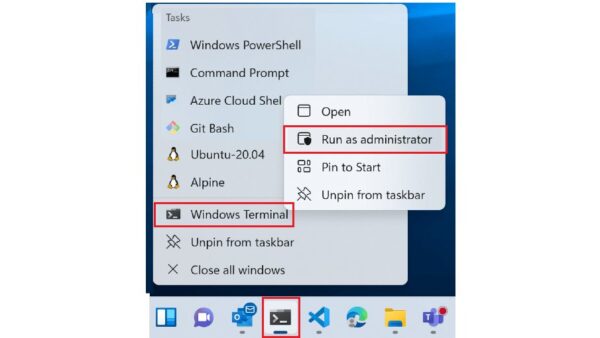
PnPUtil is built into Windows and installs a driver package from the command line. Use it when Device Manager's browse dialog fails or you are fixing several PCs. Open Command Prompt with Run as administrator first.
pnputil /add-driver C:\Drivers\Bluetooth\*.inf /subdirs /installReplace C:\Drivers\Bluetooth with the folder where you extracted the driver. /add-driver copies every .inf package into the driver store, /subdirs also searches subfolders, and /install applies the driver to any matching device. Add /reboot to restart automatically if the install needs it.
You should see: PnPUtil reports each package it added and installed. If the package is not the highest-ranked driver for the device, PnPUtil does not force it on, and the adapter keeps its current driver.
Run pnputil /scan-devices afterwards to make Windows re-check the hardware, the same as Scan for hardware changes in Device Manager.
Uninstall Bluetooth Drivers in Device Manager
A plain uninstall removes the adapter so Windows can set it up again. Ticking the driver-removal box also deletes the driver package, which forces Windows to fetch a fresh copy instead of reusing the damaged one.
- Save your work, because the last step restarts the PC.
- Right-click Start and select Device Manager.
- Expand Bluetooth. Select View > Show hidden devices if you also want to see adapters that are no longer connected.
- Right-click the Bluetooth adapter and select Uninstall device.
- To remove the driver package too, tick Attempt to remove the driver for this device on Windows 11, or Delete the driver software for this device on Windows 10.
- Select Uninstall.
- Shut down or restart the PC.
Tick the driver-removal box only when you have a replacement ready: a package from your PC maker, or a working internet connection for Windows Update. Without one, the adapter may come back as an unknown device with no driver.
Reinstall Bluetooth Drivers on Windows 11/10
Pick the reinstall route that matches how you uninstalled. Each one below ends with a working adapter under Bluetooth in Device Manager.
| Method | What to do | When it works |
|---|---|---|
| Method 1: Restart the PC after uninstalling the driver | Select Start > Power > Shut down, wait a few seconds, and turn the PC on | The driver package is still on the PC, which is the case after a plain uninstall |
| Method 2: Scan for hardware changes in Device Manager | Open Device Manager and select Action > Scan for hardware changes | Windows did not pick the adapter up at startup |
| Method 3: Reinstall using a downloaded driver package | Run the PC maker's .exe, or use Update driver > Browse my computer for drivers with the .inf folder | You removed the driver package, or the built-in driver is the faulty one |
| Method 4: Use Windows Update after reinstalling | Select Settings > Windows Update > Check for updates, then Advanced options > Optional updates | Windows installed a basic driver and your PC maker publishes a newer one |
Microsoft specifically says to use Shut down rather than Restart for Bluetooth, so the radio gets a complete power cycle. Holding Shift while you select Shut down gives the most complete reset.
Roll back a Bluetooth driver after a bad update
If Bluetooth broke right after a driver update, the previous driver is usually still on the PC. Rolling back restores it without any download. You need administrator rights.
- Open Device Manager and expand Bluetooth.
- Right-click the Bluetooth adapter and select Properties.
- Select the Driver tab.
- Select Roll Back Driver. If the button is greyed out, there is no earlier driver to return to.
- Follow the prompts, then restart the PC.
How to check the Bluetooth driver installed correctly
- Open Device Manager and expand Bluetooth. The adapter should appear with no yellow exclamation mark.
- Right-click the adapter, select Properties, and read Device status on the General tab. It should show no error code.
- Open the Driver tab to confirm the provider and version match the package you installed.
- Select Start > Settings > Bluetooth & devices. The Bluetooth toggle should be present and show Discoverable as your computer name when on.
- Pair one device through Add device and confirm it connects.
From an administrator terminal, pnputil /enum-devices /problem lists every device Windows reports a problem with. A healthy Bluetooth adapter does not appear in that list.
Troubleshoot Bluetooth Driver Problems After Reinstallation
Symptoms below come from Microsoft's Bluetooth support articles and the questions readers ask after a reinstall. Device Manager error codes appear under Device status in the adapter's Properties.
What to do if the Bluetooth category is missing
Windows has no driver for the radio, it is hidden, or the hardware is switched off at the firmware level.
- Open Device Manager and check Other devices for an unknown device.
- Select View > Show hidden devices and look under Bluetooth again.
- Select Action > Scan for hardware changes.
- Hold Shift, select Start > Power > Shut down, then turn the PC back on.
- Install the Bluetooth driver from your PC maker's support page, and any BIOS or UEFI update under Windows Update > Advanced options > Optional updates.
Bluetooth disappeared after a Windows update
The new build may not suit the old driver, or the update replaced the driver with one that does not work on your hardware.
- Open Device Manager, right-click the adapter, and select Properties > Driver > Roll Back Driver if it is available.
- If rollback is unavailable, select Update driver > Search automatically for drivers.
- Check Settings > Windows Update > Advanced options > Optional updates for a newer Bluetooth driver.
- If none is offered, install the driver from your PC maker's support page.
"The drivers for this device are not installed. (Code 28)"
Windows found the hardware but has no compatible driver for it.
- Go to the website of the company that makes the PC or the Bluetooth adapter.
- Download the most recent Bluetooth driver for your model and Windows version.
- Run the installer, or use Update driver > Browse my computer for drivers with the extracted folder.
- Restart the PC.
"Windows has stopped this device because it has reported problems. (Code 43)"
The driver reported that the device failed.
- Right-click the adapter and select Uninstall device > Uninstall.
- Shut down the PC fully, wait a few seconds, and turn it back on.
- If Code 43 returns, repeat the uninstall with Attempt to remove the driver for this device ticked, then install your PC maker's driver.
- If the error persists with a fresh driver, contact the PC maker, as the radio itself may be faulty.
The driver installed but a paired device will not connect
The old pairing no longer matches the reinstalled adapter.
- Select Start > Settings > Bluetooth & devices > Devices.
- Select More options (…) next to the device, then Remove device > Yes.
- Put the device into pairing mode and move it close to the PC.
- Select Add device and pick the device from the list.
- If it does not appear, set Bluetooth devices discovery to Advanced under Device settings.
Check Bluetooth services and Windows settings when it still fails
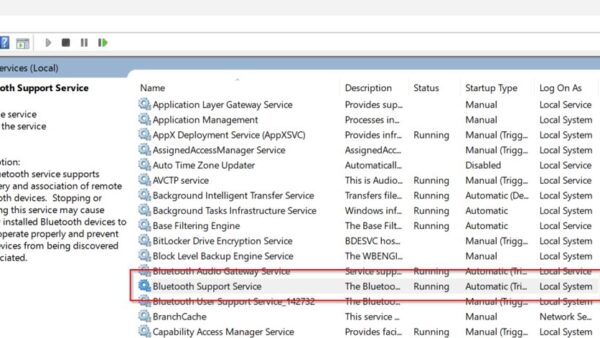
The Bluetooth Support Service (bthserv) is stopped, or a setting is blocking the radio.
- Press Windows + R, type
services.msc, and press Enter. - Right-click Bluetooth Support Service and select Restart, or Start if it is stopped.
- Confirm Airplane mode is off in quick settings.
- Select Start > Settings > System > Troubleshoot > Other troubleshooters, then select Run next to Bluetooth.
- On Windows 11, you can also run the Bluetooth troubleshooter in the Get Help app.
Bottom Line
Start with an uninstall in Device Manager followed by a full shut down, and only reach for Windows Update's optional drivers or your PC maker's package if the adapter does not come back working. The built-in reinstall needs no download and fixes most corrupted setups. Your PC maker's driver is the tested version for your hardware, which is why Microsoft and Intel both point you there before any generic package.
Frequently Asked Questions
How do I know if my PC actually has Bluetooth hardware?
Open Device Manager and look for a Bluetooth category with an adapter inside it. If there is none, check Other devices and View > Show hidden devices, then check the product specifications on your PC maker's site. Some PCs, especially desktops, ship without Bluetooth.
What should I do if Bluetooth disappeared after a Windows update?
Roll back the driver from the adapter's Properties > Driver tab if the option is available. Otherwise update the driver in Device Manager, check Windows Update > Advanced options > Optional updates, and install your PC maker's Bluetooth driver if Windows offers nothing.
Is it better to install Bluetooth drivers from Windows Update or the manufacturer’s website?
Start with Windows Update, which Microsoft recommends for most drivers and which needs no manual download. Use the PC manufacturer's website when Windows Update finds nothing or the driver it installs does not work, because that package is built for your exact model.
Will uninstalling my Bluetooth driver remove my paired devices?
Be ready to pair them again. If a device will not reconnect after the reinstall, remove it in Settings > Bluetooth & devices > Devices and add it again. Intel requires unpairing all devices before certain driver upgrades on Wireless-AC 9560, 9462 and 9461 adapters.
What can I try if Bluetooth still does not work after reinstalling the driver?
Shut down while holding Shift, restart the Bluetooth Support Service in services.msc, confirm Airplane mode is off, and run the Bluetooth troubleshooter. If Device Manager shows Code 43 with a fresh driver, contact your PC maker, because the hardware may be at fault.
How do I download Bluetooth drivers for Windows 10?
Run Windows Update from Settings > Update & Security > Windows Update, or download the driver for your model from your PC maker's support site. Intel adapters also have a combined Windows 10 and Windows 11 package on Intel's Wireless Bluetooth driver page.
How do I install a Bluetooth driver from an INF file?
In Device Manager, right-click the adapter, select Update driver > Browse my computer for drivers, and pick the folder with the .inf file. From an administrator terminal, pnputil /add-driver with the path to the .inf and /install does the same job.
Why does Device Manager say the best driver is already installed?
That message only covers the places Windows has already checked. Select Search for updated drivers on Windows Update in the same dialog, check Optional updates, or install the package from your PC maker to get a newer version.