On a Windows 11 or Windows 10 laptop or PC, received Bluetooth files go to the folder shown in the Location box on the Save the received file screen, and on a Mac they go to the Downloads folder by default.
This guide shows where each system saves Bluetooth files, how to find a file you already received, how to change the save folder, and what to do when a transfer seems to vanish.
Find received Bluetooth files on a Windows PC fast
Windows asks where to save every incoming Bluetooth file at the end of the transfer. If you missed that screen, search for the file by name.
- Select the Search icon on the taskbar.
- Type the file's name, or a word from it, such as IMG for a phone photo.
- Select the matching result to open it, or right-click it and choose Open file location to see the folder it was saved in.
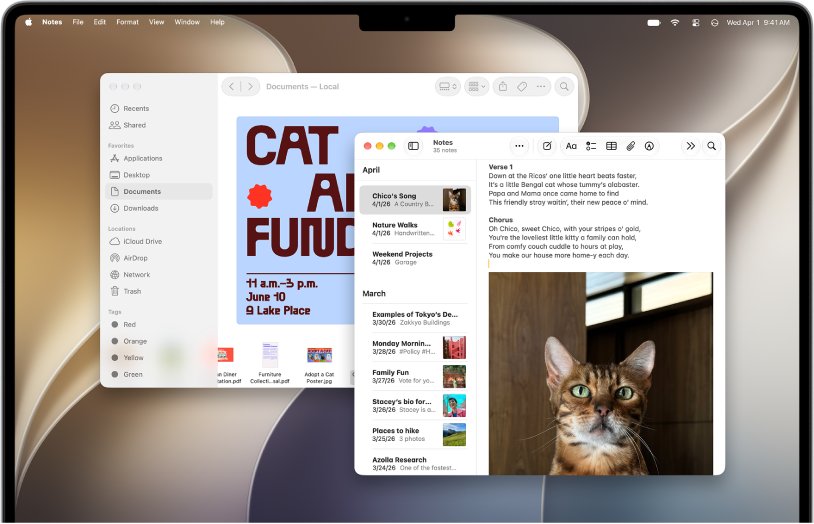
On a Mac, press Option-Command-L in the Finder to open Downloads, where Bluetooth files land unless you changed the setting.
Where Bluetooth files are saved on Windows 11 & Windows 10 (default locations explained)
Windows does not drop Bluetooth files into a fixed folder silently. The Transfer files using Bluetooth wizard shows a Location box once the file arrives, and the file is saved when you select Finish.
| Windows version | Where to start receiving | Where the file is saved |
|---|---|---|
| Windows 11 | Settings > Bluetooth & devices > Devices > Send or receive files via Bluetooth > Receive files | The folder in the Location box on the Save the received file screen, or the folder you pick with Browse |
| Windows 10 | Settings > Devices > Bluetooth & other devices > Send or receive files via Bluetooth > Receive files | The folder in the Location box on the Save the received file screen, or the folder you pick with Browse |
| Windows 11 or 10, from the taskbar | Right-click the Bluetooth icon > Receive a file | Same Save the received file screen |
Read the Location box before you select Finish. That path is the answer to where the file went, and it is the quickest thing to note down.
Step-by-step: finding received Bluetooth files on Windows using File Explorer
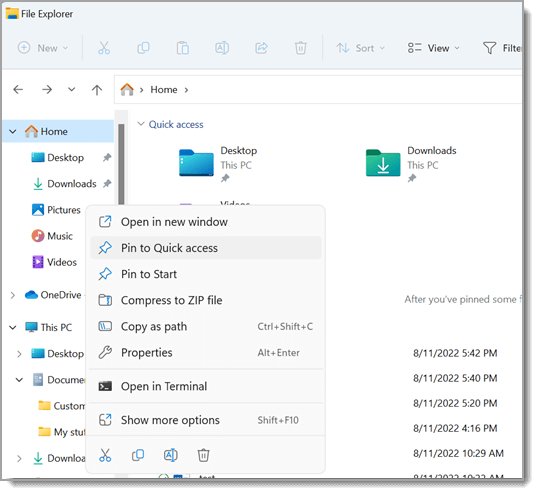
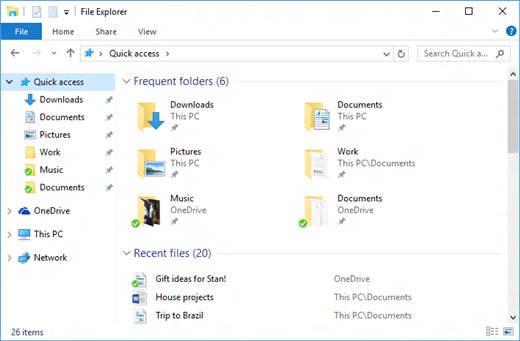
Use File Explorer search when the taskbar search does not find the file, or when you want to look inside one folder. A file you received today also tends to show up among your recent files in Windows 11 on the Home page.
- Press Windows logo key + E to open File Explorer.
- Select Home in the left pane to search your PC and cloud files together.
- Type the file name or part of it in the search box and press Enter.
- If nothing appears, select This PC in the left pane and search again; this is slower but more thorough.
- Open the folder you saved to during the transfer, such as Downloads or Documents, and search inside it.
- If you still see nothing, select View > Show > Hidden items and repeat the search.
Where Bluetooth files are saved on macOS (Ventura, Sonoma & earlier versions)
Every Mac saves accepted Bluetooth items to the Downloads folder by default. Only the settings path changes between macOS versions.
| macOS version | Where the setting lives | Default folder for accepted items |
|---|---|---|
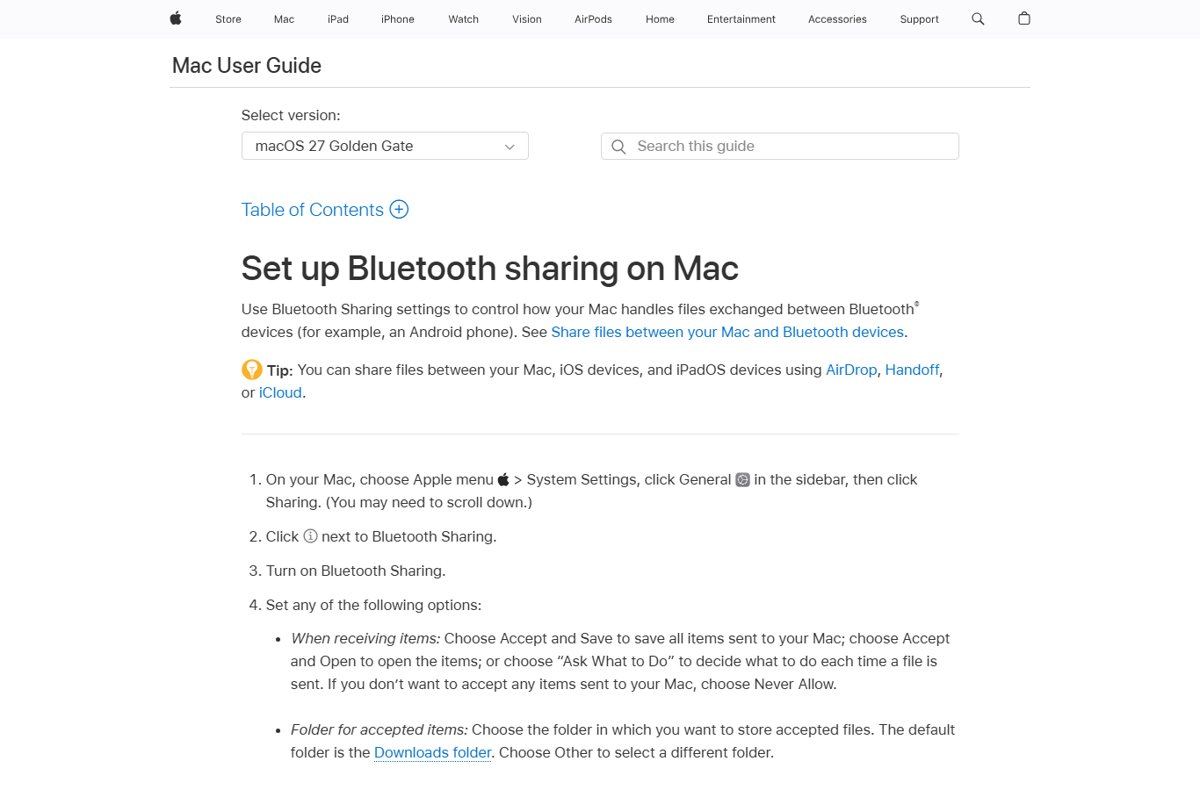
| macOS Ventura 13, Sonoma and later | Apple menu > System Settings > General > Sharing > Info button next to Bluetooth Sharing | Downloads |
| macOS Monterey 12 and earlier | Apple menu > System Preferences > Sharing > Bluetooth Sharing | Downloads |
The When receiving items setting decides what happens on arrival: Accept and Save, Accept and Open, Ask What to Do or Never Allow.
Step-by-step: finding received Bluetooth files on a Mac using Finder
- Click the Finder icon in the Dock.
- Press Option-Command-L to open the Downloads folder.
- Look for the newest item; if Downloads is crowded, press Shift-Command-F to open Recents.
- If the file is not there, press Command-Space bar to open Spotlight and type the file name.
- Check the Folder for accepted items setting in Bluetooth Sharing to confirm which folder your Mac uses.
How to change the default Bluetooth file save location on Windows & macOS
Windows asks for a folder on every transfer, so you change it per file. A Mac keeps one folder until you change the setting.
- Windows: start the transfer from Send or receive files via Bluetooth > Receive files.
- Windows: when the Save the received file screen appears, select Browse.
- Windows: pick the folder you want, such as Downloads, then select Finish.
- Mac: choose Apple menu > System Settings > General > Sharing.
- Mac: click the Info button next to Bluetooth Sharing.
- Mac: open Folder for accepted items, choose Other, select a folder, then click Done.
Sending files the other way uses the same wizard, so you can send or receive files over Bluetooth from the same Settings page.
How to check a Bluetooth file was received and saved
- On Windows, wait for The file is being received page to finish and the Save the received file screen to appear.
- Note the path in the Location box, then select Finish.
- Open that folder in File Explorer and confirm the file opens.
- On a Mac, open Downloads with Option-Command-L and confirm the new file is there.
What to do if you accepted a Bluetooth file but can’t find it
The file was sent but Windows never asked where to save it
Windows was not in receive mode, so the transfer had nowhere to go.
- Right-click the Bluetooth icon on the taskbar and select Receive a file.
- Wait for Waiting for a connection, then send the file again from the other device.
- Note the Location box and select Finish.
You saved the file but forgot the folder
The Location box pointed somewhere you did not notice.
- Search for the file name from the taskbar Search icon.
- Right-click the result and choose Open file location.
- Move the file to a folder you will remember.
A Mac accepted the file but it is not in Downloads
Folder for accepted items was changed to another folder.
- Open System Settings > General > Sharing and click the Info button next to Bluetooth Sharing.
- Read the folder named in Folder for accepted items.
- Open that folder in the Finder, or search the file name with Command-Space bar.
Troubleshooting Bluetooth file transfers that fail, disappear, or don’t save
The first three fixes apply to Windows 11 and Windows 10; the last one is for a Mac. If no Bluetooth toggle appears in Settings at all, first check whether your computer has Bluetooth.
The other device cannot find the PC
Bluetooth is off, or the devices are out of range or not paired.
- Go to Settings > Bluetooth & devices and turn on Bluetooth.
- Put the sending device in pairing or discoverable mode and keep it close to the PC.
- Remove the device with More options (…) > Remove device, then pair it again with Add device.
Bluetooth file transfer not completed
File sharing encryption settings or the Bluetooth driver are blocking the transfer.
- Go to Settings > Network & internet > Advanced network settings > Advanced sharing settings.
- Expand All networks and set File sharing connections to the 40- or 56-bit encryption option.
- Try the transfer again.
Transfers stopped working after an update
The Bluetooth adapter driver needs reinstalling or Windows needs updates.
- Open Device Manager, expand Bluetooth, right-click the adapter and select Uninstall device > Uninstall.
- Select Start > Power > Restart.
- If the adapter does not return, right-click in Device Manager and select Scan for hardware changes.
- Go to Settings > Windows Update and select Check for updates.
A Mac refuses every incoming file
When receiving items is set to Never Allow, or Bluetooth Sharing is off.
- Open System Settings > General > Sharing.
- Turn on Bluetooth Sharing and click its Info button.
- Set When receiving items to Accept and Save or Ask What to Do, then click Done.
Common Bluetooth file types and how to identify them once received
Phones name files by type, so the extension tells you which app opens it. Search for the extension when you do not know the name.
| What was sent | Typical extension | Search for |
|---|---|---|
| Photo from a phone camera | .jpg, .jpeg, .heic, .png | *.jpg or *.heic |
| Video clip | .mp4, .mov | *.mp4 |
| Contact card | .vcf | *.vcf |
| Document | .pdf, .docx, .txt | |
| Audio or voice note | .mp3, .m4a | *.m4a |
Tips to manage, move, and organize Bluetooth-received files for future transfers
| Tip | Why it helps |
|---|---|
| Pick the same folder with Browse on every Windows transfer | Every received file then lands in one predictable place |
| Create a dedicated folder such as Bluetooth received in Documents | Separates phone transfers from web downloads |
| On a Mac, set Folder for accepted items to that folder | The Mac saves there automatically from then on |
| Rename photos after receiving them | Phone file names are hard to search later |
| Move large videos off the PC once saved | Keeps the receive folder small and quick to scan |
Received Bluetooth files on laptop and PC: FAQ
Where do my received Bluetooth files go on Windows?
They go to the folder shown in the Location box on the Save the received file screen at the end of the transfer. You can accept that folder or select Browse to choose another before selecting Finish.
How do I find Bluetooth received files on my laptop?
Select the Search icon on the taskbar and type the file name. Right-click the result and choose Open file location to see the folder. On a Mac laptop, open Downloads with Option-Command-L in the Finder.
How do I find received Bluetooth files on Windows 11?
Search the file name from the taskbar or File Explorer Home. If you are receiving now, read the Location box on the Save the received file screen before selecting Finish, because that is where Windows 11 saves it.
Where are Bluetooth received files on a Mac?
A Mac saves accepted Bluetooth items to the Downloads folder by default. The folder is set in System Settings > General > Sharing > Bluetooth Sharing under Folder for accepted items.
How do I see files sent by Bluetooth if Windows never asked to save them?
The PC was probably not in receive mode. Right-click the Bluetooth icon on the taskbar, select Receive a file, and ask the sender to send it again. Then save it from the Save the received file screen.
How do I check Bluetooth received files on a PC that does not show them?
Search from This PC in File Explorer for a thorough search, and turn on View > Show > Hidden items. Search by extension, such as *.jpg, if you do not know the file name.
Can I change where Windows saves Bluetooth files?
Yes, per transfer. On the Save the received file screen, select Browse, choose a folder, and select Finish. Windows asks again on the next transfer, so pick the same folder each time.
How do I view received files from Bluetooth on a Mac automatically?
Set When receiving items to Accept and Open in the Bluetooth Sharing settings. The Mac then saves each file to the accepted-items folder and opens it straight away.
Bottom line: finding Bluetooth received files on Windows and Mac
On Windows, read the Location box before you select Finish and use the same folder every time; on a Mac, look in Downloads first. Windows chooses the folder per transfer while macOS keeps one accepted-items folder, so knowing which rule your system follows finds the file in seconds.