Press Windows + A to open Quick Settings, then select the Bluetooth tile to turn Bluetooth on or off in Windows 11.
The other two methods are the Bluetooth & devices toggle in Settings and the adapter itself in Device Manager. The sections below also show how Airplane mode affects Bluetooth, how to confirm the change, and what to do when the toggle is missing or keeps flipping back.
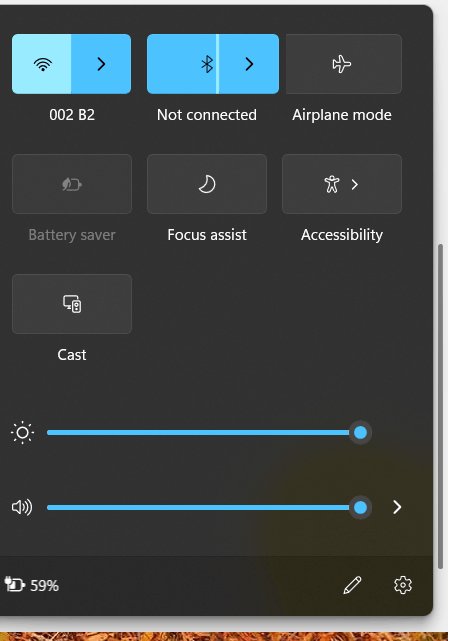
Method 1: Turn Bluetooth on or off from Quick Settings
Quick Settings is the fastest route because it works from any app, with no Settings window to open.
- Press Windows + A, or select the Network, Sound or Battery icon next to the clock on the taskbar.
- Find the Bluetooth tile in the panel that opens.
- Select the tile once to switch Bluetooth on or off.
- Read the tile: a highlighted tile showing Connected, Not connected or a device name means on. An unhighlighted tile, sometimes labelled Off, means off.
Microsoft notes that the Bluetooth tile might need to be added if it is not visible in Quick Settings. Use the edit option at the bottom of the panel to add it back, or use Method 2 instead.
Which of the 3 methods fits your situation
The first two methods flip the same Bluetooth radio switch. Device Manager works one level lower, on the adapter hardware.
| Your situation | Use this | Why |
|---|---|---|
| You want Bluetooth off or on for a moment, from any app | Method 1: Windows + A > Bluetooth tile | One click, and the tile shows the connection state |
| The tile is missing, or you also want to pair or remove a device | Method 2: Settings > Bluetooth & devices toggle | The toggle sits on the same page as your device list and Add device |
| You want Bluetooth hardware stopped until you deliberately restore it | Method 3: Device Manager > Disable device on the adapter | The adapter stays disabled across sessions, so the normal toggle cannot switch it back on |
Airplane mode is a related switch rather than a separate Bluetooth method. It turns off Wi-Fi, cellular, Bluetooth and NFC together, which is why it appears in the troubleshooting section below.
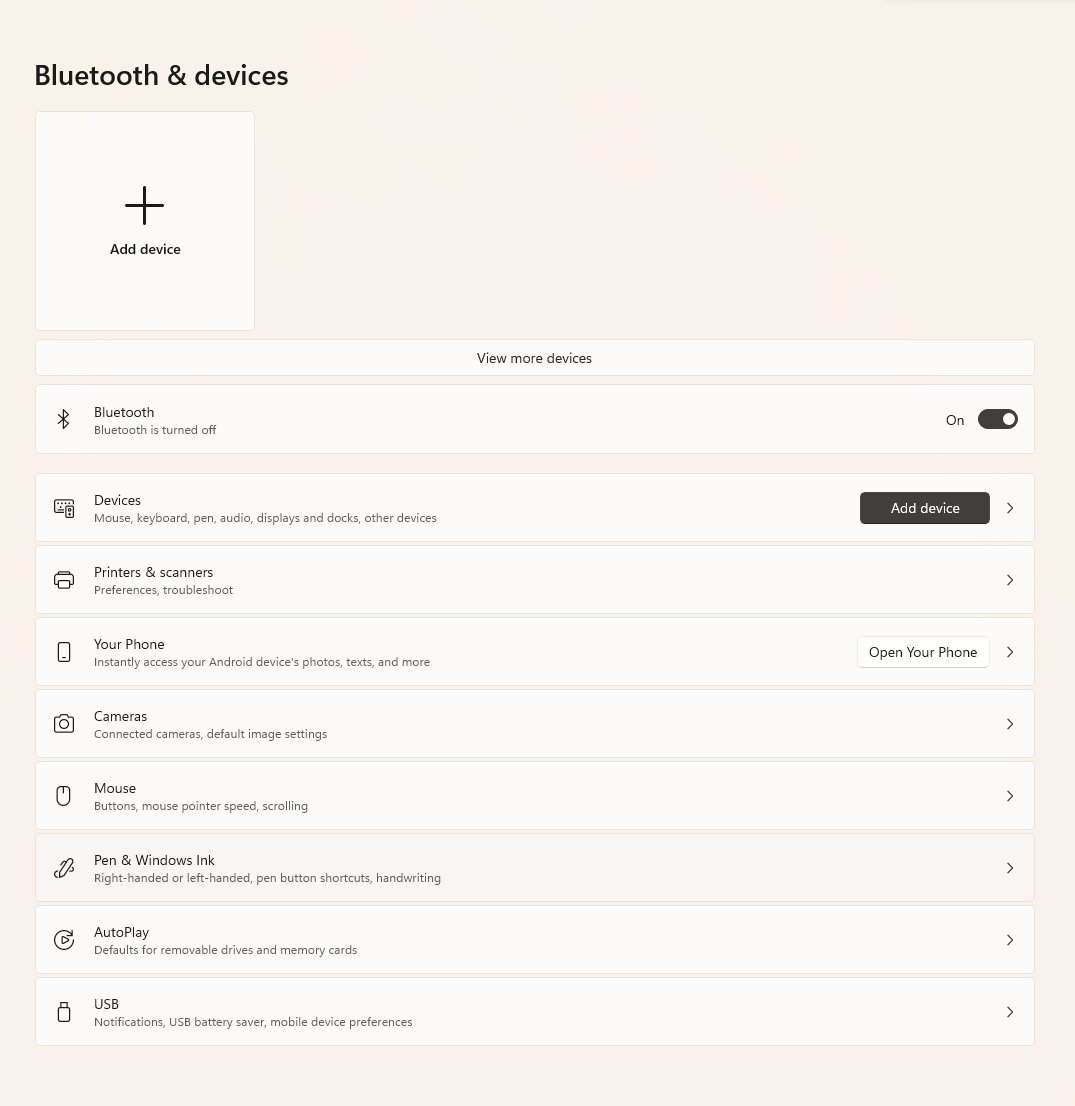
Method 2: Use the Bluetooth toggle in the Settings app
The Settings toggle is the one to use when the Quick Settings tile is missing, or when you plan to connect a device right after.
- Press Windows + I to open Settings, or select Start > Settings.
- Select Bluetooth & devices in the left pane.
- Find the Bluetooth row at the top of the page, next to the Bluetooth icon.
- Switch the toggle to On or Off.
- With Bluetooth on, check that the page shows Discoverable as followed by your PC's name.
Press Windows + R and run ms-settings:bluetooth to open the Bluetooth devices page directly.
On Windows 10 the path is Start > Settings > Devices > Bluetooth & other devices, and the Bluetooth tile sits in Action Center instead of Quick Settings. If the tile is missing there, edit Action Center quick actions to add it back.
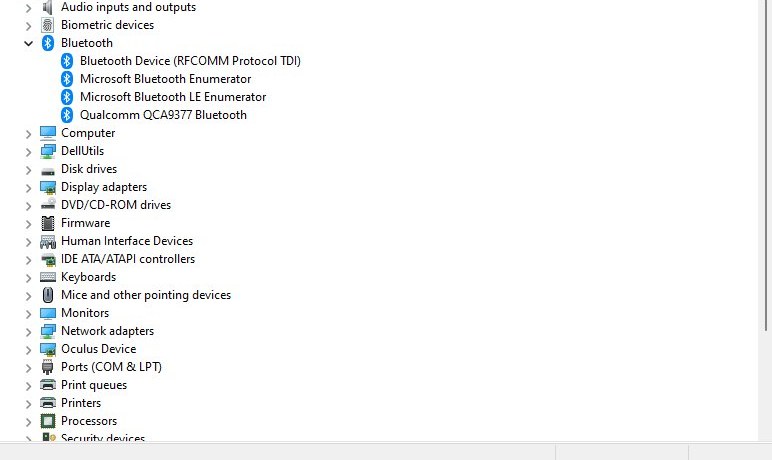
Method 3: Disable or enable the Bluetooth adapter in Device Manager
Disabling the adapter is not the same as the Bluetooth toggle. The toggle turns the radio off while Windows still knows the hardware; Disable device stops the adapter itself, and Device Manager then reports it as disabled (Code 22).
Microsoft ties a missing Bluetooth setting to a missing adapter or driver, so expect the toggle in Settings and Quick Settings to disappear while the adapter is disabled.
- Right-click Start and select Device Manager.
- Select the arrow next to Bluetooth to expand the category.
- Find your adapter. Its name often includes the word radio or the chip maker's name.
- Right-click the adapter and select Disable device to turn Bluetooth hardware off.
- To turn it back on, right-click the same adapter and select Enable device.
- Open Settings > Bluetooth & devices and switch the Bluetooth toggle On if it shows Off.
Leave other entries under Bluetooth, such as paired headphones, alone. Disabling the wrong entry breaks one device instead of turning off Bluetooth.
How to check Bluetooth is really on or off
Each place below reports the state independently, so one mismatch points to the cause.
- Press Windows + A and look at the Bluetooth tile. Highlighted means on; unhighlighted or Off means off.
- Open Settings > Bluetooth & devices. When on, the page shows Discoverable as and your PC's name.
- With Bluetooth on and no accessories paired, expect Not connected on the tile. That is normal, not a fault.
- Right-click Start > Device Manager, expand Bluetooth, right-click the adapter and select Properties.
- Read the Device status area. A code there names the problem, and Code 22 means the adapter is disabled.
Additional tips for managing Bluetooth once it is on
These settings sit next to the toggle and change how Bluetooth behaves after you switch it on.
| What you want | Where to go | What to select |
|---|---|---|
| See devices that do not show up when pairing | Settings > Bluetooth & devices > Devices | Set Bluetooth devices discovery to Advanced; Default shows common devices only |
| Open the classic Bluetooth options window | Bluetooth & devices > Devices > Related settings | More Bluetooth settings |
| Refresh a device that is listed but not responding | Bluetooth & devices > Devices | More options (…) > Remove device, then Add device |
| Stop Windows powering the adapter down | Device Manager > Bluetooth > adapter > Properties | Power Management tab, clear Allow the computer to turn off this device to save power |
| Keep Bluetooth on during a flight | Windows + A with Airplane mode on | Select the Bluetooth tile; Windows remembers that choice next time |
| Cut all wireless radios at once | Settings > Network & internet > Airplane mode | Switch Airplane mode to On |
Fix Bluetooth when you can't turn it on or off
Match the symptom, then run only the steps under it.
There is no option to turn on Bluetooth in Windows 11
Microsoft names two causes for a missing Bluetooth setting: the PC has no Bluetooth adapter, or the adapter's driver is not installed. A disabled adapter hides it too. If the adapter is present and enabled, a missing Bluetooth toggle usually comes back after a full shutdown and a driver update.
- Check the product specifications for your PC to confirm it has Bluetooth.
- Right-click Start > Device Manager and expand Bluetooth. If the adapter shows as disabled, right-click it and select Enable device.
- If there is no adapter listed, select Action > Scan for hardware changes.
- Open Settings > Windows Update and check for updates, because some Bluetooth drivers arrive through Windows Update.
- Select Start > Power > Restart, then look for the toggle under Bluetooth & devices again.
Bluetooth won't turn on, or the toggle does nothing
An outdated or damaged driver, Airplane mode, or a stopped Bluetooth Support Service.
- Press Windows + A and confirm Airplane mode is off.
- In Device Manager, right-click the Bluetooth adapter and select Update driver > Search automatically for updated driver software.
- If that finds nothing, right-click the adapter, select Uninstall device, then restart the PC so Windows reinstalls it.
- Open Settings > System > Troubleshoot > Other troubleshooters and select Run next to Bluetooth.
- Switch Bluetooth off, wait 10 seconds, then switch it back on.
Bluetooth turned off by itself, or turns back on by itself
Airplane mode remembers Bluetooth state. If you switched Bluetooth on during a past Airplane mode session, Windows turns it on again the next time Airplane mode is on.
- Press Windows + A and switch Airplane mode on.
- Select the Bluetooth tile so it is off while Airplane mode is still on.
- Switch Airplane mode off. Bluetooth now stays off the next time you use Airplane mode.
- If Bluetooth drops on its own outside Airplane mode, open the adapter's Properties in Device Manager.
- On the Power Management tab, clear Allow the computer to turn off this device to save power, then select OK.
- On a laptop, open the Battery icon on the taskbar and turn off Energy saver if it is on.
Bluetooth is on but devices are not found or keep disconnecting
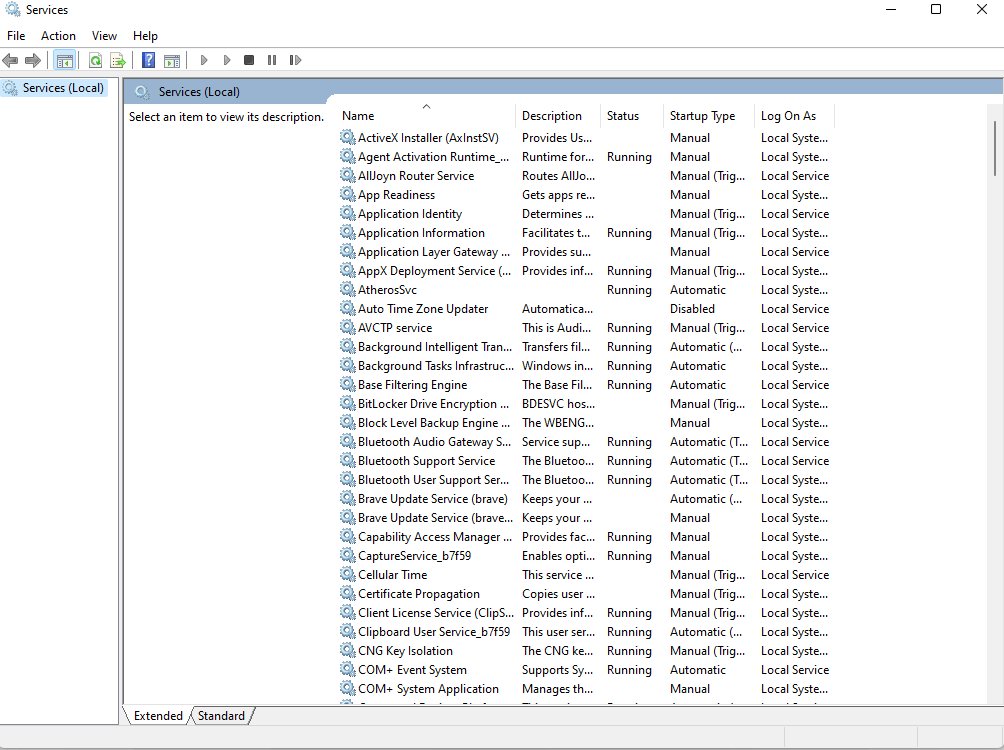
The Bluetooth Support Service (bthserv) handles discovery and association. Microsoft states that stopping or disabling it can make installed devices fail and prevent new ones from being discovered.
- Press Windows + R, type
services.msc, then select OK. - Find Bluetooth Support Service in the list.
- Right-click it and select Restart.
- Open Settings > Bluetooth & devices and try the device again.
Frequently asked questions
How do I turn off Bluetooth on my PC?
Press Windows + A and select the highlighted Bluetooth tile so it turns grey. You can also open Settings > Bluetooth & devices and switch Bluetooth to Off. Both switch off the radio without touching the adapter driver.
Why can't I turn Bluetooth on or off in Windows 11?
The usual causes are a missing or outdated adapter driver, an adapter disabled in Device Manager, or Airplane mode. Enable the adapter under Device Manager > Bluetooth, update its driver, then run the Bluetooth troubleshooter from Settings > System > Troubleshoot > Other troubleshooters.
How do I turn Bluetooth on or off in Windows 10?
Open Start > Settings > Devices and switch Bluetooth on or off. The Bluetooth tile also sits in Action Center on the taskbar. If the tile is missing, add it under Settings > System > Notifications & actions > Quick actions > Edit.
Why is my Bluetooth off in Windows?
Airplane mode is the most common reason, because it turns off Bluetooth along with Wi-Fi, cellular and NFC. Press Windows + A and turn Airplane mode off. A disabled adapter or a missing driver also leaves Bluetooth off or hides the switch.
Why did my Bluetooth turn off by itself?
Airplane mode or power management usually did it. Windows restores the Bluetooth state you last used in Airplane mode, and the adapter's Allow the computer to turn off this device to save power option lets Windows cut its power. Clear that option in Device Manager.
Can you turn off Bluetooth on a laptop?
Yes. Windows 11 laptops use the same Bluetooth tile in Quick Settings and the same toggle under Settings > Bluetooth & devices as desktops. Airplane mode also turns Bluetooth off, together with Wi-Fi and any cellular connection.
How do I turn off Bluetooth on a computer permanently?
Disable the adapter in Device Manager. Expand Bluetooth, right-click the adapter and select Disable device. It stays disabled until you select Enable device, so the Quick Settings tile and Settings toggle cannot switch Bluetooth back on.
Why should you turn Bluetooth off?
While Bluetooth is on, Windows lists the PC as Discoverable on the Bluetooth page and stays connected to paired accessories. Turning it off ends both. Turn it off when you use no wireless accessories, or when you are asked to stop wireless transmissions.
Is disabling the Bluetooth adapter the same as turning Bluetooth off?
No. The Bluetooth toggle switches the radio off while the adapter stays enabled. Disable device in Device Manager stops the adapter itself, which then shows Code 22 in its Device status, and it needs Enable device before any toggle works again.






Install, Uninstall & Reinstall Bluetooth Drivers Windows 11/10 - Techdows
[…] No Bluetooth category, nothing under Other devices and no radio in the specifications means the PC needs a Bluetooth adapter, not a driver. To switch the radio itself on or off, see Turn Bluetooth on or off in Windows 11. […]
Bluetooth Support Service process explained - Techdows
[…] the service does not save meaningful memory or speed up Windows. Turning off the Bluetooth toggle gets the same result with no […]