Most AirPods problems on Windows 11 are fixed by removing the AirPods in Settings > Bluetooth & devices, putting them back in pairing mode, and pairing them again.
This guide covers that fix first, then no sound, the microphone, one AirPod silent, dropouts, drivers, resets and firmware, grouped by the symptom you see.
Start with the quick fixes
Run through these in order. Each takes under a minute and clears most connection and sound faults.
- Put both AirPods in the charging case and make sure they are charging.
- Close the lid, wait at least 10 seconds, then open it again to restart the AirPods.
- On the PC, select the Network, Sound or Battery icon on the taskbar and check Airplane mode is off.
- Open Start > Settings > Bluetooth & devices, turn Bluetooth off, wait 10 seconds and turn it back on.
- Take the AirPods out, put them in your ears and play audio.
- If they still fail, remove and re-pair them as shown below.
Which fix matches your problem?
| What you see | Go to | Most likely cause |
|---|---|---|
| Connected, but sound comes from the laptop speakers | Confirm Windows 11 is using the AirPods for sound | Wrong output device selected |
| AirPods missing from the Bluetooth list | Fix AirPods not showing up in Bluetooth | Not in pairing mode, or discovery set to Default |
| Listed, but will not connect | Remove and re-pair your AirPods | Stale pairing record |
| Others cannot hear you | Fix AirPods microphone not working | Wrong input device or app permission off |
| Only one side plays | Fix one AirPod not working | Battery, balance, mono audio or a one-sided pairing |
| Drops every few minutes | Fix AirPods disconnecting | Power saving, range or driver |
| Crackling or muffled audio | Fix bad sound quality | Audio enhancements or audio format |
Remove and re-pair your AirPods
AirPods work with Windows as a standard Bluetooth headset for listening and talking. Siri is not available on non-Apple devices.
- Open Start > Settings > Bluetooth & devices > Devices.
- Find your AirPods, select More options (…) and then Remove device > Yes.
- Put both AirPods in the case and open the lid.
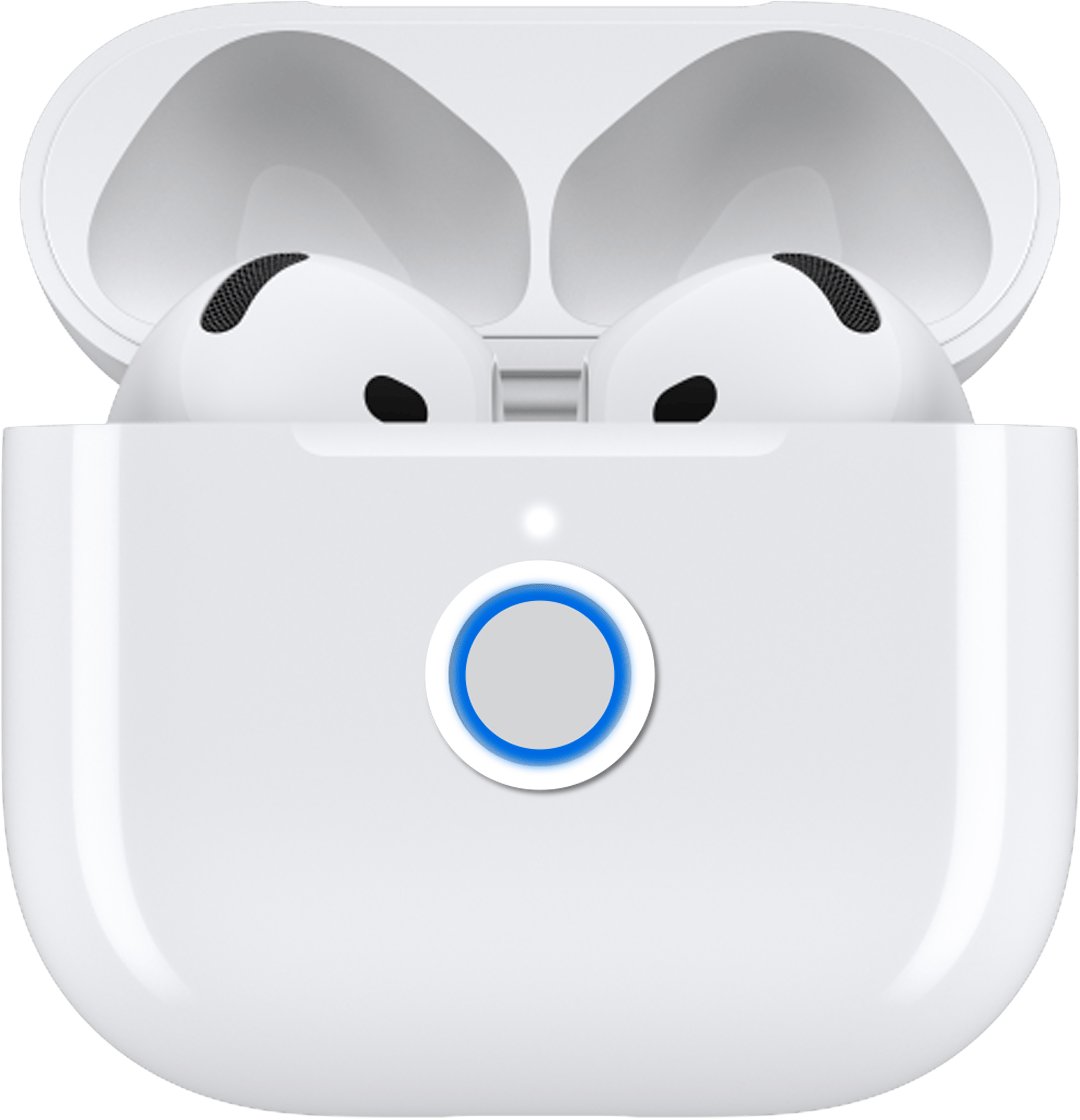
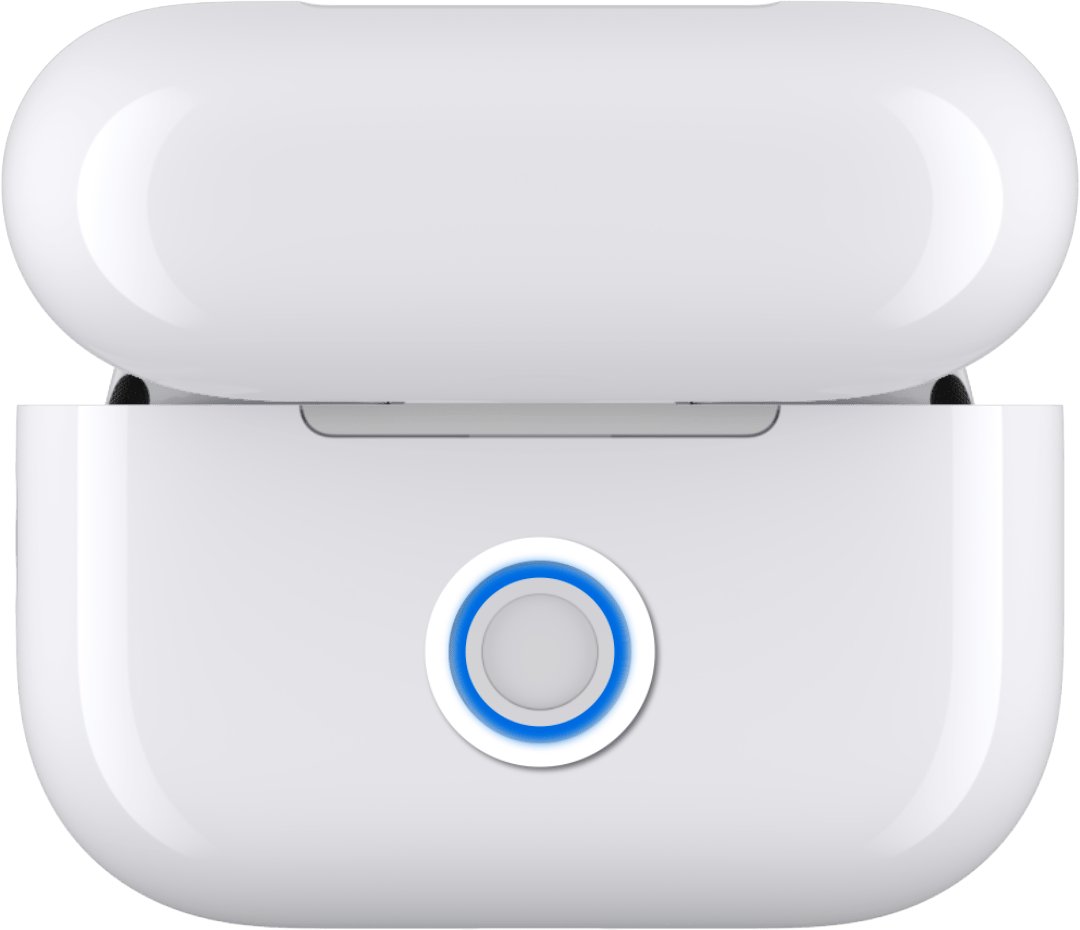
- Enter pairing mode: on AirPods 1, 2 or 3 and AirPods Pro 1 or 2, press and hold the setup button on the back of the case for about 5 seconds, until the status light flashes white.
- On AirPods 4 or 5 and AirPods Pro 3, hold the open case next to the PC and double-tap the front of the case until the light flashes white. On AirPods Max, hold the listening mode button for about 5 seconds.
- On the PC, select Add device > Bluetooth, then select your AirPods in the list.
- Follow any extra prompts, then select Done.
Once paired, Windows reconnects to the AirPods automatically whenever Bluetooth is on and they are in range.
Confirm Windows 11 is using the AirPods for sound
A paired AirPods set can be connected while Windows still plays through the laptop speakers. Check the output before trying anything deeper.
- Select the Sound icon on the taskbar and choose your AirPods as the output device.
- Or open Start > Settings > System > Sound and select the AirPods under Output.
- Make sure the volume slider is up and not muted.
- Open More sound settings > Playback, right-click the AirPods and select Set as default if another device keeps taking over.
- Play a video and confirm the sound comes from the AirPods.
If one app stays silent, check its own audio settings, since many apps such as meeting tools pick their speaker separately.
Fix AirPods connected but no sound
Settings shows Connected, but nothing plays
The wrong output device is selected, or the audio format is not suited to the headset.
- Pick the AirPods under Settings > System > Sound > Output.
- Open Settings > Bluetooth & devices > Devices, select the AirPods and select Advanced sound properties while they are connected.
- Under Output settings, set Format to 2 channels, 16 bit, 48000 Hz (DVD Quality).
- Remove and re-pair the AirPods if there is still no sound.
Sound stopped after a Windows update
The Bluetooth driver may have been built for an earlier Windows version.
- Open Settings > Windows Update and select Check for updates.
- Update the Bluetooth driver as shown in the driver section below.
- Select Start > Power > Restart.
Fix AirPods microphone not working on Windows 11
Others cannot hear you
Windows or the app is recording from another microphone.
- Open Start > Settings > System > Sound.
- Under Input, in Choose a device for speaking or recording, select the AirPods.
- Select > next to the AirPods, select Start test under Microphone test, speak, then select Stop test.
- In your calling app, choose the AirPods as its microphone too.
No app can use the microphone
Microphone access is turned off in privacy settings.
- Open Start > Settings > Privacy & security > Microphone.
- Turn on Microphone access and Let apps access your microphone.
- Turn on Let desktop apps access your microphone for apps installed outside the Store.
The microphone is very quiet
The input volume is low.
- Open Settings > System > Sound and select the AirPods under Input.
- Under Input settings, raise the Input volume slider and test again.
Fix bad sound quality or muffled audio
Crackling, distorted or thin audio
Audio enhancements or an unsupported format can degrade Bluetooth audio.
- Open Settings > System > Sound and select the AirPods under Output.
- Set Audio enhancements to Off.
- Under Advanced, try a different Default format, then test.
- Open services.msc, right-click Windows Audio and select Restart, then do the same for Windows Audio Endpoint Builder.
Audio turns muffled only during calls
Playback quality can change while an app uses the AirPods microphone.
- In the calling app, set the PC's built-in microphone as the input and keep the AirPods as the speaker.
- Test whether playback quality returns.
- Keep that setup for long calls if it sounds better.
Fix AirPods not showing up in Bluetooth
AirPods never appear under Add device
They are not in pairing mode, or Windows is only listing common device types.
- Put the AirPods in pairing mode again until the status light flashes white.
- Open Start > Settings > Bluetooth & devices > Devices.
- Under Device settings > Bluetooth devices discovery, select Advanced.
- Select Add device > Bluetooth and look again.
AirPods connect to your iPhone instead
A nearby iPhone, iPad or Mac may already be using the AirPods.
- Turn off Bluetooth on the iPhone, iPad or Mac for a moment.
- Pair or connect the AirPods on the PC, then turn the other device's Bluetooth back on.
There is no Bluetooth option at all
The PC has no Bluetooth, the switch is off, or the adapter driver is missing.
- Check the PC specifications for Bluetooth and any physical Bluetooth switch.
- Open Device Manager and look for a Bluetooth section.
- Follow the driver steps below, or add a USB Bluetooth adapter.
Run the Bluetooth troubleshooter
- Select Start > Settings > System > Troubleshoot > Other troubleshooters.
- Next to Bluetooth, select Run.
- Follow the prompts in the Get Help app, which runs diagnostics and applies fixes.
- For sound problems, run the Audio troubleshooter from the same list.
Update or reinstall Bluetooth drivers
An outdated or incompatible driver is one of the most common causes of Bluetooth connection problems.
- Select Search on the taskbar, type device manager and open Device Manager.
- Expand Bluetooth and right-click the adapter, whose name may include the word radio.
- Select Update driver > Search automatically for updated driver software, then Close.
- If Windows finds nothing, get the latest Bluetooth driver from your PC maker's website.
- To reinstall instead, right-click the adapter, select Uninstall device > Uninstall, then select Start > Power > Shut down.
- Turn the PC back on. If the driver does not return, open Device Manager and select Action > Scan for hardware changes.
Restart Bluetooth services
services.mscPress Windows + R, type services.msc and select OK. Scroll to Bluetooth Support Service, right-click it and select Restart. For sound faults, also restart Windows Audio and Windows Audio Endpoint Builder.
You should see: Each service shows Running in the Status column, and the AirPods reconnect when you open the case near the PC.
Fix AirPods disconnecting from Windows 11
Audio cuts out every few minutes
Power saving switches off the Bluetooth adapter or the signal is weak.
- Select the Battery icon on the taskbar and turn off Energy saver if it is on.
- In Device Manager, expand Bluetooth, right-click the adapter and select Properties.
- On the Power Management tab, clear Allow the computer to turn off this device to save power.
- Move closer to the PC and away from devices plugged into USB 3.0 ports, which can interfere.
AirPods switch to another device
A paired phone or tablet nearby takes the connection.
- Turn off Bluetooth on the other device while you use the PC.
- Reconnect from Settings > Bluetooth & devices on the PC.
Check for Windows 11 audio enhancements and spatial sound issues
Enhancements and spatial sound process audio before it reaches the AirPods. Turn them off to test, then back on if they made no difference.
| Setting | Where | What to try |
|---|---|---|
| Audio enhancements | Settings > System > Sound > select the AirPods under Output | Set Audio enhancements to Off |
| Spatial sound | Settings > System > Sound > the AirPods > Device Properties > Spatial sound | Choose Off to test, or Windows Sonic for Headphones to try it |
| Audio format | Settings > System > Sound > the AirPods > Output settings > Format | 2 channels, 16 bit, 48000 Hz (DVD Quality) |
| Mono audio | Settings > System > Sound > Output | Turn Mono audio off for normal stereo |
Fix one AirPod not working on Windows
Sound plays in only the left or right AirPod
Low battery, a channel balance setting, mono audio or a one-sided pairing.
- Put both AirPods in the case, charge them, and check the battery shown in Settings > Bluetooth & devices.
- Open Settings > System > Sound, select the AirPods, open Volume under Output settings and set Left and Right to the same level.
- Turn off Mono audio in the Output section.
- Set Format to 2 channels, 16 bit, 48000 Hz (DVD Quality).
- Remove and re-pair the AirPods with both in the case. If Windows asks to connect a second earbud, accept it.
One AirPod is silent on every device
The AirPod itself may be faulty, not Windows.
- Test the AirPods with a phone or another PC.
- Reset the AirPods as shown below.
- Contact Apple Support if the same side stays silent everywhere.
Reset your AirPods
A reset clears every pairing. Afterwards you must pair the AirPods with your Apple devices and the PC again.
- Remove the AirPods from Settings > Bluetooth & devices on the PC.
- Put the AirPods in their case, close the lid and wait 30 seconds.
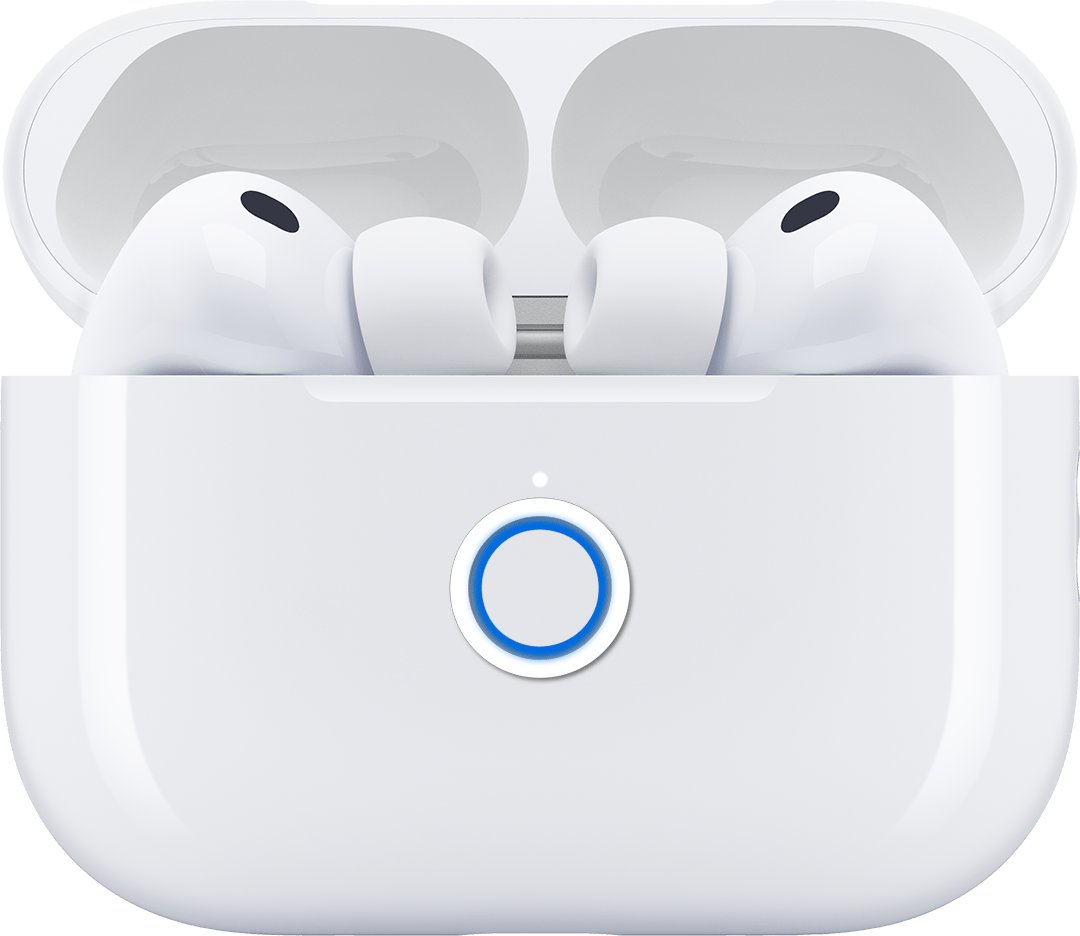
- AirPods 1, 2 or 3 and AirPods Pro 1 or 2: open the lid, then press and hold the setup button for about 15 seconds until the light flashes amber, then white.
- AirPods 4 or 5 and AirPods Pro 3: open the lid, then double-tap the front of the case three times. The light flashes amber, then white.
- AirPods Max: press and hold the Digital Crown and the listening mode button until the light changes from flashing amber to flashing white, about 15 seconds.
- Pair the AirPods with the PC again.
Install AirPods firmware updates
Windows cannot update AirPods firmware. Updates install automatically while the AirPods charge in Bluetooth range of an iPhone, iPad or Mac connected to Wi-Fi.
- Update your iPhone, iPad or Mac to the latest software and turn on Bluetooth.
- Connect that device to Wi-Fi.
- Connect the charging case to power and put the AirPods inside with the lid closed.
- Keep the case in Bluetooth range of the Apple device and wait at least 30 minutes.
- Open the lid to reconnect, then pair with the PC again if needed.
Without an Apple device, Apple suggests booking an appointment at an Apple Store or an Apple Authorized Service Provider to update the firmware.
Use a better Bluetooth adapter if your PC’s Bluetooth is weak
A PC without Bluetooth, or with an unreliable built-in adapter, can use a USB Bluetooth adapter instead.
Try a USB Bluetooth adapter only after drivers, power settings and re-pairing fail, and plug it into a port away from USB 3.0 devices. Microsoft names outdated drivers as a leading cause of Bluetooth problems, and unshielded USB 3.0 devices can interfere with Bluetooth signals.
Advanced fix: remove hidden AirPods entries
Device Manager hides devices that were removed but left registry entries behind. Old AirPods entries can linger there after many re-pairs.
- Remove the AirPods in Settings > Bluetooth & devices first.
- Open Device Manager and select View > Show hidden devices.
- Expand Bluetooth and look for greyed-out entries with your AirPods' name.
- Right-click each one and select Uninstall device.
- Restart the PC and pair the AirPods again.
When AirPods still do not work on Windows 11
- Test the AirPods with a phone. If they fail there too, the AirPods need service, so contact Apple Support.
- Test another Bluetooth headset with the PC. If it also fails, the problem is the PC's Bluetooth adapter or driver.
- Install all updates from Settings > Windows Update and check your PC maker's site for a newer Bluetooth driver.
- Contact your PC maker if a second headset fails as well.
Frequently asked questions
Why are my AirPods not working on my Windows 11 PC?
The usual causes are a stale pairing, the wrong output device, Bluetooth turned off or an outdated Bluetooth driver. Remove the AirPods in Settings > Bluetooth & devices, put them in pairing mode, pair them again and select them as the sound output.
What should I do if my AirPods won't connect to my PC?
Restart the AirPods by closing them in the case for 10 seconds, toggle Bluetooth off and on, then remove and re-pair them. If they still will not connect, run the Bluetooth troubleshooter and update the Bluetooth driver in Device Manager.
How do I fix one AirPod not working?
Charge both AirPods, set Left and Right to the same level under the AirPods' Volume settings, turn off Mono audio, and re-pair with both AirPods in the case. If the same side is silent on a phone too, reset the AirPods or contact Apple.
How do I fix the AirPods mic not working on Windows?
Select the AirPods under Settings > System > Sound > Input, turn on microphone access in Settings > Privacy & security > Microphone, and choose the AirPods as the microphone inside your calling app.
How do I fix AirPods not turning on?
Put both AirPods in the charging case, connect the case to power and let them charge. Then close the lid for at least 10 seconds and open it. If the status light does not respond, reset the AirPods.
How do I fix my AirPods case not working?
Connect the case to power and check the status light. If the case will not enter pairing mode, close the lid for 30 seconds and try the setup button or double-tap again. Contact Apple Support if the light never responds.
How do I troubleshoot AirPods on Windows?
Start with Settings > System > Troubleshoot > Other troubleshooters and run the Bluetooth troubleshooter. Then check the sound output, re-pair the AirPods, update the Bluetooth driver and restart the Bluetooth Support Service.
Can I update AirPods firmware on Windows?
No. Firmware updates install automatically while the AirPods charge near an iPhone, iPad or Mac on Wi-Fi. Without an Apple device, an Apple Store or Apple Authorized Service Provider can update them.




Mobile hotspot not working in Windows 11 - Techdows
[…] pairing itself fails, the same Bluetooth checks that get AirPods connecting on Windows 11 apply here, then switch back to Wi-Fi sharing if Bluetooth is not […]