A wireless keyboard usually stops working because of flat batteries, a loose or moved USB receiver, a dropped Bluetooth pairing, or radio interference.
The six fixes below run from quickest to most involved, followed by fixes for dead keys, a keyboard that fails at sign-in, and when to replace it.
Fix 1: Check Power, Batteries, and the On/Off Switch
Low battery is the most common reason a wireless keyboard drops out. Start here before changing any settings.
- Slide the keyboard's power switch to off, wait a few seconds, then switch it back on.
- Open the battery compartment and check the batteries sit the right way round.
- Replace the batteries with fresh ones, or charge a rechargeable keyboard fully.
- Press a key to wake the keyboard, then type in a text box such as Notepad.
Keep the keyboard on while you work through the other fixes. Several of them need it powered and ready to pair.
Before You Start: Identify What Kind of Wireless Keyboard You Have
The fix depends on how the keyboard talks to the computer. Check for a small USB dongle and a Bluetooth symbol on the keyboard.
| Keyboard type | How to recognise it | Fixes that apply |
|---|---|---|
| USB receiver (2.4 GHz) | A small dongle plugged into a USB port, such as a Logitech Unifying or Bolt receiver | Fixes 1, 2, 4, 5 and 6 |
| Bluetooth | No dongle; pairs through the computer's Bluetooth settings and has a pairing button | Fixes 1, 3, 4, 5 and 6 |
| Both modes | Has a receiver and a Bluetooth or channel button | Check which mode is active, then follow that row |
Which fix matches your symptom?
| Your situation | Start with | Why |
|---|---|---|
| Keyboard is completely dead, no lights | Fix 1 | Power and batteries come first |
| Worked yesterday, receiver was moved or a hub was added | Fix 2 | Receivers lose connection when moved to another port or a hub |
| Bluetooth keyboard says connected but will not type | Fix 3 | Removing and pairing again clears a stale pairing |
| Keys lag, repeat or drop out at a distance | Fix 4 | Radio interference and range cause intermittent input |
| Keys type the wrong characters or need a long press | Fix 5 | A layout or Filter keys setting is the cause |
| Nothing above helped | Fix 6 | A driver or the connection needs rebuilding |
Fix 2: Reconnect the USB Receiver or Move It to a Better Port
Moving the receiver between ports, or plugging it into a USB hub or KVM switch, can break the connection.
- Unplug the USB receiver.
- Wait about 10 seconds so Windows unloads the driver.
- Plug the receiver directly into a USB port on the computer, not a hub or KVM switch.
- If it still fails, try a different USB port.
- Restart the computer.
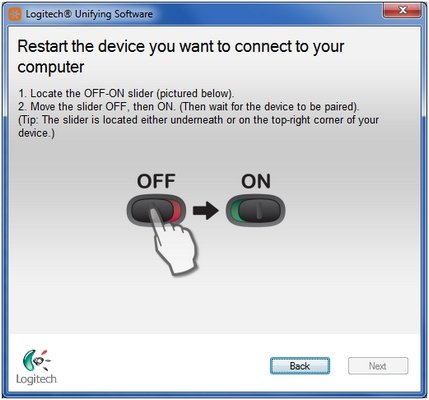
- Check the receiver matches the keyboard. A Logitech receiver can be re-paired with Logi Options+, which replaces the unsupported Unifying Software.
Some keyboards have a reset button on the bottom. Press it after reseating the receiver.
Fix 3: Fix Bluetooth Pairing Problems
A Bluetooth keyboard can stay paired to another device, such as a tablet or a second PC, and ignore yours. Removing it and pairing again clears that.
- On Windows 11, select Start > Settings > Bluetooth & devices and check the Bluetooth toggle is on.
- Find the keyboard, select More options (…) > Remove device.
- Hold the keyboard's pairing button for 5 to 7 seconds, then let go.
- Select Add device, choose Bluetooth and select the keyboard from the list.
- Type any PIN Windows shows, then press Enter on the keyboard.
- If it still fails, turn airplane mode on for 10 to 15 seconds, then off again.
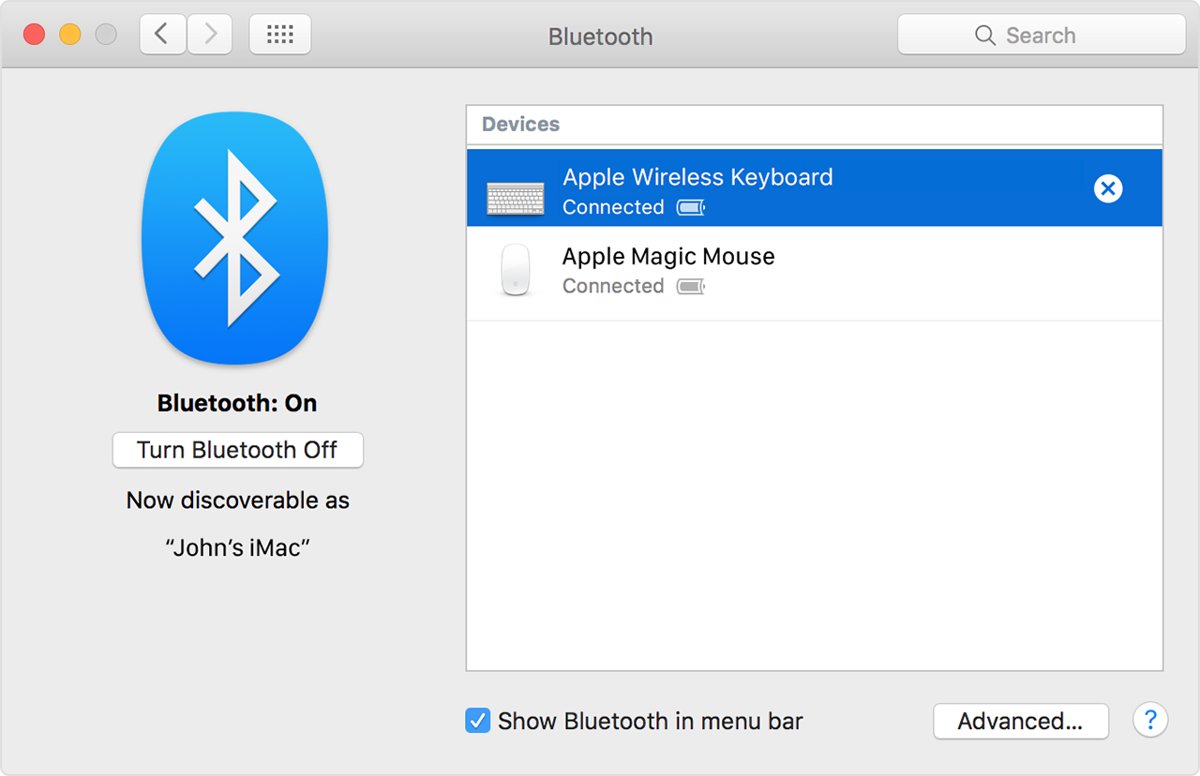
On a Mac, click the Bluetooth icon to check Bluetooth is on, remove the keyboard from the Bluetooth settings and pair it again. MacBook and Magic Keyboard specifics are in the Mac keyboard fixes.
Fix 4: Remove Interference and Range Problems
Routers, phones, wireless speakers, monitors and other wireless receivers all share the airwaves with your keyboard.
- Move the keyboard closer to the receiver or the computer.
- Keep other electrical devices at least 8 inches (20 cm) away from the receiver.
- Move the Wi-Fi router at least three feet away from the computer.
- Separate USB receivers as far as possible, or use a USB extension cable to bring the keyboard receiver nearer the desk.
- Turn off Bluetooth devices you are not using, since too many connected at once can interfere.
- Test the keyboard in another room to rule out the location.
Fix 5: Check Keyboard Settings, Layouts, and Accessibility Features
If the keyboard connects but types wrong characters or ignores quick presses, a Windows setting is the cause. Click inside a text box first so the keyboard has somewhere to type.
- Press Windows logo key + U, or select Start > Settings > Accessibility.
- Select Keyboard and turn off Filter keys, which makes Windows ignore brief or repeated keystrokes.
- Turn off Sticky keys on the same page if modifier keys behave oddly.
- Hold the Windows logo key and press Spacebar to cycle through installed layouts until the right one is active.
- To remove an unwanted layout, select Settings > Time & language > Language & region, select the ellipses next to your language, then Language options.
- Under Keyboards, select the ellipses next to the extra layout and choose Remove.
Gaming keyboards often have a lock or game-mode key that disables some keys. Check the keyboard maker's manual for its location.
Fix 6: Update, Reinstall, or Reset the Keyboard Connection
A damaged driver keeps a working keyboard from responding. Use the built-in touchpad, a mouse or the on-screen keyboard to follow these steps.
- In the search box on the taskbar, type device manager and select Device Manager.
- Expand Keyboards, or Bluetooth for a Bluetooth keyboard, and double-click the device.
- Select the Driver tab, then Update Driver, and follow the instructions.
- If that does not help, right-click the device and select Uninstall device.
- Restart the computer so Windows reinstalls the driver.
- Run Windows Update and install any maker software, such as Logi Options+, to update the keyboard firmware.
Look for a Reset button on the bottom of the keyboard, then pair it again with Fix 2 or Fix 3.
What If Only Some Keys Are Not Working?
Certain keys do nothing or stick
Dirt or debris under the keys blocks contact.
- Turn the keyboard off.
- Turn it upside down and shake out loose debris.
- Clean between the keys with a soft brush.
- Turn it on and test the keys in Notepad.
Keys only register when held down
Filter keys is on.
- Select Start > Settings > Accessibility > Keyboard.
- Turn off Filter keys.
Keys type the wrong symbols
A different keyboard layout is active.
- Hold the Windows logo key and press Spacebar to switch layouts.
- Remove extra layouts under Settings > Time & language > Language & region > Language options.
Arrow keys only fail in Excel
This is an Excel behaviour, not a keyboard fault.
- Test the arrow keys in another app.
- If they work there, follow the Excel arrow key fixes.
What If the Keyboard Does Not Work at the Login Screen?
You cannot type your password at sign-in
The keyboard has not connected yet, or its pairing or driver is broken.
- Select the Accessibility button in the lower-right corner of the sign-in screen.
- Select On-Screen Keyboard and type your password with the mouse.
- Once signed in, follow Fix 2 or Fix 3 to reconnect the keyboard.
- Run Fix 6 if it fails again after the next restart.
The keyboard works only after you sign in
The keyboard is still waking or connecting when the sign-in screen appears.
- Press a key to wake the keyboard and wait a few seconds.
- Plug the receiver directly into the computer instead of a hub.
- Use the On-Screen Keyboard from the Accessibility button meanwhile.
How to check the keyboard works again
- Open Notepad and type every row of keys, including numbers and symbols.
- Test Shift, Ctrl, Alt and the Windows logo key with a shortcut such as Windows logo key + Spacebar.
- Check the keyboard appears under Settings > Bluetooth & devices for a Bluetooth model.
- Move a few metres away from the computer and type again to confirm the range is stable.
- Restart the computer and confirm the keyboard works at the sign-in screen.
When to Replace the Keyboard
| Sign | What it means |
|---|---|
| Dead with fresh batteries, on every computer and port | The keyboard or its receiver has failed |
| Works on another computer but not yours | Your computer's USB port, Bluetooth adapter or driver is the problem, not the keyboard |
| Receiver lost and the model has no replacement | Buy a replacement receiver if the maker sells one; Logitech sells them for some models |
| Liquid damage or physically broken keys | Cleaning will not restore them |
Quick Checklist: The Fastest Path to a Working Keyboard
| Step | Check |
|---|---|
| 1 | Fresh batteries and the power switch on |
| 2 | Receiver plugged directly into the computer, then reseated after 10 seconds |
| 3 | Bluetooth keyboard removed and paired again |
| 4 | Keyboard close to the receiver, away from routers and other receivers |
| 5 | Filter keys off and the right layout active |
| 6 | Driver updated or reinstalled in Device Manager |
Frequently asked questions
Why is my wireless keyboard not connecting?
The keyboard is usually paired to another device, its receiver is in a hub or the wrong port, or Bluetooth is off. Plug the receiver directly into the computer, or remove the Bluetooth keyboard and pair it again.
Why is my wireless keyboard not typing?
If it shows as connected but types nothing, click inside a text box, check Filter keys is off under Accessibility > Keyboard, and test in Notepad. A driver reinstall in Device Manager fixes the rest.
Why is my wireless keyboard not turning on?
The batteries are flat, inserted the wrong way round or the power switch is off. Fit fresh batteries, check their orientation, and slide the switch off and on again.
Why is my wireless keyboard not responding?
Interference or distance is the usual cause when it works intermittently. Move it closer, keep other electronics 20 cm from the receiver and keep the router at least three feet from the computer.
Why does my wireless keyboard stop working?
Low batteries, moving the receiver to another USB port, plugging it into a hub or KVM switch, and wireless interference all make a keyboard drop out after working fine.
Why is my Logitech wireless keyboard not working?
Check the batteries, plug the receiver directly into the computer, and keep it away from other electronics. Re-pair the keyboard to its receiver with Logi Options+, which replaces the unsupported Unifying Software.
Why is my Dell or HP wireless keyboard not working?
The same causes apply to every brand: batteries, the receiver connection, Bluetooth pairing and interference. Work through the fixes in order, then check the maker's support site for firmware or a replacement receiver.
Why won't my wireless keyboard type the right characters?
Another keyboard layout is active. Hold the Windows logo key and press Spacebar to cycle layouts, and remove unwanted ones under Settings > Time & language > Language & region.