When AirPods show as connected but play no sound, Windows 11 is almost always sending audio to another output, so select your AirPods under Sound output first.
If that does not bring sound back, the sections below fix the audio format, the Hands-Free profile, Bluetooth and audio drivers, AirPods firmware, and a full reset, in the order most likely to help.
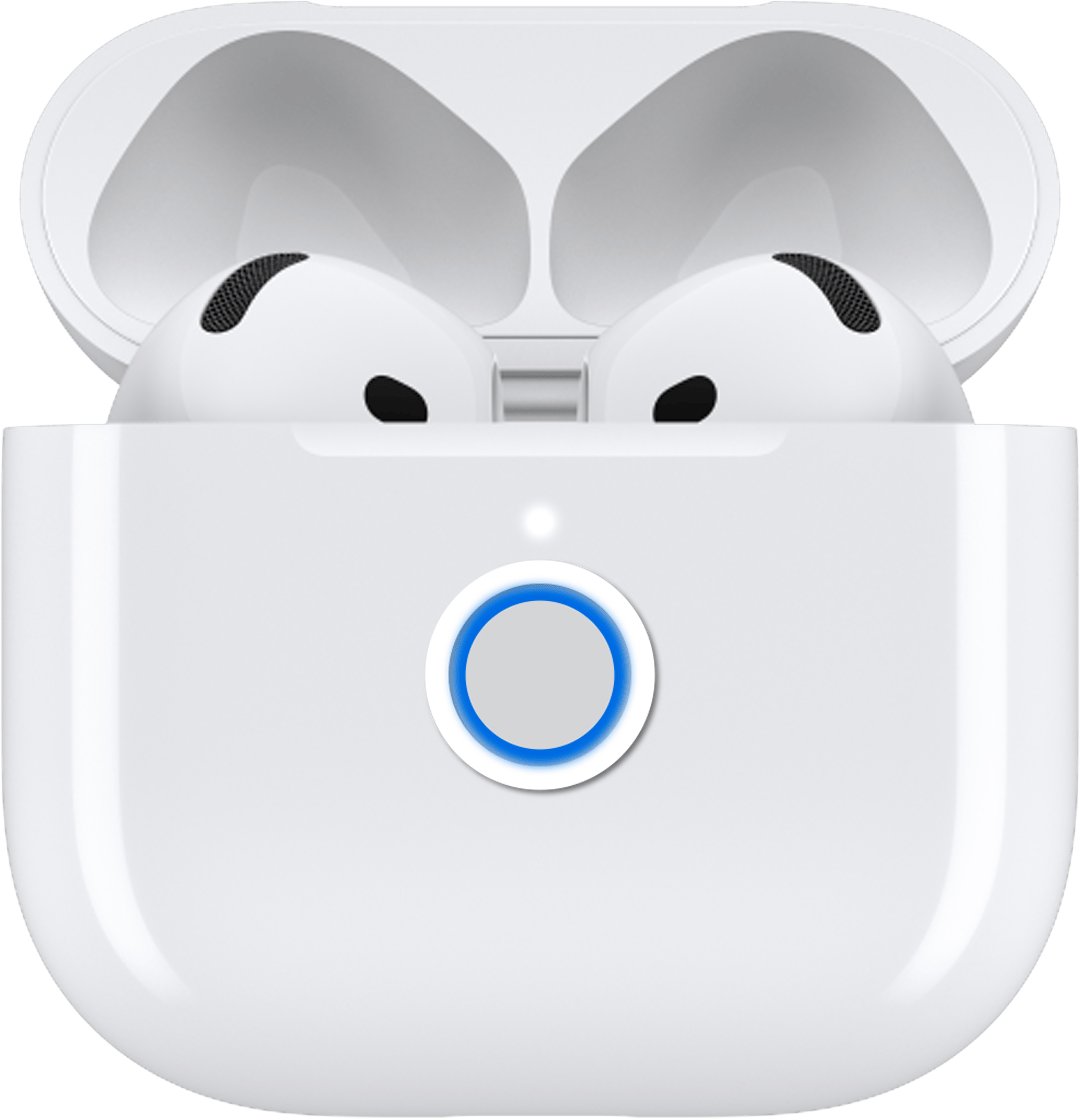
The fastest fix: send Windows audio to your AirPods
A Bluetooth connection does not make AirPods the output. Windows keeps playing through the last device it used until you switch.
- Put both AirPods in your ears so they wake up.
- Select the Speakers (volume) icon on the right side of the taskbar.
- Select the arrow to the right of the volume slider. Its tooltip reads Select a sound output.
- Choose your AirPods in the list. If there are two AirPods entries, choose the one that is not labelled Hands-Free.
- Drag the volume slider up and play a video or song to test.
If your AirPods are missing from that list, they are not actually connected. Jump to section 4 to remove and re-pair them.
Understanding the Issue
Microsoft lists three root causes for a Bluetooth headset that connects but stays silent: incorrect settings, outdated drivers and compatibility limits. The table maps each sign to the fix below.
| What you notice | Likely cause | Go to |
|---|---|---|
| Sound still comes from the laptop speakers | Another device is the default output | Section 2 |
| Sound is thin, muffled or phone-call quality | Windows is using the Hands-Free (call) profile | Section 7 |
| Silence in one app only, others play | App muted or routed elsewhere in Volume mixer, or exclusive mode | Sections 1 and 6 |
| Silence started after a Windows update | Bluetooth or audio driver no longer matches | Sections 3 and 10 |
| Sound in one ear only | Only one earbud paired, balance or Mono audio setting | Section 5 |
| Silence on every device, not just the PC | AirPods themselves need a reset or firmware | Sections 11 and 12 |
1. Basic Troubleshooting Steps
Start with the checks that take seconds: a proper connection, the volume and mute controls, and a second audio source.
- Put both AirPods back in the charging case, close the lid, wait 15 seconds, then open it and take them out again.
- Open Start > Settings > Bluetooth & devices and confirm your AirPods show Connected under the device name.
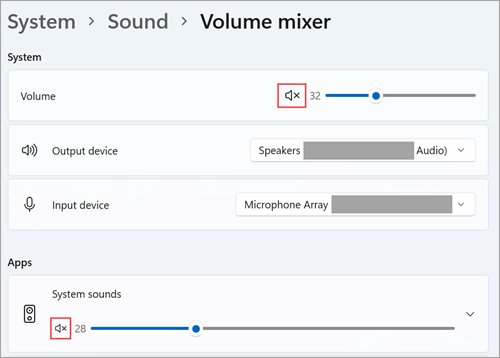
- Select Start > Settings > System > Sound > Volume mixer and make sure no device or app shows an x on its volume control.
- In Volume mixer, check under Apps that the player you are using is not muted and its Output device is your AirPods or the default.
- Play a different source, such as a YouTube video in the browser and a local song, to see if the silence is limited to one app.
- Turn up the in-app volume too, because many players have their own slider on top of the Windows one.
2. Confirm AirPods as Default Playback Device
Setting the output in Settings also makes the device the default. Use the classic Sound panel when an app ignores the new setting.
- Select Start > Settings > System > Sound.
- Under Output, select your AirPods. This makes them the default device.
- Scroll to Advanced and select More sound settings.
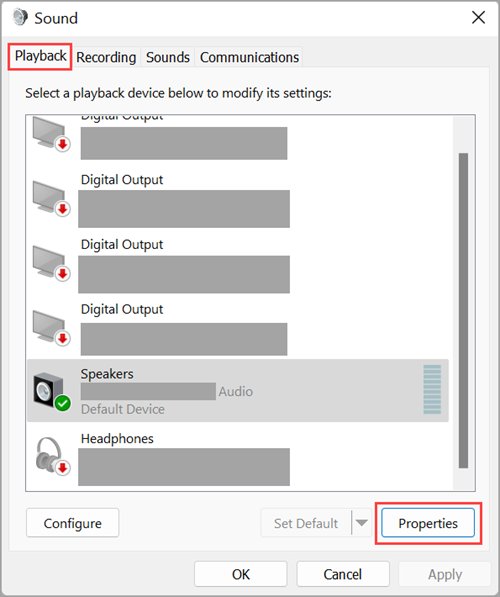
- On the Playback tab, right-click the AirPods entry and select Set as default.
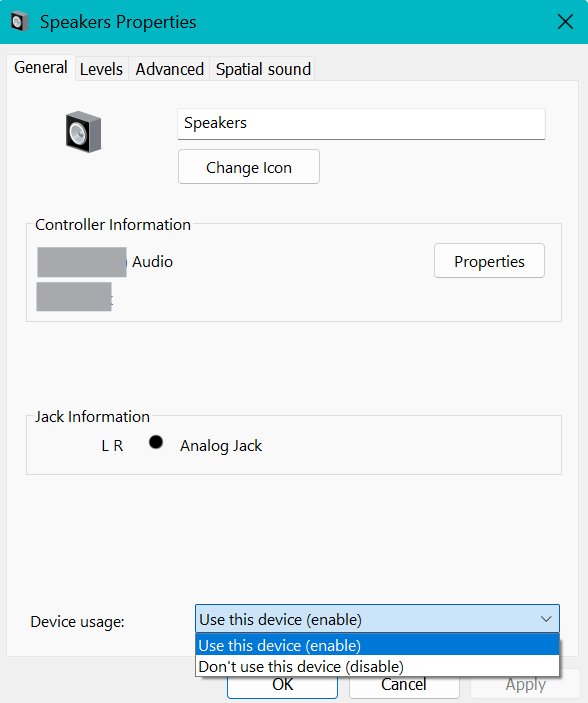
- Right-click the AirPods entry again, select Properties, and make sure Device usage reads Use this device (enable).
- Select OK and restart the app that had no sound.
3. Update Bluetooth Drivers and Windows
Microsoft calls an outdated or incompatible Bluetooth driver one of the most common causes of Bluetooth trouble, especially right after an upgrade to Windows 11.
- Select Start > Settings > Windows Update and select Check for updates. Install any available updates and restart.
- Select Start, type device manager and open Device Manager.
- Expand Bluetooth and right-click the adapter. Its name often includes the word radio.
- Select Update driver > Search automatically for updated driver software, then select Close.
- If Windows finds nothing, download the latest Bluetooth driver from your PC or motherboard maker's support site.
- To reinstall instead, right-click the adapter, select Uninstall device > Uninstall, then shut down, wait a few seconds and power on. Windows reinstalls the driver.
- If the adapter does not return, open Device Manager and select Action > Scan for hardware changes.
4. Troubleshoot Bluetooth & Compatibility
AirPods work on Windows as a standard Bluetooth headset: you can listen and talk, but Siri is not available. Music playback needs the A2DP profile that Microsoft names for higher-quality audio streaming.
A stale pairing record is the most common reason AirPods show as connected yet stay silent. Remove it and pair from scratch; the full walkthrough is in How to Connect AirPods to a Windows PC or Laptop.
- Select Start > Settings > Bluetooth & devices, turn Bluetooth off, wait 10 seconds, and turn it back on.
- Select Devices, find your AirPods, select More options (…) > Remove device > Yes.
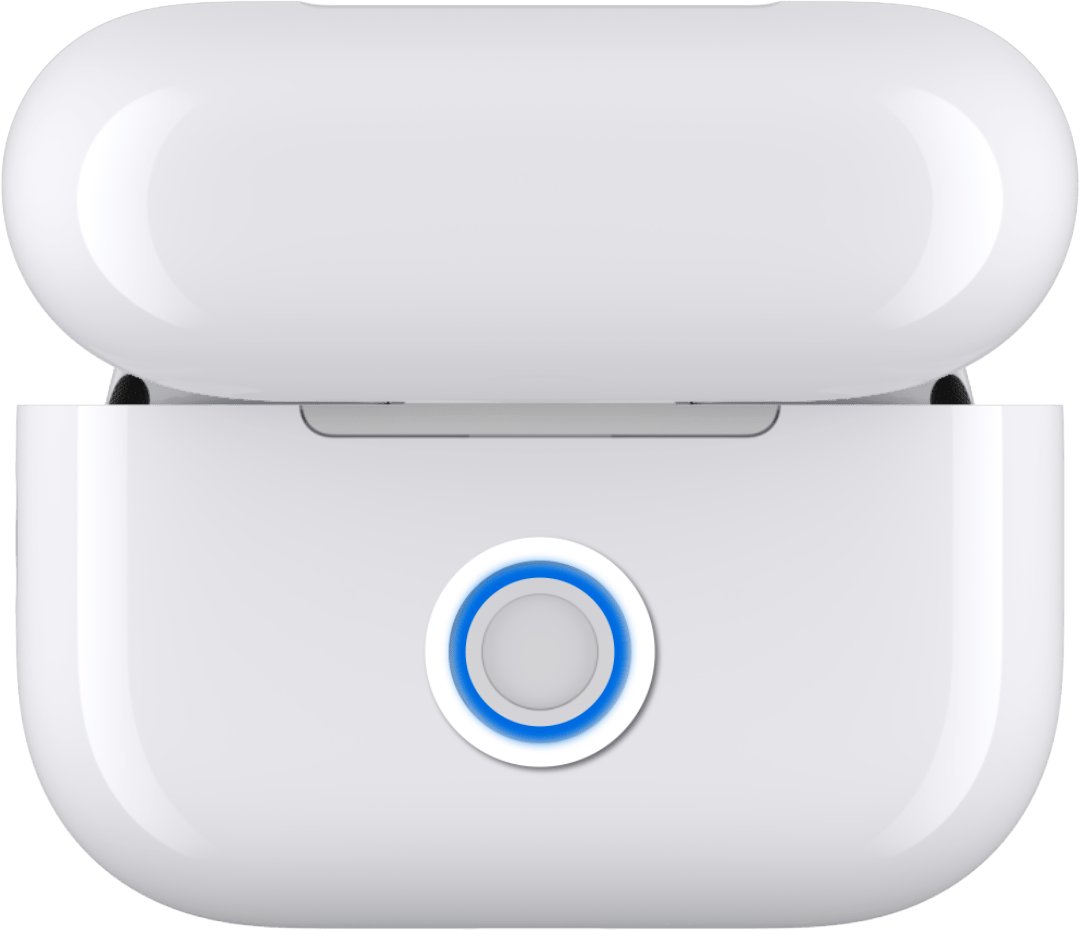
- Put both AirPods in the case and open the lid. Press and hold the setup button on the back until the status light flashes white. On AirPods 4, AirPods 5 and AirPods Pro 3, double-tap the front of the case instead.
- Back in Bluetooth & devices, select Add device > Bluetooth and pick your AirPods. Accept the prompt if Windows asks to connect the second earbud.
- To stop Windows putting the adapter to sleep, open Device Manager, expand Bluetooth, right-click the adapter, select Properties > Power Management, and clear Allow the computer to turn off this device to save power.
- Select the Battery icon on the taskbar and turn off Energy saver if it is on.
5. Configure Audio Settings for Compatibility
A format the headset cannot play, a one-sided balance or Mono audio can all look like missing sound. Microsoft recommends the DVD Quality format for Bluetooth audio.
- Keep the AirPods connected; the next option only appears while they are.
- Select Start > Settings > Bluetooth & devices > Devices, select your AirPods, then select Advanced sound properties.
- Under Output settings, set Format to 2 channels, 16 bit, 48000 Hz (DVD Quality).
- In the same Output settings, open Volume and set Left and Right to the same level, usually 100.
- Go to Start > Settings > System > Sound and turn off Mono audio in the Output section.
- Play audio again. If it is still silent, try another value in the Format list and test each one.
6. Disable Exclusive Mode and Enhance Compatibility
Exclusive mode lets one app lock the audio device, which leaves every other app silent. Audio enhancements can also break playback on some headsets.
- Select Start > Settings > System > Sound.
- Under Advanced, select More sound settings.
- On the Playback tab, select your AirPods and select Properties.
- Open the Advanced tab. Under Exclusive Mode, clear Allow applications to take exclusive control of this device, then select Apply and OK.
- Back in Settings > System > Sound, select your AirPods under Output.
- Scroll to Advanced settings and set Audio enhancements to Off.
7. Disable Hands-Free Telephony Mode
Windows can expose AirPods as two outputs: a Stereo entry for music and a Hands-Free entry for calls. The Hands-Free entry carries the microphone, and its audio is much lower quality, so music through it sounds muffled or can go silent.
Keep Hands-Free only for calls. Disabling it entirely also removes the AirPods microphone.
- Select the Speakers icon on the taskbar, open Select a sound output, and pick the AirPods entry labelled Stereo (or the one without Hands-Free).
- Open Start > Settings > System > Sound > More sound settings.
- On the Playback tab, right-click the AirPods Stereo entry and select Set as default.
- If you never use the AirPods microphone on this PC, right-click the Hands-Free entry, select Properties, and change Device usage away from Use this device (enable).
- In call apps such as Teams, set the speaker to the Stereo entry and the microphone to your laptop's built-in mic to keep full-quality sound.
8. Use Bluetooth Troubleshooter
Windows 11 runs the Bluetooth and audio troubleshooters from the Get Help app. Both check the service, driver and output settings automatically.
- Select Start > Settings > System > Troubleshoot > Other troubleshooters.
- Next to Bluetooth, select Run and follow the prompts in Get Help.
- Return to Other troubleshooters and select Run next to Audio.
- Apply any fix the troubleshooter offers, then play audio again.
9. Try Alternative Connection Methods or Software
When settings and drivers are correct, isolate the fault by changing one piece at a time. Skip third-party "audio booster" or "driver updater" tools; Windows needs none to play through AirPods.
| Try this | What the result tells you | Next step |
|---|---|---|
| Pair the AirPods with a phone or another PC | Sound there means the problem is on this PC | Continue with sections 3, 6 and 10 |
| Pair a different Bluetooth headset with this PC | Same silence means the PC side, not the AirPods | Update or reinstall the Bluetooth driver |
| Use a USB Bluetooth adapter | Sound returns means the built-in adapter or its driver is at fault | Install the adapter maker's driver from its site |
| Move away from USB 3.0 devices and wireless clutter | Stable sound means interference was cutting the link | Keep the PC and AirPods close, in clear range |
| Check the PC's specifications for Bluetooth | No Bluetooth listed means the PC relies on an adapter | Use a supported USB Bluetooth adapter |
10. Update or Reinstall Audio Drivers
The AirPods audio endpoint also depends on Windows audio drivers and services. If sound stopped after an update, a rollback is the quickest route.
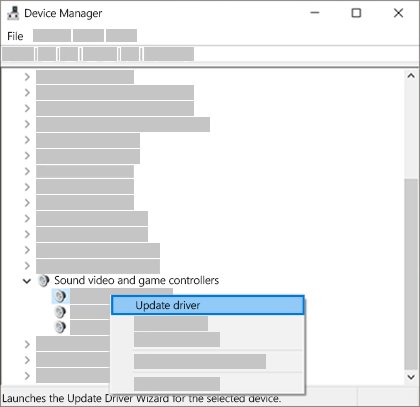
- Open Device Manager and expand Sound, video and game controllers.
- Right-click your AirPods or audio device, select Update driver > Search automatically for drivers.
- If that finds nothing, right-click it, select Uninstall device, tick Attempt to remove the driver for this device, select Uninstall, and restart. Windows reinstalls it.
- If sound broke after an update, right-click the device, select Properties > Driver > Roll Back Driver, and follow the prompts.
- Select Start, type services.msc and press Enter.
- Right-click Windows Audio and select Restart, then do the same for Windows Audio Endpoint Builder and Bluetooth Support Service.
11. Firmware Update for AirPods
Windows cannot update AirPods firmware. Apple delivers it automatically while the AirPods charge in Bluetooth range of an iPhone, iPad or Mac on Wi-Fi.
If a Mac is your Apple device, pair the AirPods with it first using How to Connect AirPods to MacBook, Mac & iMac (All Models).
- Update your iPhone, iPad or Mac to the latest iOS, iPadOS or macOS and turn on Bluetooth.
- Connect the AirPods to that device and connect the device to Wi-Fi.
- Plug the charging case into power, put the AirPods inside and close the lid.
- Keep the case in Bluetooth range and wait at least 30 minutes.
- Open the lid, then on iPhone go to Settings > Bluetooth > the Info button next to your AirPods and check the version under About.
- With no Apple device, book an appointment at an Apple Store or Apple Authorized Service Provider to have the firmware updated.
12. Factory Reset Your AirPods
A reset clears the AirPods' pairing and settings. Remove them from Windows first, so the PC does not keep the old pairing record.
- In Settings > Bluetooth & devices > Devices, select More options (…) next to the AirPods > Remove device.
- Put the AirPods in the charging case, close the lid and wait 30 seconds.
- Open the lid. On AirPods 1, 2, 3 and AirPods Pro 1 or 2, press and hold the setup button for about 15 seconds.
- On AirPods 4, AirPods 5 and AirPods Pro 3, double-tap the front of the case while the light is on, double-tap again when it flashes white, and a third time when it flashes faster.
- Wait for the status light to flash amber, then white. If it never turns white, close the lid for 20 seconds and repeat.
- Pair the AirPods with Windows again through Add device > Bluetooth.
How to check the fix worked
- Open Settings > Bluetooth & devices and confirm the AirPods show as connected, with a battery level if Windows can read it.
- Open the Select a sound output list from the taskbar and confirm the AirPods Stereo entry is ticked.
- Play a song and a video in two different apps and confirm both play through the AirPods.
- Listen for sound in both ears at full quality, not a muffled call-style tone.
- Put the PC to sleep, wake it, and check that sound returns to the AirPods without re-pairing.
13. Additional Tips & Best Practices
| Habit | Why it helps |
|---|---|
| Charge both AirPods before long sessions | Low battery can cut one side or reduce functionality |
| Disconnect them from your phone when using the PC | Audio can keep playing on another paired device |
| Keep AirPods and PC in range, away from unshielded USB 3.0 devices | Microsoft notes USB 3.0 devices can interfere with Bluetooth |
| Run Windows Update monthly | Bluetooth and audio driver fixes arrive through it |
| Update AirPods firmware on an Apple device now and then | Windows cannot update it |
| Pick the Stereo entry for music, Hands-Free only for calls | Keeps full audio quality |
| Restart the PC when Bluetooth acts oddly | Clears temporary system issues, as Microsoft advises |
Fix AirPods that disconnect, won't connect, or play in one ear
AirPods keep disconnecting from the PC
Power saving turns off the Bluetooth adapter, or the Bluetooth service has stalled.
- Turn off Energy saver from the Battery icon on the taskbar.
- In Device Manager > Bluetooth, open the adapter's Properties > Power Management and clear Allow the computer to turn off this device to save power.
- Press Windows key + R, type services.msc, select OK, then right-click Bluetooth Support Service and select Restart.
- Update the Bluetooth driver as in section 3.
Right or left AirPod not working
Only one earbud paired, a flat earbud, unequal balance or Mono audio.
- Put both AirPods in the case and make sure both are charging.
- In Settings > System > Sound, select the AirPods, open Volume and set Left and Right to the same level.
- Turn off Mono audio in the Output section.
- Remove and re-pair the AirPods with both earbuds in the case, and accept any prompt to connect the second earbud.
AirPods won't connect to the PC at all
The AirPods are not in pairing mode, Bluetooth is off, or Airplane mode is on.
- Check that the Airplane mode quick setting is off and Bluetooth is on.
- Close the lid for 15 seconds, open it, and hold the setup button (or double-tap the case) until the light flashes white.
- If they still do not appear, go to Settings > Bluetooth & devices > Devices and set Bluetooth devices discovery to Advanced.
- Reset the AirPods as in section 12 and pair again.
Frequently Asked Questions
How do I fix AirPods connected but no sound?
Select the volume icon on the taskbar, open Select a sound output and choose your AirPods. Most silent connections are audio going to another device. If that fails, set the format to 2 channels, 16 bit, 48000 Hz and re-pair the AirPods.
How do I fix AirPods on a PC?
Start with the output device, then run the Bluetooth troubleshooter under Settings > System > Troubleshoot > Other troubleshooters. Next, remove and re-pair the AirPods and update the Bluetooth driver in Device Manager. A reset fixes most remaining faults.
How do I fix AirPods disconnecting from a PC?
Turn off Energy saver and clear Allow the computer to turn off this device to save power on the Bluetooth adapter's Power Management tab. Restart the Bluetooth Support Service and update the Bluetooth driver if drops continue.
Why are my AirPods not staying connected?
The usual causes are power saving on the Bluetooth adapter, low AirPods battery, distance or interference from USB 3.0 devices, and an outdated Bluetooth driver. Fixing the power setting and updating the driver resolves most cases on Windows 11.
How do I fix one AirPod not connecting?
Put both AirPods in the case, confirm both are charging, then remove the AirPods from Windows and pair again. Accept the prompt to connect the second earbud if Windows shows one. If one side is still silent, reset the AirPods.
How do I fix the right or left AirPod not working on Windows?
Open the AirPods output in Settings > System > Sound, set the Left and Right volume to the same level and turn off Mono audio. If one side is still silent on every device, the earbud itself needs service.
What should I do if AirPods won't connect?
Turn Bluetooth off and on, put the AirPods in pairing mode until the light flashes white, and select them in Add device > Bluetooth. If they never appear, reset the AirPods and set Bluetooth devices discovery to Advanced.
How do I reconnect my AirPods to Windows 11?
Remove the AirPods under Settings > Bluetooth & devices > Devices, open the case and hold the setup button until the light flashes white, then select Add device > Bluetooth and pick them.
How do I fix AirPods Pro with no sound on Windows?
AirPods Pro follow the same steps as other AirPods: choose the Stereo output, set the DVD Quality format, and re-pair. Reset AirPods Pro 1 or 2 with the setup button; AirPods Pro 3 reset by double-tapping the front of the case.
How do I repair broken AirPods?
Reset them first, because many faults that look like hardware are pairing or firmware problems. If they stay silent on every device after a reset and firmware update, contact Apple or an Apple Authorized Service Provider for repair.
Final Recommendations
Pick the AirPods Stereo entry as the output first, then re-pair and update the Bluetooth driver before trying a reset. Wrong output selection and a stale pairing or driver explain most silent connections on Windows 11, and those fixes take minutes; a reset and firmware update are the last steps because firmware needs an Apple device.







Sound and microphone settings in Windows 11/10: setup and fixes - Techdows
[…] can connect Bluetooth headphones from quick settings or Settings, and fix the case where AirPods connect but play no sound. Earbuds stuck in mono hands-free audio usually need you to re-pair them for stereo sound, and […]