To set up a headset on Windows 11, connect it by USB, the 3.5 mm jack or Bluetooth, then select it under Output and Input in Settings > System > Sound.
This guide covers each connection type, testing the headset microphone, per-app audio devices, Bluetooth sound quality, and fixes when Windows does not detect the headset or shows a Code 1 error.
How to set up & use a headphone on Windows 11/10 PC
These steps work for wired and wireless headsets, and for plain headphones without a microphone. Windows 10 uses the same Sound page with slightly different labels.
- Connect the headset: plug in the USB cable or 3.5 mm jack, or pair it over Bluetooth (steps below).
- Select Start > Settings > System > Sound.
- Under Output, open Choose where to play sound and select your headset.
- Under Input, open Choose a device for speaking or recording and select the headset microphone.
- Play a video or song and adjust the Volume slider until the level is comfortable.
- Select the headset microphone under Input, then select Start test and speak to confirm Windows hears you.
Selecting a device under Output also makes it the default playback device in Windows 11 sound settings, so every app that follows the system setting switches to the headset.
USB, 3.5 mm or Bluetooth headset: which connection to use
| Your headset | How to connect it | What to expect |
|---|---|---|
| USB headset or USB wireless dongle | Plug it into a USB port; Windows installs a driver automatically | Appears as its own output and input device; try another port if it is not detected |
| Single 3.5 mm combo plug (four-pole) | Plug into the laptop's headset jack | May not be detected right away; reseat the plug if it is missing |
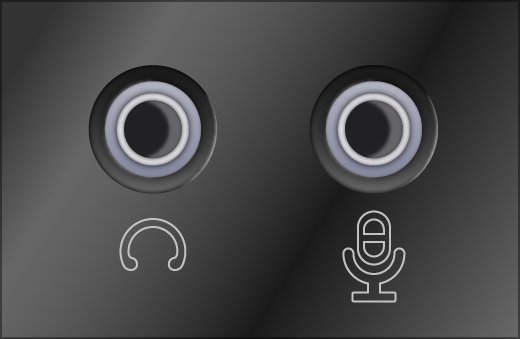
| Two 3.5 mm plugs (green and pink) | Green plug into the headphone jack, pink plug into the microphone jack | Multi-jack desktops need each plug in the correct jack |
| Bluetooth headset | Pair from Manage Bluetooth devices in quick settings | Reconnects automatically once paired; sound quality can drop while the mic is in use |
| Regular headphones without a mic | Any of the above | Output works normally; use the PC or webcam microphone for calls |
Connect a wired USB or 3.5 mm headset
- Plug the headset into a USB port, or the 3.5 mm plug into the headphone or headset jack.
- Wait a few seconds while Windows sets up the device on first connection.
- Select the Sound icon on the taskbar, then the arrow beside the volume slider.
- Select your headset in the list of audio devices.
- If the headset is missing, unplug it, close any open audio apps, and plug it in again firmly.
Some USB headsets ship companion software for equalizer or surround features. Download it only from the headset maker's own website.
Pair a Bluetooth headset with Windows 11
Each headset enters pairing mode differently, usually by holding the power or Bluetooth button. Check its manual for the exact button.
- Turn on the headset and put it in pairing mode so it is discoverable.
- Select the Network, Sound or Battery icon next to the time and date.
- Make sure the Bluetooth tile is highlighted, then select the Manage Bluetooth devices arrow on it.
- Select your headset under New devices.
- Follow any extra prompts, then select Done.
If your headset supports Swift Pair, Windows shows a notification when it is nearby in pairing mode. Select Connect on it, and select Yes the first time Windows asks to allow Swift Pair.
You can also pair from Settings > Bluetooth & devices > Add device. The same page lets you re-pair earbuds for stereo sound when audio falls back to mono.
Selecting the right output device and default headset
Windows keeps a separate default for playback and recording, and individual apps can override both, along with their own per-app volume levels.
- Select the Sound icon on the taskbar and the arrow beside the volume slider to switch output quickly.
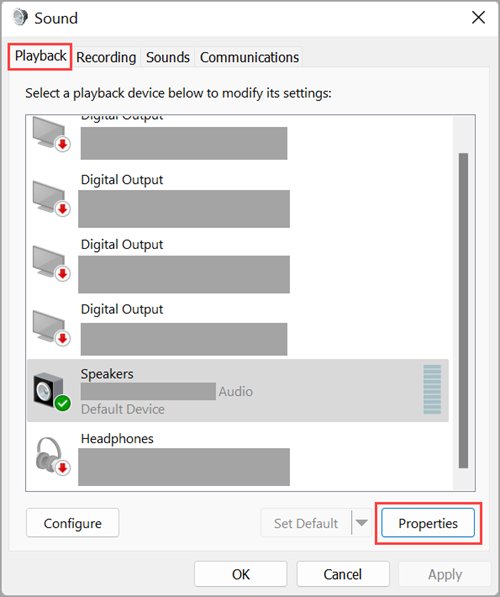
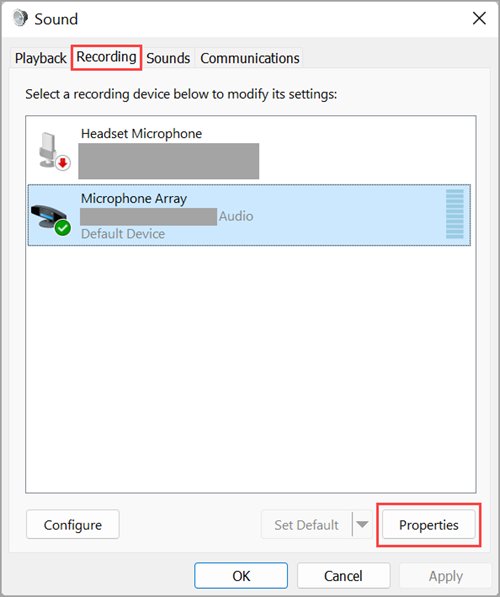
- To set the default from Control Panel, open Settings > System > Sound > More sound settings.
- On the Playback tab, right-click the headset and select Set as default.
- On the Recording tab, right-click the headset microphone and select Set as default.
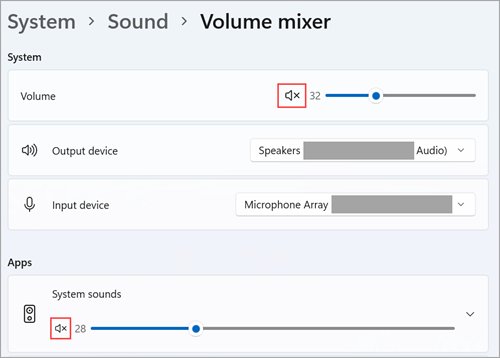
- To send one app to the headset, open Settings > System > Sound > Volume mixer.
- Under Apps, choose the headset in the app's Output device list.
Calling apps such as Teams and Zoom also have their own speaker and microphone choices in their settings. Set the headset there when the app ignores the Windows default.
Recording audio using the headset microphone
- Open Settings > System > Sound.
- Under Input, select the headset microphone, then select the arrow to its right to open its properties.
- Under Input settings, select Start test and speak normally.
- Select Stop test, then Play to hear the recording.
- Drag the Input volume slider up if your voice is quiet, or down if it clips.
- Open Sound Recorder, or any recording app, and record with the headset selected as input.
If apps cannot hear the headset, check that they are allowed to use your microphone under Privacy & security.
Headset sound settings to adjust in Windows 11
| Setting | Where it is | When to change it |
|---|---|---|
| Audio enhancements | Settings > System > Sound > your headset > Advanced settings | Turn Off if sound is distorted or missing |
| Default format | More sound settings > Playback > headset Properties > Advanced | Try another format if audio crackles |
| Mono audio | Settings > Accessibility > Audio > Mono audio | Hear both channels in one ear |
| Format when microphone is active | Settings > System > Sound > Bluetooth LE Audio headset > Output settings > Format | Choose stereo or mono for LE Audio headsets on Windows 11 24H2 or newer |
| Allow apps and Windows to use this device | Settings > System > Sound > your headset | Turn on if the headset is listed but silent |
| Microphone privacy | Settings > Privacy & security > Microphone | Turn on Microphone access and Let apps access your microphone |

How to check the headset works on Windows 11
- Open Settings > System > Sound and confirm the headset is selected under Output and Input.
- Play audio and watch the volume bar move while you hear sound in both ear cups.
- Run Start test under the headset's Input settings and play back the clip.
- Make a test call in Teams, Zoom or another calling app and confirm the other side hears you.
- For a Bluetooth headset, open Settings > Bluetooth & devices and check it shows Connected.
Why is my headphone or headset mic not working?
No sound plays through the headset
Windows is still sending audio to the speakers, or the device is muted.
- Select the Sound icon, select the arrow beside the volume slider, and pick the headset.
- Open Volume mixer and make sure neither the headset nor the app is muted.
- Turn Audio enhancements to Off for the headset.
- Open Settings > System > Troubleshoot > Other troubleshooters and select Run next to Audio.
The headset microphone is not picking up sound
Another microphone is the default input, or privacy settings block apps.
- Select the headset under Input in Settings > System > Sound.
- Open Settings > Privacy & security > Microphone and turn on Microphone access and Let apps access your microphone.
- Raise Input volume and run Start test again.
- Pick the headset microphone in the calling app's own audio settings.
Bluetooth headset is connected but there is no sound
A stale pairing, an outdated Bluetooth driver, or a headset without A2DP stereo support.
- Open Settings > Bluetooth & devices, select More options (three dots) next to the headset, and select Remove device.
- Turn Bluetooth off, wait 10 seconds, turn it on, and pair the headset again with Add device.
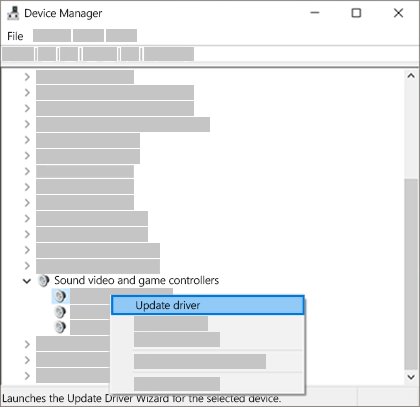
- Open Device Manager, expand Bluetooth, right-click the adapter and select Update driver.
- Check the headset maker's manual or website to confirm it supports A2DP.
Bluetooth sound turns flat or mono during calls
Classic Bluetooth switches to a lower-quality mode while the microphone is active.
- Use a USB dongle or wired connection for long calls if the headset offers one.
- On an LE Audio headset with Windows 11 24H2 or newer, open the headset under Output and set Format when microphone is active.
- Turn off Mono audio in Settings > Accessibility > Audio if you want stereo.
Laptop not detecting USB or external devices like a headset
The USB headset does not appear in Sound settings
The port, cable or driver did not load the device.
- Plug the headset into a different USB port, directly on the PC rather than a hub.
- Select Start, type Device Manager, and open it.
- Select Action > Scan for hardware changes.
- Select View > Show hidden devices, expand Sound, video and game controllers, and right-click the headset to select Enable device if it is offered.
- Restart the PC with Start > Power > Restart.
The 3.5 mm headset is not recognised
The plug is loose or in the wrong jack.
- Push the plug in fully, and use the correct jack on desktops with separate headphone and microphone ports.
- Close all audio apps, unplug the headset, and plug it in again.
- Try a different cable or adapter if the headset has a detachable one.
- Install the latest audio driver from the PC or sound card maker's support site.
The headset is listed but disabled
The device was turned off in the classic Sound panel.
- Open Settings > System > Sound > More sound settings.
- On the Playback or Recording tab, select the headset and select Properties.
- Under Device usage, select Use this device (enable) and select OK.
This device is not configured correctly (Code 1) fix for headsets
Device Manager shows This device is not configured correctly. (Code 1) when no driver is installed for the device, usually because Windows could not find its driver file.
Yellow exclamation mark with Code 1 on the headset
No driver is installed for the headset or its USB audio interface.
- Open Device Manager and expand Sound, video and game controllers.
- Right-click the headset and select Update driver, then Search automatically for drivers.
- If that fails, install the driver from the headset or PC maker's website.
- If Code 1 remains, right-click the device, select Uninstall device, unplug the headset and restart.
- Plug the headset back in so Windows installs it again.
Audio stopped working after a driver update
The new driver does not suit the device.
- Right-click the audio device in Device Manager and select Properties.
- On the Driver tab, select Roll Back Driver.
- Restart the PC and test the headset.
Headset on Windows 11 FAQ
Can you use regular headphones on PC?
Yes. Regular headphones work through the 3.5 mm jack, USB or Bluetooth just like a headset. Select them under Output in Settings > System > Sound, and use the PC or webcam microphone for calls since headphones have no mic.
Why is my headphone or mic not working on Windows 11?
Usually Windows is still using another device. Select the headset under Output and Input in Settings > System > Sound, check that nothing is muted, and turn on microphone access under Privacy & security > Microphone.
How do I make my headset the default audio device?
Select the headset under Output in Settings > System > Sound; that makes it the default. You can also right-click it on the Playback tab of More sound settings and select Set as default.
How do I test my headset microphone on Windows 11?
Open Settings > System > Sound, select the headset under Input, and open its properties. Select Start test, speak, select Stop test, then Play to hear what the microphone recorded.
Why does my Bluetooth headset sound bad during calls?
When the headset microphone is in use, many Bluetooth headsets switch to a lower-quality mono mode. LE Audio headsets on Windows 11 24H2 or newer with supported hardware can keep stereo while the mic is active.
Can I use a headset for one app and speakers for the rest?
Yes. Open Settings > System > Sound > Volume mixer, find the app under Apps, and choose the headset as its Output device. Other apps keep using the default device.
Do I need to install drivers for a headset on Windows 11?
Most USB and Bluetooth headsets work with drivers Windows installs automatically. Install the maker's software only for extra features, or when Device Manager shows an error such as Code 1.
Best way to use a headset on a Windows 11 PC
Connect the headset, select it under both Output and Input in Settings > System > Sound, and run Start test once before your first call. Most headset problems come from Windows using a different playback or recording device than the one on your head. When the headset still stays silent after you select it, the Device Manager and Bluetooth fixes above cover detection and driver faults, and a laptop that cannot detect the microphone at all needs the same driver checks.